Blue Screen of Death: The Complete 2026 Fix Guide (Every Stop Code, Every Real Fix)

Last updated July 2026 · Written by the Hardvance hardware team
A blue screen means Windows found a problem so serious that it stopped the whole computer to protect your files. It saves a note about what went wrong, then restarts. It looks frightening. In most cases, though, the cause is something you can fix at home, and its name is printed right on the screen.
We repair computers with this problem every week. In about three out of four cases the cause is a driver (a small piece of software that lets Windows control your hardware) or a bad update. The rest are caused by the memory (RAM), the storage drive, heat, or the power supply. This guide follows the same order we use in the workshop. It starts with checks that take half a minute and works up to the deeper tools. It covers Windows 10 and Windows 11, desktop PCs and laptops, any brand.
One recent change to know about: since the Windows 11 24H2 update, the crash screen is black instead of blue. Same message, same codes, new colour. Everything in this guide works for it too.
One blue screen every few months is nothing. Restart and carry on. A blue screen that keeps coming back is a sign of a real problem, and the stop code written on the screen tells you where to look. About three quarters of cases are driver problems you can fix for free. The rest are RAM, the drive, heat or power. And if the screen shows a phone number to call, it is a scam, not a real error. Never call it.
Is it really a blue screen error?
Four different problems get called “a blue screen”, and two of them have nothing to do with crashing. Spend thirty seconds here before you spend an afternoon on the wrong fix.
| What you see | What it really is | What to do |
|---|---|---|
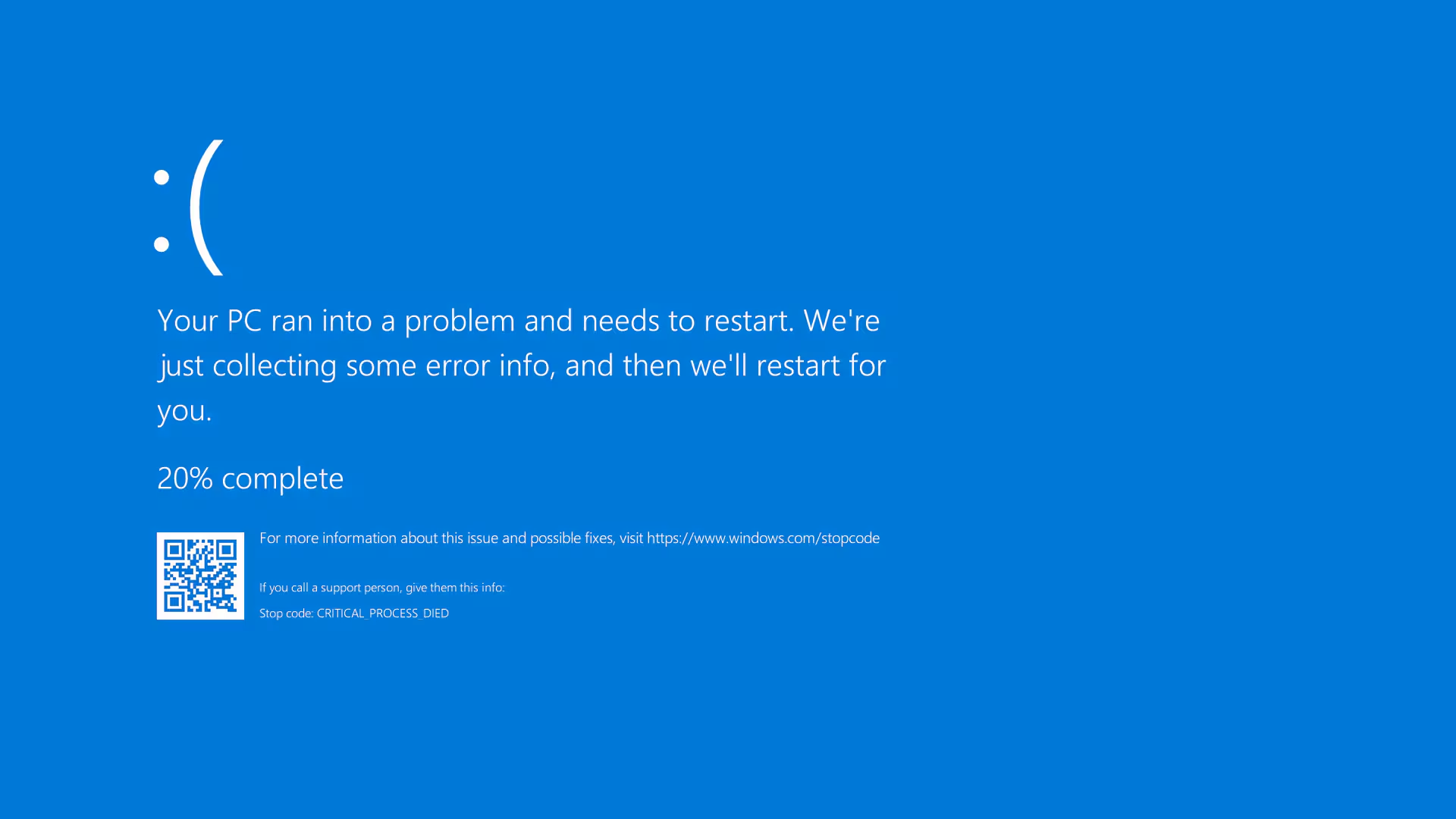
| Blue screen with a sad face, “Your device ran into a problem”, and a stop code | A real crash. This is the problem this guide fixes (on new Windows 11 the same screen is black) | Write down the stop code and keep reading |
| Solid blue, no text at all | Not a crash. The screen is getting no picture, or the wrong input is selected. A blue screen on a Sky box is exactly this | Check the cable at both ends, then press the input or source button on the screen |
| Everything works, but the whole picture looks blue | A colour setting, not a fault. Usually Night Light is stuck on, or the monitor’s picture mode changed | Go to Settings > System > Display and turn Night light off. Also check the monitor’s own menu buttons |
| Blue page with a phone number, a countdown, or a voice telling you to call “Microsoft” | A fake page in your web browser. Real Windows errors never show phone numbers | Do not call. Press Ctrl+Shift+Esc, close the browser, or restart the PC. Then run a virus scan |
If yours is the first row, a real stop screen, carry on.
Read the stop code first
The blue screen only stays for a few seconds, so take a photo of it with your phone. Look for the line that says Stop code. It shows a name like MEMORY_MANAGEMENT. Sometimes there is a second line, What failed, with a file name like nvlddmkm.sys. That file name is a big clue, because it points to the exact piece of software that crashed.
The counter with the percentage is just Windows saving its crash notes. If you can, let it reach 100% before the restart.
Missed the screen? Windows keeps a record in two places:
- Reliability Monitor. Press the Start button, type reliability, and open it. Every crash shows as a red cross on a timeline. Click a cross to see the stop code and the file that failed. This is the first thing we open on any machine that comes into the workshop.
- Crash files. Every crash also leaves a small file in the folder
C:\Windows\Minidump. Step 10 below shows you a free tool that reads these files and names the software behind the crash. - Building a new PC? The step-by-step guide that avoids these crashes
What the common stop codes mean
There are hundreds of stop codes, but the same few cover nearly every machine we see. Find yours and start with the step it points to.
| Stop code | What it usually means | Start with |
|---|---|---|
| MEMORY_MANAGEMENT | A problem in the computer’s memory (RAM). The cause can be the RAM itself, a memory speed setting called XMP, or a driver | Steps 3, then 6 |
| IRQL_NOT_LESS_OR_EQUAL / DRIVER_IRQL_NOT_LESS_OR_EQUAL | A driver did something it was not allowed to do. This is the most common blue screen. Network, sound and game anti-cheat drivers cause it most often | Steps 1 and 4 |
| PAGE_FAULT_IN_NONPAGED_AREA | Windows looked for data in memory and it was not there. Points to RAM or a driver | Steps 3, 6 |
| CRITICAL_PROCESS_DIED | An important part of Windows stopped. Usually damaged Windows files, or a drive that is starting to fail | Steps 7 and 8 |
| WHEA_UNCORRECTABLE_ERROR | The hardware itself reported a fault: the processor, the motherboard, the power supply, or an overclock. This one is never just software | Steps 1, 3, 9 |
| VIDEO_TDR_FAILURE (nvlddmkm.sys / atikmpag.sys) | The graphics driver stopped answering. The file name tells you it is the graphics card’s software | Step 4 |
| DPC_WATCHDOG_VIOLATION | A driver froze. Very often the SSD needs a firmware update (firmware is the drive’s own internal software) | Steps 7 and 4 |
| SYSTEM_SERVICE_EXCEPTION / KERNEL_SECURITY_CHECK_FAILURE | Two drivers are in conflict, often right after an update. Sometimes RAM | Steps 1, 5, 6 |
| UNMOUNTABLE_BOOT_VOLUME | Windows cannot read the drive it is installed on | Step 7 |
Worth knowingIf a crash tool blames a file called ntoskrnl.exe, do not panic and do not buy a new PC. That file is the heart of Windows itself. It usually appears in the report because the crash hit it, not because it caused the crash. The real cause is the other, non-Windows driver named next to it. And one crash proves little. Look at several crashes and see which name keeps coming back.
The fixes, in the right order
Work from the top down. The list is ordered by how often each fix turns out to be the answer, cheapest and easiest first. After each step, use the computer normally for a day before you decide it is fixed.
Think about what changed last
Blue screens almost always have a trigger. New RAM, a new graphics card, a driver you updated, a Windows update from last night, a memory setting you turned on, even a new USB device. Whatever changed last is the most likely cause. Undo that change and watch the computer for a day. This simple question fixes more blue screens than any tool below.
The five-minute physical check
Turn the PC off and unplug it. Push the RAM sticks firmly into their slots until they click. Do the same with the graphics card. Unplug every USB device you do not need for a day or two, because a faulty USB hub, headset receiver or webcam causes far more blue screens than people think. If the PC has drives connected with thin SATA cables, change the cable. Simple work, and it fixes a lot of machines.
Turn off XMP / EXPO (the memory speed setting)
Most guides skip this step, and it matters a lot. XMP (called EXPO or DOCP on some boards) is a setting that runs your RAM at its advertised speed. It is a mild form of overclocking, and when it is not fully stable you get MEMORY_MANAGEMENT crashes, and crashes that show a different code every time.
To turn it off: restart the PC and tap Delete or F2 while it starts. This opens the BIOS, the computer’s own settings screen. Find XMP, EXPO or DOCP and disable it. Then use the PC normally for a few days. If the crashes stop, this was your cause. Update the BIOS if you can (newer versions handle RAM better), then try the setting again, or leave the RAM one step slower.
Fix your drivers the right way
If the blue screen named a file like nvlddmkm.sys, the graphics driver crashed. The proper fix is a clean install: download the newest driver from NVIDIA, AMD or Intel, remove the old one with a free tool called Display Driver Uninstaller (run it in Safe Mode), then install the new one.
For other drivers (chipset, network, sound), always download from your laptop or motherboard maker’s website, for your exact model. And if the crashes began right after you updated a driver, do the opposite and put the old one back: open Device Manager, right-click the device, choose Properties, then Driver, then Roll Back Driver.
One warning: avoid programs that promise to update all your drivers automatically. We remove them from customers’ computers every week. They install wrong drivers and cause the exact problem they promise to prevent.
Windows updates, in both directions
Open Windows Update and install anything waiting. Microsoft often fixes known blue screen bugs this way. But it works the other way too. If the crashes started the same day an update arrived, remove that update: Settings > Windows Update > Update history > Uninstall updates. Then pause updates for a week to be sure the crashes have stopped.
Test the RAM properly
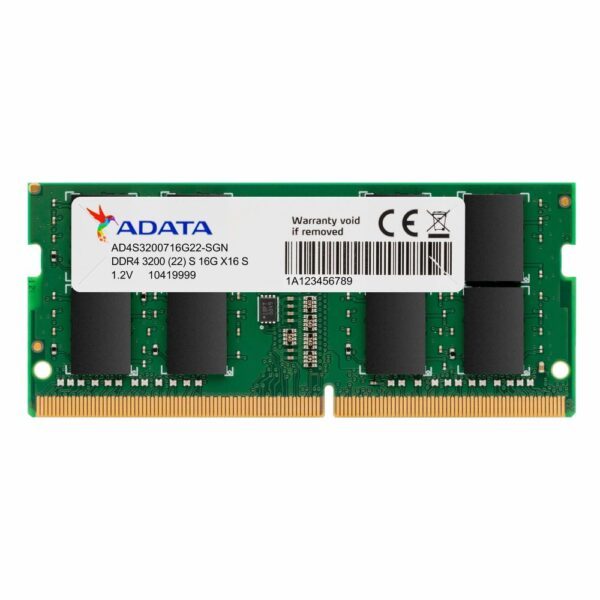
Windows has a basic memory test (press Start and type Windows Memory Diagnostic), but it misses many faults. The real test is a free tool called MemTest86. Put it on a USB stick, start the computer from that stick, and let it run overnight, at least four full passes. Any red error means the RAM failed. There is no acceptable number of errors.
If you have two RAM sticks, test them one at a time to find the bad one. And before you throw it away, test the bad stick again on its own, in a different slot, at normal speed. Sometimes the stick is fine, and the slot or the speed setting was the real problem.
Check the drive Windows is installed on
A failing drive causes CRITICAL_PROCESS_DIED, UNMOUNTABLE_BOOT_VOLUME and much more. Install the free tool CrystalDiskInfo and look at the health status. If the Windows drive shows anything other than a blue Good, copy your important files somewhere safe today.
Then update the drive’s firmware using the maker’s own tool: Samsung Magician, WD Dashboard, or Crucial Storage Executive. A firmware update is a known fix for DPC_WATCHDOG_VIOLATION. Finally, check the file system: right-click the Start button, open Terminal (Admin), type chkdsk C: /f and press Enter. It will run at the next restart.
Repair Windows itself
Damaged Windows files cause crashes that look exactly like broken hardware. Right-click Start, open Terminal (Admin), and run these three commands one after the other: sfc /scannow, then DISM /Online /Cleanup-Image /RestoreHealth, then sfc /scannow again. It takes about ten minutes, repairs many CRITICAL_PROCESS_DIED machines, and cannot break anything.
Heat and power
Does the PC only crash when it works hard, in games or while exporting video? That points to heat or power, not software. Install the free tool HWMonitor and watch the temperatures while the PC is busy. A processor above 95°C or a graphics card above 90°C is running too hot. Clean out the dust. If the machine is more than three or four years old, the cooler’s thermal paste may need replacing.
Also think about the power supply. A weak or ageing power supply gives way exactly when the graphics card asks for more power, and the result is random crashes that look like every other problem in this guide. We wrote a full guide about that pattern: why PCs crash while gaming.
Read the crash file yourself
This is where the guessing ends. Download the free tool BlueScreenView and open it. It reads the crash files in C:\Windows\Minidump and shows every crash as a row, with the file behind it marked in colour. Ignore ntoskrnl.exe on its own, and look for the non-Windows file that appears again and again.
Once you have a file name, search for it online. It always belongs to a specific program: a game’s anti-cheat, a VPN, sound software, RGB lighting software. Remove or update that program and the crashes stop. If you want more detail, Microsoft’s own WinDbg tool (free in the Microsoft Store) opens the same files: choose Open dump file, then type !analyze -v. The line Probably caused by is your answer. One crash file is a hint. Three files naming the same thing is a diagnosis.
Driver Verifier (advanced)
If the crash files give no clear answer, Windows has a hidden tool that puts every non-Microsoft driver under pressure until the faulty one shows itself. Be careful with this one. The PC runs slower while it is on, and if the bad driver loads when Windows starts, the PC can crash in a loop.
So learn the way out first: after three failed starts, Windows opens a repair menu. Choose Safe Mode, type verifier /reset in a terminal, and everything is back to normal. To start the tool: press Start, type verifier, choose Standard settings, and select all drivers that are not from Microsoft. Restart. The next crash names the faulty driver clearly. Do not leave it on for more than two days.
Restore, reset, and the final answer
If nothing has helped so far, try System Restore to take Windows back to a date before the crashes began. It keeps your files. The next step is Reset this PC (Settings > System > Recovery, choose Keep my files), or a full clean install of Windows from a USB stick.
A clean install also gives you the final answer. If Windows is freshly installed and the PC still gets blue screens, the problem is hardware. No software fix will help. Go back to steps 6, 7 and 9 and test the parts until you find the broken one.

Software or hardware? How to tell
The two kinds of problem behave differently, and you can tell them apart at home.
It is probably software when: the stop code is the same every time, the same file gets named in every crash, and it all started after one specific change. Reinstalling that driver, or Windows itself, ends it.
It is probably hardware when: the code is different every time, the crashes come at random moments, the code is WHEA_UNCORRECTABLE_ERROR, or the computer also fails outside Windows, for example errors in MemTest86 or crashes inside the BIOS. Random behaviour points to RAM, motherboard or power. Software problems repeat in the same way.
One tip from experience: when WHEA errors point at the processor, do not rush to buy a new one. After you remove any overclock, the real cause is more often a failing power supply. Processors rarely die. Power supplies fail slowly and quietly.
If you reinstall Windows completely and the blue screens continue, stop looking at software. It is hardware. Test the RAM overnight, check the drive’s health, and try a different power supply before you replace anything expensive.
Acer, Dell, HP, Lenovo: does the brand matter?
Less than you would think. Windows is the same on all of them, so an Acer blue screen and a Dell blue screen have the same causes and the same fixes. The real differences are where to download the correct drivers, and which free testing tools are built in:
- Acer. Get drivers from acer.com/support using your serial number. Gaming models (Nitro, Predator) get blue screens for two reasons above all: graphics drivers (step 4) and coolers blocked with dust after a couple of years (step 9). A Nitro 5 that only crashes in games is almost always one of those two.
- Dell. Dell machines have the best built-in hardware test. Turn the PC on while tapping F12 and run the full diagnostics. It tests the RAM and the drive without Windows, so if it passes, your problem is software. Also worth knowing: Dell docking station drivers are a known cause of blue screens.
- HP. Tap Esc, then F2, when turning on to open HP’s hardware test. The HP Support Assistant app finds the right drivers for your exact model.
- Lenovo and ThinkPad. The Lenovo Vantage app handles drivers and updates. On ThinkPads, dock and power drivers cause most blue screens.
- Older machines, Toshiba included. An old laptop that starts blue screening usually has a hard drive that is dying. Check it with CrystalDiskInfo. Replacing it with a cheap SSD usually ends the crashes, and makes the laptop much faster too.
For any laptop: unplug docks and USB-C hubs while you test, because they cause many hidden problems. Download graphics drivers from the laptop maker, not from a general installer. And yes, MemTest86 works from a USB stick on a laptop exactly as it does on a desktop.
Blue screens that are not Windows at all
A short section for readers who arrived here with a different problem.
Blue or grey lines on a MacBook screen are not a crash. Macs do not have a blue screen of death. Lines down the screen mean the display itself, or its cable, is damaged, and that needs a repair shop. If a Mac restarts and says it restarted because of a problem, that was a kernel panic. The logic is the same as on Windows: check new software first, then connected devices, then hardware.
Blue spots or patches on a phone or iPad screen mean the screen itself is damaged, usually from pressure or a knock. No setting can fix it, it normally grows with time, and the only real fix is a new screen. Save your photos and files now, before it gets worse.
A TV or set-top box showing plain blue has simply lost its signal: wrong input selected, an HDMI cable loose at one end, or the box is off. Old VHS players showed the same blue for the same reason. Nothing is broken.
If a part needs replacing
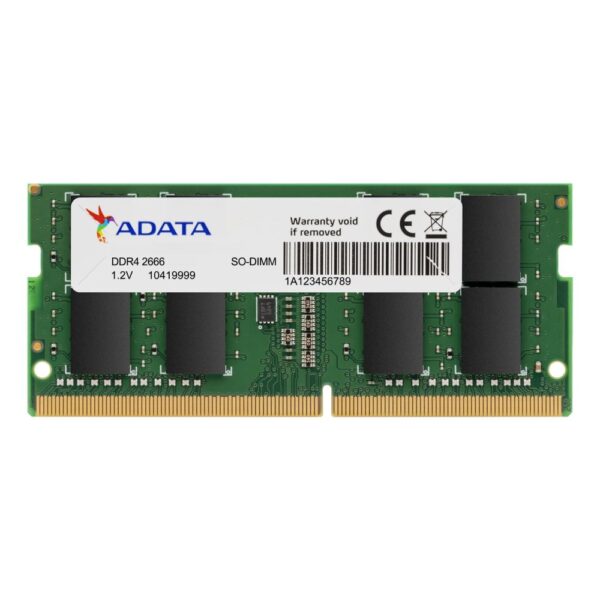
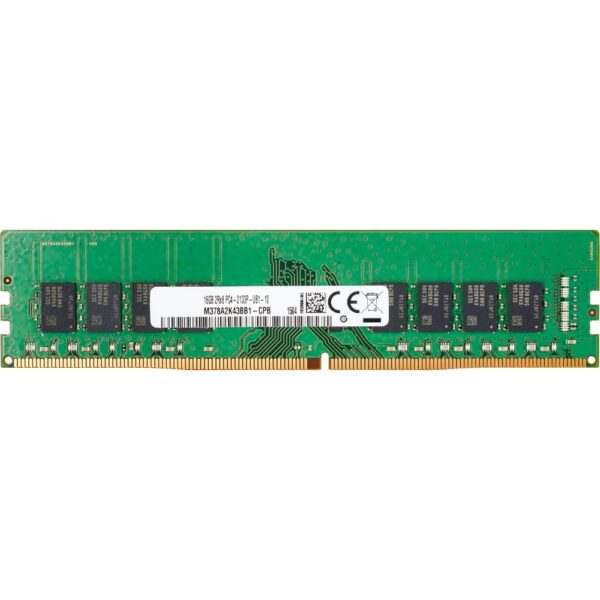
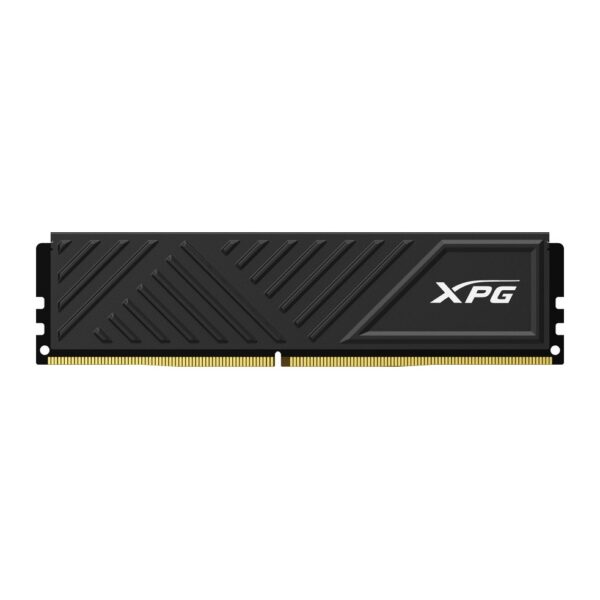
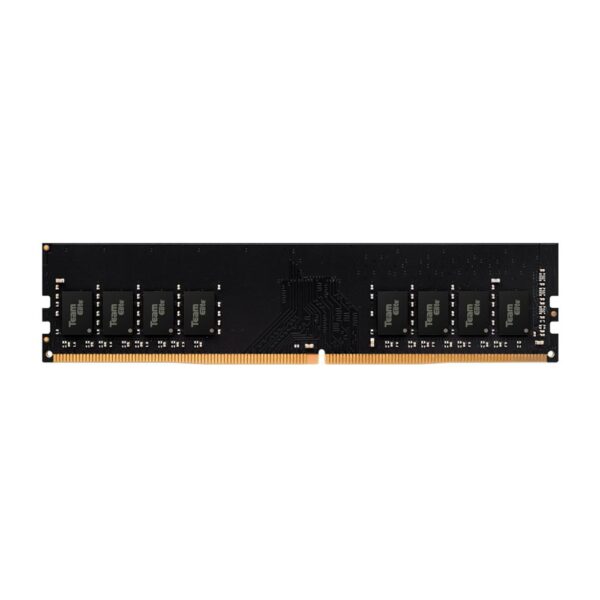
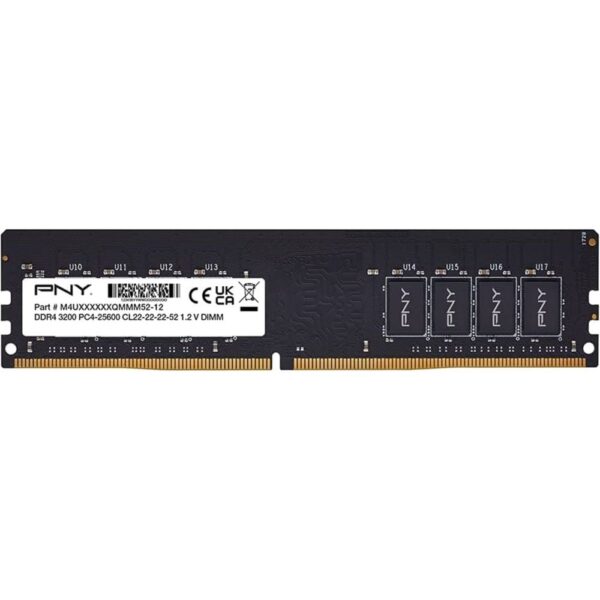
If MemTest86 shows errors at normal speed, or the drive’s health is no longer Good, or the crashes stop with a different power supply, then a part needs replacing, not a setting. Two rules we follow in the workshop: replace RAM as a complete matched kit, not one new stick mixed with old ones, and never trust a power supply that has already caused crashes, especially next to a new graphics card. Current prices below, all shipped from UK stock.
Blue screen questions we get asked
Yes, but it changed colour. Since the Windows 11 24H2 update in 2025, the crash screen is black with a simpler design. The codes and the fixes are exactly the same. Windows 11 also added a repair tool called Quick Machine Recovery that can fix some machines that refuse to start.
No. One crash now and then, especially around an update, means nothing. Restart and carry on. It becomes worth investigating when it repeats: more than once a month, check Reliability Monitor. More than once a week, work through the fix list in this guide.
No. The blue screen is a protection. Windows stops on purpose so your files do not get damaged. What can cause damage is the reason behind repeated crashes, like an overheating processor or a failing power supply. That is why a blue screen that keeps returning should be investigated, not ignored.
Not always. This code means something went wrong in memory, but the RAM sticks themselves are only one possible cause. In our experience the most common cause is the XMP memory speed setting, then drivers, and only then truly faulty RAM. Turn the speed setting off in the BIOS first. If MemTest86 still shows errors at normal speed, then yes, replace the RAM.
Press Start, type reliability and open Reliability Monitor. Every crash appears on a timeline with its stop code. For more detail, the free BlueScreenView tool reads the crash files in C:\Windows\Minidump and shows which driver was involved in each crash.
Never. Real Windows error screens never show phone numbers. What you see is a fake page inside your web browser, made to scare you into calling. Press Ctrl+Shift+Esc and close the browser, or restart the PC. Do not call, and never give anyone remote access to your computer. Then run a full virus scan. If you already paid these people, call your bank immediately.
Rarely. Viruses want your computer working, not crashing, and scammers fake blue screens much more often than they cause real ones. But badly written software that runs deep in the system, including some cracked programs, really can cause them. A full virus scan is always part of a proper check.
Then it is not a crash. A fully blank blue screen means the monitor or TV has no signal: check the cable and the input setting. A working picture with a blue colour tint is a settings problem, usually Night Light. The table at the top of this guide covers each of these cases.
About Hardvance Team
The Hardvance hardware team builds, upgrades and troubleshoots custom PCs every day. Our buying guides are practical and free of hype, drawn from hands-on experience across AMD and Intel platforms, and focused on the parts that genuinely matter for your build and your budget.
View all posts by Hardvance Team