
How to Fix a Slow Computer in 2026: The Real Causes (and the Fixes Most Guides Miss)

Person holding their head in frustration at a slow laptop

A slow computer is one of those problems that feels strangely personal, as if the machine has quietly decided to give up on you. It almost never has. In nearly every case a slow PC comes down to one of a small handful of causes, and most of them you can fix in an afternoon without spending a penny. The trick is working out which one is yours before you start changing settings at random.

This guide runs through the real reasons a Windows PC or laptop slows down, in the order that actually matters, plus a few fixes that most “speed up your computer” articles skip over completely. We have left out the filler and the placebo tricks. Where a fix involves a trade-off, we say so plainly.

Last updated: June 2026 · Hardvance hardware team

First things first: open Task Manager and find out what is maxed out before you change anything. If your PC still boots from a mechanical hard drive, swapping it for an SSD is the single change that transforms it, and nothing else comes close. After that the usual suspects are too little (or single-stick) RAM, a drive that is nearly full, dust-related overheating, and one Windows security setting that quietly taxes performance. Work through them in that order and stop as soon as the machine feels right.

Before you fix anything, find out what is actually slow

Guessing is how people waste a Saturday. Press Ctrl+Shift+Esc to open Task Manager, click More details if you only see a small window, and watch the Processes tab for a minute while the machine misbehaves. Three columns matter: CPU, Memory and Disk. Sort by each in turn and see what sits at the top.

Here is how to read what you find:

  • Disk pinned at 100%: almost always an ageing mechanical hard drive, or a single background task hammering it. This is the classic reason a PC takes two minutes to show the desktop. The fix is below, and it is an SSD.
  • Memory near 100% with the disk also busy: you have run out of RAM and Windows is shuffling data to the page file on disk, which is painfully slow. Either too little RAM, or one greedy app, usually a browser.
  • One process holding the CPU at 100%: a runaway program, a stuck Windows update, an antivirus scan, or in the worst case malware. Note the name and look it up.
  • Everything looks idle but the PC is still sluggish: think heat. A CPU throttling because it is too hot sits at low usage and low clock speed at the same time. More on that shortly.

Two minutes here tells you which of the fixes below is worth your time. Skip it and you are only trying things and hoping.

The handful of things that actually cause a slow PC

For all the noise online, the list of genuine causes is short. Match your symptom to the likely culprit, then jump to the relevant fix.

What you noticeMost likely causeFirst thing to check
Slow to boot, slow to open anything, disk light on constantlyMechanical hard drive as the boot diskTask Manager: Disk at 100%
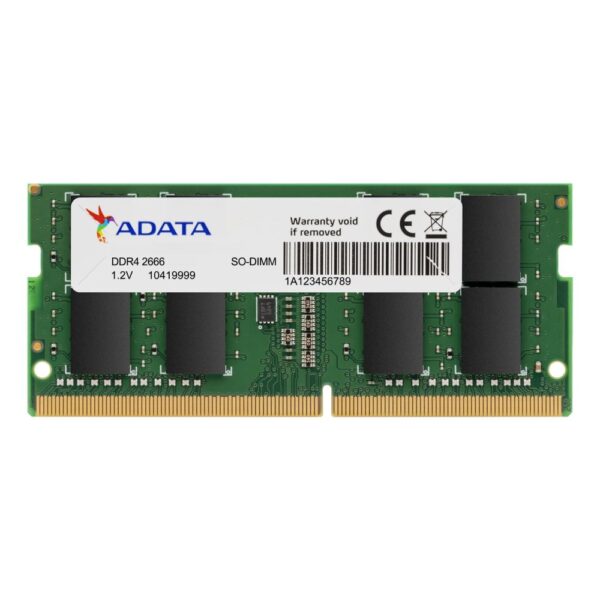
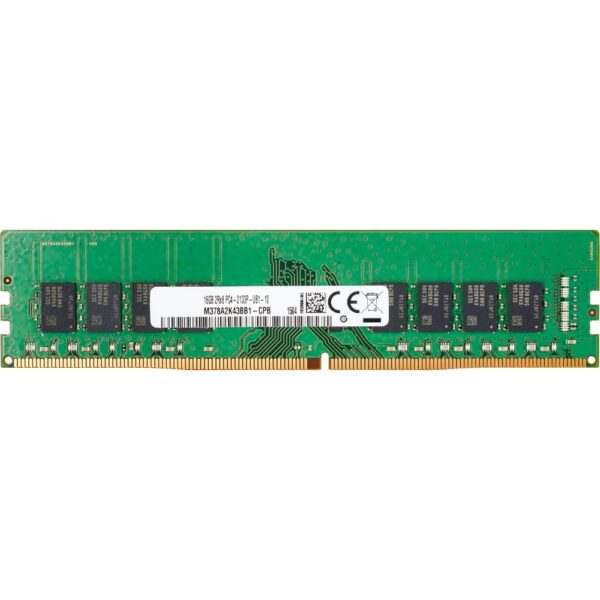
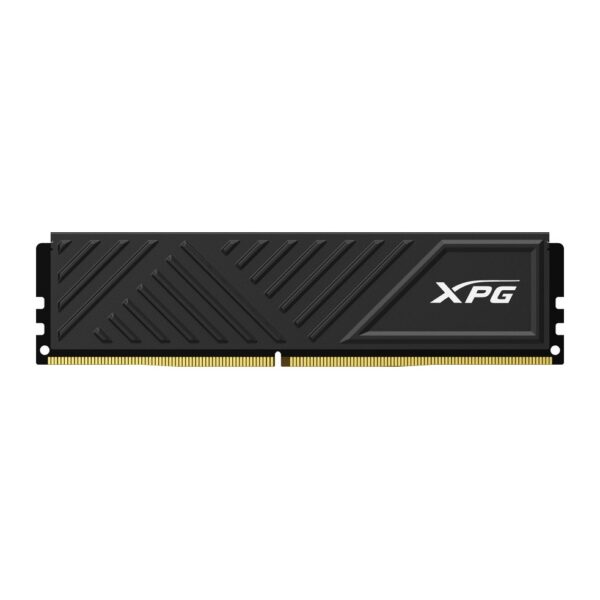
Fine until you open a few tabs, then it grindsToo little RAM, or a single stick (single channel)Task Manager: Memory; CPU-Z: Memory tab
Was fast, now random freezes and long pausesA drive that is nearly full, or starting to failFree space; CrystalDiskInfo health
Gets slow after a while, fans loud, laptop hotOverheating and thermal throttlingHWiNFO temperatures under load
Slow only in the browser, fine elsewhereToo many tabs and extensions, or acceleration offThe browser’s own task manager
Slow since a recent update or new programA background task still running, or bloatwareTask Manager: Startup and Processes

Fix 1: if you still boot from a hard drive, nothing else comes close

If you take one thing from this guide, take this. A spinning hard drive struggles to read scattered data at more than one or two megabytes a second when it is busy. A modern SSD does the same job hundreds of times faster. That gap is exactly what you feel as Windows crawling to the desktop, programs hanging on a click, and the disk light glued to on.

No amount of tweaking, cleaning or “optimising” papers over a mechanical boot drive. People spend weeks disabling services to claw back a few seconds when a thirty to fifty pound SSD would have made the machine feel new in twenty minutes. A desktop or laptop from the last decade running its original hard drive is the textbook case.

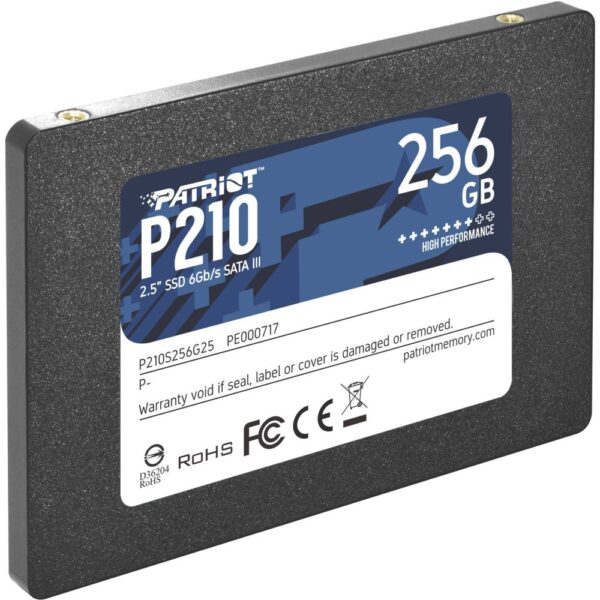
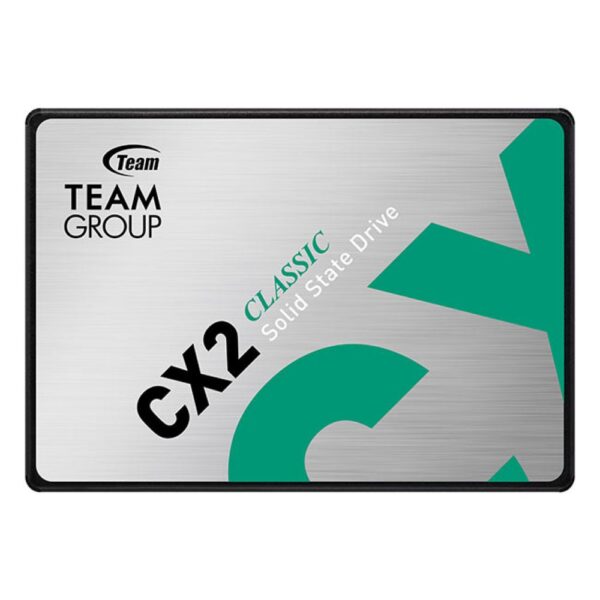
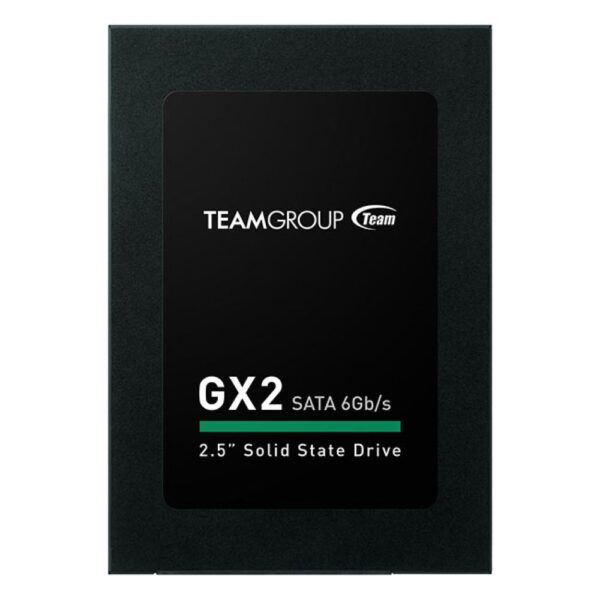
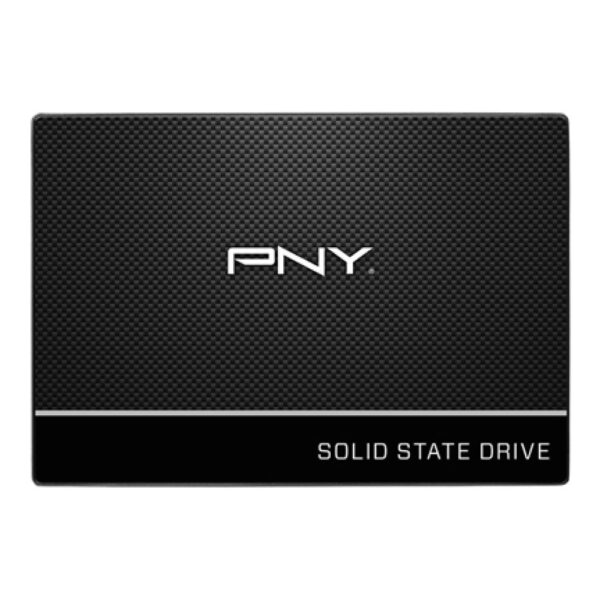
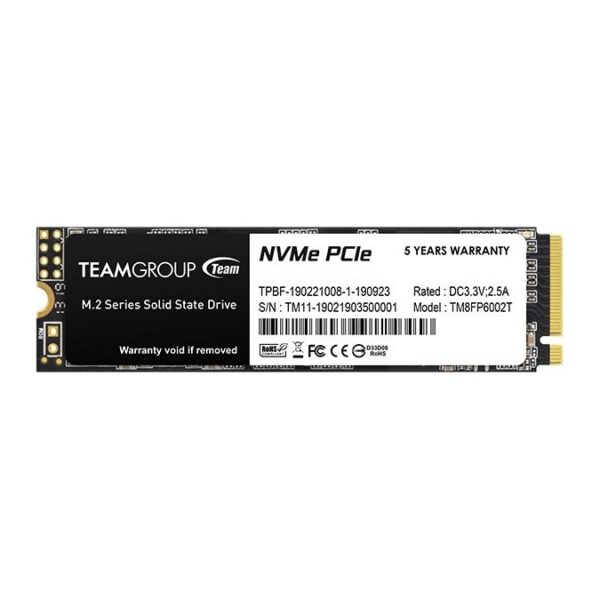
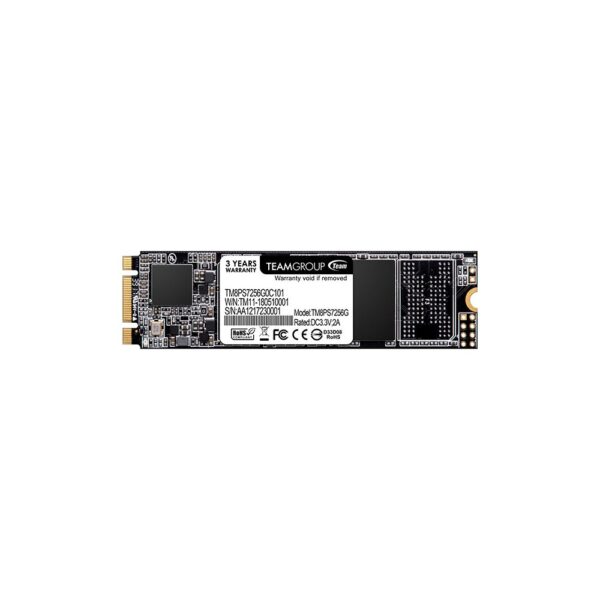
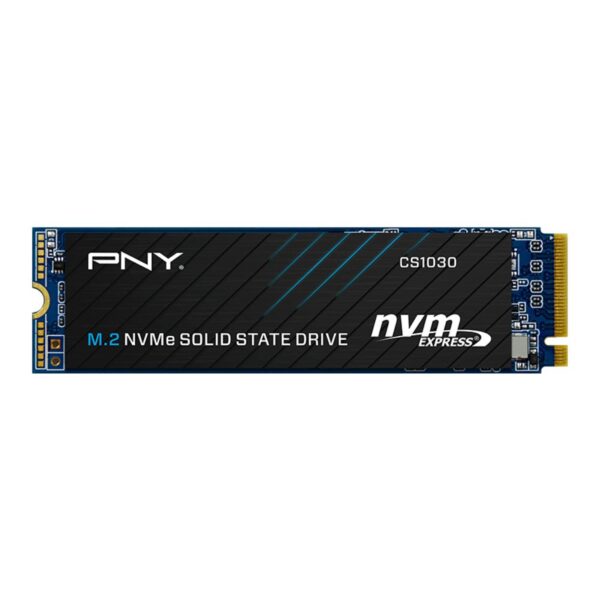
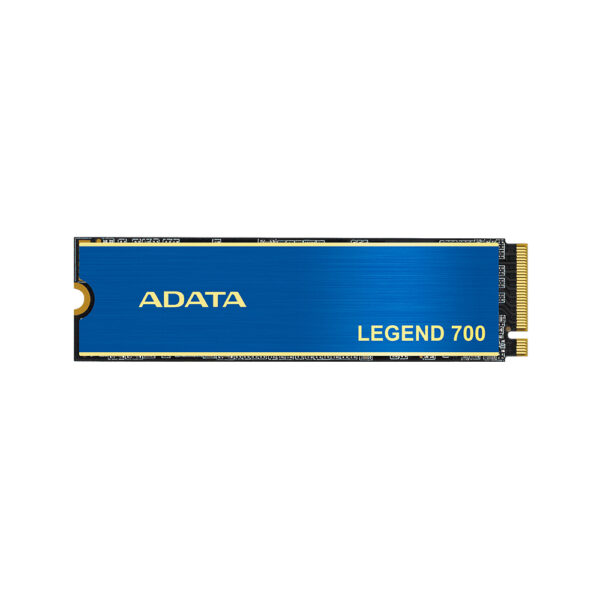
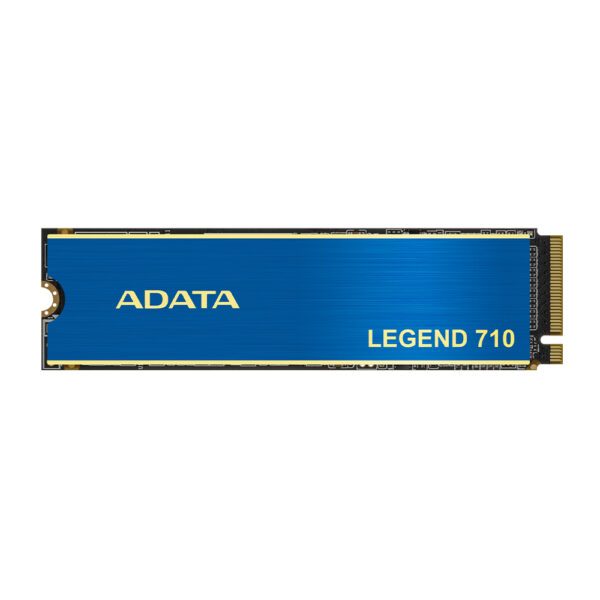
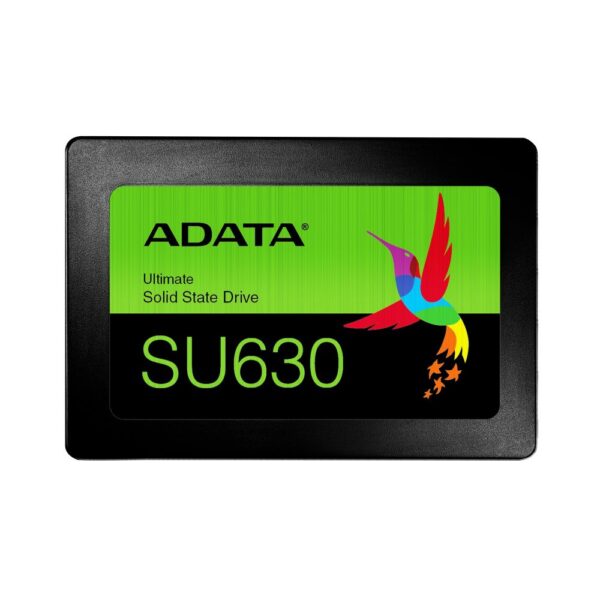
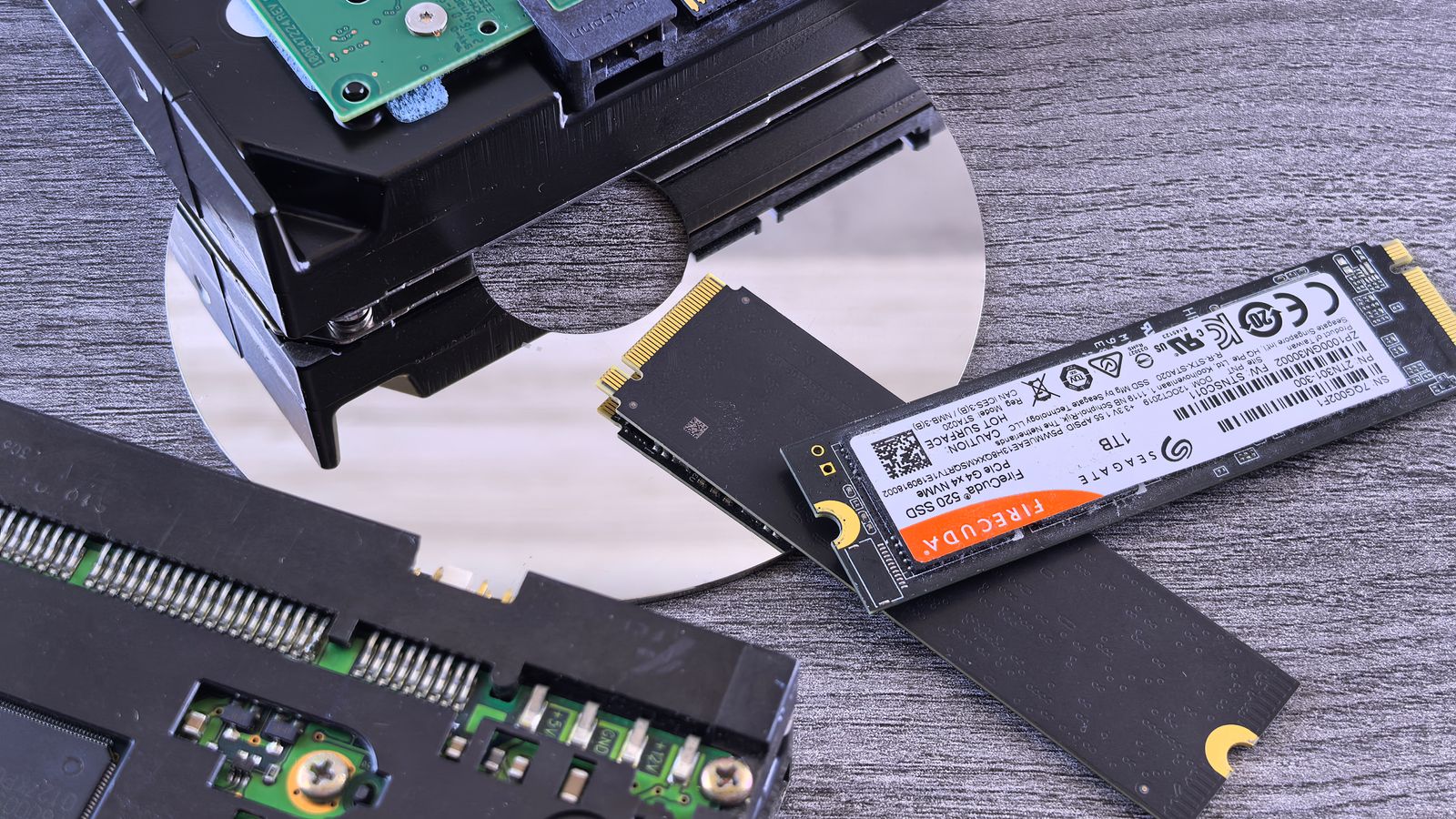
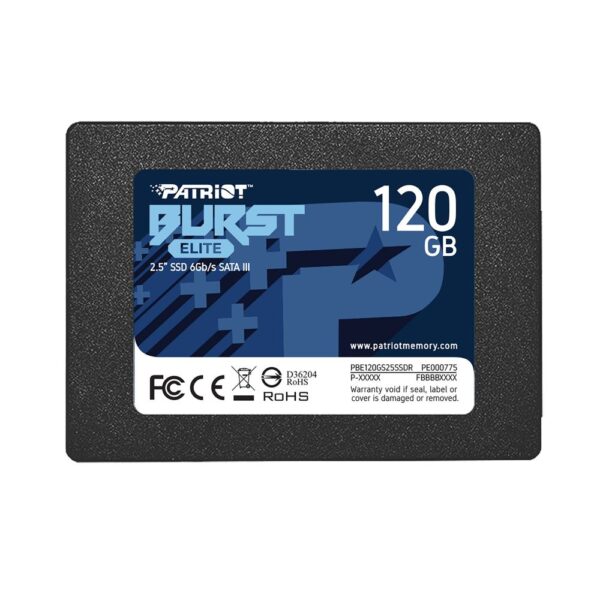
What you need depends on the machine. Almost any laptop or desktop from the past fifteen years takes a 2.5-inch SATA SSD as a straight swap for the old drive. If your desktop or a newer laptop has an M.2 slot, an NVMe SSD is faster still and fits without cables. Clone the old drive across with the free tool the SSD maker provides, or do a clean Windows install for the best result.

A fast M.2 NVMe SSD beside a slow mechanical hard drive
Left to right: an old mechanical hard drive and a modern NVMe SSD. Swapping one for the other is the biggest single speed-up for most ageing PCs.

Fix 2: your RAM might be running at half speed (and you would never know)

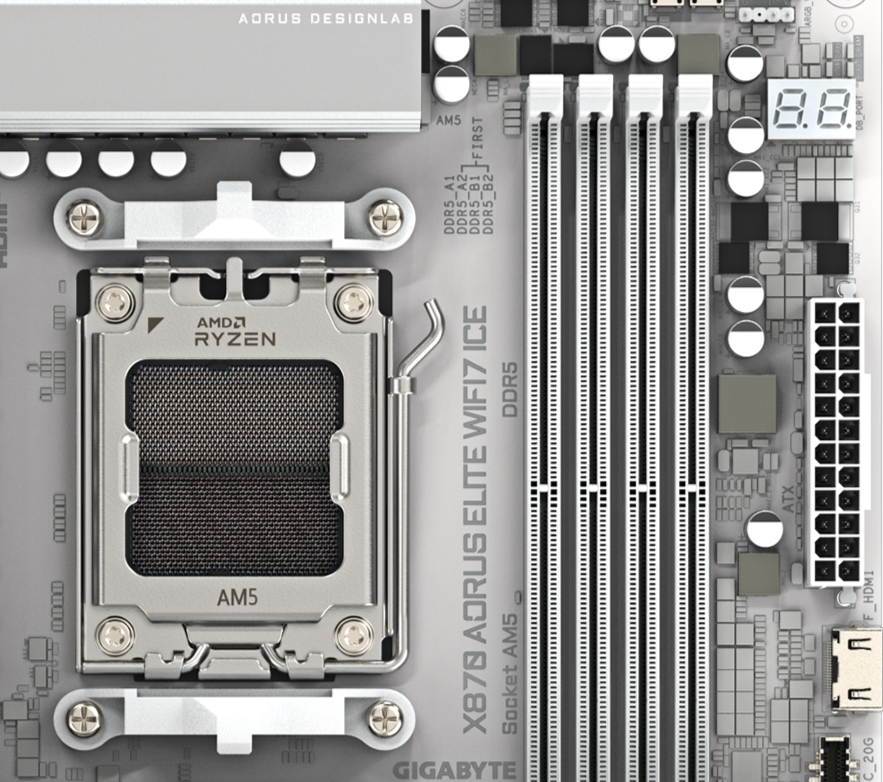
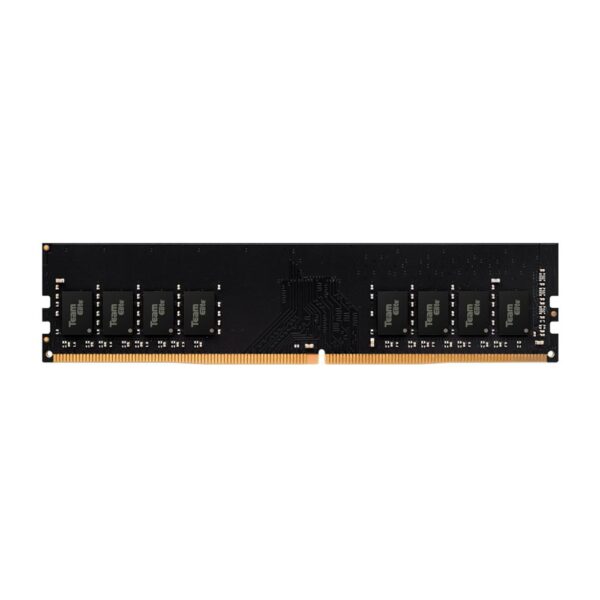
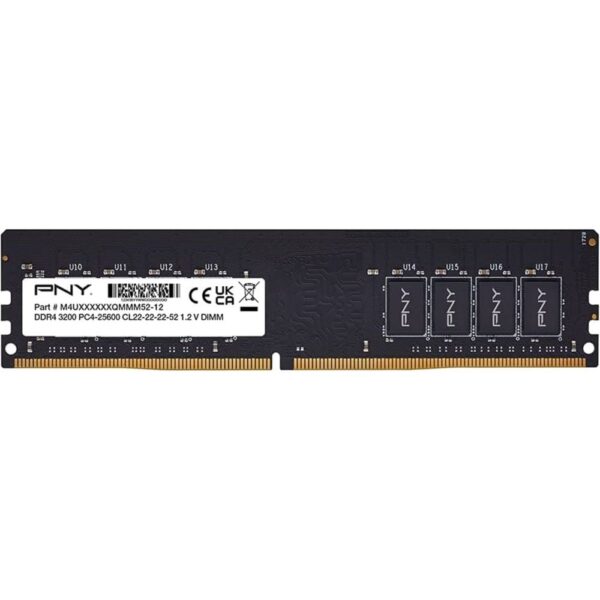
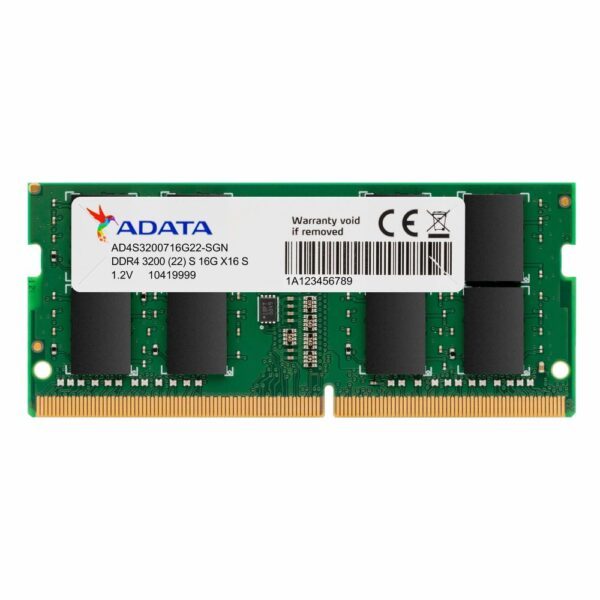
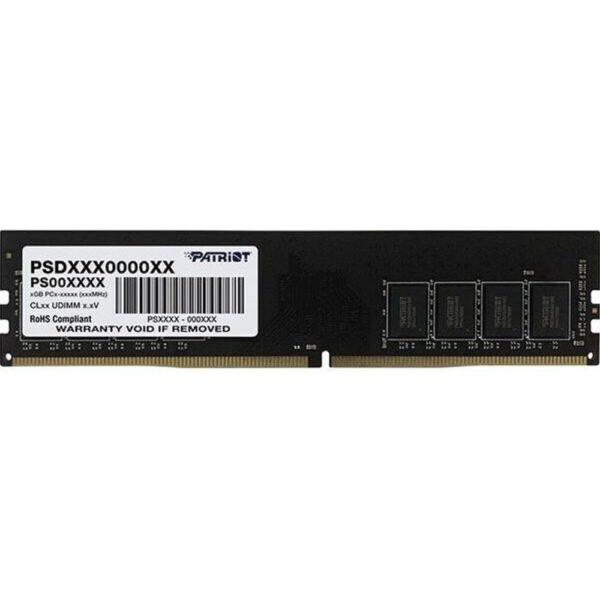
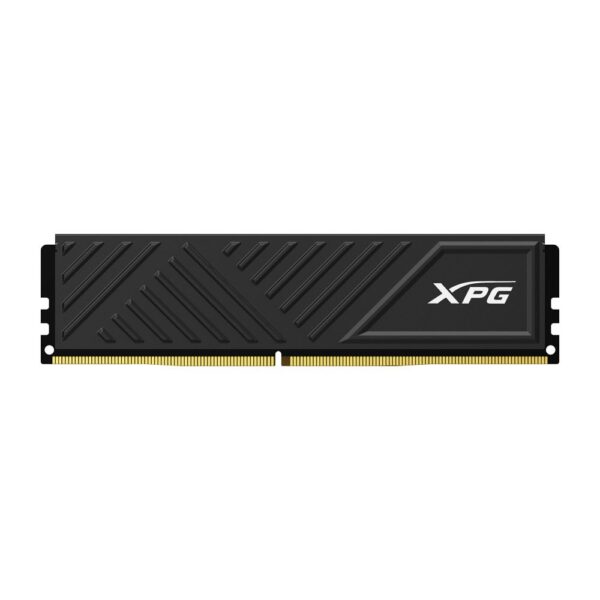
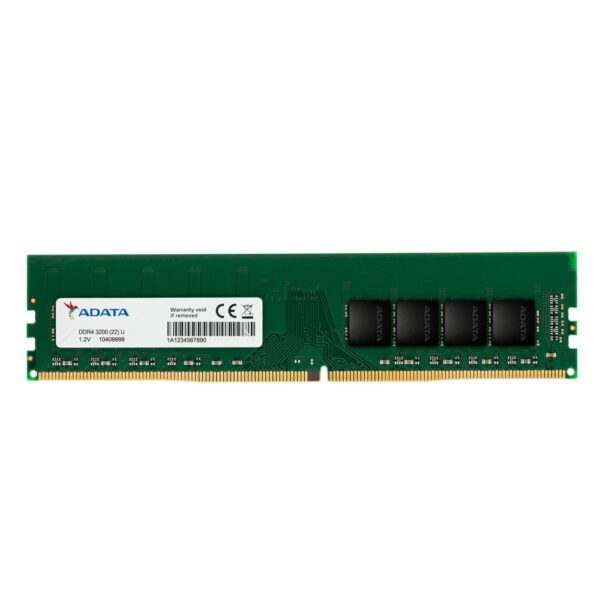
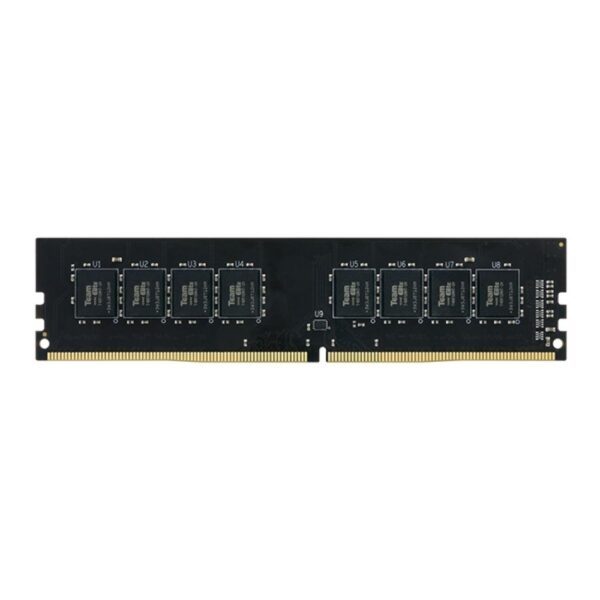
This is the one most people have never heard of. Memory runs in “channels”. With two matched sticks in the correct slots your PC runs in dual channel and gets the full memory bandwidth it was built for. With a single stick, or two sticks pushed into the wrong pair of slots, it runs in single channel at roughly half that bandwidth. Nothing warns you. The machine simply feels slower than it should, and anything graphical feels worst of all.

It bites laptops and budget desktops hardest, because so many ship with one stick to keep the price down. Where it really shows is on machines that lean on integrated graphics: moving from one stick to two can lift integrated-graphics performance by 50% or more. That is a far bigger jump than any software tweak will give you.

To check, open Task Manager, go to Performance > Memory and read “Slots used”, or install the free CPU-Z and look at the Memory tab where it says Single or Dual. If you are on one stick, adding a second matching one is a cheap and dramatic upgrade. Match the capacity and speed, and on a desktop seat them in the slots your manual marks for dual channel, usually the second and fourth from the processor.

Fix 3: a nearly full SSD writes like a hard drive

SSDs need breathing room. They keep a fast write buffer and constantly tidy data in the background to stay quick, and both jobs need free space. Fill a drive past about 90% and that headroom vanishes, write speeds drop off a cliff, and the whole system feels sticky. Aim to keep at least 10 to 15% free, and 20% if you can spare it.

While you are at it, three quick wins that cost nothing:

  • Free space the easy way. Settings > System > Storage, turn on Storage Sense and clear temporary files. Uninstalling one huge game you no longer play does more than deleting a thousand tiny files.
  • Update the firmware. Drive makers ship fixes through their own app, such as Samsung Magician, Crucial Storage Executive, WD Dashboard or Kingston SSD Manager. These can restore lost speed that no Windows setting will touch.
  • Use the proper NVMe driver. On many systems Windows installs a generic driver. The one from your SSD or motherboard maker can be noticeably quicker, especially for the small random reads that decide how fast apps open.

Fix 4: it is overheating, not “worn out”

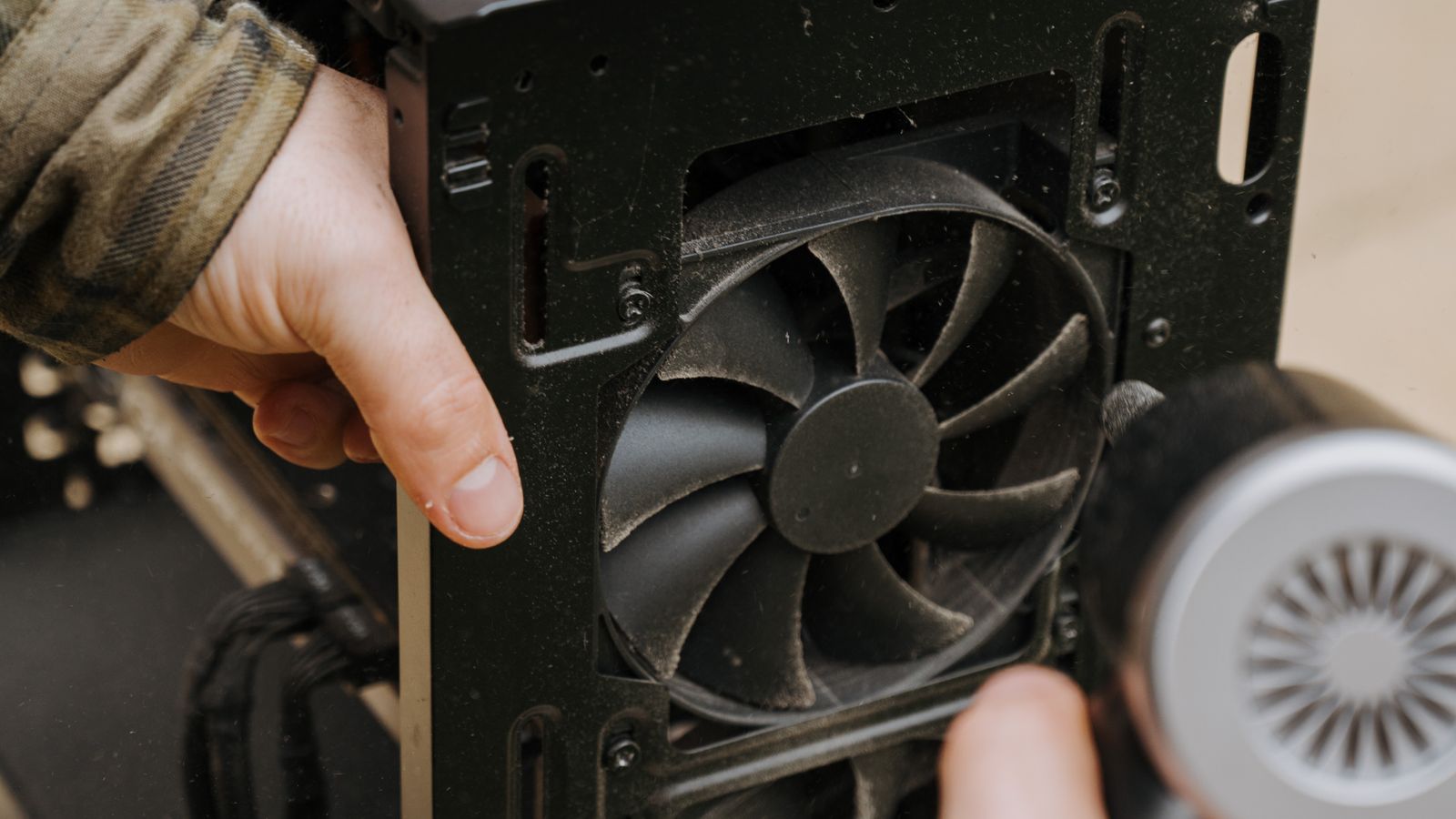
Hardware does not get slower with age the way people assume. What actually happens is that dust builds up in the fans and heatsinks, and the thermal paste between the chip and its cooler dries out. The CPU and GPU then reach their temperature limit and deliberately slow themselves down to avoid cooking, which is called thermal throttling. The tell is a machine that starts fine and then bogs down after ten or twenty minutes, with the fans roaring.

Download the free HWiNFO, run it in sensors-only mode, and watch your CPU and GPU temperatures while the PC works hard. Anything pushing past the mid-90s in Celsius and holding there is throttling. The fixes are physical, not software:

  • Clear the dust. Power down, then blow out the fans, vents and heatsink fins. On a laptop the exhaust grille clogs into a felt mat, so this one job can drop temperatures by 10 degrees or more.
  • Refresh the thermal paste. If the machine is more than three or four years old, a fresh application of thermal paste often brings a surprising drop. On a desktop a better CPU cooler helps too. Our CPU cooling guide goes deeper on this.
  • Give a laptop air. Lift the back off the desk or use a cooling pad. A laptop suffocating on a bed or a sofa will throttle within minutes.
Blowing dust out of a clogged computer case fan with an electric air duster
Dust-clogged fans and dried thermal paste are why an older machine feels slow under load. Cleaning it is often the cheapest fix of all.

Fix 5: the Windows setting that can quietly cost you 10 to 16%

Windows 11 ships with a security feature called Memory Integrity, part of Virtualisation-Based Security, switched on by default on many machines. It does a real job: it isolates part of the system to block malicious drivers. The catch is that it adds overhead, and on plenty of hardware that overhead is measurable. Independent testing has found anywhere from an 11 to 16% performance hit, and it bites hardest on older processors that emulate the feature rather than running it in hardware.

If your PC is a few generations old and feels sluggish across the board, this is worth a look. Open the Windows Security app, go to Device security > Core isolation details, and see whether Memory Integrity is on. Turning it off and rebooting can hand back a useful chunk of speed.

Be honest with yourself about the trade-off, though. This is a security feature, and switching it off lowers your protection against one class of driver attack. On a newer processor the overhead is small and we would leave it on. On a tired older machine where every percent counts, disabling it is a fair choice. Your call.

The Windows settings worth changing (and the ones that waste your time)

Plenty of “tips” online are noise. A few of them actually help:

  • Trim your startup apps. Task Manager > Startup. Disable anything that does not need to launch with Windows: chat apps, updaters, maker utilities. This is the biggest win for a slow login.
  • Set the power plan correctly. Control Panel > Power Options. “Power saver” throttles the CPU and even slows some SSDs, so choose Balanced or High performance. On a laptop, performance drops sharply on battery, so plug in for heavy work.
  • On an old hard-drive machine, calm the disk down. If you are stuck on an HDD for now, disabling the SysMain and Windows Search services in services.msc can stop the disk being pinned at 100%. On an SSD, leave them on; they do no harm there.
  • Turn off the eye candy. Search “Adjust the appearance and performance of Windows” and pick “Adjust for best performance”, or simply switch off transparency and animations. It makes an old PC feel snappier.
  • Use a proper Restart now and then. Because of Fast Startup, “Shut down” no longer fully resets Windows. If things feel off after weeks of only sleeping the laptop, choose Restart, which clears the slate properly.

Quite often it is the browser, not the computer

When someone says their PC is slow, more often than you would think the PC is fine and the browser is the problem. Thirty open tabs, a pile of extensions and a couple of heavy web apps will eat several gigabytes of memory on their own. Open the browser’s own task manager (in Chrome and Edge it is Shift+Esc) and you can see exactly which tab or extension is the glutton.

Close the tabs you have been hoarding, remove extensions you do not use, and check that hardware acceleration is switched on in settings so the graphics card does the heavy lifting instead of the processor. One rogue or outdated extension can drag a perfectly good machine to a crawl, so disable them in a batch and re-enable one at a time if the culprit is not obvious.

Powerful PC, but slow when browsing? You are not imagining it

Here is a complaint we hear constantly: a high-end machine that powers through demanding games without a stutter, yet feels oddly laggy on the Windows desktop, in File Explorer, or while browsing the web. It seems back to front, but it makes sense once you see what is going on. Gaming leans almost entirely on the graphics card and raw throughput. Everyday responsiveness depends on different things: how quickly a single processor core wakes up and reacts, fast small reads from the drive, and above all a system that is not being interrupted by background jobs. A monster PC can still feel sticky on the desktop if something is quietly getting in the way, and on Windows 11 there are a few usual offenders.

  • Windows 11 search and the Start menu. Windows mixes web results into the Start menu and search, so a simple search can pause for a moment while it reaches out to the internet. Turning off web results in search makes the Start menu feel instant again.
  • Memory Integrity, again. It barely touches a graphics-bound game, but it adds a little latency to the everyday system calls the desktop and browser rely on, so you feel it far more on the desktop than in a frame-rate benchmark. See Fix 5 above.
  • The power plan. A game holds the processor at full boost, but light browsing lets it drop into low-power states, and if it is slow to ramp back up you feel it as a fraction of a second of lag on every click. Switching to High performance keeps it awake and responsive.
  • Browser hardware acceleration switched off. Leave it off and your expensive graphics card sits idle while the processor renders web pages the slow way. Turn it back on in the browser settings.
  • Background noise. Windows Search indexing, the antimalware scan, widgets and the news feed, OneDrive syncing away in the corner. None of it bothers a fullscreen game, all of it nibbles at how snappy the desktop feels.

The reassuring part is that the machine is not faulty and you do not need new parts. Work through Fix 5 and the Windows settings section above, set the power plan to High performance, turn off web results in search, and make sure browser hardware acceleration is on. Do that and the desktop starts to feel as quick as your games already do.

What will not help (and a couple of things that make it worse)

Save your time and, in some cases, your PC:

  • Registry cleaners. Microsoft does not support them, they deliver no measurable speed-up, and they can delete entries that apps still rely on, leaving you with errors or a PC that will not boot. Skip them entirely.
  • “RAM booster” and “PC optimiser” apps. Forcing memory to empty just makes Windows reload it moments later, which is slower, not faster. Many of these tools are adware in a smart suit. Windows manages memory better on its own.
  • Defragmenting an SSD. Pointless on an SSD, and it adds needless wear. Windows already runs the right maintenance (TRIM) automatically, so leave it be.
  • Disabling the page file. A popular “tweak” that causes crashes the moment you run low on memory. Leave it on automatic.
  • Stacking antivirus programs. One real-time scanner is plenty. Two fight each other and drag the whole system down. The built-in Windows Security is fine for most people.

When it is not slowing down, it is dying

A drive on its way out announces itself as sudden, severe slowness: long freezes, files that take an age to open, the machine hanging on simple tasks. Before you blame Windows, check the drive’s health. Install the free CrystalDiskInfo and look at the status. “Good” is what you want. “Caution” or “Bad”, or climbing counts of reallocated or pending sectors, mean the drive is failing.

On a mechanical hard drive, those reallocated and pending sectors are bad sectors, and they are a big reason an old HDD feels so heavy and slow: every time the drive hits one it retries the read over and over, and the whole machine stalls while it does. A tool such as HDD Regenerator can sometimes coax a struggling drive back into working order, or at least keep it alive long enough to rescue your files, and now and then it buys an old disk a little more time. Be realistic about it, though. A drive that is growing bad sectors is wearing out, the trouble usually comes back, and no software truly repairs a physically damaged platter. Treat it as a way to recover your data, not a lasting fix. The proper cure is to move to an SSD, which has no moving parts and no sectors to go bad in the same way.

If you see that, stop optimising and start backing up. A failing drive does not recover, and it can take your files with it when it finally goes. Copy what matters to another drive or the cloud today, then replace it. One honest caveat: SMART tools only report problems the drive has already noticed, so a clean bill of health is reassuring but not a cast-iron guarantee. If a drive is behaving strangely, trust the behaviour over the reading.

What we actually see at the counter

We sell and support PC parts here in the UK, and “my computer is slow” comes through the door most weeks. We do not run a lab or quote benchmarks we did not measure ourselves, but the pattern from real machines is consistent enough to be worth sharing. The most common fix by a distance is replacing an old mechanical hard drive with an SSD; people are often surprised it is the same computer afterwards. Next comes memory: a machine on 8GB, or worse a single stick stuck in single channel, that simply needs a second matching stick. Then dust and dried paste on anything more than a few years old. Malware and bloatware are real, but rarer than the forums would have you believe. We mention all this not to sell you the dearest thing on the shelf, but because the cheap fixes are usually the right ones, and we would rather you tried those first.

The free tools we reach for

Everything here is free and trustworthy. You do not need a paid “cleaner” for any of it.

ToolWhat it tells you
Task Manager (built in)What is using your CPU, memory and disk right now, plus how many memory slots are in use
CPU-ZWhether your RAM is running single or dual channel, and at what speed
HWiNFOReal temperatures and clock speeds, to catch thermal throttling
CrystalDiskInfoDrive health from SMART data, to spot a failing disk before it takes your files
Autoruns (Microsoft Sysinternals)Everything that launches at startup, in far more detail than Task Manager

One tip worth its weight: make changes one at a time and reboot between them. If you change five things at once and the PC speeds up, you will never know which one did it, and you cannot cleanly undo the rest. Change one thing, restart, see how it feels, then move on to the next.

Slow computer: common questions

Why is my computer so slow all of a sudden?

Sudden slowness usually means something changed. The common culprits are a failing or nearly full drive, a Windows update still installing in the background, a new app that now starts with Windows, dust-related overheating, or malware. Open Task Manager first and see what is maxed out before you change anything.

Will adding more RAM fix a slow computer?

Only if RAM is your bottleneck, which you can confirm in Task Manager when memory sits near 100% during normal use. If you are still booting from a mechanical hard drive, an SSD does far more for everyday speed than extra RAM. For most people 16GB is the comfortable target today.

Is 8GB of RAM still enough in 2026?

For light browsing and office work, yes. But Windows 11 plus a browser with a dozen tabs will lean on the page file at 8GB, which feels like stutter. 16GB is the comfortable floor now, and 8GB on a single stick is the worst case because it is slow and short on capacity at once.

Does cleaning the inside of my PC actually make it faster?

It does if the machine was overheating. Dust chokes airflow, the processor and graphics card throttle themselves to stay cool, and everything slows down. Clearing the dust lets them run at full speed again. It will not help a machine that is already clean and running cool.

Should I reinstall Windows to speed it up?

A clean install is the reset button that genuinely works when years of software clutter have piled up, and it is the closest thing to a new PC, especially on top of a fresh SSD. Try the targeted fixes here first, and always back up your files before you start.

Why is my laptop slower than a desktop with similar specs?

Laptops throttle harder because they have less room to shed heat and tighter power limits, they often ship with a single RAM stick running in single channel, and some use slower storage. Plugging in to mains power, adding a second matching RAM stick, and keeping the vents clear each help close the gap.

How do I free up RAM on Windows?

Close the apps Task Manager shows at the top of the Memory column, which is usually the browser, then disable startup apps you do not need and reboot. Avoid "RAM cleaner" apps; Windows manages memory better than they do, and forcing it empty only makes things slower.

Is it worth fixing an old laptop or should I just replace it?

If it is roughly four to eight years old, an SSD, a RAM stick and a clean-and-repaste often give it years more life for under sixty pounds. Much older than that, or if the screen, battery or hinges are also failing, put the money towards a replacement instead.

Leave a Reply

Your email address will not be published. Required fields are marked *