Lenovo Laptop Screen Problems: The Complete 2026 Fix Guide (Black Screen, Flickering, Lines and More)

Close-up of Lenovo ThinkPad laptops

A Lenovo laptop screen acting up is alarming, but here is the reassuring part: the large majority of these faults are software or settings problems, and you can fix them yourself in a few minutes without any tools. An actually broken panel is the exception, not the rule.

This guide covers every common Lenovo screen problem: a black screen, flickering or flashing, lines and bars, a dim display, no picture at all, wrong colours, distorted graphics and an unresponsive touchscreen. For each one you get the real cause and a clear, step-by-step fix, starting with the quick wins and ending with the hardware repairs. It applies right across the range: IdeaPad, ThinkPad, Yoga, Legion and Flex.

Last updated: June 2026 · Hardvance hardware team

Start with this: three quick checks fix most Lenovo screen faults. First, press Win+Ctrl+Shift+B to restart the graphics driver (this alone cures many black screens). Second, do a power reset, and on a ThinkPad use the emergency pinhole reset underneath. Third, plug in an external monitor: if that picture is perfect, your graphics chip is fine and the fault is the laptop’s own panel or its cable. If flickering is your problem, jump straight to turning off Panel Self Refresh. Most people never need a screwdriver.

The three checks that fix most Lenovo screen faults

Before anything else, run these three. They take five minutes and resolve the majority of cases.

  • Restart the graphics driver: press Win+Ctrl+Shift+B. The screen blinks and you hear a beep. This forces Windows to reload the display driver and instantly clears a surprising number of black or frozen screens where the laptop is clearly still running.
  • Do a power reset. Shut down, unplug the charger and remove any USB devices, docks or second monitors. Hold the power button for 30 to 60 seconds to drain residual power, then start up. If your Lenovo has a removable battery, take it out for this. On most modern ThinkPads the battery is internal, so use the emergency reset pinhole on the underside instead: with the charger unplugged, press it with a straightened paperclip for a few seconds. It does not erase any data; it simply resets the power, which revives a laptop that will not wake or turn on.
  • Connect an external monitor or TV with HDMI or USB-C. This single test tells you almost everything. If the external screen is perfect, your graphics hardware is healthy and the problem is the laptop’s own panel or the cable feeding it. If the external screen is also wrong, the fault is in the graphics driver or the graphics chip, not the panel.

Note which of those helped, then use the matching section below.

Software or hardware? How to tell in two minutes

Knowing which side of the line you are on saves a lot of wasted effort. A few simple tests place the fault:

TestWhat it tells you
External monitor looks perfectGraphics chip is fine; the fault is the panel or its cable, or a panel-only setting
External monitor is also faultyThe fault is the graphics driver or chip, not the panel; focus on drivers
Fine in Safe Mode, bad in normal WindowsSoftware: a driver, an update or an app is the cause
Faulty even on the BIOS screen (tap Enter or F1 at the Lenovo logo)Hardware: it happens before Windows loads, so it is not a driver issue
Black, but a faint image shows with a torch held closeThe backlight has failed; the panel may be fine but needs a repair

To reach Safe Mode when you can still navigate: hold Shift and click Restart, then Troubleshoot, Advanced options, Startup Settings, Restart, and pick Safe Mode. A clean picture there means a driver or app is to blame, and the driver section is your fix.

Find your exact problem

Match what you see and jump to the right fix.

What you seeMost likely causeGo to
Nothing at all; screen black, laptop may or may not power onPower state, driver or backlightBlack screen
Picture flickers, flashes or shimmersPanel Self Refresh, refresh rate or driverFlickering
Coloured or black lines, or it glitches when you move the lidLoose or damaged display cable, or the GPULines and artefacts
Too dark, or the brightness keys do nothingAdaptive brightness, CABC or the hotkey driverDim screen
Laptop screen dead, but a plugged-in monitor worksPanel or cableScreen dead but external works
Colours look wrong, washed out or tintedColour profile, night/eye-care mode or driverWrong colours
Touch does not respond (Yoga or Flex)Touch driver, or it needs re-enablingTouchscreen

Black screen: won’t turn on, or on but black

A black screen comes in a few forms, and the fix depends on which you have.

The laptop seems on (fans, lights, keyboard backlight) but the screen is black. The display has lost its signal. Press Win+Ctrl+Shift+B first. If nothing happens, do the power reset above. Still black? Plug in an external monitor: a working external picture points to the panel or cable, while a black external screen too means a graphics fault.

The laptop will not turn on at all, or will not wake. This is usually a power state, not a broken screen. Unplug the charger and hold the power button for 60 seconds, then try again. On an internal-battery ThinkPad, use the emergency reset pinhole underneath. Charge for at least 30 minutes in case the battery is flat, then start up.

Black after sleep, or after a Windows update. Turn off Fast Startup, which causes a lot of wake-from-sleep black screens: search “Choose what the power buttons do”, click “Change settings that are currently unavailable”, and untick “Turn on fast startup”. Then update or reinstall the graphics driver (see the driver section).

Black, with a faint image under a torch. Shine a phone torch at the screen at an angle. If you can just make out the desktop, the panel is working but the backlight has failed, which is a repair. If there is nothing at all, treat it as a panel or cable fault.

One more: if the machine recently had a memory upgrade or a knock, a stick of RAM can work loose and cause a black screen on boot. Re-seating the RAM fixes it, though that means opening the base panel.

Flickering or flashing

Flicker on a Lenovo is irritating, but it is almost always a setting or a driver, not a fault. Work down this list; most people stop after the first or second step.

  • Turn off Panel Self Refresh (the big one on modern Lenovos). This power-saving feature pauses the screen’s updates on a still image, and on many Lenovo panels it shows up as a faint shimmer or flicker, worse on battery. Lenovo itself publishes this fix. Open the Intel Graphics Command Center, go to System then Power, and switch Panel Self Refresh off for both battery and plugged-in. On some models the same toggle sits in Lenovo Vantage or the BIOS. This one change cures the most common Lenovo flicker.
  • Turn off CABC. Content Adaptive Brightness Control dims and brightens the backlight to match what is on screen, which can look like a slow pulsing or flicker. In Lenovo Vantage, open Device then Display & Camera (older versions: Hardware Settings, Display) and set CABC to off.
  • Set a fixed refresh rate. Right-click the desktop, Display settings, Advanced display, and choose the panel’s full rate (for example 120Hz rather than 60Hz or “Dynamic”). A Dynamic Refresh Rate that constantly switches can itself cause flicker, so pick a fixed number. On a few ThinkPads the high refresh rate must be enabled in the BIOS first.
  • Turn off adaptive brightness. Control Panel, Power Options, Change plan settings, Change advanced power settings, expand Display, and set “Enable adaptive brightness” to Off for both states.
  • Update or roll back the graphics driver. If the flicker started after a Windows or driver update, roll the driver back. If it has been there a while, do a clean update instead. The driver section explains both.
  • Rule out an app. A few apps that draw over the screen (some monitoring tools, older f.lux, certain game overlays) cause flicker. Close them one at a time to find the culprit.
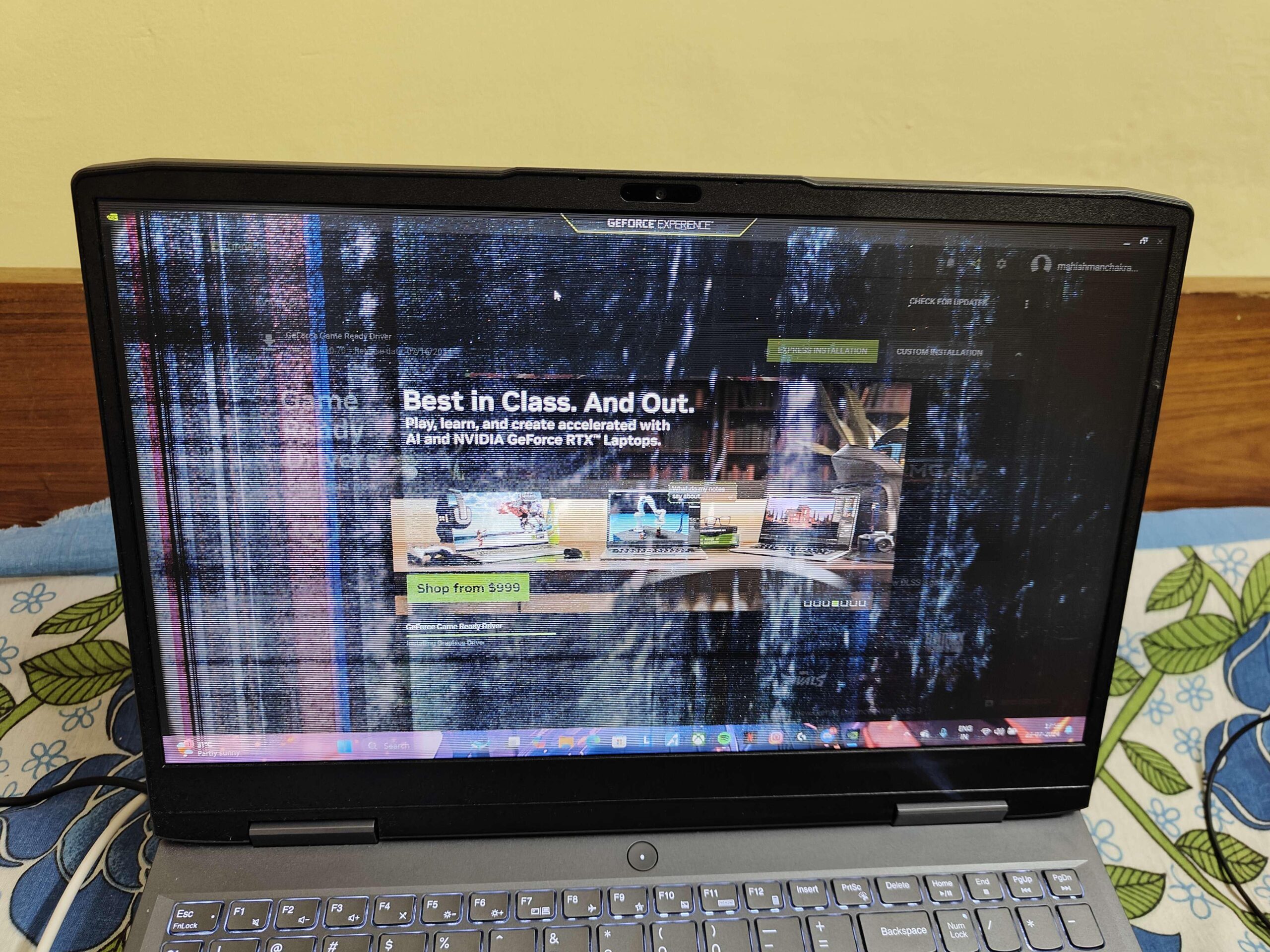
A Lenovo laptop screen showing vertical lines and flickering across the display
Flickering and vertical banding on a Lenovo screen, like this. It is almost always a driver or Panel Self Refresh issue, not a broken panel.

Lines, bars or artefacts

Coloured or black lines, blocks, or a picture that tears and glitches point in two directions, and there is an easy way to tell them apart.

If the lines change, flicker or appear when you move or gently flex the lid, the cause is the display cable. A flat ribbon cable carries the picture from the body up through the hinge to the panel, and over years of opening and closing it can work loose at its connector or fray where it bends. This is common on folding 2-in-1s like the Yoga and Flex. The cable can be re-seated or replaced, and if the laptop is in warranty it is a free Lenovo repair. Do not keep flexing the lid to find a “good angle”, as that wears it faster.

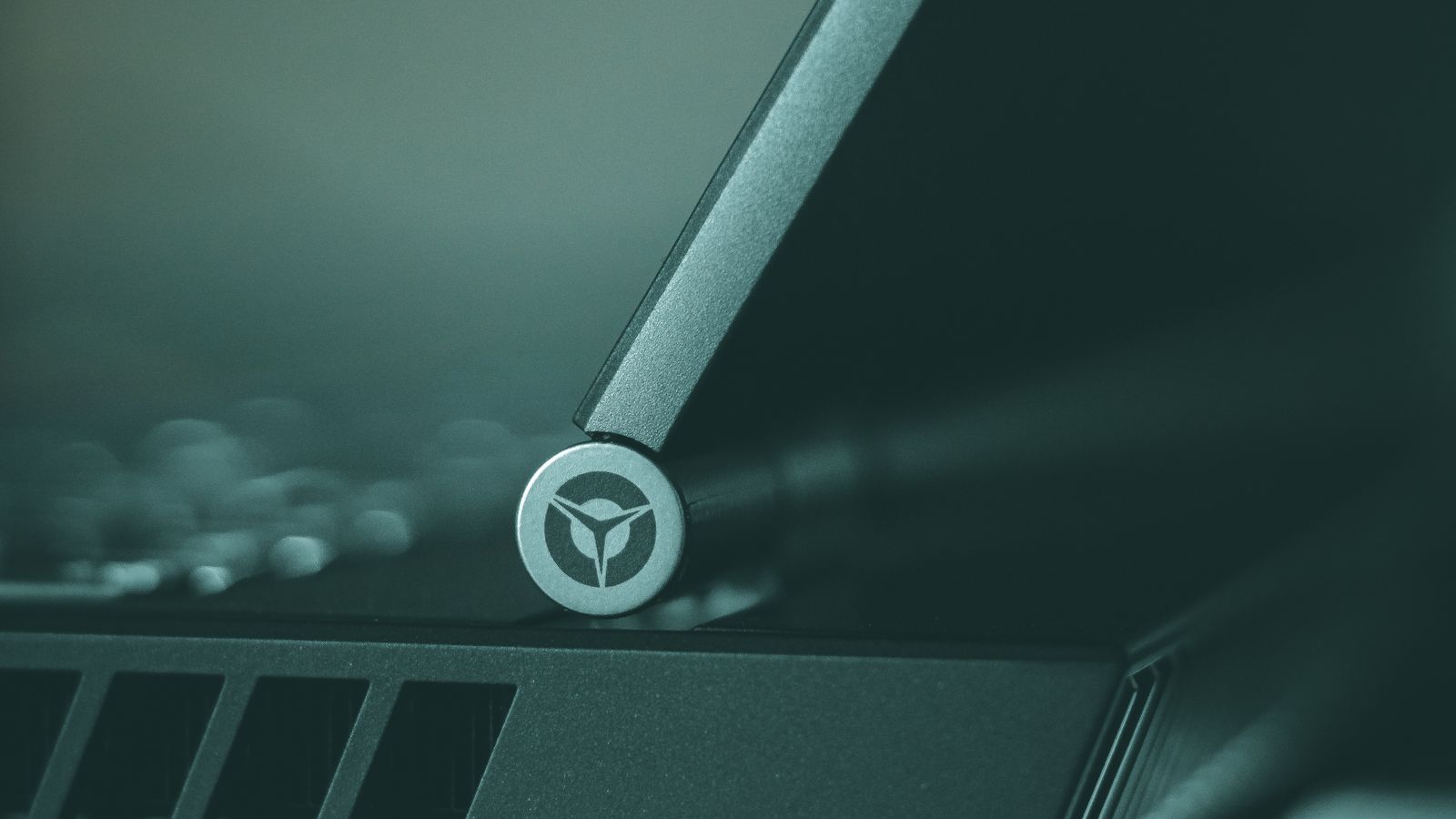
Close-up of a Lenovo Legion laptop hinge, where the display cable runs from the body to the screen
The display cable runs through the hinge. On a well-used laptop it can loosen or fray here, which causes lines and flicker that change as you move the lid.

If the lines are steady and identical on an external monitor too, the panel is not the problem; the graphics chip or its driver is. Update the graphics driver cleanly first. If artefacts only show up when gaming or under load, the graphics chip may be overheating, so make sure the laptop is not choked with dust and the vents are clear.

If those artefacts show on an external monitor too and get worse as the laptop heats up, the graphics chip itself may be failing. On machines with a dedicated GPU (many Legion gaming models, and older laptops in general), years of heat cycling can fatigue the tiny solder balls beneath the chip, so the picture breaks into coloured blocks, scrambled lines or strange colours that worsen with heat. The specialist repair for this is reballing (sometimes a reflow): a board-level technician lifts the chip off, renews the solder balls underneath and re-mounts it with proper equipment. It can bring a laptop back, but it is skilled professional work, not a DIY job, and on a chip worn by long-term overheating it is not always a permanent cure. Get a quote from a reputable board-level repair shop and weigh it against the price of a replacement.

If the artefacts also appear on the BIOS screen (before Windows loads), it is hardware. Combined with the external-monitor result, that tells you whether it is the panel, the cable or the graphics chip.

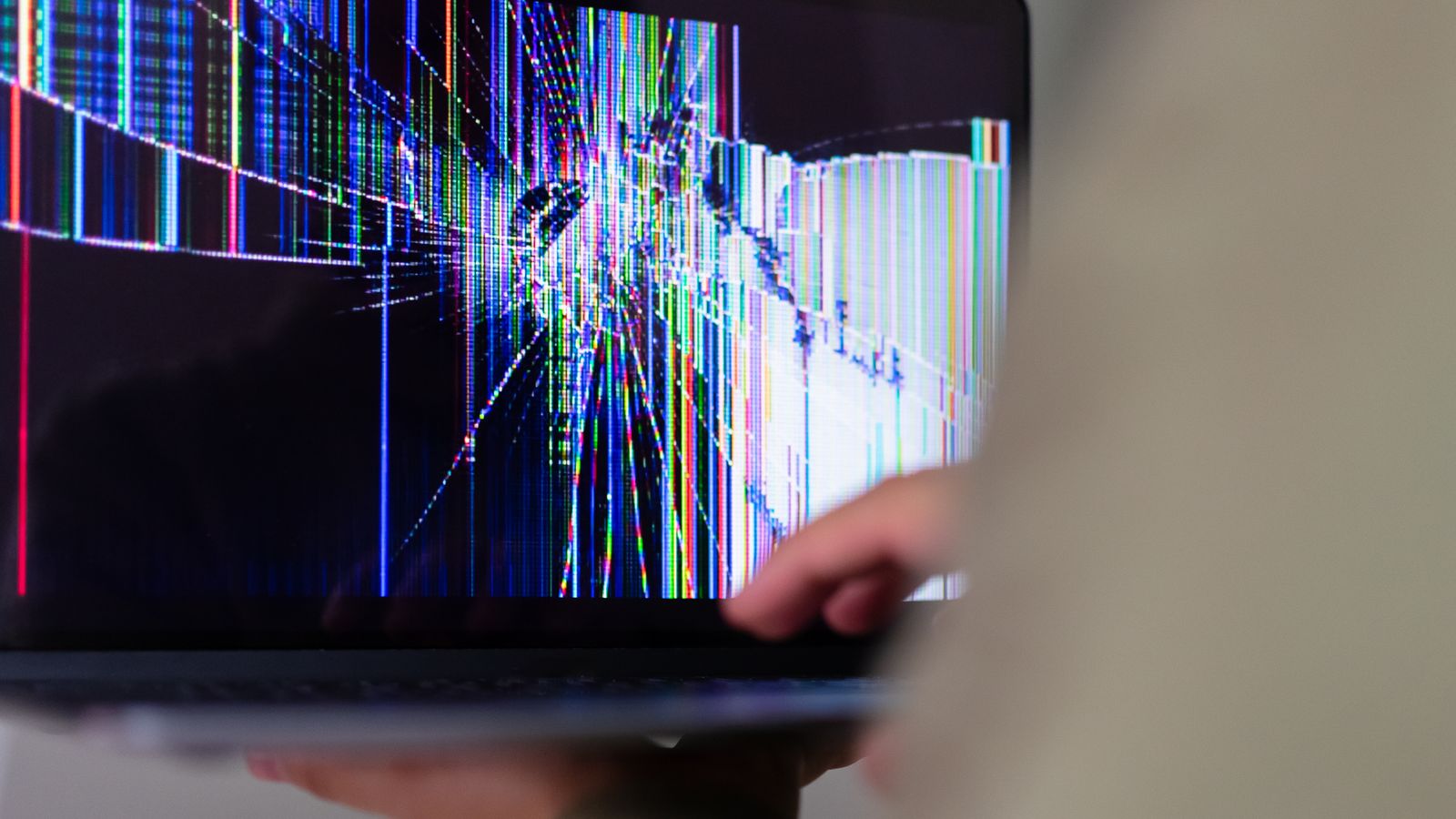
A laptop screen showing colourful glitch, scrambled lines and strange colours, a sign of display artefacts
Coloured blocks, scrambled lines and strange colours like this, especially when they appear on an external monitor too and worsen with heat, can point to a failing graphics chip rather than the panel.

Dim screen, or brightness won’t change

Two different problems hide here.

The screen is darker than it should be and will not brighten. First the obvious: make sure you are not in a battery-saver mode, which dims the screen, and that the charger is connected. Then turn off the two automatic dimmers that fight you: adaptive brightness (Power Options, advanced settings, Display) and, in Lenovo Vantage, CABC. If it is still dim, update the graphics driver. A screen that stays very dark even at full brightness, or brightens only at an angle, can be a failing backlight, which is a repair.

The brightness keys do nothing. On most Lenovos brightness is Fn+F5 and Fn+F6 (some models use other keys, and many have an Fn lock you may have toggled). If the keys are dead, the hotkey software is missing or broken. Install Lenovo Vantage from the Microsoft Store and let it fetch the latest drivers, or get the Lenovo Hotkey Features and display driver from Lenovo Support for your exact model. A brightness slider stuck at zero after an update or sleep is the same fix.

Screen dead but an external monitor works

If a plugged-in monitor gives a flawless picture while the laptop’s own screen stays black or broken, you have already done the hardest part of the diagnosis: the graphics chip and drivers are fine, so the fault is on the lid side, which is the panel or the cable that feeds it.

Tell them apart with the lid test from the lines section: if the laptop picture flickers or changes when you move the lid, it is the cable, the cheaper fix. If the laptop screen is simply dead and never responds, it is more likely the panel, or the backlight if the torch test shows a faint image. Either way the laptop is fully usable on the external monitor in the meantime, so there is no rush, and if it is in warranty, book the Lenovo repair. Both a cable and a panel are replaceable parts.

Wrong colours, washed out or a tint

If the picture has a colour cast, looks washed out, or has gone too warm or too cool, it is nearly always a setting, not the panel.

  • Night light and eye-care: Windows Night Light (Settings, Display) adds a warm orange tint on a schedule. Lenovo Vantage has its own Eye Care mode that does the same. Turn both off to rule them out.
  • Colour profile: a wrong ICC profile makes everything look off. Search “Colour management”, and on the Devices tab either remove the odd profile or untick “Use my settings for this device” to fall back to default.
  • Driver colour settings: the Intel, NVIDIA or AMD control panel has saturation and colour controls that can be knocked off-balance; reset them to default.
  • If colours are still wrong after all that, and wrong on an external monitor too, it is the driver. If they are wrong only on the laptop, steady, and not on the external, the panel is ageing.

Touchscreen not responding (Yoga and Flex)

On a Yoga, Flex or other 2-in-1, if touch stops working the picture itself is usually fine, so this is a driver problem, not a display one.

  • Re-enable the touch driver: open Device Manager, expand Human Interface Devices, find HID-compliant touch screen, right-click and Disable it, then Enable it again. If it is missing, choose “Scan for hardware changes”.
  • Update or reinstall it: right-click the same entry and Update driver, or get the touch driver from Lenovo Support for your model.
  • A power reset (above) often brings touch back after it drops out.
  • If touch never works in any account and after a driver reinstall, or only part of the screen responds, the digitiser may be faulty, which is a panel repair.

Fix Lenovo display drivers properly

Bad graphics drivers cause more Lenovo screen problems than anything else, so it is worth doing this properly rather than clicking “update” once.

  • Use Lenovo Vantage first. Install it from the Microsoft Store, open it and run the system update; it pulls the display and chipset drivers Lenovo has tested for your exact machine. This is the safest source.
  • Then the GPU maker, if you need the newest. Get the latest graphics driver straight from Intel, NVIDIA or AMD for your chip. On a laptop with two graphics chips (common on Legion), install both the integrated and the discrete driver.
  • For a stubborn driver fault, do a clean install. Download the free DDU (Display Driver Uninstaller), run it in Safe Mode to fully remove the old driver, then install the fresh one. This clears the corrupt leftovers a normal reinstall leaves behind.
  • Roll back if a recent update caused it. Device Manager, Display adapters, right-click the chip, Properties, Driver tab, Roll Back Driver. If it is greyed out, install the previous version by hand.
  • Update the BIOS too. Lenovo ships firmware fixes for display quirks; update it through Lenovo Vantage or Lenovo Support, with the charger plugged in.
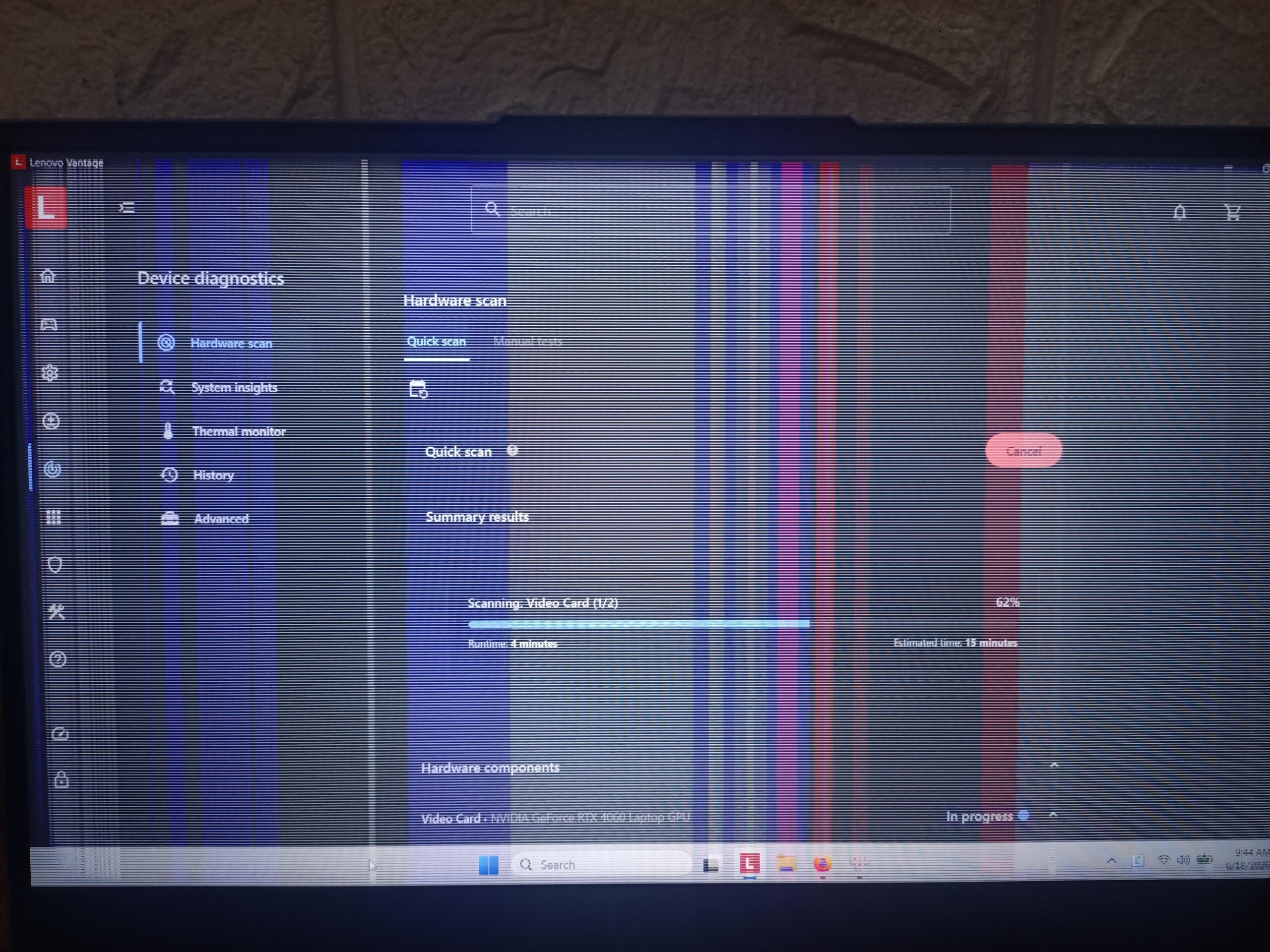
Lenovo Vantage running a hardware scan on the video card of a laptop showing screen artefacts
Lenovo Vantage can run a hardware scan and fetch the right display drivers for your exact model. Here it is testing the video card on a laptop showing artefacts.

Notes for ThinkPad, IdeaPad, Yoga and Legion

  • ThinkPad: uses the underside emergency reset pinhole for power problems, and the Panel Self Refresh flicker fix applies to many recent models such as the X1 Carbon and X1 Yoga. Some have a BIOS toggle to enable the high refresh rate.
  • IdeaPad: the everyday line; most of its screen complaints are adaptive brightness, refresh rate and driver issues, all covered above. Brightness is usually Fn+F5 and F6.
  • Yoga and Flex (2-in-1s): because they fold, the display cable at the hinge takes more stress, so cable-related flicker, lines and blackouts are more common here. They are touchscreens too, so see the touch section.
  • Legion (gaming): these have two graphics chips, so a black screen or wrong-output problem can be the chip-switching (the hybrid-graphics or MUX setting) in Lenovo Vantage or the BIOS. Keep both graphics drivers updated and check the high refresh rate is on.

When it really is the hardware

If you have run the external-monitor test, tried Safe Mode and the BIOS screen, updated the drivers cleanly, and the fault is still there only on the laptop’s own screen, then it is a hardware repair. The good news is that screens are made of replaceable parts, and you usually know which one:

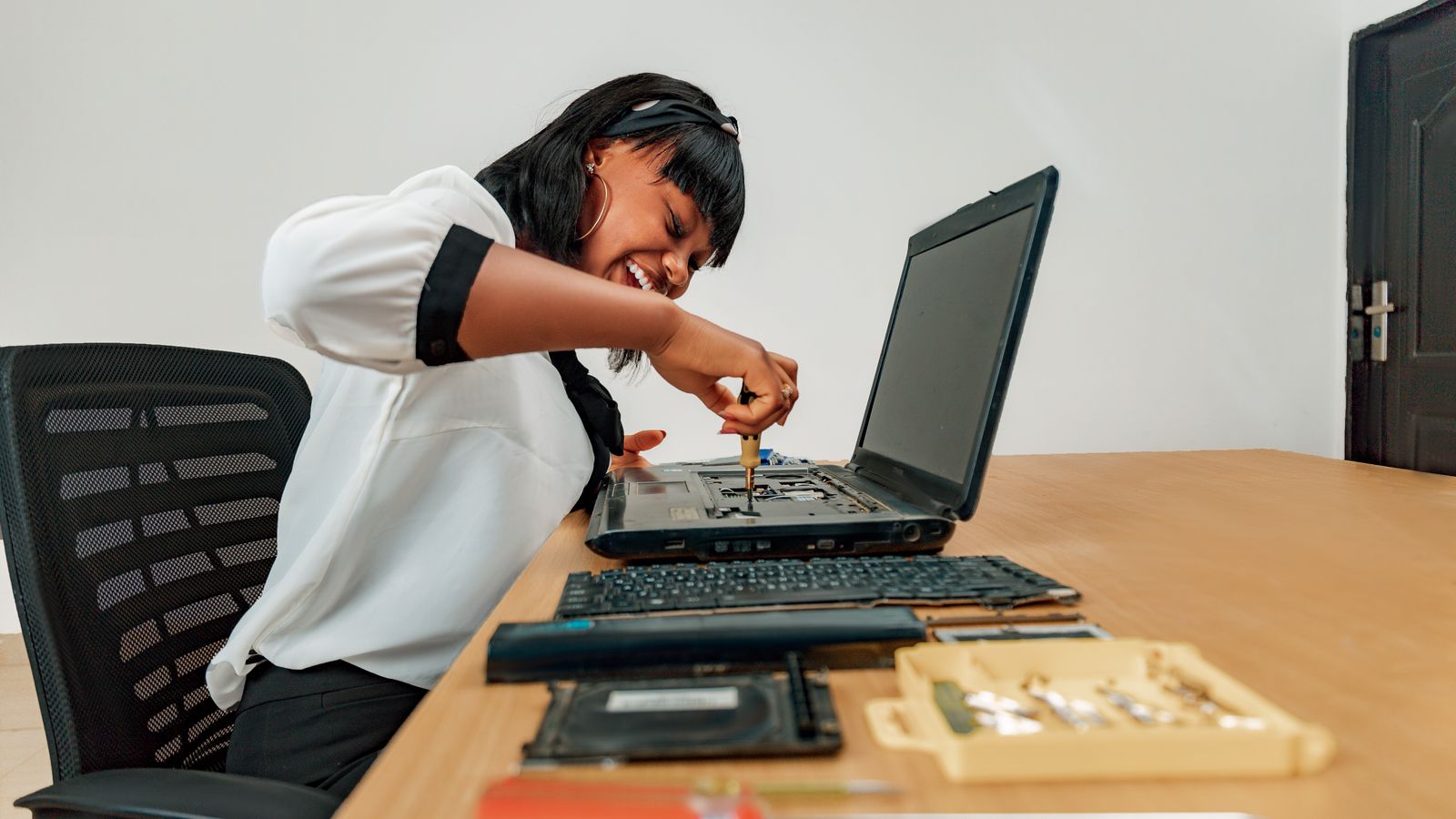
A technician opening a laptop with a screwdriver to check the internal display connection
Most Lenovo screen faults never get this far. When they do, it is usually a cable or a panel, both replaceable parts.
  • The cable if the picture reacts to moving the lid. The cheapest fix.
  • The backlight if the torch test shows a faint image. A repair, sometimes the whole panel.
  • The panel if the screen is cracked, has permanent lines or dead areas, or stays dead while an external monitor is perfect.
  • The graphics chip if an external monitor is faulty too, with artefacts that worsen as it heats up. The most serious: on most laptops the chip is soldered to the mainboard, so the specialist fix is a board-level reball (renewing the solder under the chip) rather than a simple swap, and on an old machine a replacement often makes more sense.

If the laptop is in warranty, contact Lenovo and let them fix it; opening it yourself can void the cover. Out of warranty, a cable or panel swap is sensible on a laptop worth keeping. If it is old and the graphics chip has gone, a repair rarely makes sense and the money is better put toward a replacement. We stock Lenovo laptops if you reach that point, but try everything above first, because most screens never need a part at all.

If a repair isn’t worth it

Only if a fix above has not worked and the laptop is beyond economical repair. Otherwise, keep yours; these are the current in-stock Lenovo laptops, value first.

What we see most often

We sell and support laptops here in the UK, Lenovo among them, and the pattern with screen complaints is consistent. Most of what arrives as a “broken screen” turns out to be software: a driver, a stuck setting, or flicker that vanishes the moment Panel Self Refresh is switched off. The real hardware cases are usually a display cable worn at the hinge on a well-used 2-in-1, and those are a straightforward, affordable repair. A truly dead panel or graphics chip is the rarest of the lot. We do not run a lab or quote benchmarks we did not measure, but we handle these every week, and the honest takeaway is to work through the free fixes first: the odds are firmly that you will not need a part.

Worth knowing: a Lenovo with a dead screen is not a dead laptop. Plug in any monitor or TV and it works normally, so you can keep using it, back up your files, and take your time over a repair instead of panicking.

Lenovo screen problems: common questions

Why is my Lenovo screen black but the laptop is on?

The display has lost its signal rather than the laptop being off. Press Win+Ctrl+Shift+B to restart the graphics driver, then do a power reset. Plug in an external monitor: if it works, the fault is the laptop's panel or its cable; if it is also black, the graphics driver or chip is the cause.

What does pressing Windows + Ctrl + Shift + B do?

It restarts the Windows graphics driver without a full reboot. The screen blinks and beeps. It is the fastest fix for a black or frozen Lenovo screen when the laptop is clearly still running.

My Lenovo screen started flickering after a Windows update. How do I stop it?

Turn off Panel Self Refresh in the Intel Graphics Command Center (System, then Power), and CABC in Lenovo Vantage. If it began right after an update, roll the graphics driver back in Device Manager. Setting a fixed refresh rate instead of Dynamic also helps.

How do I disable Panel Self Refresh on a Lenovo?

Open the Intel Graphics Command Center, go to System then Power, and turn Panel Self Refresh off for both battery and plugged-in. On some models the toggle is in Lenovo Vantage or the BIOS. Lenovo publishes this as the official flicker fix for several ThinkPad models.

There are coloured lines on my Lenovo screen. Is the panel broken?

Not necessarily. If the lines change when you move the lid, it is the display cable, a cheap repair. If they are identical on an external monitor, it is the graphics driver or chip. If they only appear under load, check for overheating. A cracked panel with permanent lines is the case that needs replacing.

My Lenovo brightness keys don't work. How do I fix them?

Install Lenovo Vantage from the Microsoft Store and let it update your drivers, or get the Lenovo Hotkey Features and display driver from Lenovo Support. Check you have not toggled the Fn lock. Brightness is usually Fn+F5 and Fn+F6.

Will plugging in an external monitor tell me what is wrong?

Yes, it is the single most useful test. If the external picture is perfect, your graphics hardware is fine and the fault is the laptop's panel or cable. If the external picture is also wrong, the fault is the graphics driver or chip.

How do I get into Safe Mode on a Lenovo to test the screen?

If you can see enough to navigate, hold Shift and click Restart, then choose Troubleshoot, Advanced options, Startup Settings, Restart, and pick Safe Mode. A clean picture in Safe Mode means a driver or app is the cause, not the hardware.

Is it worth repairing a Lenovo laptop screen?

Usually yes if it is a cable or a panel on a laptop you otherwise like, as both are replaceable parts, and if it is in warranty Lenovo will do it for free. If the laptop is old and the graphics chip has failed, a repair rarely makes sense and a replacement is the better spend.

Leave a Reply

Your email address will not be published. Required fields are marked *