Top: a Lenovo ThinkPad work laptop on Windows 11. Laptops set up with a Microsoft or work account usually encrypt their drive from the first sign-in. Photo: Edvard10, CC0, cropped.
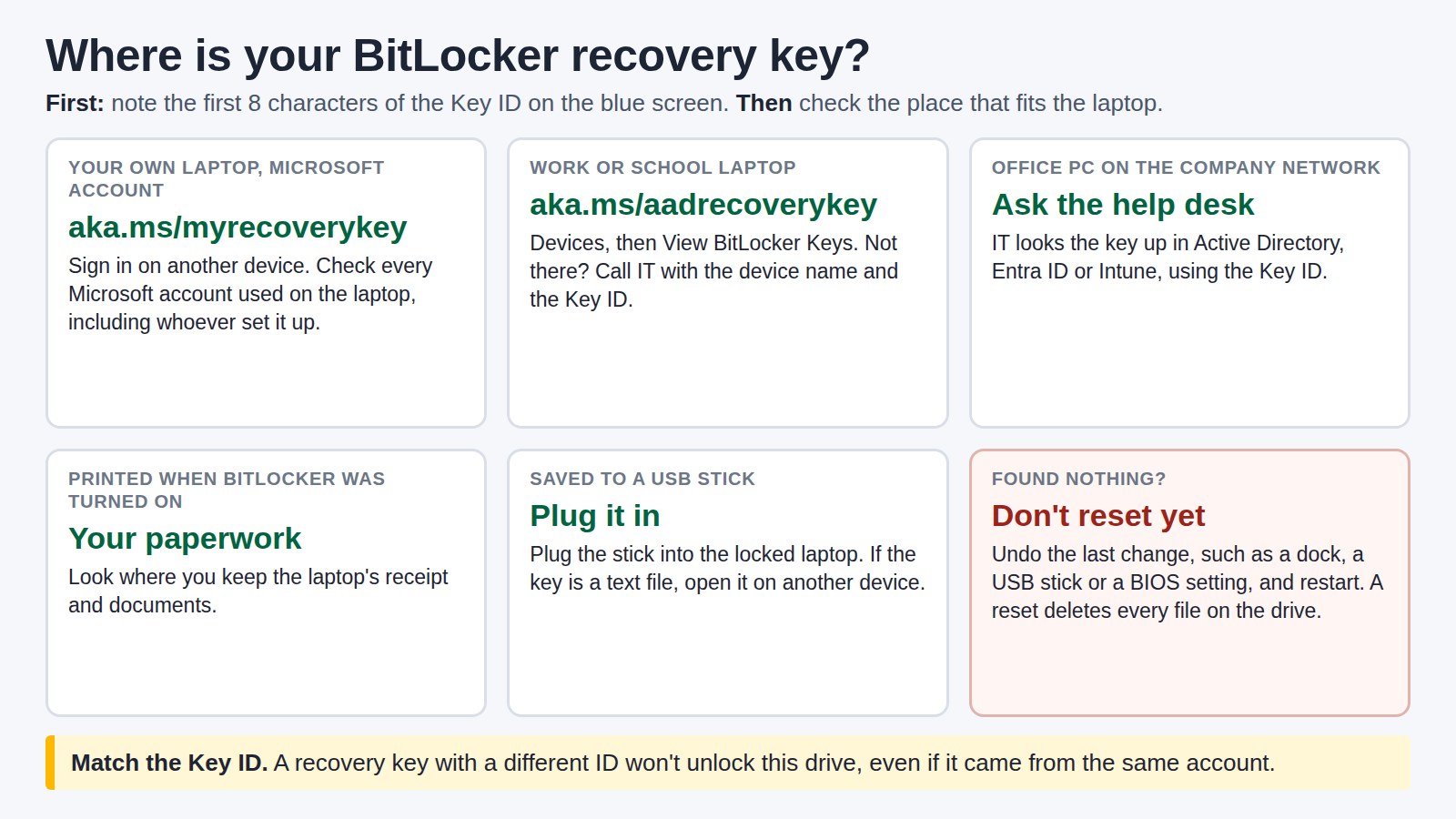
Your BitLocker recovery key is a 48-digit number saved when encryption was switched on. On your own laptop, open aka.ms/myrecoverykey on another device and sign in with your Microsoft account. On a work or school laptop, try aka.ms/aadrecoverykey, or call your IT team. Pick the key whose ID matches the Key ID on the screen. Don’t reset the laptop yet: without the key, a reset deletes every file on the drive.
Start from your situation:
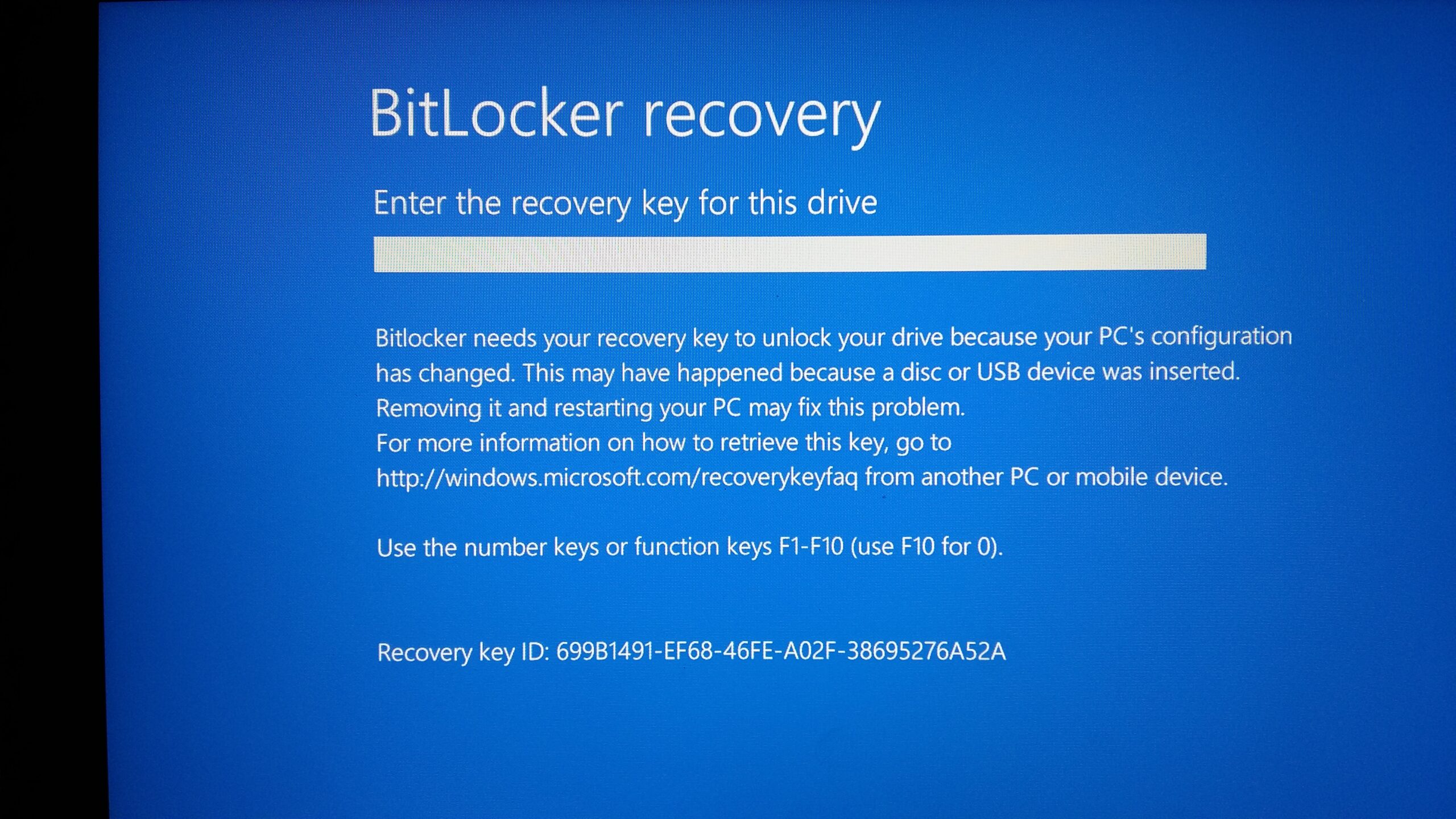
First, note the Key ID on the blue screen. You only need its first 8 characters. It tells you which key to use if you find more than one. On Windows 11 version 24H2 and later, the screen also hints at the Microsoft account the key was saved to.
Then check these places, in this order:
A key only unlocks the drive whose ID it matches. If you type a key from the right account but the wrong laptop or an older drive, it fails. The recovery screen also checks each block of 6 digits as you type, so a typo shows up straight away rather than after all 48.
On a company laptop, the key is usually saved to your company’s Microsoft Entra ID or Active Directory, not to your own account. The aka.ms/aadrecoverykey link above may show it. Your company can switch that option off. If the key isn’t there, call the help desk and give them two things:
Tell them what happened just before, such as an update or a new dock, so they can stop it on other laptops too.
Each time the laptop starts, BitLocker checks that the start-up hasn’t changed since it last unlocked the drive. If something has, it won’t unlock the drive by itself and asks for the key. That stops someone taking the drive out or changing the start-up to get at your files.
| What changed | What to do |
|---|---|
| A BIOS or UEFI firmware update | Enter the key once. Next time, suspend BitLocker first. How |
| It started on a dock, or with a USB stick or drive plugged in | Unplug it and restart. On a dock, keep the laptop’s own drive first in the boot order, docked and undocked. |
| Secure Boot was switched off or changed in the BIOS | Switch Secure Boot back on and restart. |
| The TPM security chip was cleared or switched off, or the motherboard was replaced | You need the key. Then suspend and resume BitLocker. |
| Too many wrong PINs or Windows sign-in attempts | You need the key. |
| The drive was moved to another computer | You need the key to unlock it there. |
On Windows 11 version 24H2 and later, press Alt on the recovery screen to see the error and its code.
If the screen comes back after you’ve entered the key, BitLocker is still comparing against the old start-up. Enter the key, get into Windows, then:
If Windows won’t start even after the correct key, select Skip this drive on the recovery screen, then Troubleshoot > Advanced options > Command Prompt. Run manage-bde -status first. The Windows drive often has a different letter here, so note the letter of the locked drive and use it in place of C: below. Then run these two commands, putting your 48-digit key in the first:
manage-bde -unlock C: -rp your-48-digit-keymanage-bde -protectors -disable C:
Close the window and restart. Once Windows is up, open Command Prompt as administrator and run manage-bde -protectors -enable C: to switch protection back on.
Key rejected? Check the Key ID matches, and that the key came from the account linked to this laptop. A key with a different ID won’t work, however carefully you type it.
Windows updates from Microsoft don’t need you to do anything. Firmware is different. Microsoft lists BIOS and UEFI firmware updates installed outside Windows Update, and some TPM firmware updates, among those that may need BitLocker suspended first.
To suspend BitLocker for a firmware update, open Control Panel > BitLocker Drive Encryption and select Suspend protection. It resumes after one restart. Firmware updates often restart more than once, so for those, open PowerShell as administrator and run Suspend-BitLocker -MountPoint "C:" -RebootCount 0. When the update has finished, run Resume-BitLocker -MountPoint "C:".
Where to look up a user’s key:
Then stop it happening across the fleet:
manage-bde -protectors -get C: to see the recovery password’s ID. Then manage-bde -protectors -adbackup C: -id {ID} sends it to AD, and -aadbackup in its place sends it to Entra ID.-RebootCount, or use the maker’s tool. Afterwards, check that each drive shows On again, not Suspended, because a suspended drive isn’t protected.There is no way round BitLocker without the key. Microsoft Support can’t find, give or recreate a lost key, and “Skip this drive” only opens the recovery options. If nothing works, the last step is to wipe the laptop with one of the Windows recovery options. Reset this PC may ask for the key too. If it does, reinstall Windows from installation media on a USB stick. How to factory reset a laptop covers both routes. You get a working laptop back, but every file on that drive is deleted.
First, check the BitLocker status. Control Panel > BitLocker Drive Encryption shows each drive as On, Off or Suspended. Or run manage-bde -status in Command Prompt.
manage-bde -off C:. On Windows 11 Home, go to Settings > Privacy & security > Device encryption and use the switch.Don’t turn BitLocker off to fix a recovery prompt. Microsoft’s guidance is to decrypt only when you no longer need the protection. Suspend and resume fixes the prompt and keeps a lost laptop’s files safe. On a work laptop, ask IT first, because company policy may switch it straight back on.
BitLocker encrypts your drive, so anyone who takes the laptop or its drive can’t read your files. A security chip in the laptop, the TPM, unlocks it automatically at each start, as long as nothing has changed. The recovery key is the backup way in when the chip won’t unlock it.
Many people never switched it on themselves. Windows turns on device encryption, a simpler form of BitLocker, when you first sign in with a Microsoft, work or school account. It saves the key to that account. With a local account, it doesn’t switch on automatically. The full BitLocker Drive Encryption tools come with Windows Pro, Enterprise and Education.
Usually in the Microsoft account used on the laptop, at aka.ms/myrecoverykey. On a work or school laptop, try aka.ms/aadrecoverykey or ask IT, and pick the key whose ID matches the screen.
Something in the start-up changed, most often a BIOS update, a dock or USB drive plugged in at start-up, or Secure Boot switched off. Undo the change and restart, or enter the key and then suspend and resume BitLocker.
Only by wiping it: reset it, or reinstall Windows from a USB stick if the reset asks for the key. Every file on the drive is deleted, so check every account first.
You find the copy saved when BitLocker was switched on, in an account, a printout, a file or on a USB stick. Nobody, Microsoft included, can create a new one for a drive that is already locked.
On an external or data drive, the recovery key unlocks it in place of the password, and then you can turn BitLocker off. On the main Windows drive without a key, the only way is to wipe it.
No. Microsoft Support can’t retrieve, provide or recreate a lost key, though you can see one saved to your own Microsoft account at aka.ms/myrecoverykey.
The Hardvance Team is the editorial team at Hardvance, a UK computer and electronics retailer based in Mildenhall, Suffolk. We build and upgrade PCs and sell laptops, phones, networking gear, monitors and printers, and our guides cover the same ground. Every guide names its sources and explains how we checked the figures, and we say plainly when something is our opinion rather than a tested result.
View all posts by Hardvance Team


No account yet?
Create an Account