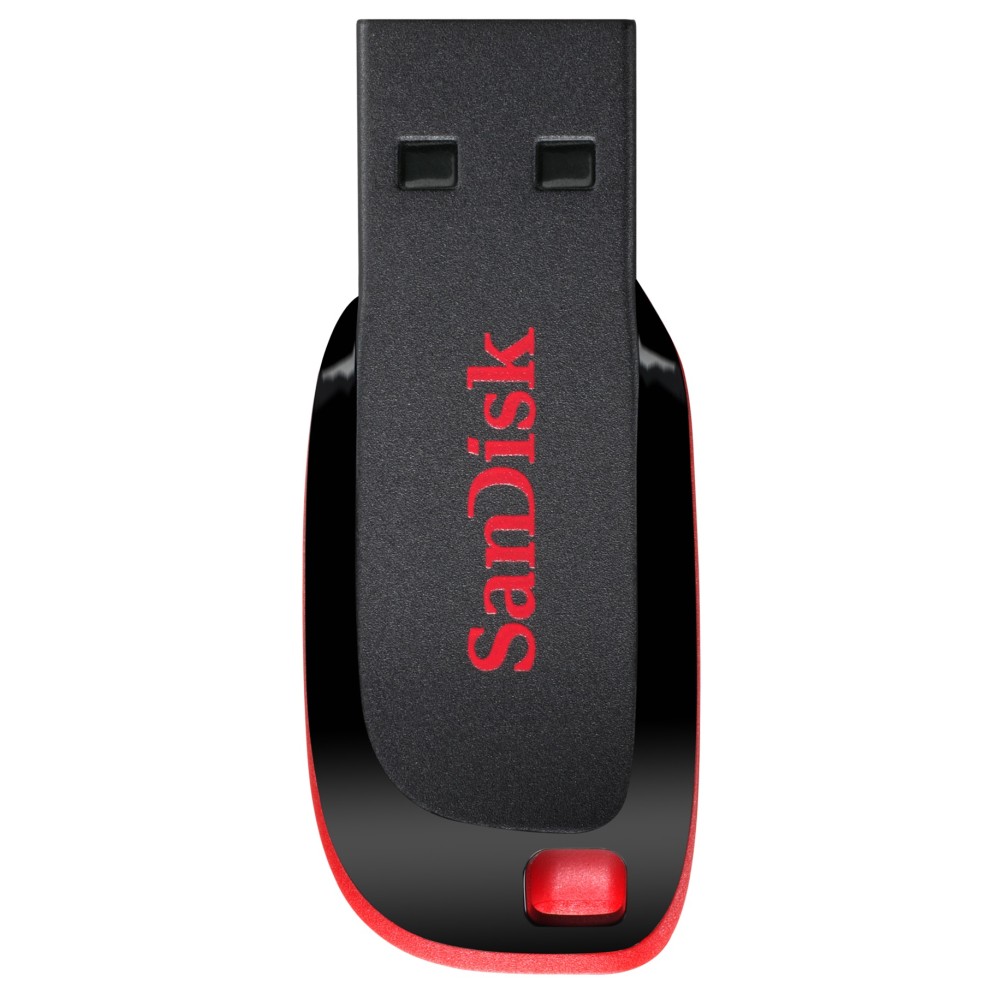
SanDisk Cruzer Blade USB Type-A 2.0 Flash Drive, 32GB, Black and Red
- 32 GB storage capacity
- USB Type-A 2.0 interface
- Capless design for portability
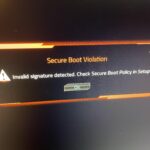
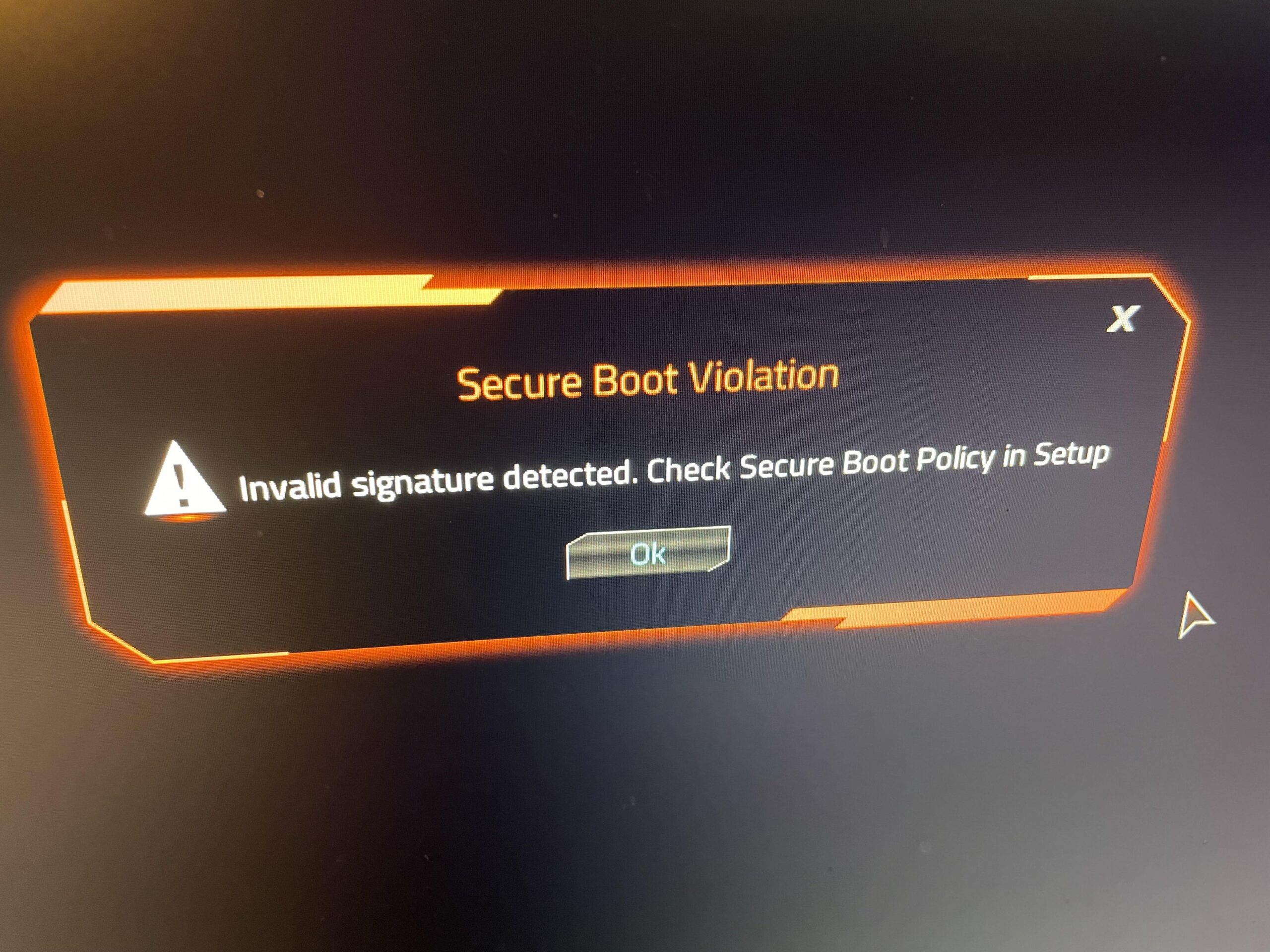
Top: a Secure Boot Violation at start-up, with the full message: Invalid signature detected. Check Secure Boot Policy in Setup.
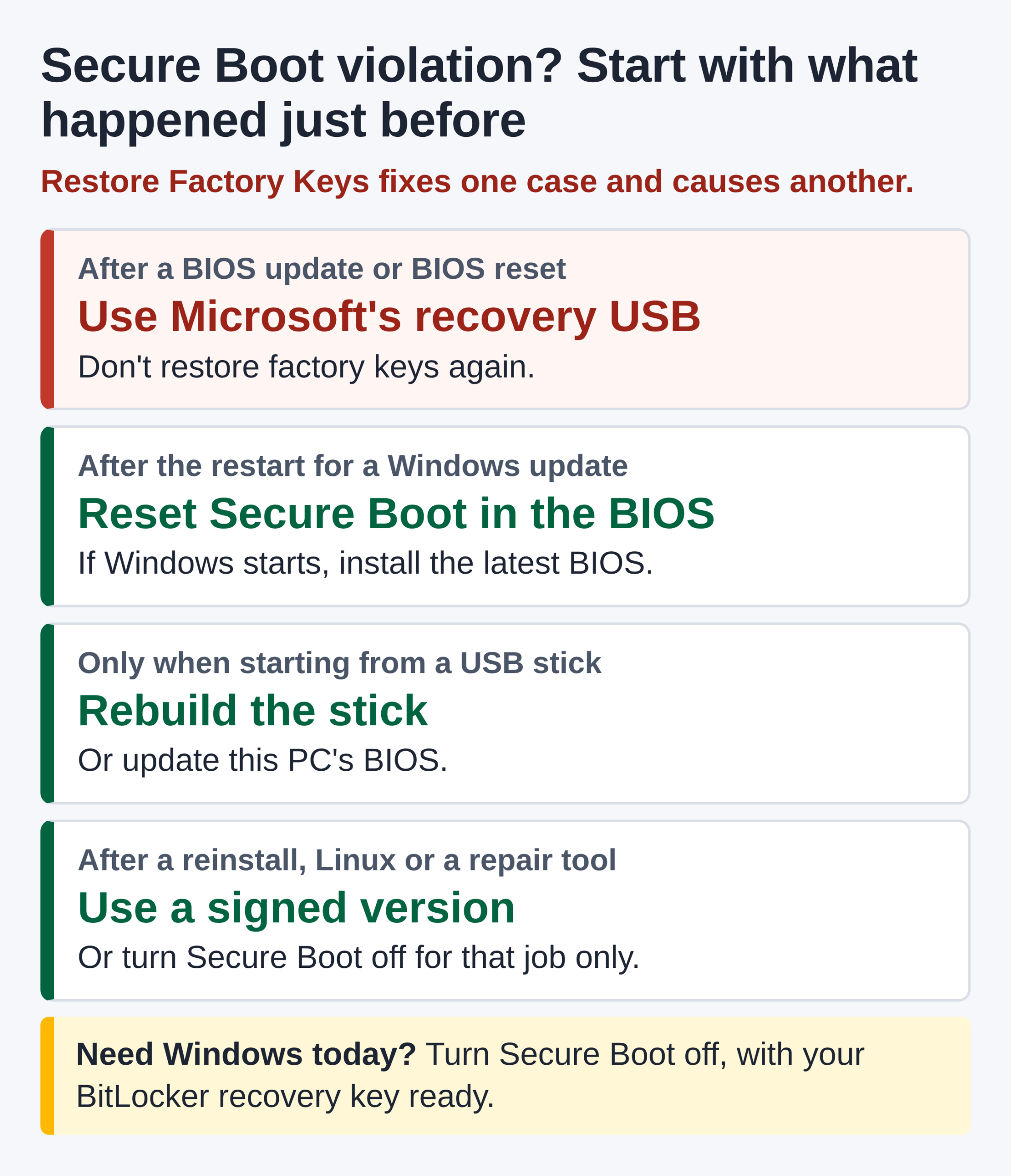
A Secure Boot violation means the firmware refused to run a start-up file that isn’t signed by a certificate it trusts. Microsoft’s 2026 change of Secure Boot certificates added new ways to trigger it. If it appeared after a BIOS update or reset, don’t press Restore Factory Keys. On a PC already moved to the new certificate, the factory keys are the problem, and Microsoft’s recovery USB is the fix. Have your BitLocker recovery key to hand first.
Start from what happened just before:
Secure Boot is a UEFI firmware feature that stops boot-level malware from loading before Windows. At every start, the firmware checks each start-up file’s digital signature against its list of trusted certificates. If a file isn’t signed by one of them, or its certificate has been revoked, the firmware stops and shows this message. The wording varies a little by maker.
Why now: Microsoft’s original Secure Boot certificates from 2011 expired on 24 June, 27 June and 19 October 2026. Windows Update has been adding the 2023 replacements in stages, and moving Windows to a boot manager signed with the new one. Most PCs take the change without trouble. In a few cases, Microsoft says, a PC won’t start afterwards.
Two of the fixes are opposites, so don’t skip this step.
| What happened just before | Why it’s blocked | What to do |
|---|---|---|
| A BIOS update or reset, or someone chose Restore Factory Keys | The factory key list lacks the 2023 certificate, but Windows now starts with a boot manager signed by it. | Use Microsoft’s recovery USB. Don’t reset the keys again. How |
| The restart after a Windows update | Some firmware overwrites the key list instead of adding to it, so the old boot manager loses its certificate. | Reset the Secure Boot settings in the BIOS. If Windows starts, install the latest BIOS before you turn Secure Boot back on. If it doesn’t, check whether a BIOS update came with that restart (first row), or ask the maker. |
| Starting from a USB stick, DVD or the network | The stick is signed by a certificate this PC doesn’t trust yet, or one your IT team has revoked. | Rebuild the stick, or update the BIOS. How |
| A Windows reinstall, Linux or a repair tool | Its start-up files aren’t signed by a certificate on the list, or don’t match the keys the PC shipped with. | Use a version signed for Secure Boot, or turn Secure Boot off for that job only. |
Need Windows today? Turn Secure Boot off to get in, then fix the cause. Microsoft warns against leaving it off to get round the certificate change, because that removes the protection against boot-level malware.
This is the 2026 trap. Once Windows has moved to the boot manager signed with the 2023 certificate, a reset to factory defaults wipes that certificate, and the firmware refuses Windows. Restoring the factory keys again changes nothing. A reset is only safe once a BIOS update has added the 2023 certificate to the defaults.
Windows includes a small recovery tool for this. You need a second Windows PC with updates from July 2024 or later, and a USB stick you can wipe, such as a basic SanDisk Cruzer Blade.
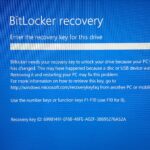
md D:\EFI\BOOTcopy C:\Windows\Boot\EFI\SecureBootRecovery.efi D:\EFI\BOOT\bootx64.efiThe tool puts back one certificate only. Once you’re in, run Windows Update and install the maker’s latest BIOS: many makers have released updates for this reset problem. Until then, don’t reset the Secure Boot keys again. If BitLocker asks for its key, here’s where to find it. More sticks: USB flash drives.
If Windows starts normally but a USB stick, DVD or network boot is refused, the problem is the stick. Two things cause it now:
The fix: make the stick again on an up-to-date PC with Windows’ Create a recovery drive tool, formatted as FAT32. Or update the BIOS on the PC that refuses it.
This is a way in, not a fix. Use it to rescue files or reach Windows Update, then turn Secure Boot back on. First, find your BitLocker recovery key: BitLocker expects Secure Boot to be on, so it may ask for the key.
If no Secure Boot keys are loaded, enabling it means restoring the default keys. Install the latest BIOS first, in case the old defaults lack the 2023 certificate.
Press Windows key + R, type msinfo32 and press Enter. Secure Boot State should say On. Windows Security > Device security > Secure Boot also shows whether the 2023 certificates are in. A green tick alone isn’t proof: look for “all required certificate updates have been applied”.
The firmware is probably in Legacy or CSM mode. Switch it to UEFI. If Windows sits on a disk with the older MBR layout, convert it first with Microsoft’s MBR2GPT tool, which keeps your files. Suspend BitLocker before you convert.
Both mean no Secure Boot keys are loaded: the firmware is in Setup Mode, not User Mode. Turn Secure Boot on, then restore the default keys, after updating the BIOS.
Each maker names things differently. Install the latest BIOS first.
| Brand | Open the BIOS | Where Secure Boot is |
|---|---|---|
| Dell | Tap F2 at the Dell logo | Boot Configuration: set the boot mode to UEFI only, enable Secure Boot, then Apply Changes. |
| HP | Press F10 repeatedly as it starts | On many models, Boot Options, which also has Clear All Secure Boot Keys and Load HP Factory Default Keys. |
| ASUS laptops | Hold F2, then press the power button | F7 for Advanced Mode, then Security > Secure Boot. On some models it’s on the Boot page. |
| ASUS, MSI and Gigabyte motherboards | Usually Delete as it starts | ASUS: Advanced Mode > Boot > Secure Boot, where OS Type set to Windows UEFI mode turns it on. MSI Click BIOS 5: on many boards, Settings > Advanced > Windows OS Configuration. Gigabyte: on many boards, turn CSM Support off first. |
HP’s order after a BIOS update: disable Secure Boot, clear all keys, restart, load the HP factory default keys, then enable Secure Boot. MSI’s BIOS updates for the new certificates say “Update Secure Boot Key” in their notes.
PCs without the 2023 certificates keep starting and running. What they lose is new boot-level security fixes. Six points for the fleet:
UEFICA2023Status under HKLM\SYSTEM\CurrentControlSet\Control\SecureBoot\Servicing reads Updated when done. In the System log, event 1808 means the certificates are in, and 1801 means not yet. The Windows Security badge is off by default on managed PCs. In PowerShell as administrator, this returns True once the new Windows certificate is in:[System.Text.Encoding]::ASCII.GetString((Get-SecureBootUEFI db).bytes) -match 'Windows UEFI CA 2023'The firmware refusing to start a file whose signature doesn’t match a certificate the PC trusts. In 2026 it can also follow a BIOS reset on a PC that has moved to Microsoft’s 2023 certificate. Match the fix to what changed just before.
Every start-up file carries a digital signature. "Invalid signature detected" means the firmware couldn’t match it to a certificate on its allowed list, or found it on the revoked list.
To get Windows started, open the BIOS: F2 on a laptop, Delete on a desktop. Go to Secure Boot on the Boot or Security page, set OS Type to Other OS and press F10 to save. Then update the BIOS and set OS Type back to Windows UEFI mode.
It can appear after a BIOS update. Power off, unplug for 30 seconds and try again. If it stays, turn Secure Boot off in the BIOS (F10) and install the latest HP BIOS. Then clear the keys, load the HP factory default keys and turn Secure Boot back on.
To upgrade, the PC must be Secure Boot capable, which means the firmware is set to UEFI. Secure Boot doesn’t have to be on, but Microsoft suggests turning it on for better security.
Two did: Microsoft KEK CA 2011 on 24 June and Microsoft UEFI CA 2011 on 27 June 2026. Windows Production PCA 2011 followed on 19 October. PCs keep starting, but need the 2023 certificates for future boot-level security fixes.
The Hardvance Team is the editorial team at Hardvance, a UK computer and electronics retailer based in Mildenhall, Suffolk. We build and upgrade PCs and sell laptops, phones, networking gear, monitors and printers, and our guides cover the same ground. Every guide names its sources and explains how we checked the figures, and we say plainly when something is our opinion rather than a tested result.
View all posts by Hardvance Team


No account yet?
Create an Account