Best Docking Station for Laptops 2026: Dell, HP, Lenovo, Thunderbolt and MacBook Picks

0
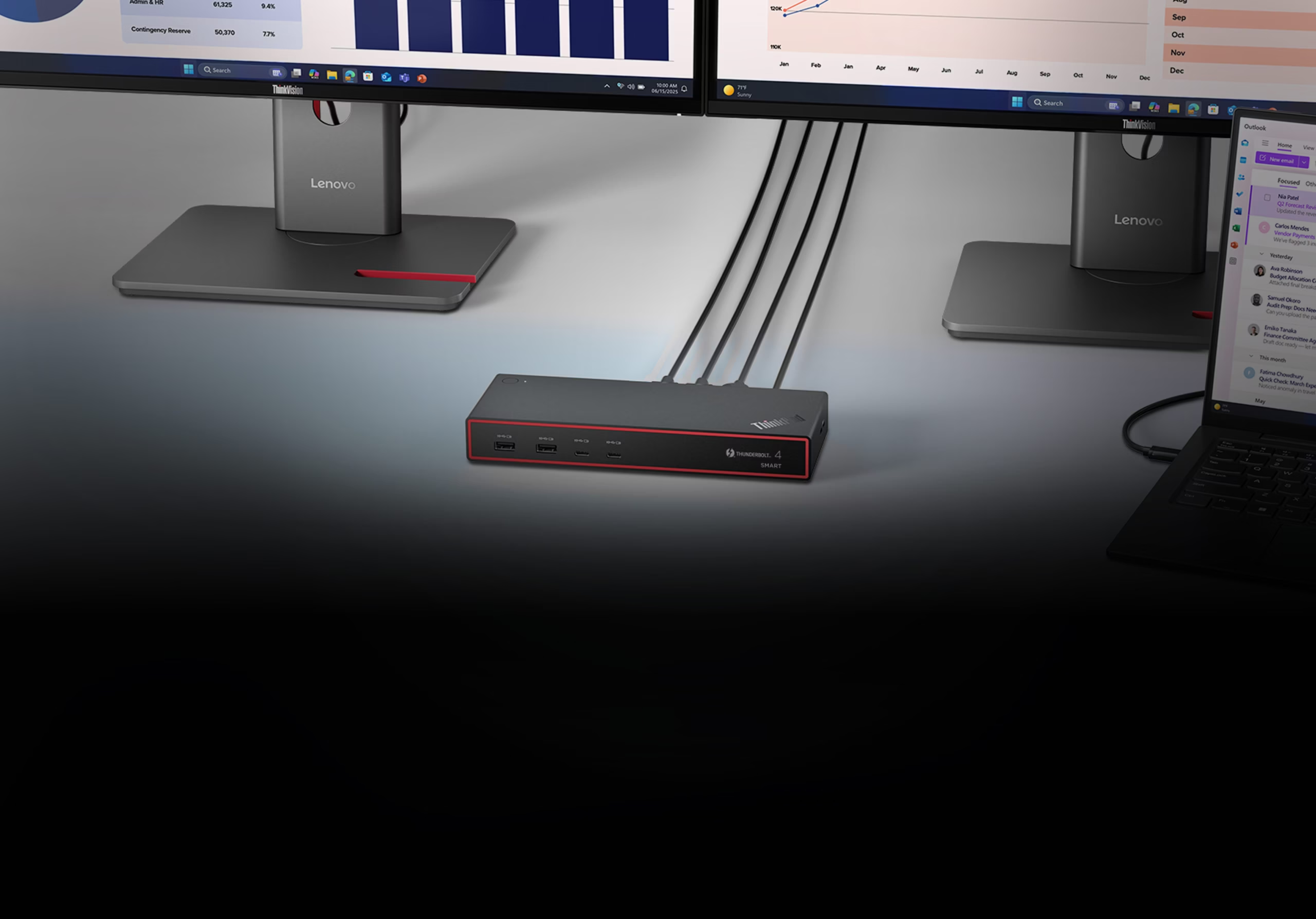
A Lenovo ThinkPad Thunderbolt 4 Smart Dock on a desk with cables running to two Lenovo ThinkVision monitors and a laptop

Top: a Lenovo ThinkPad Thunderbolt 4 Smart Dock linking a laptop to two ThinkVision monitors. Image: Lenovo.

The best docking station for a laptop depends on the laptops, not the dock. If your fleet is one brand, buy that brand’s own dock: it’s the surest way to get MAC address pass-through, Wake-on-LAN and managed firmware updates. For mixed brands, pick a Thunderbolt 4 or USB4 universal dock. For a MacBook Neo, or an M1 or M2 MacBook Air, that needs two screens, you need a DisplayLink dock. "Universal" covers screens, charging and the network port. The IT features are where brands part ways.

Your best pick:

  • Dell laptopsDell Pro Dock WD25. Why
  • HP laptopsHP USB-C 100W G6 Dock. Why
  • ThinkPadsThinkPad Thunderbolt 4 Dock Gen 2. Why
  • Surface for BusinessSurface Thunderbolt 4 Dock for Business. Why
  • Mixed brands and newer MacsStarTech Universal USB4 & Thunderbolt 4 Dock. Why
  • Two screens on an older or entry MacBook, or hot desksStarTech hybrid DisplayLink dock. Why
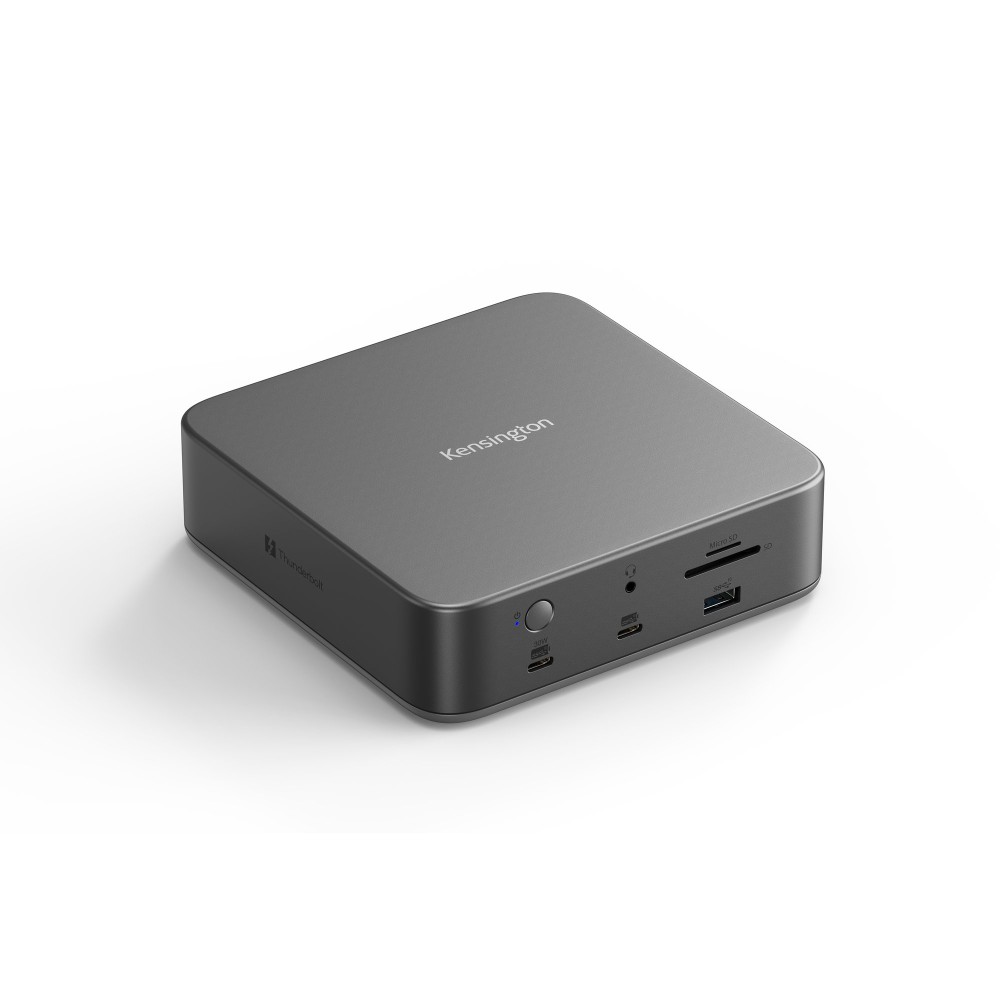
  • 140W laptops and three screensKensington SD5010T5 Thunderbolt 5. Why

Universal docking station for laptops: what works across brands, and what doesn’t

A docking station turns a laptop into a desktop with one cable. You plug the laptop in, and it picks up your monitors, keyboard, mouse, wired network and charging in one go. Unplug it and you walk away with just the laptop. For a team that moves between desks, that one cable saves minutes every morning.

“Universal” on the box means the basics work with any laptop whose USB-C port carries video and power: screens, USB devices, the network port and charging. The extras that IT teams rely on are a different story. Each maker sets its own rules, and they aren’t the same:

DockChargingIT extras on other brands of laptop
Dell Pro Dock WD25130W to Dell laptops, 96W to othersDell lists MAC address pass-through and the dock’s power button as working across brands. The power button needs a laptop that supports USB Power Delivery 3.1.
HP USB-C 100W G6 DockUp to 100W, HP or notWake-on-LAN, MAC address pass-through and the power button work only on HP or HP-supported laptops.
ThinkPad Thunderbolt 4 Dock Gen 2Up to 100WLenovo says MAC address pass-through, Wake-on-LAN and the mirrored power button work on most ThinkPads, and may not on other laptops.
Surface Thunderbolt 4 Dock for BusinessUp to 96WWorks with any Thunderbolt 4 or USB4 laptop, but the full management and security features are for Surface devices only.
StarTech hybrid DisplayLink dockUp to 100WStarTech includes its own IT tools, with MAC address pass-through among them.

Charging figures are the most each dock sends to the laptop. The extras depend on the laptop’s model and BIOS as well as its brand.

Here’s what those extras do for you:

  • MAC address pass-through makes the dock’s network port use the laptop’s own network address. If your network only lets known devices in, or reserves addresses by device, the laptop is recognised at any desk.
  • Wake-on-LAN lets IT wake a sleeping or switched-off laptop over the network, to push updates overnight.
  • PXE boot lets a laptop start up from the network to install a fresh copy of Windows, a common way to set up laptops in bulk.
  • The dock’s power button switches on a docked laptop, which helps when the lid is closed under a monitor stand.

These features depend on the exact laptop, not just the brand. On HP’s own community forum, an IT team trialled HP’s previous USB-C dock with ProBook laptops. MAC address pass-through worked on one laptop and not on a similar one, even after they updated the BIOS and drivers. So before you order docks for a whole office, test one with every laptop model you own. Here’s how the choice plays out by fleet:

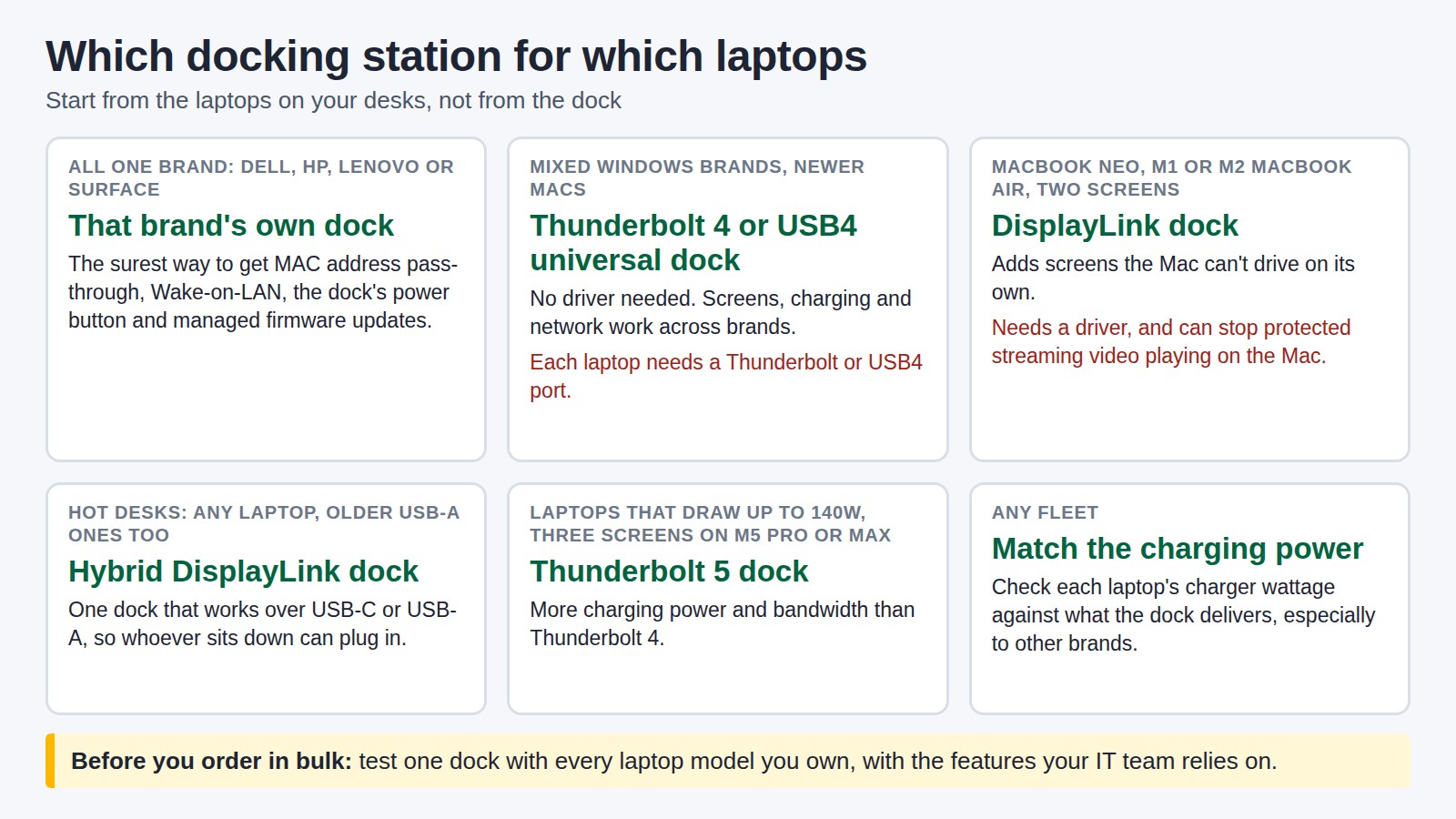
Diagram: which docking station for which laptops. All one brand: that brand own dock for MAC address pass-through, Wake-on-LAN, the power button and managed firmware. Mixed Windows brands and newer Macs: a Thunderbolt 4 or USB4 universal dock. MacBook Neo or M1 and M2 MacBook Air with two screens: a DisplayLink dock. Hot desks: a hybrid DisplayLink dock. Laptops drawing up to 140W or three screens on M5 Pro or Max: a Thunderbolt 5 dock. Any fleet: match the charging power, and test one dock with every laptop model before ordering in bulk.
Start from the laptops on your desks, then pick the dock.

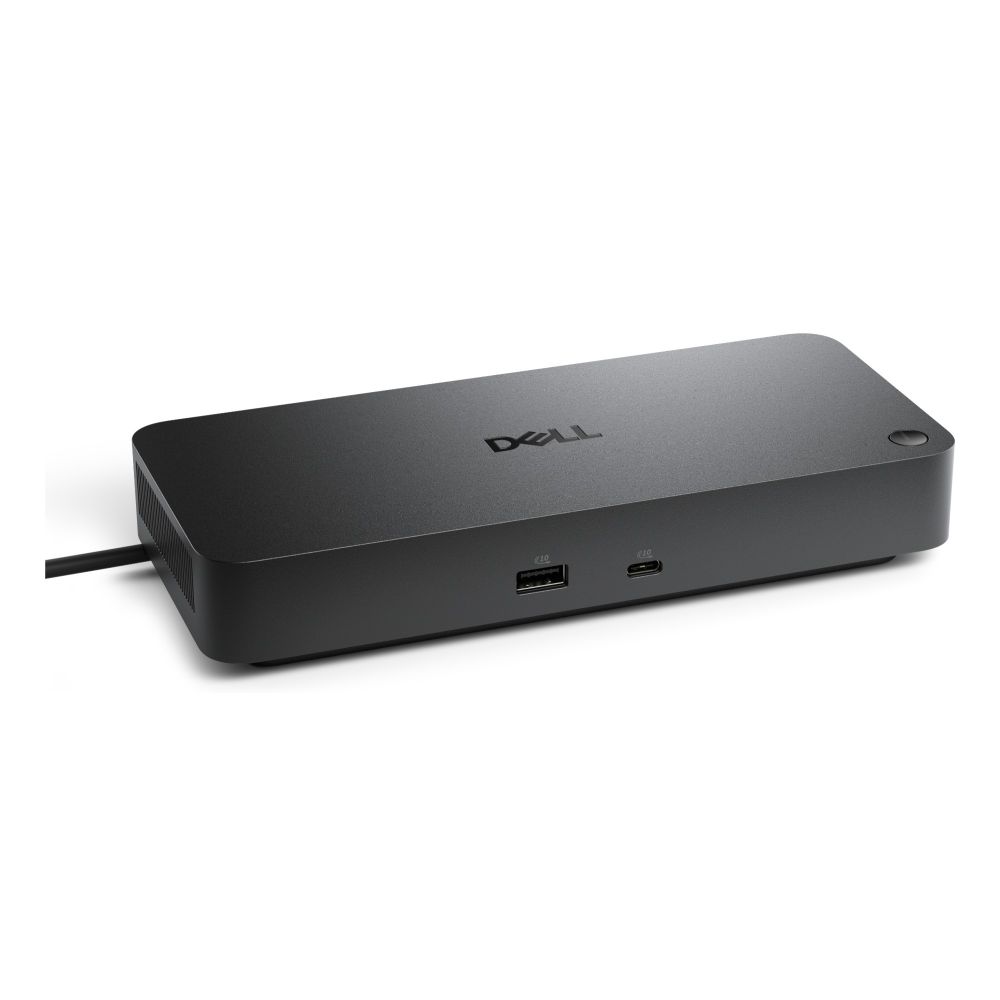
Dell docking station for Dell laptops: Dell Pro Dock WD25

If your company runs Dell laptops, the Dell Pro Dock WD25 is the dock to standardise on. It gives Dell laptops up to 130W of charging over USB-C, and other brands 96W. Dell rates it for up to four screens, depending on what the laptop’s port can send: one 4K or 6K screen, or four at 2560 x 1440, all at 60Hz. It has two DisplayPort sockets, HDMI 2.1, a USB-C video port and 2.5 Gigabit Ethernet.

The IT list is long: MAC address pass-through, PXE boot, Wake-on-LAN, port disablement and Dell’s Power Button Sync. Firmware updates install silently when the laptop is unplugged, and IT can manage the docks from Dell’s Device Management Console, through software on each PC. Dell markets MAC address pass-through and the power button as working across brands, so it copes with the odd non-Dell laptop better than most brand docks. Dell’s software runs on Windows, though, and macOS isn’t among the systems Dell lists, so this isn’t the dock for Mac users. Dell UK gives it a three-year warranty with Advanced Exchange.

DELL Pro Dock WD25Z Type-C Black

  • 130W USB Power Delivery for fast charging
  • 4x USB 3.2 Gen 2 Type-A ports and 2x USB 3.2 Gen 2 Type-C ports
  • 2500 Mbit/s Ethernet LAN with RJ-45 port
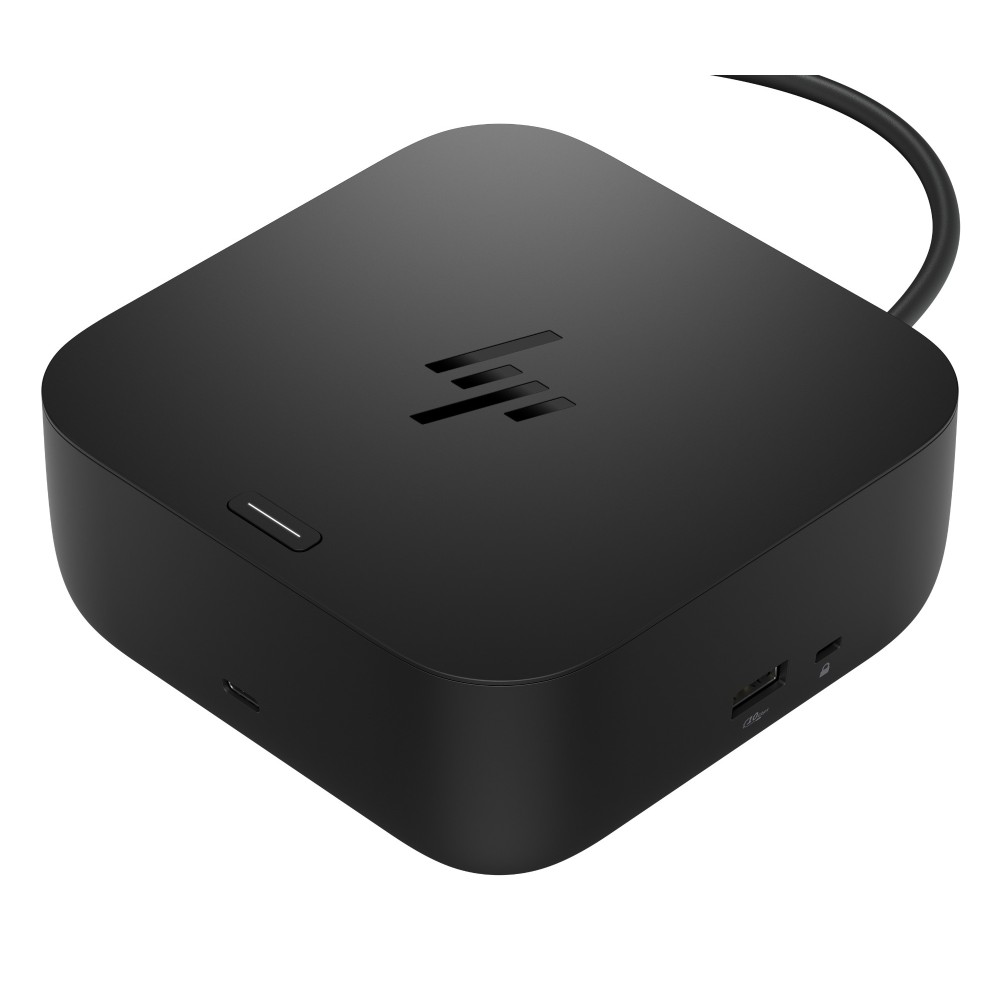
HP docking station for HP laptops: HP USB-C 100W G6 Dock

For a fleet of HP EliteBooks and ProBooks, the HP USB-C 100W G6 Dock is the one to buy. It charges at up to 100W, HP laptop or not, and connects to the laptop at 10Gbps over USB-C. You get two DisplayPort 1.4 sockets, HDMI 2.1 and 2.5 Gigabit Ethernet.

It runs up to three external screens, and how sharp depends on the laptop. HP’s white paper lists two 4K screens at 120Hz on laptops whose USB-C port supports Display Stream Compression, and one 4K screen at 120Hz on others.

HP is clear about the limits. Wake-on-LAN, MAC address pass-through and the dock’s power button only work on HP or HP-supported laptops. Even on an HP, MAC address pass-through covers PXE boot and Windows, not macOS, ChromeOS or Linux. Firmware updates can install when the laptop is unplugged, and larger IT teams can manage the docks through HP’s Poly Lens cloud service. HP doesn’t supply network or audio drivers for Macs, so keep this one for HP desks.

HP USB-C 100W G6 Docking Station with 4K HDMI 2.1 2x DisplayPort 1.4 2.5GbE Ethernet and USB 3.2 Ports for HP PCs Black

  • Four USB 3.2 Gen 1 and Gen 2 ports including Type-A and Type-C for data transfer
  • Up to 100W USB Power Delivery via host interface to charge connected laptops
  • Multiple video outputs including HDMI 2.1 and two DisplayPort 1.4 for 4K displays
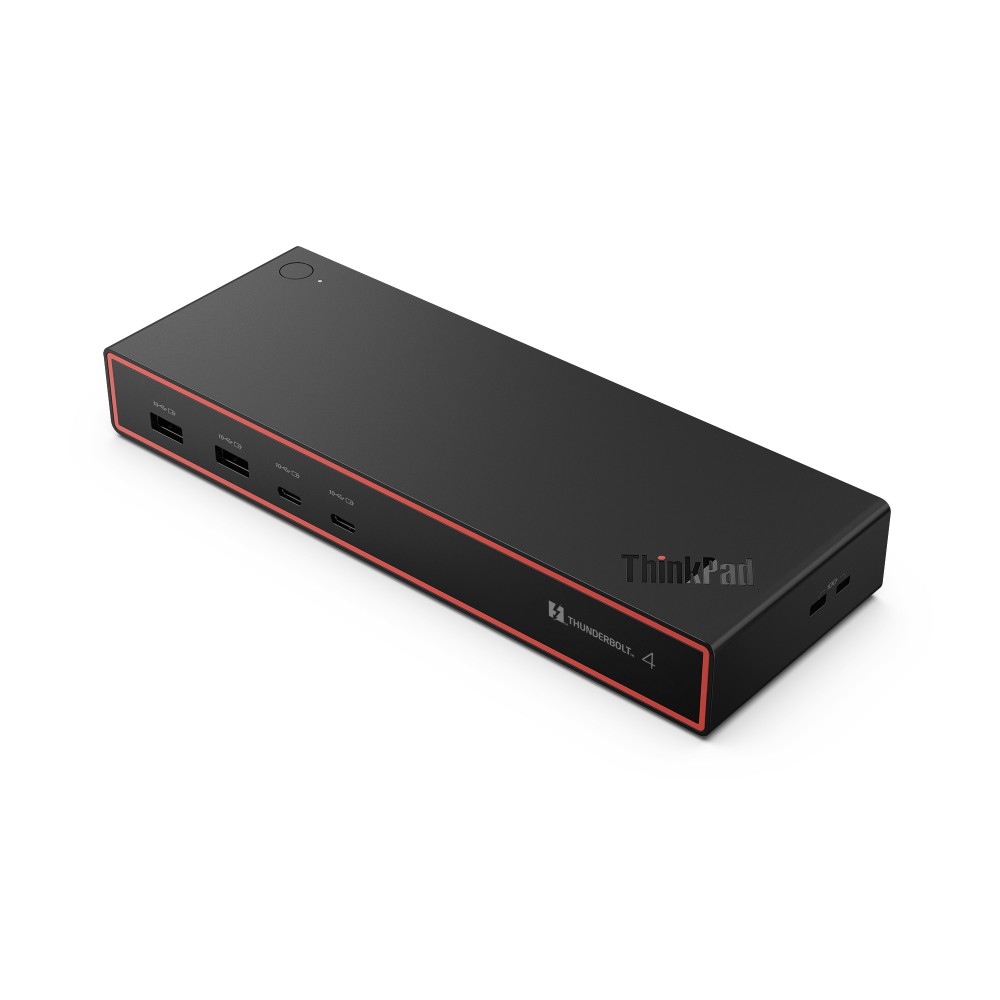
Lenovo docking station for ThinkPad fleets: ThinkPad Thunderbolt 4 Dock Gen 2

For ThinkPads with Thunderbolt 4 or USB4, the ThinkPad Thunderbolt 4 Dock Gen 2 is Lenovo’s refresh of its Thunderbolt 4 dock. Lenovo also calls it the Gen2 7000. It connects at 40Gbps and charges at up to 100W.

It runs one 8K screen at 60Hz, two 4K screens at 144Hz, or four 4K screens at 60Hz. There’s 2.5 Gigabit Ethernet, an SD card reader, four USB-A and three USB-C ports. The Thunderbolt cable is built in, so it can’t go missing from the desk.

Lenovo says its docks support MAC address pass-through, Wake-on-LAN and a mirrored power button on most ThinkPads. Those features may not be available on other laptops, including some Lenovos that aren’t ThinkPads. Lenovo’s product page links to its compatibility list, so look your models up before you buy.

Lenovo 40BG0135UK ThinkPad Thunderbolt 4 Dock Gen 2, 8K 60Hz, 40Gbps, 4 Displays, 100W Power Delivery, Eclipse Black

  • 8K at 60Hz with up to 40Gbps data speed
  • Supports up to four displays
  • Thunderbolt 4 connectivity for Lenovo ThinkPad
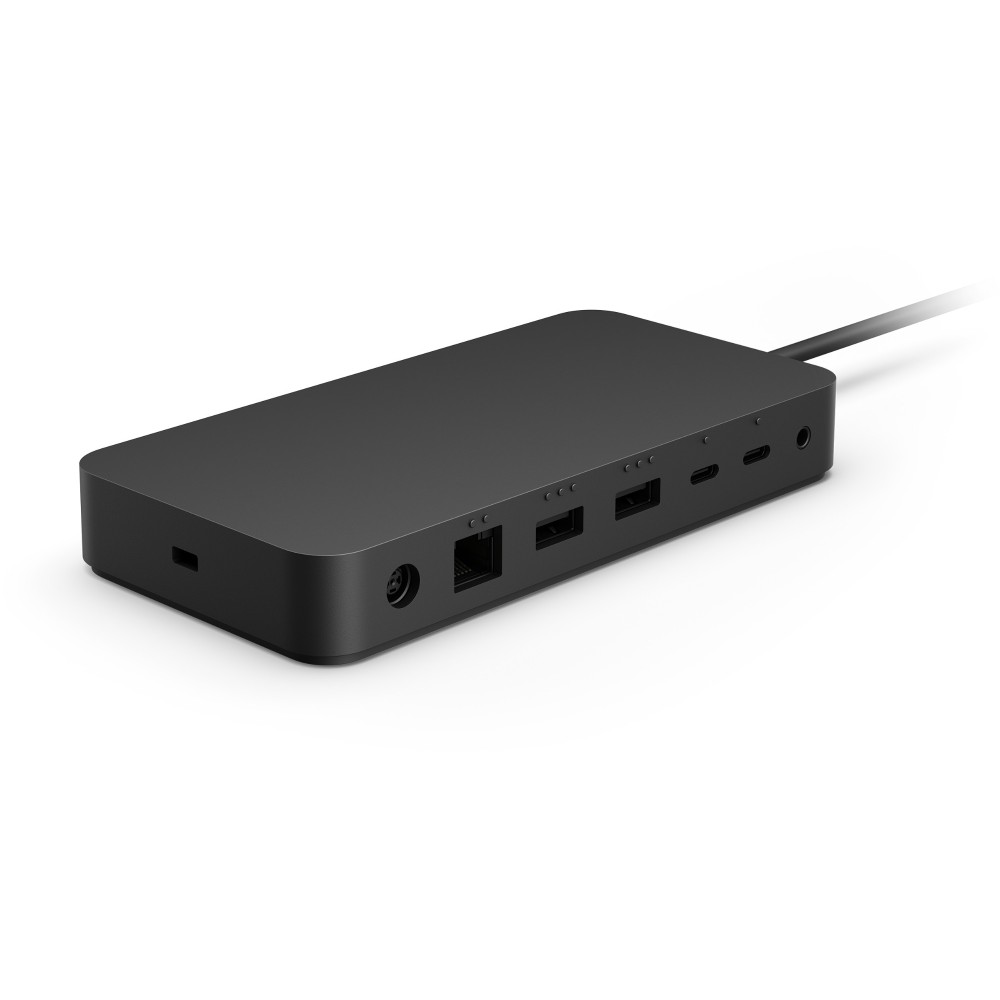
Microsoft Surface Thunderbolt 4 Dock for Business: the dock for Surface fleets

If your staff use Surface Laptops and Surface Pros, Microsoft’s Surface Thunderbolt 4 Dock for Business gives IT a level of control few docks match. Through Surface Enterprise Management Mode, IT can lock down the dock’s ports or limit it to specific devices. It wakes laptops over the network from Modern Standby, and from hibernate and shut-down. MAC address pass-through keeps a laptop’s network identity from one dock to the next, and firmware updates arrive through Windows Update.

It runs two 4K screens at 60Hz over Thunderbolt 4 and charges at up to 96W. It has no HDMI or DisplayPort sockets: screens plug into its three USB-C ports, so budget for USB-C video cables. It works with any Thunderbolt 4 or USB4 laptop, but Microsoft keeps the full management and security features for Surface devices.

Microsoft Surface Thunderbolt 4 Dock for Business, 3x Thunderbolt 4, 3x USB-A, 2.5Gb Ethernet, Black

  • Thunderbolt 4 transfers data at up to 40Gbps
  • Three Thunderbolt 4 and three USB-A ports
  • 2.5Gb Ethernet connectivity via RJ-45

Thunderbolt and USB4 docking station for mixed fleets: StarTech Universal USB4 & Thunderbolt 4 Dock

Most offices don’t run one brand. If yours mixes Dell, HP and Lenovo, or Windows laptops with recent MacBooks, a Thunderbolt 4 or USB4 universal dock is the safe default. It needs no driver, so there’s nothing to install or keep updated on each laptop.

StarTech’s Universal USB4 & Thunderbolt 4 Dock is built for this job. StarTech designed it for Intel, AMD, Snapdragon and Apple laptops. It runs up to four 4K screens at 60Hz on Windows laptops with an Intel 12th-generation processor or newer, and fewer on older ones. On a MacBook Air or Pro with an M3, M4 or M5 chip it runs two 4K screens, with the lid closed on M3 models. It charges at up to 98W.

It doesn’t promise the brand-only extras from the table above. If your network depends on MAC address pass-through or Wake-on-LAN, test it with your laptops first.

StarTech.com Universal USB4 & Thunderbolt 4 Docking Station, Quad Display, 98W Power Delivery, Grey

  • Thunderbolt 4 host interface with 40 Gbit/s data transfer rate
  • Quad 4K 60Hz display support on Windows, dual 4K extended display on Mac (M3, M4, M5, M1/M2 Pro/Max chips)
  • 98W USB Power Delivery 3.0 for laptop charging

Docking station for MacBook: count the screens, then pick a Thunderbolt or DisplayLink dock

On a Mac, a dock can’t add screens the Mac doesn’t support. Apple’s limits depend on the chip, and a hub or daisy-chained monitors don’t raise them:

  • MacBook Neo: one external screen, up to 4K at 60Hz. Its ports are USB-C, not Thunderbolt.
  • MacBook Air with M1 or M2: one external screen.
  • MacBook Air with M3: two, with the lid closed.
  • MacBook Air with M4 or M5: two.
  • MacBook Pro: two with the M6 chip, three with M5 Pro, four with M5 Max.

There’s a second catch. Many cheaper USB-C docks split one video signal between screens using a technique called MST. Windows can extend your desktop across those screens. macOS can’t, so on a Mac every screen shows the same picture.

To get two screens from a MacBook Neo, or an M1 or M2 MacBook Air, you need a DisplayLink dock. DisplayLink draws the extra screens with a driver and sends them to the dock as USB data, so it gets around the Mac’s limit. Plugable, which sells DisplayLink docks, explains the cost. The driver needs the Mac’s Screen Recording permission. That stops protected video, which many streaming services use, playing on any screen while the dock is connected.

StarTech’s Universal Laptop Docking Station (DK30C2DPEPUE) is a DisplayLink dock that StarTech says adds two 4K screens to base M-series MacBook Air and Pro models. It also works over USB-A, and StarTech pitches it for shared desks. You install a driver on both Mac and Windows. StarTech’s page names M-series MacBooks, not the MacBook Neo, so check that DisplayLink’s driver supports the Neo before you buy for a whole team.

StarTech.com Universal Laptop Docking Station, Hybrid USB-C & USB-A, Dual 4K 60Hz DP/HDMI, 100W PD, 4x USB Hub, GbE, Black/Grey

  • Hybrid USB-C & USB-A connectivity
  • Dual 4K 60Hz video output via DisplayPort or HDMI
  • 100W Power Delivery for laptop charging
An M3, M4 or M5 Mac already supports two screens. For those, the Thunderbolt 4 and USB4 dock above is simpler: no driver, and no Screen Recording permission to grant.

Docking station for hot desks: one dock for whoever sits down

Hot desks are where universal docks earn their keep. You don’t know which laptop will plug in next, so pick a dock that works with every model you own, older ones included. A hybrid DisplayLink dock such as the StarTech above comes with a two-in-one USB-C and USB-A cable, so even a laptop without video over USB-C gets two screens.

Three habits make shared desks easier to support:

  1. Put the same dock on every desk. Staff learn one setup, and IT keeps one kind of spare.
  2. Check the charging. A dock that gives 96W to another brand’s laptop can fall short for a workstation that ships with a bigger charger.
  3. Decide how the network sees each laptop. If your switches only let known devices in, the dock must pass the laptop’s own address through. That’s the feature most likely to fail across brands, so test it before launch day.

A monitor arm also helps on a shared desk: it lets each person set the screen height in seconds.

Laptop docking station for dual monitor and multiple monitor setups

How many screens a dock runs depends as much on the laptop’s port as on the dock. When you plan desks with multiple monitors, these are the rules:

  • USB-C docks, like the Dell and HP docks above, share the laptop’s video signal between screens, so more screens means lower resolution. HP’s G6 runs two 4K screens at 120Hz only on laptops whose port supports Display Stream Compression.
  • Thunderbolt 4 and USB4 docks carry more bandwidth. Lenovo’s runs four 4K screens at 60Hz.
  • DisplayLink docks add screens through a driver, so they work even where the laptop can’t send more video.
  • Macs follow Apple’s limits above, whatever the dock.

For cables and Windows display settings once everything’s plugged in, see how to set up dual monitors.

Thunderbolt 5 dock for power users: Kensington SD5010T5

Most office laptops don’t need Thunderbolt 5 yet. It earns its place on laptops that draw more than 100W and on desks with three high-refresh screens. It also suits MacBook Pros with M5 Pro or M5 Max chips, the only MacBooks that run three screens from a Thunderbolt 5 dock.

Kensington’s SD5010T5 EQ charges at up to 140W and moves data at up to 80Gbps, or 120Gbps for video with Bandwidth Boost. On Windows it runs three 4K screens at 144Hz, or two 8K screens. On M4 and M5 Macs it runs two 4K screens at 60Hz, or one of them at up to 6K. It also works with Thunderbolt 4, USB4 and USB-C laptops, and Kensington backs it with a three-year warranty.

Kensington SD5010T5 EQ Thunderbolt 5 Docking Station 140W Power Delivery 80Gbps Triple 4K Support Grey

  • Thunderbolt 5 interface supporting 80 Gbps data transfer rates
  • Triple 4K or dual 8K display configurations support
  • 140 W USB Power Delivery 3.1 for laptop charging
USB-C docking station or Thunderbolt dock: which do you need?

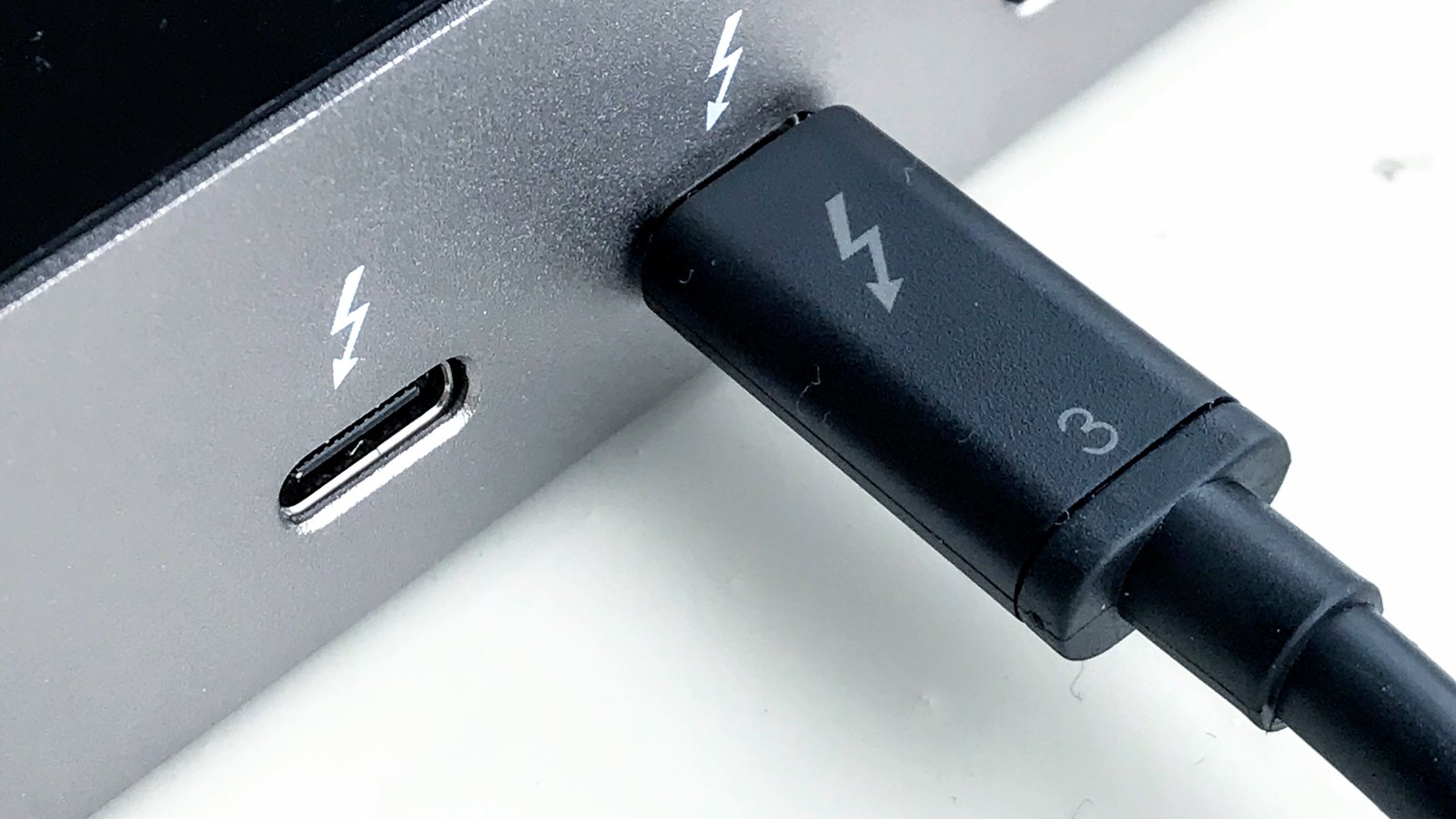
The plugs look the same, so check each laptop’s spec sheet for the port type before you choose:

Close-up of a Thunderbolt cable with the lightning-bolt logo and the number 3 plugged into a dock, next to a free USB-C port marked with the same lightning bolt
A Thunderbolt cable and port, both marked with the lightning-bolt logo. Photo: Amin, CC BY-SA 4.0, cropped.
  • USB-C with video (DisplayPort Alt Mode): a standard USB-C dock is enough for one to three screens, a network port and USB devices. HP’s G6, for example, connects at 10Gbps.
  • Thunderbolt 4 or USB4: up to 40Gbps, for more screens at higher resolution and faster storage.
  • Thunderbolt 5: 80Gbps and up to 140W of charging on docks like Kensington’s.

A Thunderbolt dock usually works with a USB-C laptop, within the limits of that laptop’s port: Kensington lists USB-C laptops as compatible with its Thunderbolt 5 dock. What doesn’t work is a USB-C port without video. HP notes that a laptop needs DisplayPort Alt Mode, Thunderbolt or USB4 on its USB-C port for full video and data through a dock. For laptops without it, only a DisplayLink dock adds screens. Thunderbolt also matters if you plan to add an external graphics card to a laptop.

Docking station checklist for IT teams

Before you order docking stations for a team, work through this list:

  1. List every laptop model you’ll dock, with its port type (USB-C, Thunderbolt 4, USB4 or Thunderbolt 5) and the wattage of the charger it ships with.
  2. Match the charging. Check what the dock sends to each brand, not just the headline figure. Dell’s WD25 gives Dell laptops 130W and others 96W.
  3. Count screens and resolutions per desk, and check the Mac limits above if you have MacBooks.
  4. Write down the IT features you rely on: MAC address pass-through, Wake-on-LAN, PXE boot, the power button, port lockdown. Check each against the maker’s rules for your laptops.
  5. Plan firmware updates. Dell’s and HP’s update tools run on Windows, Surface docks update through Windows Update, and DisplayLink docks need their driver kept current.
  6. Test one dock with each laptop model before you buy in bulk.

If you’re choosing the laptops too, see the best laptops for work. For more models, browse laptop docks.

Docking stations: your questions

What does a docking station actually do?

It connects your laptop to monitors, a keyboard and mouse, a wired network and charging through one cable. At the desk the laptop works like a desktop, and you unplug one cable to take it with you.

Can you use a docking station with any laptop?

The basics work with most laptops whose USB-C port carries video and power. Brand extras such as MAC address pass-through and Wake-on-LAN often work only with the same brand’s laptops. A laptop without video over USB-C, or with only USB-A ports, needs a DisplayLink dock.

Does a Thunderbolt dock work with USB-C?

Usually, yes, within the limits of the laptop’s port. Kensington, for example, lists USB-C laptops as compatible with its Thunderbolt 5 dock. The USB-C port must support video for the screens to work.

What is the best docking station for a MacBook?

For an M3, M4 or M5 MacBook, a Thunderbolt 4 or USB4 dock with two screen outputs. For a MacBook Neo, or an M1 or M2 MacBook Air that needs two screens, a DisplayLink dock, because the Mac only drives one external screen by itself. Avoid MST docks on a Mac: every screen shows the same picture.

Is it bad to leave a laptop plugged into a docking station?

It’s safe, but a charge limit may help the battery last longer. Microsoft recommends Surface’s Battery Limit setting, which stops charging at 50%, for devices that stay plugged in. Check your laptop’s BIOS or the maker’s app for a similar setting.

How do you connect a laptop to a docking station?

Plug the dock into power, connect your screens, keyboard, mouse and network cable to the dock, then plug the dock’s cable into the laptop’s USB-C or Thunderbolt port. For a DisplayLink dock, install the driver first. Update the dock’s firmware with the maker’s tool before you hand it out.

Why do both monitors show the same picture on my Mac?

The dock probably uses MST to split one video signal, and macOS can only mirror MST screens, not extend across them. Use a Thunderbolt or USB4 dock on a Mac that supports two screens, or a DisplayLink dock on one that doesn’t.

Sources

Leave a Reply

Your email address will not be published. Required fields are marked *