
Logitech B100 USB Optical Mouse
- 800 DPI optical tracking for precise cursor control
- Ambidextrous design suitable for both left and right-handed users
- Plug-and-play USB connectivity with 1.8 m cable
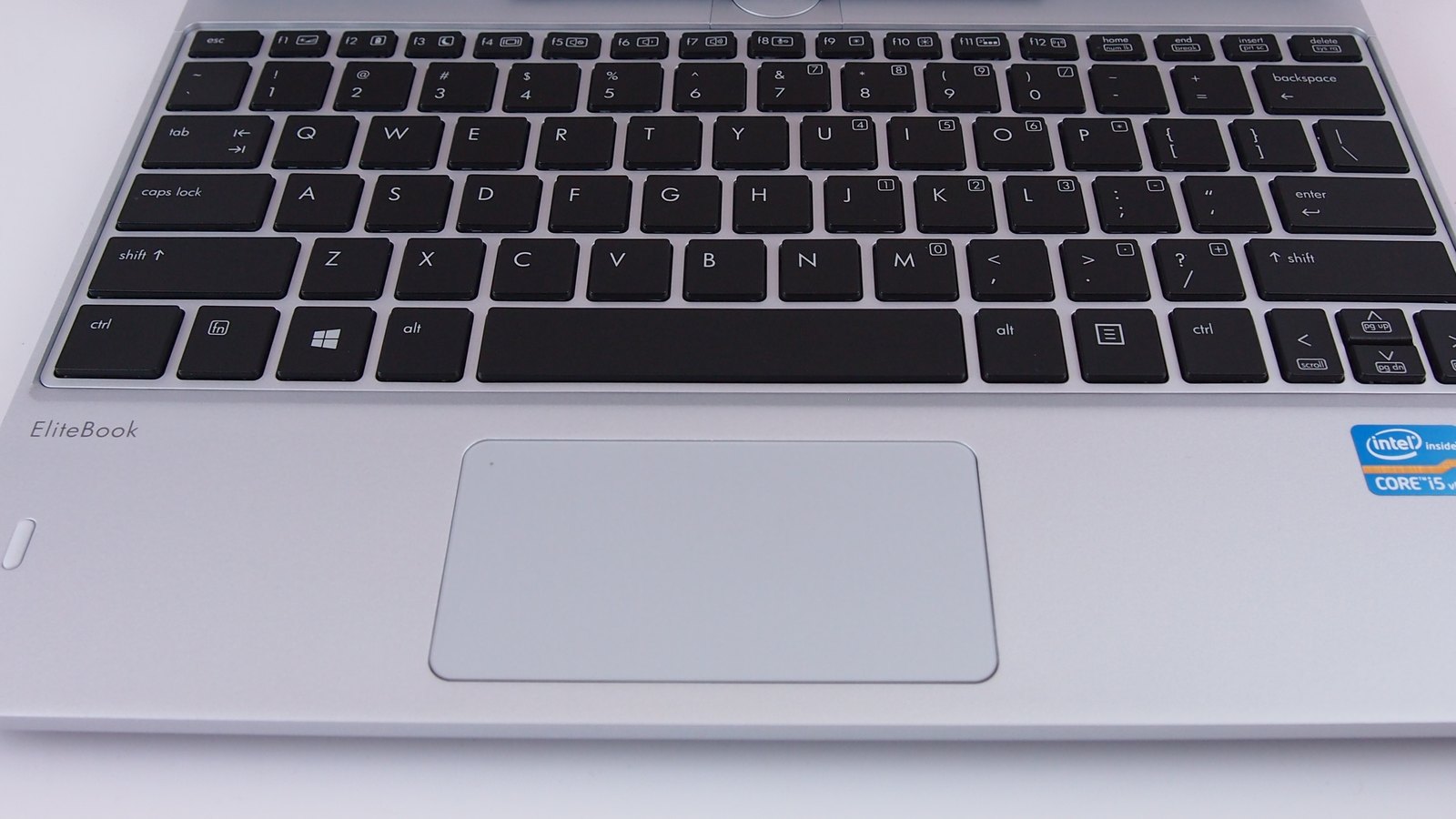
Top: the touchpad of an HP EliteBook Revolve 810 business laptop. The checks below work on any Windows laptop. Photo: TechnologyGuide TestLab, CC BY 2.0, cropped.
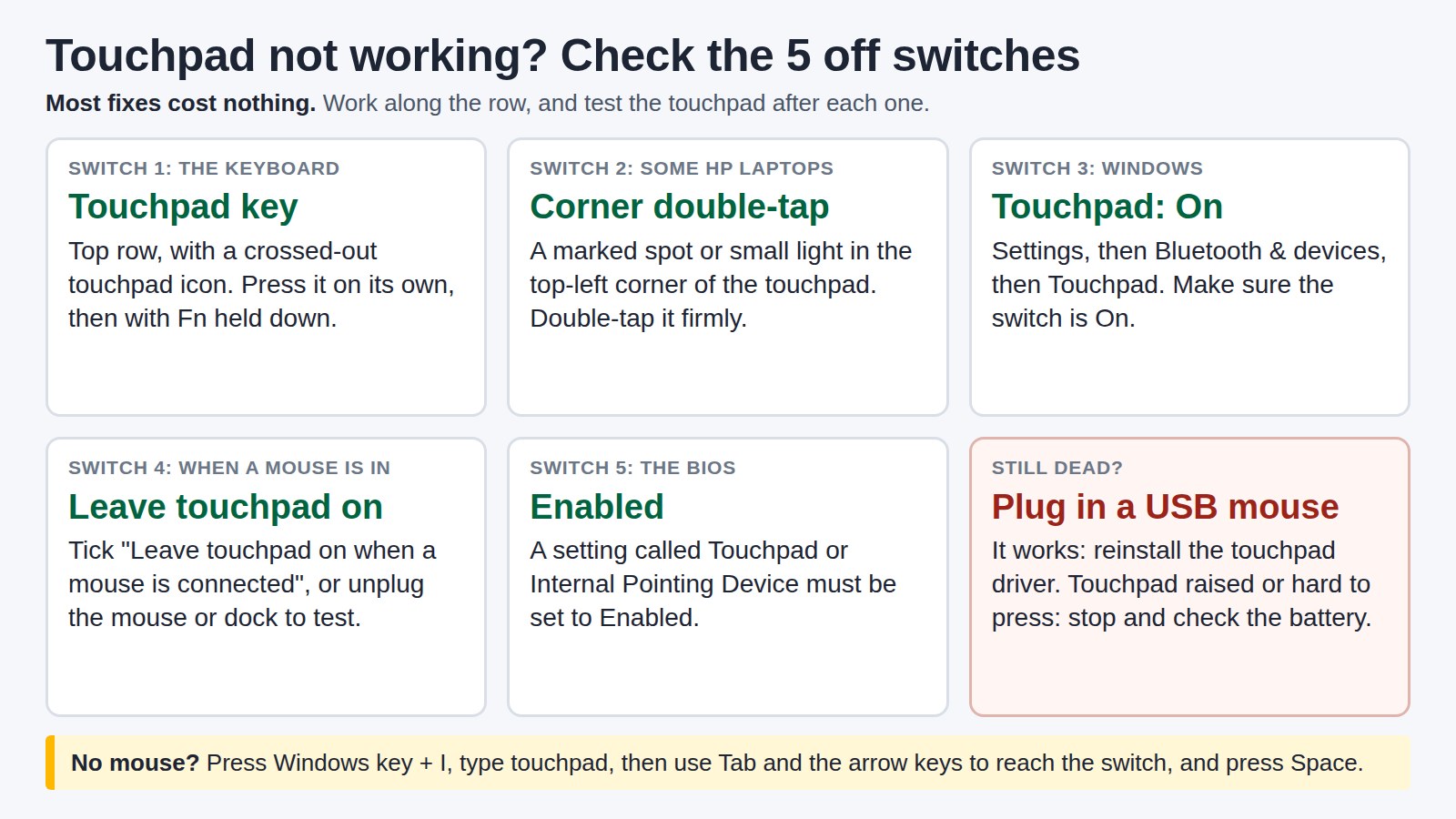
Before you change anything, check whether the touchpad has been switched off. Press the top-row key with a crossed-out touchpad icon, on its own and then with Fn. On some HP laptops, double-tap the top-left corner of the touchpad. Then open Settings, Bluetooth & devices, Touchpad and make sure it’s On. If a USB mouse works but the touchpad still doesn’t, reinstall the driver. If the touchpad looks raised, stop using the laptop: the battery may be swelling.
Start from what you see:
Your touchpad (or trackpad) can be switched off in five places, and each one leaves it looking dead. Work down the list and test the touchpad after each step.
| Switch | What turns it off | Turn it back on |
|---|---|---|
| 1. The touchpad key | A key on the top row with a crossed-out touchpad icon | Press it. If nothing happens, hold Fn and press it again. |
| 2. The corner tap | On some HP laptops, a double-tap on a marked spot or small light in the top-left corner of the touchpad | Double-tap the same spot firmly. |
| 3. The Windows switch | Touchpad set to Off in Settings | Open Settings > Bluetooth & devices > Touchpad and switch it On. On Windows 10 it’s under Devices > Touchpad. |
| 4. The mouse setting | Leave touchpad on when a mouse is connected is cleared, and a mouse is plugged in directly or through a dock | Tick the box in the same Touchpad settings. Some older laptops have a similar option in the Synaptics or ELAN tab of Control Panel > Mouse. |
| 5. The BIOS setting | Touchpad or Internal Pointing Device set to Disabled in the BIOS | Open the BIOS at start-up, set it to Enabled, save and restart. |
If all five are on and it still won’t respond, restart the laptop once before you touch the driver.
You don’t need a mouse to reach the Touchpad switch. Your keyboard can do it:
A USB mouse is quicker if you have one. A basic wired mouse such as the Logitech B100 works the moment it goes into a USB port, with no Bluetooth setup and no battery to run flat. It also narrows down the fault: if the mouse works and the touchpad doesn’t, the problem is the touchpad’s setting, driver or hardware, not Windows.
For a mouse you’ll use all day, see the best mouse for work, or browse wired mice.
The five switches apply to every brand. What changes is the shortcut you press and the maker’s own tools.
| Brand | Shortcut to try | If that does nothing |
|---|---|---|
| HP | On some models, double-tap the marked top-left corner of the touchpad. Others use an Fn key combination that varies by model. | Check the BIOS for a setting such as Touchpad or Internal Pointing Device, which varies by model. Then run the touchpad test in HP PC Hardware Diagnostics. |
| Lenovo | IdeaPad and Yoga: the key with a crossed-out touchpad icon. Press it alone or with Fn, depending on whether FnLock is on. | ThinkPad: go straight to the Windows switch (Windows key + I, then type touchpad), then check the driver. |
| Dell | Restart, test with a USB mouse, then check the Windows Touchpad switch. | Reset the touchpad settings, then reinstall the driver from Dell’s support site. |
| ASUS | The touchpad hotkey, usually F6 or F9. A “Touchpad is enabled” message confirms it worked. | If the hotkey does nothing, reinstall the ASUS System Control Interface driver. MyASUS also has touchpad settings under Device Settings. |
| Acer | Fn + F7 on many models. | Use the Windows switch, then the driver. |
If your touchpad died after an update, or it comes and goes, look at the driver next. Microsoft points to a missing or out-of-date driver first.
On a work laptop, ask IT before you install drivers yourself, and tell them the model and what you’ve tried.
Many touchpads appear as I2C HID Device under Human Interface Devices. A yellow warning with “This device cannot start. (Code 10)” means its driver has failed. Reinstall the Intel Serial IO driver first, then the touchpad driver, and restart. If the touchpad works in the BIOS but keeps failing in Windows, it’s a software problem. If it fails in the BIOS too, suspect the hardware.
If the cursor moves, the touchpad is alive. Open Settings > Bluetooth & devices > Touchpad and check these:
No tap or scroll options at all? The touchpad’s settings may live in the Synaptics or ELAN tab of Control Panel > Mouse instead.
If your touchpad has lifted, feels stiff or won’t click, something may be pushing it up from underneath. The battery sits below it. Dell’s battery advice names a trackpad that “does not click properly or feels raised” as one way a swelling battery shows itself. That is a safety problem, not a touchpad fault.
Two tests tell you whether the touchpad itself has failed:
If the laptop is under warranty, contact the maker before anyone opens it. On a work laptop, give IT the result of both tests. A USB mouse keeps you working meanwhile. If the keyboard has stopped too, see laptop keyboard not working. And if the laptop is old enough that a repair isn’t worth it, the best laptop for work guide compares current models.
The one with a crossed-out touchpad icon on the top row. On ASUS laptops it’s usually F6 or F9, and many Acer models use Fn + F7. Press it on its own, then with Fn.
Press Windows key + I, type touchpad and press Enter on Touchpad settings. Press Tab until the Touchpad switch is highlighted, then press Space to turn it On.
If there’s a marked spot or light in the top-left corner, double-tap it, then check the Windows Touchpad switch. If it’s still dead, check the BIOS for a Touchpad or Internal Pointing Device setting, and run the touchpad test in HP PC Hardware Diagnostics. See HP EliteBook laptops.
Press the key with the crossed-out touchpad icon, alone or with Fn depending on FnLock. On a ThinkPad, go to the Windows Touchpad switch. Then reinstall the driver for your model from Lenovo’s support site.
If it’s the built-in touchpad, check the five off switches first. If it’s a USB or wireless mouse, try another port, plug a wireless receiver straight into the laptop rather than a hub, and check the mouse battery.
Use the same switches in reverse: the touchpad key, or Settings, Bluetooth & devices, Touchpad, Off. To turn it off only while a mouse is plugged in, clear Leave touchpad on when a mouse is connected.
The Hardvance Team is the editorial team at Hardvance, a UK computer and electronics retailer based in Mildenhall, Suffolk. We build and upgrade PCs and sell laptops, phones, networking gear, monitors and printers, and our guides cover the same ground. Every guide names its sources and explains how we checked the figures, and we say plainly when something is our opinion rather than a tested result.
View all posts by Hardvance Team


No account yet?
Create an Account