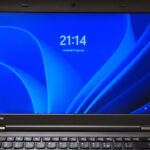
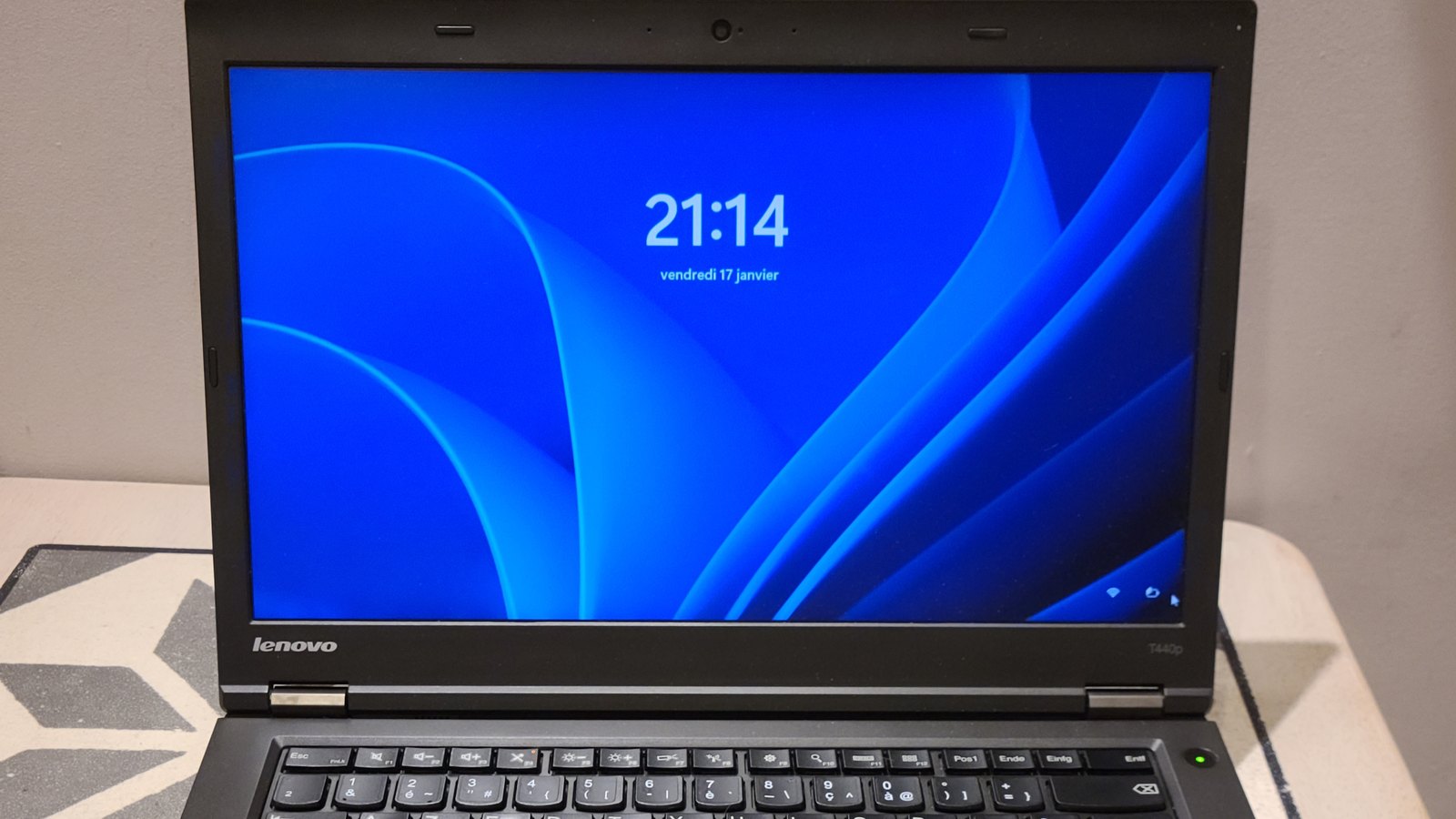
Top: a Lenovo ThinkPad on the Windows 11 lock screen. The steps below work on any Windows laptop or desktop, and there is a section for Macs. Photo: Yann Btx, CC0.
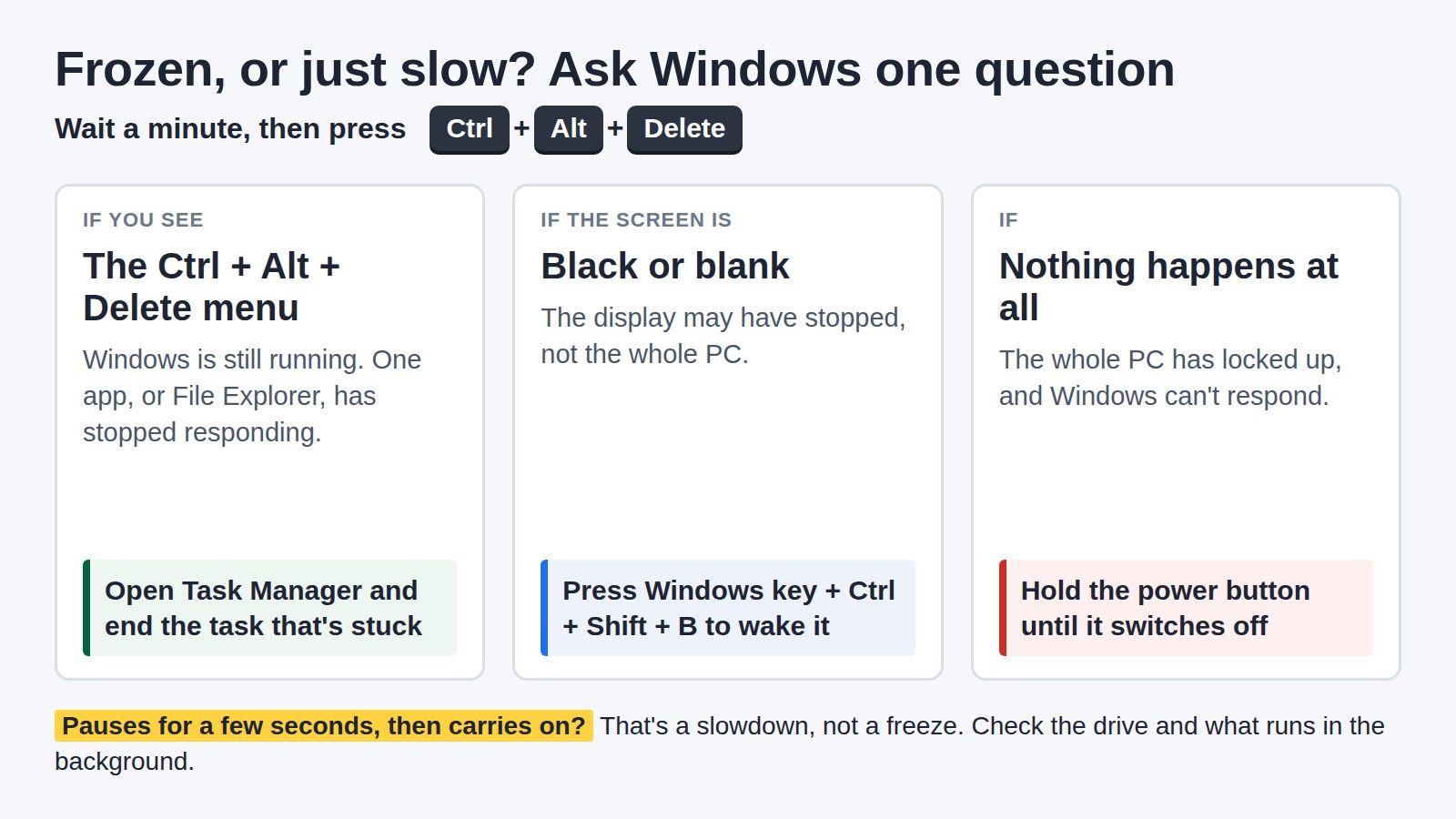
If your laptop has frozen, wait a minute, then press Ctrl + Alt + Delete. If the menu appears, Windows is still running: open Task Manager and end the app that has stopped responding. If nothing happens, hold the power button until it switches off. Then find out why it keeps freezing, because the kind of freeze points to the cause.
Find your freeze, then the fix:
Work through these in order. Each step is a little more forceful than the one before, and the last one loses anything you haven’t saved.
Laptop frozen and won’t turn off? Unplug the charger and everything connected to it, remove the battery if yours comes out, and hold the power button for about 15 seconds. Then plug the charger back in and start it.
File Explorer also runs the taskbar and the desktop. If those stop responding while an app still works, restart it: in Task Manager, select Windows Explorer and choose Restart.
If only the keyboard has stopped and the pointer still moves, the laptop isn’t frozen. See laptop keyboard not working instead.
“Freezing” covers a few different faults, and each one points somewhere else. The quickest test is Ctrl + Alt + Delete: if its menu still appears, Windows is alive, and one app or File Explorer is the problem.
Then match what you see to the likely cause, and start there.
| What you see | Most likely cause | Start here |
|---|---|---|
| One app stops responding, the rest works | That app, or File Explorer | End the task, then reinstall the app |
| It started after a Windows update | The update, or a driver it changed | Uninstall the update |
| It pauses for a few seconds, then carries on | The drive, or something busy in the background | Check the drive |
| It freezes when it gets hot and the fan is loud | Dust and overheating | Clear the dust |
| It locks up completely, even after a Windows reset | Faulty memory or another hardware fault | Test the memory |
| It freezes with a dock, hub or drive plugged in | That device, or its driver | Unplug everything |
| It only freezes in games | Graphics driver, power supply or heat | PC crashes while gaming |
| It freezes, then shows a blue screen | A stop error with a code | Blue screen fixes |
If the fix on the same row doesn’t help, move down the page: the causes are in order from easiest to check to hardest.
Windows keeps a record of what failed and when. Look at it before you change anything.
Look for a pattern. The same app failing every time points to that app. Windows failures, or different apps failing at random, point to a driver or the hardware.
If the freezing started straight after an update, the update is the first suspect. It does happen. Dell published an article for computers that stop responding or freeze intermittently after Windows update KB5051987, and its fix is to uninstall that update.
In September 2026, Windows Latest reported black screens and system freezes on some PCs with AMD Radeon graphics after that month’s update, KB5124008. They happened even outside games. Microsoft hadn’t confirmed it, and its emergency update, KB5129195, didn’t list a fix.
To remove an update:
Some updates can’t be uninstalled, and removing a security update takes its fixes off your PC. So treat this as a test: if the freezing stops, wait for a fixed update rather than staying on the old one. If you can’t get into Windows, the same option is in the recovery menu, under Troubleshoot > Advanced options > Uninstall Updates.
If it was a driver update instead, roll the driver back. Right-click Start, open Device Manager, expand Display adapters, right-click the graphics, then choose Properties, the Driver tab and Roll Back Driver.
With no update to blame, find out whether software is the cause. Two tests split it quickly.
Then work through the usual suspects:
When a PC freezes randomly with no pattern, even after a fresh Windows install, look at the hardware. One owner on Microsoft’s Q&A forum had a refurbished PC that froze constantly, sometimes straight after switching on. A fresh Windows 11 install didn’t help, and a memory test, CHKDSK, SFC and DISM all came back clean. An adviser suggested a longer memory test, and the owner later wrote that the RAM was the issue and sent the PC back.
A dock, hub, external drive or even a faulty mouse can cause a lock-up. Disconnect everything you can, including external displays. On a desktop, leave only the monitor, mouse and keyboard. Do the power drain from the first section, then start up. If the freezing stops, add devices back one at a time until it returns.
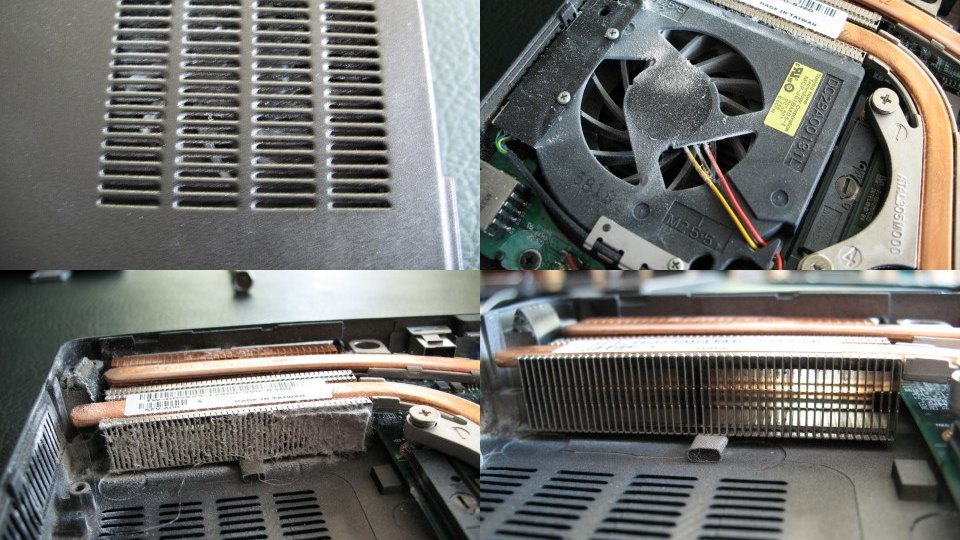
Locking up, not responding and restarting on its own are the typical symptoms of overheating. The processor slows itself down to protect itself, and that can feel like a freeze. The usual cause is dust: lint builds up on the cooling fins, so less air gets through and the fan works harder and louder.
Switch the laptop off and unplug it, then blow the vents out with a can of compressed air. Hold the can upright, 15 to 20 cm from the vent. Don’t blow into it with your mouth, because the moisture can damage it. Use the laptop on a hard, flat surface, because a bed or a sofa blocks the vents. A laptop stand lifts it off the desk.
If it still runs hot with clean vents, the fan, the heat sink or the thermal material may be failing. That is a job for a repairer.
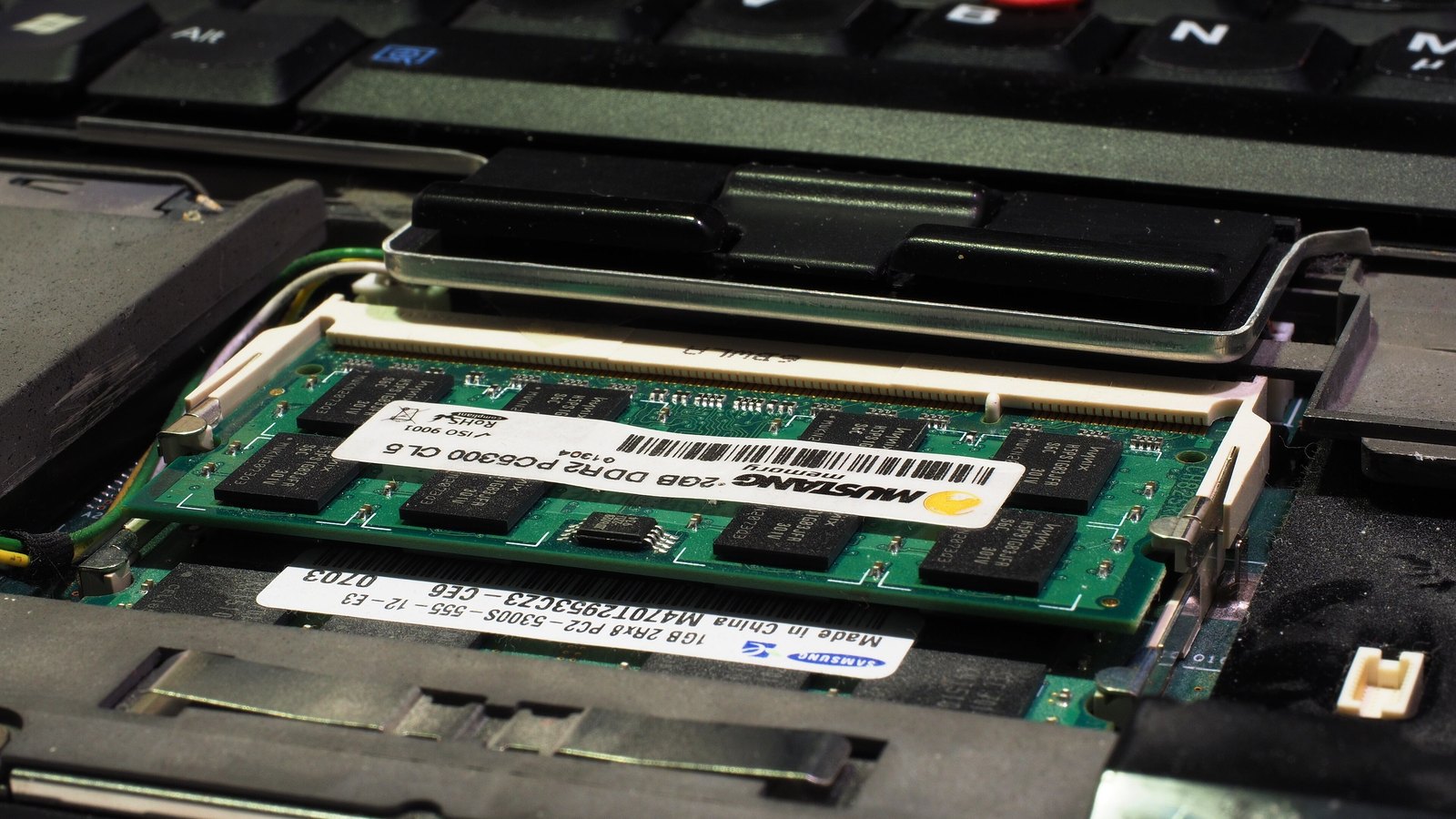
Yes. Faulty memory is one of the common hardware causes of freezing. Windows has a basic test built in. Save your work, press Windows key + R, type mdsched and press Enter, then choose Restart now and check for problems. The result appears after the restart. If you miss it, open Event Viewer, then Windows Logs > System, and look for MemoryDiagnostics-Results.
A clean result doesn’t settle it. The forum owner above had a clean memory test and still had faulty RAM. MemTest86 is a free, more thorough test that runs from a USB stick before Windows starts. The adviser in that thread suggested a full run of eight passes. If you have more than one memory module and can take them out, try the laptop with one at a time to find the faulty one. Replacement modules are listed under laptop DDR4 RAM and laptop DDR5 RAM.
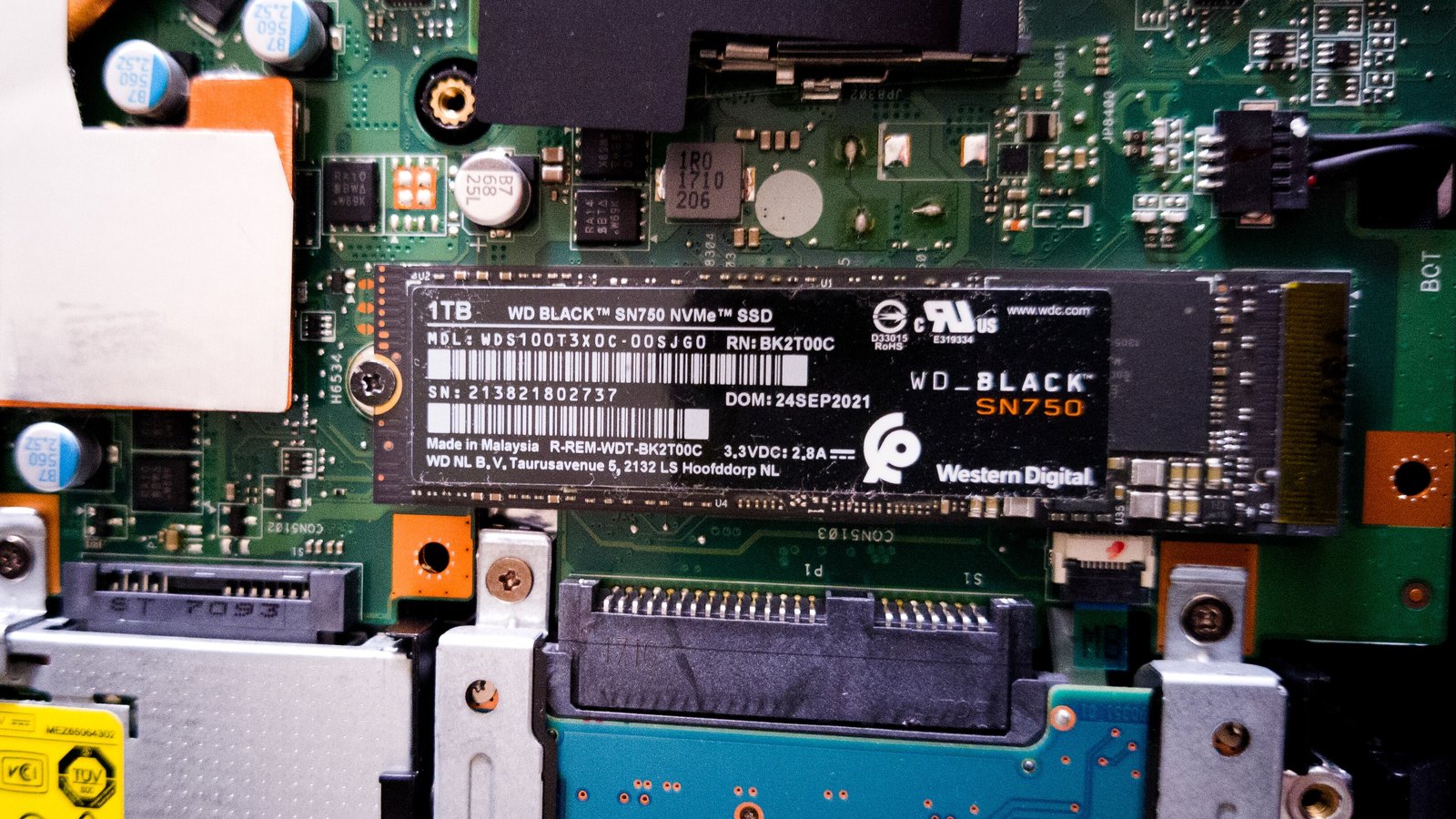
A failing drive is another common hardware cause. Windows 11 shows the health of an NVMe SSD, the type of drive in the photo below. Go to Settings > System > Storage > Advanced storage settings > Disks & volumes, select the drive, then Properties. Under Drive health you see the estimated remaining life, the available spare space and the temperature, with a warning if something is wrong.
Drive health only covers NVMe SSDs. For a SATA SSD or a hard drive, use the maker’s test in the next section, which checks the drive too. If the drive is failing, back up your files first, then replace it. See SSDs. A drive that is nearly full can also cause long pauses: the fixes are in how to fix a slow computer.
Laptop makers build in hardware tests that check the memory, the drive and more. Some run before Windows starts, so they work even when Windows won’t.
Note down any error code the test gives you. It speeds up a warranty claim.
On a Mac, deal with the app first. Press Option + Command + Esc, select the app that isn’t responding and click Force Quit. You may lose unsaved changes in that app. If Finder is the one stuck, select it in the same window and click Relaunch.
If you can’t force the app to quit, choose Restart from the Apple menu. If the Mac won’t restart, press and hold the power button for up to 10 seconds until it turns off, then press it again to start. On laptops with Touch ID, the Touch ID button is the power button.
If one app keeps freezing, update it, or delete it and download it again. If the whole Mac keeps freezing, run Apple Diagnostics:
Note the reference code it gives you, and take it to Apple or an authorised service provider.
If a hardware test found a fault, check what you are owed before you pay for a repair.
The forum owner’s PC was a recent refurbished purchase, and they sent it back. If yours is new or nearly new, start with the retailer.
Out of warranty, a repairer can tell you whether the faulty part can be replaced on your model, and what that costs against a new laptop. If the laptop won’t start at all after a forced shutdown, see laptop won’t turn on.
The common causes are an app or File Explorer that has stopped responding, a recent Windows update or driver, and overheating from dust in the vents. A failing drive or faulty memory can do it too. Press Ctrl + Alt + Delete during a freeze. If its menu appears, the problem is an app. If nothing responds, look at updates, heat and the hardware.
Wait a minute, then press Ctrl + Alt + Delete and use Task Manager to end the app that has stopped responding. If the screen is black, press Windows key + Ctrl + Shift + B. If nothing works, hold the power button until the laptop turns off, then start it again. Unsaved work is lost.
Try Windows key + Ctrl + Shift + B in case only the screen has stopped. If that does nothing, hold the power button until it switches off. If it won’t switch off, unplug the charger, remove the battery if it comes out, and hold the button for about 15 seconds. After the restart, check Reliability Monitor to see what failed.
Yes. Run Windows Memory Diagnostic by typing mdsched in the Run box. A clean result doesn’t rule the memory out, so for a more thorough check run MemTest86 from a USB stick, or test one memory module at a time.
Open Reliability Monitor by running perfmon /rel, then click the day of the freeze to see which app or Windows component failed. Event Viewer also logs Application Error entries, and perfmon /report builds a System Diagnostics report.
Random freezes with no pattern, especially ones that survive a fresh Windows install, point to the hardware: the memory, the drive, overheating or a connected device. Unplug everything you can, check the temperatures and run the memory test and your PC maker’s diagnostics.
Start with the steps that suit any laptop: end the stuck app, uninstall a recent update and update the drivers. Then run Hardware scan in the Lenovo Vantage app. If Windows won’t start, use Lenovo’s UEFI Diagnostics tool, which runs before Windows. Your model’s user guide gives the key that opens it.
The Hardvance Team is the editorial team at Hardvance, a UK computer and electronics retailer based in Mildenhall, Suffolk. We build and upgrade PCs and sell laptops, phones, networking gear, monitors and printers, and our guides cover the same ground. Every guide names its sources and explains how we checked the figures, and we say plainly when something is our opinion rather than a tested result.
View all posts by Hardvance Team


No account yet?
Create an Account