
Logitech K120 Business Keyboard
- Spill-resistant up to 60 ml
- Low-profile keys for quiet typing
- 10 million keystroke durability
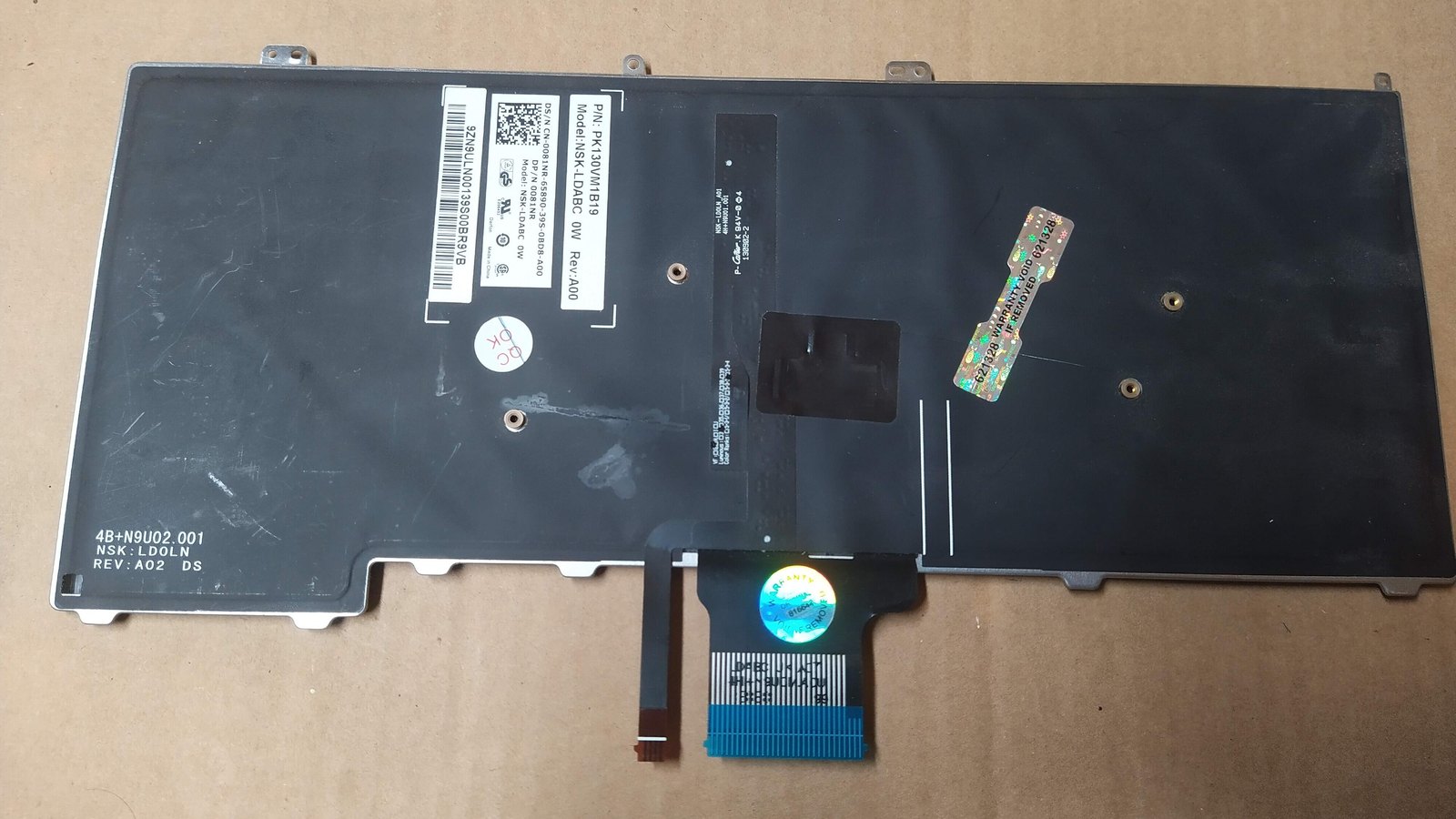
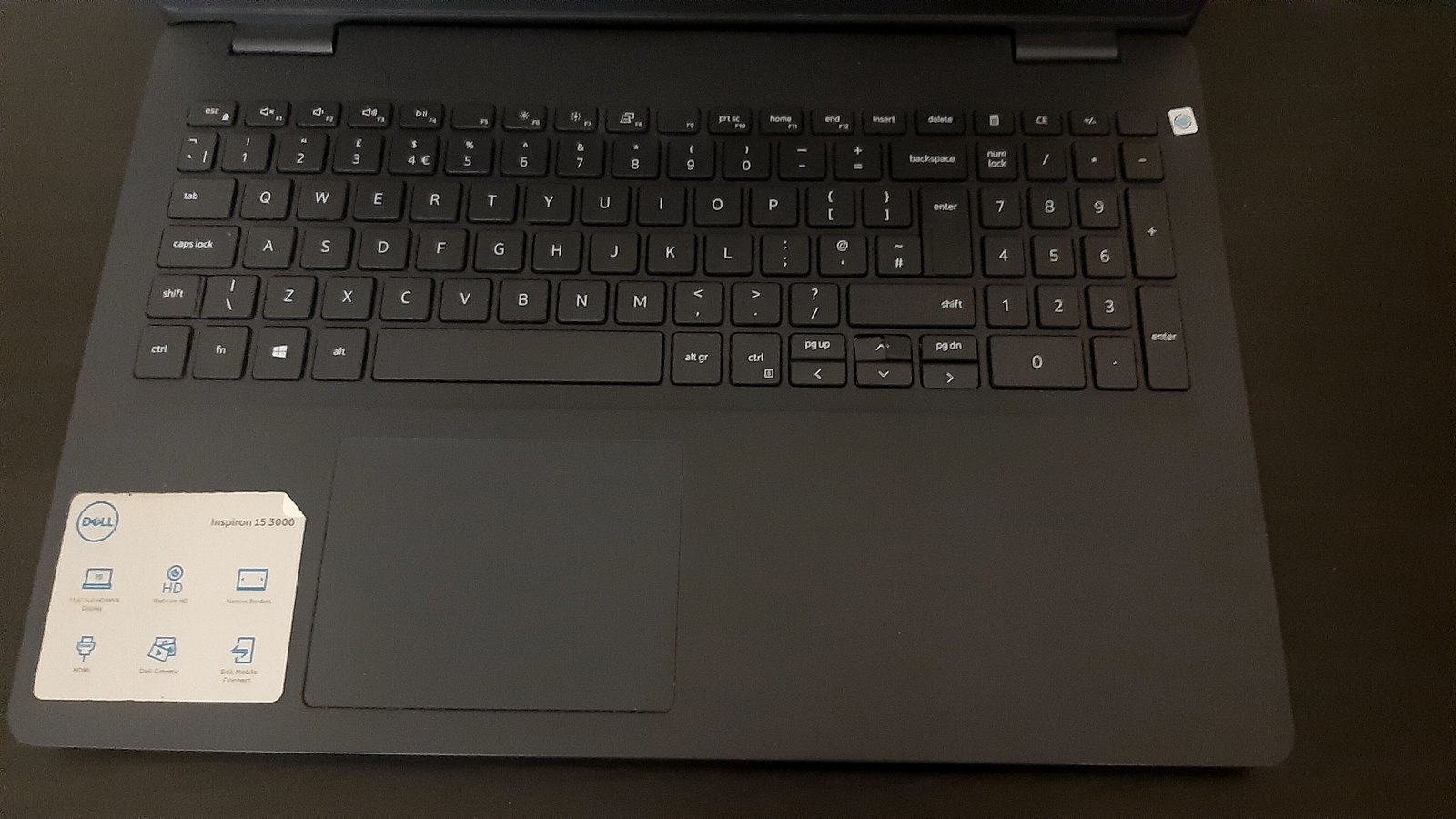
Top: the keyboard of a Dell Inspiron 15 3000. The checks below work on any Windows laptop, whatever the brand. Photo: ADecentPlayer, CC BY 4.0.
Before you pay for a repair, find out whether the keyboard has failed or Windows has stopped listening to it. Restart into the laptop’s firmware settings using only the touchpad, then press the arrow keys. If the menu moves, the keyboard works and the fix is a setting or a driver. If nothing moves, plug in a USB keyboard and try again. If that one works, the laptop’s own keyboard or its cable is at fault.
Your situation, what to do:
If the keyboard dies at the sign-in screen, you can still get in. Windows has a keyboard you click with the touchpad.
If Windows says your PIN or password is wrong when you know it isn’t, look at the language icon on the same screen. It shows which keyboard layout is active, and you can change it there. The eye icon in the password box shows what you have actually typed.
Once you are in, you can keep the screen keyboard open from Settings > Accessibility > Keyboard. It’s slow for real work. One owner on Microsoft’s Q&A forum, whose keyboard stayed dead even after resetting Windows, was getting by on it but said it wasn’t enough. So use it to get in, then run the test below.
This test splits every case in two: a problem in Windows, which you can often fix yourself for free, or a fault in the keyboard itself.
The idea is to try the keyboard outside Windows. The laptop’s firmware settings, often still called the BIOS, load before Windows does, so no Windows driver or setting can get in the way. You can reach them with the touchpad alone:
Here is what the result means:
Leave without changing anything. Choose Exit or Discard changes, or hold the power button. These settings control how the laptop starts, so this isn’t the place to experiment.
If UEFI Firmware Settings isn’t in the list, your laptop may not offer it. Use your brand’s start-up key in the brand section instead, with a USB keyboard plugged in if the built-in one is dead.
Dell’s own keyboard guide uses the same logic. Its built-in test checks whether the keyboard “is detected at a hardware level below the Operating System”. If it is, Dell says, “the operating system or installed software is preventing the keyboard from working.”
The pattern tells you a lot. Match what you see to the likely cause before you change anything.
| What you see | Most likely cause | Fix |
|---|---|---|
| Every key dead, touchpad fine | A setting, a driver or the keyboard cable | The 1-minute test |
| Some letters type numbers | Num Lock is on | Num Lock |
| Keys lag or only work if you hold them | Filter Keys | Unlock settings |
| One press types two letters | Repeat delay set too short | Unlock settings |
| Shift or Ctrl seems stuck down | Sticky Keys | Unlock settings |
| F5 changes brightness, not the page | Fn lock has flipped | Fn lock |
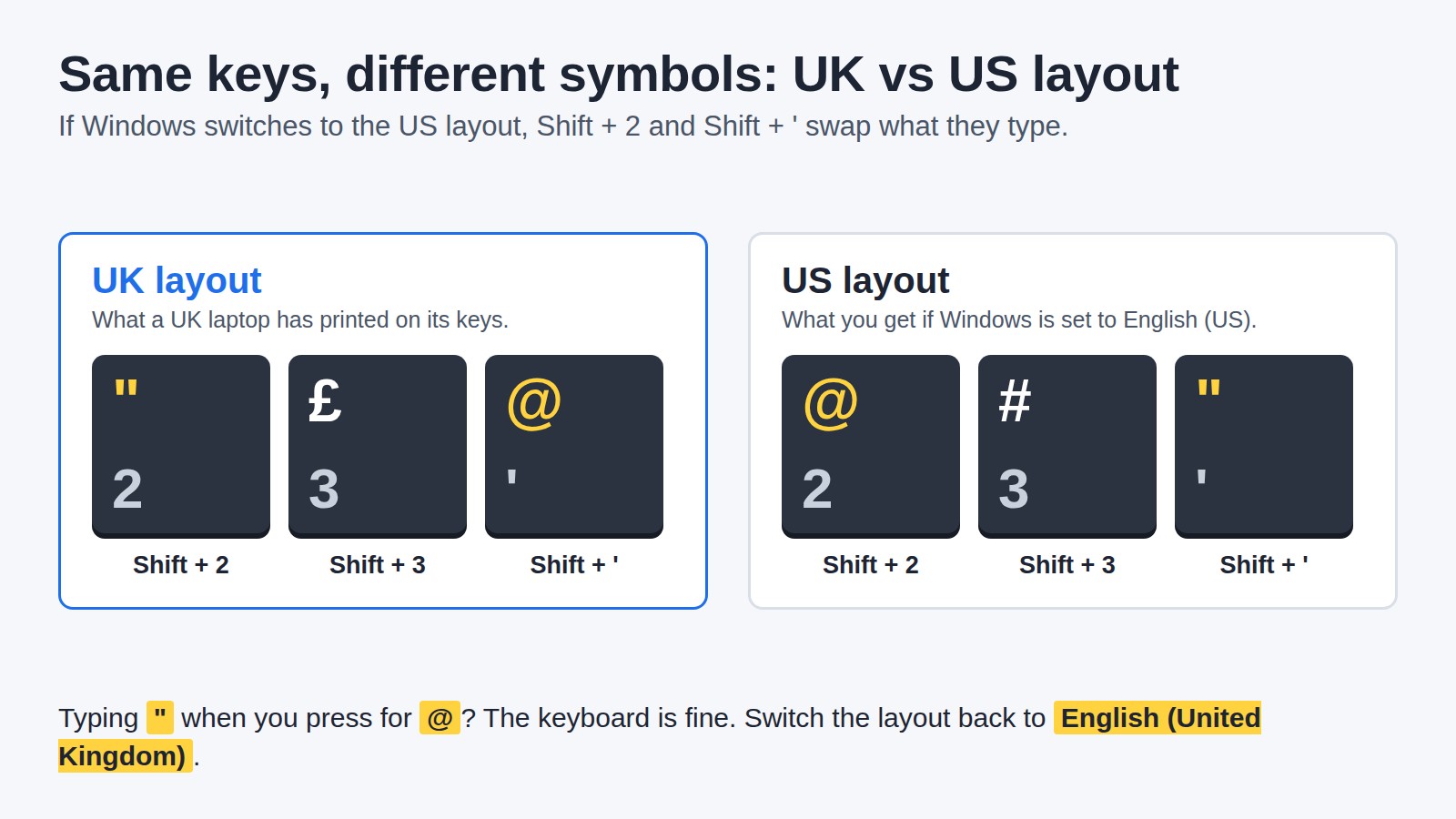
| @ and ” swapped, £ types # | Windows is on the US layout | UK layout |
| One or two keys dead | Dirt under the key, or a worn key | Dirt |
| Keys feel raised, touchpad clicks badly | A swelling battery | Battery |
| Keys died after a spill | Liquid damage | Spills |
“Likely” is the word that matters: start with the cause on the same row, and move to the 1-minute test if it doesn’t fix it.
Smaller laptops without a separate number pad hide one inside the letter keys. Dell’s guide puts it plainly: “When the Number Lock Key is active, numbers appear instead of letters when pressed.” Press Num Lock to switch it off.
Can’t find the key? Open the on-screen keyboard, select Options, tick Turn on numeric key pad, then click NumLock on the screen. This works on any Windows laptop.
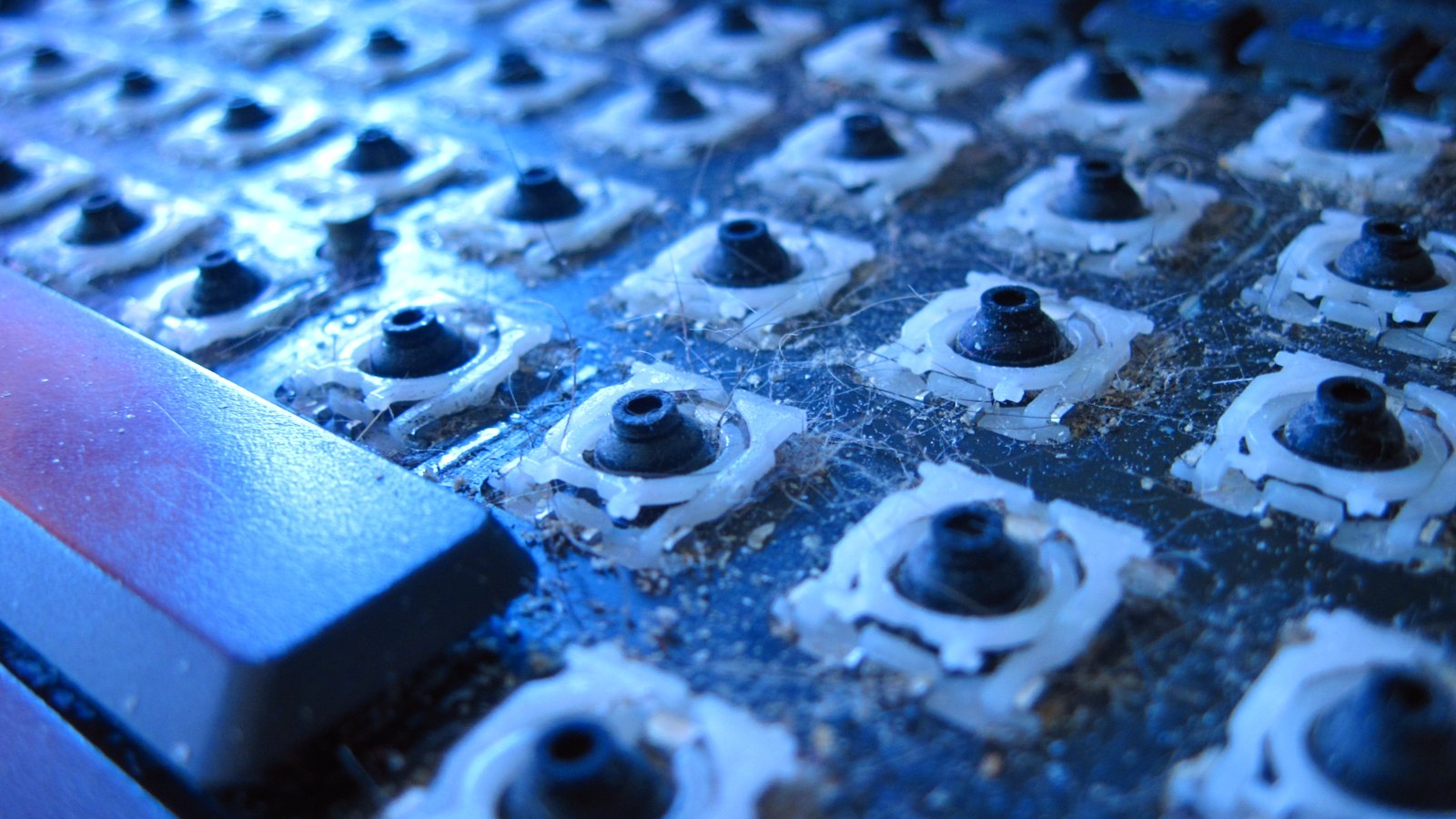
If one key fails while the keys around it work, look under it. Crumbs and grit stop a key from pressing down fully. For a key that doesn’t work or sticks, turn the laptop off, clean around the key with a can of compressed air, then test it again.
Don’t prise the key cap off unless you know how your model’s clips work, because they can snap. If air doesn’t free it, a repairer can replace a single key or the whole keyboard.
This is a safety issue, not a keyboard fault. Laptop batteries can swell, and the keyboard and touchpad sit right on top of them. Dell lists this among the warning signs: “The trackpad or keyboard does not click properly or feels raised.” Others include gaps in the case and a laptop that wobbles on a flat surface.
If you see this, stop using the laptop, unplug the charger and let the battery run down. Don’t press on it, puncture it or try to free it if it is stuck. Have the battery replaced by a repairer.
When a keyboard seems locked, check the accessibility settings first. Shortcuts can switch them on by accident, and you can switch them all off with the touchpad.
Open Settings > Accessibility > Keyboard and turn these off:
If one press types the same letter twice, the repeat delay is too short. Search for Control Panel, open Keyboard and drag Repeat delay to Long.
If F5 changes the brightness instead of refreshing a page, or the volume keys type F1 to F12, Fn lock has flipped. On Lenovo, Dell and Asus laptops, Fn + Esc switches it. On Lenovo laptops, a light on the Esc key shows when it’s on. HP’s combination varies by model, so check the user guide for yours.
If the keyboard worked in the firmware settings, Windows is the problem. Work through these in order and test after each one.
Also check for software that changes how keys behave, such as keyboard macro tools or KVM switch software, and disable it. Then test in Notepad to see whether the problem only happens in one app.
For an external wireless keyboard, start with power and pairing. Check that it’s switched on and charged, and that Bluetooth is on. Disconnect it and connect it again, try a different USB port for its receiver, then try it on another computer. If it works there, the problem is the laptop. The same order works on a Mac.
If Shift + 2 types ” instead of @, the keyboard is fine. Windows is using the US layout. On a UK keyboard the two symbols swap places: @ sits on the apostrophe key and ” on the 2 key. The £ sign is on 3, where the US layout puts #.
One easy way to switch it by accident: holding the Windows key and pressing the space bar cycles through every keyboard layout installed. To fix it:
The same mix-up can stop you signing in, which is why the sign-in steps start with the language icon.
The fixes above work on any Windows laptop. What changes between brands is the key that opens the firmware settings, the maker’s own diagnostics and the Fn lock. If a start-up key does nothing, the keyboard may be the problem: use the Windows route in the test, or plug in a USB keyboard.
Press F2 repeatedly straight after the power button to open HP PC Hardware Diagnostics, which includes a keyboard test. If F2 doesn’t work, tap Esc repeatedly from power-on to open the startup menu, then choose the diagnostics option there. HP’s Fn lock combination differs between models, so check the user guide for yours. Browse HP laptops if you are comparing models.
On IdeaPad models, press F2 repeatedly when the Lenovo logo appears. That opens the firmware settings. If hotkey mode is on, press Fn + F2 instead. Some IdeaPads also have a small Novo button that opens a start-up menu. Fn + Esc switches FnLock, and the light on the Esc key shows when it’s on. Other Lenovo ranges can use different keys, so check the guide for your model. See Lenovo laptops.
Press F2 about once a second when the Dell logo appears to open System Setup. Fn + Esc switches Function Key Lock. Dell’s built-in diagnostics include a keyboard test, but you need an external keyboard plugged in to start it. That is one more reason to keep a USB keyboard to hand. See Dell laptops.
On an Asus, switch the laptop off completely, then hold F2 and press the power button until the firmware settings appear. Fn + Esc turns the function-key feature on and off, and it relies on the ASUS System Control Interface driver. If your hotkeys stop working, update the driver and utility through MyASUS. See Asus laptops.
On an Acer, the Windows route in the 1-minute test works the same way, so you don’t need to know the start-up key. Everything in the unlock and Windows sections applies too. See Acer laptops.
On a Mac, start with the charger. Apple says your Mac “may be showing a low battery alert that you can’t see”, and that can stop the built-in keyboard. Plug it in, or connect an external keyboard to see the alert.
Then check two settings under System Settings > Accessibility:
If the wrong characters appear, open the Input menu in the menu bar and check that the right keyboard layout is selected. While you sort it out, the Keyboard Viewer puts a keyboard on the screen that you click with the trackpad.
Apple’s Keyboard Service Program for older MacBook keyboards has ended, so a faulty one now goes through Apple’s normal repair route or an authorised service provider.
Speed matters. Hark Tech, a UK mail-in repairer, asks for liquid-damaged laptops to be posted the same day if possible. It quotes £80 to £250 for the clean, depending on the damage.
A USB keyboard gets you working in seconds while you sort out the laptop. A wired one is the simplest: there’s nothing to pair or charge, and it doesn’t rely on Bluetooth. It’s also the external keyboard that Dell’s diagnostics need before they will start.
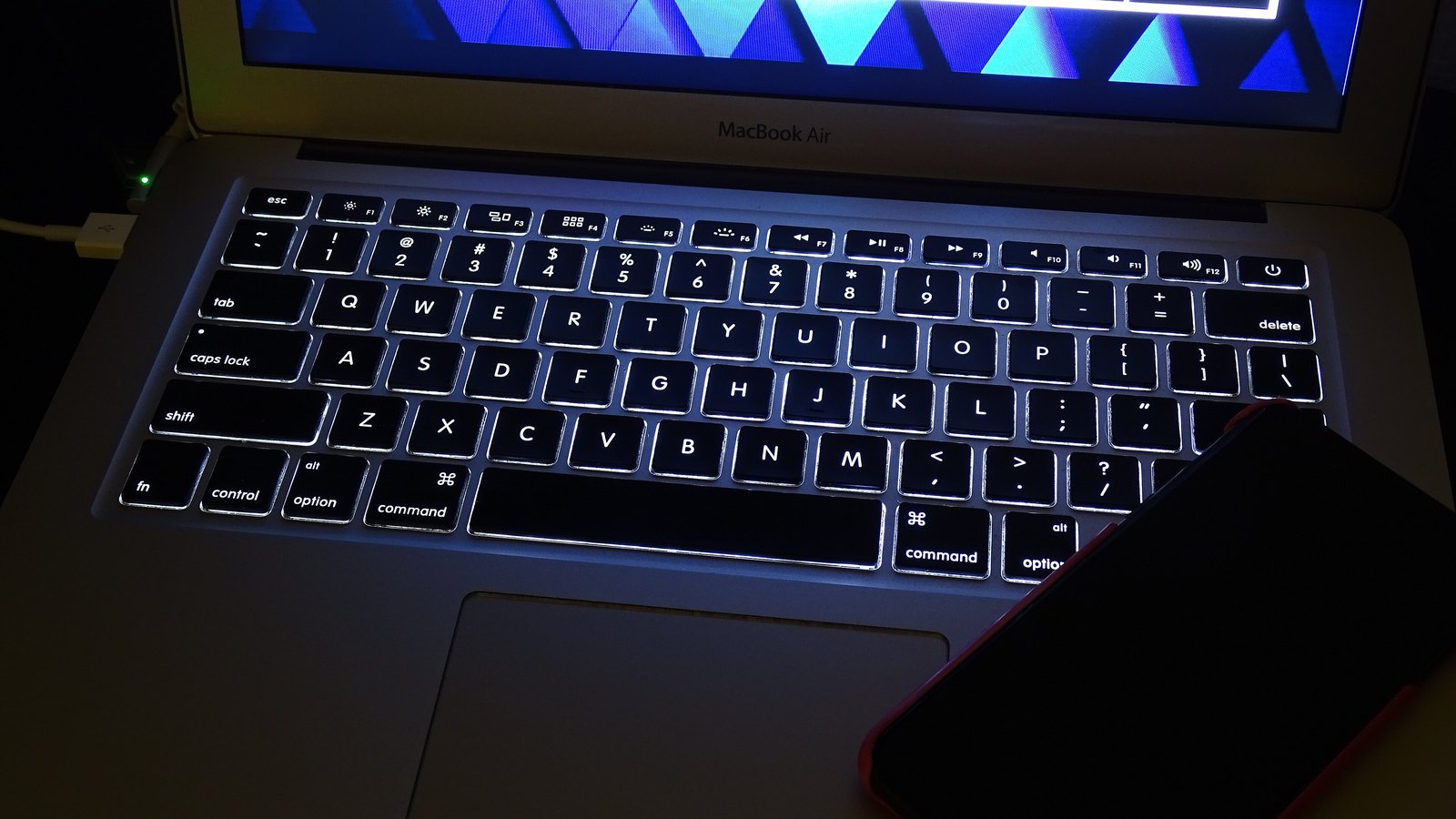
The Logitech K120 is a plain full-size option. Logitech says it works “right out of the box” with “no downloads, no setup”, it has a spill-resistant design, and it comes in a UK layout.
Any USB keyboard does the same job. Compare wired keyboards if you want something smaller for a laptop bag.
If the test pointed to the keyboard itself, check what you are owed before you pay for anything.
Check the maker’s warranty too, using the serial number on the label underneath, before anyone opens the laptop.
Out of warranty, an independent repairer is the next stop. Hark Tech quotes £40 to £180 for keyboard, hinge, screen and battery jobs, depending on the model. Ask for a written quote that says whether parts are included before you agree.
Is it worth it? Hark Tech’s rule of thumb compares the repair with what a working used laptop of the same kind costs. A £120 repair on a laptop worth £300 makes sense. A £180 repair on one worth £250 usually doesn’t. If the numbers don’t add up, a USB keyboard on your desk keeps the laptop useful, and you can put the money towards the next one.
For a laptop that also feels slow, the slow computer fixes may change the sums. If it won’t start at all, see laptop won’t turn on.
If you need to sign in, open the on-screen keyboard from the Accessibility button on the sign-in screen. Then restart into the firmware settings and press the arrow keys. If they work there, turn off Filter Keys and Sticky Keys and reinstall the keyboard driver in Device Manager. If they don’t, the keyboard or its cable needs a repair.
It depends on the model. Hark Tech, a UK mail-in repairer, quotes £40 to £180 for keyboard, hinge, screen and battery work. Check first whether the laptop is under six months old. A fault in that time is presumed to have been there from the start, so you can ask the retailer to repair or replace it.
Letters typing numbers means Num Lock is on. Keys that lag point to Filter Keys, keys that stay held to Sticky Keys, and doubled letters to a short repeat delay. If @ and " have swapped, Windows is using the US layout instead of the UK one.
Go to Settings, then Accessibility, then Keyboard, and turn off Filter Keys and Sticky Keys. If only the top row behaves oddly, press Fn + Esc, which switches Fn lock on Lenovo, Dell and Asus laptops.
Restart into the firmware settings through Change advanced startup options and press the arrow keys. If nothing moves, plug in a USB keyboard. If the USB one works and the laptop’s doesn’t, the built-in keyboard or its cable has failed.
Turn off Filter Keys in Settings, then Accessibility, then Keyboard. If the function keys are the problem, press Fn + Esc. If the hotkeys have stopped working altogether, update the driver and utility through MyASUS.
Turn off Filter Keys and Sticky Keys in Windows, and press Num Lock if letters are typing numbers. Fn + Esc switches Dell’s Function Key Lock.
The Hardvance Team is the editorial team at Hardvance, a UK computer and electronics retailer based in Mildenhall, Suffolk. We build and upgrade PCs and sell laptops, phones, networking gear, monitors and printers, and our guides cover the same ground. Every guide names its sources and explains how we checked the figures, and we say plainly when something is our opinion rather than a tested result.
View all posts by Hardvance Team


No account yet?
Create an Account