The Stutter That Isn’t Your GPU: How Game Downloads Throttle Your SSD

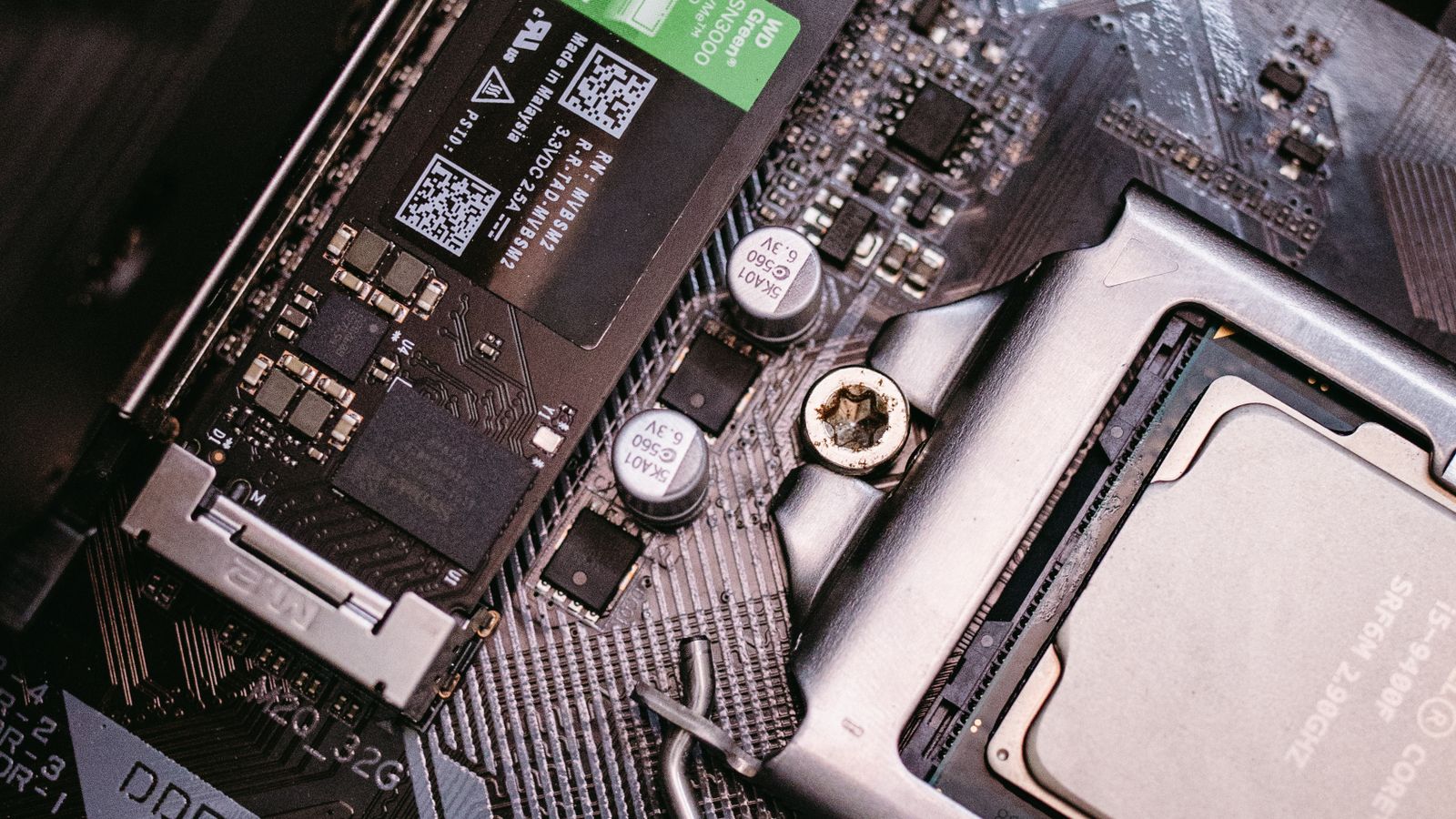
A WD Green NVMe SSD seated in a motherboard M.2 slot next to the CPU socket

You queue a 90GB game, hit download, and within a minute the whole PC feels wrong. The mouse pointer skips. A video tab judders. The game you were already playing starts to hitch every few seconds. So you do what almost everyone does and blame the graphics card, or the RAM, or some background Windows task eating the CPU.

Nine times out of ten, none of those is the culprit. The part quietly choking is the one nobody thinks to watch: your SSD. A download is one of the heaviest jobs you can hand a modern drive, and most drives are not built to take it for long. This guide explains what is actually happening, why the usual advice only half works, and the smarter fixes our bench reaches for to make the stutter stop.

A game download is a sustained write, and the installer unpacks each file as it lands, so the disk is reading, writing and waiting on the CPU all at once. That fills the small fast cache every consumer SSD leans on, and it heats the controller, so the drive slows to a crawl and everything sharing it stutters, including the game you are playing and Windows itself. The cure has nothing to do with buying a faster drive. It comes down to heat, free space, and keeping the download off the drive that runs Windows.

Why a download is the heaviest job you give an SSD

Most of what an SSD does all day is reading: loading a level, opening a program, streaming textures. Reads are easy, because the data is already sitting in the cells. A write is the hard part. The drive has to find empty cells, erase a block first if it must, then commit the new data, which is why the same drive that reads at 7,000 MB/s writes far slower once you really push it.

A download is nothing but writes, and a lot of them. Worse, launchers such as Steam and Epic decompress each package as it arrives, so the drive reads the compressed chunk, the CPU unpacks it, and the drive writes the larger result, over and over. On top of that, the same drive usually holds Windows, the pagefile and the game you are currently playing, so all of them have to queue behind the write storm. One disk, one queue, and suddenly everything is waiting.

What you feelWhat is actually happening
Mouse and audio stutter the second a download startsThe drive is saturated with writes, so Windows waits its turn for the same disk
Download speed starts fast, then drops after 30 to 60 secondsThe fast cache has filled, and the drive has dropped to its slow native write speed
A game on the same drive hitches while another installsBoth jobs are fighting over one controller and one queue
The drive or the area around the M.2 slot gets hotThe controller is throttling itself on purpose to avoid overheating

The two walls every consumer SSD hits: cache and heat

Almost every consumer drive uses a trick called the SLC cache. It treats a small slice of its flash as fast single-bit storage, writes your incoming data there at full speed, then quietly folds it into denser, slower storage later. While that cache has room, you see the big headline numbers. The moment it fills mid-download, write speed falls off a cliff to the drive’s true native rate, which on a cheap QLC drive can be under 100 MB/s. That is the first wall.

The second wall is heat. A PCIe 4.0 controller runs warm, a PCIe 5.0 controller runs hotter still, and once it crosses roughly 75 to 80°C it throttles itself to stay safe. A download long enough to fill the cache is usually long enough to heat the controller too, so the two walls tend to arrive together. The cheapest drives make it worse by dropping their own DRAM and borrowing a slice of system memory instead, which leaves them stuttering harder than ever once the writes pile up.

A cheap DRAM-less QLC drive can fall from 5,000 MB/s to under 100 MB/s the instant its cache fills. That collapse, not your graphics card, is what you feel as stutter.

The usual advice, and where it stops working

Search this problem and you get the same five tips every time. They are not wrong, but each one only covers part of the picture, which is why people try one, see no real change, and give up.

Add an M.2 heatsink. Useful against the heat wall, useless against the cache wall. Update the drive firmware. Worth doing, and it occasionally fixes a genuine throttling bug, but it is rarely the whole answer. Leave 10 to 20% free. Correct, because a full drive has a smaller cache and writes slower, yet most people fill the drive anyway and then wonder why it slowed down. Do not download to the boot drive. The best single tip on the list, and the one most builds ignore because they only have one drive. Cap your download speed. Quietly the cleverest of the five, but on its own it just makes downloads slower rather than smarter.

Smarter fixes our bench actually uses

These are the moves that fix the stutter properly, in the order we try them. None of them needs an expensive drive, and most cost nothing at all.

Give downloads their own lane

Add a cheap second drive, even a slower SATA SSD, and point Steam, Epic and your browser downloads at it. The write storm lands on the spare drive while Windows, the pagefile and whatever you are playing sit on the fast drive, untouched. Once a game has finished installing you can move it across to the quick drive in seconds from inside the launcher.

Throttle the burst, not the fun

Set a download speed cap a little below your drive's sustained write rate, then switch on the launcher option that slows downloads while a game is running. A drive that writes at a pace it can actually hold never hits the cache wall, so the stutter never gets a chance to start.

Cool the controller, not just the chips

A heatsink on its own is half the job. Aim a case fan across the M.2 area, and if your board has a second slot away from the graphics card, use it. On most boards the GPU backplate sits right over the primary M.2 slot and bakes it under load.

Buy capacity you will not fill

Treat the size on the box as roughly 80% usable. The fast cache shrinks as the drive fills, so a 70% full QLC drive throttles far sooner than a half-empty one. One size up is cheaper than living with the stutter, and the drive lasts longer too.

Let the first launch finish before you play

A new game often compiles shaders and finishes unpacking on its first run, which is yet another disk and CPU spike. Start it, give it a minute to settle, then play. Pair that with the in-game download throttle so a second install is not fighting the game in front of you.

Match the drive to the job, not the spec sheet

For a drive that downloads and installs all day, a DRAM-equipped TLC Gen4 with a heatsink beats a faster-on-paper DRAM-less Gen5 that throttles. Sustained write and steady-state speed matter far more here than the peak number printed on the label.

Drives that hold their speed under load

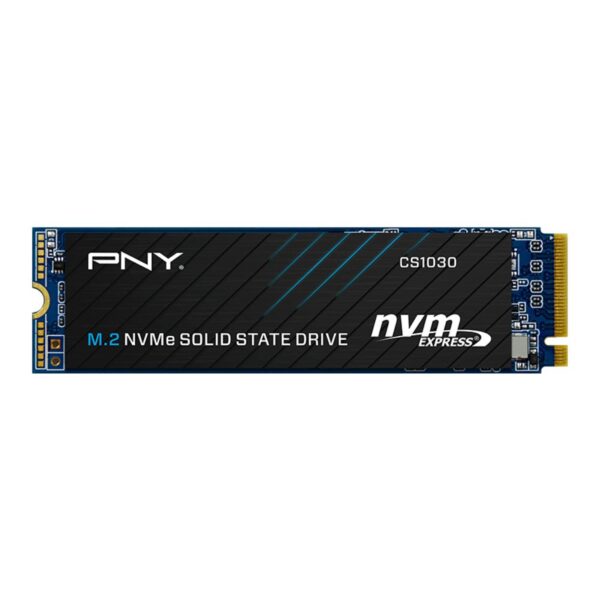
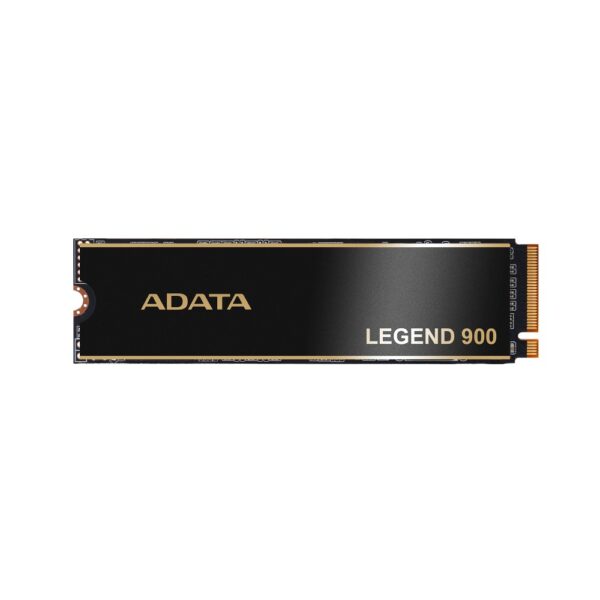
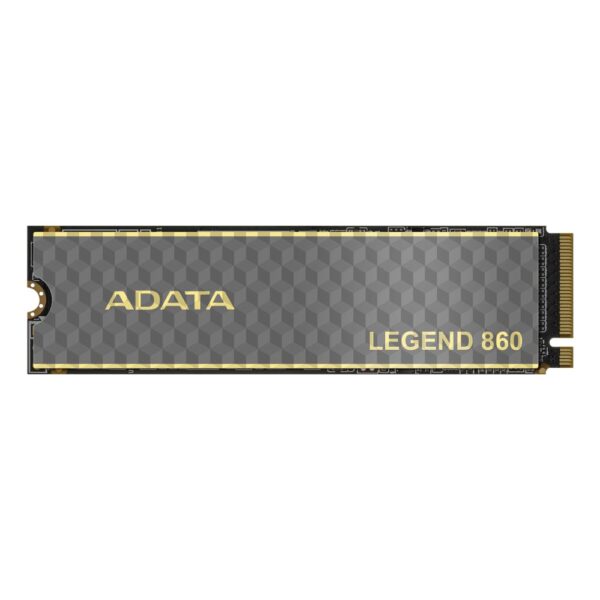
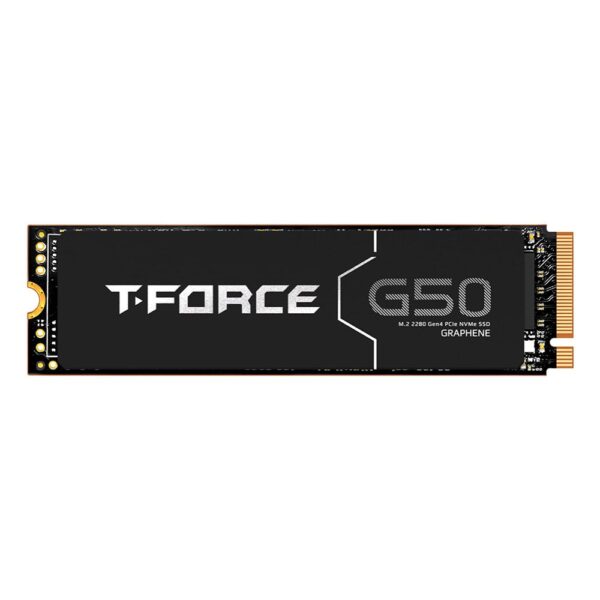
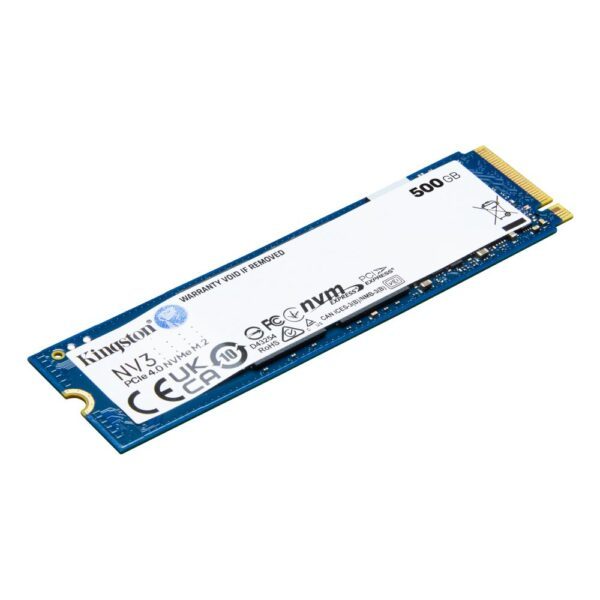
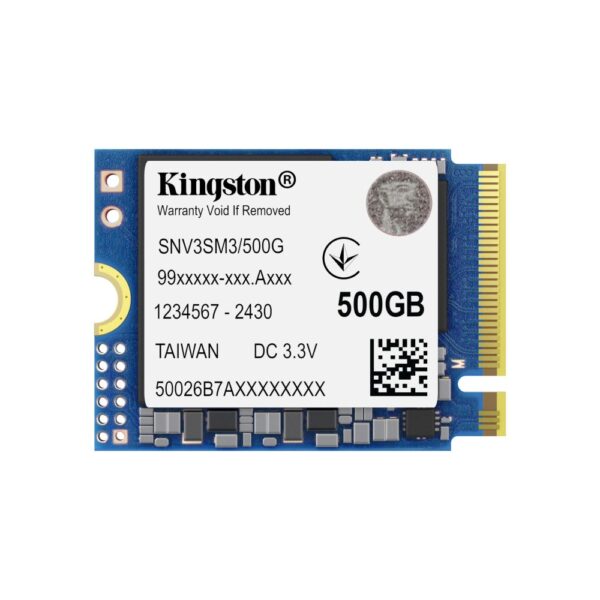
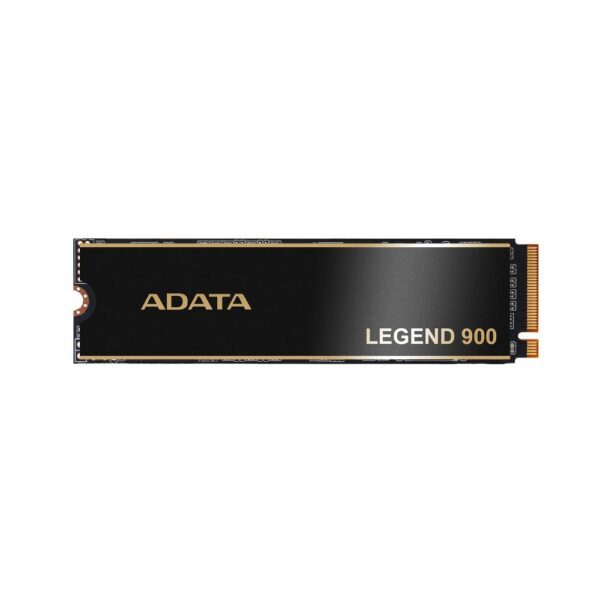
If you are buying with downloads and big installs in mind, look for a DRAM-equipped TLC drive with a heatsink rather than the cheapest model with the loudest headline number. These PCIe 4.0 NVMe drives stay cool and keep writing long after a bargain QLC drive would have stalled, and for a desk-side install drive an empty SATA SSD does the job just as well. If you want the full buying logic, our SSD buying guide walks through DRAM, TLC versus QLC and when Gen5 is and is not worth it.

How to prove it is the drive in under a minute

You do not need special software to confirm this. Open Task Manager, go to the Performance tab, click your disk, then start a download and watch. If Active time pins at 100% and the Average response time jumps from a couple of milliseconds to tens or hundreds, the drive is your bottleneck, full stop.

For the heat side, a free tool such as CrystalDiskInfo or HWiNFO shows the drive’s live temperature. If it climbs into the high 70s as the download runs, you are watching the thermal wall in real time. Keep both on screen for thirty seconds and you will literally see the cache fill, the speed drop and the temperature rise together. If the whole machine still feels sluggish once the download is done, that is a different problem, and our slow computer guide covers it.

Game downloads and your SSD: common questions

Does downloading games damage my SSD?

No, not in any way you will ever notice. Modern drives are rated for hundreds of terabytes of writes, and a few big downloads a week is nowhere near that. The slowdown you feel is temporary throttling, not wear.

Why does my download start fast then drop after a few seconds?

That is the SLC cache filling up. The drive takes the first few gigabytes at full speed, then falls back to its slower native write rate until the cache has cleared itself out.

Will an M.2 heatsink stop the stutter?

It helps if heat is your limit, and it is cheap insurance on any Gen4 or Gen5 drive. But it does nothing for a full cache, so pair it with free space and, ideally, a separate download drive.

Should I download games to a different drive from Windows?

Yes. This is the single most effective fix. Keeping the write storm off your boot drive means Windows, the pagefile and your current game never have to wait behind it.

Is a PCIe 5.0 drive worth it if it throttles?

For most gamers, no. Games barely touch the extra bandwidth, and Gen5 runs hotter. A good DRAM TLC Gen4 drive with a heatsink is the smarter buy for downloads and installs.

Does this happen on SATA SSDs too?

Yes, but more gently. SATA drives are slower to begin with and run cool, so they rarely overheat, but they still have a cache that fills and a single queue that everything else has to share.

How we know

Hardvance is a UK retailer. We build, test and repair PCs every week, and storage is where we see this play out most often. A customer reports stutter, blames the graphics card, and the disk graph tells the real story within seconds. The fixes here are the ones our technicians try first, in the order that clears the most cases for the least money.

Leave a Reply

Your email address will not be published. Required fields are marked *