The WiFi Router Guide (2026): What the Labels Mean, What to Buy, and the Five-Minute Fixes

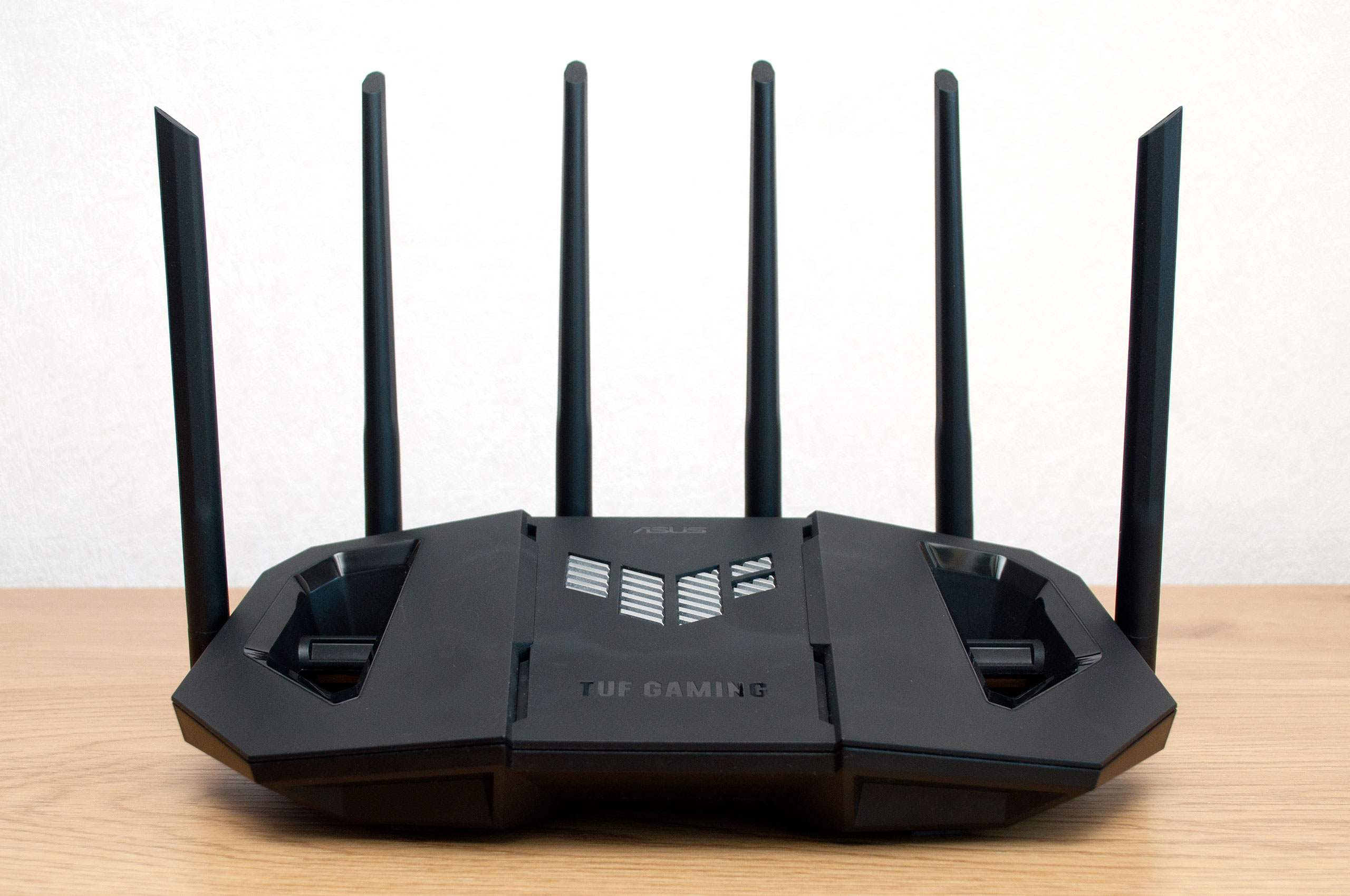
ASUS TUF Gaming WiFi 7 router with six antennas on a wooden desk

Nobody thinks about their WiFi router until the evening it ruins the film. Then come the questions, and they are always the same ones: is this box the problem, what do all those letters on the new ones mean, and is a £90 router really different from a £250 one?

This guide is the whole conversation in one place, in the order people actually need it. First, what a router really does and how to read the labels, because AX3000 and BE9300 look like nonsense until someone translates them. Then what we would buy in 2026 for a flat, a family house, a gamer and a caravan. And at the end, the five-minute jobs everyone eventually needs: changing the WiFi password, restarting the thing properly, and what that red light means.

What a router actually does (and whether you need one)

Two different boxes bring internet into your home, and they are often welded into one case, which is where the confusion starts.

The modem speaks to your internet provider down the phone line, cable or fibre. The router takes that connection and shares it with everything you own: it creates the WiFi network, hands each device an address, and directs the traffic so twenty devices can use one line at once. No router, no WiFi; the modem alone would serve exactly one computer on a cable.

In most homes the provider’s box does both jobs at once. That also answers the next question: do you need to buy a router at all? Only when the free one falls short, and it often does. Provider boxes are built to a price: weak WiFi range, few settings, and they age badly. Plugging a proper router into the provider box (most have a mode for exactly this) is the single biggest WiFi upgrade most homes can make, and you keep it when you switch providers.

The label decoder: Wi-Fi 5, 6, 6E, 7 and those numbers

Router names look like passwords. They are actually two simple codes stuck together.

The letters tell you the WiFi generation. The number after them is a rough combined speed across all bands, so bigger means faster, but only within the same generation:

On the boxGenerationPlain translation
AC (e.g. AC1200)Wi-Fi 5, 2014Fine for browsing. Showing its age in a busy home
AX (e.g. AX3000)Wi-Fi 6 / 6E, 2019The comfortable middle: handles many devices at once far better. 6E adds a third, empty radio band
BE (e.g. BE9300)Wi-Fi 7, 2024The current top: lower lag, huge speed headroom, and it can use two bands at once per device

Three honest notes. Your devices matter as much as the router: a Wi-Fi 7 router only shows its best to Wi-Fi 7 phones and laptops, though every older device still connects and still benefits from the stronger radios. Your broadband is the ceiling: no router makes a 70Mbps line faster than 70Mbps; what it fixes is the gap between the line and what reaches your sofa. And in 2026, Wi-Fi 7 routers start under £100, which makes buying a new Wi-Fi 5 router hard to justify.

How much should you spend?

Your situationSpendWhat to get
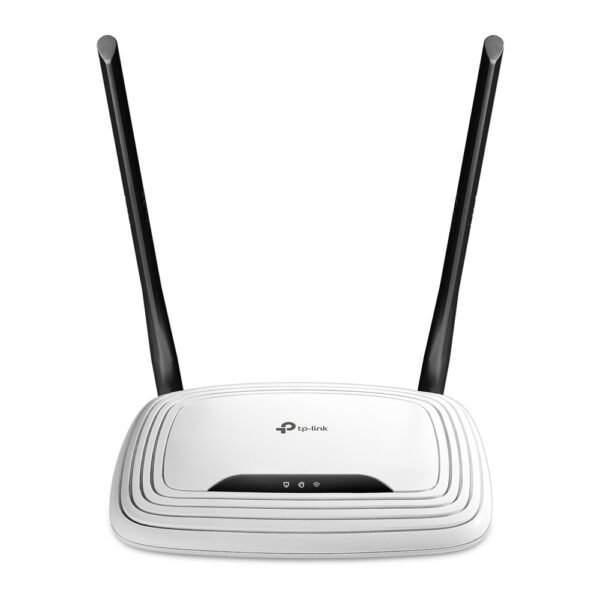
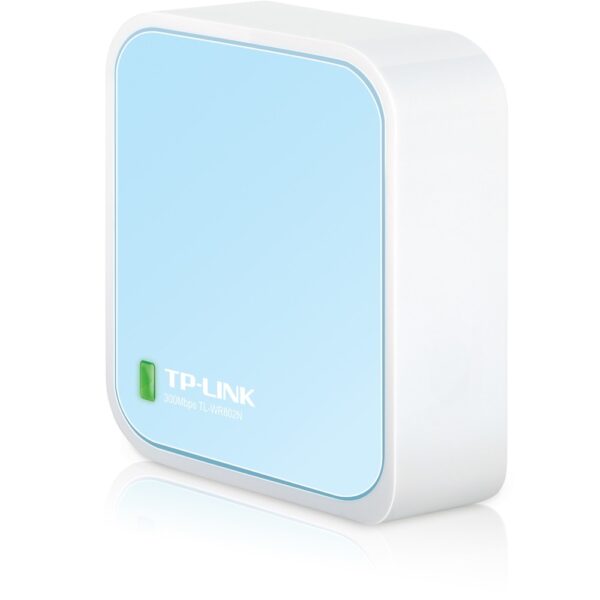
Flat or small house, normal use£35 to £60A Wi-Fi 6 router. Huge step up from a provider box
Most homes, buying for the next five years£90 to £170A Wi-Fi 7 router. The sweet spot in 2026
Serious gaming or a house full of heavy users£170 to £260Wi-Fi 7 with more radios, faster ports and traffic controls
Big house, thick walls, dead zones£85 to £260Stop shopping for one router: you want mesh (below)

Our pick for most homes

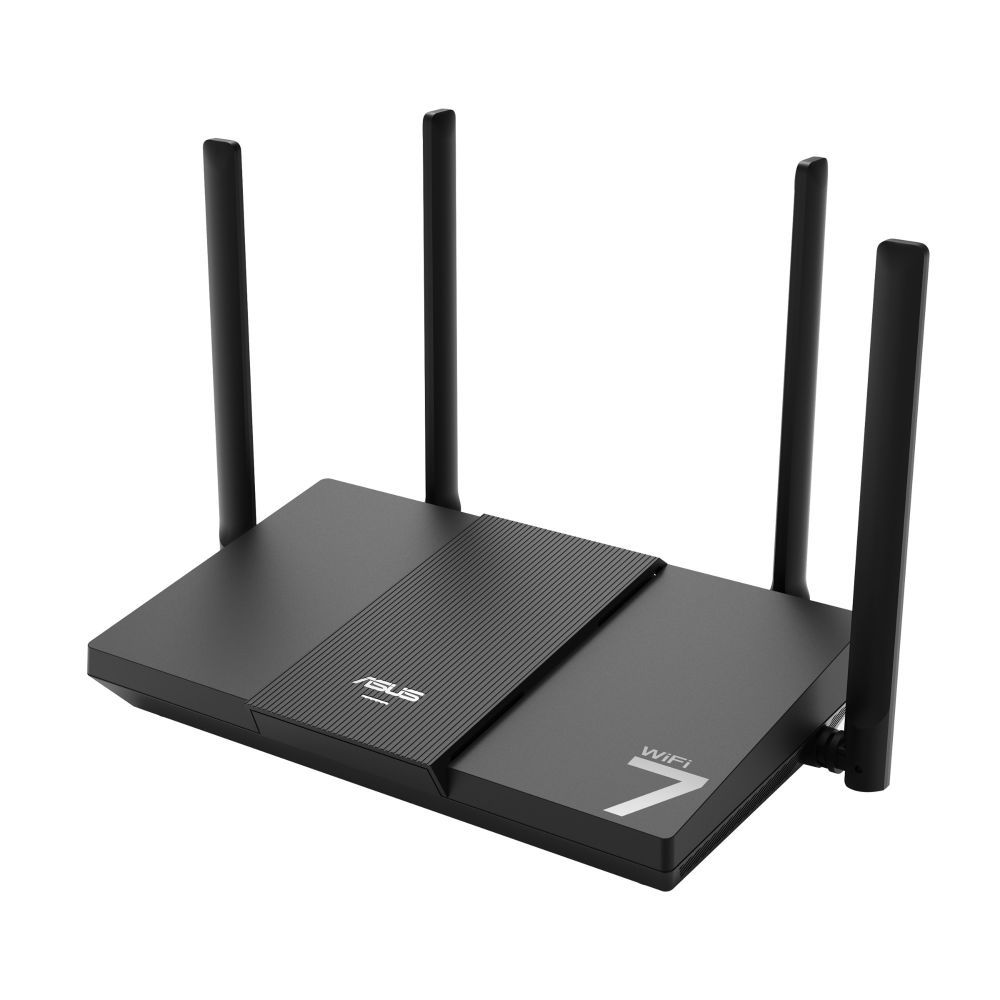
The ASUS RT-BE50 is the one we hand over most: Wi-Fi 7 for under £100, dead simple app setup, solid parental controls, and free lifetime security updates, which cheap routers quietly skip. It future-proofs a normal home for the price of a Wi-Fi 6 router from two years ago.

ASUS RT-BE50 Router

In stock

£91.55 inc VAT
  • Wi-Fi 7 dual-band speeds up to 3600 Mbps
  • Gigabit Ethernet with 3 RJ-45 ports
  • AI-boosted Smart AiMesh technology
  • Tabletop design in black
  • Dimensions: 238 x 147 x 97 mm
  • Supports 802.11a/b/g/n/ac/ax/be standards
Best budget WiFi routers under £60

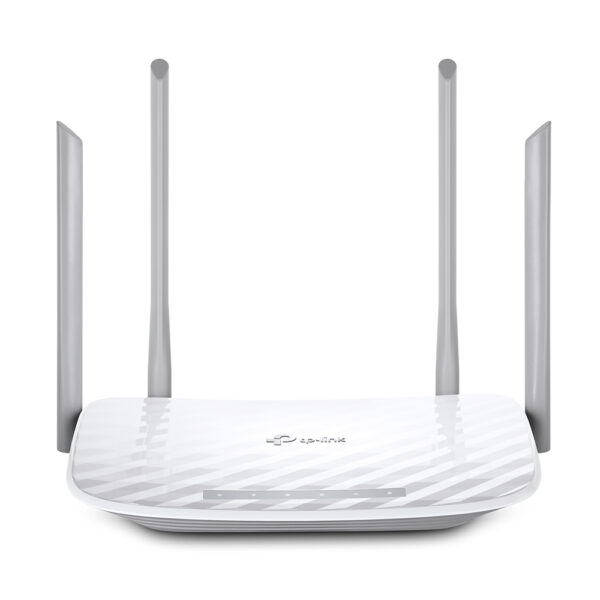
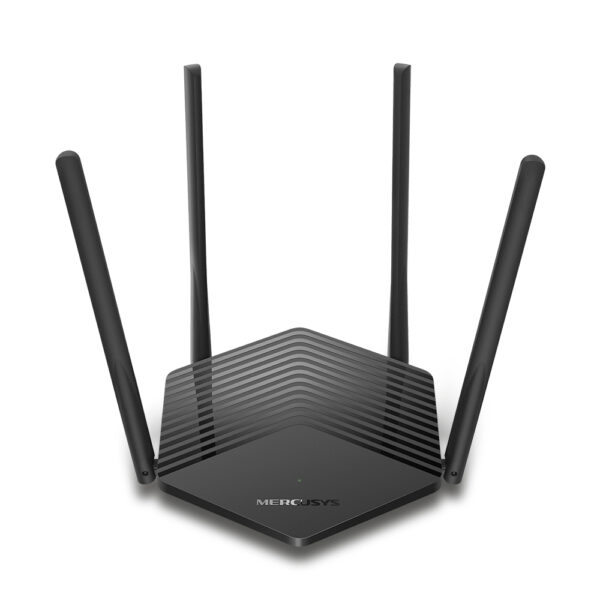
If the job is simply “better than the provider box”, these three do it without ceremony. All Wi-Fi 6, all app-managed, all a clear upgrade in range and multi-device handling:

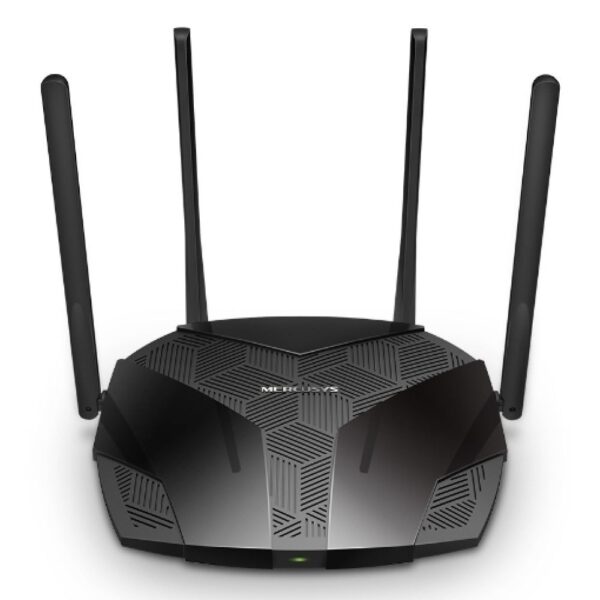
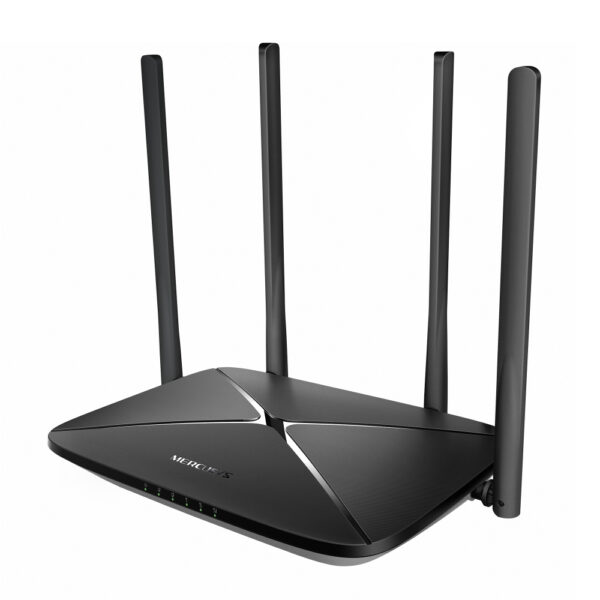
The Mercusys AX1800 is the price hero. Its AX3000 sibling adds speed headroom for faster broadband lines. The ASUS RT-AX52 costs a little more and brings the polished ASUS app plus proper parental controls, worth it in a family house.

The Wi-Fi 7 step-up

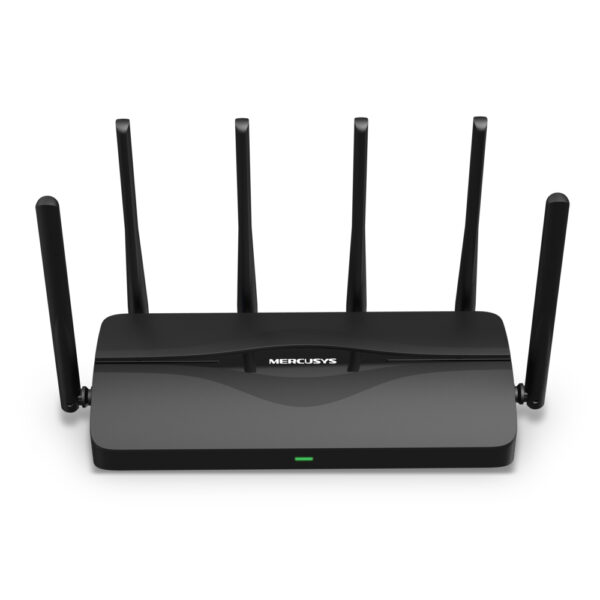
Buy here if you keep a router for years, your broadband is fast, or your home is full of new devices. The Mercusys BE9300 is the value flagship: three bands, Wi-Fi 7, and 2.5-gigabit ports for less than some Wi-Fi 6E routers. The ASUS RT-BE92U is the premium tri-band pick, with the stronger app, better security suite and more grunt under sustained load:

A router upgrade cannot make your broadband line faster. What it fixes is everything after the line: the range, the lag, and the chaos of thirty devices sharing one radio. That is usually where the evening actually breaks.

The gaming pick: chasing low ping

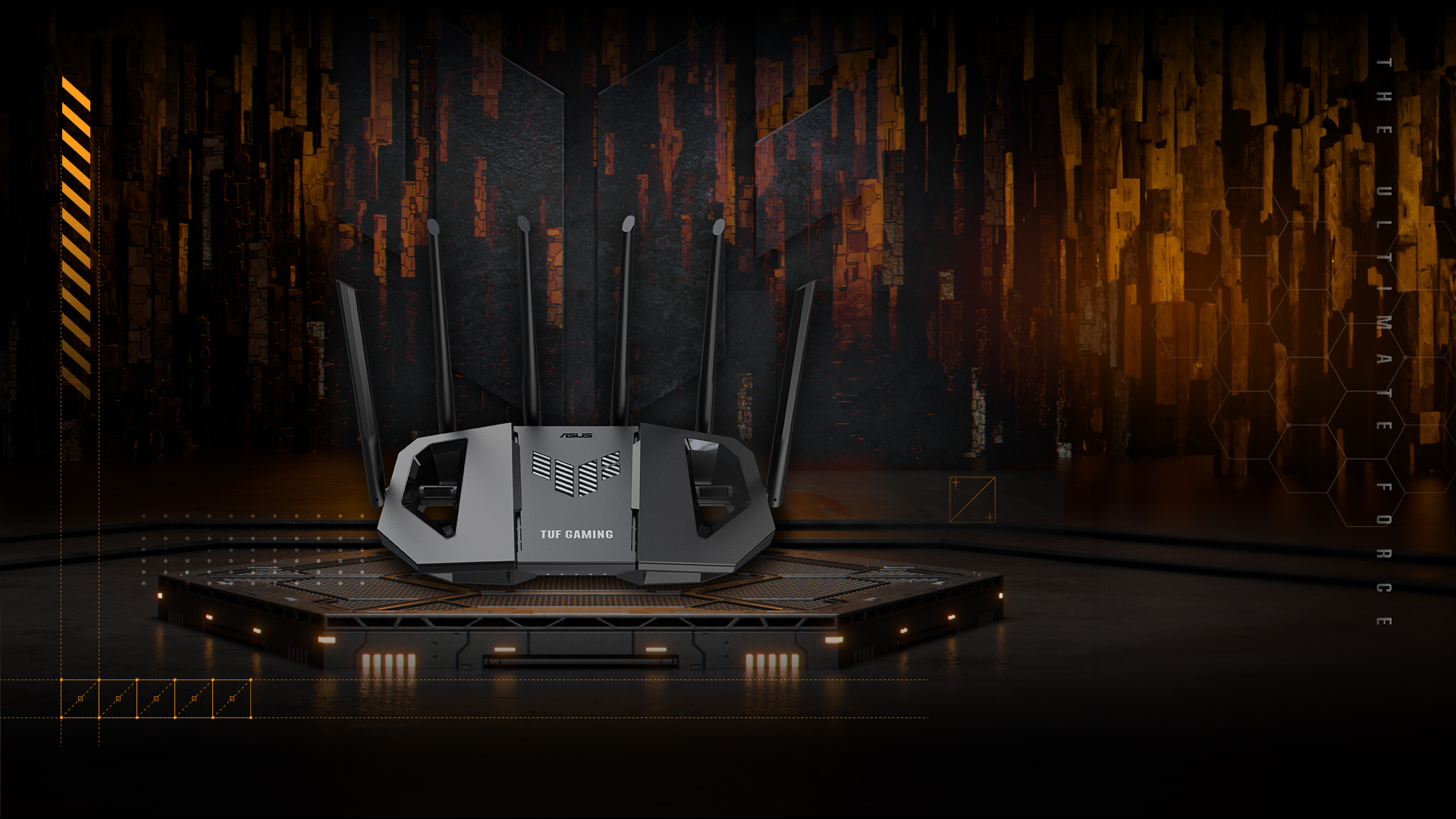
For gaming, raw speed matters less than consistency: you want low ping that stays low while the rest of the house streams. Gaming routers earn their badge with traffic prioritisation (your console’s packets jump the queue), more radio headroom, and wired ports worth using, because a cable is still the lowest ping of all. The ASUS TUF Gaming BE6500 is our pick: Wi-Fi 7, a dedicated game-priority engine, 2.5G ports, without the spaceship price of the ROG line.

ASUS TUF Gaming BE6500 WiFi 7 gaming router on a dark stage
Our gaming pick, as ASUS presents it. Under the drama: six antennas, 2.5G ports and a queue-jump for your console.

ASUS TUF Gaming BE6500 Router

In stock

£194.57 inc VAT
  • Wi-Fi 7 dual-band router with 6500 Mbit/s max data transfer rate
  • 2.5 Gigabit Ethernet WAN/LAN ports for ultra-fast wired connections
  • External antenna design with 6 antennas for extended coverage
  • Advanced security with WPA3, VPN support, and parental controls
  • USB 3.2 Gen 1 port and MU-MIMO technology for multiple device support
  • ASUS AiMesh compatible for seamless whole-home mesh networking

Big house or dead zones? You want mesh, not a bigger router

Past a certain size, no single router wins: brick walls beat antennas every time. A mesh system uses two or three units around the home that share one WiFi name, so your phone hops to the nearest unit as you move. Setup is ten minutes in an app.

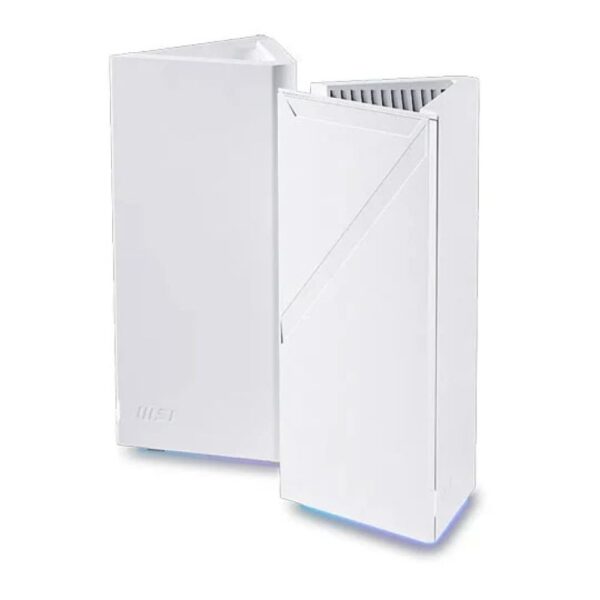
Two MSI Roamii mesh Wi-Fi units in a living room, one wall mounted and one on a sideboard
Mesh in real life: one unit on the sideboard, one on the wall, one WiFi name everywhere.

The Mercusys Halo three-pack covers a normal house for around £85. The MSI Roamii BE Lite brings Wi-Fi 7 to mesh at a startling price. And the Roamii BE Pro is the whole-house flagship for large or stubborn homes. We wrote a full guide to this decision, including when a cheap powerline adapter beats everything: how to get strong WiFi in every room.

Portable, caravan and backup: 4G and travel routers

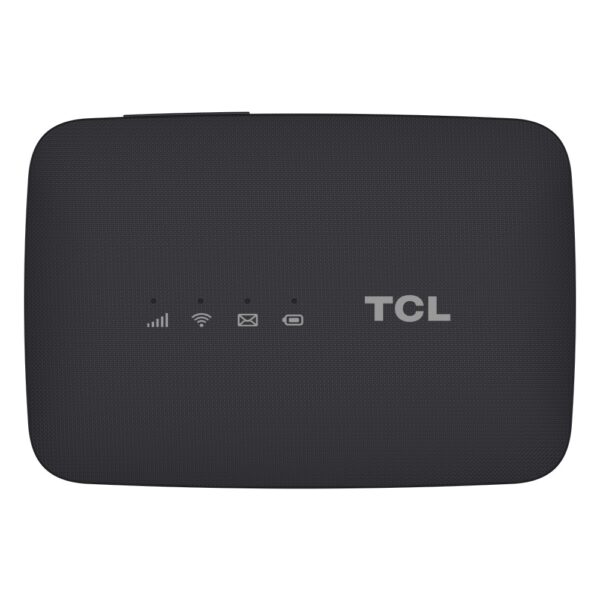
Two useful oddballs. A travel router like the ASUS RT-AX50 Go turns hotel Ethernet or public WiFi into your own private, secure network, and fits in a coat pocket. A 4G router takes a data SIM instead of a phone line: internet for a caravan, an allotment office, a market stall, or as an automatic backup when your broadband dies. If your home broadband is genuinely awful, a 4G or 5G router on a good mast can simply replace it.

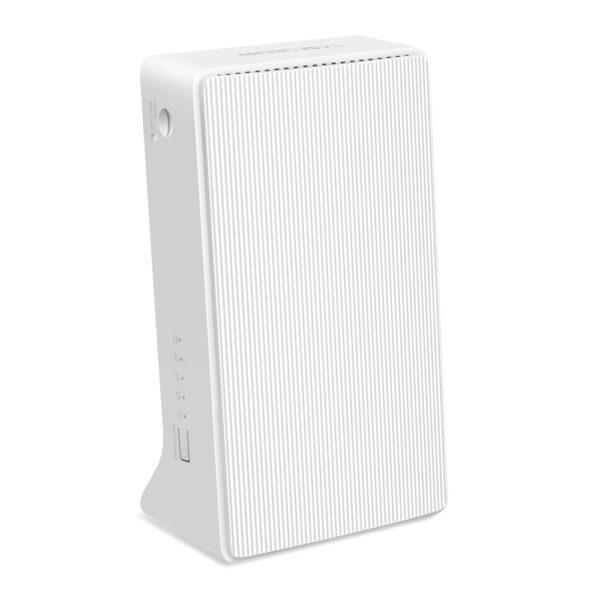
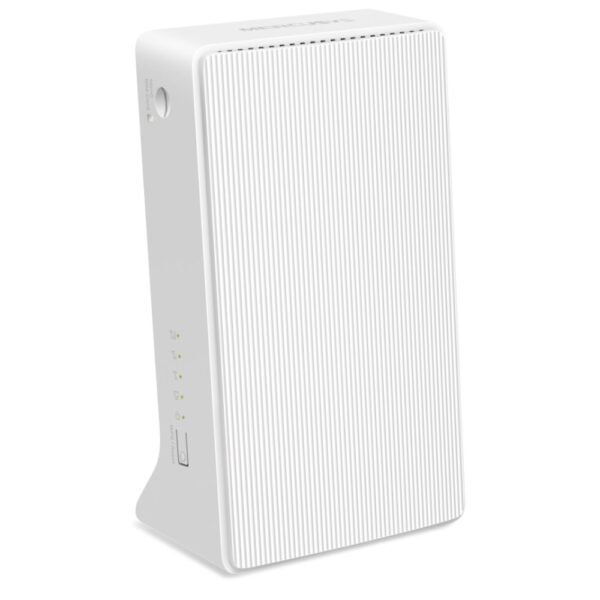
Mercusys 4G+ Cat6 AC1200 Router

In stock

£56.02 inc VAT
  • 4G+ Cat6 AC1200 dual-band wireless router
  • Nano SIM card slot for 4G LTE connectivity
  • Supports FDD-LTE and TDD-LTE for global compatibility
  • Up to 300 Mbps download and 50 Mbps upload speeds
  • 2 Gigabit Ethernet ports for wired connections
  • MERCUSYS app for easy setup and management
  • Supports up to 64 simultaneous Wi-Fi connections

ASUS RT-AX50 Go Dual-band Router White

In stock

£57.21 inc VAT
  • Tri-mode connectivity for primary or backup internet
  • Wi-Fi 6 (802.11ax) with dual-band speeds up to 1501 Mbit/s
  • Portable design with internal antennas and USB-C power
  • VPN client support including OpenVPN and Surfshark
  • Ethernet WAN/LAN plus 3G/4G USB modem compatibility
The five-minute fixes everyone eventually needs

The questions that fill our inbox, answered once and properly. Everything below happens in the router’s settings page: type 192.168.1.1 (or 192.168.0.1) into any browser on your WiFi, or use the maker’s app (TP-Link Tether, ASUS Router, Mercusys). The admin login is printed on the sticker under the router.

Change the WiFi password

In the settings page or app, find Wireless (sometimes WiFi or WLAN). Two fields matter: the network name (SSID) and the password, called the key or passphrase on some models. Type the new password, save, and the router restarts the radio. Every device will ask for the new password once; that is normal, not a fault. Two rules: never leave the factory password on a new router, and know the difference between the WiFi password (what devices use) and the admin password (what opens this settings page). Change both.

Restart it properly (fixes more than you would believe)

Pull the power plug, count to thirty, plug it back in, give it two minutes. That is a restart, and it cures a remarkable share of slow evenings, dropped video calls and devices that refuse to connect, because it clears the router’s memory and forces a fresh connection to your provider. If your internet misbehaves weekly, restarting is the first move, and a smart plug on a schedule can even do it for you at 4am.

Reset is a different, bigger thing

The pinhole button on the back marked Reset wipes the router back to factory settings: your WiFi name, password and every setting, gone. Hold it about ten seconds with a paperclip until the lights dance. Do this only when the router is misbehaving beyond repair or you have lost the admin password. Afterwards, set it up from scratch with the details on the sticker.

Find the WiFi password you forgot

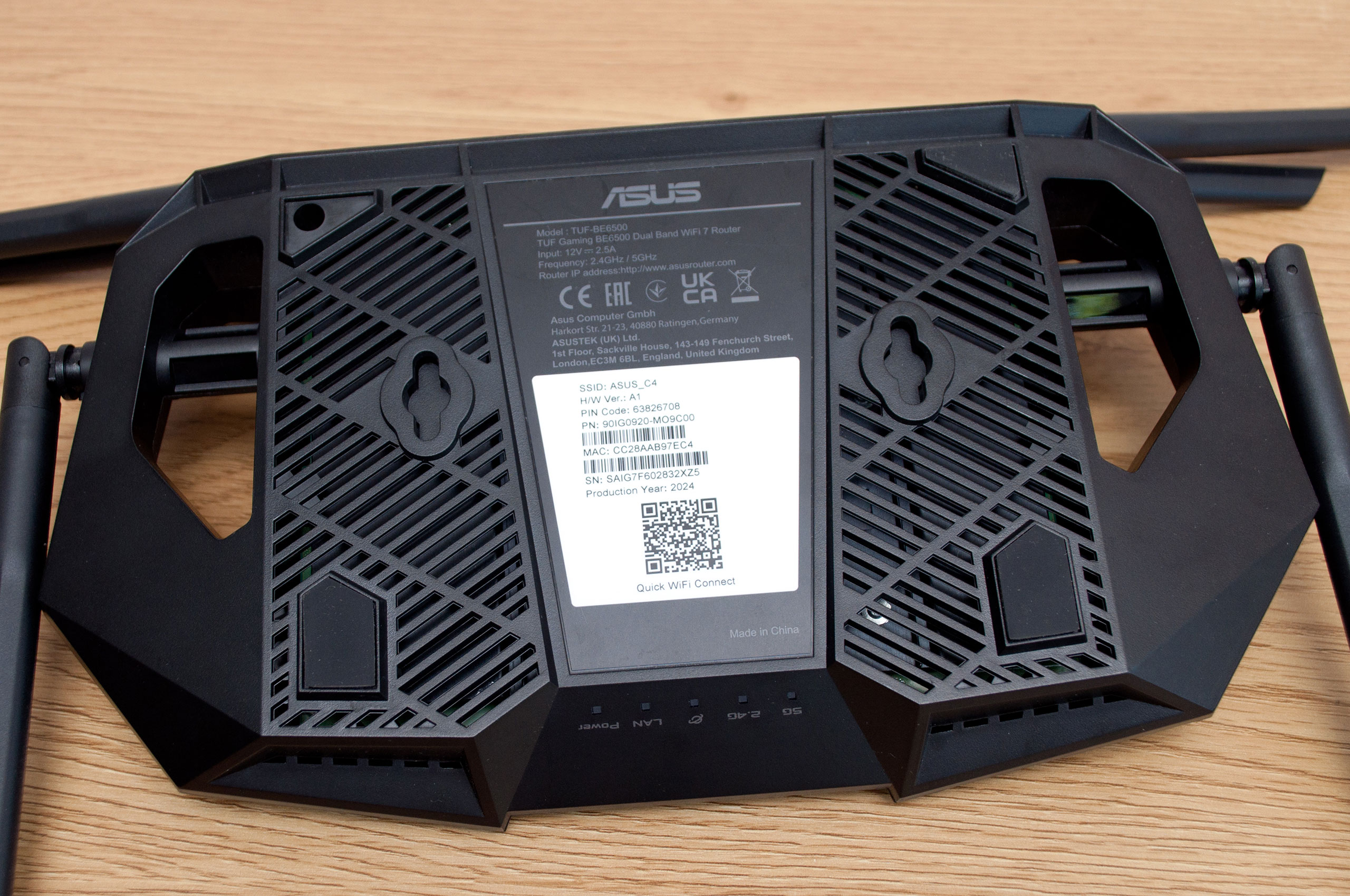
If the password was never changed, it is printed on the sticker under the router. If it was changed, open the settings page from a device that still connects and look in Wireless, or on Windows: Settings > Network & Internet > WiFi > your network properties. The nuclear option is the reset above, which puts the sticker password back.

Decode the warning light

A red or orange internet light means the router is fine but cannot reach your provider: check the cable from the wall first, restart, then check your provider’s status page or app, because the fault is usually theirs. All lights off: power supply or socket. WiFi light off: someone pressed the WiFi button on the back; press it again.

The underside of a WiFi router showing the sticker with default network name, password and QR code
The sticker under the router: the default network name, password and admin details all live here.

Router questions we get asked

What does a WiFi router do, in plain words?

It takes the single internet connection coming into your home and shares it: it creates the WiFi network, gives every phone, TV and laptop its own address, and directs the traffic between them and the internet. The modem brings the internet in; the router hands it out. Most provider boxes contain both.

Do I need both a modem and a router?

You need both jobs done, but usually not two boxes: the unit your provider sent almost certainly does both. You add your own router when the provider box is not good enough, plugging it in behind the provider unit or, with full-fibre, sometimes straight into the fibre terminal.

How much does a decent WiFi router cost?

In 2026: a genuinely good Wi-Fi 6 router costs £35 to £60, the Wi-Fi 7 sweet spot runs £90 to £170, and gaming or heavy-duty models £170 to £260. Mesh systems for whole-house coverage start around £85 for a three-pack.

Is Wi-Fi 7 worth it, or is Wi-Fi 6 enough?

If you are buying new in 2026, Wi-Fi 7 is worth it simply because it now starts under £100 and you will keep the router for five years or more. Wi-Fi 6 remains completely fine for normal homes and is the right call on a tight budget. What we would avoid buying new is Wi-Fi 5.

Can I use my old router as a WiFi extender?

Often, yes. Many routers have a repeater or access-point mode in their settings that turns them into a second transmitter for your existing network. An old router connected by an Ethernet cable and set to access-point mode is a genuinely good free upgrade. In wireless repeater mode it works but halves the speed for devices using it, so cable it if you can.

How often should I replace my router?

Five to seven years is a fair life. Replace sooner if it no longer gets security updates, if it predates Wi-Fi 6 and your home is full of devices, or if your broadband got much faster than the router was built for. If the WiFi simply does not reach, consider mesh before replacing like for like.

Does putting aluminium foil behind the router boost the signal?

The internet loves this one. In theory a curved reflector can nudge signal in one direction, and researchers have actually demonstrated it; in practice you lose as much behind the foil as you gain in front, and it usually ends up blocking more than it helps. Better free wins: put the router high and central, out of cupboards, away from the TV and fish tank.

Is it safe to sit near a WiFi router?

Yes. Routers transmit at a fraction of a watt, far below phone masts and microwave ovens, and WiFi radio waves are non-ionising, meaning they cannot damage cells the way X-rays can. Decades of studies have found no health risk at these power levels. Do not sleep on top of one, but only because the lights are annoying.

Every router in stock right now

Live prices, cheapest first:

How we chooseEvery pick is a router we stock, set up for customers and hear back about; the returns desk is the most honest reviewer we know. Nothing here is sponsored, and the same advice applies whichever shop you buy from. Prices are live and move with the market.

Leave a Reply

Your email address will not be published. Required fields are marked *