SSD Not Detected? The Complete 2026 Fix Guide (New Drive, NVMe and SATA)

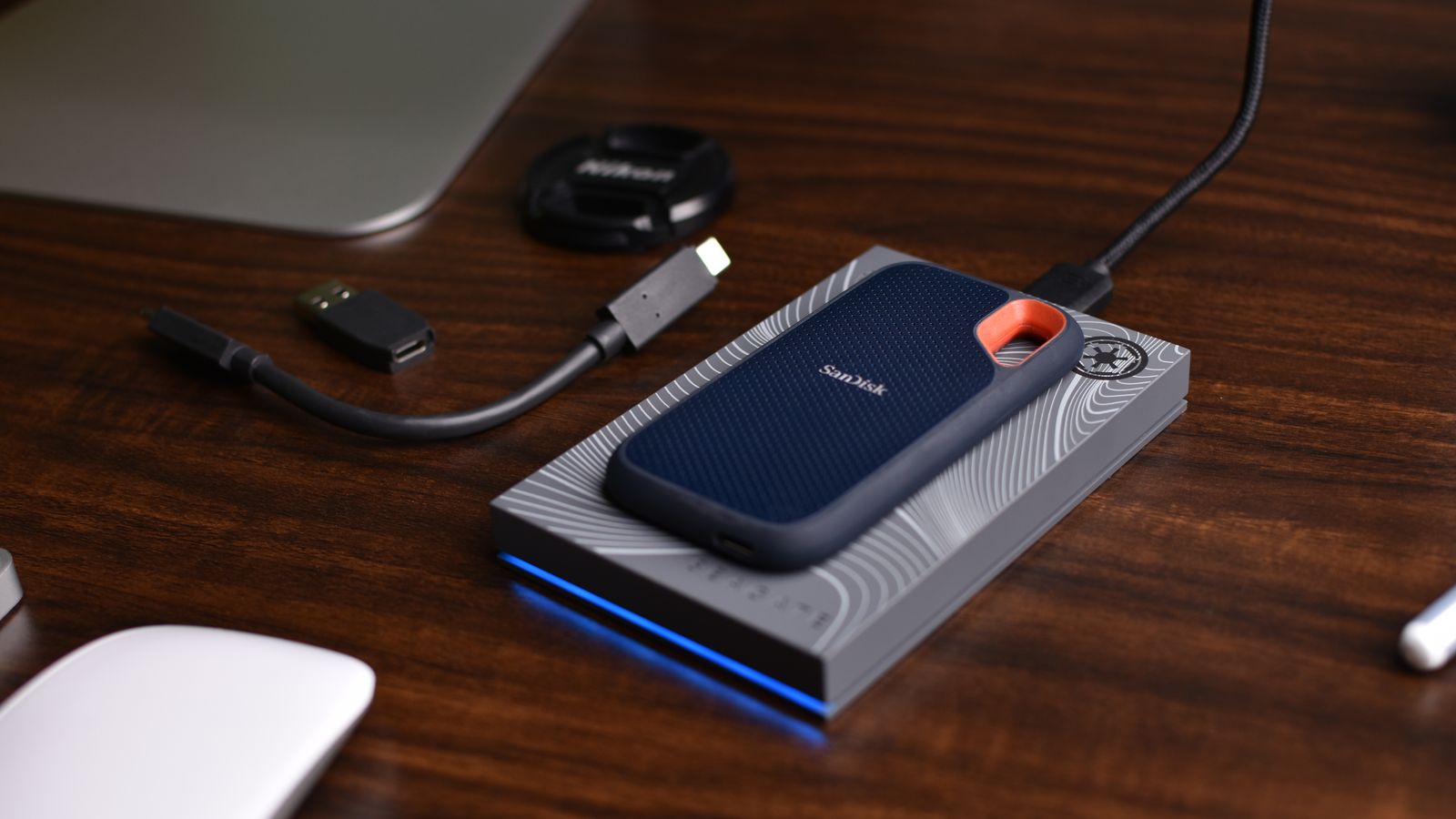
SanDisk portable SSD and USB-C cable on a desk

You fit a drive, boot the PC, and it is not there. No new storage in File Explorer, or a blunt no drive found when you try to install Windows. It is one of the most common jobs that lands on our bench, and one of the most stressful when the drive is holding files you care about.

The reassuring part is that most cases are not a dead drive. They are a setting, a seating problem or a step nobody told you about. This guide walks the fault in the order we work through it ourselves, from the thirty-second checks to the point where a drive has genuinely failed. It covers both NVMe M.2 drives and 2.5-inch SATA SSDs.

If the drive shows up in your BIOS, the fault is almost always on the Windows side, and a brand-new drive usually just needs initialising. If it shows up nowhere, the cause is seating, a BIOS setting or the drive itself. Check the BIOS first, because that one answer tells you which half of this guide you need.

First: does the drive show in your BIOS?

This is the question that splits every other case, so do it before anything else. Restart the PC and tap Delete or F2 as it powers on to enter the BIOS or UEFI. Most boards list attached drives on the main screen or under a storage or boot menu. Look for your SSD by its model name.

If the drive is listed, the hardware is fine and Windows is simply not showing it. Go to shows in the BIOS but not in Windows. If it is a fresh drive you have never used, try brand-new drive first, since that is the most common reason a new SSD looks missing.

If the drive is not listed in the BIOS, the problem is physical or firmware level. Head to not showing in the BIOS at all. The table below is the short version of where each symptom usually points.

What you seeMost likely causeWhere to go
New drive, nothing in File ExplorerDrive is blank, not yet initialisedBrand-new drive
In the BIOS, not in WindowsNot initialised, no drive letter, or storage modeBIOS but not Windows
Not in the BIOS, M.2 driveSeating, wrong slot, or lane sharingNot in the BIOS
Not in the BIOS, SATA driveLoose data or power cable, dead portNot in the BIOS
Was working, now goneLoose connection or a failing driveWorked, then vanished
Gone after an updateStorage driver or VMD settingAfter a Windows update

It is a brand-new drive: it probably just needs initialising

A new SSD ships blank. It has no partition and no file system, so Windows mounts it but hides it from File Explorer until you set it up. This catches almost everyone with their first extra drive, and the fix takes a minute.

Right-click the Start button and open Disk Management. If the drive is there, it shows as a black bar marked Unallocated, often with a prompt asking you to initialise it. Choose GPT when asked, right-click the unallocated space, pick New Simple Volume, accept the defaults, format it as NTFS and give it a drive letter. It appears in File Explorer straight away.

If a drive already holds files you need, never click Initialise or Format. Both throw away the map to your data. Recover the files first using another PC or a USB enclosure, then format.

It shows in the BIOS but not in Windows

When the BIOS sees the drive, the hardware is talking to the board and you are dealing with a software or configuration gap. Work through these in order.

Check Disk Management. Open it as above. A new or wiped drive shows as Unallocated and needs a volume (see brand-new drive). An existing drive that reads Unknown, Not Initialised still holds your data, so do not initialise it. Recover it first.

Give it a drive letter. If the volume is there but has no letter, right-click it, choose Change Drive Letter and Paths and add one. Windows occasionally drops a letter after hardware changes.

Check the storage mode. In the BIOS, find the SATA mode or VMD option. If Windows was installed in AHCI mode and the board is now set to RAID or Intel RST, the drive can disappear from Windows even though the BIOS still sees it. Switching back to the mode Windows was installed under usually brings it back at once.

Confirm the drive is healthy. Install CrystalDiskInfo and check the drive reports Good. A drive that reads in the BIOS but hides from Windows and shows Caution may be on its way out.

It does not show in the BIOS at all

If the BIOS cannot see the drive, nothing you do inside Windows will help. This is almost always physical or a board setting.

Reseat it properly. For an M.2 NVMe drive, slide it into the slot at a shallow angle until it stops, then press it flat and secure the little screw or latch. A drive that is in but not screwed down often sits proud of the contacts. For a SATA SSD, reseat both the data and power cables, then try a different SATA cable and a different port on the board. Cheap SATA cables fail more often than people expect.

Mind the lane sharing. This one traps a lot of builders. On many motherboards, filling the second or third M.2 slot disables some SATA ports, or an M.2 slot only runs with a particular CPU fitted. So your new NVMe appears and an old SATA SSD vanishes, or the other way round. Open the motherboard manual, find the storage or lane-sharing table, and move the drive to the primary M.2 slot wired straight to the CPU.

Update the BIOS. A newer drive on an older board can need a BIOS update before it is recognised, especially budget B-series boards paired with a recent NVMe model. Flash the latest BIOS from the maker’s site, then load optimised defaults.

Isolate the fault. Try the drive in a different M.2 slot or SATA port, then in another PC or a USB enclosure. If it works elsewhere, the slot or port is at fault. If it works nowhere, the drive is.

It worked fine, then vanished

A drive that ran happily for months and then disappears is telling you something. The usual culprits are a connection that has worked loose, heat, or a drive that is starting to fail.

Reseat the drive and its cables first, exactly as above, and on a SATA SSD swap the cable. If the drive drops out under load or when the PC is warm, check temperatures and airflow, because a hot NVMe drive tucked under a graphics card can take itself offline to cool down. Then run CrystalDiskInfo and read the health, the reallocated-sector count and the wear figure. A drive that flips between present and absent, or shows anything other than Good, should be backed up today and replaced.

It disappeared after a Windows update

If a drive went missing right after an update, or during a clean Windows install, the cause is usually the storage driver rather than the drive. On Intel systems that means the VMD setting and the Intel RST driver.

For a drive that vanished after an update, reboot into the BIOS and check whether VMD has been switched on. If it has, either set it back to how Windows expects it, or install the matching Intel RST or VMD driver inside Windows so the drive returns.

For a fresh Windows install that shows no drives at all, this is the same trap from the other side. Either disable VMD in the BIOS so the installer can see the drive, or click Load driver during setup and point it at the Intel RST or VMD driver on a USB stick. Once the driver loads, the drive appears and you can carry on.

When the SSD is genuinely dead (and how to save your files)

If the drive shows up nowhere, not in the BIOS, not in another PC and not in a USB enclosure, it has almost certainly failed. SSDs tend to go without much warning, which is exactly why a backup matters more than any single fix.

If the drive still appears somewhere but refuses to mount, get your files off it before you do anything else. A USB enclosure or a spare PC lets you copy the data across without touching the partition. Only once the files are safe should you initialise or format. Most SSDs carry a three to five year warranty, so if it has failed, claim a replacement rather than binning it.

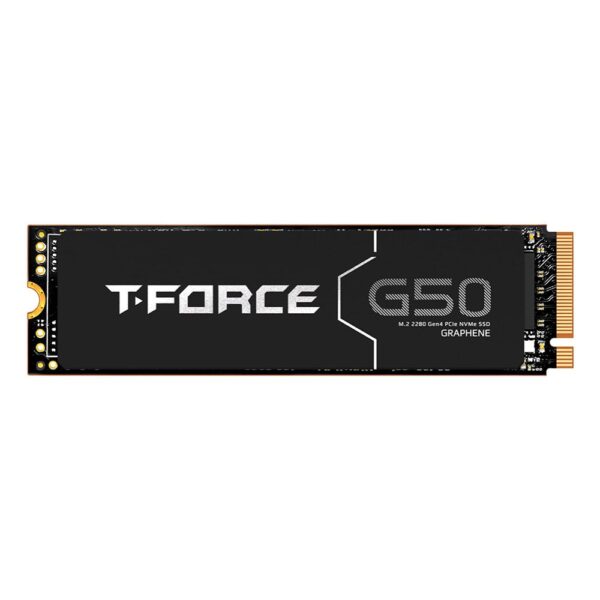
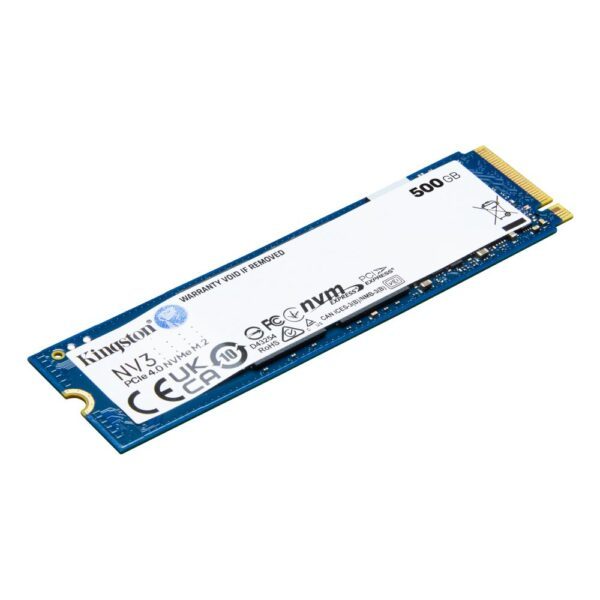
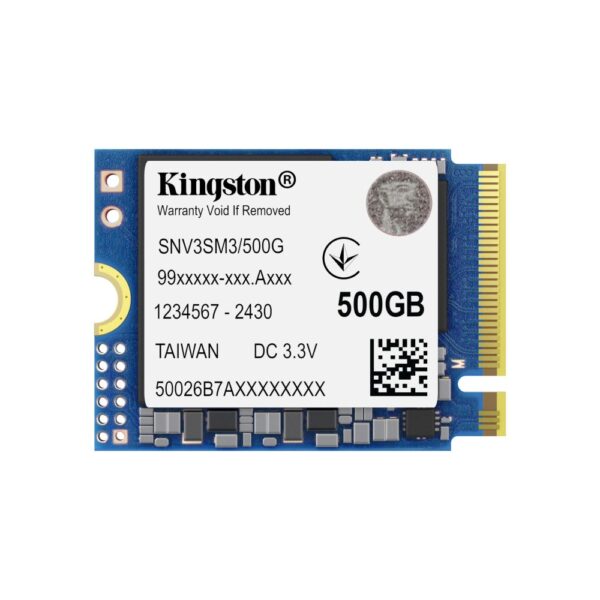
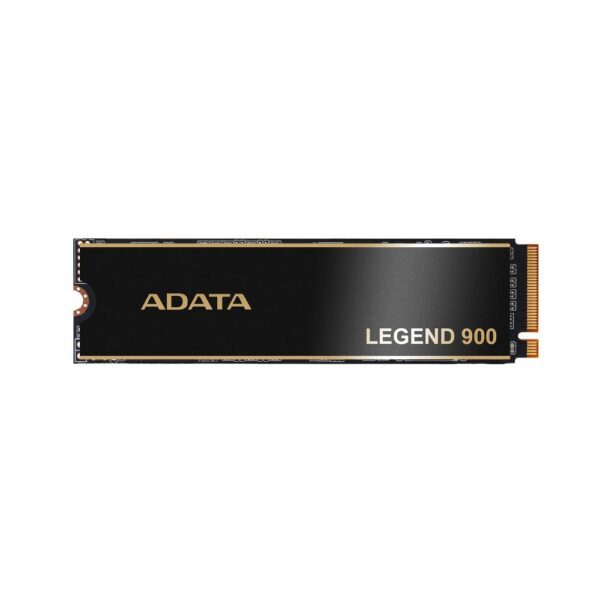
If you need a dependable replacement, our best SSD for gaming guide explains what to look for, and we keep well-reviewed drives in stock below. A drive enclosure is worth keeping around too: it turns any spare SSD into external storage and doubles as a recovery tool.

Reliable drives we keep in stock

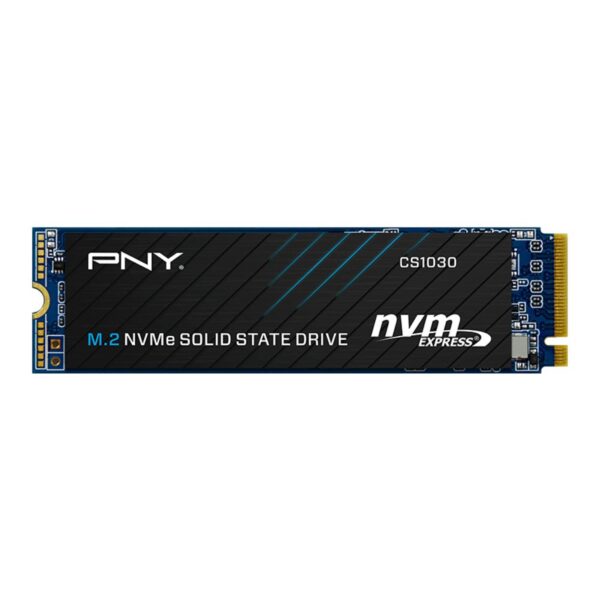
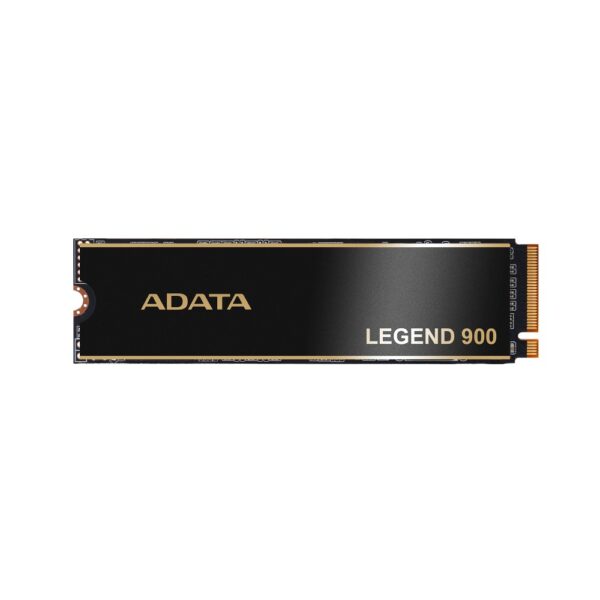
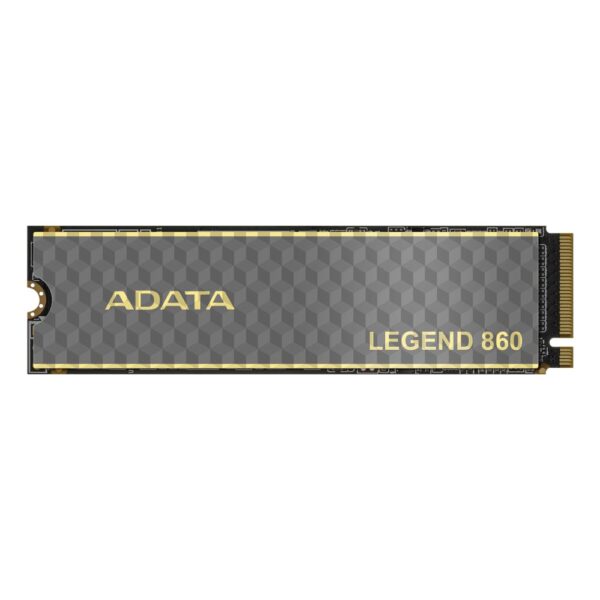
If your old drive is failing, these are dependable NVMe SSDs we ship and trust. For the full picture on Gen4 versus Gen5 and how much speed you actually need, read our best SSD for gaming guide.

How we diagnose a missing drive on the bench

Every PC we build is checked for storage detection before it ships, and when a customer brings one in, this is the order we follow. It is worth copying, because it isolates the fault quickly instead of guessing.

Check the BIOS first

One look tells us whether this is a Windows-side fix or a hardware one, and saves half an hour of poking around in the wrong place.

Reseat and recable

More "dead" drives than you would believe are simply loose. We reseat the M.2, swap the SATA cable and try another port before anything drastic.

Initialise only if the drive is meant to be blank

A new drive gets a volume. A drive with data never gets initialised until the files are safely copied off.

Move it to another slot, then another machine

A different M.2 slot, then a spare PC or an enclosure, tells us in minutes whether the slot, the board or the drive is the problem.

Read the health, then decide

CrystalDiskInfo settles it. Good means keep diagnosing. Caution or a drive that comes and goes means back up now and replace.

SSD not detected: your questions, answered

Why is my new SSD not showing up?

A new SSD ships blank, so Windows hides it from File Explorer until you set it up. Open Disk Management, initialise the drive as GPT, then right-click the unallocated space, create a New Simple Volume, format it as NTFS and give it a drive letter. It will appear straight away.

My SSD shows in the BIOS but not in Windows. Why?

The hardware is fine, so it is a Windows-side issue. Check Disk Management for a drive that needs initialising or a missing drive letter, and check the BIOS storage mode (AHCI versus RAID or Intel RST) matches how Windows was installed. If the drive holds data and shows as Not Initialised, recover the files first and do not initialise it.

Does adding an M.2 SSD disable my SATA ports?

On many motherboards, yes. Filling certain M.2 slots disables some SATA ports or shares lanes with other slots, which makes one drive vanish when another is fitted. Check your motherboard manual's lane-sharing table and use the primary M.2 slot wired to the CPU.

My SSD disappeared after a Windows update. How do I get it back?

This is usually the storage driver, not the drive. On Intel systems, reboot into the BIOS and check the VMD setting, then either set it back to how Windows expects it or install the matching Intel RST or VMD driver. If the drive has also vanished from the BIOS, the fault is hardware, not the update.

Windows install says no drives found. What now?

The installer cannot see the drive because it lacks the storage driver. Either disable VMD in the BIOS so the drive shows up, or click Load driver during setup and point it at the Intel RST or VMD driver from a USB stick.

How do I know if my SSD is actually dead?

If the drive shows up nowhere, not in the BIOS, not in another PC and not in a USB enclosure, it has failed. If it still appears but will not mount, copy your files off first, then check its health in CrystalDiskInfo. Most SSDs carry a three to five year warranty, so claim a replacement if it has gone.

How we know

Hardvance is a UK retailer. We build, test and repair PCs every week, and storage detection is one of the first things we check before a machine leaves us. The steps here are the ones our technicians use on the bench, in the order that solves the most cases fastest. Where a fix depends on your exact motherboard, we have said so, because lane sharing and BIOS layouts vary from board to board.

Leave a Reply

Your email address will not be published. Required fields are marked *