
To turn off a Samsung phone, hold the Side key and Volume down together, then tap Power off. Holding the side key on its own no longer works, because Samsung mapped it to Bixby. On a Pixel and most other Android phones the same hold opens Google Assistant instead. Both companies put the switch back in Settings, and this page shows you where.
Which one are you here for?
We sell phone accessories, so to be clear: there is nothing for sale on this page and no price from our shop on it. Every button combination and settings path below was read on Samsung's or Google's own support pages, dated, and listed at the bottom.
You hold the button on the side of the phone, the way you have for fifteen years, and a voice assistant opens instead. Nothing is broken and you have not pressed the wrong thing. The button genuinely does something different now.
Samsung removed the separate power button and put Bixby on the side key. Google did the same thing to the Pixel with Assistant. Neither told you, and both left the old behaviour available in Settings if you know where to look. Here is the combination that works today, and the setting that gives you the simple version back.
The combination that works on every current Galaxy:
To switch it back on, press and hold the Side key on its own.
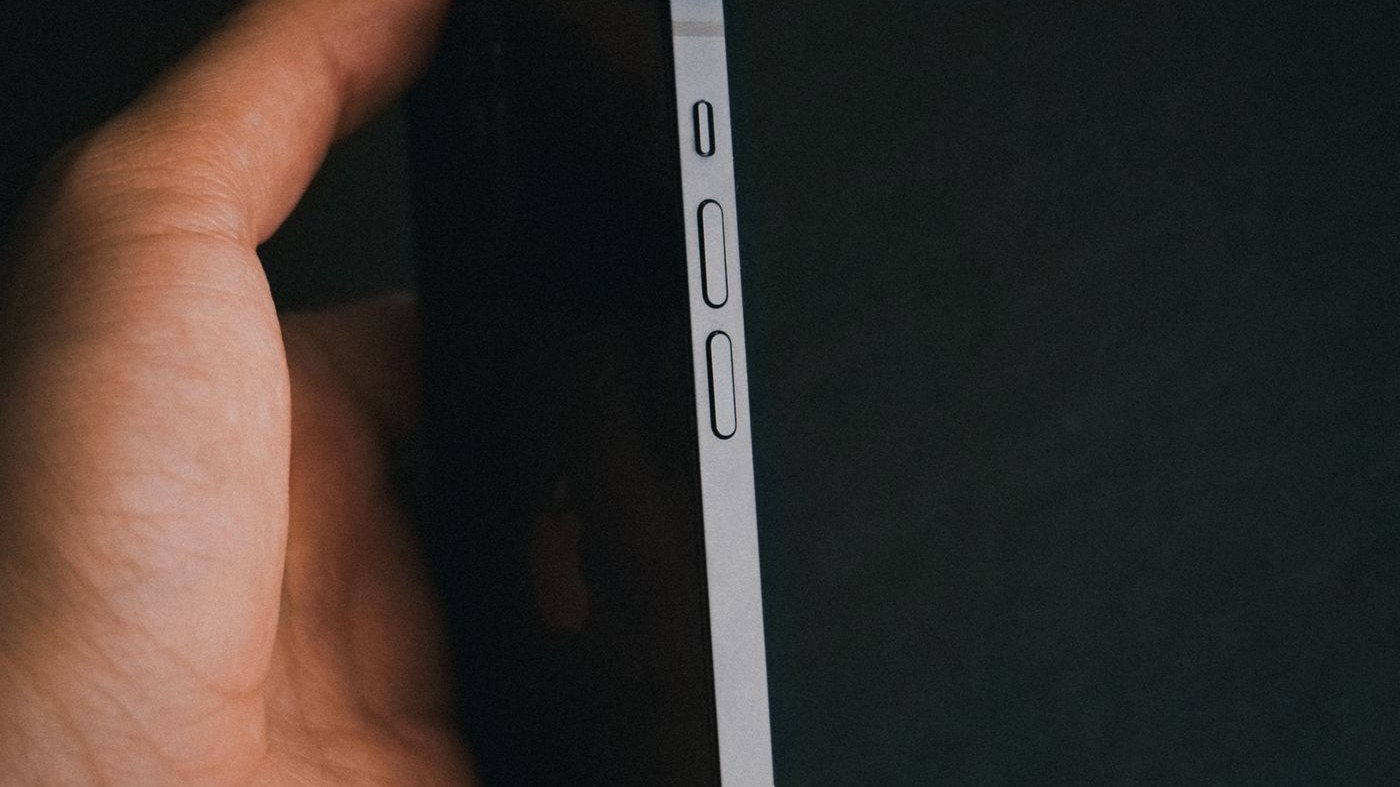
Samsung’s own wording explains why one button is not enough: on many newer Galaxy phones “the Power and Bixby buttons have been replaced with the Side button”, so the side key is doing two jobs and the volume key is what tells it which one you mean.
If your Galaxy is old enough to have a separate, dedicated power button, hold that on its own and the menu appears as it always did.
This is the actual answer to the question, and almost nobody leads with it.
On a modern Galaxy, press and hold on the side key is set to wake Bixby by default. Samsung documents the choice plainly: under the side key settings, press and hold can be set to either Wake Bixby or Power off menu. It ships on the first one. So the gesture you have used since your first smartphone now summons an assistant, and the power menu is simply not on that gesture any more.
Google did the same thing. On a Pixel, press and hold on the power button is set to the digital assistant, and the power menu moved off it. You can see the confusion in Google’s own support community, where the threads are titled things like “Phone won’t shut off” and “Power Menu Won’t Open”, and one owner sums it up exactly: “Everytime I press the power button it comes up with Google assistant.”
So there are only ever two questions. Which combination opens the power menu on your phone today, and do you want to change what the long press does. The rest of this page is those two answers.
Android does not have one universal answer, because each manufacturer picks its own default. Two combinations cover almost everything.
| Try this | What it does | Typical of |
|---|---|---|
| Hold Power and Volume up | Opens the power menu on phones where the long press is taken by an assistant | Pixel and much of modern Android |
| Hold Power and Volume down | Opens the power menu on Samsung, and forces a restart on many others | Samsung Galaxy |
| Hold Power on its own | Opens the power menu, if the long press has not been remapped | Older phones, and any phone you have changed the setting on |
If none of the three produces a menu, go to the on-screen route, which does not use the buttons at all.
The word “Android” is doing a lot of work here. A Pixel, a Galaxy, a Motorola and a Xiaomi run different software on top of the same base, and buttons are exactly the sort of thing each one changes.
Useful when a button is broken, when the phone is in a case that makes the buttons stiff, or when you simply cannot get the combination to work.
On a Samsung Galaxy:
Samsung added that power icon specifically for phones with no dedicated power button, and it is the most reliable route on any Galaxy with a working screen.
By voice: Samsung also documents holding the side key to call Bixby and saying “Turn off the phone”. It works, with one catch worth knowing before you rely on it: you cannot turn the phone back on by voice. Powering up always needs the button.
To switch a Galaxy back on, press and hold the Side key.
If you would rather the long press just turned the phone off, like it used to, change it once and forget about it.
Samsung:
Pixel and most other Android phones:
One honest limit on the Samsung side: this changes what the button does, it does not remove Bixby. Samsung says outright that you cannot disable Bixby entirely, only stop it launching by accident. If Bixby appearing is the thing that annoys you, remapping the key is the fix that actually works.
People asking this usually mean one of three different things, and they have three different answers.
| What you want | What to do | What happens |
|---|---|---|
| Screen off, phone still working | A single short press of the side key | It locks. Calls, alarms and messages still arrive. |
| Genuinely off | Power menu, then Power off | Nothing arrives. Alarms do not sound. Find My Device cannot reach it. |
| Off and on again | Power menu, then Restart | Clears the temporary state that causes most odd behaviour. |
If the goal is to fix something that is misbehaving, Restart is almost always the one you want, not Power off. A restart clears memory and reloads the system. Powering off and pressing the button ten seconds later does the same job with extra steps.
If the words Safe mode sit in the corner of your screen and your apps have vanished, the phone has booted into a diagnostic mode that loads only the software it shipped with. Nothing has been deleted.
Samsung documents two ways out:
The part worth knowing, and it is Samsung saying it. If the phone keeps booting into Safe mode no matter how many times you restart it, Samsung’s guidance is that “there may be something physically wrong with the Volume Down button”. Safe mode is triggered by holding volume down during startup, so a key that is jammed, sticky or damaged holds itself down and puts the phone back into Safe mode every time. At that point it is a repair, not a setting, and no amount of restarting will fix it.
Check the obvious version of that first: take the case off. A case that presses on the volume rocker does exactly the same thing as a broken key, and costs nothing to rule out.
A phone that ignores the screen and the buttons needs a forced restart, which is a different thing from turning it off.
This is not the same as a factory reset and it deletes nothing. It is the phone equivalent of holding the power button on a PC, and it is safe to do when the phone has genuinely stopped responding.
If it happens regularly rather than once, that is a symptom rather than a nuisance. A phone that freezes weekly is usually short of storage, running a bad app, or old enough that the battery can no longer deliver a current spike. If it will not power up at all rather than freezing, that is a charging problem rather than a power-button one, and the cable is the first thing to rule out.
Apple made the same change earlier and for the same reason, so if you have moved from iPhone to Android, or keep both, this is the equivalent.
Holding the side button on its own calls Siri, exactly the way holding the side key on a Galaxy calls Bixby. There is also a route with no buttons at all: Settings > General > Shut Down, at the very bottom of the page.
No single button does. Hold the Side key and Volume down together, then tap Power off. Samsung combined the old power and Bixby buttons into one side key, so the volume key is what distinguishes powering off from waking Bixby.
Because press and hold on the side key is set to Wake Bixby by default, so the power menu never appears. Either use Side plus Volume down, or change it in Settings > Advanced features > Side key and set Press and hold to Power off menu.
Open the power menu and choose Power off rather than just pressing the side key to blank the screen. A short press only locks the phone, and it keeps receiving calls and alarms. Only Power off stops everything.
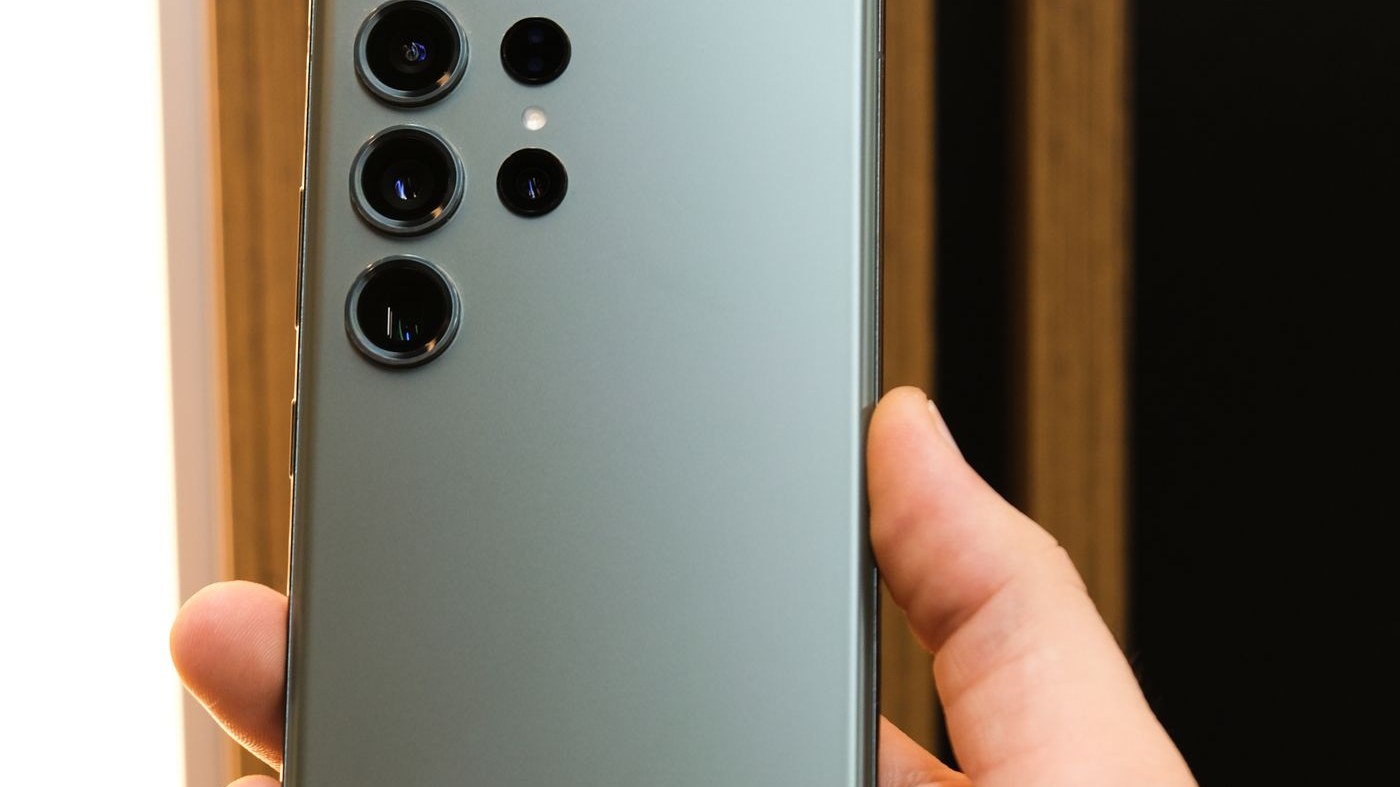
On most modern phones there is no separate power button. The key on the right-hand edge is a combined side key that handles power, the assistant and the screen. On a Galaxy, Samsung calls it the Side key.
On a Galaxy, swipe down from the top of the screen with two fingers to open Quick settings, tap the Power icon, then tap Power off. Samsung added that icon for phones with no dedicated power button, and it works even if a button has failed.
Restart the phone from the power menu, or hold Volume down and the Side key together for 7 seconds. If it keeps returning to Safe mode after several restarts, Samsung says the Volume Down button may be physically faulty, since holding that key during startup is what triggers Safe mode.
Because Google mapped press and hold to the digital assistant on Pixel and much of modern Android. Change it at Settings > System > Gestures > Press and hold power button, or use Power plus Volume up to reach the power menu without changing anything.
No. Power off leaves it off until you press the button. Restart shuts it down and brings it straight back. If you are trying to clear a glitch, Restart is the one you want.
No. Powering off, restarting and forcing a restart with the buttons all leave your apps, photos and settings untouched. Only a factory reset erases data.
We are a UK technology retailer. We do not sell phones on the page you are reading and there is nothing here to buy, because this is a question with an answer rather than a purchase.
Every button combination and settings path came from the manufacturer. The Side key behaviour, the Wake Bixby and Power off menu choice, the two-finger Quick settings route, the Bixby voice method and the Safe mode exit are all from Samsung's own support pages, read on 16 August 2026 and listed below. The detail that a phone stuck in Safe mode may have a physically faulty Volume Down button is Samsung's own wording, not our inference.
For the Pixel side we used Google's support community, where the same complaint appears repeatedly under titles like "Phone won't shut off" and "Power Menu Won't Open", together with the settings path Google's own helpers give in reply. We have said clearly that those are community threads rather than official documentation.
Settings > Advanced features > Side key path, the Press and hold choice between Wake Bixby and Power off menu, and the statement that Bixby cannot be disabled entirely.Settings > System > Gestures > Press and hold power button path. These are Google support community threads, not official Google documentation.Photographs. From Pexels, used under the Pexels License, cropped to 16:9 by us.
The Hardvance Team is the editorial team at Hardvance, a UK computer and electronics retailer based in Mildenhall, Suffolk. We build and upgrade PCs and sell laptops, phones, networking gear, monitors and printers, and our guides cover the same ground. Every guide names its sources and explains how we checked the figures, and we say plainly when something is our opinion rather than a tested result.
View all posts by Hardvance Team


No account yet?
Create an Account