A phone that will not charge is usually not a broken phone. In the order the manufacturers themselves put them, the things to check are the cable, the plug, the socket, and whether the port is blocked with pocket lint. Samsung says outright that debris in the port will stop charging on purpose, as a safety measure. Work through those before you pay anyone anything.
What is happening?
Everything before the buying suggestion at the end costs nothing to try.
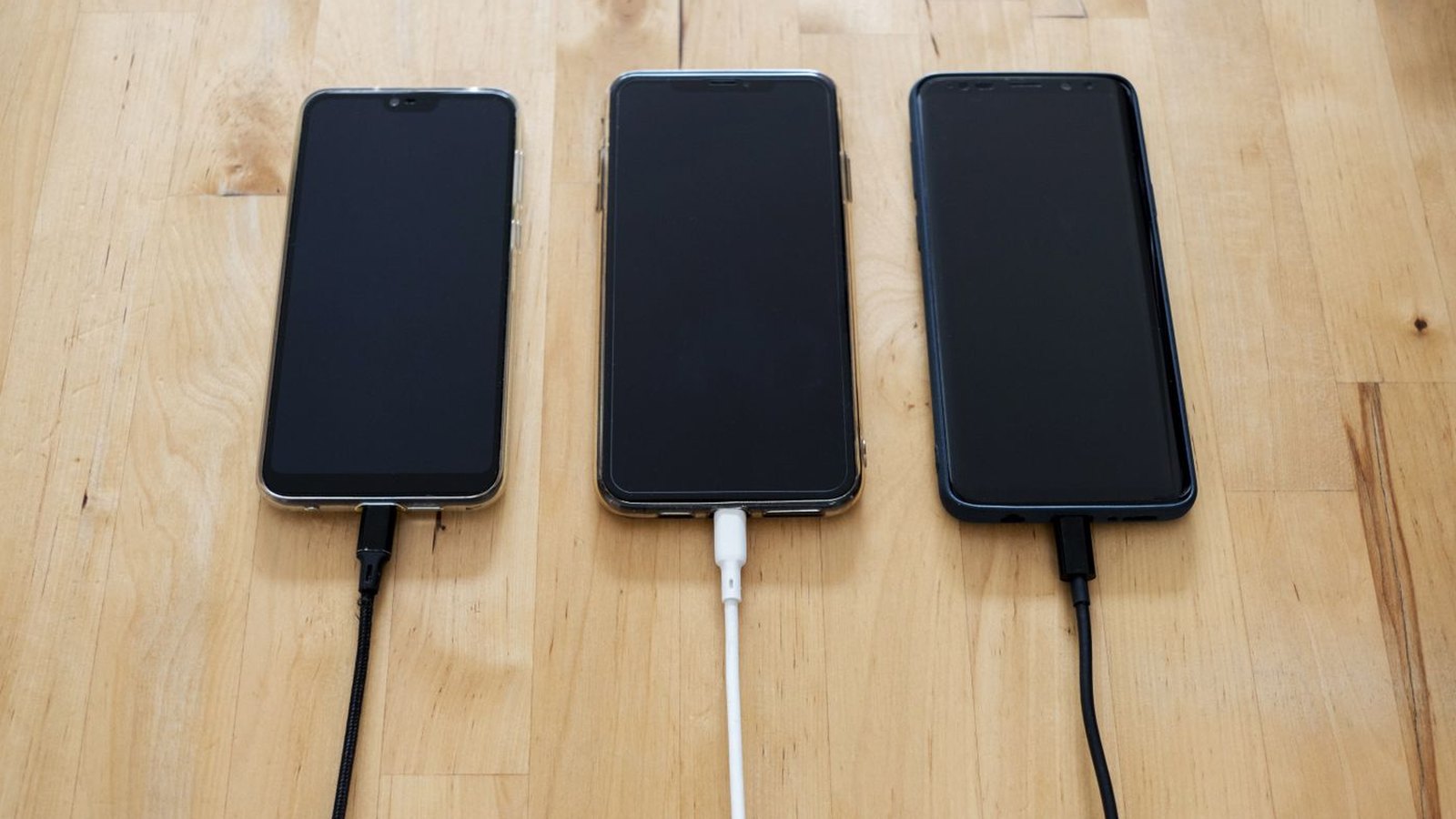
Before anything else, change one thing at a time: a different cable, a different plug, a different socket. Most phones that are not charging are fixed by one of those three, and each takes a minute.
Do them in that order, because that is roughly the order of how often each fails. Cables are thin, they get bent at the connector, they live in bags and under chair wheels, and they die from the inside where you cannot see it. Plugs fail less often. Wall sockets and extension leads fail least often of all, but they do fail.
Some specifics that make the test actually worth doing:
If a different cable fixes it, you have your answer and it cost you a cable. If nothing changes across all three swaps, carry on to the port.
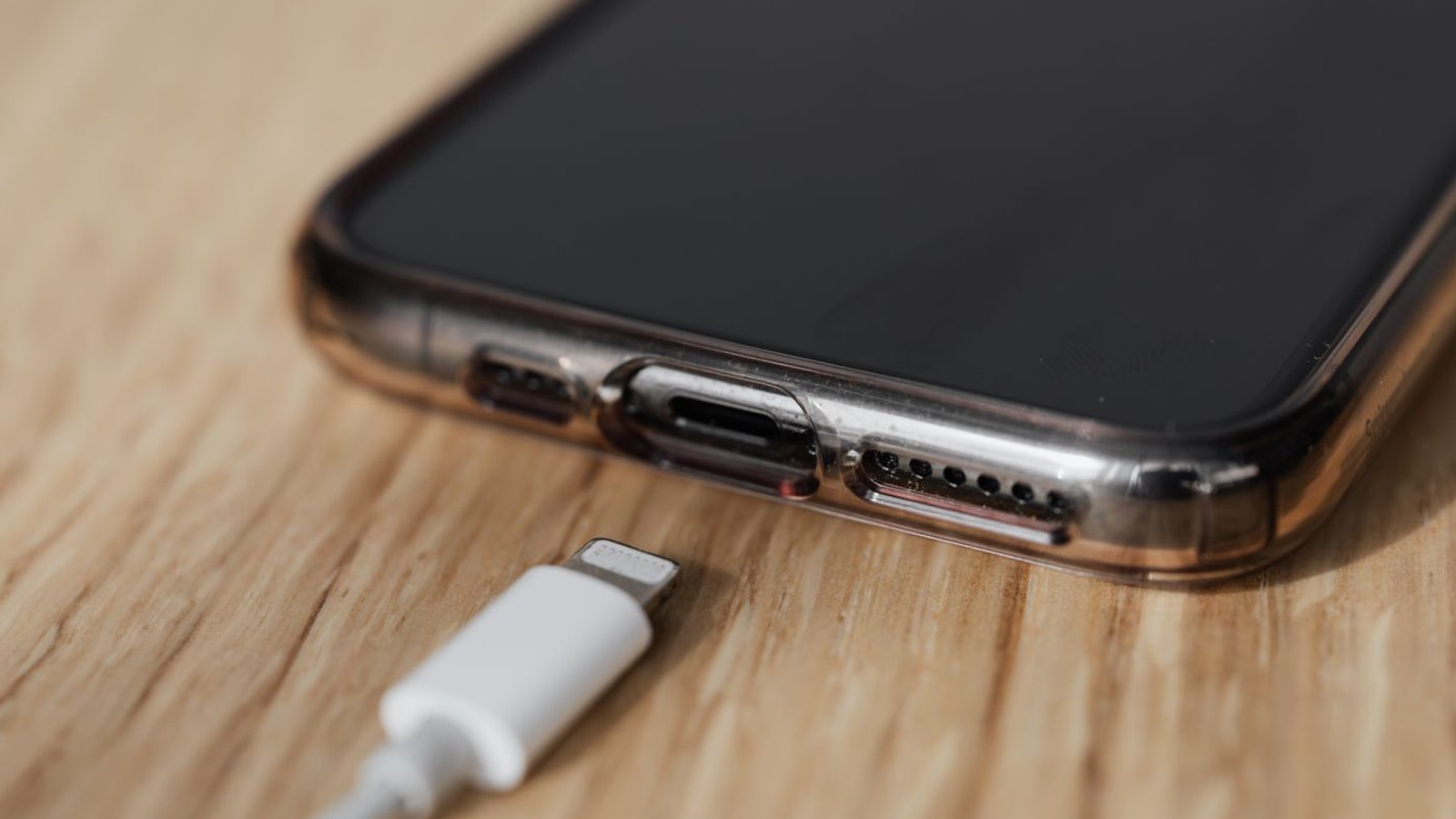
If your phone only charges when you hold the cable at a certain angle, or the cable feels loose in the socket, the problem is the port or the connector. The good news is that the most common cause is compacted pocket lint, not damage.
This is not folklore. Samsung says that if dust or debris is stuck in the charging port or the cable connector, charging may be blocked for safety, and it tells you to remove the debris with a soft brush. Google’s guidance for Android says to check that there is nothing in the port of your phone, like dust or lint.
The same thing lies behind the searches for an iPhone charger jack not working or an iPhone charger slot not working: on an iPhone the “jack” and the “slot” people mean is this one port, and nine times out of ten it is blocked rather than broken.
A phone lives in a pocket. Every time it goes in, a little more fluff goes into the port with it, and every time you plug the cable in you compress that fluff into a solid pad at the bottom. Eventually the connector can no longer seat fully, and a connector that is not fully seated does not charge reliably.
How to clear it safely:
If the port is clean and the cable still wobbles in it, or if you can see bent or discoloured contacts, that is genuine damage and it needs a repair rather than a purchase.
A charger has two halves that fail differently. The cable fails mechanically, usually at the connector where it flexes. The plug fails by being too weak for the phone rather than by breaking, which is why it so often looks fine and still leaves you at 40 per cent in the morning.
Samsung puts this plainly in its own troubleshooting: low quality or non-approved chargers and cables may cause slow charging or intermittent disconnection. Intermittent disconnection is the polite name for the charge that keeps starting and stopping all night.
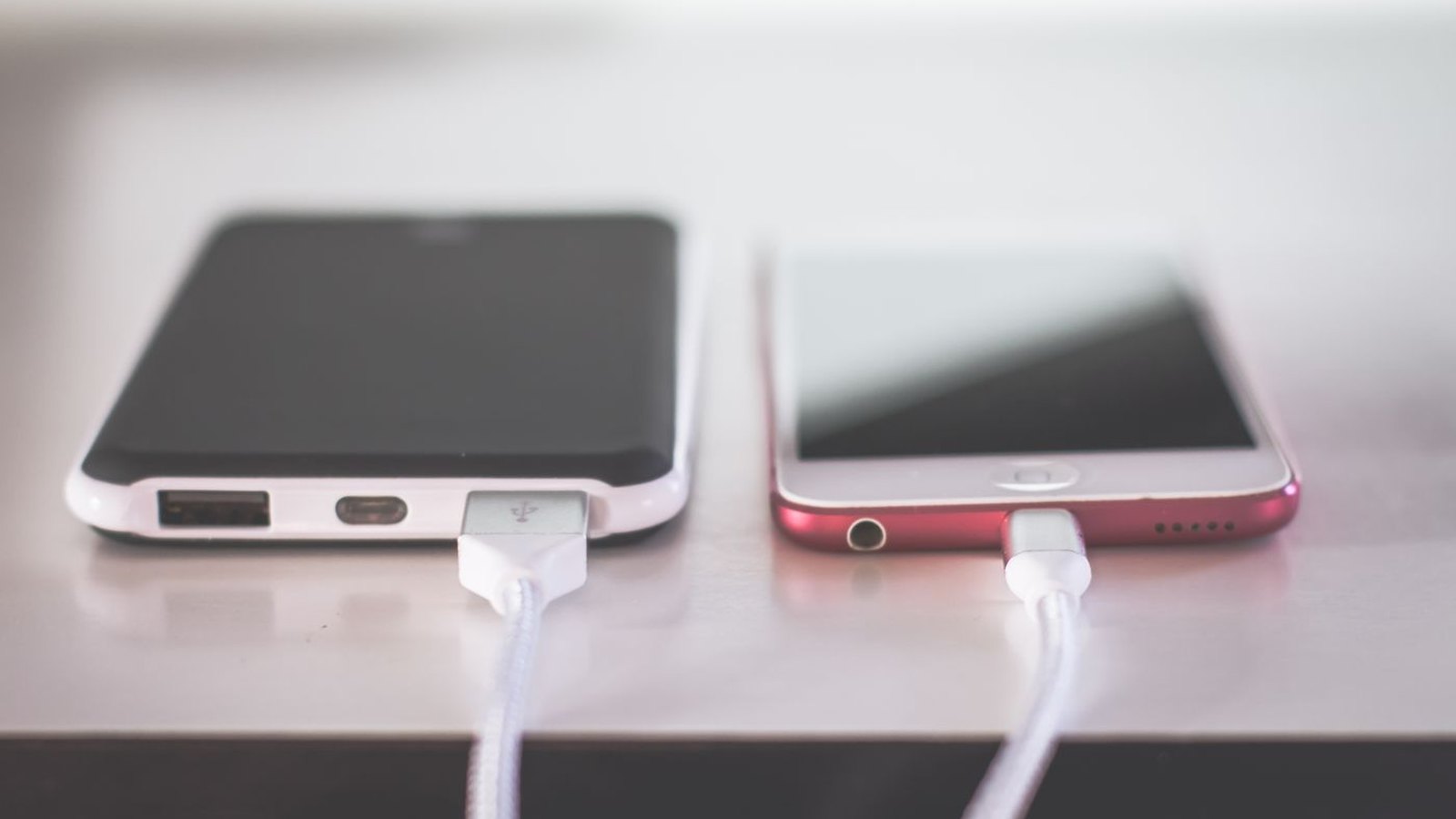
Three things separate a cable that works from one that does not:
On the plug side, the number that matters is watts. A phone that supports fast charging needs a plug that can supply it, and an old 5W plug from a previous phone will charge a modern handset at a crawl. Our guide to USB-C, explained goes through what the ratings mean and why two identical-looking cables behave differently.
If your iPhone is not charging, the sequence is the same as any phone: cable, plug, socket, port. What is worth knowing separately is Apple’s charging behaviour, because a good deal of what gets reported as “my iPhone is not charging” turns out to be the battery features working as intended.
Two of those are covered below, in the 80 per cent section, and they account for a surprising share of the worry.
The genuinely iPhone-specific things to check:
If you have run through all of that and it still will not take a charge on a cable you have proved works, that is the point to book a repair rather than keep buying accessories.
Google and Samsung both publish troubleshooting for this, and it is worth reading what they put first, because it is not what most articles put first.
Google’s order for an Android that will not charge or turn on: hold the power button for five to seven seconds to restart the phone; then check that the cable is securely connected to both the adapter and the phone, and that there is nothing in the port like dust or lint; then plug in with a cable, charger and socket you know work, and wait a minute.
Samsung’s order for a Galaxy that is not charging is longer and starts somewhere unexpected. It asks you to check the estimated charging time in Settings, then Battery. Then it tells you to stop using the phone while it charges, because games, video and browsing raise the temperature and slow the charge. Then to check your fast charging setting is on. Then temperature, because charging is limited if the phone or the room is too hot or too cold. Then the charger and cable. Then the port and debris. Then a reboot with power and volume down. Then the diagnostics in the Samsung Members app.
Two things stand out in that list. The first is how early “you are using the phone while it charges” appears, which is a real cause of slow charging that people rarely suspect. The second is temperature: a phone charging on a sunny windowsill or under a pillow will deliberately slow down or stop, and there is nothing wrong with it.
If your phone is a Samsung, the Samsung Members app is genuinely useful here, because it will test the battery and the cable charging for you and tell you which one is failing.
If your phone charges but takes forever, the plug is the first suspect, not the phone. If your phone actually displays the words “slow charging”, it is telling you it has detected a power supply that cannot give it what it wants.
The usual causes, most common first:
The quickest way to separate plug from phone: charge it from a plug you know is powerful, with a cable you know is good, and leave it alone for half an hour. If it gains a decent amount, your hardware was the problem. If it barely moves, look at the port and the battery.
If your iPhone will not charge past 80 per cent, that is almost certainly Apple’s battery protection doing its job, not something broken. Apple has two separate features here and it is worth knowing which one you are looking at.
Optimised Battery Charging is, in Apple’s words, “designed to reduce the wear on your battery and improve its lifespan by reducing the time your iPhone spends fully charged”. Apple says that when it is enabled, “your iPhone will delay charging past 80 per cent in certain situations”, using on-device learning to work out your routine so it finishes charging around the time you normally unplug. It is on by default. If you need a full battery sooner, touch and hold the Lock Screen notification and tap Charge Now.
Charge Limit is the newer one and it is a hard ceiling you choose. On iPhone 15 and later, in Settings, then Battery, then Charging, you can pick a limit between 80 and 100 per cent in 5 per cent steps. Apple says the phone “will charge to within a few percentage points of your chosen limit and then stop charging”, and will resume if the level drops more than 5 per cent. iOS may also suggest a limit on its own: Apple’s example is a notice reading “Based on your iPhone habits, a charge limit of 95% is recommended to help preserve your battery”. On iPhone 14 and earlier the setting lives in Settings, then Battery, then Battery Health and Charging.
One detail that catches people out: Apple says that if your Charge Limit is set below 100 per cent, the iPhone “will occasionally charge to 100 per cent to maintain accurate battery state-of-charge estimates”. So an occasional full charge on a limited phone is also normal.
Android phones from several makers have their own version of this, usually under battery protection or battery care settings, and it works the same way. If your phone parks itself at 80 or 85 per cent overnight, look for that setting before you assume the battery is failing.
You have earned the right to suspect the phone once a known-good cable, in a known-good plug, in a known-good socket, with a clean port and the case off, still will not charge it.
Signs that point at the phone rather than the accessories:
A charging port replacement is one of the cheaper phone repairs, and considerably cheaper than a phone. A battery replacement is also usually worth it on a handset you otherwise like. What is rarely worth it is buying a third and fourth cable in the hope that the next one is different.
If the phone is old enough that you were thinking about replacing it anyway, our iPhone buying guide and the iPhone 18 release timing are the two things worth reading before you spend on a repair.
In order of likelihood: the cable has failed internally, the plug is too weak or dead, the socket is off, or the charging port is packed with pocket lint. Change one thing at a time, starting with the cable. On a Samsung, debris in the port blocks charging deliberately, as a safety measure.
Look in with a bright light. Grey felt at the bottom is lint and it can be cleared. Bent, missing or discoloured contacts are damage. A practical test: if the phone charges only when you hold the cable at a particular angle, and it does that with more than one cable you have proved works, the port is the problem.
Turn the phone off, look inside with a light, and gently work the debris out with something wooden or plastic such as a toothpick, scraping towards the opening. Samsung suggests a soft brush. Never use a metal pin, because the contacts are exposed, and avoid blasting canned air straight in, which packs the lint tighter.
Try a cable and plug you know work, take the case off in case it is holding the connector out, check the port for lint, and force restart the phone. If you see a liquid-detected warning, charging is being blocked on purpose until the port dries. If it charges to 80 per cent and stops, that is a battery feature rather than a fault.
On an iPhone this is battery protection. Optimised Battery Charging delays charging past 80 per cent in certain situations to reduce wear, and on iPhone 15 and later a Charge Limit lets you set a ceiling between 80 and 100 per cent. Touch and hold the Lock Screen notification and tap Charge Now if you need a full battery sooner. Many Android phones have an equivalent battery-protection setting.
The phone has detected that the power supply cannot deliver what it expects. Nearly always that means an underpowered plug, a cable that cannot carry the current, or charging from a laptop or car socket. Swap to a mains charger rated for your phone and a cable built for that wattage.
Beyond the plug and cable, two causes people rarely suspect: using the phone while it charges, and heat. Samsung says games, video and browsing while charging raise the temperature and slow the charge, and that charging may be limited if the device or the environment is too hot or too cold.
Samsung's order is: check the estimated charging time in Settings then Battery, stop using the phone while charging, check your fast charging setting, check the temperature, check the charger and cable, check the port for debris, reboot with power and volume down, then run the diagnostics in Samsung Members. That last one will test the battery and cable charging for you.
Yes, and it is the single most common cause. The wires break inside the moulding at the connector, where the cable flexes most, long before the outside shows anything. This is why swapping in a cable you have proved works is the first test rather than the last.
Usually, yes. A port replacement is one of the cheaper phone repairs and much cheaper than a new phone. It is worth it once you have ruled out the cable, the plug, the socket and lint, because those four cost nothing to test and account for most cases.
No, it is just slow. A USB port on an older laptop delivers a fraction of what a mains charger does, so the phone may barely gain charge while you use it. If you need speed, use a mains plug rated for fast charging.
It is fine on a modern phone, and the battery features are built for exactly that. Apple's Optimised Battery Charging exists to reduce the time the phone spends sitting at 100 per cent overnight, and several Android makers have their own version. If anything, letting those features do their job is better for the battery than unplugging at 100 per cent every night.
If the swap test pointed at your charger rather than your phone, these are the chargers, cables and power banks we sell that are built for the wattage modern phones actually use. You do not need the most expensive one. You need one rated for the power your phone can take, with proper strain relief where the cable meets the connector. Buying a power bank for a trip? Check the rules for taking a power bank on a plane first, because airlines limit the size. For which one to buy, see our power bank buying guide.
Photographs are from Pexels, used under the Pexels License, which permits commercial use. Each has been cropped to fit.
The Hardvance Team is the editorial team at Hardvance, a UK computer and electronics retailer based in Mildenhall, Suffolk. We build and upgrade PCs and sell laptops, phones, networking gear, monitors and printers, and our guides cover the same ground. Every guide names its sources and explains how we checked the figures, and we say plainly when something is our opinion rather than a tested result.
View all posts by Hardvance Team


No account yet?
Create an Account