Best USB-C Monitor for Work 2026: Office Monitors With USB-C That Charge Your Laptop

0
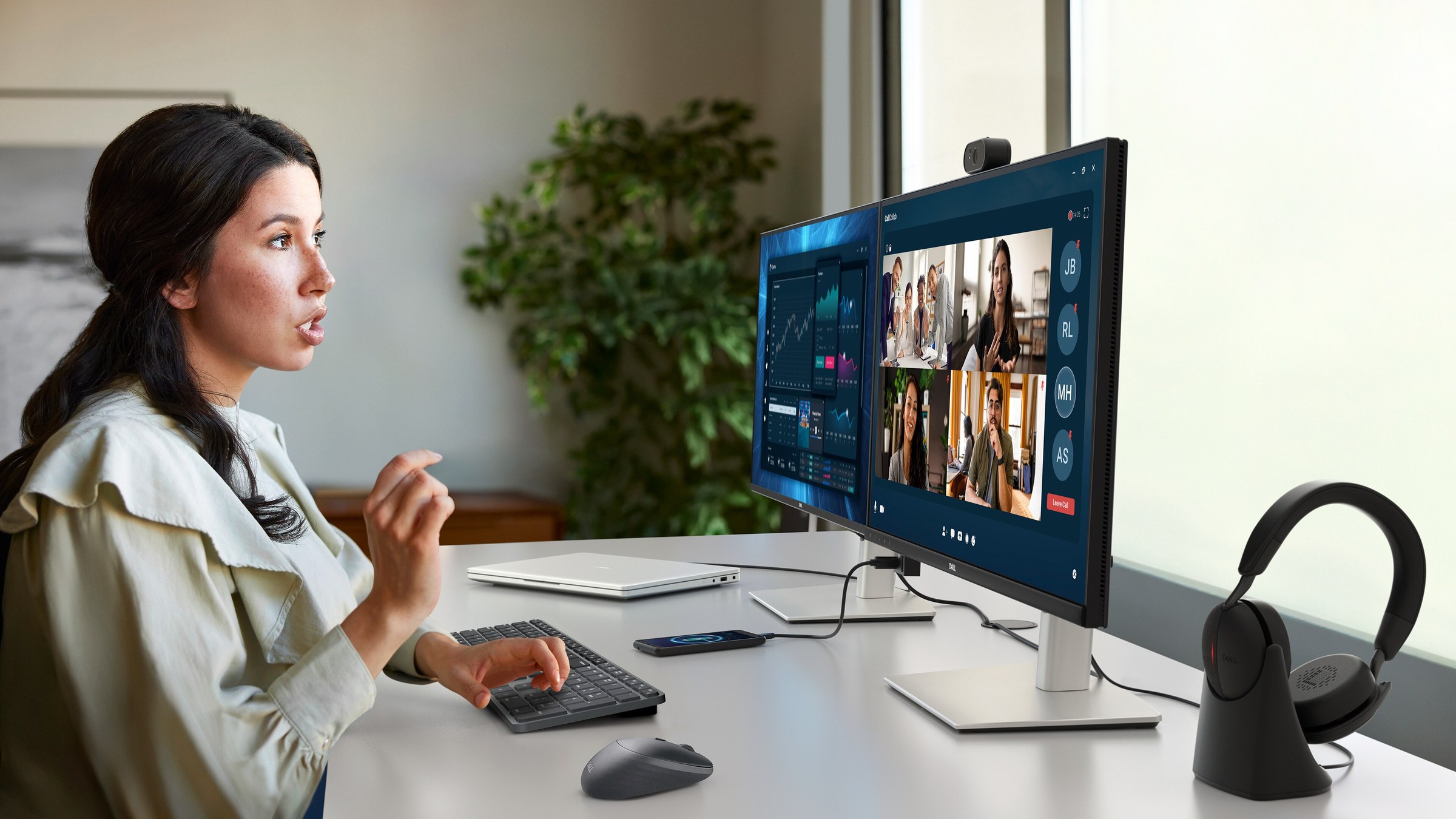
A woman on a video call at a work desk with two Dell monitors, one with a webcam on top, a closed laptop, a keyboard, a mouse and a headset on a stand

Top: a Dell Pro P2726DEB conferencing monitor, right, on a work desk with the laptop closed beside it. Image: Dell.

Short answer: a USB-C monitor will charge your work laptop if its main USB-C port puts out at least as many watts as the charger that came with the laptop. For most office laptops that means 90W or 100W. A workstation with a 140W charger needs a 140W monitor, and both ends have to support USB Power Delivery 3.1. Get that right, plug into the USB-C port that carries video, use the USB-C to USB-C cable from the box, and one cable does the lot.

Your best pick:

  • Most office desksHP Series 5 Pro 524pu. Why
  • 100W on a tight budgetLenovo ThinkVision T24d-40. Why
  • Teams and Zoom callsDell Pro P2726DEB. Why
  • Two screens from one cable on WindowsDell Pro P2426HE without stand, on an arm. Why
  • MacBooksHP Series 7 Pro 727pk. Why
  • 140W workstation laptopsLenovo ThinkVision P24qd-40. Why
  • A laptop and a desktop on one deskSamsung ViewFinity S80UD. Why

USB-C monitor: one cable for the screen, charging and the network

Picture the desk you want. You put the laptop down, plug in one cable, and it starts charging, joins the wired network and lights up the big screen. No charger in the bag, no hunt for an adapter, no “which port was it again?”. That’s what a good USB-C monitor gives you.

It works because one USB-C cable can carry three things at once: the picture going to the screen, power going back to the laptop, and data for the monitor’s own USB ports and network socket. On a one-screen desk that covers most of what people buy a docking station for, so you end up with one box instead of two.

Where people go wrong is assuming every USB-C monitor does all three. They don’t. Two screens with the same socket on the back can send very different amounts of power, and some don’t charge a laptop at all. So before you look at screen size or panel type, check the power.

Monitor with USB-C power delivery: match the watts to your laptop

Turn your laptop charger over. The wattage is printed on it, usually 65W, 90W, 100W or 140W. That’s the number to match.

If the monitor’s main USB-C port gives the same or more, the laptop charges as fast as it does from its own charger. If it gives less, the laptop still charges, just more slowly, and on a heavy day the battery can go down even while it’s plugged in. Apple’s numbers show how much laptops differ: a MacBook Air needs at least 30W and fast-charges from 70W, while a MacBook Pro wants 60W or 70W and fast-charges from 96W.

This is what each monitor in this guide sends to the laptop:

MonitorCharging to the laptopNetwork portSecond screen
HP Series 5 Pro 524pu100WGigabit EthernetDaisy chain over DisplayPort
Lenovo ThinkVision T24d-40100WGigabit EthernetDisplayPort out
Dell Pro P2726DEB90WGigabit EthernetDisplayPort out
Dell Pro P2426HE100WGigabit EthernetDisplayPort out
HP Series 7 Pro 727pk100W over Thunderbolt 4Gigabit EthernetThunderbolt 4 out
Lenovo ThinkVision P24qd-40140W2.5 Gigabit EthernetDisplayPort out
Samsung ViewFinity S80UD90WEthernetNot listed

Charging figures are each maker’s maximum for the main USB-C or Thunderbolt port.

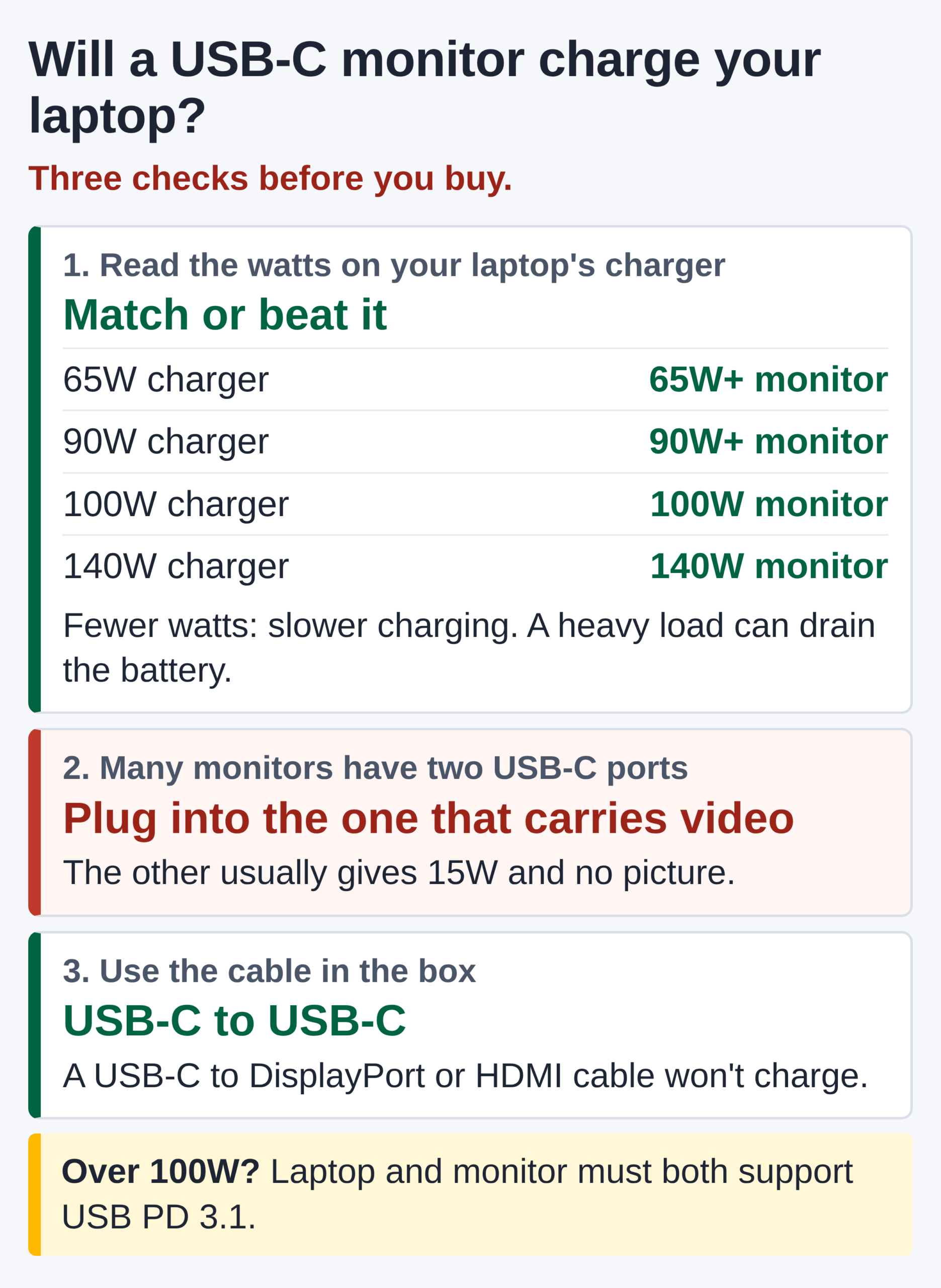
Diagram: will a USB-C monitor charge your laptop? Three checks. One: read the watts on your laptop charger and match or beat it: a 65W charger needs a 65W or higher monitor, a 90W charger a 90W or higher monitor, a 100W charger a 100W monitor, a 140W charger a 140W monitor. Fewer watts means slower charging, and a heavy load can drain the battery. Two: many monitors have two USB-C ports, so plug into the one that carries video; the other usually gives 15W and no picture. Three: use the USB-C to USB-C cable in the box, because a USB-C to DisplayPort or HDMI cable won't charge. Over 100W, laptop and monitor must both support USB PD 3.1.
Three checks that decide whether a USB-C monitor charges your laptop.

Even with the right watts, three things trip people up.

The second USB-C port. Six of the seven monitors here have more than one USB-C socket, and only one of them carries the picture and the big power figure. The others are there for a phone or a USB stick and give about 15W. Lenovo’s spec sheet even labels its second port “data transfer only”. Plug the laptop into the wrong one and you get a black screen and a trickle of charge.

A USB-C port that was never meant to charge. On HP’s support forum, a ThinkPad owner had a picture on an older HP workstation monitor but no charging. A community expert went through the monitor’s manual and concluded its USB-C port simply wasn’t built to charge a laptop. Some monitors are like that, so look for an actual wattage on the spec sheet, not just a USB-C logo.

The cable. The same expert made a point worth repeating: a USB-C to DisplayPort cable will never charge a laptop. Use the USB-C to USB-C cable that comes in the box, and keep it with the monitor.

One more thing. The wattage on the box is a maximum. Lenovo notes that the power a monitor delivers can drop when you plug other things into its USB ports or turn the brightness up. So if your charger says 100W, buy a 100W monitor, not a 65W one that will “probably be fine”.

Best USB-C monitor for office work: HP Series 5 Pro 524pu

If you’re fitting out ordinary office desks for business laptops, start here. The HP Series 5 Pro 524pu is a 23.8-inch Full HD screen running at 100Hz, and its main USB-C port sends up to 100W, enough to charge almost any office laptop at full speed. There’s a gigabit Ethernet socket on the back, and a DisplayPort output if you later want to chain a second Series 5 Pro next to it.

What lifts it above cheaper USB-C monitors is the kind of thing IT teams usually only get from a dock. HP lists MAC address pass-through, Wake-on-LAN and PXE boot, managed through HP’s Client Management Script. In everyday terms: the network sees the laptop rather than the monitor, IT can wake machines overnight to update them, and new laptops can be set up straight from the network. The stand goes up and down, tilts, swivels and pivots, and HP’s always-on low blue light filter, Eye Ease, is built in.

HP 5 Pro 23.8″ FHD USB-C Monitor – 524pu

  • 23.8-inch Full HD IPS display with 16.7 million colours, 100 Hz refresh rate and 5 ms GTG response time
  • Micro-Edge bezel with anti-glare matt surface and 350 cd/m² brightness for clear viewing
  • 100W USB-C Power Delivery with DP Alt Mode, plus 3x USB-A ports and Gigabit Ethernet hub

Best 24 inch monitor with USB-C on a budget: Lenovo ThinkVision T24d-40

You don’t have to pay extra for 100W. Lenovo’s ThinkVision T24d-40 gives you a 23.8-inch Full HD screen at up to 120Hz, and a USB-C port that sends up to 100W along with the picture, under USB Power Delivery 3.0. Gigabit Ethernet and a DisplayPort output for a second screen are there too.

One thing to tell your staff: there’s a second USB-C port, and that one gives 15W for data only. Put a sticker on the right port if you have to. For a floor of identical 24-inch desks, or hot desks where you simply want every laptop to charge properly, go for this one.

Lenovo ThinkVision T24D-40 24″ Monitor

  • 23.8-inch Full HD IPS panel with 1920 x 1080 resolution
  • 120 Hz maximum refresh rate with 4 ms GTG response time
  • Built-in 2 W speakers with 4 W RMS power output
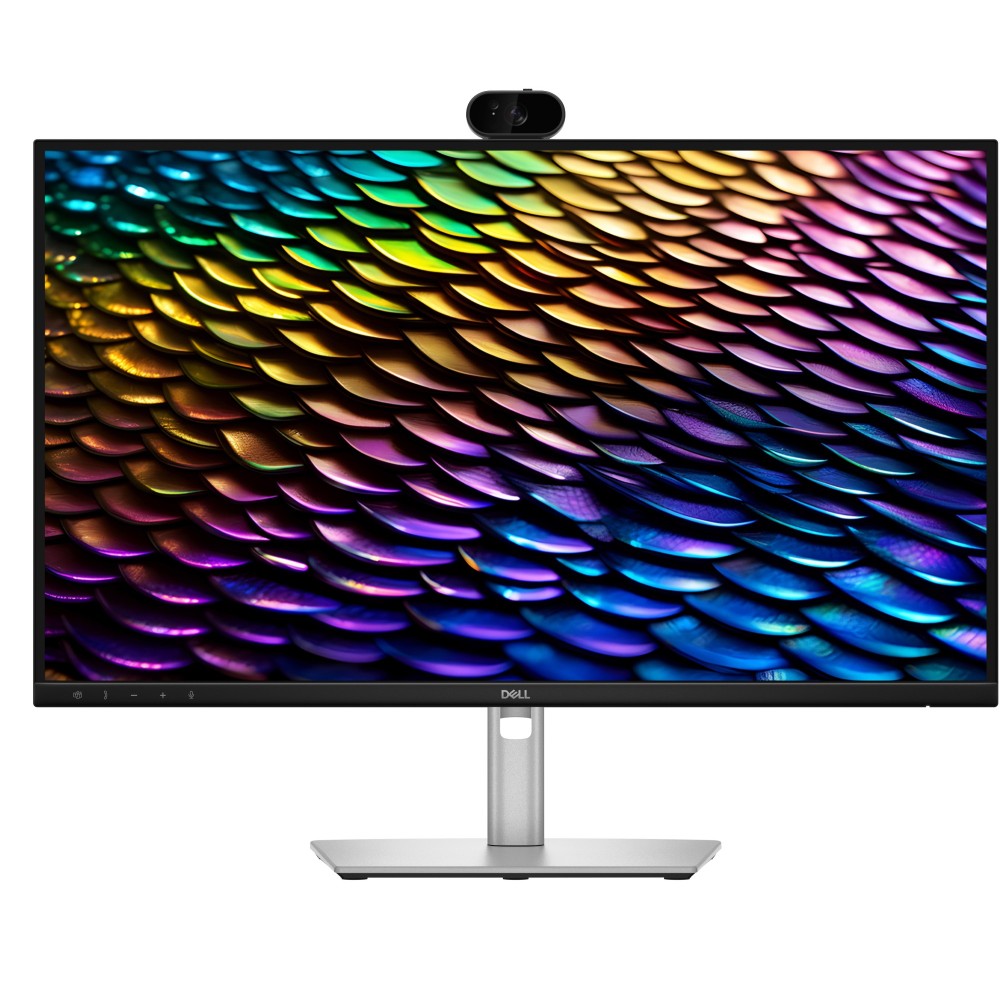
Monitor with webcam for Teams and Zoom calls: Dell Pro P2726DEB

If half your team’s day is calls, get a monitor with the webcam built in. The camera sits on the screen people are actually looking at, so they stop talking to a laptop camera off to one side. Dell’s Pro P2726DEB is a 27-inch QHD monitor at 100Hz with a 4-megapixel webcam, two 5W speakers and a pair of microphones with AI noise cancellation. Dell says it’s certified for Microsoft Teams and Zoom, and the stand adjusts for height.

It’s a proper work monitor underneath: up to 90W over USB-C with video, gigabit Ethernet, and a DisplayPort output for daisy-chaining. 90W is plenty for most office laptops. If someone’s laptop came with a bigger charger, though, give them a different monitor.

Dell Pro P2726DEB 27″ QHD 100Hz IPS USB-C Monitor with Built-in Webcam – Black

  • 27-inch QHD (2560 x 1440) IPS display with 100 Hz refresh rate, 350 cd/m² brightness, and 99% sRGB colour coverage
  • Integrated 4 MP webcam and dual 10 W stereo speakers for video conferencing
  • USB-C docking capability with up to 90 W Power Delivery, DisplayPort Alt Mode, and dedicated RJ-45 Ethernet

Daisy chain monitor setup: two screens from one laptop cable

Want two screens but only one cable to the laptop? That’s what daisy-chaining does. The laptop plugs into the first monitor over USB-C, and the second monitor plugs into the first one’s DisplayPort output.

The Dell Pro P2426HE is made for this. It’s a 23.8-inch Full HD screen at 120Hz, with up to 100W over USB-C, a DisplayPort output for the second screen, gigabit Ethernet, and two extra USB-C ports that charge accessories at 15W. Dell sells it with or without a stand, and the pick here is the version without. It takes a 100 x 100mm VESA mount, so both screens can go on a dual monitor arm. That clears the desk and lets you move each screen on its own.

DELL Pro P P2426HEWO 23.8″ Full HD Monitor

  • 23.8-inch Full HD IPS panel with 1920 x 1080 resolution and 93 ppi pixel density
  • 120 Hz maximum refresh rate with 5 ms GTG response time and 1500:1 contrast ratio
  • Extensive connectivity including USB Type-C hub with 96 W power delivery, HDMI 1.4, and DisplayPort

There are two catches. The laptop’s USB-C port has to send enough video for two screens. And daisy-chaining over DisplayPort relies on something called MST, which macOS doesn’t support for extended screens, so on a Mac both monitors just show the same picture. Mac users should connect each monitor to its own port, or read the MacBook section below. On Windows, if you need help with cables and display settings, see how to set up dual monitors.

Best monitor for MacBook: a 4K USB-C monitor with Thunderbolt

On a Mac, soft text is what you’ll notice first, so go for 4K. A 27-inch 4K screen has about 163 pixels per inch against about 109 on a 27-inch QHD screen, and macOS text looks a lot crisper for it. The HP Series 7 Pro 727pk is a 27-inch 4K monitor with an IPS Black panel, and HP puts a colour calibration report in the box.

It connects over Thunderbolt 4 at 40Gbps and sends up to 100W. Going by Apple’s figures earlier, that fast-charges a MacBook Air and clears the 96W a MacBook Pro needs to fast-charge. You also get gigabit Ethernet, five 10Gbps USB-A ports and a Thunderbolt 4 output for a second screen.

HP Series 7 Pro 27″ 4K Thunderbolt 4 Monitor IPS Black 60Hz

  • 27-inch 4K Ultra HD IPS Black panel delivering 100% sRGB coverage and 400 cd/m² typical brightness
  • Dual Thunderbolt 4 ports enabling 100W USB Power Delivery and DisplayPort Alternate Mode connectivity
  • Integrated USB 3.2 Gen 2 hub featuring five Type-A downstream ports and one Type-C downstream port

Planning two screens on a Mac? Check how many your model supports first. Apple lists one external screen for the MacBook Neo and up to two for the MacBook Air. And remember that a DisplayPort daisy chain only mirrors on a Mac. If someone’s MacBook supports one external screen and they need two, a DisplayLink dock gets round it. Our docking station guide explains how.

USB-C monitor for 140W workstation laptops: Lenovo ThinkVision P24qd-40

Mobile workstations are where most USB-C monitors fall short. These laptops often ship with chargers over 100W, and until USB Power Delivery 3.1 came along, USB-C stopped at 100W. Version 3.1 lifted the ceiling to 240W, with 140W as the first step up, but the laptop and the monitor both need to support it.

Lenovo’s ThinkVision P24qd-40 does. Its USB-C port handles USB PD 3.1 up to 140W with video and 10Gbps data, and Lenovo includes the USB-C to USB-C cable. The screen is 23.8 inches, QHD, up to 120Hz, and there’s 2.5 Gigabit Ethernet and a built-in KVM switch. It makes most sense for ThinkPad P-series fleets, and its HDMI 2.1 input lets a second computer share the screen at full resolution.

Lenovo ThinkVision P24QD-40 23.8″ WQHD IPS 120Hz Monitor – HDR10, USB Hub, KVM, Black

  • 23.8″ WQHD (2560 x 1440) IPS display with HDR10
  • 120Hz refresh rate and 4ms (fast) response time
  • Integrated USB hub with Type-C (140W Power Delivery) and Type-A ports

Monitor with KVM for a laptop and a desktop: Samsung ViewFinity S80UD

Plenty of people run a work laptop next to a desktop and end up with two keyboards and two mice fighting for space. A KVM switch fixes that: one keyboard, one mouse and one screen for both computers. Built into the monitor, it also saves you a separate box and its cables.

Samsung’s ViewFinity S80UD puts the KVM on a 37-inch 4K screen, big enough to show both computers side by side, or one inside the other as picture-in-picture. Its USB-C port charges the laptop at up to 90W while carrying data, and there’s an Ethernet socket for the laptop as well. It tops out at 60Hz, which is fine for spreadsheets and email, and the stand adjusts for height, tilt and swivel.

Samsung 37″ S80UD UHD USB-C ViewFinity Monitor, KVM Switch

  • 37″ 4K UHD (3840 × 2160) VA flat panel — 1.07 billion colours, HDR10, 3000:1 contrast, 100% sRGB, 350 cd/m² brightness, 178° viewing angles and 5 ms response time
  • Built-in KVM switch — control two connected sources with a single keyboard and mouse, supporting Picture-in-Picture, Picture-by-Picture and split-screen modes
  • USB-C connectivity with 90 W power delivery — charge a laptop and transfer data through one cable, plus built-in Ethernet LAN (RJ-45) port for wired network access
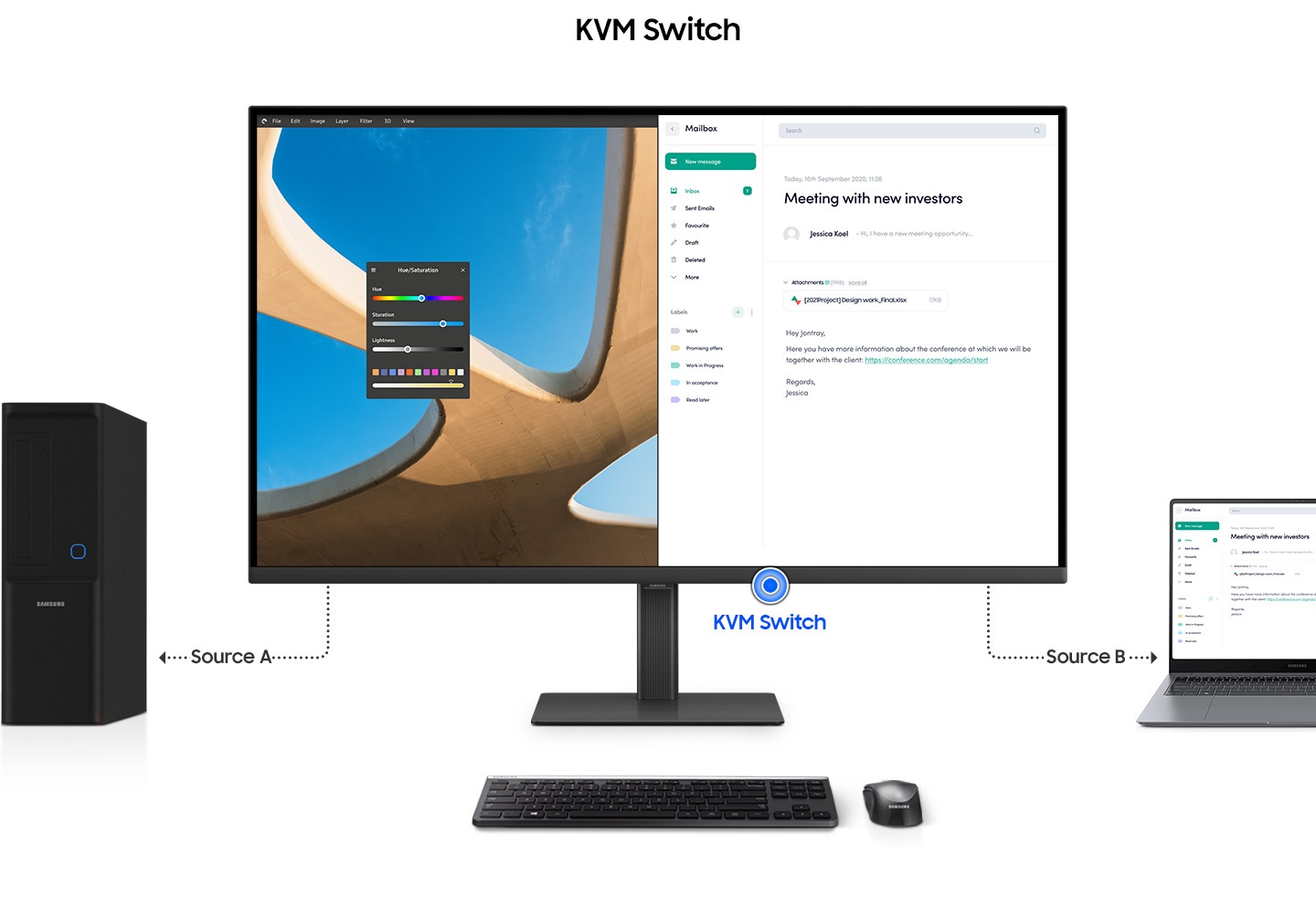
Samsung diagram of a monitor with a built-in KVM switch: a desktop tower connected as source A, a laptop as source B, and one keyboard and mouse controlling both
With a KVM monitor, one keyboard and mouse switch between a desktop and a laptop. Image: Samsung.

Want KVM on something smaller? The Lenovo P24qd-40 above has it too, on a 24-inch screen. Either way, look for KVM on the spec sheet if your staff use two computers.

Best monitor for working from home and the home office

If your staff work from home, their monitor isn’t only their problem. In the UK, the Display Screen Equipment Regulations cover anyone who uses a screen every day for an hour or more at a time, and HSE says that includes home workers and hot-deskers. Employers have to assess each workstation, reduce the risks, give training, and provide an eye test if a worker asks for one.

A USB-C monitor makes that a lot easier. When the work laptop connects with one cable, people actually use the big screen instead of hunching over the laptop at the kitchen table. A height-adjustable stand lets the top of the screen sit at eye level, and every pick here has one apart from the Dell P2426HE without stand, which goes on a monitor arm. As for size, 24 inches at Full HD suits a small desk. If you want the best 27 inch monitor for work, pick QHD or 4K, because Full HD stretched over 27 inches makes text look coarse.

For most home desks, the HP 524pu or the Lenovo T24d-40 will do the job. If calls fill the day, the Dell P2726DEB adds the camera and speakers.

USB-C monitor or docking station: which does your desk need?

For a one-screen desk, a USB-C monitor with an Ethernet port does most of what a dock does: charging, network and USB through one cable. A dock is still the better buy in three cases. You need more screens than the laptop can drive over one cable, or two screens on a MacBook that only supports one. You’ve standardised on one brand’s dock for its management tools. Or the monitors already on the desks are fine but have no USB-C, and a dock costs less than replacing them.

Our guide to the best docking station for laptops covers which dock suits which fleet.

USB-C monitor checklist for IT teams

Ordering for a whole team? Run through this first:

  1. List the laptops that will use each desk, with each charger’s wattage and whether its USB-C port carries video. Some cheaper laptops have USB-C ports for data and charging only. Our USB-C explained guide shows how to tell.
  2. Match the watts to the biggest charger that will sit at that desk. Over 100W, make sure laptop and monitor both support USB PD 3.1.
  3. Check the network port. If you rely on MAC address pass-through or Wake-on-LAN, look for them by name. HP lists them on the 524pu. Many monitors don’t mention them at all.
  4. Decide how the second screen connects: daisy chain on Windows, separate cables or a dock on a Mac.
  5. Keep the USB-C to USB-C cable with the monitor. A USB-C to DisplayPort or HDMI cable shows a picture but won’t charge the laptop.
  6. Try one desk with every laptop model you own before you order in bulk.

Choosing the laptops as well? See the best laptops for work. For more models, browse business monitors.

USB-C monitor questions

What type of monitor is best for office work?

For most people, a 24-inch Full HD or 27-inch QHD screen with an IPS panel and a height-adjustable stand. If your staff use laptops, add a USB-C port that gives at least as many watts as their chargers, plus a network port. If calls fill the day, a built-in webcam is worth having.

Can a USB-C monitor charge my laptop?

Yes, as long as the laptop charges over USB-C and you plug it into the monitor’s main USB-C port with a USB-C to USB-C cable. It charges at full speed when the monitor gives at least as many watts as the laptop’s own charger.

Is USB-C better than HDMI for a monitor?

For a laptop, yes. One USB-C cable carries the picture, charges the laptop and connects its USB and network ports. HDMI only carries picture and sound, so you still need the charger and the other cables.

How do you use the USB-C port on a monitor?

Connect your laptop’s USB-C or Thunderbolt port to the monitor’s main USB-C port, the one that carries video, using a USB-C to USB-C cable. If the screen stays blank, choose USB-C as the input in the monitor’s menu.

Is IPS or VA better for office work?

IPS suits most offices. Colour and contrast stay steady when you look from an angle, which helps when two people share a screen. VA panels have deeper blacks but change more when you look from the side.

Is a 27-inch monitor good for office work?

Yes, at QHD (2560 x 1440) or 4K. A 27-inch QHD screen gives you room for two documents side by side. At Full HD, text on a 27-inch screen looks coarse, so if you want Full HD, stick to 24 inches.

Are two monitors better than one big one?

Two screens suit people who keep different apps on each, and on Windows you can daisy-chain them from one cable. One large screen gets rid of the gap between two bezels, and a KVM monitor can show two computers side by side on it.

Why won't my laptop charge from my monitor?

Check the cable first: a USB-C to DisplayPort or HDMI cable doesn’t charge. Then check the port: many monitors have a second USB-C port that gives only 15W. If both are right, the monitor may give fewer watts than the laptop needs, or the laptop may not charge over USB-C at all.

Sources

Leave a Reply

Your email address will not be published. Required fields are marked *