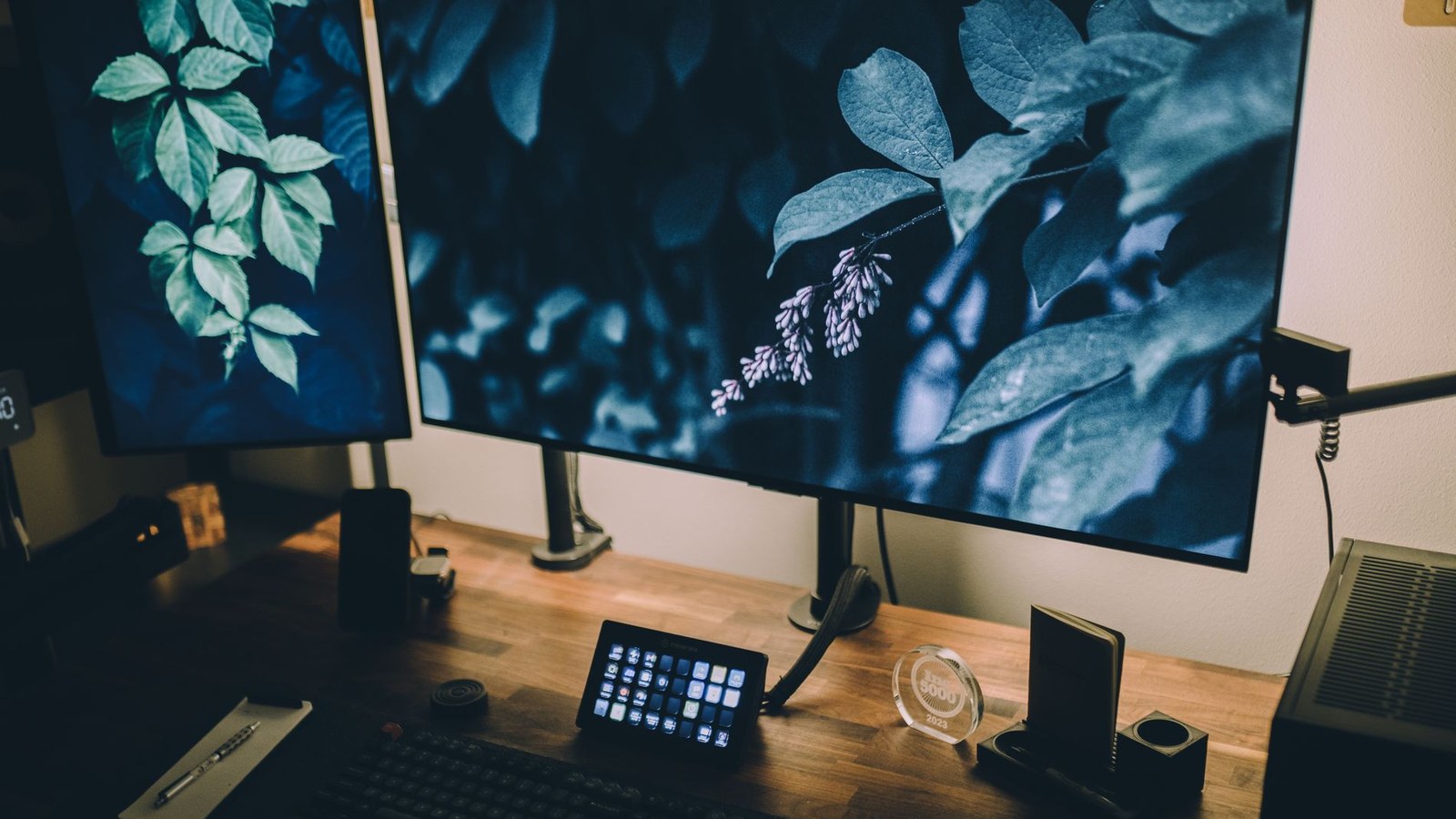

Before you buy a monitor arm, find two numbers: the VESA hole spacing on the back of your screen, and the weight of the screen with its stand taken off. Almost every arm is advertised on the heaviest monitor it can hold. The number that catches people out is the lightest one it can hold. Ergotron publishes both ends: its LX arm is rated 3.2 to 11.3 kg, and its dearer HX arm starts at 9.1 kg. A Dell UltraSharp U2724D weighs 4.49 kg once the stand is off, so the more expensive arm is the wrong one for it.
What brought you here?
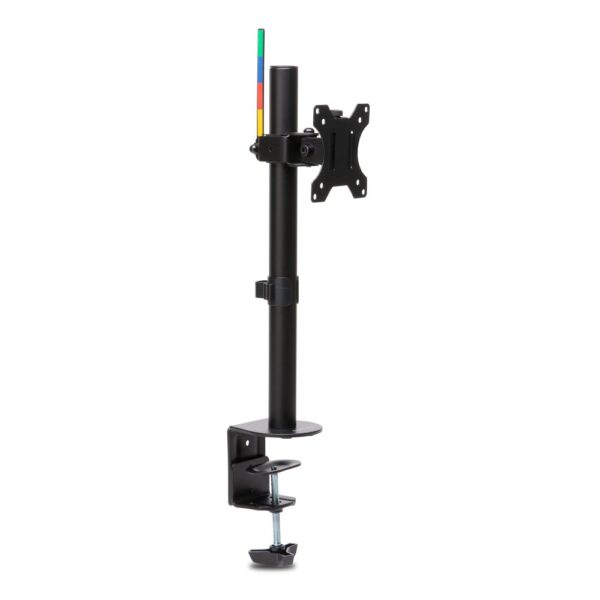
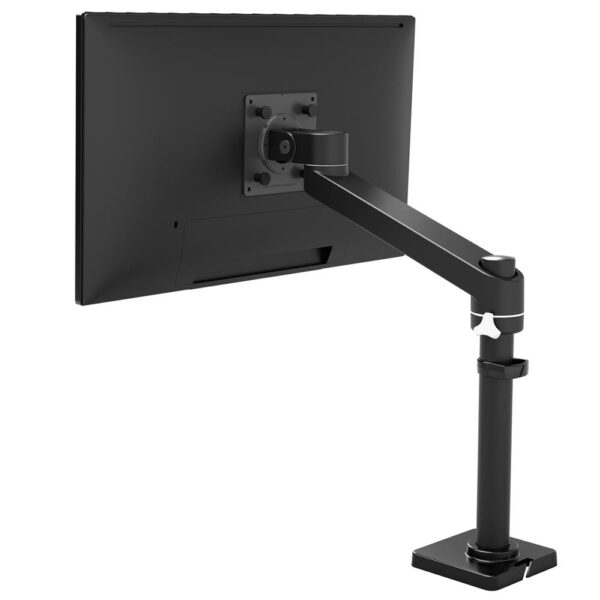
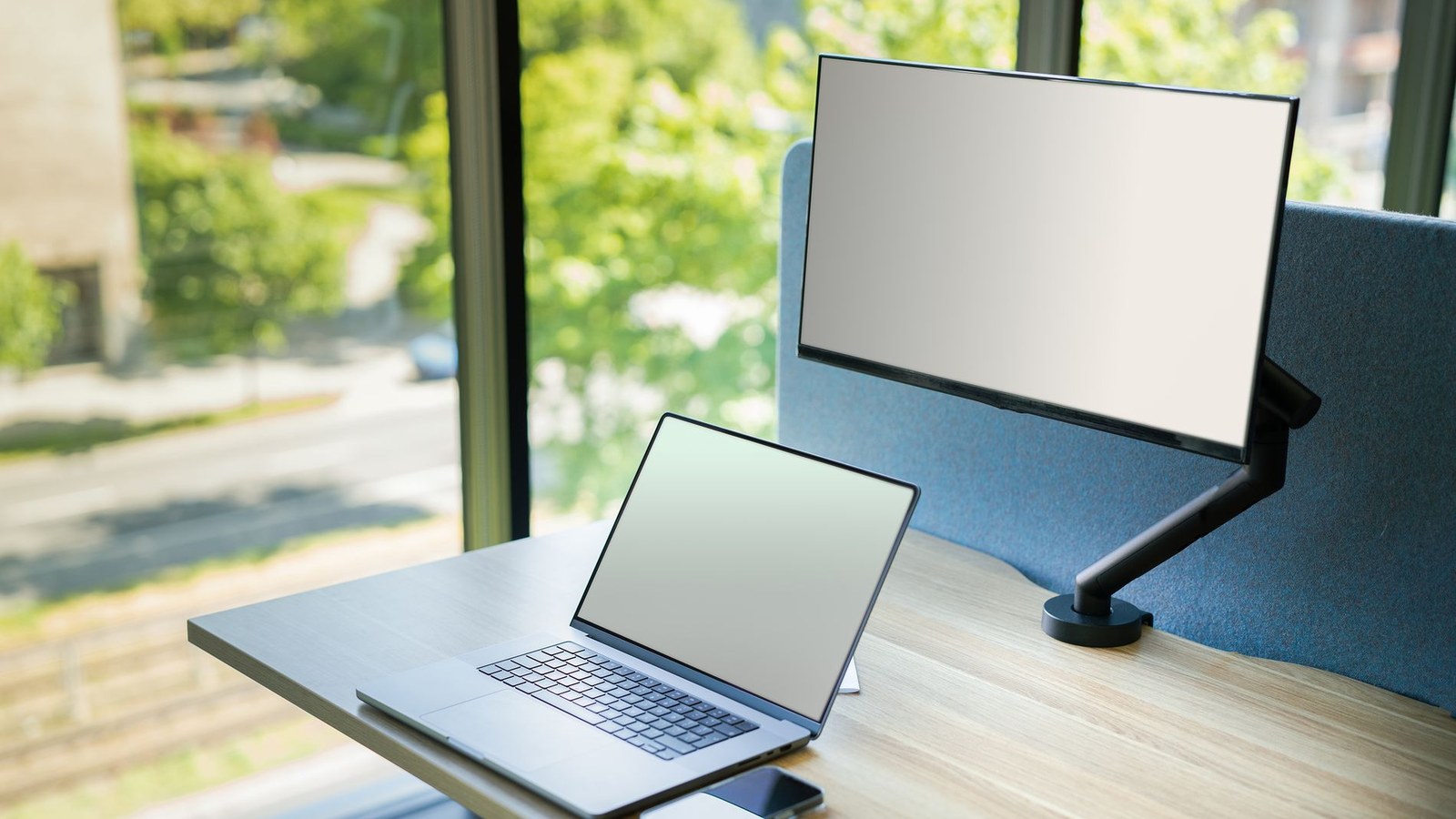
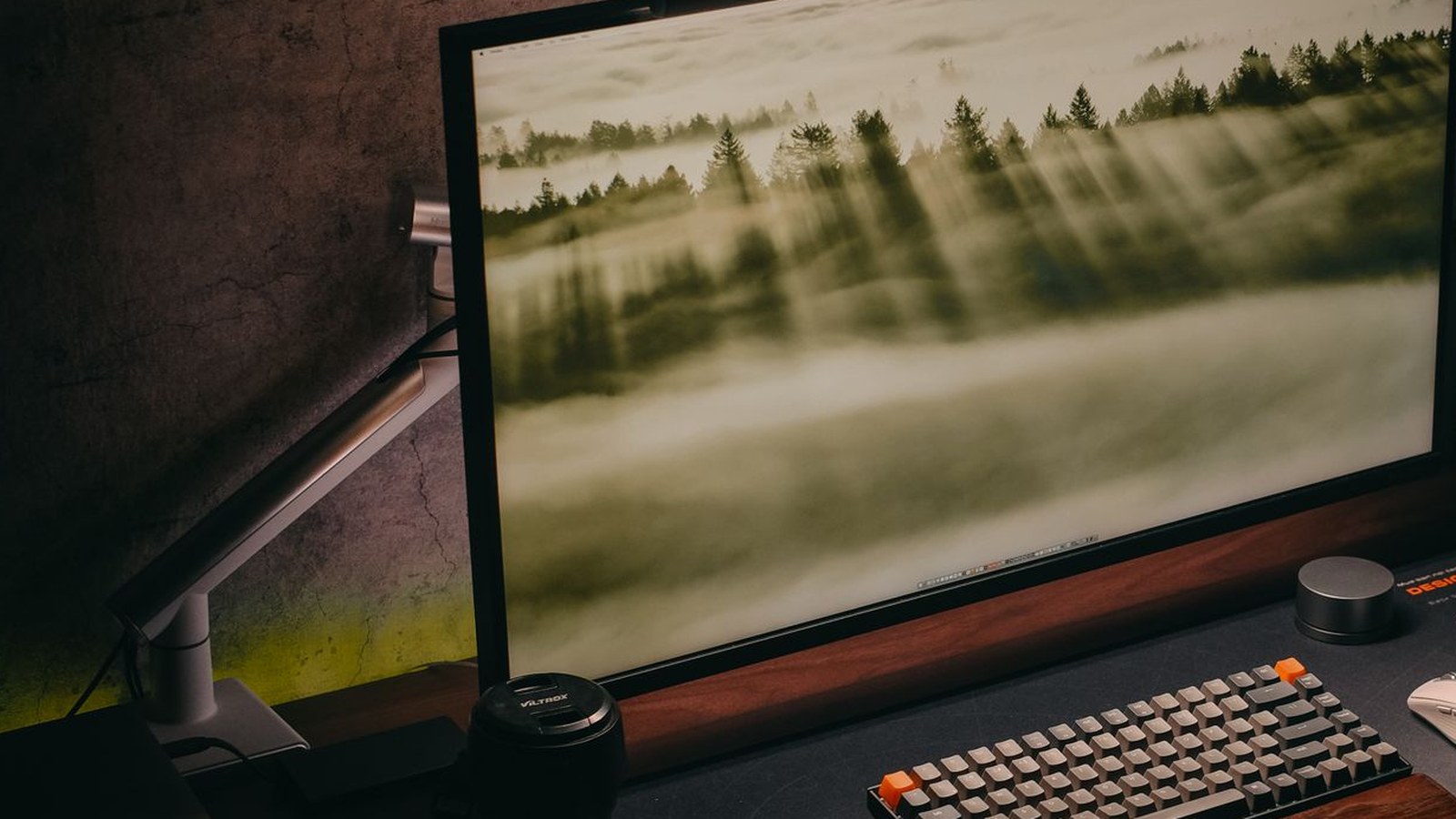
A monitor arm takes the screen off its factory stand and holds it from the side or the back instead. The foot disappears, so the desk under the screen comes back. That is the part people buy it for. The part they keep it for is that the screen now moves.
A computer monitor arm gives you four movements the average stand does not: it lifts the screen higher than a stand reaches, pulls it towards you or pushes it away, swings it left and right, and rotates it ninety degrees into portrait. If you write code, read long documents or work with pages of text, that last one changes how the day feels.
You probably want an arm if any of these is true:
You probably do not need one if your monitor’s own stand already adjusts for height and tilt, you never move the screen, and the desk space under it is not doing anything useful. In that case skip to the riser section and save your money.
One name comes up in every serious discussion of arms: Ergotron. It is the benchmark, and it is also the company whose specifications are detailed enough to argue with, which is why it does most of the work in this guide. The other names worth knowing are Humanscale and Herman Miller at the premium office end, Atdec in UK commercial fit-outs, and the Amazon-shelf brands like BONTEC and HUANUO at the cheap end.
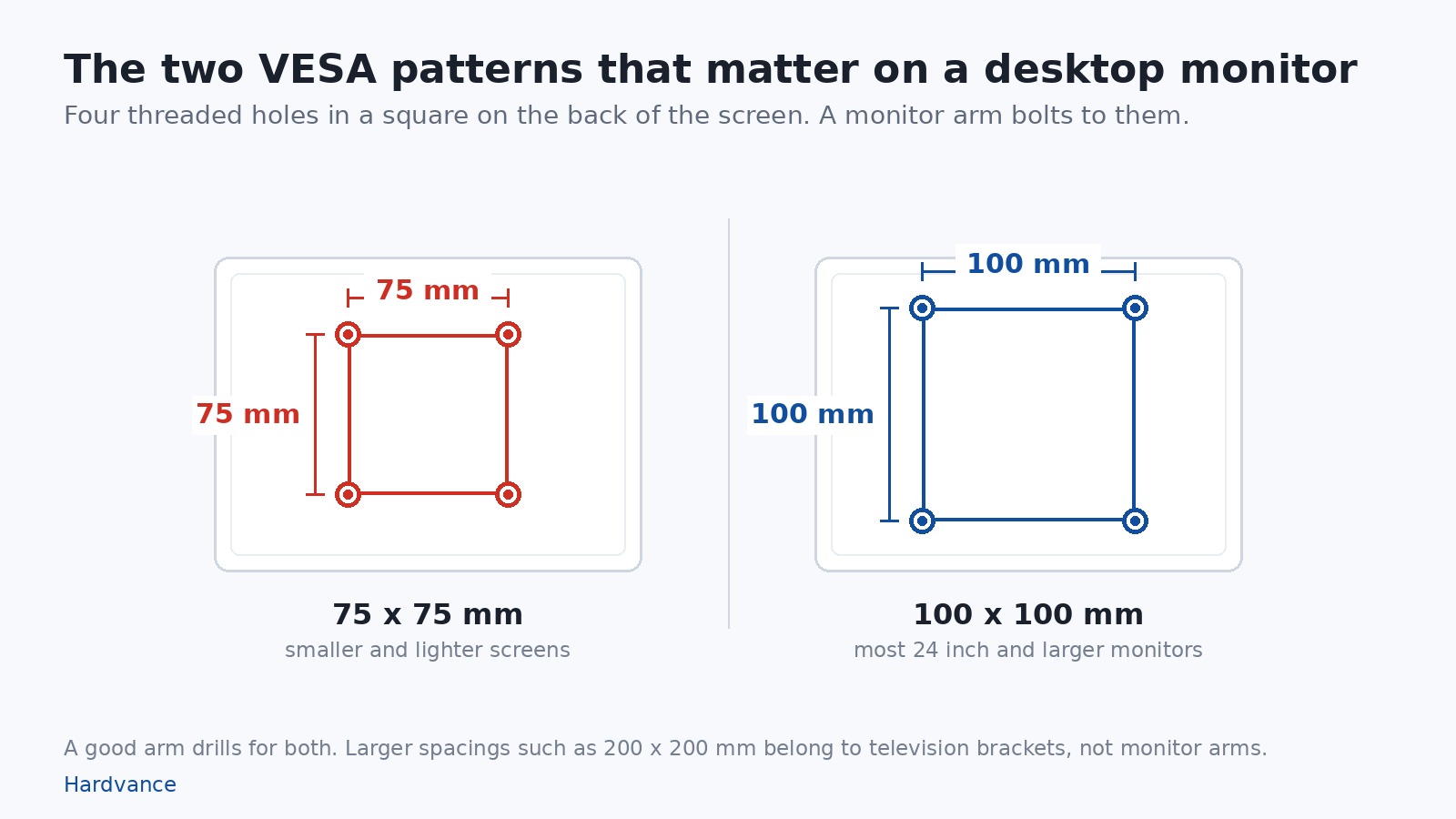
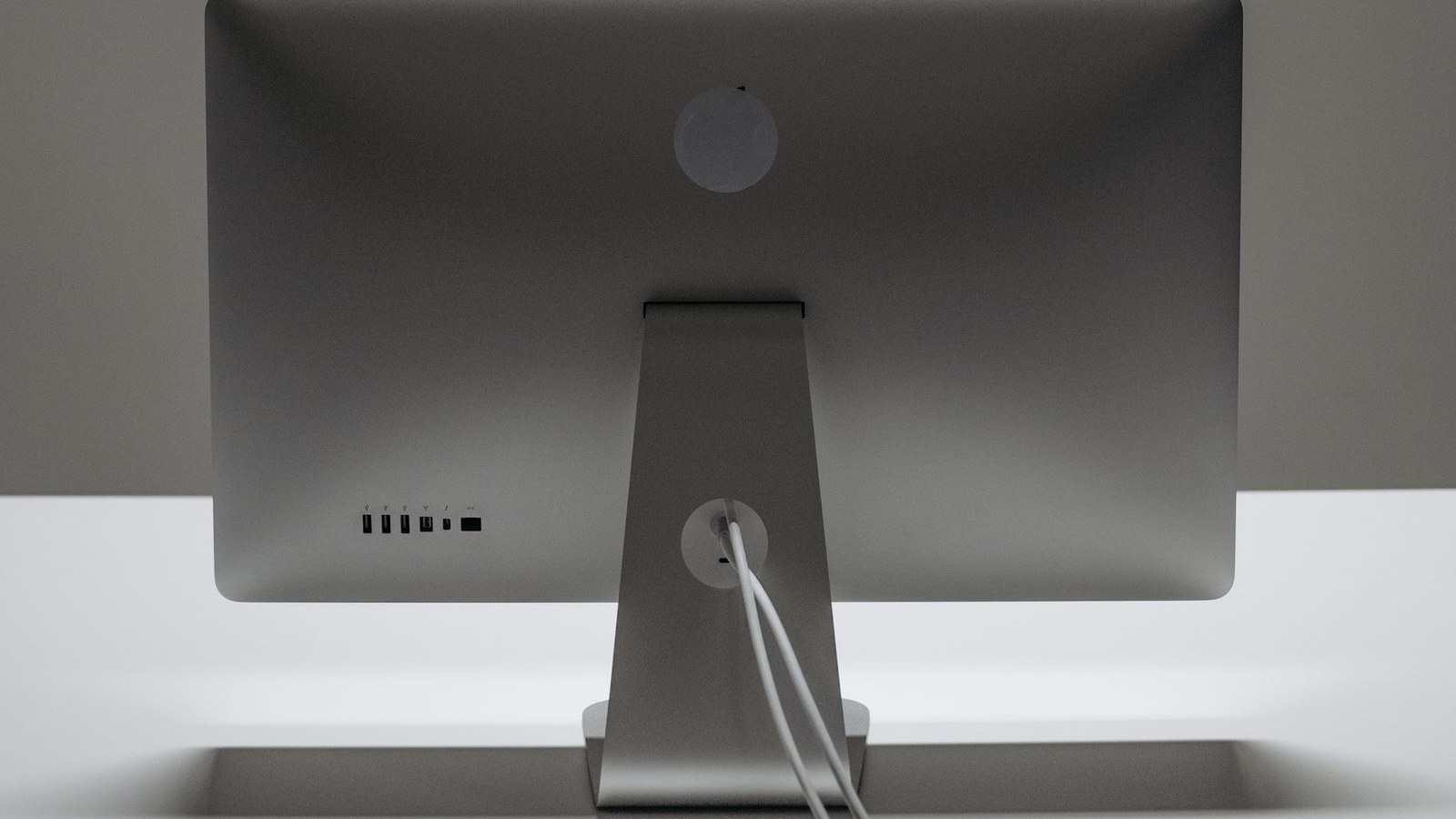
VESA is not a part. It is a hole pattern. On the back of most monitors there are four threaded holes arranged in a square, and a VESA mount is anything that bolts to them.
Two spacings cover almost every desktop monitor:
Good arms take both. Ergotron lists its LX arm as “VESA FDMI MIS-D, 100/75, C”, which is the formal way of saying the plate drills for a 100 x 100 mm and a 75 x 75 mm pattern. Fellowes ships its Reflex arm with release plates for both 75 x 75 and 100 x 100. StarTech’s ARMPIVOTHD is listed as “VESA 75x75mm/100x100mm compatible”. If an arm does not say both, check which one it means before you order.
Larger spacings exist, and they are where people go wrong. A big screen or a television uses 200 x 200 mm or more, and a desk arm will not reach those holes. That is a TV bracket’s job, not a monitor arm’s.
Three things to check on your own screen before you buy anything:
One more thing worth knowing while you are looking at the back of the screen: those same four holes are what a mini PC bolts to, which is how a whole computer disappears behind a monitor. If you want an arm and a mini PC on the same screen, check that the bracket is made to share the plate before you buy either. The boxes themselves are in best mini PC.
You do not normally need to buy VESA mount screws separately. A decent arm ships with the attachment hardware: Ergotron lists the LX as including the arm, the extension, the base, a two-piece clamp, a grommet mount, a pole and the attachment hardware, and Fellowes supplies the Reflex with release plates for both hole sizes. Keep those screws with the arm and do not reuse the ones that held the original stand on.
The figure you want is on the manufacturer’s specification page, usually on a line called Flat Panel Mount Interface. Do not take it from a retailer listing, ours included. Ergotron goes further and publishes a compatibility database on every arm page: you pick your monitor brand and model and it tells you whether that arm fits. When the market leader builds a lookup tool for this, it is a sign that fit is the hard part.
This is the part almost nobody checks, and it is the reason arms get returned.
Every arm is advertised on the heaviest screen it can hold. A spring arm also has a lightest screen it can hold, because the spring is pushing upwards with a set force. Put a screen on it that weighs less than the spring is pushing, and the arm wins. The screen floats up and will not stay where you put it.
Ergotron publishes both ends of the range on its product pages. Two of its arms:
| Arm | What Ergotron publishes | What that means |
|---|---|---|
| Ergotron LX desk mount | Weight capacity 7 to 25 lbs (3.2 to 11.3 kg) | Suits the great majority of 24 to 32 inch monitors. |
| Ergotron HX desk mount | Weight capacity 20 to 42 lbs (9.1 to 19.1 kg) | Built for large and heavy screens. It will not hold an ordinary monitor. |
Now the other half of the sum. The weight you need is the screen without its stand, because the stand is the thing you are removing. Dell prints exactly that line on its specification pages:
| Monitor | Weight, panel only, for VESA mount | Weight with stand |
|---|---|---|
| Dell UltraSharp U2724D, 27 inch QHD | 4.49 kg | 6.56 kg |
| Dell Pro Plus P2425E, 24 inch | 3.52 kg (7.75 lbs) | not published |
Put the two tables together and the trap is obvious. The HX is the more expensive arm. Its minimum is 9.1 kg. A 27 inch UltraSharp is 4.49 kg. Buying up the range takes you straight past your own monitor. Even the with-stand figure of 6.56 kg, which is the number most people find first, is still below that 9.1 kg floor.
Here is the other thing worth knowing before you shop. Of the arms we looked at, only Ergotron publishes a range at all:
| Maker | What its own page says | Minimum published? |
|---|---|---|
| Ergotron LX | 3.2 to 11.3 kg | Yes |
| Ergotron HX | 9.1 to 19.1 kg | Yes |
| Fellowes Reflex | “Holds screens up to 8kg and 32in” | No |
| StarTech ARMPIVOTHD | “a single large 32in display up to 19.9lb/9kg” | No |
| BONTEC dual arm | “Monitor Arm up to 8kg” | No |
That is five pages, not the whole market, so treat it as a warning rather than a law. But it tells you where the information you need is missing: on the cheaper arms, the minimum is real and simply is not printed.
People find out afterwards. A 2022 thread on the r/Monitors forum has somebody working through it in public: “I already set it to the maximum adjustment, but my monitor is just too lightweight. I have just found out that the minimum weight for this monitor arm is 2kg, and my monitor is only 1.90kg”. The replies suggest adding weight to the screen. The real answer was a different type of arm, which is the next section.
So do this before you order anything. Find your monitor’s panel-only weight on the maker’s specification page. Then buy an arm whose published range sits around that number with room at both ends. Do not buy the arm with the biggest maximum.
Desk arms come in three mechanisms, and the right one depends entirely on how often you plan to move the screen.
Gas spring, or constant force. You push the screen with one finger and it stays exactly there. This is what an Ergotron LX or HX does, and it is what you want if you adjust the screen daily, share the desk, or move between sitting and standing. It is also the type with a minimum weight, so read the section above first.
Tension spring with a screw. Cheaper, and you set the lift force yourself with a hex key. It works, and it drifts. Springs relax with time, and the arm starts sagging or swinging. A thread on the Tom’s Hardware forum describes it exactly: an arm that “lost the ability to hold the monitor straight and in place”, drooping and swinging as soon as it was let go, with a reply reporting the same failure on a wall-mounted arm after around two years. Adjustable, so a light screen is less of a problem, but expect to retighten it.
Fixed or pole mounted. No spring at all. You set the height once by clamping the arm to a pole, and it does not move again without a tool. If your screen is very light, or you set a height once a year, this is the reliable answer and usually the cheapest. Ergotron’s NX, for example, sets height along a pole with a 25 cm installation range.
Two specs worth comparing while you are looking:
One more note if your screen is a big curved one. Ergotron warns on the HX page that “display depth greater than 8in (20 cm) may affect the arm’s weight capacity”, and that “for a curved monitor, consider the arc’s depth to determine compatibility”. A deep screen hangs further from the pivot, so it behaves as if it were heavier. The LX carries the same warning at 3.5 inches of depth.
A desk mount monitor arm fixes to your desk in one of two ways, and both are in the box on most arms.
A C-clamp grips the back edge of the desk like a vice. It is the one almost everybody uses, because it needs no tools beyond the supplied bolt and no hole in the desk. A grommet mount goes through an existing cable hole in the desktop and bolts from underneath. It is more stable, it is the better answer for a heavy screen, and it puts the arm wherever the hole is rather than only at the back edge.
Both have measured limits, and this is where a lot of purchases fail. Taking Ergotron’s published figures:
| Arm | Desk clamp fits an edge | Grommet fits |
|---|---|---|
| Ergotron LX | 10 to 60 mm thick | a hole 8 to 50 mm wide, in a surface up to 57 mm thick |
| Ergotron HX | 10 to 66 mm thick | through a surface hole |
| Ergotron NX | up to 50 mm thick | not listed for this model |
So measure the desk before you order, and measure it at the point where the clamp will sit, not in the middle. Four things catch people out:
Last practical point. An arm needs air behind it. If your desk is pushed hard against a wall, a full-motion arm cannot fold back and you lose most of the movement you paid for. Leave a few centimetres, or look at a wall mount instead.
If you run two screens there are three shapes of answer, and the one most people assume is best is usually not.
Two single monitor arms. Each screen moves completely independently, which matters because two monitors are almost never the same height off the desk. You need two clamp points, so check you have the desk edge for it. This is the setup to buy if your two screens are different sizes or different models.
One dual monitor arm. A single clamp carries both screens, often on a shared crossbar or a shared pole. It is tidier, it costs less than two arms, and it gives up some independence: on a crossbar design the two screens move as one unit. Check how the maker states the load, because on a dual arm the rating is normally per screen, not for the pair. Read the wording on the specification page and not the headline: “per arm” and “per display” mean one monitor, and a bare number with neither phrase is worth an email before you order.
A dual monitor stand. A freestanding base that sits on the desk with no clamp at all. This is the option when the desk is glass, too thick to clamp, or not yours to drill. You keep the height adjustment and lose the reach. Dual arms and dual stands sit together in our dual monitor arms section.
There is also a vertical option people forget: a multi monitor arm that stacks one screen above the other on a single pole. That suits a small desk, and a chat window or a monitoring dashboard sits nicely on the upper screen.
Whichever you pick, the setup step that actually removes neck strain is matching the two screens’ heights and angling them slightly inward. We covered the full process, including the ports and the extend versus duplicate choice, in how to set up dual monitors.
Yes, a PC monitor can be wall mounted. It uses the same VESA plate on the back of the screen, and a monitor wall mount is simply an arm whose base is a wall bracket rather than a desk clamp.
It is worth considering in four situations: the desk is too small or too thick to clamp anything to, the desk is glass, the screen needs to sit in a corner where no clamp reaches, or there is no desk at all, as in a workshop, a shop counter or a standing area.
In the first two of those a free-standing stand with a weighted base does the same job without drilling anything, and it is the easier answer if you rent. Go to the wall when you also want the desk completely clear, or the screen higher or further back than a base on the desk can reach.
What to check before you drill:
A wall mount is also the quietest fix for a shared or hot-desk setup, because nothing on the desk gets in anyone’s way.
Not everyone who is shopping for an arm needs one.
A monitor riser is a shelf. It lifts the screen, usually by a fixed amount or a few set steps, and gives you somewhere to push the keyboard. It does not pull the screen towards you, it does not rotate it, and it does not free up the desk. What it does do is raise the screen for a lot less money, and it can put storage or a drawer underneath.
Buy a riser or a monitor stand instead of an arm when:
There is a quiet advantage here too. A riser holds the screen with the desk, not against a spring, so the minimum-weight problem does not exist. Risers routinely take far more weight than arms do, and a light screen is never a problem on one.
The limit: a riser will not fix a screen that is too far away, and it will not give you portrait. If your neck problem is distance rather than height, an arm is the answer and a riser is not. If height is the whole problem, our monitor stands and risers section is the cheaper aisle.
Work through it in this order and you will not get it wrong.
On brands, Ergotron sets the standard for mechanism quality and for publishing the numbers you need, and it charges for it. Humanscale and Herman Miller are the other premium office names. Kensington, Fellowes and StarTech sit in the middle and cover most office requirements. The Amazon-shelf brands are fine for a light screen that never moves, as long as the published weight range actually matches your monitor.
If you are still choosing the screen itself, our guides to choosing a gaming monitor, QHD against 4K and whether an OLED monitor is worth it cover that side. If the screen you already own has a mark on it, which screen marks are actually faults will tell you whether it is worth mounting at all. Everything we carry sits in monitor arms and mounts, with the wall brackets in their own monitor wall mounts section.
A note on the shortlist below, because it has to live by the rule this page has just set out. Only the Ergotron LX in it publishes a weight range with a floor. The rest publish a maximum, so match your panel-only figure against that maximum and leave headroom. If your screen is genuinely light, the Ergotron NX is the safe pick in the list, because it sets its height on a pole rather than a spring and therefore has no minimum to fall under. If you cannot clamp at all, the freestanding Kensington stand is the one to look at.
A few arms and mounts that cover the common cases, from a light single screen to a pair of heavy ones:
It is worth it if you want the screen higher than its stand reaches, closer or further away, rotated into portrait, or simply off the desk so you get the space back. It is not worth it if your existing stand already adjusts for height and tilt and you never move the screen. In that case a riser or nothing at all will do.
No. The screen needs VESA holes on the back, normally 75 x 75 mm or 100 x 100 mm, and its weight without the stand has to fall inside the arm's rated range. Some monitors have no VESA holes at all, some hide them behind a removable cover, and a few premium displays such as Apple's Pro Display XDR need the maker's own adapter before any arm will fit.
It replaces the monitor's factory stand and holds the screen from a desk clamp, a grommet bolt or a wall bracket. That frees the desk space under the screen and lets you raise, lower, pull, push, swivel and rotate the screen, usually with one hand.
They are worth it if you want one clamp point and a tidier desk, and if both screens can live at a similar height. Two separate single arms give you more independent adjustment, which matters when the two monitors are different sizes. Check the load rating carefully: on a dual arm it is normally quoted per screen rather than for the pair.
Not better, different. A dual arm carries both screens from one clamp, so it needs less desk edge and costs less than buying two arms. Two single arms let each screen move on its own, which is the better setup for mismatched monitors or an unusual layout.
Yes. A monitor wall mount uses the same VESA holes as a desk arm. Check what is behind the wall before you drill, because an extended arm puts a lot of leverage on the fixings, and make sure you can still reach the ports once the screen is up. Note that TV wall brackets are built for 200 x 200 mm patterns and larger, so they will not line up with a monitor.
It depends on the arm, and the minimum matters as much as the maximum. Ergotron rates its LX arm at 3.2 to 11.3 kg and its HX at 9.1 to 19.1 kg. Fellowes quotes up to 8 kg for the Reflex and StarTech up to 9 kg for the ARMPIVOTHD, without publishing a minimum. Compare those figures against your monitor's weight without its stand, not the weight on the box.
The Hardvance Team is the editorial team at Hardvance, a UK computer and electronics retailer based in Mildenhall, Suffolk. We build and upgrade PCs and sell laptops, phones, networking gear, monitors and printers, and our guides cover the same ground. Every guide names its sources and explains how we checked the figures, and we say plainly when something is our opinion rather than a tested result.
View all posts by Hardvance Team


No account yet?
Create an Account