How to Copy and Paste on a Mac (2026)

0
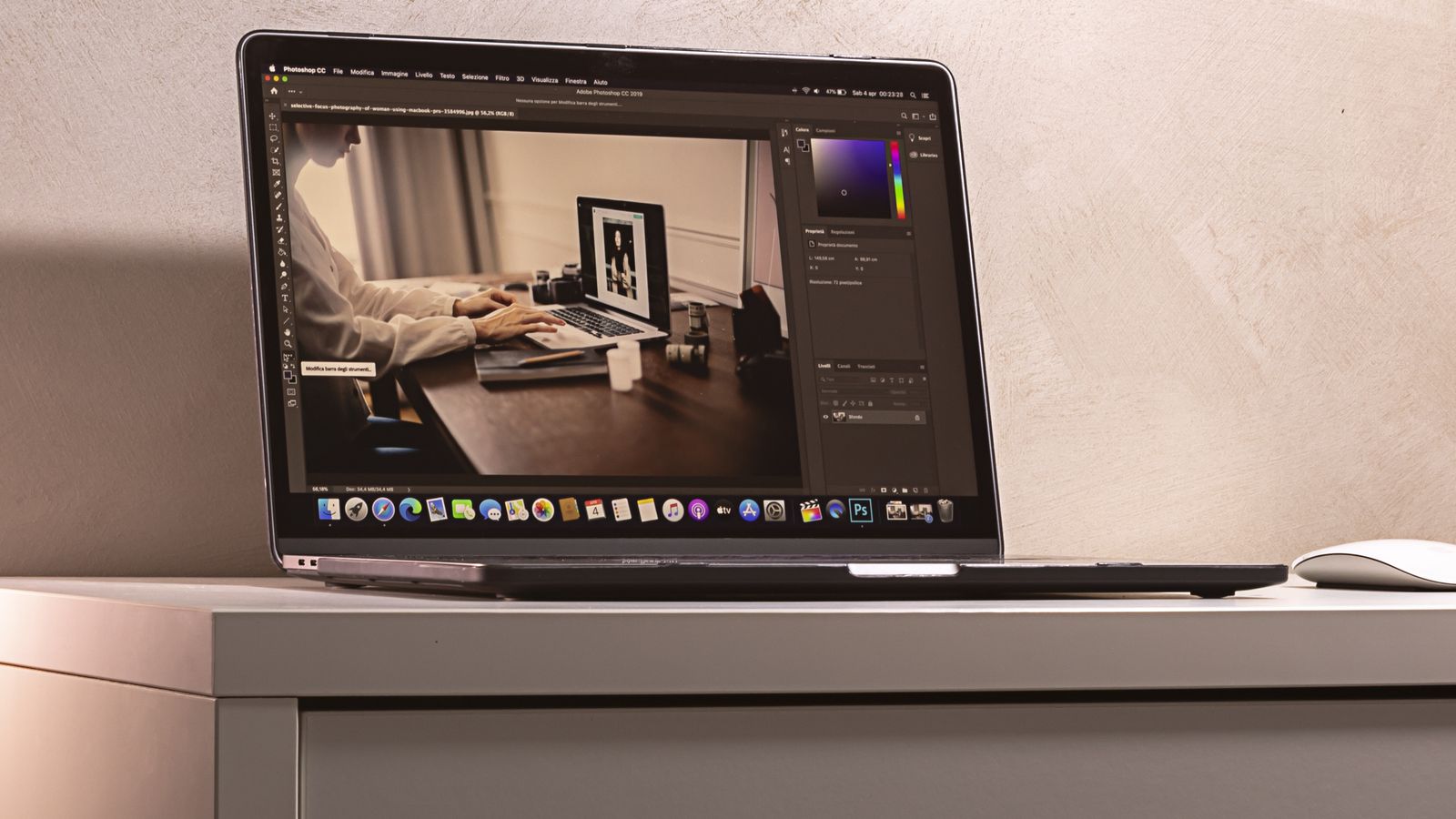
A MacBook running an app, copy and paste on macOS

Copy and paste on a Mac works much like any computer once you know that the Command (Cmd) key does the job, not Control. There are also a few handy extras worth knowing, including how to right-click, paste without messy formatting, move files and reuse what you copied on your iPhone. Here is everything in one place.

Last updated: June 2026 · Hardvance hardware team

The quick way: highlight what you want, press Cmd + C to copy and Cmd + V to paste. Use Cmd + X to cut text. To right-click, tap the trackpad with two fingers and choose Copy or Paste.

⌨️ Copy and paste with the keyboard

The fastest way uses the Command key, where a Windows PC would use Control:

  • Copy: highlight the text, then press Cmd + C.
  • Paste: click where you want it, then press Cmd + V.
  • Cut: Cmd + X removes the text and copies it.
  • Undo: pasted in the wrong place? Cmd + Z undoes it.

🖥️ Right-click to copy and paste

Prefer a menu? You need to right-click, and a Mac trackpad has no separate right button. Instead, tap the trackpad with two fingers, or hold Control and click. A menu appears with Copy, Cut and Paste. This two-finger tap is also the answer to the common question “how do I right-click on a Mac?”

🧹 Paste without formatting

Copying from a website often drags along fonts, sizes and colours you do not want. To paste clean, plain text that matches your document, press Option + Shift + Cmd + V, which macOS calls Paste and Match Style. It is one of the most useful shortcuts on any Mac.

🖼️ Copy and move images and files

To copy a picture from a web page, two-finger tap it and choose Copy Image, then paste it with Cmd + V. For files in Finder, copy with Cmd + C, then move them to a new folder with Option + Cmd + V (a Mac has no Cmd + X for files, so this is how you cut and paste a file).

📱 Copy on iPhone, paste on Mac

Here is the trick many people miss: with Universal Clipboard, you can copy text or an image on your iPhone or iPad and paste it straight onto your Mac with Cmd + V. Both devices need to be signed in to the same Apple Account with Wi-Fi, Bluetooth and Handoff turned on. It is brilliant for sending a photo or a link from your phone to your Mac in seconds.

🔍 See what is on the clipboard

Not sure what you last copied? Open Finder, click the Edit menu, then choose Show Clipboard to see the most recent item. The Mac clipboard holds one item at a time, so each new copy replaces the last.

Want to know which Mac suits you, or what else macOS can do? Read Which MacBook Should You Buy in 2026?, or browse our range below.

Pro tip: make Option + Shift + Cmd + V your default when pasting from the web. It strips out stray formatting so your notes and documents stay clean, and it saves a lot of tidying up later.

How do you copy and paste on a Mac?

Highlight the text, press Cmd + C to copy, click where you want it and press Cmd + V to paste. Use Cmd + X to cut text.

How do you right-click on a Mac?

Tap the trackpad with two fingers, or hold Control and click. A menu with Copy, Cut and Paste appears.

How do I paste without formatting on a Mac?

Press Option + Shift + Cmd + V, which macOS calls Paste and Match Style. It pastes plain text that matches your document instead of carrying over fonts and colours.

How do I cut and paste a file on a Mac?

Copy the file with Cmd + C, then move it to the new folder with Option + Cmd + V. A Mac has no Cmd + X for files, so this is the equivalent of cut and paste.

Can I copy on my iPhone and paste on my Mac?

Yes. With Universal Clipboard, copy on your iPhone or iPad and paste on your Mac with Cmd + V. Both devices must use the same Apple Account with Wi-Fi, Bluetooth and Handoff on.

Copy and paste is not working on my Mac, what do I do?

Make sure you fully highlighted the text first, then use the Cmd shortcuts (not Control). If a website blocks copying, try selecting a smaller part, or restart the app or browser tab.

Leave a Reply

Your email address will not be published. Required fields are marked *