Press Windows + V: Where Is My Clipboard on Windows, Android, Samsung, iPhone and Mac
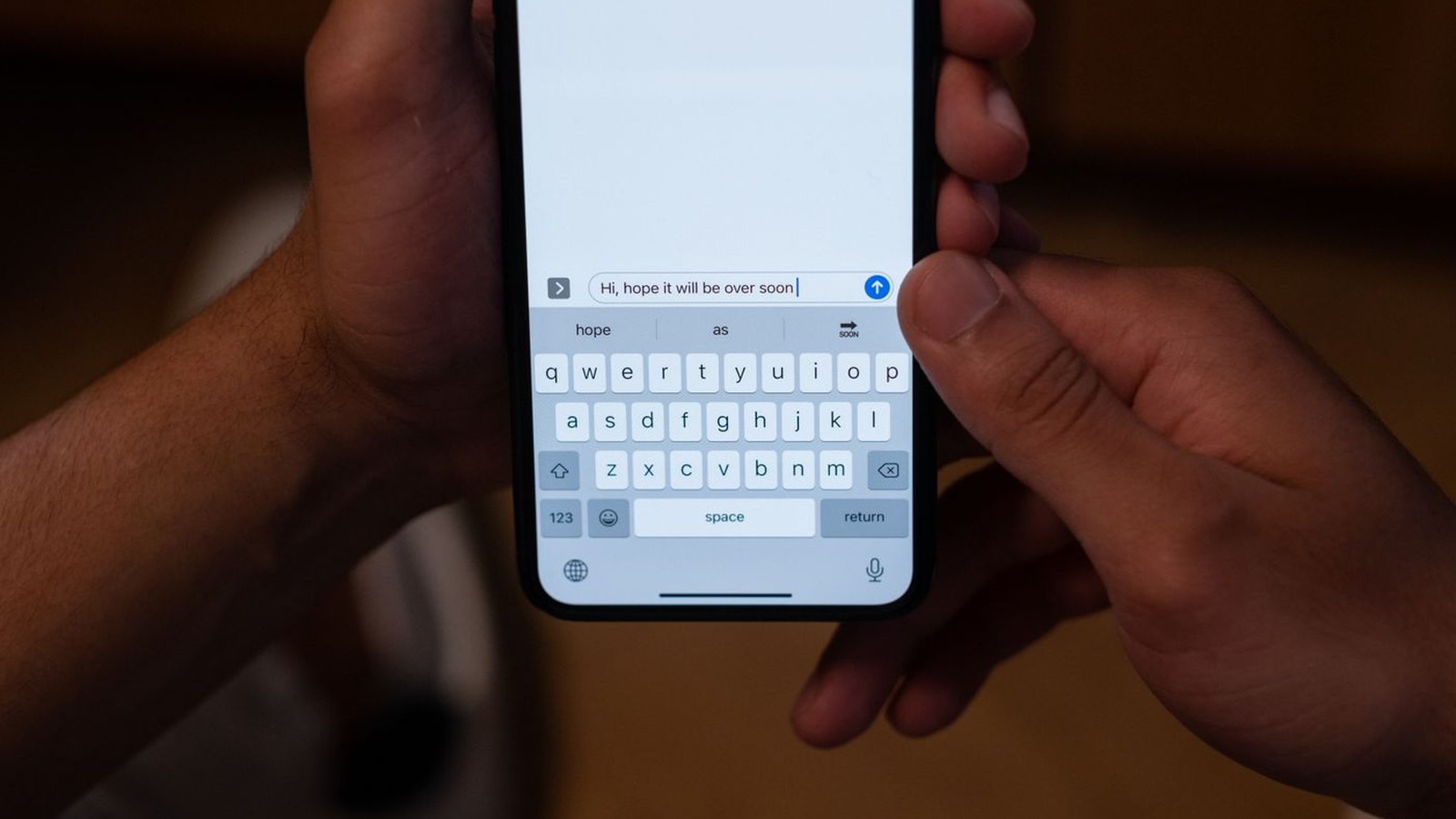
You copied something, and now you cannot find it. The clipboard is real, but it is not a folder and it is not in your settings, and how much of it you can see depends entirely on the device you are holding. Windows and Mac keep a list you can scroll back through. Android keeps one inside the keyboard. iPhone keeps exactly one thing and throws away the last one every time you copy.
Pick your device:
- Windows PC or laptopPress Windows key and V. You may have to switch it on first. How
- Android phoneIt is a button on your keyboard, not in Settings. Where to tap
- Samsung GalaxySame idea, slightly different keyboard. The steps
- iPhone or iPadThere is no history. Four ways round it. Read this one
- MacIt is hidden in Spotlight, and most people never find it. Show me
- You want it to remember moreClipboard apps that actually help
- You are worried what else is in thereWho can read your clipboard
Every one of these is a setting you already own.
- Where is my clipboard, in one line per device
- What clipboard history is, and why yours may be missing
- Windows: the clipboard shortcut, and the switch you have to turn on
- Clipboard on Android: it is in the keyboard, not the phone
- Samsung clipboard: where it is on a Galaxy phone
- iPhone clipboard: no history, and four ways round it
- Mac clipboard history is hidden in Spotlight
- Clipboard manager apps worth having
- Clipboard privacy, and how to clear it
- Quick answers
Where is my clipboard? One line per device
The clipboard is a bit of memory, not a place you can browse to. There is no clipboard app and no clipboard folder. What differs between devices is whether anything keeps a record of what you copied, and where that record is shown to you.
If you only want the answer and nothing else:
- Windows: hold the Windows key and press V.
- Android: open any keyboard and tap the clipboard button on it.
- Samsung Galaxy: same, on the Samsung Keyboard toolbar.
- iPhone and iPad: there is nothing to open. Long-press and choose Paste is all you get.
- Mac: press Command and Space, then search your Clipboard.
That last one about the iPhone is the answer most people are actually looking for, and almost nobody says it plainly, so it has its own section below with what to do instead.
If you are on a Mac or a Chromebook and what you really want is the copy and paste basics rather than the history, we have those separately: copy and paste on a Mac and copy and paste on a Chromebook.
What clipboard history is, and why yours may be missing
Every device has a clipboard that holds one thing. Clipboard history is a separate feature that keeps the last several things as well, so you can go back to something you copied twenty minutes ago. Some devices have it, one does not, and on the ones that do it is not always switched on.
This is the whole source of the confusion. When someone says “my phone has no clipboard”, what they usually mean is “my phone will not show me what I copied earlier”. The clipboard is there. The history is the bit that varies.
There is a second thing worth knowing, and it explains why you cannot find a clipboard setting on your phone at all. On a computer, the operating system keeps the history, so it works the same in every program. On a phone, it is the keyboard app that keeps it. Change your keyboard and you change your clipboard.
Here is the whole picture in one place, and the differences are bigger than most people expect.
Clipboard history: what each device can actually do
| Windows | Android | Samsung | iPhone | Mac | |
|---|---|---|---|---|---|
| Has a clipboard history? | Yes | Yes | Yes | No | Yes |
| On by default? | No | Yes | Yes | n/a | No |
| Where you open it | Win + V | Keyboard | Keyboard | n/a | Spotlight |
| Keeps items until | You clear it | Soon after use | Soon after use | Your next copy | You clear it |
| Can you pin an item? | Yes | Yes | Yes | No | Not stated |
Windows: the clipboard shortcut, and the switch you have to turn on
The Windows clipboard history shortcut is the Windows key plus V. The first time you press it, nothing useful happens, because the feature is off until you turn it on. Press Windows key and V, then select Turn on.
That single detail is why so many people are convinced Windows cannot do this. They tried the shortcut once, saw an empty panel, and never went back.
Once it is on, the panel keeps your recent copies until you clear it, and you get two things worth using:
- Pin an item so it stays in the list instead of ageing out. Good for an address, an order reference, a bank sort code you keep retyping.
- Clear all at the top of the panel, which empties it in one go.
Microsoft also documents a “Clipboard history across your devices” toggle, which syncs what you copy between machines signed in to the same account. Useful if you work across two PCs. Read the privacy section before you switch that one on.
These clipboard keyboard shortcuts are worth committing to memory alongside the obvious two: Ctrl and C to copy, Ctrl and V to paste, and Windows key and V to see everything you copied before that.
Clipboard on Android: it is in the keyboard, not the phone
Stop looking in Settings. On Android the clipboard belongs to your keyboard app, so to find it you open the keyboard, as if you were about to type, and tap its clipboard button.
On Gboard, which is the keyboard most Android phones ship with, Google’s instruction is simply: at the top of the keyboard, tap Clipboard. If you cannot see it, tap the arrow or the three dots on the keyboard’s top row and it will be in there with the other tools.
Now the part that catches everyone out. Google says the clipboard “clears your history shortly after you last use it”, and that this does not apply to pinned text. So the copied item you are hunting for may genuinely be gone, and no amount of tapping will bring it back. If something matters, pin it: touch and hold the item, then tap Pin, and it moves to a Pinned section that survives.
This also explains a question that comes up a lot on Android forums, where someone finds their pinned items have disappeared. Pinning protects an item from the automatic clear-out. It does not protect it from you clearing the clipboard yourself, or from switching keyboard, because a different keyboard has a different clipboard.
Samsung clipboard: where it is on a Galaxy phone
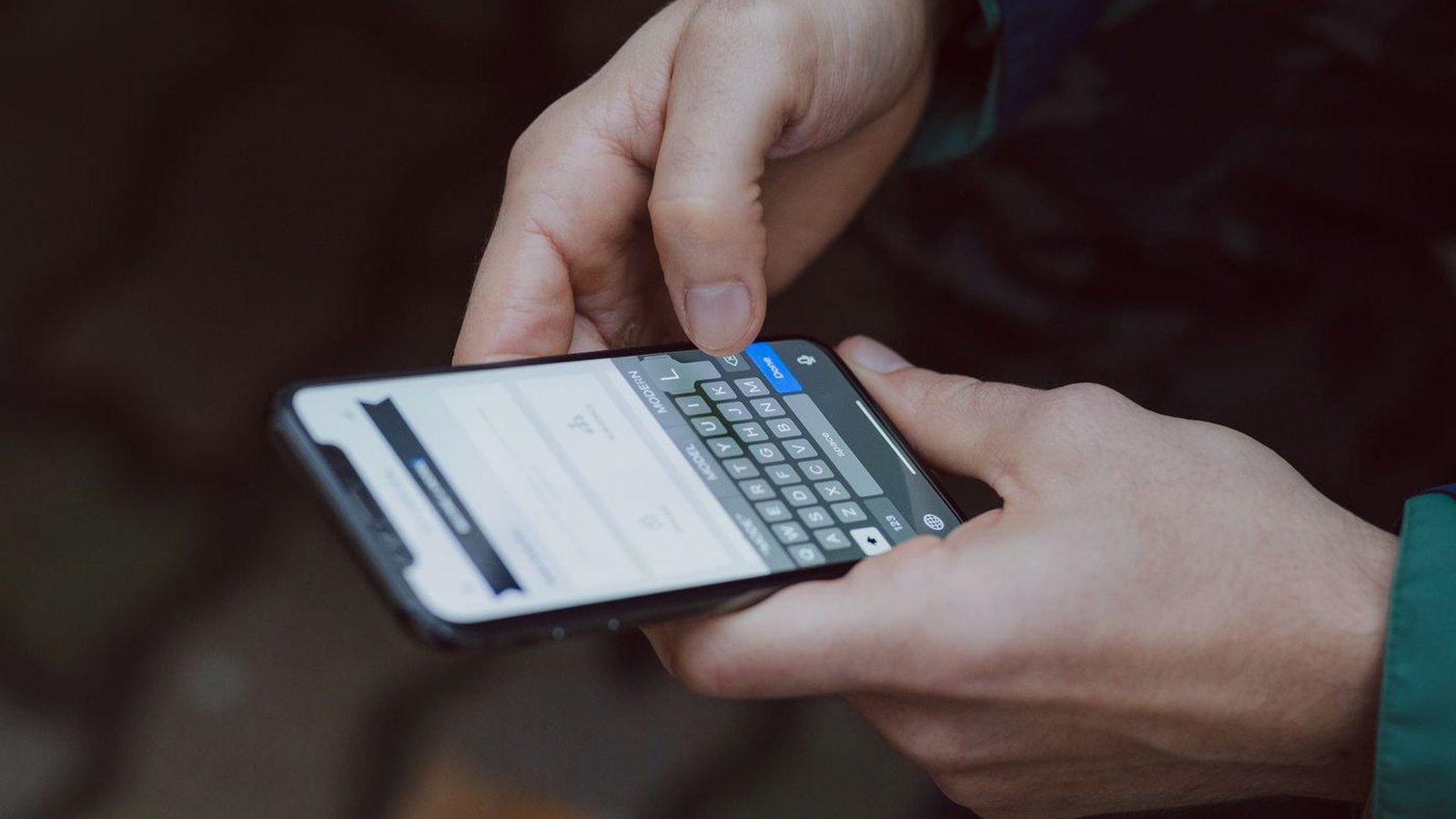
On a Galaxy phone the Samsung clipboard works the same way, because Samsung Keyboard is just another keyboard app. Open the keyboard, tap the three dots or the arrow on the toolbar, and choose Clipboard.
Two Samsung-specific things are worth knowing.
The first is that Samsung Keyboard and Gboard keep separate clipboards. If you switch keyboard, the history you were looking at does not come with you. People often decide their phone has “lost” their clipboard when what actually happened is that they changed keyboard, or a new phone shipped with a different one.
The second is that Samsung has a setting called Continue on other devices, which passes what you copy between your own Galaxy devices when they are signed in to the same Samsung account. It is genuinely handy, and it is also the answer to an alarming-sounding problem people post about, which is covered in the privacy section.
iPhone clipboard: there is no history, and four ways round it
The Mac has a searchable Clipboard history. Apple documents nothing of the kind for the iPhone or iPad: iOS holds one item, replaces it the moment you copy something else, and offers no way to get the previous one back.
If you have just moved from Android, this is usually the moment you notice. It comes up constantly from switchers, and the reaction is fairly uniform: one described being “shocked apple has no clipboard history, it is very basic”, and another said it is the reason their Android phone is still the one they carry.
So here is what actually works, cheapest and simplest first.
- Use Text Replacement for anything you retype often. Settings, then General, then Keyboard, then Text Replacement. Give a short trigger to a long piece of text and it expands as you type. It is free, it is built in, and for email addresses, postcodes and stock phrases it removes the need for a clipboard history at all. Hardly anyone knows it is there.
- Install a keyboard that has its own clipboard. Because the clipboard on a phone belongs to the keyboard, a third-party keyboard can bring one. Microsoft’s SwiftKey is the usual recommendation, and iPhone users on Reddit describe using exactly this to keep a list of strings they paste often.
- Use a clipboard app. There are several on the App Store. The caveat is the one an owner gave: you have to remember to open the app for it to capture what is currently on the clipboard, so put it somewhere reachable like Control Centre.
- Use Notes as a holding pen. Low tech and it always works. Paste each thing into a note as you go, then copy back out of the note when you need it. If you are copying between an iPhone and a Mac, our Mac copy and paste guide covers doing it directly.
Mac clipboard history is hidden in Spotlight
Mac clipboard history exists, and it is not where you would look. Press Command and Space to open Spotlight, then search your Clipboard. You may be asked to click Enable the first time.
Once it is running you can type to search back through what you copied, and there is a Clear History option to the right of the search field when you want it gone. It is the same on a MacBook as on a desktop Mac, so if you have been searching for clipboard history MacBook and finding only apps, this is the built-in one.
Most Mac owners have no idea this is there, which is why “macos clipboard history” is still a common search and why people go straight to buying an app. Try the built-in one first. If you want pinning, or a history that persists exactly how you want it, that is where a third-party manager earns its money, and there are good ones for macOS.
Clipboard manager apps worth having
A clipboard manager is a small app that watches what you copy and keeps a longer, searchable list. If you copy things for a living, it pays for itself in a week. If you copy a link twice a day, the built-in feature is plenty.
Think about which one you are, because a lot of people install a manager to solve a problem that the setting they never switched on would have solved for free.
Where a manager genuinely helps:
- On iPhone, because there is no built-in history to fall back on. This is the one platform where an app is the only real answer.
- On Mac, if you want pinned snippets and a history that goes back further than a quick look in Spotlight.
- On Windows, if you need it to sync somewhere specific, or you want snippets organised into groups rather than one flat list.
- On Android, less often, because the keyboard already does the job. The exception is if you keep losing items to the automatic clear-out and pinning is not enough.
One rule before you install any of them, and it matters more than which one you pick: a clipboard manager sees everything you copy, including passwords. Choose one you are willing to trust with that, and read the next section.
Clipboard privacy: what else is in there, and how to clear clipboard history
Whatever you copied last is sitting in memory waiting to be pasted, and that includes passwords copied out of a password manager, card numbers and one-time codes. On top of that, anything with clipboard history is keeping a list of those, and any app you have installed can potentially read what is there.
None of this is a reason to panic, but three habits are worth having.
Clear it after copying anything sensitive. On Windows that is Clear all in the Win+V panel. On Android and Samsung there is a clear or bin option inside the keyboard’s clipboard. On Mac it is Clear History in Spotlight. Good password managers already clear the clipboard for you after a short delay, which is one reason to use one rather than a notes file.
Think before you switch on cross-device sync. It is convenient and it also means what you copy on one machine appears on another.
And if your clipboard is turning up on somebody else’s phone, check your accounts before you assume you have been hacked. This is a real problem people post about, and the cause is almost always mundane: two phones signed in to the same account, with a sync feature doing exactly what it was designed to do. One couple discovered they were sharing a clipboard because they had put both phones on a single account so they could use find-my-device. The fix is two accounts, and location sharing between them, which gets you the same safety net without the shared clipboard. On Samsung the setting to look for is Continue on other devices; on other Android phones it will be under whatever that maker calls its device-linking feature.
If your phone or PC is generally misbehaving rather than just being confusing, our guide on fixing a slow computer is a better place to start.
Quick answers
Open your keyboard as if you were going to type, then tap the clipboard button on it. On Gboard it is at the top of the keyboard; on Samsung Keyboard it is under the three dots on the toolbar. There is no clipboard entry in your phone's Settings, because on a phone the clipboard belongs to the keyboard app rather than to the operating system.
On Android, saved items are the ones you pinned: open the keyboard's clipboard and look for the Pinned section. Unpinned items are cleared automatically. On Windows, press Windows key and V and pinned items stay at the top of the panel. On iPhone there is nothing saved, because there is no history to save into.
Into a small piece of your device's memory that holds one item ready to paste. It is not a file and not a folder, so there is nowhere to browse to. If your device also keeps a clipboard history, a copy goes into that list as well, and that list is the only way to see anything other than the most recent item.
It is not there, on any phone, and that is the single most common reason people give up looking. Android and iPhone both keep the clipboard outside the settings app. On Android you reach it through the keyboard. On Windows there is a Clipboard page in Settings, but the quick way in is still Windows key and V.
Press the Windows key and V. If the panel is empty the first time, select Turn on, which is Microsoft's documented first step. After that the panel lists what you have copied, lets you pin items so they stay, and has a Clear all button at the top.
The Mac has a searchable Clipboard history. Apple documents no equivalent for the iPhone, where iOS keeps one item and overwrites it on the next copy. The practical workarounds are Text Replacement for things you retype, a third-party keyboard that carries its own clipboard, a clipboard app, or pasting into Notes as you go.
Open the keyboard, tap the three dots or the arrow on the Samsung Keyboard toolbar, and choose Clipboard. If you have switched to a different keyboard such as Gboard, you will be looking at that keyboard's clipboard instead, and the two do not share a history.
It depends on the device. Windows and Mac keep the history until you clear it. On Android, Google's wording is that the clipboard clears your history shortly after you last use it, and only pinned text survives that. On iPhone the single item lasts until the next time you copy anything.
On Windows, press Windows key and V and choose Clear all. On Mac, open Spotlight, search your Clipboard and choose Clear History. On Android and Samsung, open the keyboard's clipboard and use its delete or bin option. On iPhone, copying anything else replaces what was there, which is the closest thing to clearing it.
Treat the answer as yes. Both Android and iOS have tightened this up and will often warn you when an app reads the clipboard, but the safe habit is to assume anything you copy could be seen and to clear it after copying a password, a card number or a one-time code. On sites that offer one, a passkey keeps the password off the clipboard entirely.
Almost always because both phones are signed in to the same account and a device-linking feature is syncing it, rather than anything sinister. Give each phone its own account and share location between them instead. On Samsung the setting is called Continue on other devices.
On iPhone it is the only way to get a history, so probably yes if you need one. On Windows, Mac and Android the built-in feature covers most people, and it is worth switching that on and living with it for a week before you pay for anything. Remember that a manager sees everything you copy, passwords included.
Sources
- Microsoft, Using the clipboard. The Windows key and V shortcut, the Turn on step, pinning, Clear all, and the clipboard-history-across-devices toggle.
- Google, Copy and paste text with Gboard. Tapping Clipboard at the top of the keyboard, pinning, and the wording that the clipboard clears your history shortly after you last use it.
- Apple, Search your Clipboard history in Spotlight on Mac. Command and Space, the Enable prompt, and Clear History.
- Apple Support Community, Where is Clipboard on iPhone, one of several threads giving the same answer about iOS holding a single item. Community answers, not Apple documentation, which is why we have worded the iPhone section as we have.
- r/iphone, Just switched from Android to iPhone and really miss clipboard history. The switcher reactions, and the third-party keyboard, clipboard app and Notes workarounds described by owners.
- r/AndroidQuestions, My wife’s phone and mine started syncing clipboards. The shared-account cause and the Continue on other devices setting.
Photographs are from Pexels and are used under the Pexels License, which permits commercial use. Each one has been cropped to fit. The comparison table above is ours, built from the three manufacturers’ documentation linked here.
About Hardvance Team
The Hardvance Team is the editorial team at Hardvance, a UK computer and electronics retailer based in Mildenhall, Suffolk. We build and upgrade PCs and sell laptops, phones, networking gear, monitors and printers, and our guides cover the same ground. Every guide names its sources and explains how we checked the figures, and we say plainly when something is our opinion rather than a tested result.
View all posts by Hardvance Team