Run One Free Test First: Surface Pro Screen Flickering, Ghosting or Burn, Hardware or Not
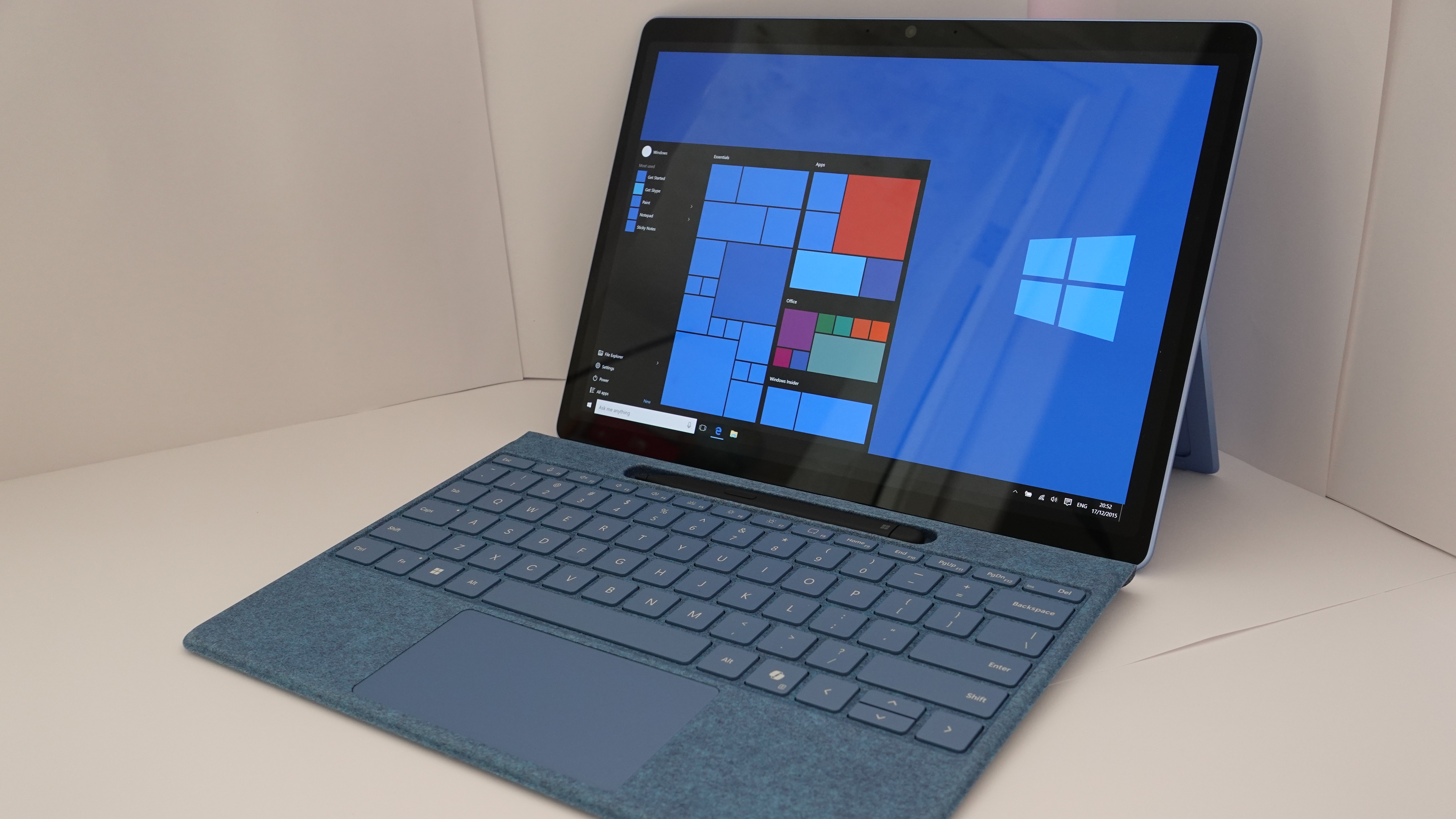
Before you pay for a new screen, run one free test. Turn the Surface off, hold the volume up button and press power. That opens UEFI, the firmware screen that runs before Windows. If the flicker, ghosting or marks show up there too, the fault is in the screen hardware and no driver will fix it. If the screen looks normal in UEFI, it is Windows or a driver, and Microsoft’s fixes below usually work. The shaking, doubled picture on a Surface Pro 4 was a known fault that Microsoft replaced free for three years from purchase. Out of warranty, Microsoft’s UK price to fix the screen on a Surface Pro 7+ to 11 is £572.34, and the Surface Pro 4 is not on its price list at all.
Match what you see:
- Surface Pro 4 flickers once warmA heat-linked panel fault. Why heat sets it off
- Picture doubled or jumpingMicrosoft calls this a scramble. What Microsoft replaced
- Yellow or brown marksRarely true burn-in on an LCD model. What they really are
- Newer Surface Pro flickersOften a setting or driver. Microsoft’s fixes
- Repair or replace?Microsoft’s UK repair prices, model by model. The numbers
- Surface Pro screen flickering: the free test that tells you if it is hardware
- Surface Pro 4 screen flickering and shaking: why heat sets it off
- Surface Pro 4 screen ghosting and scrambled screen: what Microsoft replaced
- Surface Pro screen burn: yellow marks, OLED burn-in or image retention?
- Surface Pro screen shaking and flickering on newer models: Microsoft’s fixes
- Surface Pro screen replacement cost: Microsoft’s UK prices
- Surface Pro 4 in 2026: repair it or replace it?
- What we would actually do
- Quick answers
Surface Pro screen flickering: the free test that tells you if it is hardware
Every Surface screen fault splits into two kinds. Either the panel itself is failing, or Windows is sending it the wrong thing. The fixes are completely different, so find out which one you have first. Microsoft’s support pages give the same test for flickering, scrambled and discoloured screens (Microsoft):
- Turn the Surface off and wait 10 seconds.
- Press and hold the volume up button.
- Keep holding it, and press and release the power button.
- Let go of volume up when the UEFI screen appears.
UEFI is the Surface’s firmware menu. It runs before Windows loads, with no Windows graphics driver involved. So Microsoft’s rule is simple: if the problem shows in UEFI, it points to the hardware. If UEFI looks clean, the problem is likely the software (Microsoft).
Give it a few minutes on that screen. Some faults only start once the Surface warms up, and a quick look at a cold machine can fool you. If yours usually flickers after 20 minutes of use, do the test after 20 minutes of use.
It is the same idea as the check in our guide to lines on a laptop screen: look at the screen before Windows loads, and let what you see decide the fix.
Surface Pro 4 screen flickering and shaking: why heat sets it off
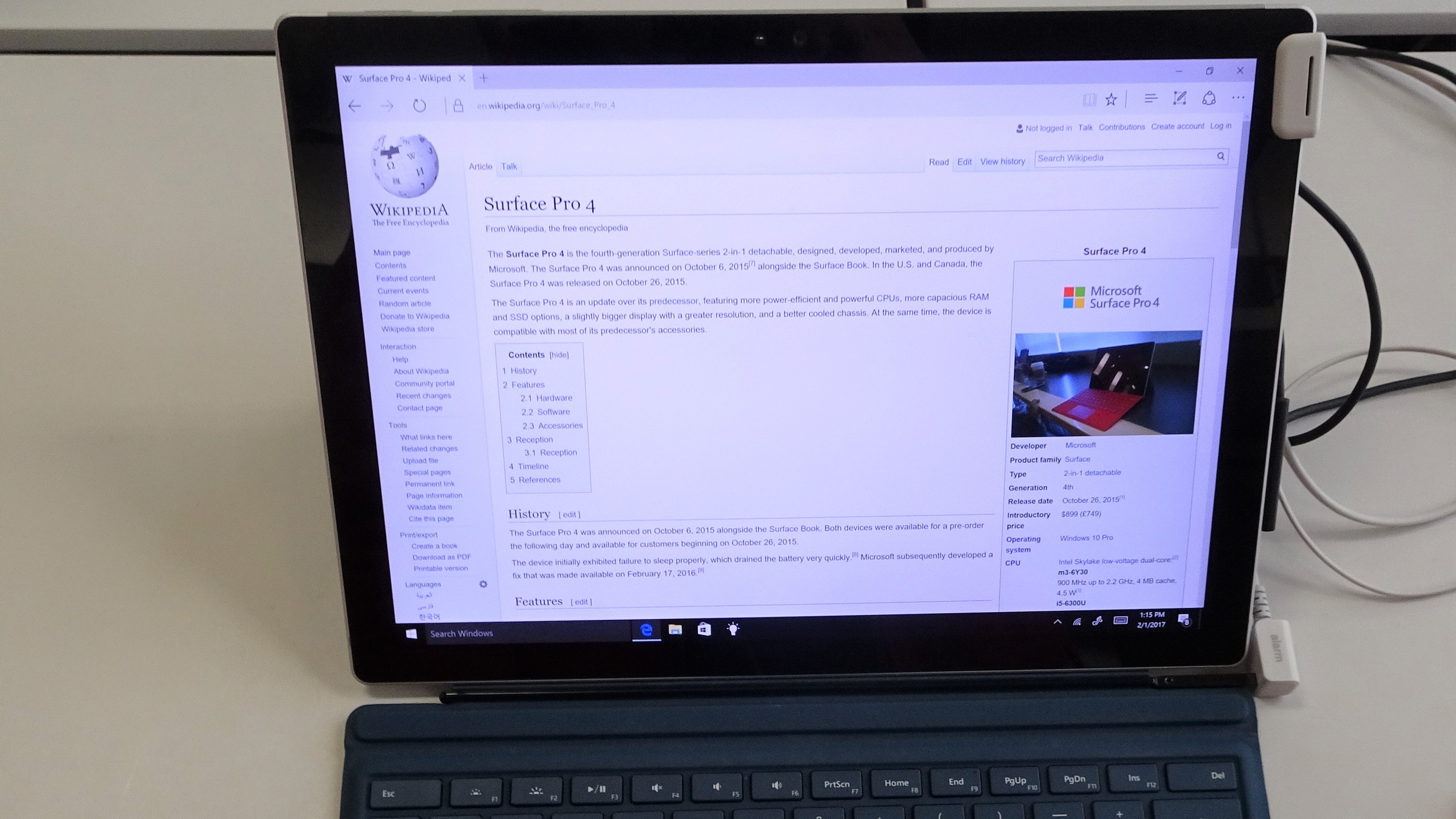
If you own a Surface Pro 4 and the screen starts to flicker or shake after it has been on for a while, you are looking at the most famous fault the Surface range ever had. Surface Pro 4 flickering that builds up with use was common enough to get its own name. Owners called it Flickergate, after a website they set up to collect reports (flickergate.com). The Surface Pro 4 went on sale on 26 October 2015 (Wikipedia), and by early 2018 at least 1,600 owners had reported the problem there (Trusted Reviews).
The telling detail was heat. The flicker got worse the longer the tablet ran, and some owners found a strange workaround: they put the tablet in the freezer. One owner reported half an hour of flicker-free use after ten minutes in there (Trusted Reviews). At the time, Microsoft said the issue affected “less than one percent” of Surface Pro 4 owners (AppleInsider).
Do not copy the freezer trick. A frozen tablet brought back into a warm room can collect condensation inside, and water is a far worse fault than a flicker. We mention it for a different reason: it is evidence. A problem that goes away when the part is cold and comes back when it warms up is a hardware fault, not a setting. No driver change fixes that, and Microsoft said the same.
Two smaller clues fit the same picture. Microsoft notes that touching the screen may briefly calm the fault down (Microsoft). And one Surface Pro 4 owner, still using theirs for travel in September 2026, found the flicker along the bottom inch stopped while something on screen kept moving. They turned on seconds in the taskbar clock with a registry change so that something was always moving, and the flicker stopped (r/Surface). That is one person’s workaround on an old machine, not a fix.
A Surface Pro 4 that shakes on screen, not just flickers, falls under the next section. That symptom is the one Microsoft replaced.
Surface Pro 4 screen ghosting and scrambled screen: what Microsoft replaced
What most owners call ghosting, Microsoft calls a scramble. Its own description: the picture “appears to shift either horizontally or vertically very quickly. It may seem fuzzy and there may be overlapping image duplication”, and the doubled images can also look static or interlaced (Microsoft). If your Surface Pro 4 screen looks like two copies of the picture laid over each other, that is it.
In May 2018 Microsoft admitted this could not be fixed with a firmware or driver update, and started a replacement programme (TechRadar). The terms, as Microsoft’s page states them now:
- Surface Pro 4 only, any configuration.
- Free replacement for three years from the date of purchase.
- It covers the scramble only. Microsoft adds that it “defines flicker as a different set of symptoms”.
- Devices damaged by a drop, liquid, poor ventilation or a repair by someone other than Microsoft or an authorised reseller are excluded.
- Replacements may be refurbished.
That wording matters more than it looks. When TechRadar quoted the same Microsoft note in 2018, it read “screen flicker” (TechRadar). Today the page says scramble, and flicker is defined separately. The deciding step is the UEFI test from the top of this page: Microsoft’s agents use it to confirm a scramble. If your Surface Pro 4 screen scrambled in UEFI too, it counts. If it does not, “the symptom is not a scramble” (Microsoft).
Is the window still open for you? It runs three years from purchase. The Surface Pro 4 was replaced by a new Surface Pro announced in May 2017 (Wikipedia), so a Surface Pro 4 would have needed to be bought within the last three years to still qualify. Check your own date at support.microsoft.com/devices before you give up, and if you paid for a scramble repair in the past, Microsoft offered refunds for those too (TechRadar).
Surface Pro screen burn: yellow marks, OLED burn-in or image retention?
“Screen burn” gets used for three different things on a Surface. Only one of them is burn-in.
| What you see | What it usually is | Goes away? |
|---|---|---|
| Faint copy of the taskbar or a window that fades after a while | Image retention, a temporary charge build-up | Usually, once normal images are shown |
| Fixed shadow of the taskbar or icons that never fades | Burn-in: uneven wear of the screen | No, it is permanent |
| Yellow or brown patches or stripes | Banding or heat marks in the panel | Test in UEFI |
True burn-in is an OLED problem. Wikipedia describes burn-in as a permanent discolouration caused by uneven use of the screen, and notes that LCDs suffer image persistence instead, which is not permanent (Wikipedia). So on an LCD Surface, a shadow that fades is not burn-in. The model where it matters is the Surface Pro 11, sold with either an IPS LCD or an OLED screen (Wikipedia). Check which one you have: the spec sheet names OLED when it is OLED. If you have the OLED version and see a shadow of the taskbar that never goes away, that is real burn-in, and it will not fade.
Owners of the OLED Surface Pro 11 share the usual prevention habits: dark mode, a taskbar that hides itself, and the screen set to turn off after a few minutes. One owner in the r/Surface thread on this summed up what they had read: some people who babied their OLED screens still got burn-in, and others who took no care got none (r/Surface).
If you are looking up Surface Pro 4 screen burn, this is the part to read. Yellow or brown marks on an LCD Surface are something else. Microsoft calls them yellow or brown banding: stripes or patches in a different colour from the rest of the screen, running across or down it (Microsoft). Its advice is the same UEFI test: marks that show in UEFI are hardware, marks that do not can be driver-related. A Surface Book owner on Microsoft’s forum noticed pale yellow marks appear on a very hot day that got worse over the following weeks. The Microsoft moderator’s answer was the UEFI test, and a replacement if the marks showed there (Microsoft Q&A).
If the marks sit near the edge and the screen seems to bulge or lift from the frame, stop using it and get it checked. When a Surface Pro 7 owner posted in September 2026 about a screen that flickered and then went dark once warm, the first thing a helper on r/Surface asked for was the battery health report, which you get by running powercfg /batteryreport in a command prompt (r/Surface). A worn battery is worth ruling out before you buy a screen.
Dead pixels and bright spots are covered in our guide to white spots and dead pixels on a screen.
Surface Pro screen shaking and flickering on newer models: Microsoft’s fixes
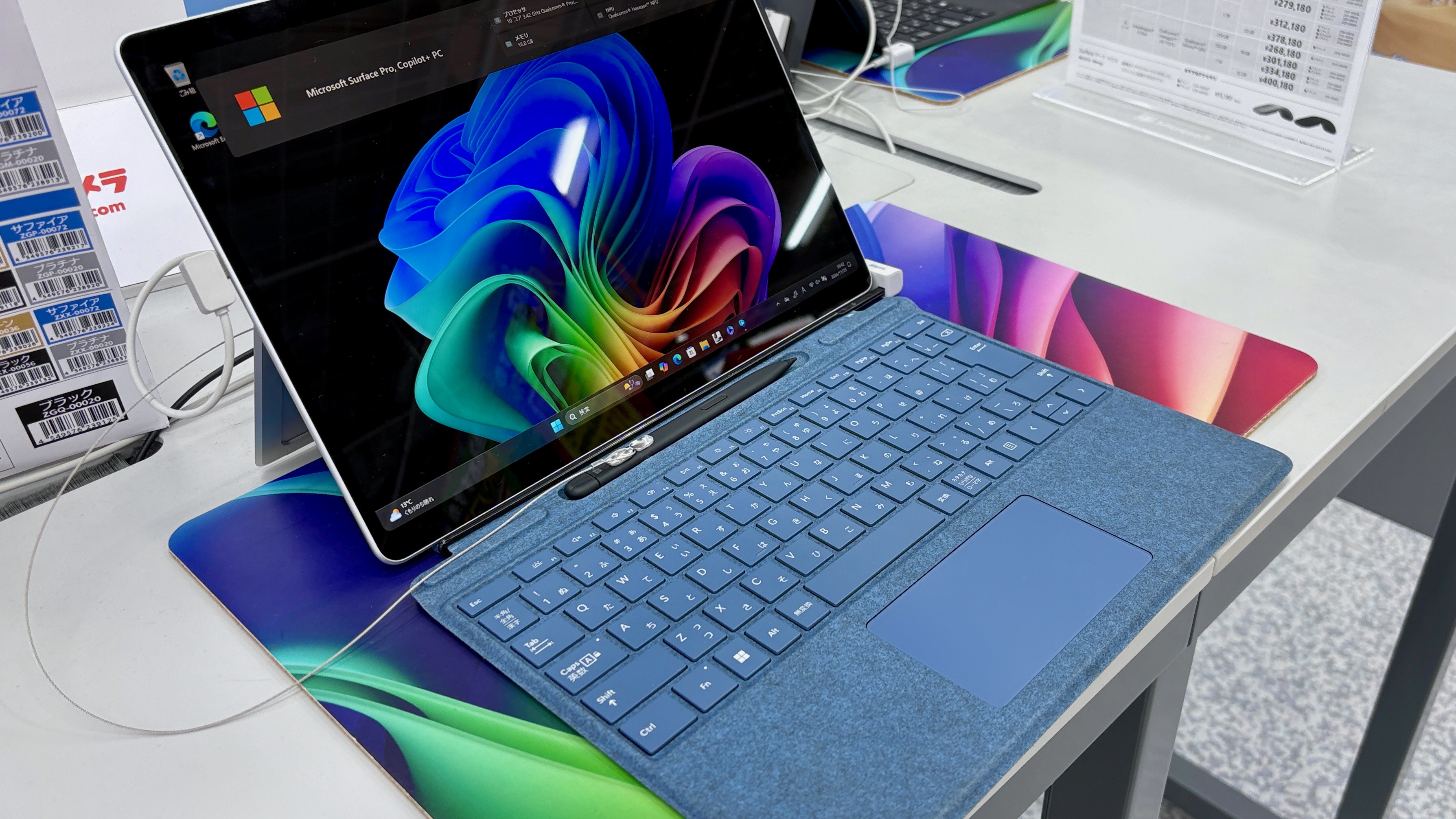
If you have a Surface Pro 7, 8, 9, 10, 11 or a 12th Edition and the screen shakes or flickers only in Windows, not in UEFI, start with these. They come from Microsoft’s flicker and scramble pages (flicker, scramble), in the order we would try them:
- Refresh the screen. With a keyboard attached, press Windows + Ctrl + Shift + B. The screen blinks while the graphics driver restarts (Microsoft).
- Turn off brightness that changes with content. Settings, System, Display, then Brightness, and set Change brightness based on content to Off. Microsoft says this adaptive feature is normal behaviour, and turning it off costs some battery life.
- Change the refresh rate. Settings, System, Display, Advanced display, then try 60Hz, 120Hz or Dynamic.
- On Intel models, turn off Panel Self Refresh. In the Intel Graphics Command Center app, set Display Power Savings to Off, then Panel Self Refresh to Off if needed.
- Update the Surface. The Surface app shows whether drivers and firmware are current.
- Force a restart. Shut down, then hold the power button for 20 seconds.
- Surface Pro 7 only: Microsoft says to switch it fully off, not sleep, for at least 48 hours, and then shut it down fully one night a week to stop flickering and lines coming back.
- Reinstall the display drivers through Device Manager, then run Windows Update. Microsoft warns not to do this on a Surface Pro X, where the only way back is a full reset.
Owners report the same split. On a new Surface Pro 12th Edition with a Snapdragon X2 Plus chip, one owner saw flicker in Windows whenever they left the mouse still, but none in UEFI or with the display driver removed. Another owner with an X2 Elite model said turning off automatic brightness stopped a similar flicker (r/Surface). Both are software, and both went away without a repair.
If none of this helps, Microsoft’s last step before a service order is a full reset. Our factory reset guide covers backing up first. A Surface that will not show anything at all is a different problem, closer to our laptop won’t turn on checks.
Surface Pro screen replacement cost: Microsoft’s UK prices
Once the UEFI test says hardware, the question is money. Microsoft publishes its UK out-of-warranty prices, and they include tax (Microsoft). For a Surface Pro 7+, 8, 9, 10 for Business or 11th Edition, the “Screen or physical damage repair” price is £572.34. The 2025 Surface Pro 12-inch is £420.30, and the Surface Pro 13-inch 12th Edition is £661.74 (Microsoft).
Three things on that list are worth knowing before you book anything:
- The Surface Pro 4 is not on it. Nor are the Pro 5, 6 or the plain Pro 7. Microsoft says its out-of-warranty offers “may not be available for all countries or products”, so ask, but do not count on a Microsoft repair for a Surface Pro 4.
- It may be a swap, not a repair. Microsoft says your product “may be repaired or replaced”, and replacements can be Genuine Microsoft Refurbished units, possibly in a different colour (Microsoft). Back up first.
- A battery is cheaper than a screen. If a swelling battery is the real cause of marks near the edge, Microsoft’s UK battery service runs from £295.14 on the Pro 13-inch 12th Edition to £357.72 on the Pro 9 (Microsoft).
Independent repair shops are the other route, and Microsoft sells some parts for self-repair (Microsoft). Keep in mind that the Surface Pro 4 programme excluded devices repaired by anyone other than Microsoft or an authorised reseller.
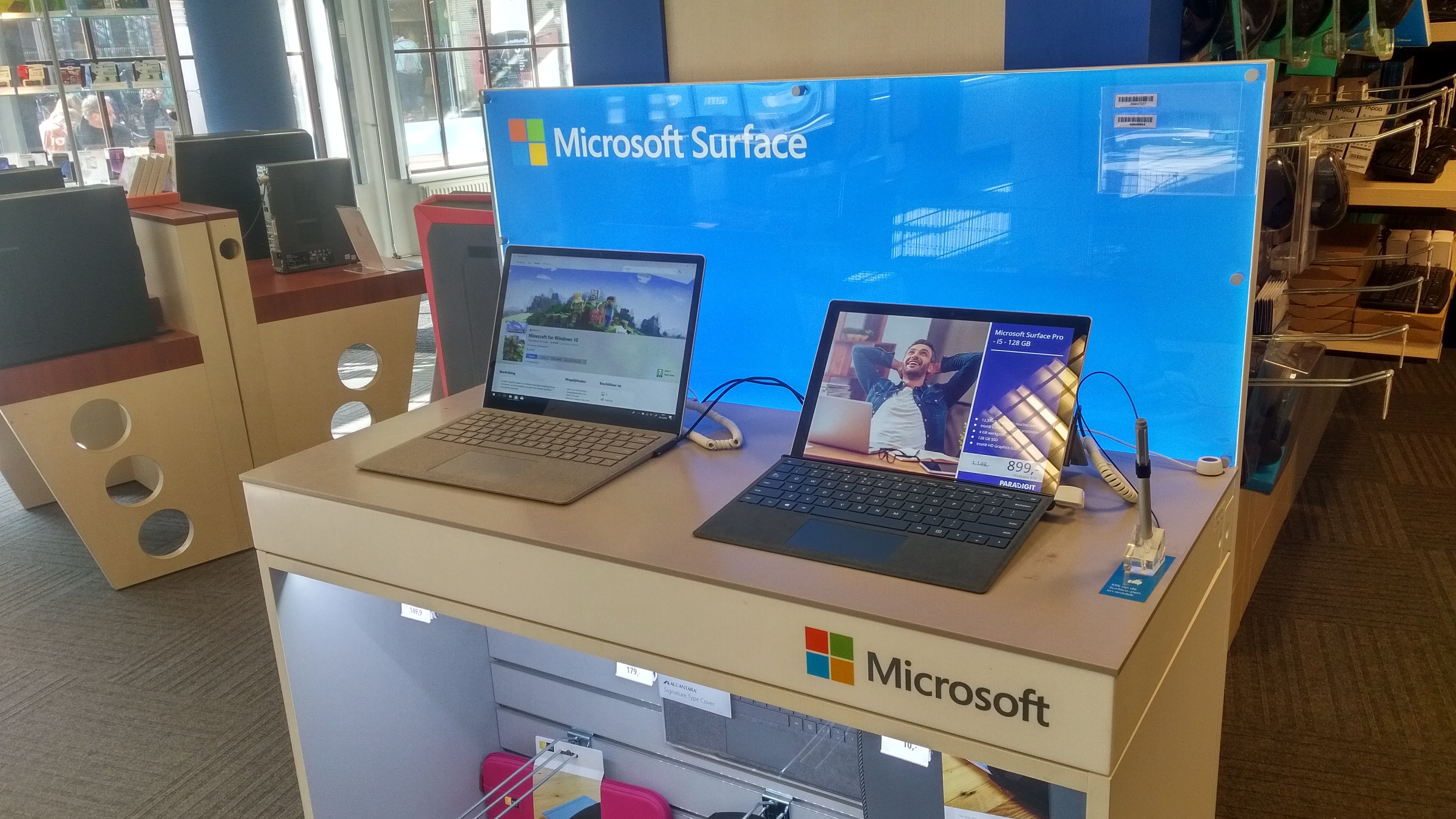
Surface Pro 4 in 2026: repair it or replace it?
For a Surface Pro 4 with a failing screen, the numbers point one way, and it is not the repair.
- It cannot officially run Windows 11. Microsoft’s list of supported Intel processors starts at the 8th generation (Microsoft). The Surface Pro 4 uses 6th-generation Intel chips (Wikipedia).
- Windows 10 support ended on 14 October 2025. Microsoft’s consumer Extended Security Updates programme can keep a Windows 10 device protected until 12 October 2027 (Microsoft). After that, the security updates stop.
- Microsoft does not list a screen repair for it. See the price list above.
So a Surface Pro 4 screen is worth fixing cheaply or not at all. If an independent shop can do it for a small sum and you only need the tablet until October 2027, fine. Otherwise the money is better spent on a machine that runs Windows 11. One owner on r/Surface asked in July 2026 whether to replace a flickering Surface Pro 4 with a second-hand Surface Pro 5 (r/Surface). We would not: the Pro 5 uses 7th-generation Kaby Lake Intel chips (Wikipedia), also below the Windows 11 list.
Microsoft announced a new Surface Pro 12-inch on 23 September 2026, with a Snapdragon X2 Plus chip and a screen it says is 25% brighter. It will be available from 13 October in selected markets, starting at $1,149.99 in the US (Microsoft). UK pricing was not in the announcement.
If you are replacing a Surface Pro, our Microsoft Surface Pro range lists the current models, and our guide to choosing a laptop covers what to look for beyond the screen.
What we would actually do
Run the UEFI test first, every time. It takes a minute, it costs nothing, and it tells you whether to reach for a setting or a repair quote.
If the screen is clean in UEFI, work through Microsoft’s fixes above, starting with Windows + Ctrl + Shift + B and the brightness setting. Most flicker on newer Surface models is software, and it goes away without a repair.
If the fault shows in UEFI on a Surface Pro 7+ or newer, check your warranty at support.microsoft.com/devices before paying the £572.34. If it shows in UEFI on a Surface Pro 4, check whether you are still inside the three-year replacement window. If you are not, put the money towards a Windows 11 machine rather than a new screen for an 11-year-old tablet.
And if you have an OLED Surface Pro 11, the cheap habits are the right ones: dark mode, a hidden taskbar and a short screen timeout. Burn-in cannot be undone.
Screen faults on other brands follow the same logic. Our Lenovo laptop screen problems guide shows the Lenovo version.
Quick answers
Microsoft’s UK out-of-warranty price for screen or physical damage repair is £572.34 on the Surface Pro 7+, 8, 9, 10 for Business and 11th Edition, £420.30 on the 2025 Surface Pro 12-inch and £661.74 on the Surface Pro 13-inch 12th Edition, including tax. The Surface Pro 4 is not on the list.
On a Surface Pro 4, heat-linked flicker is a known panel fault: it worsens as the tablet warms and eases when it cools, which is why some owners resorted to the freezer. Software faults do not behave like that. Run the UEFI test once the screen is warm.
If the flicker does not show in UEFI, usually yes, with settings or driver fixes. If it does show in UEFI, the screen hardware is at fault and needs a repair or a replacement device.
Yes, in practice. Microsoft describes the scramble as a picture that shifts quickly, looks fuzzy and shows overlapping duplicate images, which is what owners call ghosting. Microsoft replaced it free for three years from purchase.
Image retention, a faint copy that fades, usually goes once normal images are shown. True burn-in on an OLED screen, such as the OLED Surface Pro 11, is permanent. Yellow marks on an LCD Surface are a different fault: test them in UEFI.
Yes, a new panel removes burn-in, because the wear is in the old panel. On a Surface that usually means Microsoft’s screen or physical damage service, which may replace the whole device.
Try Windows + Ctrl + Shift + B, turn off content-based brightness, change the refresh rate, and update through the Surface app. Microsoft also says to switch a Surface Pro 7 fully off for at least 48 hours, then shut it down one night a week.
Owners call a Surface Pro 4 that stays dark the black screen of death. Try a forced restart first: shut down, then hold the power button for 20 seconds. If the screen stays black but the Surface seems to be on, test with an external display. If that works, the built-in screen is at fault.
Microsoft does not publish one. A practical limit is software: the Surface Pro 4 and 5 cannot officially run Windows 11, and Windows 10 security updates end for consumers on 12 October 2027 with the paid extension.
Sources
- Microsoft: Surface Pro 4 screen flickers or is scrambled. The scramble definition, the three-year replacement terms, the exclusions and the UEFI confirmation step.
- Microsoft: Troubleshooting options for a screen that flickers. The UEFI test, the brightness, Intel graphics and refresh fixes, the 20-second restart and the Surface Pro 7 48-hour shutdown.
- Microsoft: Troubleshooting options for a screen scramble. The scramble fixes and the service options.
- Microsoft: Troubleshooting options for a screen that has yellow or brown banding. What banding looks like and the UEFI rule for it.
- Microsoft: What to try if your Surface screen is flickering or distorted. The list of screen faults and the Windows + Ctrl + Shift + B refresh.
- Microsoft: Out-of-warranty service cost, United Kingdom. Every repair and battery price quoted, and the missing Surface Pro 4.
- Microsoft: How much does out-of-warranty service cost. Tax included in UK prices, repair or replacement, and refurbished units.
- Microsoft: Windows 10 support has ended. The 14 October 2025 end date and consumer ESU to 12 October 2027.
- Microsoft: Windows 11 supported Intel processors. The list starting at 8th-generation Intel Core.
- Microsoft Q&A: Burn marks on my Surface screen. A Surface Book owner’s yellow marks in hot weather and the moderator’s UEFI advice.
- Microsoft Devices Blog: Surface Pro 12-inch with Snapdragon X2 Plus. The 13 October availability, the 25% brighter screen and the $1,149.99 US price.
- Wikipedia: Surface Pro 4. The 26 October 2015 release, the 6th-generation Intel chips and the May 2017 successor.
- Wikipedia: Surface Pro (11th generation). The IPS or OLED screen options.
- Wikipedia: Surface Pro (5th generation). The 7th-generation Kaby Lake chips.
- Wikipedia: Screen burn-in. Burn-in as permanent uneven wear, and LCD image persistence as temporary.
- TechRadar: Microsoft will replace flickering Surface Pro 4s. The May 2018 programme, the original wording and the refunds.
- Trusted Reviews: Surface Pro 4 owners are freezing them. The 1,600 owner reports and the ten-minute freezer claim.
- AppleInsider: Surface Pro 4 users put the device in the freezer. Microsoft’s less than one percent statement.
- Flickergate.com. The owner-run site that gave the fault its name.
- r/Surface: Surface Pro 12th Edition X2 Plus screen flickering. The driver-only flicker, the brightness fix, and a Surface Pro 4 owner’s clock workaround.
- r/Surface: Surface Pro 7 Flickergate. A 2026 Pro 7 owner’s heat-linked flicker and the battery report advice.
- r/Surface: Surface Pro 11, preventing OLED burn-in. Owners’ prevention habits.
- r/Surface: Surface Pro 5 flickergate?. An owner weighing a second-hand Pro 5 to replace a flickering Pro 4.
- Wikimedia Commons: Surface Pro, by KK IN HK. The lead photograph, public domain, cropped to 16:9.
- Wikimedia Commons: Surface Pro 4, by Jim.henderson. The Surface Pro 4 photograph, CC BY 4.0, cropped to 16:9.
- Wikimedia Commons: Surface Pro 11, by Kyu3a. The Surface Pro 11 photograph, CC BY-SA 4.0, cropped to 16:9.
- Wikimedia Commons: Surface display, by Donald Trung. The shop display photograph, CC BY-SA 4.0, cropped to 16:9.
About Hardvance Team
The Hardvance Team is the editorial team at Hardvance, a UK computer and electronics retailer based in Mildenhall, Suffolk. We build and upgrade PCs and sell laptops, phones, networking gear, monitors and printers, and our guides cover the same ground. Every guide names its sources and explains how we checked the figures, and we say plainly when something is our opinion rather than a tested result.
View all posts by Hardvance Team