Lines on a screen are almost always one of three things: the video cable, the graphics side, or the panel itself. One test separates them in about a minute. Restart and look at the screen before Windows loads, at the maker’s logo or the firmware screen. If the lines are already there, no driver or app is involved and the fault is hardware. If the screen is clean until Windows appears, it is software.
Find your situation:
Dell ships a screen test that runs with the operating system switched off entirely. Most people have never heard of it, and it is the fastest answer on this page.
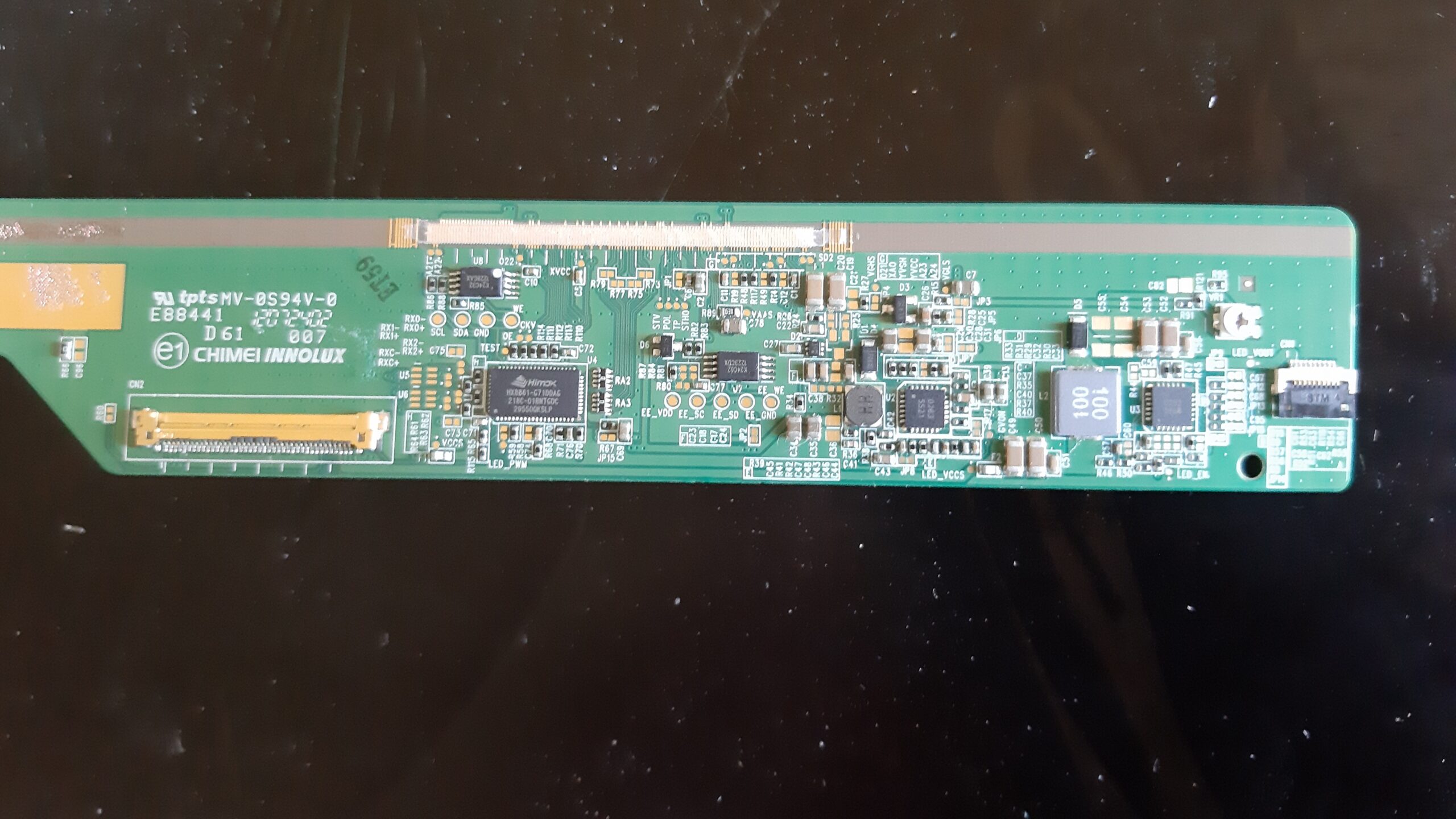
A screen is not one component. The picture travels from the graphics chip, down a cable, into a panel that has its own driver chips along two edges. A line means the signal broke somewhere on that journey, and where it broke decides whether this is a five-minute fix or a new screen.
Three causes cover almost every case:
People usually guess in the wrong order. They reinstall the driver first, because it is free, and spend an evening on a fault that was never software. The next section reverses that.
Before you read on: lines on monitor screens and lines on laptop screen panels are not the same problem to solve, even when they look identical. On a desktop you can swap the cable, the port and the whole computer, so you can prove where the fault sits. On a laptop the panel, the cable and the graphics chip are all inside one sealed assembly, so you are narrowing down rather than proving, and the hinge is the part that makes laptops different. Both paths are below.
You do not need to guess. There are two tests, and between them they place the fault in about a minute.
Restart the machine and watch the very first thing that appears, the maker’s logo or the firmware screen. At that point Windows is not running and your graphics driver has not loaded. So:
On a laptop, plug in an external monitor and mirror the display. Clean on the external screen and lines on the built-in one means the laptop panel or its ribbon cable. Lines on both means the graphics chip.
On a desktop monitor, unplug the video cable from the PC while the monitor stays powered on. A healthy monitor shows a no-signal message, usually a floating box. If your lines are still on the screen while nothing is connected to it, the monitor is the fault and the PC is innocent.
The shortcut most people have never heard of. Dell builds a screen test into its laptops that runs with the operating system switched off entirely. Hold the D key, press the power button, and keep holding D until colours appear. The screen fills with solid black, white, red, green and blue in turn. Dell lists “unusual lines or dots on your screen” as a reason to run it, and because no driver is involved, any line you see during those colours is the panel. Dell calls it the LCD built-in self-test. Dell monitors have their own version, an integrated self-test you reach from the monitor buttons (Dell’s instructions). HP publishes its own diagnostics suite, HP PC Hardware Diagnostics, which is where to look for an HP machine; check on that page which of its tests your model offers.
If your machine has no such tool, test one does the same job. The point is not the brand utility, it is seeing the screen with the software removed.
Black lines on a laptop screen are the most searched version of this fault, and HP laptops are searched for more than every other brand put together. That is not because HP panels fail more often; HP simply sells an enormous number of laptops, and its own support forum is where those owners end up. Read a few of those threads and you will notice how many end without an answer. Our guide to HP laptop screen problems starts with the test HP itself uses: whether the fault shows before Windows loads.
The reason is usually the hinge. A laptop’s display cable runs through the hinge and flexes every time the lid moves. After a few thousand cycles a conductor inside it can fracture. The tell is a line that changes when you move the lid: open the laptop slowly through its full range and watch. If the line flickers, thickens, moves or disappears at a particular angle, that is the cable, not the panel, and a cable is the cheaper of the two repairs. If the whole picture flickers rather than one line, our guide to why a monitor flickers covers the other causes.
A line that stays identical at every hinge angle, and is still there during a self-test with the operating system off, is the panel.
One more check before you book a repair: press very gently at the edge of the bezel near where the line starts. If the line reacts, something is loose rather than dead. Do not press on the glass itself, and do not press hard; you can turn a one-line fault into a bruised panel.
For Lenovo machines specifically, including flickering and black-screen cases, we keep a separate walkthrough: Lenovo laptop screen problems.
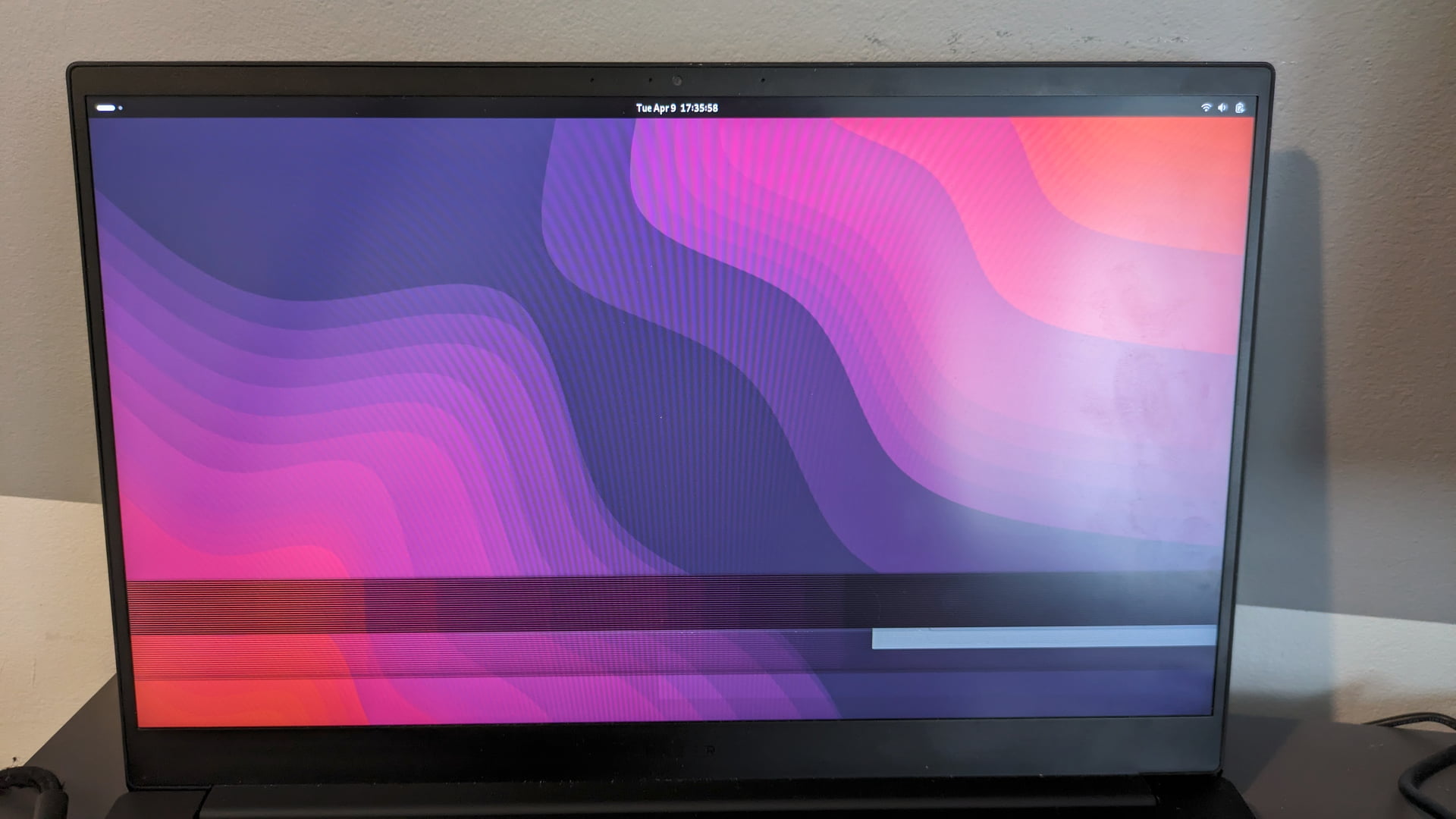
Horizontal lines mean a row on the panel is not being driven, or the signal feeding those rows is arriving corrupted. The direction is a genuine clue, because the driver chips for rows and columns sit on different edges of the panel.
Work through it in this order:
Horizontal lines that appear only in one application, or only in games, are not a screen fault at all. That is the graphics driver or the game’s renderer, and the screen is reporting faithfully.
One pattern worth naming because it is searched for by itself: black horizontal lines on monitor panels, arriving as a group across the same part of the screen rather than singly. A group that appears together usually means one driver chip along that edge has failed rather than individual rows, and it is the version least likely to respond to anything on the fixable list. Run the self-test, record what it shows, and treat it as a warranty conversation rather than a troubleshooting one.
Vertical lines on a monitor follow the same logic with one difference: on a desktop you can swap parts, so you can prove where the fault is rather than infer it.
A single, perfectly straight, one-pixel-wide vertical line that never changes is the classic failed column driver. It is a panel fault, it will not heal, and it often slowly grows more neighbours over months. Wide vertical bands of wrong colour, by contrast, are more often the cable or the graphics chip.
Worth separating, because the two get searched for interchangeably and only one is a fault.
Black lines are thin, sit inside the picture, and are a hardware or signal problem. Everything above applies.
Black bars are thick, sit at the edges of the picture, and the screen is working perfectly. You are seeing an aspect-ratio or scaling mismatch: a 16:9 image on a 21:9 monitor, a game locked to 4:3, or a resolution that is not the screen’s native one. Fix it in display settings by setting the native resolution, and in the monitor’s own menu by setting the aspect or scaling option to fill rather than 1:1. On a TV used as a monitor, look for an overscan or “just scan” setting. None of this costs anything.
The colour is not decoration, it is information. Every pixel is made of a red, a green and a blue sub-pixel, and a coloured line tells you which of those channels is being driven wrongly.
The useful rule: a coloured fault that covers an area leans towards the cable or connector, and a coloured fault that is exactly one line wide leans towards the panel. It is a rule of thumb from the shop counter, not a spec.
Which colour you get is mostly luck rather than meaning, so the searches split by colour and the answer does not. Green lines on monitor panels and purple lines on monitor panels are the two most reported on desktops, and on portables it is pink lines on laptop screen and green lines on laptop screen that come up most. All four run through the same sequence: cable, then a different device, then the self-test with the computer disconnected. The colour narrows down which channel failed; it does not change what you do about it, and it does not change whether it is repairable.
One genuine exception. If several colours arrive together as blocky patches rather than clean lines, stop looking at the screen and look at the graphics card, especially if it happens under load or after an overclock. Blocky multi-coloured corruption is a memory fault on the card far more often than a panel fault.
If what you have is a mark rather than a line, a bright dot or a pale patch, that is a different fault with a different warranty answer: see which screen marks count as faults.
Genuinely fixable at home, in this order:
Not fixable at home: a failed row or column driver on the panel, a fractured hinge cable, or a failing graphics chip. No software step touches any of these, and the internet is full of advice that pretends otherwise.
Two things you will see recommended that you should not do. Do not press or massage the panel to “revive” a line. It is repeated endlessly and it risks turning one line into a permanent bruise. And do not put heat on the panel. Both belong to stuck pixels, which is a different fault, and neither has a mechanism that would repair a driver chip.
A monitor rarely stops all at once. The pattern that says the panel is on its way out:
What is not a dying monitor: image retention that clears after a few minutes of different content, a single stuck pixel that has been there since day one, or lines that only ever appear in one game.
The economics are unsentimental, and they differ between the two cases.
A desktop monitor with a panel fault is usually not worth repairing. The panel is most of what you paid for, so a panel replacement approaches the cost of a new monitor, and an independent repair on a monitor is rarely economic once labour is counted. The exception is anything still in warranty, which is where it pays to know that a line is a recognised fault rather than cosmetic damage, and where the maker’s own self-test result is the evidence to quote. Our monitor range is the place to look if you land there.
A laptop is the opposite case, and the distinction matters. If the fault is the hinge cable, that is a comparatively cheap part and a job many repair shops do routinely, so repairing a laptop that is otherwise healthy usually makes sense. If the fault is the panel itself, the cost climbs, and on an older machine it can exceed what the whole laptop is worth. That is the point at which to look at a replacement instead, and the hinge test earlier on this page is what tells you which of the two situations you are in before you pay anyone to look.
Whatever you decide, run the self-test first and write down what it showed. It is the difference between a warranty conversation that goes your way and one that does not.
First find out whether it is software or hardware. Restart and look at the screen before Windows loads: if the lines are already on the maker's logo, no software fix will help. If they only appear once Windows starts, press Windows, Ctrl, Shift and B to restart the graphics driver, then reinstall the driver cleanly. For a hardware fault, open and close the lid slowly: a line that changes with the hinge angle is the display cable, which is a cheaper repair than the panel.
A thin stripe that does not move is normally a failed row or column driver on the panel, and it cannot be repaired without replacing the panel. A stripe that appears, thickens or disappears as you move the lid is the ribbon cable running through the hinge, which flexes every time the laptop opens.
Three things, in order of how easy they are to fix: the video cable, the graphics driver or graphics chip, and the panel itself. On a desktop, swapping the video cable fixes more cases than any other single step. On a laptop, the hinge cable is the usual culprit.
The reliable signal is progression: one line becomes two, then a band, over weeks. Also telling are faults that change as the monitor warms up, dark areas while the backlight is clearly on, and anything that is still visible during the monitor's own self-test with the computer unplugged. A single stuck pixel that has been there since day one is not a dying monitor.
Reseat both ends of the video cable, then swap the cable for a different one, then try a different port and input. If that fails, unplug the video cable with the monitor still on: if the lines are still there on the no-signal screen, the monitor itself is faulty and nothing you do to the PC will change it.
Something changed. A driver updated, a cable moved, a laptop lid was opened once too many times, or a graphics chip got hot. Sudden onset after a Windows or driver update points at software; sudden onset after the machine was moved points at a cable.
Black bars are not a fault. They are an aspect-ratio or scaling mismatch and they cost nothing to fix. Set the display to the screen's native resolution in Windows, then set the aspect or scaling option in the monitor's own menu to fill rather than 1:1. On a TV used as a monitor, look for an overscan or just-scan setting.
Somewhat. The driver chips for rows and columns sit on different edges of the panel, so the direction narrows down which edge failed. It does not change what you can do about it: the test sequence and the repair options are the same either way.
Yes, and it is the first thing worth ruling out because it is free. The giveaway is that the lines are absent before Windows loads and appear once the desktop does. Press Windows, Ctrl, Shift and B to restart the graphics driver; if the lines clear, you have found it.
Usually yes, because a line is a functional fault rather than cosmetic damage, unlike a crack or an impact mark. Run the manufacturer's own screen self-test first and record what it showed: a fault that appears with the operating system switched off is much harder to argue with.
No, and it can make things worse. Pressing and heating are advice borrowed from stuck pixels, which are a different fault. Neither has any mechanism that would repair a failed driver chip on the panel edge, and both risk permanent damage.
Sources
The Hardvance Team is the editorial team at Hardvance, a UK computer and electronics retailer based in Mildenhall, Suffolk. We build and upgrade PCs and sell laptops, phones, networking gear, monitors and printers, and our guides cover the same ground. Every guide names its sources and explains how we checked the figures, and we say plainly when something is our opinion rather than a tested result.
View all posts by Hardvance Team


No account yet?
Create an Account