
Often Normal: White Spots, Lines and Dead Pixels on Monitor and Laptop Screens, Explained
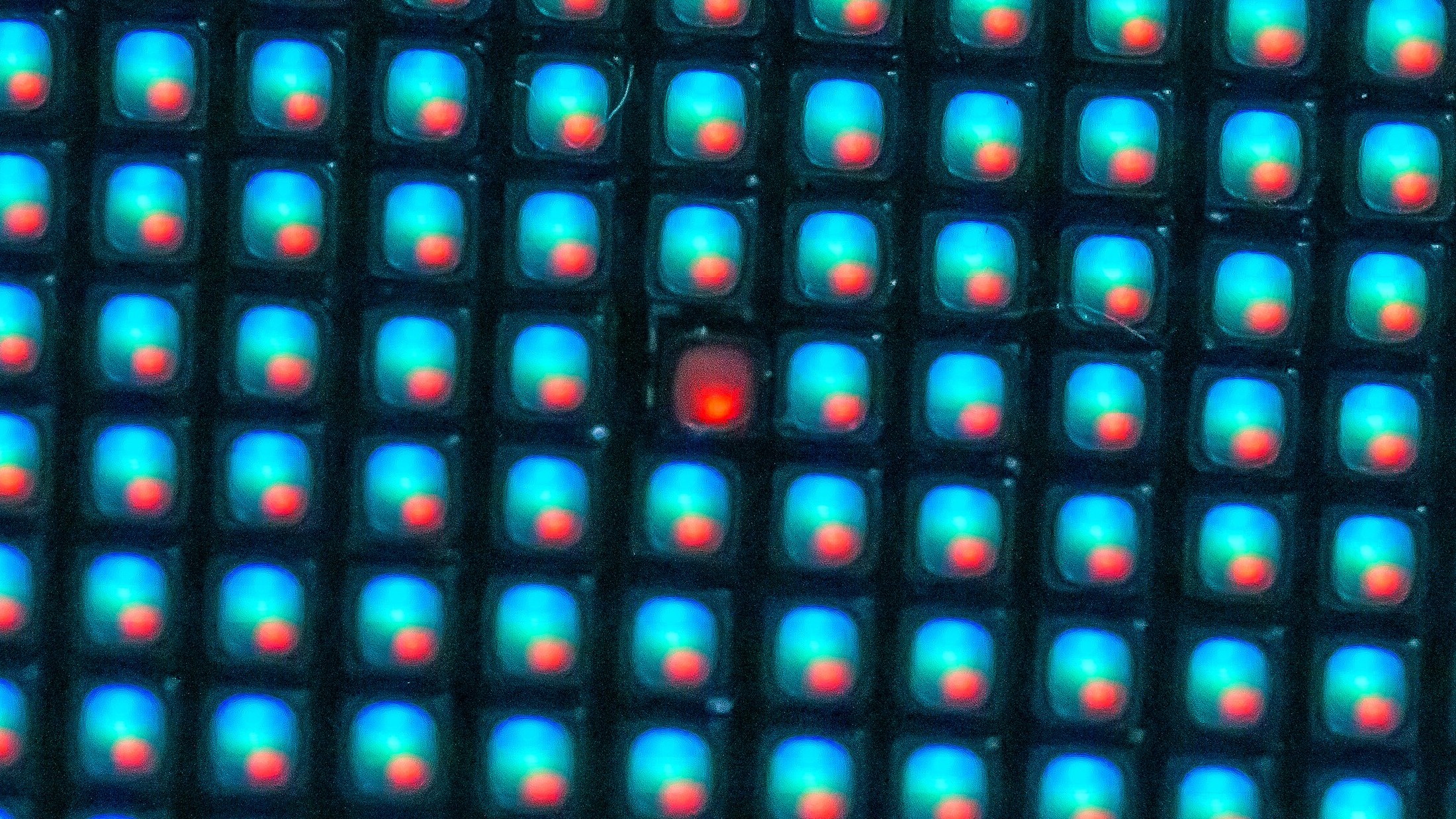
Most marks on a screen fall into one of three buckets: normal behaviour for that panel type, a fault your cable or settings caused, or a dead panel. Only the middle one is worth your evening. The single most useful thing to know before you do anything else is that display makers publish exact thresholds for how many bad dots a screen may have before they will replace it, and if you bought recently in the UK, consumer law gives you a stronger and simpler right than any of those thresholds.
Find your mark:
- Pale patches, corners glowingAlmost certainly backlight bleed or IPS glow. Normal for the panel type, not a fault.
- One tiny coloured or black dotA stuck or dead pixel. Whether it counts as a defect depends on the maker's own numbers, below.
- Straight line or bar across the screenCable and connector first, then the panel. There is a two minute test that tells you which.
- Whole screen has a colour castUsually software or a cable. Check three settings before you panic.
- Half the screen is black or flickeringHardware. Test with a second cable and a second device, then read the warranty section.
One thing to do first, and it is counterintuitive: do not run a pixel fixing app or press on the screen. Dell says in writing that this can damage the display and may void the warranty. The rest is a symptom by symptom walkthrough.
What the mark on your screen means: the quick table
Start here. Find the thing you can see, then read the section it points at.
| What you see | Most likely cause | Fixable? |
|---|---|---|
| Pale glow in the corners, worse on black | Backlight bleed or IPS glow | Not a fault. Normal for LCD |
| Cloudy uneven patches on grey | Panel uniformity, sometimes called mura | Normal within limits |
| One bright white dot, always on | Stuck pixel, all three subpixels on | No. Warranty question |
| One red, green or blue dot | Stuck subpixel | No. Warranty question |
| One black dot on a white screen | Dead pixel or dark subpixel | No. Panel replacement only |
| A dot so small you need a magnifier | Partial subpixel | Not classed as a defect at all |
| Single sharp vertical or horizontal line | Cable, connector or panel ribbon | Sometimes. Test the cable first |
| Many lines, or lines that move when you flex the lid | Panel or ribbon connection | Rarely worth repairing |
| Half the screen black, the rest fine | Panel driver or ribbon | No. Panel replacement |
| Whole screen red, blue or yellow tinted | Colour profile, night mode or cable | Yes, usually in a minute |
| Tint on one side only | Panel or backlight | No |
| Flicker that changes with brightness | PWM dimming or refresh rate mismatch | Often yes, in settings |
| Faint ghost of a previous image | Image retention, or burn in on OLED | Retention yes, burn in no |
| Dark trails behind moving objects | VA panel black smear | Normal for VA |
| Something that looks like an insect under the glass | Usually a dust particle or dead pixel cluster. Occasionally a real insect | Depends. See below |
Backlight bleed and IPS glow: the marks that are normal
This is the part that saves people the most money and worry. A large share of the marks that send someone searching at midnight are not defects. They are the chosen trade off of the panel technology in front of them.
The clearest summary of it we have read came not from a manufacturer but from a display forum, where someone answering yet another “are these white spots normal on a new monitor” post laid it out like this: every panel type has one major drawback. IPS has backlight bleed and glow. OLED has burn in. VA has black smear on moving objects. TN has weak colour and viewing angles. Pick your poison. That is a better mental model than most spec sheets offer.
So if your new IPS monitor glows pale at the corners on a black screen, in a dark room, at an angle, that is IPS glow doing exactly what IPS does. If your VA panel leaves dark trails behind a moving cursor, that is black smear. If your OLED shows a faint ghost after a static image and it clears after a while, that is retention, not burn in. None of those are grounds for a repair, and swapping the unit usually gets you a different sample of the same behaviour.
The test that settles it: look at the screen at normal viewing distance, sitting where you normally sit, with the room lit as you normally light it. Manufacturers write their warranty rules around exactly that condition, and so should you. A mark you can only find in a blacked out room with your nose against the glass is not the mark you are going to live with.
White spots on a screen: bright dots and pale patches
This is the highest volume screen complaint on the internet, and it covers two completely different things.
Pale patches and glowing corners are backlight related. The light behind an LCD has to be spread evenly across the whole panel by a stack of diffuser and reflector sheets, and that spreading is never perfect. Corners bleed, edges glow, large panels show cloudiness on mid grey. It is most visible on dark content in a dark room, which is exactly when people notice it and start searching. Within limits it is accepted by every manufacturer.
A small, sharply defined bright dot is a different animal. That is a pixel or subpixel stuck on, and it is a countable defect with rules attached. The distinction matters because one is a warranty conversation and the other is not.
Two practical notes. A spot that appears in the same place regardless of what is on screen is in the panel. A spot that moves, or vanishes when you change input, is not in the panel at all, it is in the signal or the source. And a spot that grows over weeks points at physical damage or pressure on the panel rather than a manufacturing fault, which changes the warranty answer considerably.
Dead pixel, stuck pixel, and the third kind nobody mentions
Three words get used interchangeably and they are not the same thing, which matters because warranty policies count them separately.
A dead pixel has all three subpixels permanently off. On a white background it is a black dot. Dell’s guidance is blunt about these: a dead pixel has stopped working completely, no software or other method will bring it back, and the only solution is replacing the panel.
A stuck or bright pixel is the opposite, permanently on. All three subpixels lit gives you a white dot that is most obvious on dark content. One subpixel lit gives you a red, green or blue dot.
The third one almost nobody writes about is the partial subpixel. Dell defines it as an element less than half the size of a full subpixel, created by microscopic variations during manufacturing, and states plainly that it happens with virtually all LCD panels and is not a sign of poor quality. Crucially, partial subpixels are not classified as defects, under industry standards or under Dell’s own warranty. If you have been staring at a dot so small you cannot tell what colour it is, this is probably what you are looking at, and no one is going to replace a panel for it.

Now the part that contradicts most of the advice on the first page of Google. Search any of these symptoms and you will be told to run a pixel fixing tool that flashes colours at the affected area, or to gently massage the spot with a cloth. Dell’s published guidance says the opposite, in writing: do not attempt DIY fixes, avoid pixel fixing software or applying pressure to the screen, and attempting to fix stuck pixels yourself can damage your display and may void your warranty.
Read that again if you are about to press on your monitor. The advice that dominates search results can cost you the free replacement you were entitled to. Count the dots, note where they are, then check the numbers below.
Black, green, red or pink lines on a monitor or laptop screen
A line across the screen feels terminal. Often it is, but not always, and the order you test in decides whether you waste money.
On a desktop monitor, suspect the cable first. A marginal or damaged DisplayPort or HDMI cable, or a loose connector, produces lines, sparkles and flicker that look exactly like panel damage. Swap the cable for a known good one, use a different port on the graphics card, then plug the monitor into a completely different device. If the line survives all three, it is the monitor.
On a laptop, do the external monitor test. Plug in an external display and mirror or extend to it. If the external screen is clean and the built in one still shows the line, the fault is in the laptop’s panel or the ribbon cable that feeds it, not the graphics chip. If both screens show it, you have a graphics or driver problem, which is far better news.
The flex test. Open and close the lid slowly and watch the line. If it changes, flickers or disappears at certain angles, the ribbon cable running through the hinge is the likely culprit. That is a repair a workshop can sometimes do without replacing the whole panel. A line that never changes with lid angle is usually inside the panel itself.
One warning about cost. On most laptops and monitors a panel replacement is a large fraction of the price of the whole unit, and on cheaper models it can exceed it. Get the quote before you fall in love with the idea of repairing it. If you are chasing a Lenovo specifically, we have a longer walkthrough of driver level and model specific fixes in our Lenovo laptop screen problems guide.
Monitor red tint, blue tint and other colour casts
Good news here. A whole screen tint is the symptom most likely to have a free fix, because software causes it more often than hardware does.
Work through these in order. Night light or night shift, which warms the screen on a schedule and catches people out constantly. The colour profile, which can be knocked to a wrong ICC profile by a driver update. The monitor’s own colour temperature and picture preset, which some games and calibration tools change without asking. Then the cable, because a partly seated DisplayPort connector can drop a colour channel and turn everything red or green.
The quick diagnostic: does the tint survive on a second device? Plug a phone or laptop into the same monitor with a different cable. If the tint follows the monitor, it is the monitor. If it stays with your PC, it is software, and everything above is worth checking.
One exception worth knowing. A tint on one side or one region only, rather than the whole screen, is a hardware symptom. That is the backlight or the panel, and no colour profile will fix it.
Half the screen is black, dark shadows and a flashing screen
These three get grouped together because they share a cause more often than people expect, and because none of them is a settings problem.
Half the screen black, the other half fine. A panel is driven in sections. When one driver circuit or the ribbon feeding it fails, the section it controls goes dark while the rest carries on as normal. That sharp vertical or horizontal boundary is the giveaway: faults in the signal chain produce noise and lines across the whole image, not a clean half. Run the external monitor test from the previous section to rule out the graphics side, then treat it as a panel replacement.
A dark shadow or a dark corner. On an LCD, light comes from LEDs at the edge of the panel and is spread across it. When one of those LEDs fails or the diffuser stack is damaged, you get a shadow that is darkest at one edge and fades inward. Two things distinguish it from normal uniformity: it does not move when you change what is on screen, and it usually gets worse over weeks. Laptop screens also pick this up from pressure, so a dark patch that appeared after the lid was closed on something is physical damage rather than a manufacturing fault. HP has refused warranty cover on exactly this, as our guide to black spots on an HP laptop screen explains.
Flickering, or a screen that flashes black. Work through three causes in order, or see our full guide to screen flickering for the two tests that tell them apart. A refresh rate the panel does not properly support, or a variable refresh rate feature fighting a game, which you fix in display settings. PWM dimming, where the backlight is switched on and off rapidly at low brightness and some people can see it, which you improve by raising brightness and lowering contrast instead. And a failing backlight driver, which is the one that gets worse, is not affected by any setting, and often starts as a delay before the screen comes up at all.
A blunt rule of thumb for all three: if the symptom is stable and unchanging it is usually tolerance or a setting, and if it is progressing week by week the hardware is going.
Is there an insect inside your screen?
This is the strangest search in the whole cluster and it gets asked tens of thousands of times a month, so it deserves a straight answer rather than a joke.
Most of the time it is not an insect. It is either a dust particle that has settled between the layers of the panel during assembly, or a small cluster of dead pixels that the brain resolves into a shape, the same way it finds faces in wallpaper. The test is simple: if it never moves, in any application, at any brightness, it is inside the panel and it is not alive.
Sometimes it genuinely is an insect. Screens are warm and bright, monitors and laptops have vents, and small insects do get in and then die between the backlight and the panel. If the shape has legs, or if it moved once and then stopped, that is what happened.
Either way the practical answer is the same. Anything sitting inside a sealed panel cannot be reached without opening the display, which is not a home job and will end any warranty you still have. Do not try to squeeze it out or push it to the edge, for the same reason you should not press on a stuck pixel. If the display is new or still covered, photograph it and raise it as a fault. If it is out of warranty and it does not bother you where it sits, living with it is a legitimate answer.
Dead pixel warranty policy: the numbers that decide it
Here is what almost no article on this subject tells you: manufacturers publish exact counts. Whether your single dot is a defect or a shrug is not a matter of opinion, and it is not up to the support agent’s mood. It is written down.
Dell is the most transparent of the big names, so its policy makes a useful benchmark. Two important rules run through it.
First, only stuck pixels and subpixels visible at normal viewing distance count toward a warranty evaluation. Second, bright and dark faults are treated very differently.
On the ranges covered by Dell’s Premium Panel Exchange, which include UltraSharp, Dell Pro P, the P series, G series gaming monitors and most S series gaming monitors, Alienware, the 24 to 34 inch conferencing monitors, and every Dell laptop at 1600 x 900 or higher, the policy is zero tolerance for bright pixels. Their wording: if you see even one bright pixel during your warranty period, we will replace your display. Dark subpixels get more latitude, typically up to five depending on the model. That cover runs for the whole warranty period, one or three years, plus any extension you bought.
On models without that guarantee the thresholds loosen. Some standard monitors allow up to two bright pixels or subpixels and up to five dark ones, and on very large format panels the allowance rises to twelve to fifteen dark defects.
The practical takeaway is a question, not a number: is your display in a range with a premium panel guarantee, and is your dot bright or dark? A single bright dot on a covered monitor is a replacement. A single dark subpixel on a budget panel almost certainly is not. Other makers publish their own versions of the same tables, so find yours before you phone anyone. Our own warranty policy page explains how manufacturer cover works alongside what you get from us.
In the UK, your rights beat any dead pixel policy
Everything above is manufacturer policy. If you bought recently and you bought in the UK, there is a stronger and much simpler route, and it is the one the forums keep missing.
Under the Consumer Rights Act 2015 you have a short term right to reject. Section 22 puts the window at 30 days, counted from the first day after three things have all happened: the goods became yours, they were delivered, and anything needed to make them work was done. Inside that window, goods that are faulty, not as described or not fit for purpose can be rejected for a refund. Statutory rights sit above shop policy, so a retailer’s own terms cannot cut those 30 days short.
Two details in that section fit this situation exactly. If you ask for a repair or a replacement instead of rejecting straight away, the clock stops for what the Act calls the waiting period, and starts again when the replacement reaches you. And if the replacement is also faulty, you get either seven days from the end of that waiting period or your original time limit extended by it, whichever is longer.
That second rule matters more than it sounds. The common story in display forums is someone exchanging a monitor two or three times hunting for a clean panel. One owner in the discussion linked below did precisely that, sending back two units before the third arrived clean. The Act anticipates that pattern rather than punishing it.
After 30 days the position changes. The retailer gets one opportunity to repair or replace, and only if that fails do you move to a refund, which can then be reduced to reflect the use you have had.
So the advice for anyone staring at a new panel is this. Do not spend three weeks deciding whether you can live with the dot. Decide inside the first month, because the first month is where all your leverage sits. It is also, going by what owners say in the threads below, the month in which a mark bothers you most: it either fades from your attention within a few weeks or it never does. Our returns information sets out how that works with us.
On the underlying question of whether to send a monitor back over one dead pixel, the display community is genuinely divided, and both sides are reasonable. One camp is unequivocal: once seen it cannot be unseen, keep exchanging until you get a clean panel. The other camp reports owning panels with one to five dead pixels and forgetting they exist within a month. A third observation in that thread is the sharpest: manufacturers get away with loose tolerances precisely because returning a monitor repeatedly is exhausting, and most people give up. Whichever camp you are in, the deadline is the same.
Replacing a screen or repairing it: which is worth the money
Out of warranty, the maths is usually brutal and simple. The panel is the single most expensive part of a monitor or a laptop screen assembly. Add labour and you are frequently past the price of a new unit of the same class, especially at the budget end where a whole 24 inch monitor costs less than a replacement panel for a mid range one.
Repair is worth pricing when the fault is outside the panel: a ribbon cable at the hinge, a loose connector, a failed power board, a cheap cable. Those are real repairs at sensible money.
Replacement is the answer when the panel itself is damaged, when half the screen has gone, when the line does not respond to any cable or device change, or when a laptop’s screen assembly quote lands anywhere near the value of the laptop. In that case, spend the money on the right specification rather than the closest match to what died, and our guide to choosing a monitor covers what actually matters. If you are replacing an OLED because of burn in specifically, the trade offs are set out in our OLED monitor piece.
Common questions about marks on a screen
Two different things share that description. Pale, soft patches and glowing corners are backlight bleed or IPS glow, caused by imperfect spreading of the backlight, and every LCD has some. A small, sharply defined bright dot is a stuck pixel or subpixel, which is a countable defect with warranty rules attached. Soft and spread out means normal. Tiny and sharp means pixel.
A manufacturing pixel defect does not spread. It is one transistor stuck on or off. If a mark is visibly growing over days or weeks, that points at physical damage or pressure on the panel instead, which is a different fault and often not covered by warranty. Take a dated photo when you first see it so you can show whether it changed.
That depends on the maker's own threshold and on your deadline. Dell, for example, replaces a display over a single bright pixel on its Premium Panel Exchange ranges, but allows up to five dark subpixels on many models. Separately, if you are in the UK and within 30 days of delivery, section 22 of the Consumer Rights Act 2015 gives you a short term right to reject for a refund regardless of any pixel policy, and if the replacement you accept is also faulty the Act extends your window rather than closing it. Decide inside that first month.
No. A dead pixel has stopped working and no software or physical technique will restore it, which is Dell's own stated position. A stuck pixel occasionally rights itself, but Dell explicitly advises against pixel fixing software and against pressing on the screen, warning that it can damage the display and may void the warranty. Count the defects and check your warranty instead.
Test in this order. Swap the video cable for a known good one, try a different port on the graphics card, then connect the monitor to a completely different device. If the line disappears at any step you have found it. If it survives all three the panel or its internal ribbon is at fault, and on a monitor that means replacement rather than repair in most cases.
Plug in an external monitor. If the external screen is clean, the fault is the laptop's panel or the ribbon cable through the hinge, not the graphics chip. Then open and close the lid slowly: a line that changes with lid angle points at the ribbon cable, which is sometimes repairable, while a line that never changes is usually inside the panel.
Lines or bars that appear and multiply over time, sections of the screen going dark, flicker that is not fixed by changing refresh rate or cable, a tint or dimness confined to one region, and a backlight that takes longer and longer to come up. Marks that are stable and unchanging are usually manufacturing tolerance. Symptoms that progress are the ones that mean the panel or its driver board is going.
Check four things in order: night light or night shift, the active colour profile, the monitor's own colour temperature preset, and the video cable seating. A partly connected DisplayPort cable can drop a colour channel entirely. If the tint follows the monitor when you connect a different device it is hardware. If it stays with your PC it is software, and one of the first three will be responsible.
Usually not on its own. Some bleed and glow is accepted by every manufacturer as inherent to LCD, and the test they apply is whether it is visible at normal viewing distance in normal room lighting rather than in a dark room at an angle. Severe, obvious bleed in ordinary use is worth raising, and in the UK a new monitor that is not of satisfactory quality still falls under your 30 day right to reject.
Sources
- Pixel definitions, warranty thresholds and the warning against DIY pixel fixes: Dell Display Pixel Guidelines, including the Premium Panel Exchange terms and the per range defect tables.
- Defect terminology: Defective pixel on the difference between dead, stuck and hot pixels.
- UK consumer rights: Which? on the Consumer Rights Act 2015; Consumer Rights Act 2015, section 22 for the 30 day limit, the waiting period that pauses it and what happens when a replacement is also faulty.
- Owner experience: the r/Monitors discussions on whether white spots on a new panel are normal and whether to return a monitor over one dead pixel.
- Photographs: the pixel grid image by Junyu-K via Wikimedia Commons (CC BY 4.0, cropped by us) and the subpixel close up by Alpen Viker via Wikimedia Commons (CC0).
About Hardvance Team
The Hardvance Team is the editorial team at Hardvance, a UK computer and electronics retailer based in Mildenhall, Suffolk. We build and upgrade PCs and sell laptops, phones, networking gear, monitors and printers, and our guides cover the same ground. Every guide names its sources and explains how we checked the figures, and we say plainly when something is our opinion rather than a tested result.
View all posts by Hardvance Team