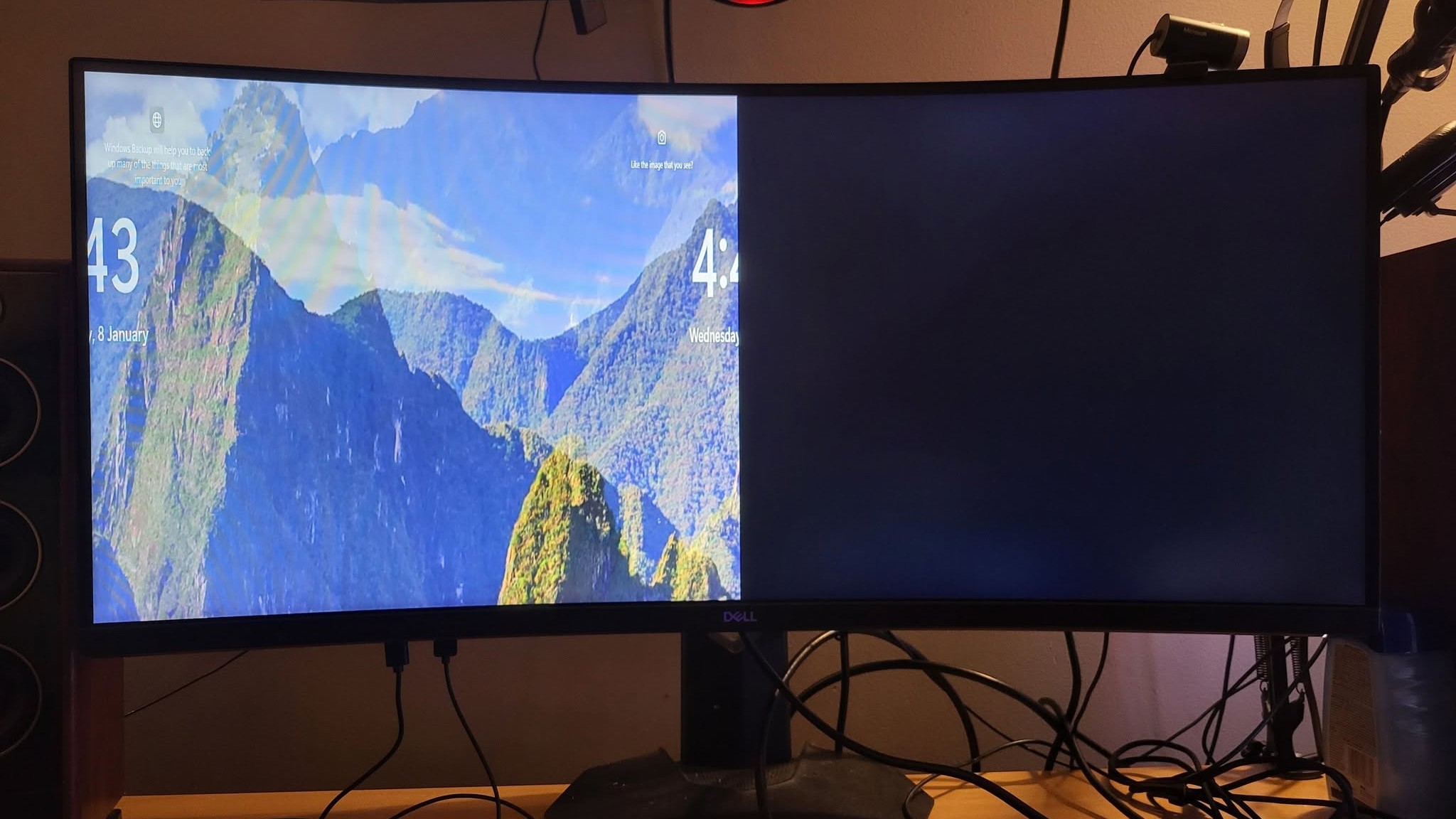
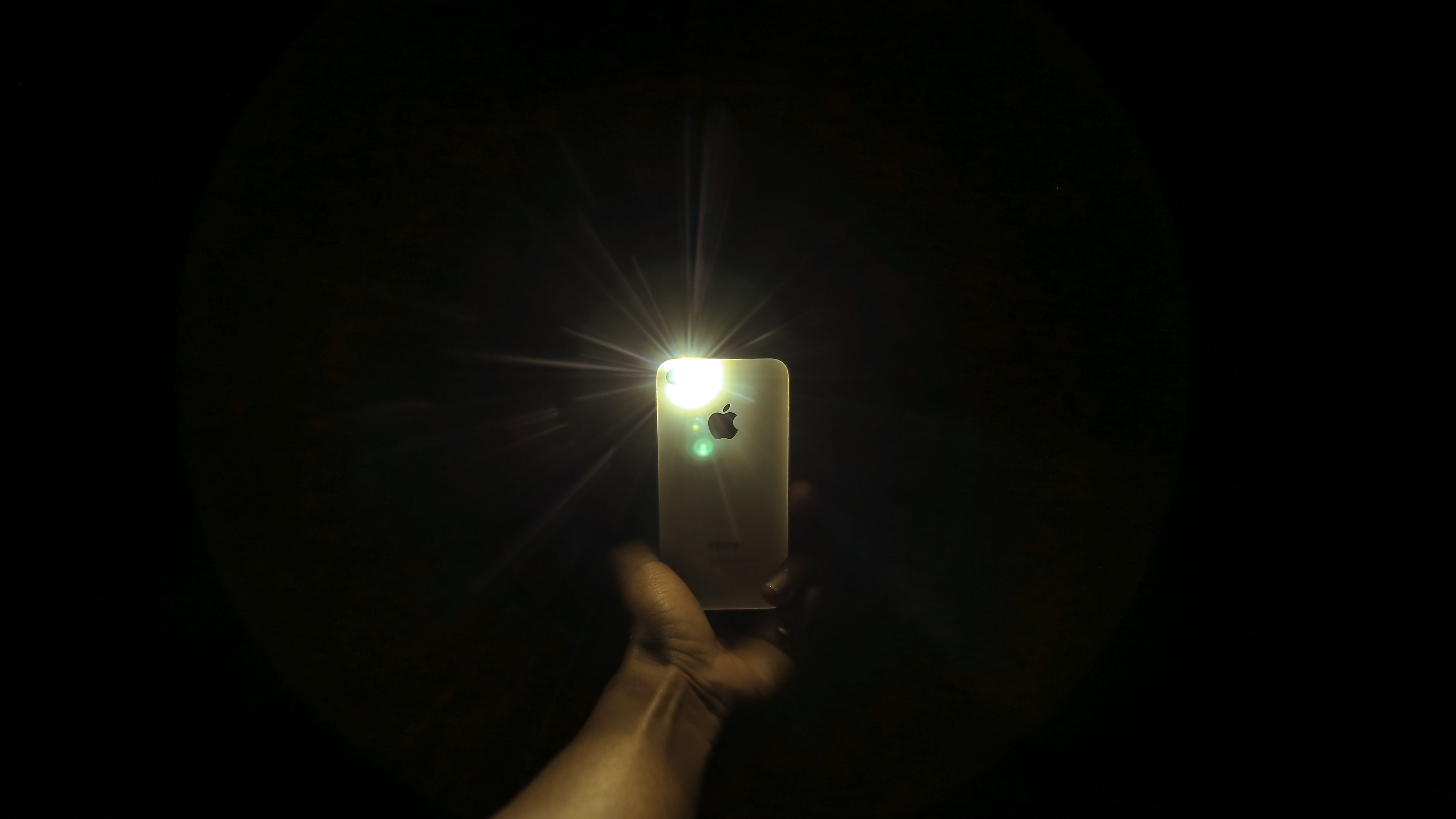
When half of your screen goes black, open the monitor’s own menu with its buttons. If the menu shows up clearly over the black half, the screen itself works, and the fault is in the signal: a setting, the cable, the port or the graphics driver. If the menu is dark there too, the fault is in the monitor. Then shine a torch at the black half. A faint picture means the backlight has failed and the panel is fine. No picture at all points to the panel or its electronics.
Start from what you see:
A half black screen has one of two causes, and they need opposite fixes. Either the monitor cannot light or draw that half, or the computer is not sending a full picture to it. You can tell which in two minutes, with no tools.
| What you see | Where the fault is | Next step |
|---|---|---|
| Menu clear over the black half | Signal: setting, cable, port or driver | Settings, then cable and port |
| Menu dark, faint picture under a torch | Backlight | Backlight or panel |
| Menu dark, nothing under a torch | Panel or its electronics | Repair or replace |
| Laptop: fine on an external monitor | Laptop screen or its cable | Laptop steps |
The same logic, look at the screen before your computer is involved, is how our guide to lines on a laptop screen or monitor separates a dead panel from a driver.
If the black half appeared right after you changed something, undo that first. Two settings cause most of these cases, and neither means the monitor is broken.
Picture by Picture (PBP) or split screen. Many larger monitors can show two computers side by side. Dell’s explanation for its U3415W: PBP “puts two different personal computer sources side by side”, each half gets its own resolution, and “two separate input sources must be used” (Dell). Switch it on with only one computer plugged in and the other half has nothing to show, so it stays black. Look in the monitor menu for PBP, PIP, Multi View or Split Screen and turn it off. If you are not sure what else has changed, reset the monitor to its factory settings from the same menu.
The refresh rate. This one is under-reported. One owner of an ASUS 165Hz monitor wrote in August 2026 that as soon as they set it above 102Hz, half the screen went black (r/Monitors). Another, with a ViewSonic VG2791R, found half the screen went black at 144Hz after nearly three years of use but looked normal at 120Hz. They had already tried a friend’s cable, and the problem stayed (r/Monitors). If your black half comes and goes with the refresh rate, drop it one step in Windows display settings. The same step helps with a monitor flickering on and off. That gets you a working screen today, and it tells you the panel and backlight are fine.
After that, try a different cable and a different port on both ends, and check the monitor maker’s site for a firmware update. On its TVs, Samsung lists corrupted firmware and faulty cables among the causes of one side going dark (Samsung). If lowering the refresh rate is the only thing that works on a monitor that used to run faster, contact the maker while it is under warranty: it points to a fault in the monitor’s electronics rather than your settings.
Running two screens and only one looks wrong? Our dual monitor set-up guide covers the ports and settings side.
If the torch test showed a faint picture, the backlight is the problem. It helps to know how it is built, because it explains why the failure comes in halves.
Many slim LCD monitors are edge-lit: a row of LEDs runs along one or two edges, and a clear light-guide sheet spreads that light across the back of the panel. More expensive screens use a full array of LEDs directly behind the panel instead (Wikipedia). Either way, the LEDs are wired in strips or zones. When one strip, or its connection, fails, the part of the screen it was lighting goes dark while the rest stays bright. That is why a backlight fault so often darkens one side, one half or one band rather than the whole screen.
An owner of a Dell S2722DC who posted a photo of a half black screen in May 2026 got that answer from a commenter: the backlight looks partly failed, it can be fixed, but a new monitor may make more sense (r/Monitors). The same diagnosis turns up on iMacs. One iMac owner with a large black area connected the computer to a second display, found the picture perfect there, and so ruled out the graphics card, leaving the backlight or the screen (iFixit).
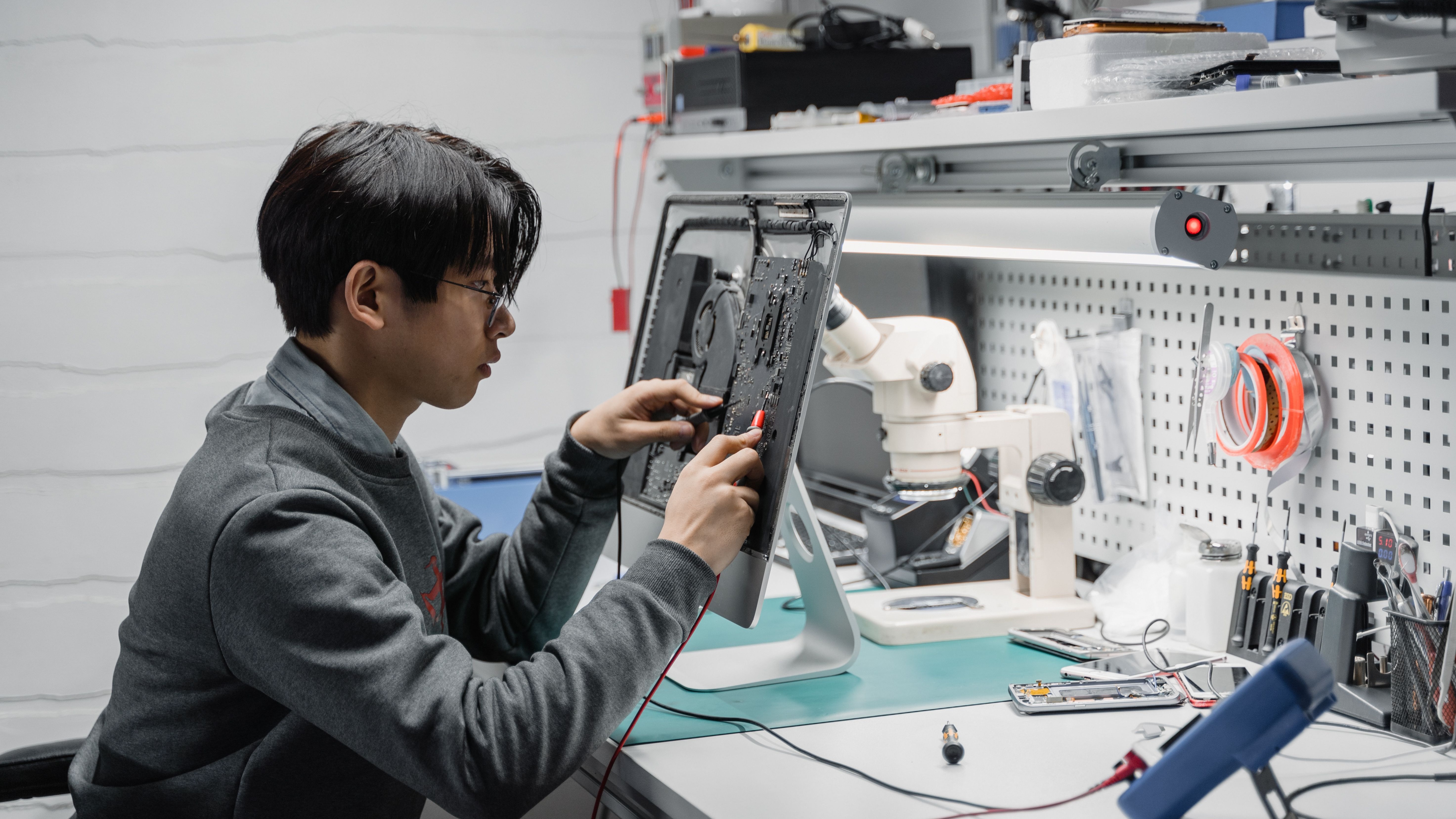
If nothing shows under the torch, the light is fine and the panel is not drawing that half. That points to the panel itself or the circuit board and ribbon cables that feed it. On a desktop monitor that is a repair for the maker or a specialist, not a home job.
If the monitor’s menu looked fine over the black half, the monitor is not the problem. Work down this list on the computer side:
A screen that goes completely black, not half, is a different problem. If the PC turns off as well, our guide to a laptop that won’t turn on covers the power side.
On a laptop the screen, its backlight and its cable are all inside the lid, so the tests change slightly.
A half shaded laptop screen, dim but readable, usually passes the torch test and points to the backlight. A half white screen is different. The backlight is clearly working, because white is full brightness, so the panel is not drawing that half. That is a panel or cable fault.
Brand-specific help: our Lenovo laptop screen problems guide, the HP laptop screen fix guide and the Surface Pro screen guide go through the maker’s own tests.
The tests are the same on a Mac. Connect an external display, and if the picture is whole there, the problem is the MacBook’s own screen, its backlight or its cable. Then try the torch on the black half.
Owners of older 13-inch MacBook Pros may remember Apple’s repair programme for exactly this area. Apple found that a small percentage of 13-inch MacBook Pro units sold between October 2016 and February 2018 could show bright areas along the bottom of the screen or a backlight that stopped working completely, and it replaced the display free. Only the 2016 13-inch models were eligible (MacRumors). That programme has now ended (Apple), so a repair on one of those models is now paid.
If your MacBook is still covered by Apple’s warranty or AppleCare, book it in before trying anything inside the case.
Sometimes “half the screen is black” is not a fault at all. If only one window fills half the screen and the other half shows your desktop or another app, Windows has snapped it. Click the window and press Windows + Up arrow to fill the screen. The Windows key with the arrow keys moves a snapped window around (Microsoft).
If the whole desktop only uses part of the screen, with black bars at the side, the resolution is wrong. Set Display resolution back to the recommended value in Settings, System, Display (Dell).
Check the warranty before anything else. Monitors and laptops carry a manufacturer warranty, and a backlight or panel failure that is not caused by damage is exactly what it covers. Both Dell and Samsung direct you to their support once their own tests point to hardware (Dell, Samsung).
Out of warranty, the answer depends on which fault you found:
If you do replace it, our monitor range and laptop range list the current models. And if your screen has other marks as well, our guide to white spots and dead pixels covers what counts as a fault under warranty.
Open the monitor menu first. It takes ten seconds and it halves the list of suspects straight away.
If the menu is fine, undo the last setting you changed, then lower the refresh rate one step, then swap the cable and the port. Most of these cases end there, with no repair.
If the menu is dark too, do the torch test, then contact the maker if the monitor is under warranty. Do not open it yourself while it is still covered.
On a laptop, the external monitor test comes first. It tells you in one step whether to worry about the screen or the computer.
Open the monitor’s own menu. If it shows clearly over the black half, the fault is the signal: turn off Picture by Picture, lower the refresh rate, swap the cable and port, and press Windows + Ctrl + Shift + B. If the menu is dark too, the monitor has a hardware fault.
Usually one of three things: a split-screen mode such as Picture by Picture with only one input connected, a refresh rate or cable the monitor cannot handle, or a failed backlight strip. The menu and torch tests tell them apart.
Check the monitor menu for Picture by Picture, PIP, Multi View or Split Screen. Those modes give each half its own input, and a half with no input stays black.
If one window only fills half the screen, click it and press Windows + Up arrow. If the whole desktop is small with black bars, set the display resolution back to the recommended value.
Often, yes. Settings and cable faults are free to fix. A failed backlight can be repaired because the panel still works. A dead panel on a monitor usually means a replacement.
The backlight is working, because white is full brightness, but the panel is not drawing that half. Test with an external monitor: if that picture is whole, the laptop screen or its cable needs repair.
Samsung lists a damaged panel or a faulty backlight as the usual causes, with firmware and cables as the software side. Its picture test tells you which: if the test pattern is dark on one side too, it is hardware.
Sources
The Hardvance Team is the editorial team at Hardvance, a UK computer and electronics retailer based in Mildenhall, Suffolk. We build and upgrade PCs and sell laptops, phones, networking gear, monitors and printers, and our guides cover the same ground. Every guide names its sources and explains how we checked the figures, and we say plainly when something is our opinion rather than a tested result.
View all posts by Hardvance Team


No account yet?
Create an Account