The £120 Mistake With HP Laptop Screen Problems, and the One Key That Shows If It Is Hardware
Most HP laptop screen problems fall into one of two groups, and you can tell which in under a minute. Switch the laptop off, switch it on and tap Esc. If the lines, flicker or spots also show on HP’s startup menu and in the BIOS (F10), the fault is the screen, its cable or the graphics hardware, and no driver will fix it. If those screens look clean and the fault only starts once Windows loads, it is usually software or a setting, and you can often fix it for free. The exception is a fault that only shows at a high refresh rate or after the laptop warms up, which can still be the hardware starting to fail.
Find your symptom:
- Black screen, lights and fan onPress Windows + Ctrl + Shift + B, then do a hard reset. Steps
- Black at startup, caps lock blinkingOften a damaged BIOS. HP has a key-press recovery. Recovery
- Stuck on the HP logoA startup fault, not the screen. Get past it
- Lines or dark spotsIf they show in the BIOS, it is the panel. Lines or spots
- FlickeringTurn off Panel Self Refresh or lower the refresh rate first. Fixes
- Dim business laptopPress F2: HP Sure View may be on. Check
Hardvance sells HP laptops, but nothing on this page is for sale and none of the fixes needs a part from us. The steps come from HP’s own support documents and from Microsoft and Intel, the real cases from HP’s Support Community, and the repair costs and your rights from Which? and UK law. We read all of them on 12 October 2026.
- HP laptop screen problems and display issues: the Esc key test that finds the cause
- HP laptop black screen: the screen went black but the laptop is still on
- HP laptop black screen on startup, with a blinking caps lock or two beeps
- HP laptop stuck on the loading screen or the HP logo
- Black lines, horizontal and vertical lines on an HP laptop screen
- HP laptop screen flickering: Panel Self Refresh, the refresh rate or the cable
- Black spots on an HP laptop screen, and the pressure damage argument
- HP laptop screen dim or washed out? Check HP Sure View first
- HP laptop screen or display not working, but an external monitor is fine
- HP laptop screen replacement and repair cost: warranty and your UK rights
- What we would actually do
- Quick answers
HP laptop screen problems and display issues: the Esc key test that finds the cause
Before you reinstall drivers or reset Windows, find out whether Windows is even involved. HP laptops have a startup menu and a BIOS setup screen that the laptop draws itself, before Windows loads. If your screen fault shows up there, no Windows fix can touch it.
- Switch the laptop off completely.
- Switch it on and immediately tap Esc, about once a second, until a menu appears.
- Look closely at that menu. Then press F10 to open the BIOS setup and look at that screen for a minute. Move the lid gently while you watch.
- Press F2 from the same Esc menu to open HP PC Hardware Diagnostics UEFI and run its tests. HP says the tool runs outside Windows, so it can tell a hardware failure apart from a software one. If a test fails, it gives you a 24-digit failure ID that you enter on HP’s website to start a repair.
Then read the result:
| What you see | What it means | Go to |
|---|---|---|
| Fault shows on the Esc menu and BIOS | Hardware: the panel, its cable or the graphics chip | Lines, spots, repair |
| Esc menu and BIOS clean | Usually software: a driver, a setting or a power feature. A fault that only shows at a high refresh rate or once the laptop warms up can still be early hardware failure | Flickering, dim screen |
| No HP logo, but lights and fan on | A startup fault, a damaged BIOS or a dead backlight | Black screen, startup |
| Black, but an external monitor works | Screen, cable, backlight, or an out-of-date BIOS or driver | External monitor |
HP’s own troubleshooting document backs this up. It says a physically damaged screen “can be detected as early as the BIOS-level startup operations, before the computer boots into Windows”.
The pages that rank for HP screen problems are mostly forum threads and videos about one model at a time. HP’s own document goes too far the other way: it lists a flickering screen, vertical lines, a solid green line and wrong colours as faults with “no adjustments or corrective actions” that need a repair. For lines, that is usually right. For flicker, it is too quick: for flicker that only appears in Windows, Intel’s own support page lists a power-saving setting to turn off first. The Esc test is how you tell the two apart before you pay anyone.
HP laptop black screen: the screen went black but the laptop is still on
If your HP laptop turns on but the screen is black, with the power light on, the fan running or the keyboard lit, work through these in order. Each one takes less than a minute.
- Reset the graphics driver. Press Windows + Ctrl + Shift + B. Microsoft says you should hear a beep or see the screen flicker if it worked. It restarts the graphics driver without restarting the laptop.
- Check where the picture is going. Press Windows + P, then the down arrow, then Enter. HP says your laptop may be sending the picture to an external screen that is no longer connected. Repeat it once or twice, because you cannot see which option you picked.
- Turn the brightness up. Press the brightness-up key a few times. It sounds obvious, but a screen at zero brightness looks exactly like a dead one.
- Black screen with a mouse cursor? Press Ctrl + Shift + Esc to open Task Manager, find Windows Explorer and click Restart. HP says this points to Windows Explorer or the sign-in step, not the screen.
- Do a hard reset. This is HP’s own procedure for laptops with a built-in battery: switch off, unplug the charger, take out any memory cards and USB drives, then hold the power button for about 15 seconds with the charger still unplugged. Plug the charger back in and switch on.
Still black? Shine a torch at the screen from close up, at an angle. If you can faintly see the desktop or the Windows sign-in screen, the panel is working and the light behind it, the backlight, has failed. That is a hardware repair. Our guide to a screen that is half black explains the torch test in more detail.
If the screen stays completely black and you cannot even see the HP logo when you switch on, go to the startup section next.
HP laptop black screen on startup, with a blinking caps lock or two beeps
Watch the keyboard lights when you switch on. HP lists these signs that the BIOS, the first software that runs when you press the power button, may be damaged:
- Windows does not start and the caps lock or num lock light blinks, or the laptop beeps twice.
- The power or charging light keeps blinking.
- The message “BIOS APPLICATION ERROR 501” appears.
- The laptop stops at a black screen, or the fan runs but the screen stays blank and Windows never starts.
HP says a BIOS can be damaged by a power cut, a failed BIOS update or a virus, and that the laptop normally tries to repair it on its own when you restart. If that has not worked, try these in order:
- Hard reset. Unplug the charger and hold the power button for about 15 seconds, as in the section above.
- Reset the CMOS, the small memory that stores your BIOS settings. On HP consumer laptops, switch off, then hold Windows + V and press the power button for two to three seconds. Let go of the power button but keep holding Windows + V until you see the CMOS Reset screen or hear beeps. Use the laptop’s own keyboard, because HP says a plug-in keyboard will not work for this.
- Recover the BIOS. With the charger plugged in and the laptop off, hold Windows + B and press the power button. After two to three seconds, let go of the power button but keep holding Windows + B. You may hear beeps, and an HP BIOS Update screen should appear and run on its own. If the power light goes off, you held the power button too long, so try again.
One exception: HP business laptops with HP Sure Start, such as recent EliteBooks and ProBooks, repair their BIOS automatically from a protected backup and do not support the Windows + B method. If yours says HP Sure Start on the logo screen, the hard reset is the step to try, then contact HP.
If the caps lock light keeps blinking after all this, count the blinks before the pause and give that number to HP support. If the laptop shows no lights at all, our guide for when a laptop won’t turn on covers the power side.
HP laptop stuck on the loading screen or the HP logo
This is one of the HP screen symptoms people in the UK search for most:
If your HP laptop shows the HP logo, perhaps with a spinning circle, and never gets any further, the screen is fine. It is drawing the logo perfectly. The fault is in starting Windows, often after an update, a sudden power loss or a failing drive.
- Unplug everything except the charger: USB drives, docks, phones and SD cards. A connected drive can make the laptop try to start from the wrong place.
- Do a hard reset: charger out, hold the power button for about 15 seconds, charger back in, switch on.
- Force Windows Recovery to open. An HP expert on HP’s Support Community gives this method: switch on, and when the HP logo appears, hold the power button to force the laptop off. Do this three times. On the fourth start, Windows should open its recovery screen. Choose Advanced options, then Startup Repair, or System Restore if you have a restore point from before the problem.
- Test the drive. Tap Esc at startup, press F2, and run the storage test in HP PC Hardware Diagnostics. A failing drive can stop a laptop at the logo, so it is worth ruling out.
- If you updated the BIOS just before it started, use the BIOS recovery in the section above.
If none of this gets you into Windows, the last step is to reinstall Windows. Our guide to factory resetting a laptop walks through it, including the case where Windows will not start at all. If you get a blue screen with a stop code instead, our blue screen guide explains what each code means.
Black lines, horizontal and vertical lines on an HP laptop screen
Lines are one of the most common HP screen faults, and the quick way to tell what yours mean is where they show up.
- The lines show on the Esc menu and in the BIOS. It is hardware. HP lists vertical lines and a solid horizontal green line as faults that need a repair, with nothing you can adjust. Jagged lines with large white or black areas usually mean a cracked panel, and HP says the screen must be replaced.
- The lines change or vanish when you move the lid. The cable that carries the picture runs through the hinge, so a fault that changes with the lid points to that cable or its connector.
- The lines stay in exactly the same place whatever you do. The panel itself is the most likely fault, and a new screen is the usual fix.
- The lines only appear in Windows, not in the BIOS. Update the graphics driver and the BIOS through HP Support Assistant (open it, go to My Dashboard and click Updates), then check again.
A white screen with no picture at all follows the same rule: if it is white in the BIOS too, it points to the panel or its cable.
Until it is fixed, you can keep working with an external monitor. HP says a laptop with a damaged screen can still be used that way. For the full test, and what pink, green and purple lines tell you, see our guide to black lines on a laptop screen or monitor.
HP laptop screen flickering: Panel Self Refresh, the refresh rate or the cable
Do the Esc test first. If the flicker also shows in the BIOS, skip to the cable check at the end of this section. If the BIOS looks steady and the flicker only starts in Windows, try these three fixes.
1. Turn off Panel Self Refresh (laptops with Intel graphics). Panel Self Refresh is a power-saving feature that lets the screen stop asking for new frames when nothing on it is changing. Intel’s support page on flickering lists turning it off as a fix for laptops. For desktop monitors and the other causes of flicker, see our monitor flickering guide. Open Intel Graphics Command Center (called Intel Graphics Software on the newest laptops), find Panel Self-Refresh in the power settings and switch it off. It costs a little battery life. To check whether your HP has Intel graphics, open Device Manager and look under Display adapters.
2. Lower the refresh rate. Intel also suggests a lower refresh rate. In Windows 11, go to Settings, System, Display, Advanced display, and pick a lower rate. This matters most on HP gaming laptops with fast screens.
One HP Victus 15 owner’s thread on HP’s Support Community, from August 2026, shows how this plays out. The screen flickered at 144Hz but was stable at 60Hz. Then it began to flicker at 60Hz too, and in the BIOS. An external monitor was fine. A local repair shop said the fault was in the display, not the cable. So dropping the refresh rate is a good test and a good stopgap, but if the flicker later spreads to 60Hz and the BIOS, the hardware is failing.
3. Reinstall the graphics driver. HP’s own flicker guide starts Windows in Safe Mode, uninstalls the display driver in Device Manager, ticks the box to delete the driver software, restarts, and lets Windows Update install a fresh one. You can also get the driver HP tested for your model from HP Support Assistant.
Flicker when you move the lid? Hold the laptop open in both hands and gently move the lid back and forth. If the flicker changes as you do, the fault is the cable through the hinge or its connector, not Windows.
Black spots on an HP laptop screen, and the pressure damage argument
A dark spot or blotch that stays in the same place on every background, and shows in the BIOS too, is damage inside the panel. No software, setting or “pixel fixer” video will remove it. Those videos are aimed at stuck pixels, which are single coloured dots, not dark patches. Our guide to white spots, lines and dead pixels shows how to tell the marks apart.
The hard part is often the warranty, not the fault. In October 2026 an HP owner posted on HP’s Support Community that two black spots had appeared on their laptop about a month after they bought it. HP classified it as external impact and refused warranty cover. HP’s reply explained that this kind of spot “is associated with localized pressure applied to the LCD panel” and that “such damage may occur even when there are no visible signs of impact”.
HP’s support team also asked the owner whether anything had been left on the keyboard or palm rest when the lid was closed, such as a pen, earphones, a USB dongle or a paper clip. That is worth knowing even if your screen is fine. Closing the lid on a small object presses it straight into the screen.
If spots appear on your HP laptop:
- Photograph them on white, black and coloured backgrounds, and in the BIOS. HP asked for exactly these photos.
- Note when you first saw them and that nothing was dropped or closed inside the lid.
- If you bought the laptop within the last six months, read the UK rights section below before you accept a “not covered” answer.
HP laptop screen dim or washed out? Check HP Sure View first
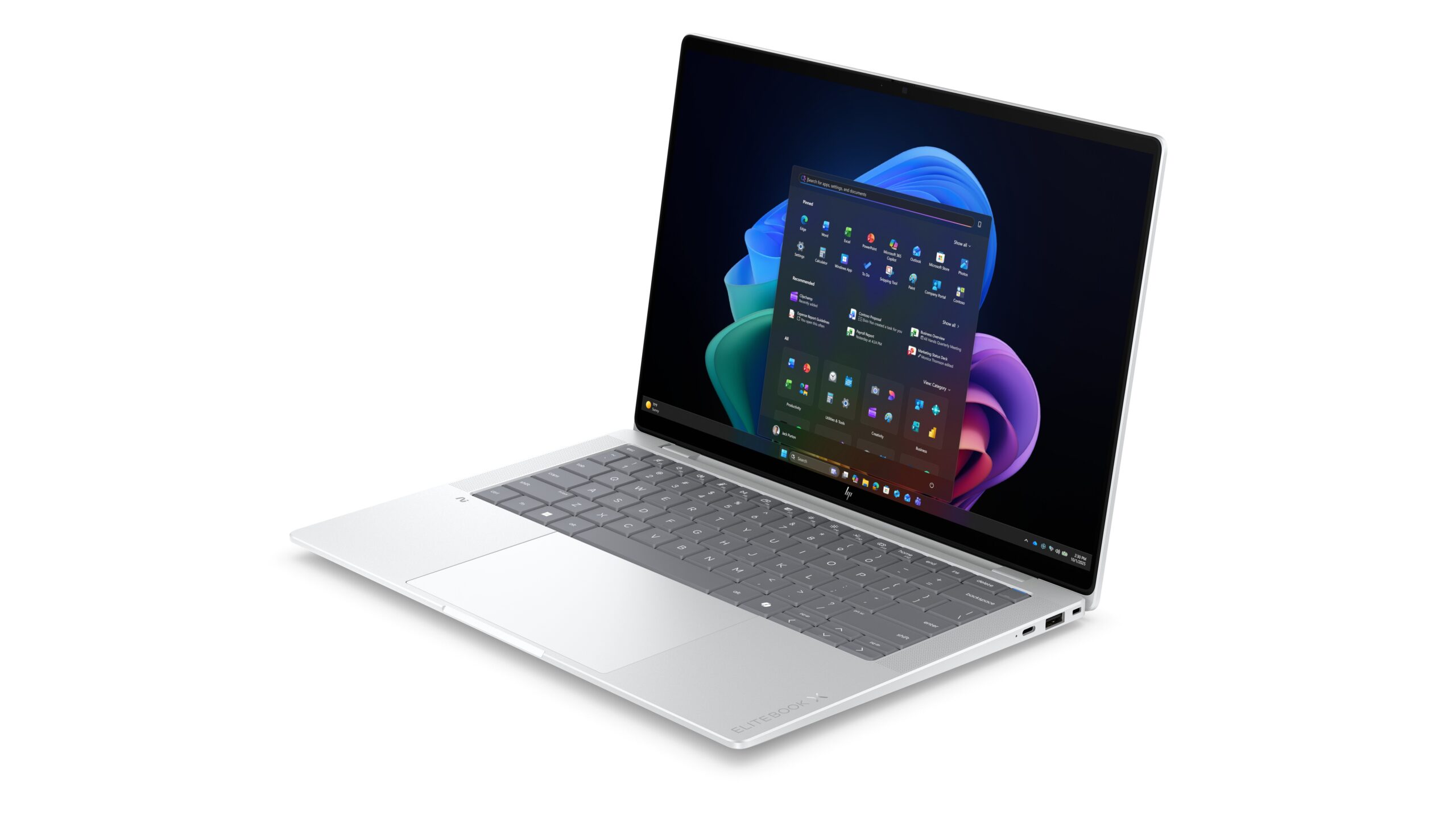
Many HP business laptops, including EliteBook models, can come with HP Sure View, a privacy screen built into the display. When it is on, HP says it cuts up to 95% of the light seen from the side, so people next to you cannot read your screen. To you, it can look like a fault: the screen suddenly seems dim, greyish or washed out, especially from an angle.
- Press F2, or fn + F2 on some models, to switch Sure View off. HP’s guide says F2 toggles privacy mode. On the EliteBook in one HP Support Community thread, fn + P turned on the strongest privacy setting.
- Brightness keys stop working while it is on. Several owners in that thread reported that the brightness keys did nothing with privacy mode active. Turn Sure View off first, then adjust the brightness.
If your HP is not a business model, or Sure View is off, check the Windows brightness features. HP’s guide to turning off auto brightness lists three switches in Settings, System, Display, Brightness: “Change brightness automatically when lighting changes”, “Help improve battery by optimizing the content shown and brightness” and “Change brightness based on content”. Turn them off and see if the dimming stops. Battery saver can lower the brightness too.
If the screen is dim on the Esc menu and in the BIOS as well, and the torch test from the black screen section shows a faint picture, the backlight is failing.
HP laptop screen or display not working, but an external monitor is fine
This is HP’s own test for a blank screen, and it splits the problem in half:
- Connect the laptop to a monitor or TV with an HDMI or DisplayPort cable.
- Plug in the charger and the monitor.
- Switch on the laptop, then the monitor. If nothing appears, press Windows + P and choose Duplicate.
If the external monitor shows a picture but the laptop screen stays black, Windows and the graphics chip are working. HP’s advice is to install the latest BIOS, graphics driver and chipset driver, which HP Support Assistant does for you. If the laptop screen is still black after that, the fault is the screen, its cable or its backlight. The torch test tells you whether it is the backlight.
If neither screen shows anything, HP calls it a startup problem, not a screen problem. Go back to the startup section.
Meanwhile, the external monitor is a perfectly good way to keep working. Our guide to setting up dual monitors covers the ports and settings.
HP laptop screen replacement and repair cost: warranty and your UK rights
Check your HP warranty first. HP says its standard warranty is one year for most laptops. It covers faults in materials and workmanship, not accidents, unless you bought Accidental Damage Protection. You can check yours on HP’s warranty page with the serial number. On many HP laptops, pressing fn + Esc shows the product information, including the serial number, which is handy if the label underneath has worn off. HP recommends an authorised repair centre for screen replacements.
Your UK rights come from the retailer, not HP. Under the Consumer Rights Act 2015:
- For the first 30 days, you can reject a faulty laptop and ask for your money back.
- For the first six months, a fault is presumed to have been there when the laptop was delivered, unless the retailer can show otherwise. That matters a lot for spots or lines that HP calls pressure damage.
So if your HP laptop is less than six months old, take the problem to the shop you bought it from as well as, or instead of, HP.
What a repair costs. Which? Trusted Traders puts supplying and fitting a new 15.6-inch laptop screen at about £120 before VAT. Touch screens and higher-resolution panels can cost more, so ask for a written quote that lists the part and the labour separately.
When to replace the laptop instead. If the quote is close to half of what a similar new laptop costs, or the laptop is more than four or five years old, a replacement is usually the better spend. If you are weighing that up, our guide to the best laptop for work compares current models by budget, and you can browse our HP laptops if you want to stay with the brand.
What we would actually do
- Do the Esc test before anything else. One minute tells you whether to spend your evening on drivers or on a repair quote.
- Black screen with signs of life: Windows + Ctrl + Shift + B, then a 15-second hard reset, then the torch test. Do those three before anything costs money.
- Flicker only in Windows: turn off Panel Self Refresh and drop the refresh rate. If it comes back at 60Hz or shows in the BIOS, start budgeting for a repair before it fails completely.
- Lines or spots in the BIOS: stop trying software fixes. Photograph the fault, check the warranty, and if the laptop is under six months old, go back to the retailer.
- A dim EliteBook: press F2 before you book anything. Sure View is easy to switch on by accident, as the owners in HP’s forum thread found.
If you have a Lenovo rather than an HP, our Lenovo laptop screen problems guide covers the same faults with Lenovo’s own tools.
Quick answers
Press Windows + Ctrl + Shift + B to reset the graphics driver, then press Windows + P, the down arrow and Enter in case the picture is going to another screen. If that fails, do a hard reset: unplug the charger and hold the power button for about 15 seconds. If you still see nothing, shine a torch at the screen: a faint picture means the backlight has failed.
Usually one of four things: the graphics driver has stopped, the picture is going to an external display, the BIOS is damaged, or the backlight has failed. A blinking caps lock light or two beeps point to the BIOS. A faint picture under a torch points to the backlight. Connecting an external monitor tells you whether the laptop itself is running.
Use HP’s hard reset: switch off, unplug the charger, remove USB drives and memory cards, then hold the power button for about 15 seconds. Plug the charger back in and switch on. This clears the laptop’s temporary memory without deleting your files.
Windows is failing to start, often after an update, a power cut or a failing drive. Unplug all USB devices and do a hard reset. If it still sticks, force it off three times at the HP logo so Windows opens its recovery screen, then run Startup Repair. Tap Esc and F2 at startup to test the drive.
Disconnect everything except the charger, do a hard reset, then use Windows Recovery’s Startup Repair or System Restore. If the loop began right after a BIOS update, HP’s Windows + B BIOS recovery can restore it. If nothing works, reinstall Windows from HP’s recovery tools or a Microsoft recovery drive.
First check whether the lines show in the BIOS. If they do, they cannot be removed with software: the panel or its cable needs repairing. If they only appear in Windows, update the graphics driver and BIOS. If the lines change when you move the lid, the hinge cable is the likely fault.
A dark spot that stays in place on every background is usually pressure damage inside the panel, for example from closing the lid on a pen or earphones. It cannot be fixed with software. A tiny single dot is more likely a dead pixel, which is a different fault.
Which? Trusted Traders puts supplying and fitting a 15.6-inch laptop screen at about £120 before VAT. Touch screens and high-resolution panels can cost more. If your laptop is under warranty, or under six months old in the UK, you may not need to pay at all.
If it is dim or washed out, press F2 to turn off HP Sure View and switch off automatic brightness in Settings, System, Display. If it is the wrong size or in the wrong place, press Windows + P and pick PC screen only. If it is upside down, open Settings, System, Display and set Display orientation to Landscape.
How we know
We have not tested a faulty HP laptop for this guide. The Esc key test, the hard reset, the CMOS reset, the BIOS recovery keys, the warning signs of a damaged BIOS, HP Sure Start and the external monitor test all come from HP’s own support documents. The black screen shortcuts come from Microsoft and HP, the flicker fixes from Intel and HP, the Sure View details from HP’s guides and its Support Community, and the warranty terms from HP. The Victus flicker case and the black spot warranty case are real threads on HP’s Support Community, read in full. The repair cost comes from Which? Trusted Traders, your rights from the Consumer Rights Act 2015 on legislation.gov.uk, and the search figures from DataForSEO. All were read on 12 October 2026.
Sources
- HP Notebook and All-in-One PCs: Troubleshooting screen issues (Windows 11, 10), HP Support. The faults HP says need repair, damage visible at BIOS level, and the external monitor test.
- HP Notebook PCs: Recovering the BIOS, HP Support. BIOS warning signs, the hard reset, the CMOS reset, the Windows + B recovery and HP Sure Start.
- HP PC Hardware Diagnostics, HP Support. What the UEFI tool tests and the 24-digit failure ID.
- Laptop Black Screen? Try These Fixes First, HP Tech Takes, 24 June 2026. Windows + P, the cursor-only black screen and Task Manager.
- Troubleshooting blank screens in Windows, Microsoft Support. What Windows + Ctrl + Shift + B does.
- How to Fix a Flickering Screen with Intel Graphics, Intel Support. Turning off Panel Self Refresh and lowering the refresh rate.
- How to Stop Laptop Screen Flickering, HP Tech Takes. The Safe Mode driver reinstall.
- HP Victus display flickering: how to check or replace the display cable?, HP Support Community, August 2026. The 144Hz then 60Hz flicker case.
- Has anyone experienced having black spots appear on their laptop screen?, HP Support Community, October 2026. HP’s pressure damage ruling and the photos it asked for.
- Laptop will not boot past HP logo screen, HP Support Community, March 2025. The three forced shutdowns to open Windows Recovery.
- Protecting Your Digital Privacy: HP Sure View, HP Tech Takes, January 2025. The F2 toggle and up to 95% light reduction from the side.
- Brightness cannot be changed in Privacy mode, HP Support Community. The Sure View key combinations and the brightness keys that stop working.
- What Is HP Sure View?, HP Tech Takes, December 2023. The EliteBook and other business models that offer it.
- How to Turn Off Auto Brightness in Windows, HP Tech Takes. The three Windows brightness switches.
- Understanding HP’s Warranty and Support Services, HP Tech Takes. One year for most laptops, and Accidental Damage Protection.
- HP Warranty Check, United Kingdom, HP Support.
- Cost guide: computer and laptop repair costs, Which? Trusted Traders, last updated November 2025. The £120 screen replacement figure, before VAT.
- Consumer Rights Act 2015, section 19 (the six-month rule) and section 22 (the 30-day right to reject), legislation.gov.uk.
- Search figures: DataForSEO keyword data for the UK, August 2026, read 12 October 2026.
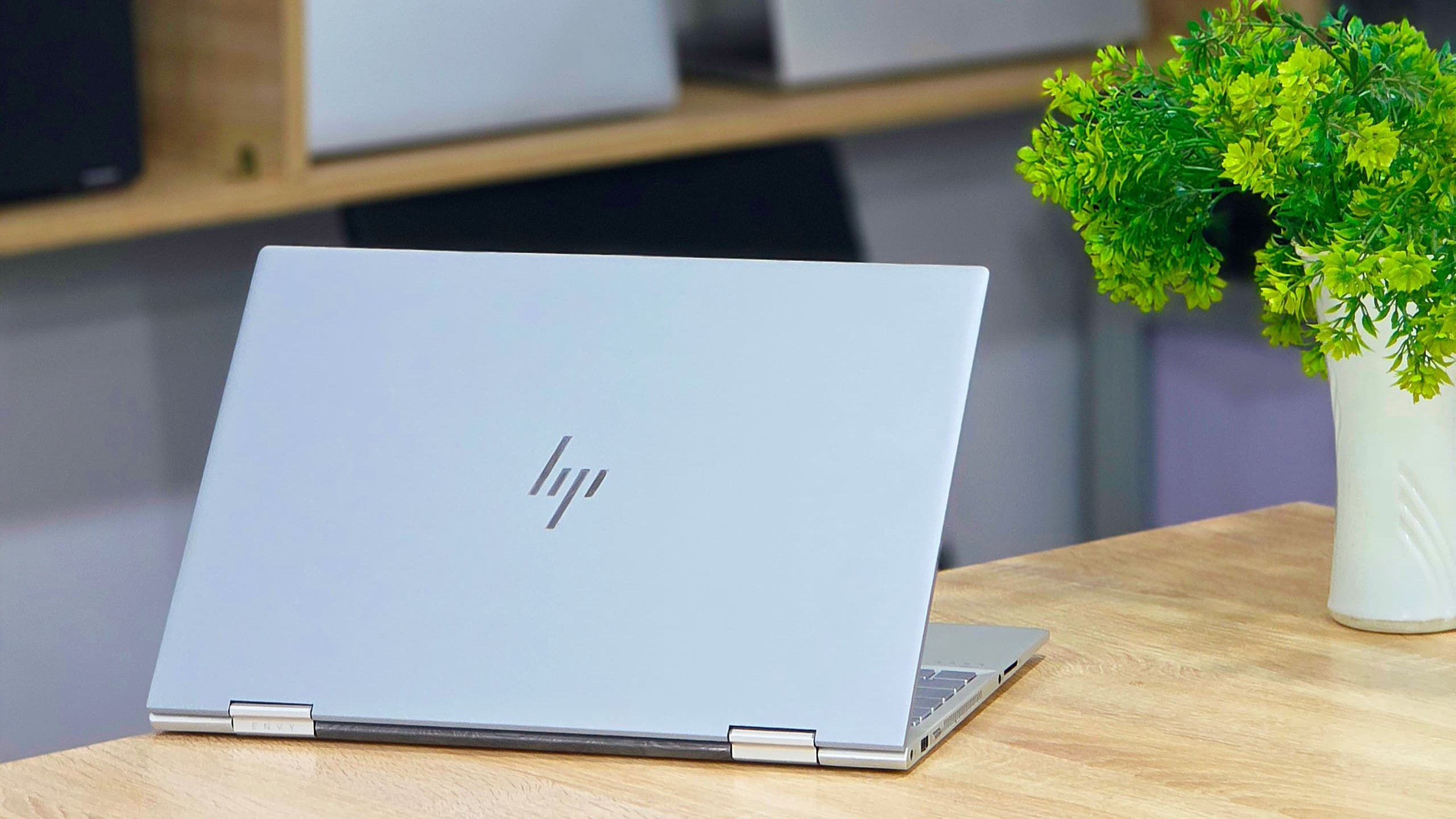
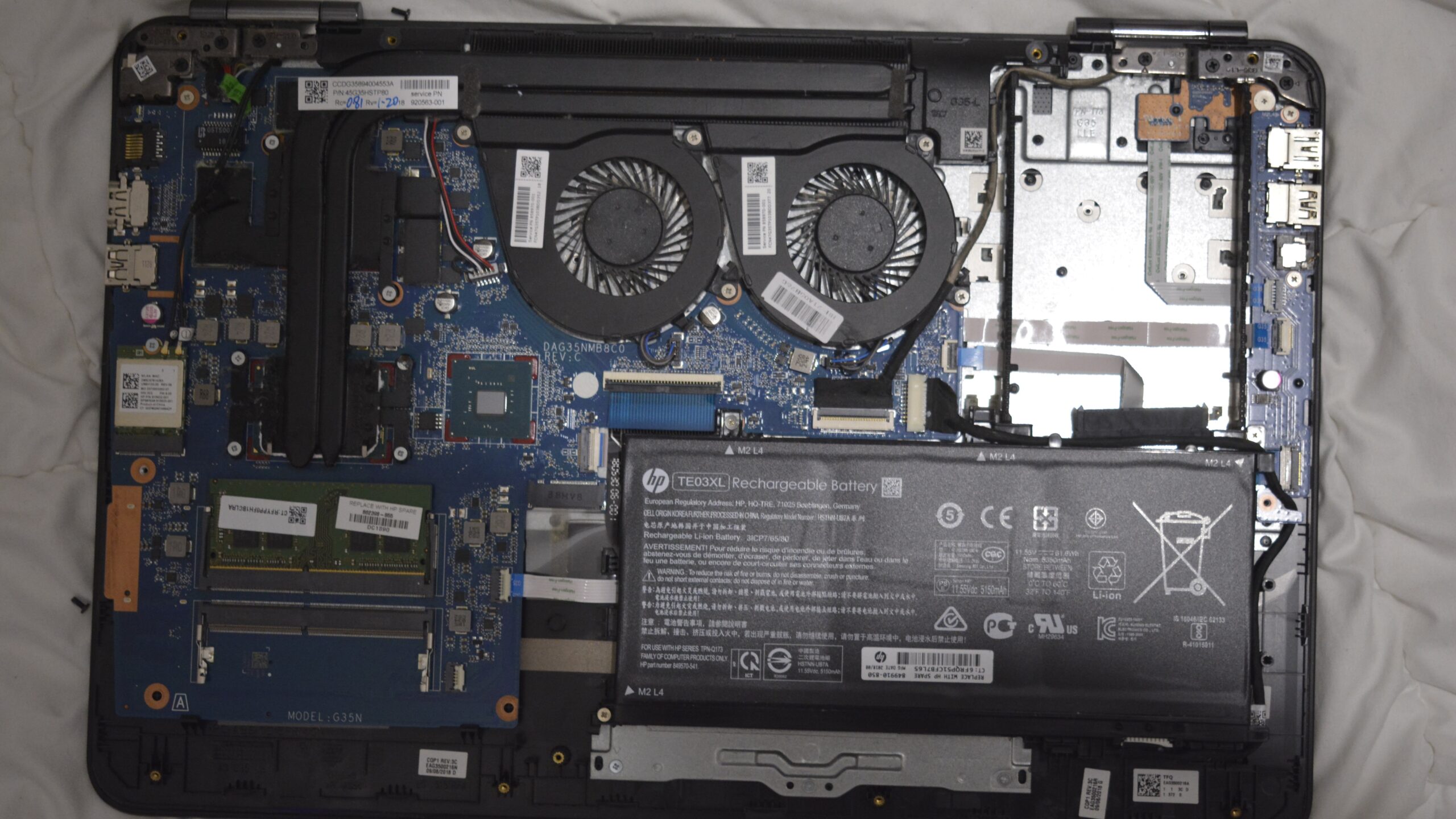
- Lead photograph: HP convertible laptop on a desk by Luc Péléï, Pexels, cropped to 16:9 by us. EliteBook image: HP EliteBook X G2i, from the HP at CES 2026 press kit, placed on a wider white background by us. Internals photo: HP Pavilion 15-bc400nh internals by Trajcinema, CC BY 4.0, rotated and cropped by us.
About Hardvance Team
The Hardvance Team is the editorial team at Hardvance, a UK computer and electronics retailer based in Mildenhall, Suffolk. We build and upgrade PCs and sell laptops, phones, networking gear, monitors and printers, and our guides cover the same ground. Every guide names its sources and explains how we checked the figures, and we say plainly when something is our opinion rather than a tested result.
View all posts by Hardvance Team