
body.postid-310637 .hv-ed-standfirst::before{content:’We read the attack paper, then a year of complaints’;}
body.postid-310637 .hv-tbl{width:100%;border-collapse:collapse;margin:1.4em 0;font-size:.95em;}
body.postid-310637 .hv-tbl th{background:#114e9d;color:#fff;text-align:left;padding:.6em .7em;font-weight:600;}
body.postid-310637 .hv-tbl td{padding:.55em .7em;border-bottom:1px solid #e3e7ee;vertical-align:top;}
body.postid-310637 .hv-tbl tr:nth-child(even) td{background:#f6f8fb;}
body.postid-310637 .hv-tbl-wrap{overflow-x:auto;}
body.postid-310637 .hv-ed-note h2{margin-top:0;}
A passkey is a sign-in that lives on your phone or laptop instead of in your head. You approve it with your fingerprint, your face or your device PIN, and the site never receives anything an attacker could steal and reuse. The UK’s National Cyber Security Centre recommends you use one wherever it is offered, and so do we. The part almost nobody tells you is on this page too.
Which bit are you here for?
- I just want to know what it isA key pair, not a word you remember. The plain version
- How does it actually workYour device signs a one-off challenge. The mechanism
- Passkey or passwordDifferent failure modes, not just a stronger password. Side by side
- Show me how to set one upiPhone, Android and Windows, step by step. The steps
- Windows keeps nagging meThat prompt is Windows Hello. Why it appears
- What are the downsidesThe password fallback, and research published on 3 August 2026. Read this one
- What if I lose my phoneYou are almost certainly fine. The recovery path
- I want it goneRemoving a passkey on iPhone, Android or Windows
We sell computer hardware, not security software, and we are not being paid by anyone named on this page. Every claim below comes from the organisation that made it, and the criticism section is built from a security research paper published on 3 August 2026 and from a year of complaints by people actually using passkeys.
Jump to what you need
- What is a passkey?
- How does a passkey work?
- Passkey vs password: what actually changes
- How to create a passkey on iPhone, Android and Windows
- How to set up a Microsoft passkey, and why the Windows passkey prompt keeps appearing
- Where a Google passkey, an Apple passkey or a Bitwarden passkey actually lives
- Amazon passkey, PayPal passkey and WhatsApp: where one works today
- What are the downsides of passkeys?
- What happens to your passkeys if you lose your phone
- How to remove a passkey on iPhone, or delete and disable one on Windows
- What we would actually do
- Quick answers
What is a passkey?
A passkey is a login credential that stays on your device. Instead of typing a password, you unlock your phone or laptop the way you already do, and that unlock signs you in. There is nothing to remember and nothing to type.
If you have been getting pop-ups asking you to “create a passkey” and you never asked for any of this, you are the reason we wrote this page. Someone on r/techsupport put it more bluntly in March: “Wtf is a passkey and why does everything need one?” It is a fair question and almost every answer online is written by a company selling you a password manager.
Here is the plain version. The NCSC, which is the UK government’s cyber security body, defines it as “a secure, passwordless authentication method that allows you to log into an app and website using your existing device biometrics (like Face ID or fingerprints) or lock screen PIN.”
Two things follow from that, and they are the whole point.
- Your face and fingerprint never leave your device. The site does not receive them. Your phone checks them locally, then vouches for you.
- There is no shared secret. A password is a secret you and the website both know, which is why a breach at their end exposes you. A passkey is not like that, and we explain why in the next section.
The passkey meaning that most people land on, that it is “just a stronger password”, is wrong in a way that matters. It is a different thing entirely. A strong password and a passkey fail in completely different ways, and knowing which is which is what lets you decide when to use each.
How does a passkey work?
Your device creates two matching keys. The private one stays with you and never goes anywhere. The public one goes to the website. When you sign in, the site sends a random one-off challenge, your device signs it with the private key, and the site checks the signature against the public key it already holds.
Think of the public key as a padlock you hand out freely and the private key as the only thing that opens it. Someone stealing the padlock gains nothing.
That design gives you three things a password cannot.
- A data breach at the website does you no harm. All the attacker gets is a pile of public keys, which are useless on their own. Compare that with a leaked password database, where the damage starts immediately and follows you to every site where you reused it.
- There is nothing to type, so there is nothing to phish. The NCSC puts it this way: passkeys “can’t be intercepted, reused or stolen like passwords.”
- The passkey is tied to the real web address. This is the bit people miss. Your device will only offer the passkey to the exact site it was created for. A convincing fake at a lookalike address gets nothing, because your phone simply will not produce a passkey for it. You cannot be talked into handing it over, because there is nothing to hand over.
The technical name is FIDO2, from the FIDO Alliance. It is really two standards working together: WebAuthn, which is what the website and your browser speak, and CTAP, which is what your browser and the authenticator speak. You may see a site call it a FIDO passkey or offer FIDO passkey login. It is the same thing under a more industrial name. The Alliance defines a passkey as “a FIDO authentication credential based on FIDO standards, that allows a user to sign in to apps and websites with the same process that they use to unlock their device.”
One distinction from the FIDO Alliance is worth holding on to, because the rest of this page depends on it. There are synced passkeys, which are “synced between user’s devices via a cloud service”, and device-bound passkeys, which “never leave a single device”. Almost everyone reading this has synced passkeys, because that is what Google, Apple and Microsoft set up by default. Device-bound ones normally live on a physical key you plug in.
Passkey vs password: what actually changes
A passkey is not a longer password. It removes some attacks completely and leaves others exactly where they were. This table is the honest comparison, including the rows the vendor pages tend to leave out.
| The attack | Password | Passkey |
|---|---|---|
| Site gets breached | Your password is exposed, and every site where you reused it | Only a public key leaks, which is useless |
| Phishing page | You type it in and it is gone | Your device refuses to offer it to the wrong address |
| Credential stuffing | Works, if you reuse passwords | Nothing to stuff |
| Shoulder surfing, keylogger | Captures what you type | Nothing is typed |
| Someone knows your device PIN | Still needs the password | Can sign in as you |
| Malware already on your PC | Can steal saved passwords | Reduced, not eliminated. See the downsides |
| Attacker uses the “forgot password” link | Works if they control your email | Works just the same, unless you removed the fallback |
Read the last two rows again, because they are the ones that decide how much a passkey is really worth to you. The NCSC’s own technical comparison found that passkeys are “always as secure or more secure than 2SV using the strongest password”. That is a genuinely strong result. It is also a statement about the sign-in itself, not about everything bolted around it.
How to create a passkey on iPhone, Android and Windows
You do not create a passkey in one central place. You create one per account, from inside that account’s security settings, or by accepting the prompt the site offers you. Doing it once takes about fifteen seconds.
The general shape is the same everywhere. Find the security or sign-in settings of the account you care about, look for “passkeys”, choose to add one, then unlock your device when it asks. Below is how to set up a passkey on each platform, using a Google account as the worked example because it is the one most people have.
How to create a passkey on iPhone
- Make sure iCloud Keychain is switched on, in Settings, your name, iCloud, Passwords and Keychain. Without it, your iPhone has nowhere to save the passkey and no way to sync it. Google’s own documentation lists this as a requirement.
- Open the site or app and go to its security settings. For Google, that is myaccount.google.com, then Security.
- Choose Create a passkey.
- Approve with Face ID or Touch ID.
From then on, signing in on that iPhone means looking at it. Your other Apple devices pick the passkey up automatically.
How to create a passkey on Android
- Open the account’s security settings, or tap the prompt when the site offers one.
- Choose to create a passkey and pick where to save it. Google Password Manager is the default on most Android phones, but you can choose another credential manager if you use one.
- Confirm with your fingerprint, face or screen lock PIN.
One Android-specific detail from Google’s documentation is worth knowing before it surprises you. After you sign out of a Google account on Android, you can sign back in with the passkey for up to six hours. After that window you will need another method. It is a deliberate limit, not a fault.
How to create a passkey on Windows
- Set up Windows Hello first, with a PIN, a fingerprint or face recognition. Windows uses Hello as the unlock step.
- Go to the site’s security settings in your browser and choose to add a passkey.
- Windows asks where to put it. Choose This Windows device, or your phone, or a plugged-in security key.
- Confirm with Hello.
If you pick your phone instead of the PC, Windows shows a QR code. You scan it with the phone, and the two talk over Bluetooth for that one sign-in. It is slower, but it means a shared or work PC never keeps your credential.
How to set up a Microsoft passkey, and why the Windows passkey prompt keeps appearing
If Windows keeps interrupting you with a “Create a passkey?” box, that is Microsoft pushing its accounts towards passwordless sign-in. You can accept it, and you can also stop it asking.
Microsoft’s position is not subtle. Its own support page calls passkeys “the future of signing in” and says that “passkeys are unique to each website or application, so you don’t have to worry about someone using your passkey to access other services.” Microsoft has also published that it “will start phasing out SMS as a method of authentication and account recovery for personal Microsoft accounts”, because “SMS-based authentication is now a leading source of fraud”. Passkeys and verified email are what it wants you on instead, which is worth knowing before you dismiss the prompts as marketing.
A few things that confuse people about a Windows passkey specifically:
- The “Windows Security” box is not a virus. That dark dialog asking for your PIN or fingerprint when a website wants to sign you in is Windows Hello doing its job. It is the system asking, not the website.
- A Windows Hello passkey saved to “This device” does not travel. Sign in on a different PC and it will not be there. If you want it on every machine, save it to a credential manager or to your phone instead.
- A Microsoft passkey and a Windows passkey are not the same thing. The first is a credential for your Microsoft account. The second is any passkey stored on that Windows PC, for any site.
- To create a passkey for Microsoft specifically, Microsoft’s own instruction is to add a passkey to your personal or work account from its security settings, or simply accept the “Create a passkey?” prompt it shows you at sign-in. Both routes end in the same place.
One reassurance if you are on older hardware: Google’s documentation lists Windows 10 and newer as supported, so a PC that is still getting updates will not lock you out of this.

Where a Google passkey, an Apple passkey or a Bitwarden passkey actually lives
A passkey has to live somewhere, and where you put it decides how it syncs, who could theoretically reach it, and what happens when the device dies. This is the choice most people make by accident, by tapping whatever the phone suggested.
| Where it lives | Syncs to your other devices | Worth knowing |
|---|---|---|
| Google Password Manager | Yes, across Android and Chrome | The default on Android. It is also the specific target of the research in the next section |
| iCloud Keychain | Yes, across your Apple devices | The default on iPhone and Mac. Must be switched on before an iPhone can save a passkey |
| Microsoft Password Manager | Yes, via your Microsoft account | Microsoft’s synced option, separate from a Hello passkey saved to one PC |
| Bitwarden, 1Password and similar | Yes, and across platforms | The only option that follows you from an iPhone to a Windows PC to an Android tablet without friction |
| Windows Hello, this device only | No | Stays on that PC. Fine for your own machine, wrong for a shared one |
| A hardware security key | No, by design | Device-bound. Nothing is in anyone’s cloud, so cloud attacks do not apply. Buy two, because losing your only one is a bad day |
If you already pay for a password manager, putting passkeys in the same place is the least painful answer, because you stop caring which brand of phone you are holding. A Bitwarden passkey or a 1Password passkey works the same way as the built-in ones, it just is not tied to one company’s ecosystem.
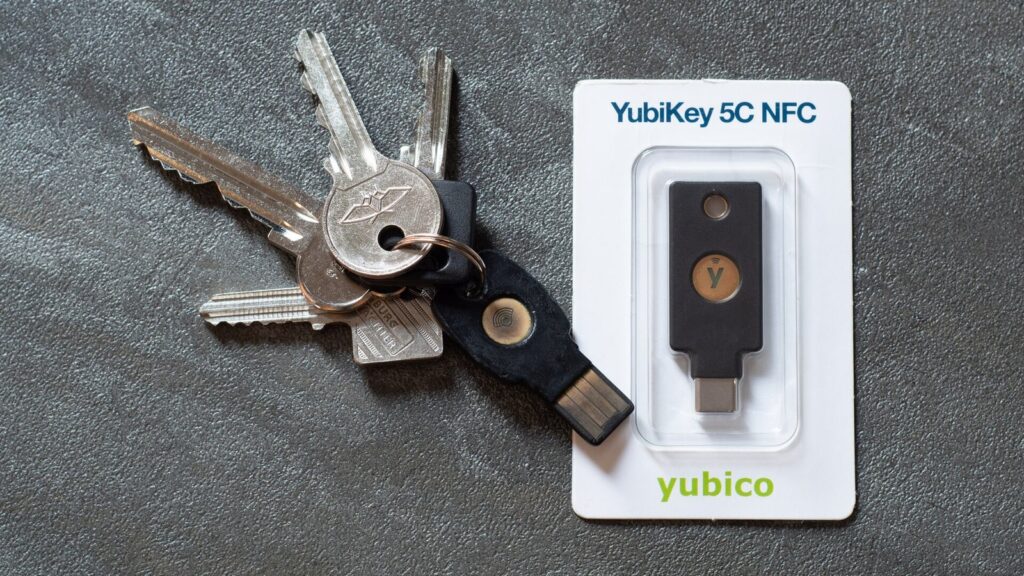
Hardware keys are the other end of the scale. They are the strongest option available to a normal person and the least convenient. One warning before you buy any of them: a key can carry the FIDO2 badge and still be built for two-factor use rather than for storing passkeys, and the number of passkeys a key can hold is often not published at all. Check that the specific model says it stores passkeys, and how many, before you commit. Yubico’s YubiKey range is the reference product here and we do not sell it. We do stock a fingerprint model, the Kensington VeriMark Guard 2.1 USB-C, if you want a key that reads your fingerprint rather than asking for a PIN. Whichever you choose, two is the sensible number: one on your keyring, one in a drawer, both registered on the accounts you cannot afford to lose.
Amazon passkey, PayPal passkey and WhatsApp: where one works today
Support is much wider than it was a year ago, and it is now the big consumer accounts rather than only the technical ones. If you are going to set up three passkeys this week, make them the three accounts that unlock everything else.
Accounts where you can turn one on right now include Google and Gmail, Microsoft, Apple, Amazon, PayPal, WhatsApp, eBay, X, LinkedIn, TikTok, Nintendo, and most of the major password managers themselves.
Our advice on order of priority is boring and correct. Start with your email, because whoever controls your email can reset almost everything else through a “forgot password” link. Then do the account that holds your money, which for most people is PayPal or a bank. Then your Google or Microsoft account if it is not already the email one, because it is the master key to your phone and your files.
A WhatsApp passkey is a slightly different case and worth a mention. It does not replace your phone number, it replaces the six-digit SMS code you get when you reinstall the app. That is a real gain, because SMS interception and SIM swapping are among the most common ways WhatsApp accounts get taken.
Two honest caveats. Plenty of UK banks still do not offer passkeys and use their own app-based approval instead, which is a comparable idea under a different name. And support at a site does not mean support everywhere in that site: some services accept a passkey on the website but not in the app, or the reverse.
What are the downsides of passkeys?
Two real ones, and the second is a week old. The first is that most sites still let you sign in with your old password, which quietly caps how much the passkey can protect you. The second is that on 3 August 2026 researchers published three working attacks against synced passkeys in Chrome on Windows.
This is the question the search results have been asking for months. It is the top “people also ask” entry on both “what is a passkey” and “passkey vs password”. Every page currently ranking for those terms was written before the research below existed.
The fallback password is still there, and it is still the weak point
When you add a passkey to an account, your password almost never goes away. The site keeps it as a backup. So an attacker who cannot beat the passkey simply does not try, and goes for the password instead.
People using passkeys worked this out long before we did. In the r/Bitwarden thread we read for this article, one user described the exact attack: a fake login page “just makes up some error with passkey and gives you the password as an option”, and once they have the password they are in. Their conclusion was harsh: that this makes the passkey “just security theater”.
That goes too far, and it is worth saying why, because the counter-argument in the same thread is the better one. If you normally sign in with a passkey, your password stops crossing the internet. It is not typed into anything, so a keylogger never sees it and a fake page has to work much harder to make you produce it. You are not immune, you are just a smaller target with fewer moving parts.
What you should take from this: a passkey is worth most on accounts where you also clean up the fallbacks. Remove the old SMS second factor if the site has something better, use a long unique password you never type, and turn on any “require the passkey” setting the service offers. Adding a passkey while leaving “Password1234” in place behind it does very little.
The Pass the Passkey research, published 3 August 2026
On 3 August 2026, Unit 42 at Palo Alto Networks published research by Arie Olshtein called “Pass the Passkey: A Novel Attack Surface in Passwordless Authentication”. It describes three working attacks on Google Password Manager’s synced passkeys.
The preconditions matter enormously, so here they are before anything else. All three require malware already running on your machine, on Windows, in Chrome, with a TPM, using synced passkeys in Google Password Manager. Every one of those words is load-bearing. Take any of them away and the attacks do not apply.
- Pass-ta-key. Malware pulls Chrome’s hardware-backed device identity key out of storage and impersonates your PC to Google’s servers. Unit 42’s finding is that it “can obtain the required signature silently, without user consent, biometrics, device unlock or elevated privileges.”
- Silver Pass-ta-key. Malware deletes a state file to force Chrome to re-register the device, then registers its own verification key during the gap. Google’s cloud authenticator “does not validate the attestation of newly registered UV keys”, so it cannot tell the difference.
- Golden Pass-ta-key. Malware reads the 32-byte master key that protects every synced passkey out of Chrome’s memory, then decrypts all of them. There is no mechanism to rotate that key once it is out.
Now the part that most coverage of this will skip. Unit 42 state plainly that “these attacks do not break the underlying cryptography.” Nobody has cracked WebAuthn. The maths held. What did not hold was the plumbing around it: how Chrome stores the device identity, and how Google’s servers decide to trust a device during recovery.
Google has removed the master key from Chrome’s device logs since being told. As of 4 August 2026 the key is still reachable in Chrome’s process memory, new verification keys are still not attested, and there is still no way to rotate the master key.
So what should you actually do? Nothing dramatic. This is not a reason to delete your passkeys, and it is emphatically not “passkeys have been hacked”. If malware is already running on your Windows PC with a foothold this deep, your saved passwords, your session cookies and your password manager were all in trouble long before your passkeys were. Keep Chrome and Windows updated, keep Defender or your antivirus on, and if you were already thinking about a hardware key for one or two critical accounts, this is a decent argument for it, because a device-bound passkey has nothing in the cloud for any of this to reach.
The smaller annoyances
- Sites ask for a second factor anyway. Signing in with a passkey and then being sent an SMS code and an email verification is a common complaint, and it is the service’s implementation, not the passkey’s.
- Sharing an account is awkward. Passkeys are built around one person and their devices. Shared household logins are easier with a password in a shared vault.
- You will end up with a lot of them. One per site per credential manager. They are managed for you, but the list gets long.
What happens to your passkeys if you lose your phone
For almost everyone, nothing bad. Your passkeys are synced to your Google, Apple or Microsoft account, so they reappear on the replacement phone once you sign in. The device is the lock, not the key.
This is the single most common reason people give for not bothering, and it is based on how passkeys worked in the very early days. Today the default on every major platform is a synced passkey.
What to do, in order:
- Sign in somewhere else first. Another phone, a laptop, a tablet. If your passkeys sync, they are already there.
- Remove the lost device from your account. On a Google account that is Security, then “Passkeys and security keys”, where you can delete the passkey for the missing device, and “Your devices”, where you can sign it out everywhere.
- Do the same on Apple or Microsoft if that is where the passkey lived, and change your account password while you are in there.
The NCSC’s phrasing is measured and we will not oversell it either. Because credential managers create backups, you “shouldn’t completely lose access” if a device is lost, though that does depend on the backup having worked in the first place.
Two situations where you do need to plan ahead. If your passkey is device-bound, on a hardware key or saved to one Windows PC only, losing it means losing that credential, which is exactly why you register a second key. And if you have deliberately removed every fallback from an account, you have also removed your own way back in. Print the recovery codes and put them somewhere physical before you do that, not after.
How to remove a passkey on iPhone, or delete and disable one on Windows
Deleting a passkey takes a few seconds and is never permanent damage. You are removing one credential from one account, and you can make a new one whenever you want.
There are two different jobs here and people mix them up. Removing the credential is one. Stopping your device from nagging you to make more is the other.
How to delete a passkey on iPhone
Open Settings, then Passwords (the Passwords app on newer versions of iOS). Find the site, open it, and delete the passkey entry. If you want to remove passkeys from an iPhone wholesale, turning off iCloud Keychain stops them syncing, though that affects your saved passwords too, so do it deliberately.
To turn off a passkey prompt on iPhone rather than delete anything, decline the offer when a site makes it. iOS does not have a single global switch for this.
How to delete a passkey on Android and in a Google account
For the credential itself, go to myaccount.google.com, then Security, then “Passkeys and security keys”, and remove the one you want. To manage where passkeys are saved on the phone, open Settings, then Passwords and accounts, and look at your credential managers there.
Windows passkey: disable the prompt or delete the credential
Microsoft documents the path as Settings, then Accounts, then Passkeys, and you can jump straight there by pasting ms-settings:savedpasskeys into the address bar of the Run box. Windows lists them by site. To remove one, use the three-dot menu beside its name and choose Delete passkey. Advanced options on the same screen is where you control which credential managers Windows will hand passkeys to.
To stop the “Windows Security, sign in with your passkey” box appearing on every site, there is no single off switch, but two things reduce it a great deal: decline the browser’s offer to save one, and in Chrome turn off the prompt under Settings, Autofill and passwords. Removing Windows Hello entirely also stops it, at the cost of the convenience you set Hello up for.
One last thing worth saying out loud. Deleting a passkey does not delete your account and does not remove your password. You are simply going back to signing in the way you did before.
What we would actually do
This section deliberately sells you nothing, so here is the short version of everything above.
- Turn one on for your email account today. It is fifteen seconds and it is the account that protects all the others.
- Then do your money account, then your Google or Microsoft account. Three passkeys covers most of your real risk.
- Do not delete your password yet. Make it long, unique and stored in a manager, and stop typing it. That combination is stronger than either piece alone.
- If you use more than one brand of device, save passkeys in a cross-platform manager rather than in Google’s and Apple’s separate silos. It will save you an afternoon later.
- Hardware keys are for the two or three accounts you genuinely cannot lose. Buy a spare at the same time, or you have simply created a new way to lock yourself out.
- Ignore anyone telling you this week’s research means passkeys are broken. It means Chrome’s sync had gaps, on Windows, against malware that was already inside. The advice from the NCSC has not changed and neither has ours.
Quick answers
What are the downsides of passkeys?Three real ones. Most sites keep your old password as a fallback, so an attacker can target that instead, which caps how much the passkey protects you. Sharing an account between people is awkward, because passkeys are built around one person and their devices. And on 3 August 2026 Unit 42 published three working attacks on Google’s synced passkeys in Chrome on Windows, all of which need malware already running on the machine. None of them break the cryptography.
Can I still use my password if I have a passkey?
Almost always yes. Adding a passkey does not remove your password on most services, it adds a second way in. A few services let you delete the password afterwards, and a few require you to keep it. If you leave the password in place, make it long and unique and stop typing it, because it is now the weakest way into that account.
What happens to passkeys if you lose your phone?
If you use a synced passkey, which is the default on Android, iPhone and Windows, it is stored in your Google, Apple or Microsoft account rather than only on the handset. Sign in on a replacement device and it comes back. Remove the lost device from your account afterwards. A device-bound passkey on a hardware key is the exception: lose the key and that credential is gone, which is why you register a second one.
How do I obtain a passkey?
You create it inside the account you want to use it on, not from a central place. Open that service’s security settings, choose to add a passkey, and unlock your device when it asks. Sites will also offer to make one for you at sign-in, which is the same thing.
What is a passkey example?
Signing in to Gmail on your phone by looking at it, with no password screen. Behind that, your phone holds a private key for google.com, Google holds the matching public key, and your face unlock authorises your phone to sign Google’s one-off challenge.
Is it better to have a passkey or password?
A passkey, wherever it is offered. The NCSC recommends users opt for passkeys over passwords wherever they are available, and its technical comparison found passkeys are always as secure as or more secure than two-step verification using the strongest password. Keep a strong password as your fallback rather than deleting it.
How do I generate a passkey?
You do not generate it yourself. Your device does, the moment you accept the prompt: it creates a matching key pair, keeps the private half, and sends the public half to the site. There is nothing to write down and nothing you could copy out.
Is a passkey the same as two-factor authentication?
Not quite. A passkey replaces the password rather than adding a step to it, and it already combines something you have, the device, with something you are or know, the biometric or PIN. Many services still ask for a second factor on top, which is their choice rather than a requirement of the standard.
Related reading
- Where is my clipboard? Clipboard history on Windows, Android, iPhone and Mac
- USB-C, explained: cables, chargers, hubs and what actually works
- Phone not charging or charging slow? The cable, the port and the setting that is not a fault
- Google Pixel 11: the biggest upgrade is the part Google is removing
How we know
We are a UK technology retailer. We do not sell passkeys, we are not paid by any password manager, and we have not quoted a single price from our own shop on this page. The one product we link to is a hardware security key, and it is a text link in a section where hardware keys are genuinely the right answer, not a recommendation we built the article around.
The definitions and security claims come from the organisations that made them: the NCSC’s passkeys guidance, the FIDO Alliance’s own definition of a passkey and of synced versus device-bound credentials, Microsoft’s Windows support documentation, and Google’s account help pages for the setup steps, the six-hour Android window and the Windows 10 minimum.
The attack section is read from the original Unit 42 research paper by Arie Olshtein, published 3 August 2026, and not from news coverage of it. The three techniques, the preconditions, the quoted findings and the statement that the cryptography was not broken are all from that paper.
The criticism about fallback passwords is not ours. We opened and read three Reddit discussions rather than characterising them from their titles, and the quoted objection and the counter-argument to it both come from the same r/Bitwarden thread. We read the threads themselves, not every one of their several hundred comments.
We have deliberately not quoted a specification for the hardware key we link to. Our own product listing names FIDO2 and WebAuthn, but a product listing is supplier copy, and Kensington does not publish how many passkeys that model stores. Rather than repeat a spec we could not verify at source, we told you what to check yourself.
Two further limits we will state rather than paper over. Apple’s own support pages block requests from our server, so the iPhone iCloud Keychain requirement is sourced to Google’s documentation rather than Apple’s, and the iPhone steps describe the standard flow rather than quoting Apple. And the list of services supporting passkeys changes constantly, so treat it as accurate on 4 August 2026 and check the account itself.
Sources
- NCSC, “Passkeys: what you need to know”: the definition, the recommendation to use passkeys wherever available, the phishing-resistance wording, and the comparison against two-step verification.
- Unit 42, “Pass the Passkey: A Novel Attack Surface in Passwordless Authentication”, Arie Olshtein, 3 August 2026: the three techniques, their preconditions, and the statement that the underlying cryptography is not broken.
- BleepingComputer’s report on the Pass-ta-key attacks, for Google’s response and the disclosure timeline.
- FIDO Alliance, “Passkeys”: the formal definition, and the distinction between synced and device-bound passkeys.
- Microsoft, “What are passkeys and why they matter”: the Windows Hello flow and Microsoft’s own claims for passkeys.
- Microsoft, “Microsoft to stop sending SMS codes for personal accounts”: the phase-out of SMS and the “leading source of fraud” wording.
- Microsoft, “Manage your saved passkeys”: the Settings path, the ms-settings shortcut and the delete step on Windows.
- Google Account Help, “Sign in with a passkey instead of a password”: the setup steps, the iCloud Keychain requirement on iPhone, the six-hour Android window, the Windows 10 minimum, and how to remove a passkey.
- Apple Support, “Use passkeys to sign in to apps and websites”, for the iPhone and Mac flow.
- r/Bitwarden, “Unpopular opinion: synced passkeys are actually bad for security”: the fallback-password objection and the counter-argument, both read in the thread rather than inferred from its title.
- r/Bitwarden, “How many of you are sticking with passwords instead of passkeys?”, 18 July 2026: the double-prompt complaint and the swiss-cheese counter-argument.
- r/techsupport, “Wtf is a passkey and why does everything need one?”, 19 March 2026: the beginner confusion this page opens with.
Photographs. The lead image, the Windows sign-in screen and the dropped phone are from Pexels, used under the Pexels License. The security key photograph is “YubiKey 5C NFC” by Daniel Aleksandersen, used under CC BY 4.0 and cropped to 16:9 by us.