How to Choose a Gaming Monitor in 2026: Ignore the 1ms, Buy the Refresh Rate
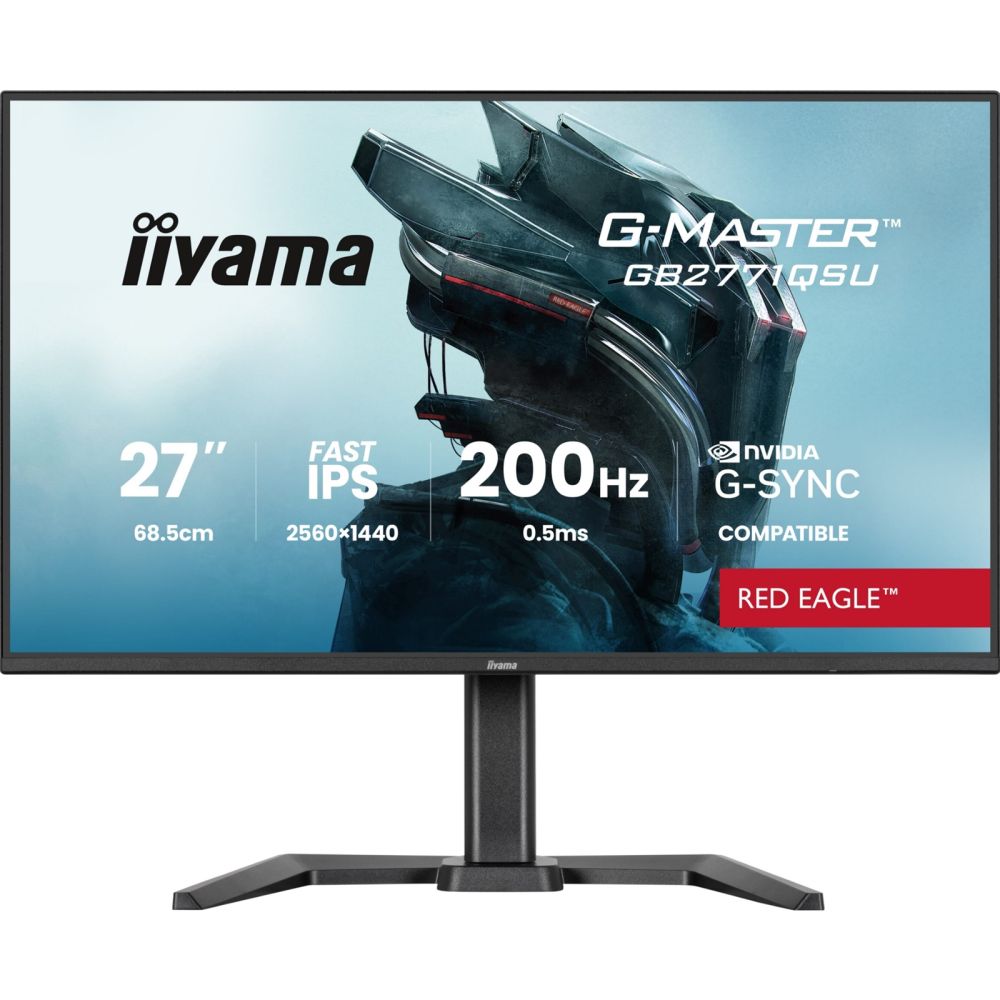
Buy a 27-inch 1440p screen at 144Hz or more, and ignore the 1ms printed on the box. The iiyama G-Master GB2771QSU at around £171.16 inc VAT is the honest sweet spot for most gamers. That "1ms" is a laboratory number measured with a trick that dims your screen, and it is not what your eyes get. Refresh rate, resolution and panel type decide how a monitor actually feels.
Came here for something specific? Straight answers:
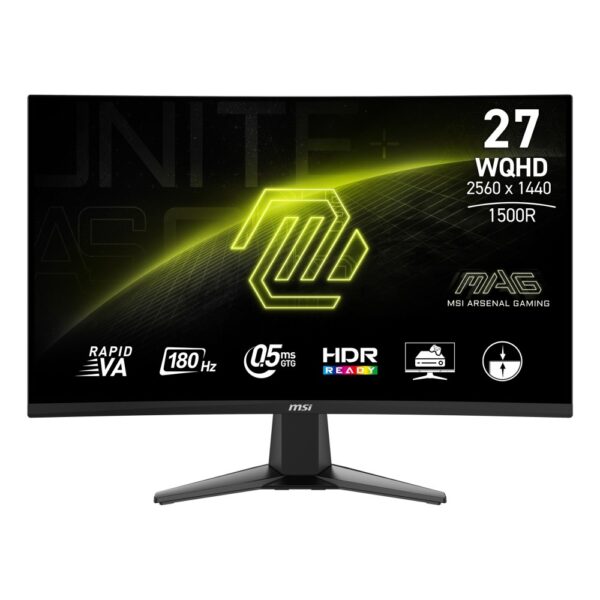
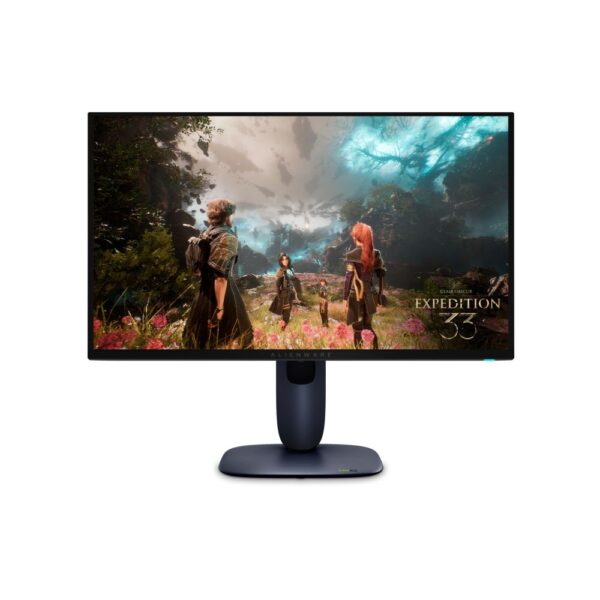
- Best all-round27in 1440p, 144Hz or faster: the iiyama G-Master GB2771QSU or the MSI MAG 27CQ6F
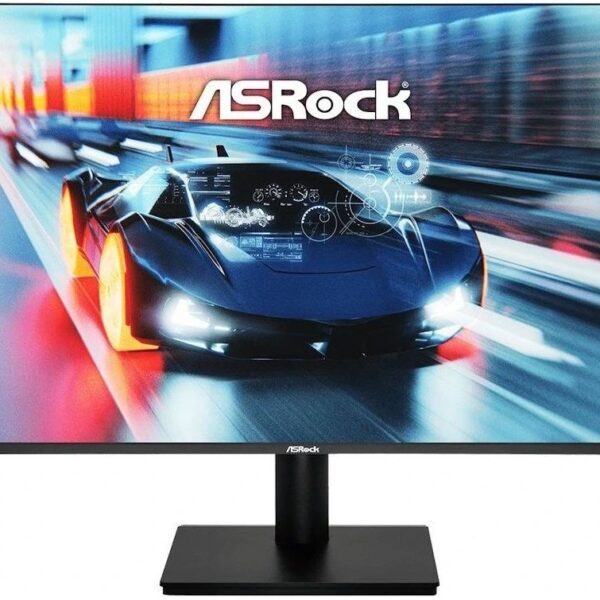
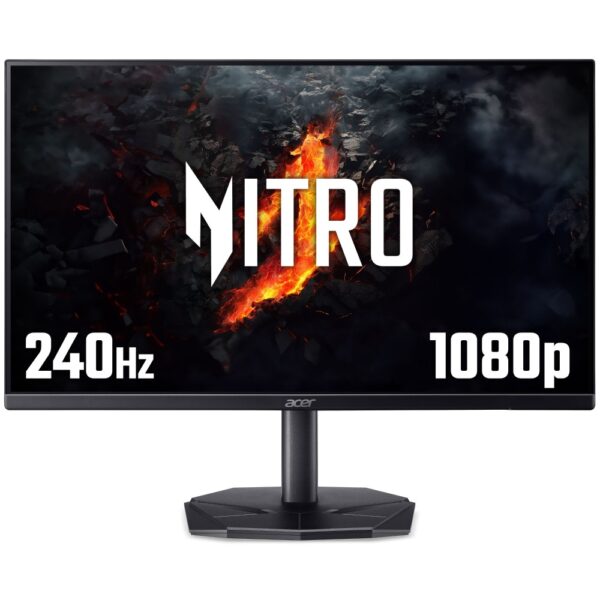
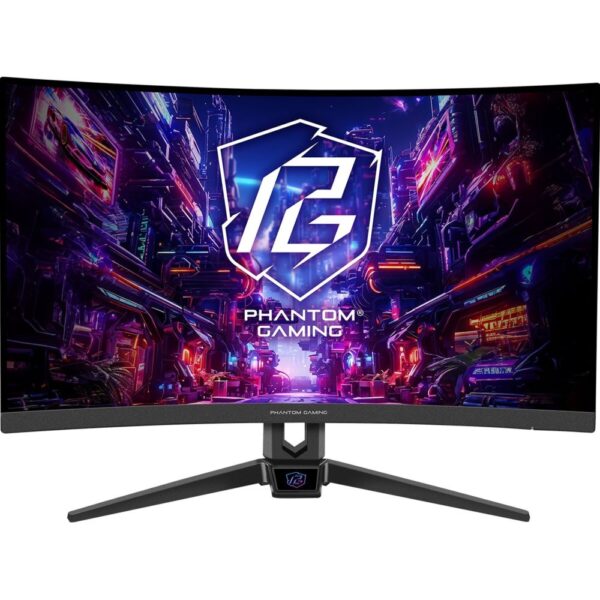
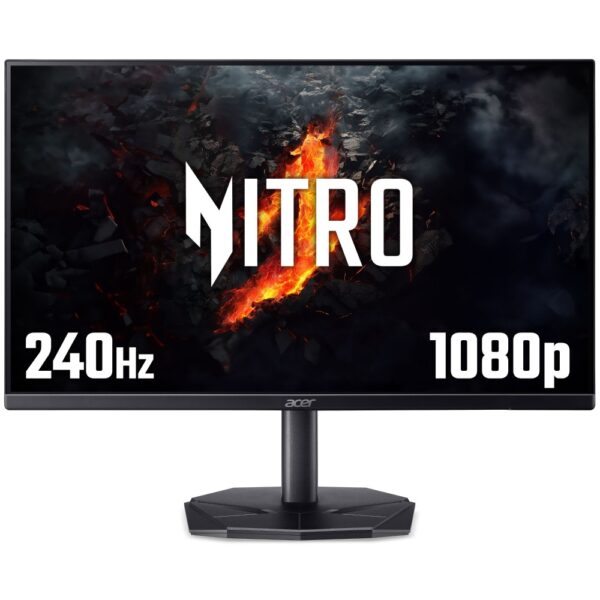
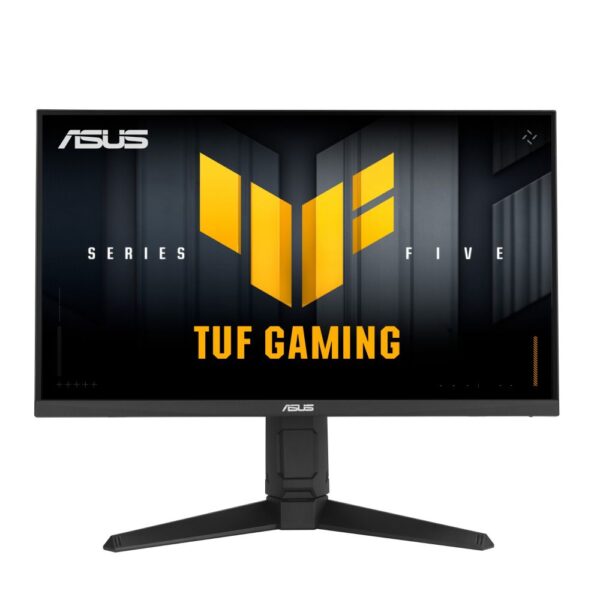
- Budget, competitive1080p and high refresh beats everything else: the Acer Nitro KG240YW3 240Hz at around £117.71 inc VAT, or the ASRock 27in 280Hz
- Cheapest that is still goodASRock 27in 165Hz for about £77.52 inc VAT. Below this, refresh rate starts disappearing
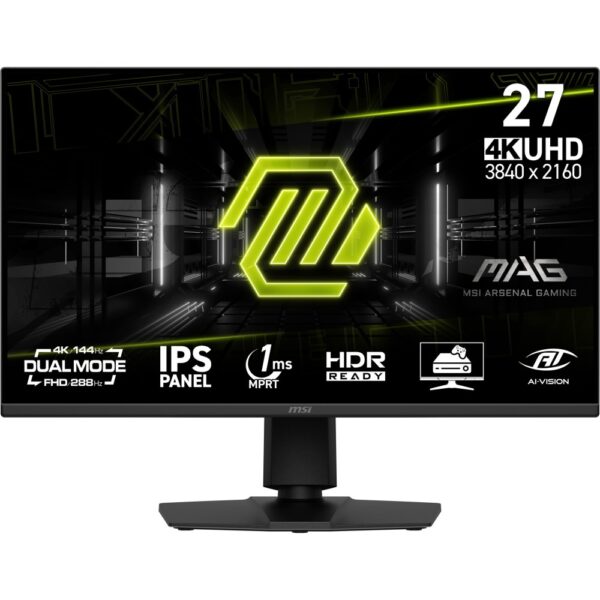
- 4KMSI MAG 275UPD at around £258.47 inc VAT. Check your graphics card first, see the resolution section
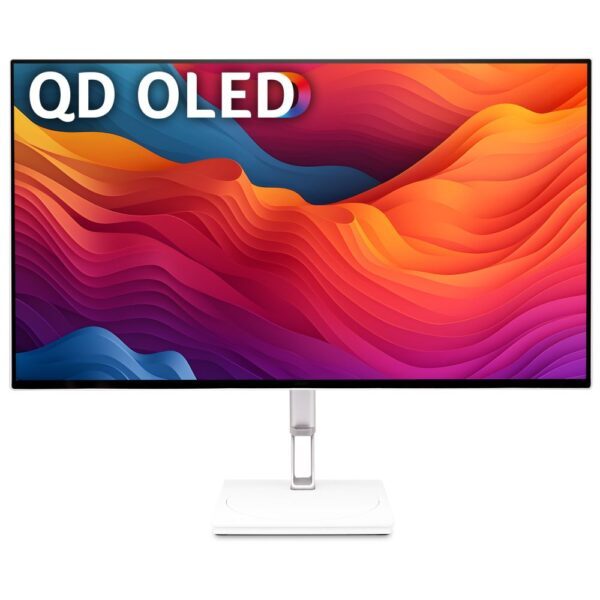
- OLEDAcer CE270UX QD-OLED 240Hz. Read the panel section about text and brightness before you spend
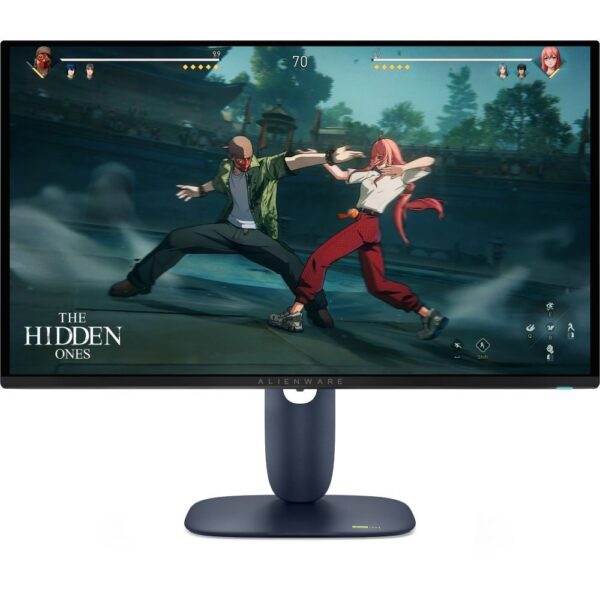
- PS5You need real HDMI 2.1, not DisplayPort: the MSI MAG 275UPD or the Alienware AW2725QF. Why here
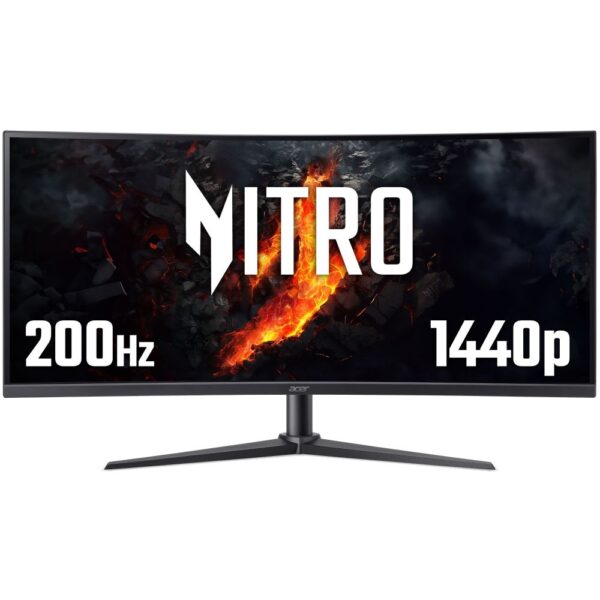
- Ultrawide or curvedAcer 34in WQHD 200Hz curved. Curvature only earns its keep at 34in and above, explained here
Below: what each spec really does, why your 1ms monitor still blurs, what DisplayHDR 400 is worth (almost nothing), the HDMI trap that quietly locks a PS5 to 60Hz, and how to spend a small budget where it counts.
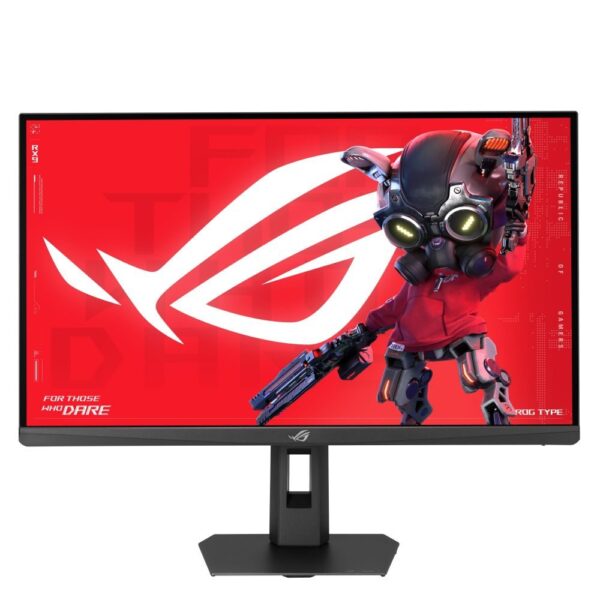
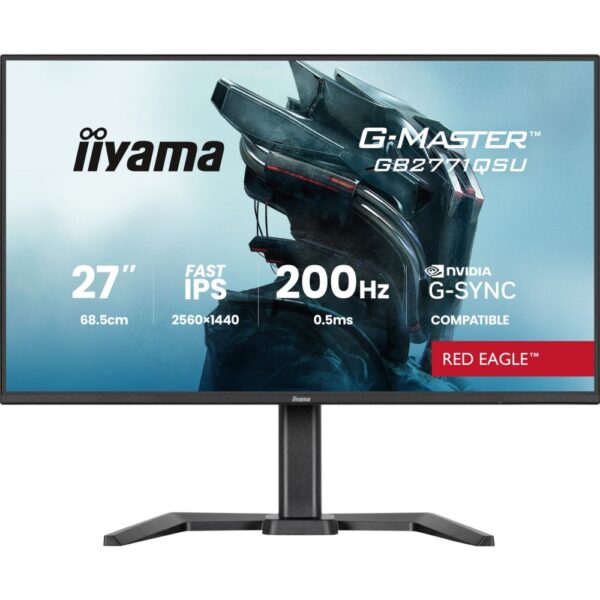
iiyama G-Master GB2771QSU-B1 27″ Gaming Monitor
In stock
£171.16 inc VAT- 27″ QHD gaming monitor with ultra-fast 0.5ms MPRT response time
- 200Hz refresh rate for smooth and responsive gameplay
- NVIDIA G-SYNC compatible for tear-free gaming
- IPS panel technology for superb image quality and vibrant colours
- Black Tuner for enhanced viewing in shadowed areas
Just show me the monitor
Seven screens cover every budget and every kind of player. Prices come live from our own stock.
The five specs that actually decide it
A monitor box lists twenty numbers. Five of them change how the screen feels. The rest are decoration.
| Spec | What it really controls | The number to aim for |
|---|---|---|
| Refresh rate | How often the picture updates. This is what makes a game feel smooth and what shortens the delay between your hand and the screen | 144Hz minimum. 240Hz if you play shooters seriously |
| Resolution | How sharp it is, and how hard your graphics card has to work. Doubling pixels roughly doubles the load | 1440p for most people. 1080p if the budget or the GPU is small |
| Panel type | Colour, contrast, viewing angles and how fast pixels change. IPS, VA or OLED | IPS for value. OLED if you want the best image and can live with its quirks |
| Size and pixel density | How sharp it looks at your desk. The same resolution on a bigger screen is a blurrier screen | 24in for 1080p, 27in for 1440p, 32in for 4K |
| Adaptive sync | Stops the screen tearing when frame rate wobbles. FreeSync and G-Sync Compatible are the same feature now | Any of them. Do not pay extra for the badge |
Response time, "HDR ready", contrast ratios of 3000:1 and the word "gaming" printed on the bezel are the four things on the box that tell you the least.
1080p, 1440p or 4K: match the screen to the graphics card
The pick: 1440p at 27 inches, the iiyama G-Master GB2771QSU or the MSI MAG 27CQ6F. Go 4K only if you own a card that can feed it, like the MSI MAG 275UPD paired with a serious GPU.
Resolution is not really about sharpness. It is about how much work your graphics card has to do. 1440p asks for roughly 78 percent more pixels than 1080p. 4K asks for four times as many. A card that runs a game at 120fps at 1080p can easily drop under 60fps at 4K in the same scene, and a fast monitor fed slow frames is just an expensive slow monitor.
The part almost nobody checks is pixel density. The same resolution looks sharper on a small screen and softer on a big one. That is why a 27-inch 1080p monitor, which sounds like a bargain, is the one purchase people regret most: it spreads the same pixels across a much larger area and the picture looks soft and grainy up close. Roughly:
| Size | 1080p | 1440p | 4K |
|---|---|---|---|
| 24in | Sharp. The esports standard | Very sharp, slightly small text | Wasted. You cannot see the detail |
| 27in | Soft. Avoid | The sweet spot | Sharp, and you will need to scale the text |
| 32in | Bad | Acceptable, starting to soften | Excellent |
If you are still torn between 1440p and 4K, we wrote a whole guide on exactly that argument: QHD vs 4K gaming monitors. And if the graphics card is the weak link, start with the graphics card guide instead. Buying a 4K screen for a mid-range card is spending money in the wrong order.
144Hz, 240Hz, and why your “1ms” monitor still blurs
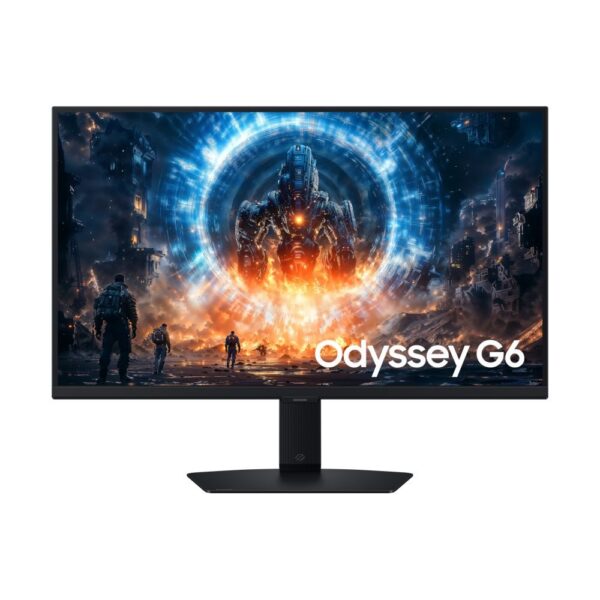
The pick: 144Hz to 180Hz for almost everyone. 240Hz and up only if you play competitive shooters and can actually push the frames, like the Acer Nitro KG270W3 240Hz or the Samsung Odyssey G6 at 350Hz.
The jump from 60Hz to 144Hz is the single biggest upgrade in monitor history. Everything moves like it is greased: the mouse cursor, the camera, the enemy strafing across your screen. The jump from 144Hz to 240Hz is real but far smaller, and the jump from 240Hz to 360Hz is something most people cannot see at all. Each step up also demands frames from your PC. A 240Hz screen fed 90fps behaves like a 90Hz screen.
Now the thing the industry does not advertise. There are two different “response time” numbers, and shops print whichever is smaller:
GtG (grey to grey) measures how fast one pixel changes shade. This is the honest one. Good IPS panels land around 1ms to 4ms, OLED is effectively instant.
MPRT (moving picture response time) measures perceived blur, and it can be forced down by flashing the backlight off between frames. That trick makes the screen noticeably dimmer and can introduce flicker. It is how a budget panel earns a “1ms” sticker.
The floor nobody mentions: blur is mostly caused by how long each frame sits still on the screen, not by pixel speed. At 144Hz every frame is shown for about 7ms, so the blur you see is roughly 7ms of smear no matter what the box says. That is why the only real cure for motion blur is a higher refresh rate.
We are not pretending to be above this. Open our own listing for the ASRock 27in 280Hz and you will see “1ms MPRT” in the specification, because that is what the manufacturer publishes. It is a good, fast, cheap monitor. Just understand that the 1ms is the marketing number, and the 280Hz is the one doing the work.
IPS, VA or OLED: the panel decides the picture
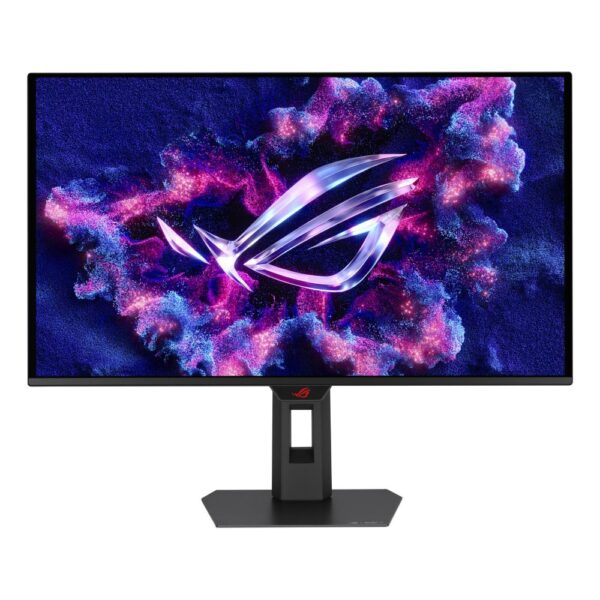
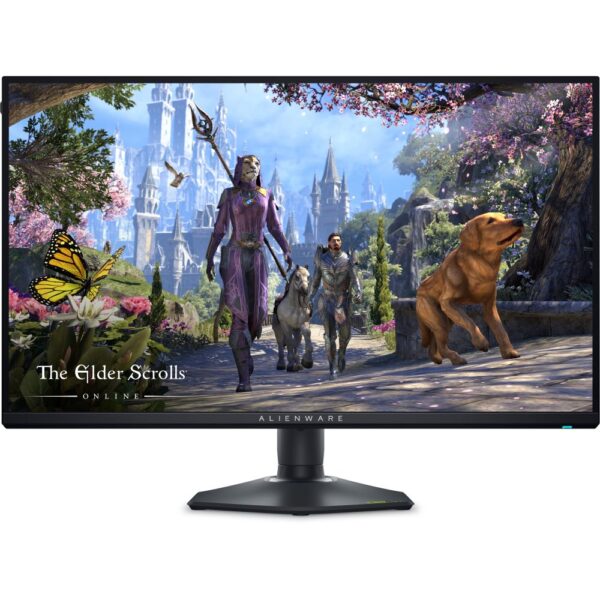
The pick: IPS for value and everyday use. If you want the best image in games and know what you are signing up for, the Acer CE270UX QD-OLED or the Alienware AW2725D.
IPS gives accurate colour, wide viewing angles and fast pixels. Its weakness is contrast: black looks dark grey in a dim room, and you may see a faint glow in the corners. It is the right default for most people.
VA gives much deeper blacks, which looks great in dark games, but pixels move more slowly in dark scenes, which shows up as smearing behind moving objects. Cheap curved monitors are usually VA.
OLED switches each pixel off individually, so black is genuinely black and motion is almost perfectly clean. It is the best gaming image you can buy. It also comes with three catches that shops rarely mention:
Text can look fringed. QD-OLED panels arrange their red, green and blue subpixels in a triangle, while Windows font smoothing was written for a straight RGB stripe. The result is coloured edges on small text. It has improved and it bothers some people not at all, but if you write code or documents all day on the same screen, look at one in person first.
Full-screen brightness drops. An OLED that hits a headline brightness figure in a small highlight cannot hold it across the whole panel. A brightness limiter pulls it back to protect the pixels, so a white document is much dimmer than the specification suggests. In a bright, sunlit room an IPS often looks better.
Burn-in is real but managed. Static things like a taskbar or a health bar can leave a ghost over years. Modern panels shift pixels, dim static logos and run cleaning cycles, and burn-in cover for three years is now normal. Check that the warranty explicitly says burn-in before you buy.
We have made the longer case for OLED separately, including where it beats IPS by a mile: why you should own an OLED monitor. Browse every panel we stock in OLED monitors.
The best budget monitor for competitive play
The pick: the Acer Nitro KG240YW3, a 24-inch 1080p IPS at 240Hz for around £117.71 inc VAT. If you want 27 inches, the Acer Nitro KG270W3 does the same at 240Hz.
Competitive players buy in the opposite order to everyone else. They want frames, not pixels, so the money goes into refresh rate and the resolution stays at 1080p. That is not being cheap. It is the correct answer: at 1080p a mid-range card can push 240fps, and 240 real frames on a 240Hz screen beats a beautiful 4K panel running at 70.
There is a reason the professionals are still on 24-inch screens. A 24in panel fits inside your central vision, so you see the whole playfield without moving your eyes or your head. On a 32in screen the edges of the map sit in your peripheral vision, and information there is noticeably slower to react to. Bigger is not better when reaction time is the product.
Under about £70 the compromises arrive quickly: refresh rate falls, the stand only tilts, and the panel is often a slow VA. The ASRock 27in 165Hz at around £77.52 inc VAT is close to the floor of what we would honestly call a gaming monitor.
HDR: why “HDR400” on the box means almost nothing
HDR is the one spec where the label actively lies to you. The badge is the VESA DisplayHDR certification, and the number is peak brightness in nits. Here is what the tiers really require:
| Badge | What it guarantees | Worth paying for? |
|---|---|---|
| DisplayHDR 400 | 400 nits peak, and no local dimming at all. The whole backlight brightens together, so dark scenes just go grey | No. This is HDR in name only |
| DisplayHDR 600 | 600 nits and edge-lit dimming. You start to see an actual difference | Sometimes, if it costs nothing extra |
| DisplayHDR 1000 | 1000 nits with full-array or Mini-LED dimming zones. Bright highlights next to real shadow | Yes. This is the first tier that delivers what HDR promises |
| True Black 400 and up | The OLED tier. Per-pixel light, so contrast is effectively infinite even at modest brightness | Yes, and it beats HDR1000 LCDs in a dark room |
So a monitor advertised as “HDR” for £120 is telling you nothing useful. If HDR matters to you, look for DisplayHDR 1000, Mini-LED, or an OLED. Otherwise ignore the badge entirely and spend the money on refresh rate. A good SDR picture beats a bad HDR one every day of the week.
Buying a monitor for a PS5
The pick: the MSI MAG 275UPD, a 27in 4K panel with real HDMI 2.1 at around £258.47 inc VAT or the Alienware AW2725QF if the budget stretches.
Console buyers walk into a trap that does not exist on PC. A PS5 has no DisplayPort. It connects over HDMI only. Most gaming monitors put their best signalling on DisplayPort and fit older HDMI 2.0 ports, which top out around 4K at 60Hz. So you can buy a superb 240Hz PC monitor, plug a PS5 into it, and be locked to 60Hz forever, with the monitor doing nothing wrong.
What a PS5 actually needs:
A true HDMI 2.1 port, not just the words on the box. Some ports carry the HDMI 2.1 name with old 18Gbps bandwidth, which is not enough for 4K at 120Hz. Look for the monitor to state 4K 120Hz over HDMI, or a 48Gbps port.
VRR support over HDMI. The PS5 syncs its refresh rate between roughly 48Hz and 120Hz, which is what smooths out the dips when a game cannot hold its target.
1440p works, but only properly on HDMI 2.1. The PS5 supports 1440p output, and it will do it at 120Hz, but variable refresh at 1440p needs an HDMI 2.1 display. On an older port you get the resolution and lose the smoothing.
Everything we recommend in this section states HDMI 2.1 in its own specification, which we checked rather than assumed.
Curved, ultrawide and how big to go
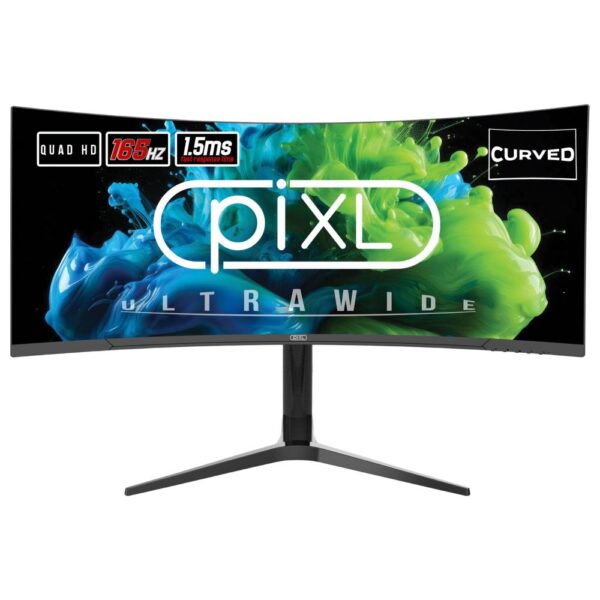
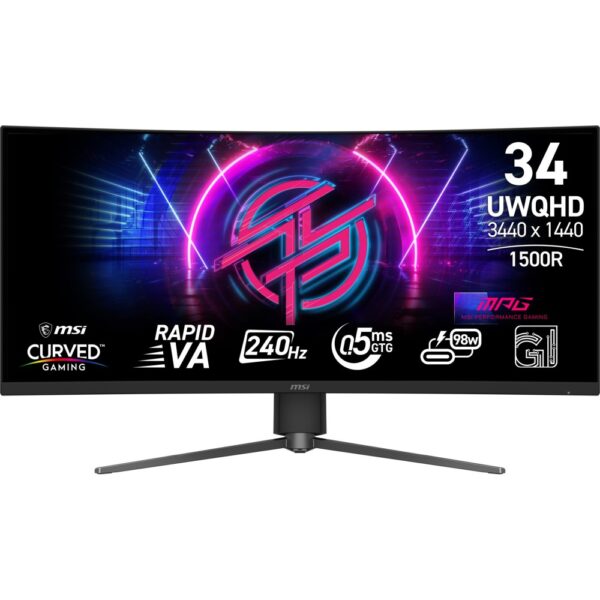
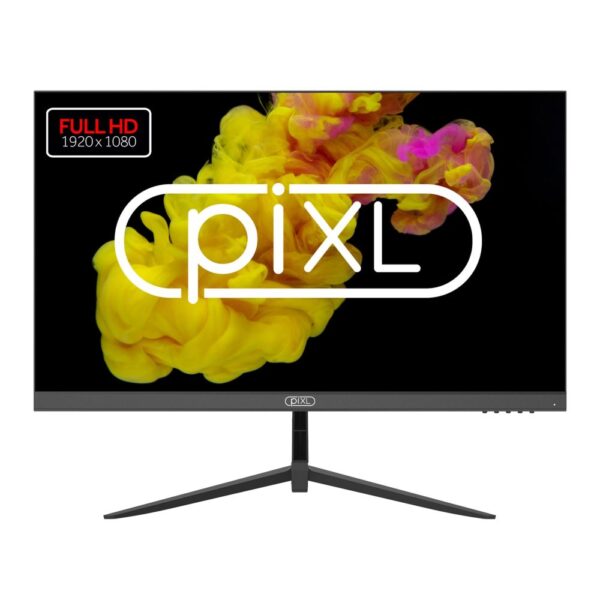
The pick: the Acer 34in WQHD 200Hz curved if you want the cinematic thing, or the piXL 34in ultrawide as a cheap way in.
Curved screens are sold as immersion and mostly deliver geometry. The curve exists so that the edges of a very wide screen are the same distance from your eyes as the middle. On a 24 or 27-inch 16:9 monitor there is barely any edge to fix, so the curve is decoration, and it can make straight lines look bent if you do design work. On a 34-inch ultrawide it genuinely helps, because the edges really are far away.
The number on a curved monitor, 1800R or 1000R, is the radius of the circle it is a slice of, in millimetres. Smaller number, tighter curve. 1000R is aggressive and made to wrap around you at close range. 1800R is gentle.
Ultrawide is a trade, not an upgrade. You get a wider field of view in games that support it and a genuinely better desktop for work with two windows side by side. In return, some competitive games stretch or letterbox, video is bordered, and a 3440×1440 screen is about a third more pixels to push than 1440p. Browse the range in ultrawide monitors and curved monitors.
Quick answers
Work in this order: refresh rate (144Hz or more), then resolution matched to your graphics card (1440p suits most people), then panel type (IPS for value, OLED for the best picture), then size matched to resolution (27in for 1440p). Ignore the response time on the box and ignore an HDR badge below DisplayHDR 1000.
1440p for most people, because it doubles as a sharpness upgrade and leaves your graphics card enough headroom for high frame rates. 4K is worth it at 32 inches and above, and only with a card strong enough to drive it. Buying a 4K screen and then running games at low settings to cope is the wrong way round.
Yes. The big leap is from 60Hz to anything above 100Hz, and 120Hz sits firmly in the good zone. 144Hz is the common sweet spot and usually costs the same. Above 240Hz the returns get small unless you play competitive shooters at a high level.
Far less than the marketing suggests. A 1ms MPRT figure is usually achieved by strobing the backlight, which dims the screen. Real motion clarity comes from refresh rate, because blur is mostly caused by how long each frame stays on screen. Buy the higher refresh rate, not the smaller response number.
For the image, yes, it is the best you can buy: perfect blacks and effectively instant pixels. Be aware of coloured fringing on small text, lower full-screen brightness than the headline figure, and burn-in over years with static elements. Buy one with an explicit burn-in warranty.
One with a genuine HDMI 2.1 port, because the PS5 has no DisplayPort. Without it you are capped near 4K 60Hz and you lose variable refresh. A 27in 4K panel with HDMI 2.1 is the sweet spot for a PS5, and 1440p works too if the display takes VRR over HDMI.
On a 34in ultrawide, yes, because the curve brings the far edges back to a sensible distance. On a 24in or 27in 16:9 screen the benefit is mostly imaginary, and a flat panel of the same quality is usually cheaper. Curve radius is written as 1000R or 1800R, where the smaller number is the tighter curve.
Match size to resolution: 24in for 1080p, 27in for 1440p, 32in for 4K. A 27in 1080p monitor is the classic mistake, because the pixels are spread too thin and the image looks soft. Competitive players deliberately stay at 24in so the whole screen sits inside their central vision.
You want adaptive sync of some kind, and these days nearly every gaming monitor has it. The old distinction has mostly collapsed: most FreeSync monitors are also validated as G-Sync Compatible and work with either brand of graphics card. Do not pay a premium for the badge alone.
A 24in 1080p IPS panel at 180Hz to 240Hz. It gives you the frames, the low input lag and the compact field of view that competitive play rewards, and it costs around a hundred pounds. Spend the difference on the graphics card that has to feed it.
How we know
Hardvance is a UK hardware retailer, and we sell every monitor named here. That is precisely why this guide tells you the 1ms on our own product pages is a marketing figure, that a cheap HDR badge is worthless, and that a 27-inch 1080p screen is the purchase people regret. Panel behaviour, the HDR tiers and the HDMI requirements are taken from VESA, the panel makers and independent display testing, linked below. The HDMI 2.1 claims for the PS5 picks were checked against each product specification rather than assumed. Prices are pulled live from our stock, so they move.
Sources and further reading
Related guides
- QHD vs 4K Gaming Monitors: Which One Should You Buy?
- Why You Should Own an OLED Monitor in 2026
- Best Graphics Card in 2026: The 8GB Trap
- Best Gaming CPU in 2026: Why Ryzen X3D Still Wins
- AMD Ryzen CPUs Explained: X3D, X, F and G
- How to Choose PC Components in 2026
- How to Build a PC in 2026: Step by Step
- What white spots, lines and dead pixels on a screen mean
About Hardvance Team
The Hardvance hardware team builds, upgrades and troubleshoots custom PCs every day. Our buying guides are practical and free of hype, drawn from hands-on experience across AMD and Intel platforms, and focused on the parts that genuinely matter for your build and your budget.
View all posts by Hardvance Team