
Copy and paste on a Chromebook works just like any other laptop once you know the keys, and there are a few extra tricks, including how to right-click, paste without messy formatting, and reuse a clipboard history. Here is everything in one place.
Last updated: June 2026 · Hardvance hardware team
The fast way: highlight what you want, press Ctrl + C to copy and Ctrl + V to paste. Use Ctrl + X to cut. To right-click, tap the touchpad with two fingers and choose Copy or Paste.
⌨️ Copy and paste with the keyboard
This is the fastest way and it is identical to Windows:
- Copy: highlight the text, then press Ctrl + C.
- Paste: click where you want it, then press Ctrl + V.
- Cut: Ctrl + X removes the text and copies it.
- Undo: pasted in the wrong place? Ctrl + Z undoes it.
🖱️ Right-click to copy and paste
Prefer a menu? You need to right-click, and on a Chromebook there is no separate right mouse button. Instead, tap the touchpad with two fingers, or hold Alt and click with one finger. A menu appears with Copy, Cut and Paste. This same two-finger tap is the answer to the common question “how do I right-click on a Chromebook?”
🧹 Paste without formatting
Copying from a website often drags along fonts, colours and links you do not want. To paste clean, plain text that matches your document, press Ctrl + Shift + V instead of the normal paste. It is one of the most useful shortcuts on any computer.
🖼️ Copy images and files
To copy a picture from a web page, two-finger tap it and choose Copy image, then paste it into a document or message with Ctrl + V. To copy files, open the Files app, select a file, press Ctrl + C, open the destination folder and press Ctrl + V. Two-finger tap works there too.
📋 Use the clipboard history
Here is the trick most people miss: ChromeOS keeps a clipboard history of your last few copied items. Press Search + V (the Search key is where Caps Lock sits on other laptops) to open it, then pick which item to paste. It is perfect when you are copying several things at once.
👆 On a touchscreen
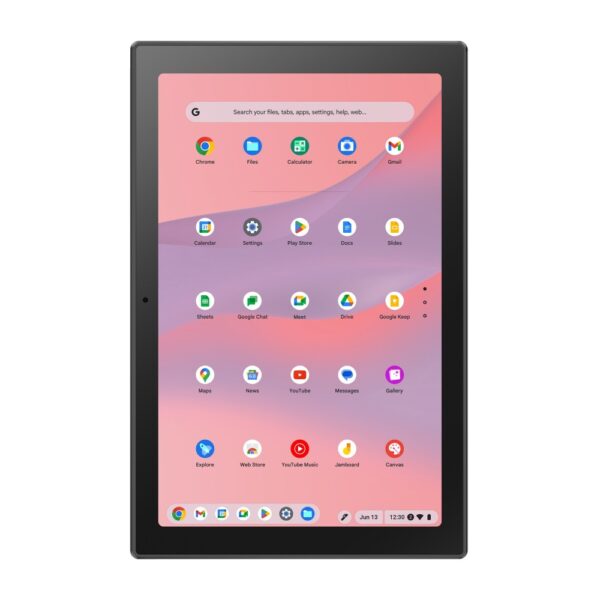
On a touchscreen Chromebook, press and hold a word until it highlights, drag the blue handles to select more, then tap Copy. To paste, press and hold where you want it and tap Paste. No keyboard required.
Want to know what else your Chromebook can do, or whether it is the right laptop for you? Read What Is a Chromebook, and Is It Worth It in 2026?, or browse our range below.
Pro tip: make Ctrl + Shift + V your default when pasting from the web. It strips out stray formatting so your notes and documents stay tidy, and it saves a lot of cleaning up later.
Highlight the text, press Ctrl + C to copy, click where you want it and press Ctrl + V to paste. Use Ctrl + X to cut.
Tap the touchpad with two fingers, or hold Alt and click with one finger. A menu with Copy, Cut and Paste appears.
Press Ctrl + Shift + V instead of Ctrl + V. This pastes plain text that matches your document instead of carrying over fonts and colours.
Yes. Press Search + V to open the clipboard and choose from your last few copied items.
Copy (Ctrl + C) leaves the original in place. Cut (Ctrl + X) removes the original and holds it ready to paste somewhere else.
Make sure you fully highlighted the text first, then try the keyboard shortcuts. If a website blocks copying, try selecting a smaller section, or restart the Chrome tab.
About Hardvance Team
The Hardvance hardware team builds, upgrades and troubleshoots custom PCs every day. Our buying guides are practical and free of hype, drawn from hands-on experience across AMD and Intel platforms, and focused on the parts that genuinely matter for your build and your budget.
View all posts by Hardvance Team