Taking a screenshot on a Mac is quick once you know the keys, and macOS gives you several ways to do it, from the whole screen to a single window or a precise selection. Here is every method in 2026, plus where the files end up and how to record your screen.
Last updated: June 2026 · Hardvance hardware team
Short answer: press Cmd + Shift + 3 to capture the whole screen, or Cmd + Shift + 4 to drag and select an area. Use Cmd + Shift + 5 for the full toolbar and screen recording. Screenshots save to your Desktop by default.
📸 Full-screen screenshot
To capture everything on screen, press Cmd + Shift + 3. You will hear a shutter sound and a small thumbnail appears in the bottom-right corner, which you can click to mark up straight away.
✂️ Capture a selected area
Press Cmd + Shift + 4 and the pointer becomes a crosshair. Drag a box around the part of the screen you want, then release to capture it. Hold Space while dragging to move the selection, or press Esc to cancel.
🪟 Capture a single window
Press Cmd + Shift + 4, then tap the Space bar. The crosshair turns into a camera icon. Move it over any open window and click to capture just that window, cleanly, with a tidy drop shadow.
🎬 The screenshot toolbar and screen recording
For full control, press Cmd + Shift + 5. This opens the Screenshot toolbar, where you can choose full screen, window or selection, set a timer, pick where files save, and switch to screen recording to capture video with optional microphone audio. It is the one shortcut that does everything.
📋 Copy a screenshot instead of saving it
Want to paste a screenshot straight into a message or document rather than saving a file? Add Control to any shortcut. For example, Cmd + Control + Shift + 3 copies the whole screen to the clipboard, ready to paste with Cmd + V.
📂 Where Mac screenshots are saved
By default, screenshots save to your Desktop as PNG files named with the date and time. To change the location, open the toolbar with Cmd + Shift + 5, click Options and pick a new save folder, such as Documents or the clipboard. If your screenshot shortcut is not working, check it is still enabled under System Settings, then Keyboard, then Keyboard Shortcuts, then Screenshots.
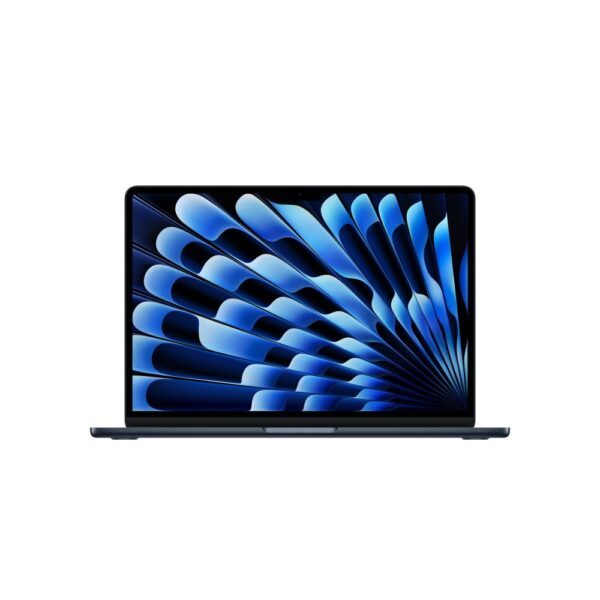
New to macOS, or deciding which Mac to buy? Read our full guide, Which MacBook Should You Buy in 2026?, or browse our current range below.
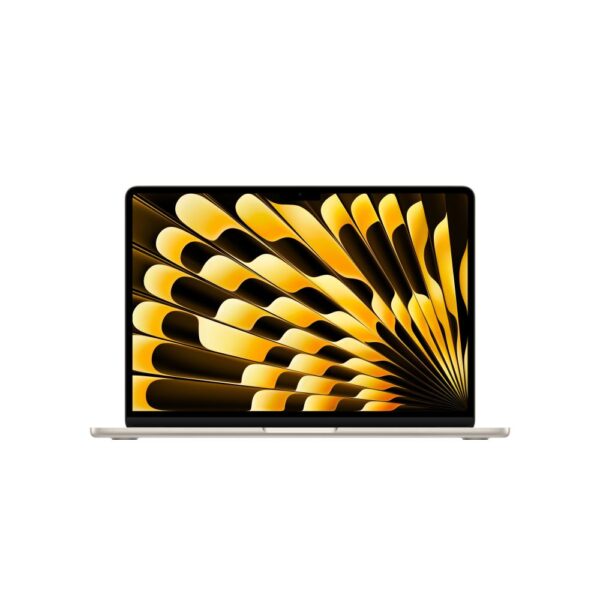
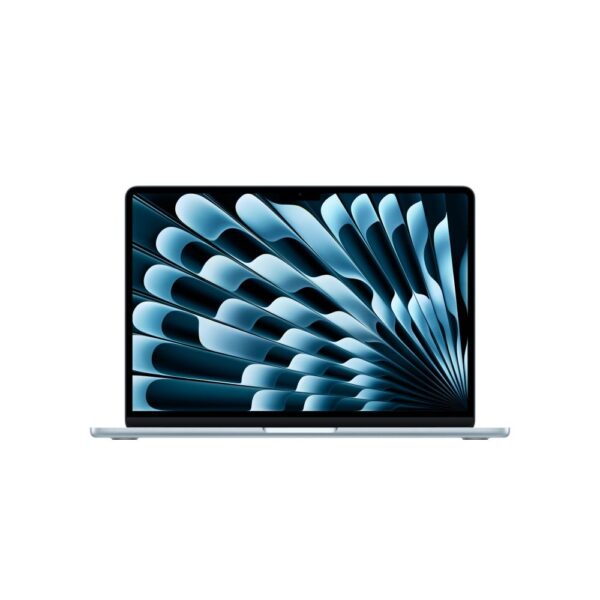
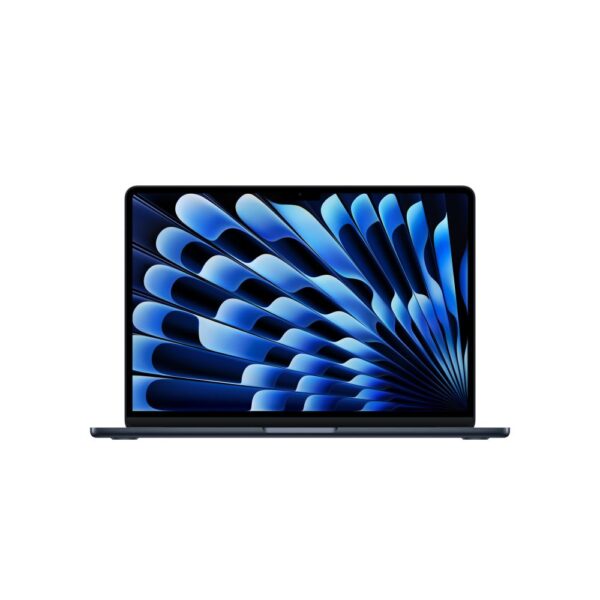
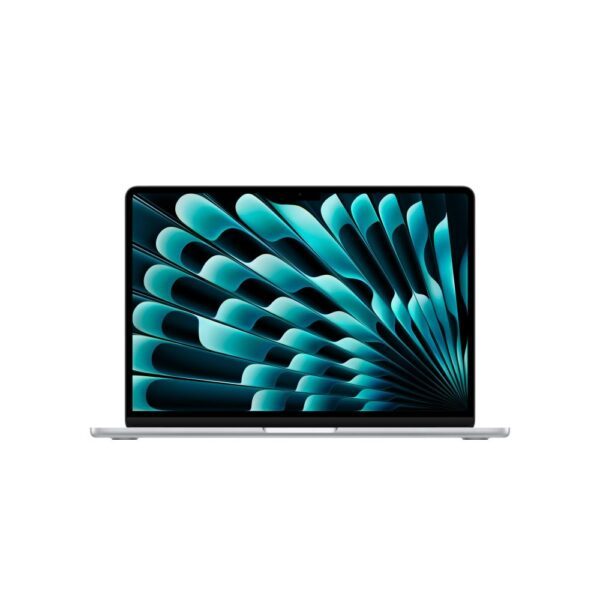
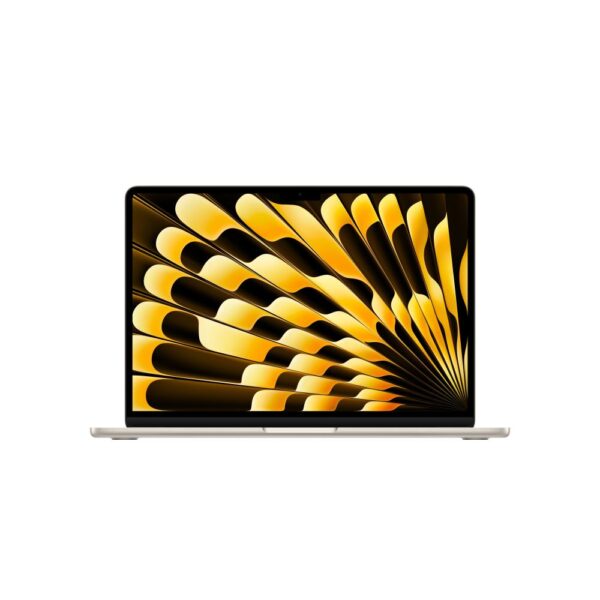
Apple MacBook Air M5, 13.6″, 16GB RAM, 512GB SSD, Wi-Fi 7, macOS, Tahoe Blue
In stock
Pro tip: click the thumbnail that pops up in the corner right after a capture to crop, annotate, rotate or share it before it saves to the Desktop. It is the fastest way to tidy a screenshot without opening another app.
Press Cmd + Shift + 3 to capture the whole screen, or Cmd + Shift + 4 to drag and select an area. Use Cmd + Shift + 5 for the toolbar and screen recording.
They save to the Desktop by default, as PNG files named with the date and time. You can change the location in the Cmd + Shift + 5 toolbar under Options.
Press Cmd + Shift + 4, then tap the Space bar so the pointer becomes a camera, then click the window you want to capture.
Add Control to the shortcut. For example, Cmd + Control + Shift + 4 copies a selected area to the clipboard, ready to paste with Cmd + V.
Press Cmd + Shift + 5, switch to the record option, choose the whole screen or a portion, then click Record. Recordings save to the Desktop by default.
Check the shortcut is enabled under System Settings, then Keyboard, then Keyboard Shortcuts, then Screenshots. A few apps also block screenshots of protected content.
About Hardvance Team
The Hardvance hardware team builds, upgrades and troubleshoots custom PCs every day. Our buying guides are practical and free of hype, drawn from hands-on experience across AMD and Intel platforms, and focused on the parts that genuinely matter for your build and your budget.
View all posts by Hardvance Team