Wireless Access Points: What a WiFi Access Point Actually Needs Before It Works
An access point is the bit of a router that makes the Wi-Fi, sold on its own so you can mount it on the ceiling where the signal is actually needed. The device is the easy part. What catches people out is that it usually has no plug: it takes its power down the network cable, so you need something at the other end to send that power.
Find yourself here:
- You have a dead room and a cable to itAn access point is exactly right. Sort the power first
- You have no cable to that roomDo not buy one yet. Read this instead
- You are buying one access pointYou do not need a controller. Why
- You are covering a whole house or officeThen the controller starts to earn its keep. UniFi or Omada
- You want it outsideBuy a proper outdoor one, not an indoor one under a soffit. The shapes explained
- You searched for phone settingsAccess Point Name is a different thing entirely. That is your mobile data setup, not this.
We range 96 access points and we still tell people to sort the power first, because an access point with nothing to power it is an ornament.
What is a wireless access point?
A wireless access point is the Wi-Fi radio out of a router, sold as its own box. It has no broadband connection, no firewall and usually no way of handing out the IP addresses your devices need. You feed it an ethernet cable and it turns that wired connection into Wi-Fi for the area around it.
Your router already does this. So why buy a separate one? Because your router is wherever the phone line or the fibre comes in, and that is almost never the middle of your home. Ours is in a cupboard by the front door. Wi-Fi from a cupboard by the front door is a bad idea, and no amount of aerials on the router fixes it.
A WiFi access point moves the radio to where you actually sit. Put one on the landing ceiling and every room upstairs gets a strong, close signal instead of a weak one that has crossed two brick walls.
You will see the term used for two other things, so a quick word on both. In business networks, an access point is one of many identical units all broadcasting the same network name, which is how big buildings get seamless coverage. And on your phone, Access Point Name (APN) means your mobile data settings from Vodafone, Lebara or whoever. Same words, nothing to do with the box in this article.
Wi-Fi extender or access point: which is better?
The access point wins on results every time. The extender wins when you cannot run a cable. That is the whole comparison, and everything else is detail.
Here is the difference in plain terms. An extender listens to your router over Wi-Fi, then repeats it. It is talking and listening on the same radio, so roughly half your speed disappears in the process, and it can only repeat what it can hear. Put it in the dead spot and it has a weak signal to repeat, so you get weak Wi-Fi with extra steps.
An access point gets its data over a cable. Nothing is repeated, nothing is halved. It gives out the full speed of whatever it is plugged into.
So be honest with yourself about the cable. If there is an ethernet socket in that room, or you can get one there, buy an access point. If you genuinely cannot run a cable and cannot face the disruption, a powerline adapter is usually the better second choice, because it at least carries the data over your mains wiring rather than repeating a weak signal. We compared all four approaches in our guide to getting strong Wi-Fi in every room.
One thing people ask a lot: can you use an old router as an access point? Yes, on most models. Turn off its DHCP server, give it a fixed address on your network, and plug your cable into one of its LAN ports rather than the WAN port. It works, it is free, and it is worse than a real access point, because a router is a box designed to sit on a shelf, not a disc designed to sit on a ceiling.
How does a wireless access point get power? PoE, explained
Most of them have no plug at all. They take power down the same ethernet cable that carries the data, which is called Power over Ethernet, or PoE. This is the single most common thing people miss when they order one, and it is why an access point can turn up and simply not switch on.
It makes sense once you picture the install. The whole point is to put the thing on a ceiling. There is no socket on your ceiling. So the cable does both jobs.
You have two ways to supply that power:
- A PoE switch. A network switch where some or all of the ports push power out. Plug the access point in and it wakes up. If you are fitting more than one, this is the tidy answer. Ours start around for a five-port model, and there is a full range of PoE switches.
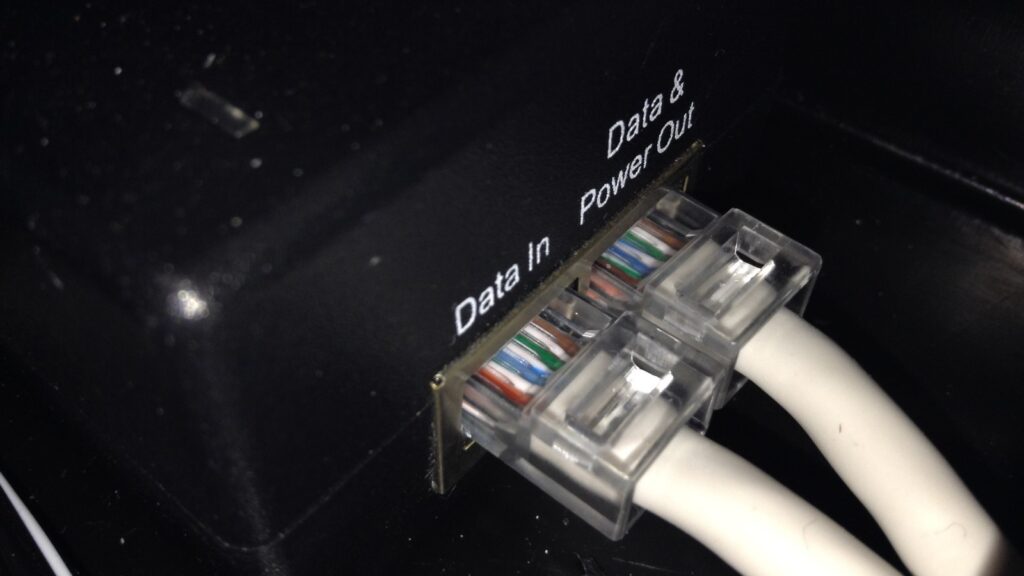
- A PoE injector. A small block that sits between your existing switch and the access point and adds power to the line. Cheaper if you only have one access point. A TL-POE160S.
Check which PoE standard the access point wants, because they are not all the same. The original standard, 802.3af, delivers up to 15.4W at the port. PoE+, which is 802.3at, goes up to 25.5W. The newer 802.3bt goes to 51W or 71.3W depending on type. A modern Wi-Fi 6 or Wi-Fi 7 access point with several radios usually wants PoE+ rather than the original standard, so a very old PoE switch may power it but leave it running in a reduced mode.
A few access points do come with a mains adapter, and a few take power either way. If you are mounting on a ceiling, assume PoE and buy for it.
What else you have to buy with a WiFi access point
This is the part the product pages skip, and it is the reason people end up making two orders instead of one. Here is the whole shopping list, in the order you will need it.
- The cable run. Cat5e is enough for gigabit and costs less. Cat6 gives you headroom for multi-gigabit access points later. If the cable is going through a loft, a riser or a wall cavity, buy cable with the right fire rating for that space rather than a patch lead off a desk. Our Cat6 cables are sorted by length.
- The power. A PoE switch or an injector, as above. Do not assume the access point comes with one. A few include a small injector in the box, most do not, so check before you order.
- Somewhere for it to plug in. If your router only has four LAN ports and they are full, you need the switch anyway.
- The mount. Ceiling access points ship with a bracket. Whether it suits your ceiling is another matter, and plasterboard needs the right fixings.
There is one more thing, and it is not a purchase. Your router has to stay in charge of the network. An access point does not hand out addresses. If your broadband box is doing that job, leave it doing that job and simply plug the access point into it. If you are adding your own router as well, put the provider’s box into modem or bridge mode so you do not end up with two devices arguing over the same network. That argument is the source of a lot of the “it connects but there is no internet” posts you will find online.
None of this is difficult. It is just more than one box, and knowing that in advance saves you a week of waiting for a second delivery.
Do you need a controller? UniFi, Ubiquiti and TP-Link Omada access points
If you are buying one access point, you do not need a controller. Buy the access point, set it up from the phone app, and you are finished. This is worth saying clearly, because both of the big brands market themselves as systems and it makes a single purchase look far more complicated than it is.
A controller is software that manages several access points as one network. It pushes the same settings to all of them, handles firmware updates, and lets a device hand over from one unit to the next as you walk around. You can run it as free software on a PC, on some of the brands’ routers, or on a small dedicated box. It starts to earn its place at three or four access points. At one, it does nothing you will notice.
So which brand? Both work. The people who own them say so, and the argument between them is about money and habit rather than whether the Wi-Fi is any good.
We went and read the busiest recent thread on the subject, a 92-comment discussion on r/HomeNetworking from someone who described themselves as a casual user and did not want to babysit a network. The replies were overwhelmingly pro-UniFi, and specifically about being left alone: one owner had four access points running untouched for five years across a relative’s house, another had UniFi access points still working in the same spots after twelve years. The most quoted advantage was not speed. It was that it keeps running.
The counter-argument in the same thread was money, put plainly by one commenter: Omada is just as good, and cheaper, and people pick UniFi because it is what they learned. There was also a warning we thought was fair, from someone who started with one access point and ended up with a gateway, a switch, an NVR (the box that records the cameras), four access points, seven cameras and a doorbell. Once you are inside a system, it is easy to keep buying.
What we would tell you across the counter:
- One access point, a normal house: buy on price and shape. TP-Link Omada gives you more for the money, and a single unit runs standalone with no controller at all.
- Three or more, and you want to forget about it: Ubiquiti UniFi has the better track record for being left alone, and the app is the easiest of the two to live with.
- A pub, office, school or holiday let: either, but pick one and stay in it. Mixing brands means two apps and two firmware schedules, and there is no benefit.
Cisco access points also come up in searches. They are enterprise kit sold with enterprise licensing, and for a home or a small office they are the wrong tool at the wrong price. Our access point range covers the sensible middle.
Ceiling, wall plate or outdoor: picking the shape
The shape decides where the signal goes, so it matters more than the spec sheet.
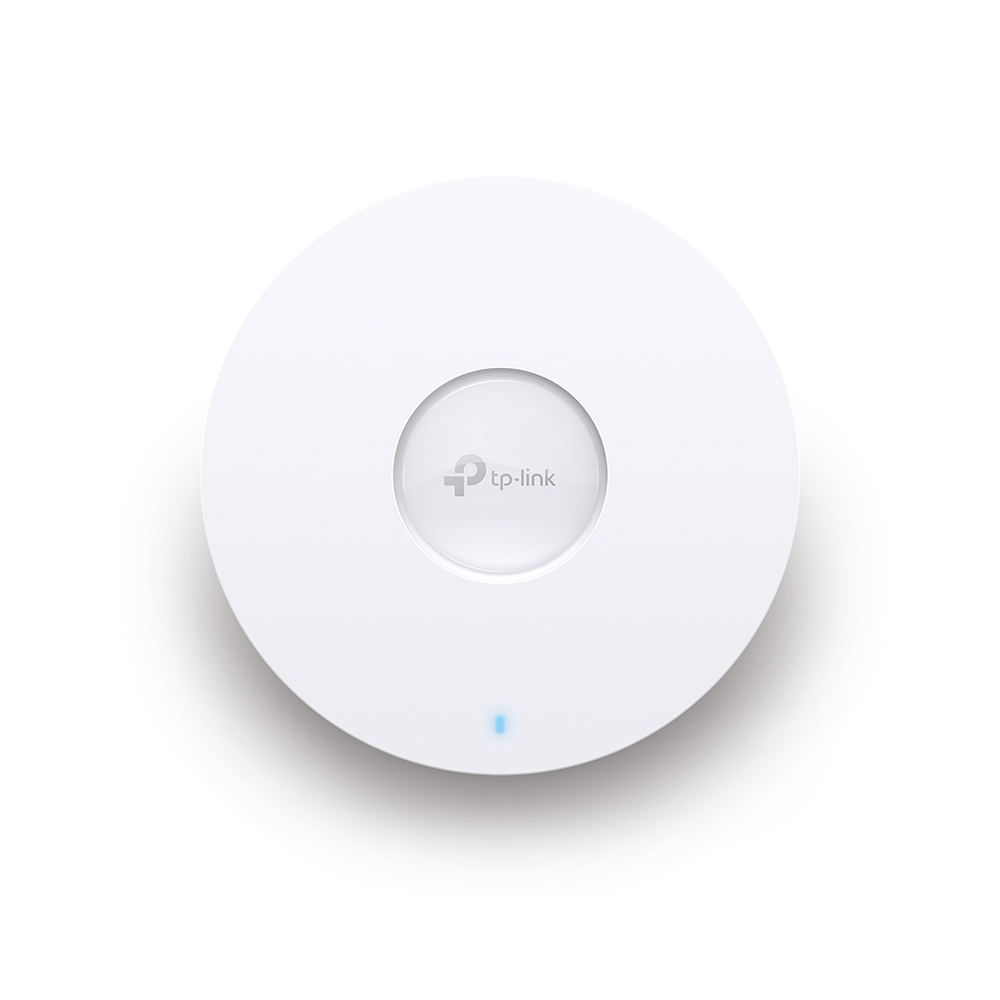
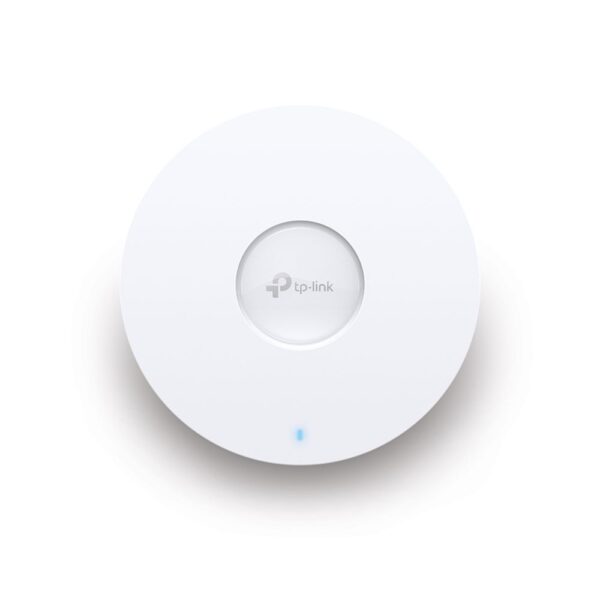
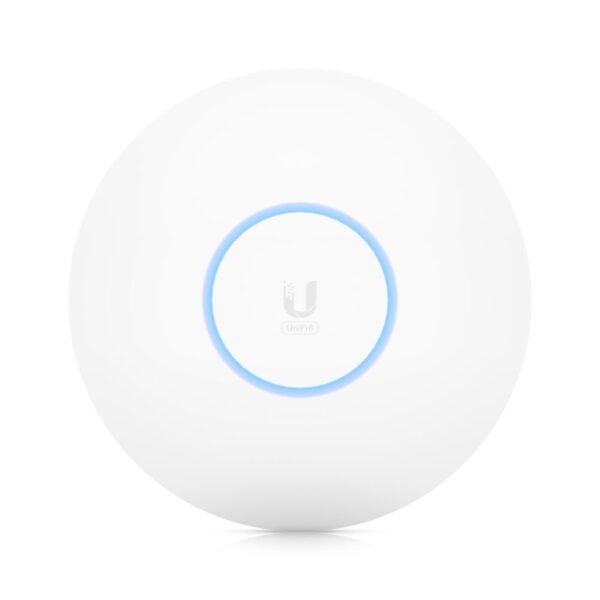
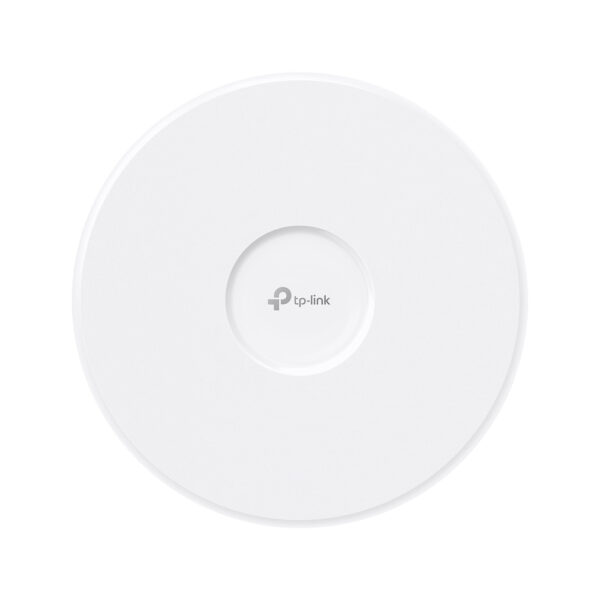
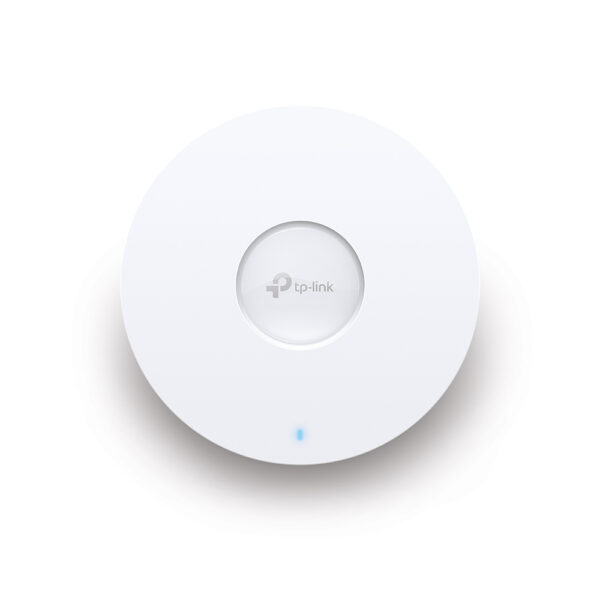
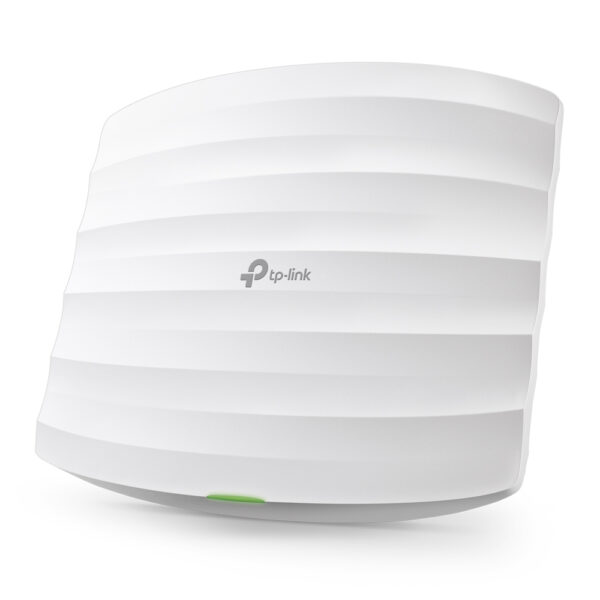
Ceiling mount. A flat white disc, roughly the size of a smoke alarm. It sprays signal downwards and outwards, which is exactly what you want in a house or an office floor. If you have a choice, this is the one. Ours start at about for a Wi-Fi 6 model, and the Wi-Fi 7 version.
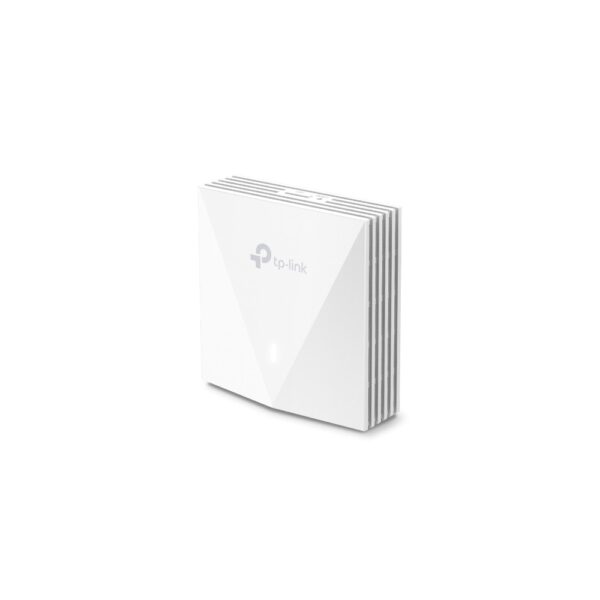
Wall plate. Replaces a network socket in the wall and sits flush, often with a pass-through ethernet port or two on the front. Made for hotel rooms, student flats and anywhere a ceiling install is not happening. Coverage is one room rather than a floor, so plan on one per room.
Desktop or shelf. A small box that sits on furniture. Easiest to fit, worst coverage, because it is at the wrong height and surrounded by things that absorb signal.
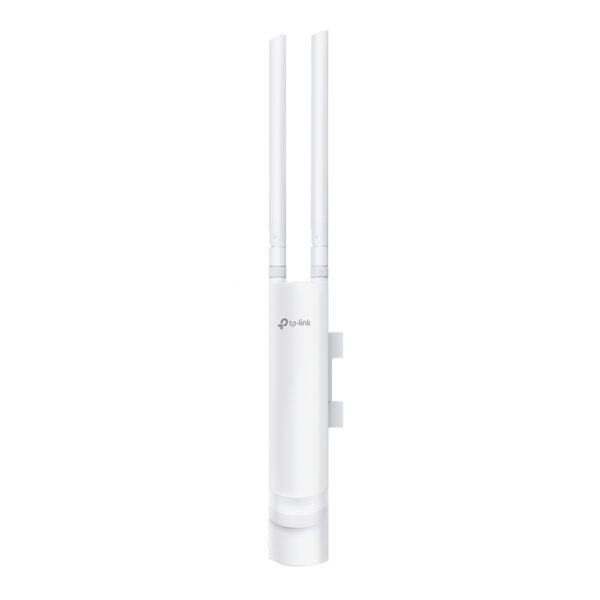
Outdoor. Sealed against rain and rated for a wider temperature range. If you want Wi-Fi in a garden, a yard or a workshop, buy a real outdoor access point. An indoor unit tucked under a soffit will survive one winter and then it will not.
One tip that costs nothing. Fit it in the middle of the space, not in the corner where the cable happens to arrive. An access point in a corner sends half its coverage into next door’s garden.
Wi-Fi 5, Wi-Fi 6 or Wi-Fi 7 access point?
For most people, Wi-Fi 6 is the buy. It is the current sensible standard, the prices have settled, and it handles a house full of devices far better than Wi-Fi 5 does. We stock 48 Wi-Fi 6 access points, which tells you where the market is.
The thing worth understanding is that the generation number is mostly about crowd control, not top speed. Wi-Fi 6 is better than Wi-Fi 5 at talking to a lot of devices at once. In a flat with a phone, a laptop and a TV, you may notice nothing. In a house with two adults working from home, four phones, a games console, a doorbell and a handful of smart plugs, you will.
Wi-Fi 5 still has a place. If you want cheap coverage in a garage or a spare room and nothing in there is doing anything demanding, a Wi-Fi 5 access point does the job and nobody will complain.
Wi-Fi 7 is worth it in two cases: your broadband is faster than a gigabit, or you have Wi-Fi 7 phones and laptops already and want the low latency. Otherwise you are paying for headroom you cannot use yet. If you do want it, our Wi-Fi 7 access points start.
Do check the wired port while you are looking. A Wi-Fi 7 access point with a single gigabit ethernet port can never give you more than a gigabit no matter what the box says, because that is the pipe feeding it. If you are buying for multi-gig broadband, you want a 2.5 gigabit port on the access point and a switch that can match it.
How many wireless access points do you actually need?
Fewer than the internet will tell you. A good ceiling-mounted access point covers a normal floor of a normal house.
Rough starting points, assuming brick and plasterboard rather than stone:
- A flat or a small bungalow: one, centrally placed.
- A standard two-storey house: one on the upstairs landing ceiling usually does the whole place. Add a second downstairs only if you actually find a weak spot.
- Three floors, or a long house: two, one high and one low, roughly above each other.
- Thick stone walls, or a converted barn: one per zone the walls create, because those walls stop Wi-Fi dead.
- A small office or a pub: one per 100 to 150 square metres of open floor, then walk it with a phone and fill the gaps.
Buy one, live with it for a week, then decide. Adding a second later is easy. Returning three is not.
And if you are covering a garden or a car park, remember the cable is the limit, not the radio. Ethernet runs to 100 metres. Past that you need a fibre link or a point-to-point bridge, which is a different job.
The disadvantages of a wireless access point, honestly
We sell these, so here is the case against, because it is the question people search for and nobody selling them answers it.
You need a cable. This is the big one. If running ethernet to that spot is impossible or would mean lifting floors, the access point is not your answer and no spec sheet changes that.
It is not one purchase. As above, you are buying power as well, and possibly cable and fixings. A mesh kit arrives complete in one box. An access point does not.
It has to go up. Drilling into a ceiling, feeding a cable, and making it look tidy is a job. Some people enjoy it. If you do not, price in an installer.
It does not fix a bad broadband line. An access point improves coverage, not speed. If your connection is slow at the router, it will be slow at the access point too.
The cheap ones age badly. Firmware support is where budget kit gets abandoned. This is a real complaint in owner forums, including from people who like the hardware otherwise, and it is a genuine argument for the better-supported brands even at a higher price.
If two or more of those apply to you, buy a mesh system instead and be happy. There is no prize for doing it the hard way.
Quick answers
It is the Wi-Fi radio from a router, sold on its own. You feed it an ethernet cable and it creates Wi-Fi around it. It does not provide the internet connection or hand out network addresses, so it works alongside your router rather than replacing it.
An access point, whenever you can run a cable to it. An extender repeats your Wi-Fi over the air, which costs roughly half the speed and only works as well as the signal it can already hear. An access point takes its data over the cable, so it delivers full speed wherever you put it. The extender only wins when running a cable is genuinely impossible.
Usually through the network cable, using Power over Ethernet. You supply that power either with a PoE switch or with a PoE injector between your switch and the access point. Most ceiling access points have no mains plug at all, so budget for one of the two before you order.
It needs a wired connection. If you cannot get an ethernet cable to the spot, an access point is not an option, and a mesh system or a powerline adapter will serve you better. It also arrives as more than one purchase, because you need the power source and often the cable too.
Not for a single unit. One access point runs standalone and is set up from the phone app. A controller manages several access points as one network, pushes shared settings and firmware, and lets devices hand over between units. It becomes worth it at roughly three or more access points.
On most routers, yes. Turn off its DHCP server, give it a fixed address on your network, and connect your cable to one of its LAN ports rather than the WAN port. It costs nothing and works. A purpose-built access point still gives better coverage, because it is designed to be mounted high rather than to sit on a shelf.
If the access points are wired, yes, they give better and more consistent speeds than a wireless mesh. Mesh is easier: it comes complete, needs no cabling, and sets up in minutes. Choose wired access points if you have or can get cable, and mesh if you cannot.
Usually one, mounted centrally and high. A standard two-storey house is often covered by a single unit on the upstairs landing ceiling. Go to two for three floors, a long layout or thick stone walls. Buy one first and test it before you buy more.
A router connects your home to the internet, hands out network addresses and provides a firewall. An access point does none of that. It only turns a wired connection into Wi-Fi. That is why an access point always sits behind a router rather than replacing it.
No. Any access point works behind any router, because it is only using the network connection. Brand matching matters between access points, not between the access point and the router, because that is what lets one controller manage them together.
The access points we would pick
Seven units covering the decisions above rather than a leaderboard.
- Cheapest way to try one: the TP-Link EAP115. Single band, 300Mbps and PoE. That is Wi-Fi 4, not Wi-Fi 6, and it has no 5GHz radio at all, so treat it as basic coverage for a spare room or a garage.
- The one most people should buy: the Omada EAP610. Wi-Fi 6, ceiling mount, runs standalone without a controller.
- No ceiling access: the Omada AX3000 wall plate, which replaces a network socket and adds ports on the front.
- Busy family house: the Omada EAP670 AX5400 for more capacity when everyone is home at once.
- Set it and forget it: the Ubiquiti U6-PRO, for the UniFi ecosystem and the track record described above.
- Multi-gig broadband or Wi-Fi 7 devices: the Omada BE9300.
- Garden, yard or workshop: the Omada EAP225-Outdoor, properly weather rated.
Whichever you choose, order the power at the same time. A PoE switch if you are fitting more than one, an injector if it is just the one.
How we know
Hardvance is a UK retailer. We range 96 wireless access points across TP-Link, Ubiquiti, DrayTek and HPE Aruba, along with the PoE switches and injectors that power them, so we see which combinations people order together and which ones come back. The advice about buying the power source at the same time comes from that, not from a spec sheet.
For the parts we cannot see from here, such as how these units behave after five years in someone's loft, we went and read what owners say rather than guessing. Those threads are linked in the sources above.
Sources
- Power over Ethernet figures: IEEE 802.3af, 802.3at and 802.3bt as summarised on Wikipedia. 802.3af delivers up to 15.4W at the port with 12.95W guaranteed at the device, 802.3at (PoE+) up to 25.5W, and 802.3bt up to 51W (Type 3) or 71.3W (Type 4).
- Owner experience of UniFi and Omada: the r/HomeNetworking discussion “Are Omada or Ubiquiti worth it for a more casual user”, 92 comments, which we read in full rather than summarising from the title.
- What a first-time buyer actually asks: “What do I need to get and how to setup a WiFi access point?”, where the answer given was the same one we give here: put the provider’s box in bridge mode, add a PoE switch, then run ceiling access points.
- Photograph: PoE injector by deavmi via Wikimedia Commons, CC BY-SA 4.0, cropped to fit.
- Stock and prices: our own live catalogue.
About Hardvance Team
The Hardvance hardware team builds, upgrades and troubleshoots custom PCs every day. Our buying guides are practical and free of hype, drawn from hands-on experience across AMD and Intel platforms, and focused on the parts that genuinely matter for your build and your budget.
View all posts by Hardvance Team