Why Does My PC Crash, Freeze or Restart While Gaming? The Complete 2026 Fix Guide

0
pc_crashing (PC crashes while gaming 2026)

If your PC crashes while gaming, freezes or suddenly reboots, this guide walks through every likely cause and exactly how to fix it. A PC that crashes, freezes or reboots the moment a game gets demanding is one of the most frustrating and most searched problems in PC gaming, and it has a long list of possible causes. The good news is that the symptom usually points straight at the culprit. This is our complete reference: every common cause, how to confirm it, and how to fix it, with the free tools the experts actually use. Work through it top to bottom and you will find your problem.

Last updated: June 2026 · Hardvance Team

Start here: the five-minute checklist

  1. Note exactly what happens (reboot, full shutdown, freeze, blue screen, or just the game closing) and any blue-screen code.
  2. Monitor temperatures while you game with HWiNFO64.
  3. Set everything to stock: disable XMP/EXPO and any CPU or GPU overclock or undervolt.
  4. Do a clean graphics-driver reinstall with DDU, then install the latest stable driver. Update your BIOS and chipset drivers.
  5. Verify the game files and check Windows Event Viewer for the crash.

Most crashes are solved by one of these. The sections below explain why, and what to do if they do not.

Why a PC crashes while gaming: what kind of crash is it?

Before changing anything, watch what the PC does. The behaviour narrows the cause down dramatically.

What you seeMost likely culprit
Instant reboot, no blue screenPower supply, or a severe instability
PC powers off completely and stays offOverheating, or the PSU tripping its protection
Freeze or hang, audio buzzes, you must hard-resetGPU driver, RAM, or storage
Blue screen with a stop codeRAM, CPU or a driver (see the code table below)
Only the game closes to the desktopGPU driver, an unstable overclock, VRAM, or game files
Black screen, fans still spinningA graphics-driver crash (TDR)

A handy clue: open Event Viewer (or Reliability Monitor) after a crash. A Kernel-Power 41 event means the PC lost power without shutting down cleanly, which points at the power supply or a thermal shutdown rather than software.

What we see most often: a retailer’s view

Here is the part most troubleshooting articles cannot tell you, because they are not the ones handling the returns. From the support and returns we deal with as a parts retailer, dead hardware is far rarer than people fear. The large majority of “it crashes in games” cases come down to a short list of fixable culprits, and in our experience they fall roughly in this order:

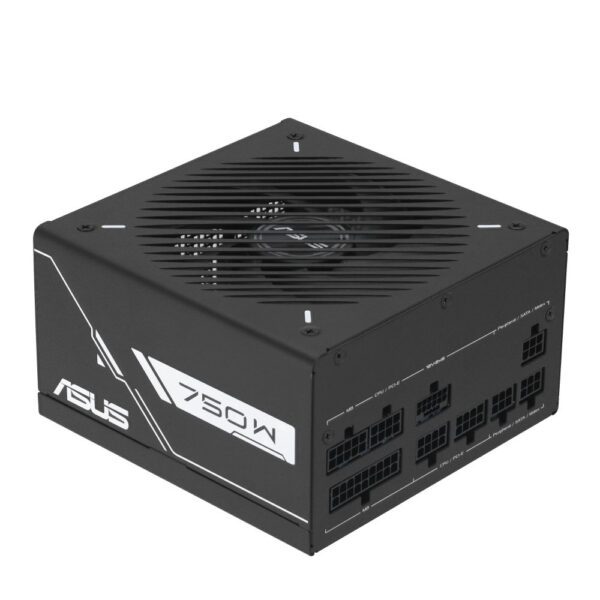
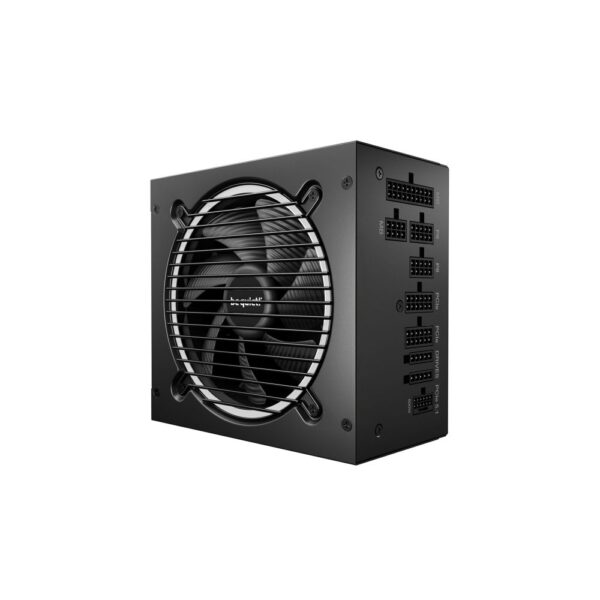
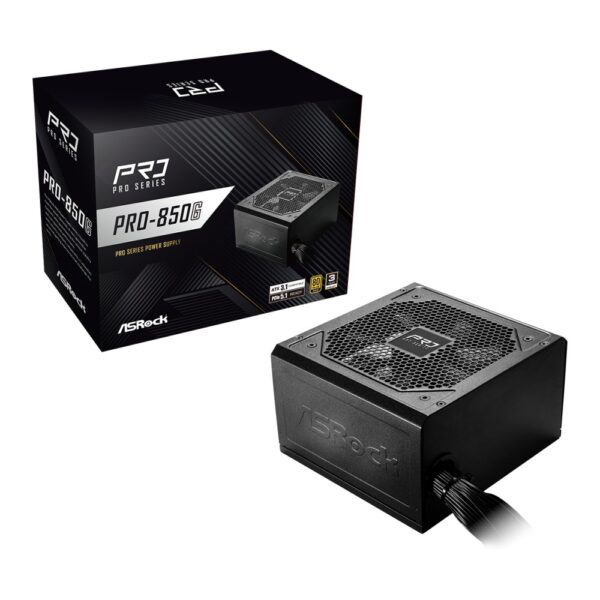
  1. An underpowered, low-quality or ageing power supply, made worse by the large power spikes of current graphics cards. This is the one people suspect last and should suspect first.
  2. Memory instability from an XMP or EXPO profile that is not quite stable on that particular CPU and board.
  3. Heat, and usually from dust, dried-out paste or weak case airflow rather than a faulty cooler.
  4. A graphics driver that needs a clean reinstall, or an overclock or undervolt that was not as stable as it looked.
  5. A configuration issue, on Intel 13th and 14th-gen specifically, that a BIOS update sorts out.

The practical takeaway: before you return a part or buy a replacement, work through the checks below. Most of the time the fix costs nothing, and on the rare occasion a component really does need replacing, it is usually the power supply, the one part hardly anyone suspects.

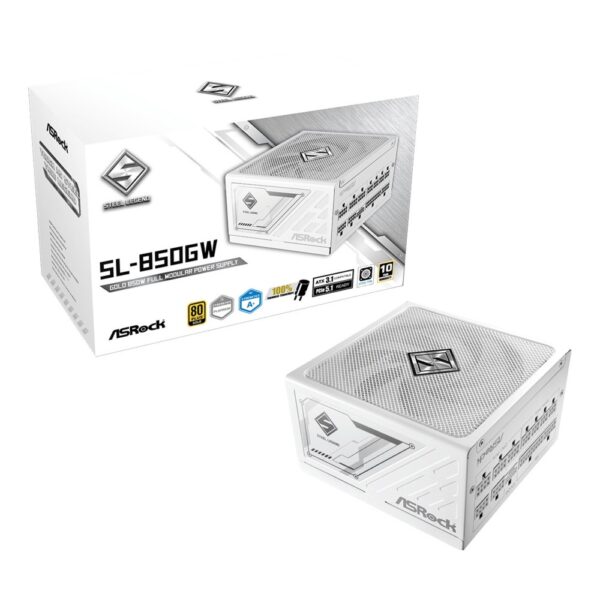
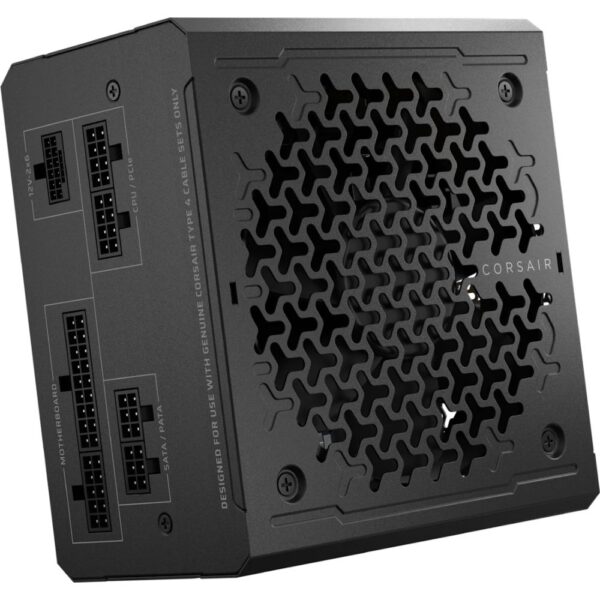
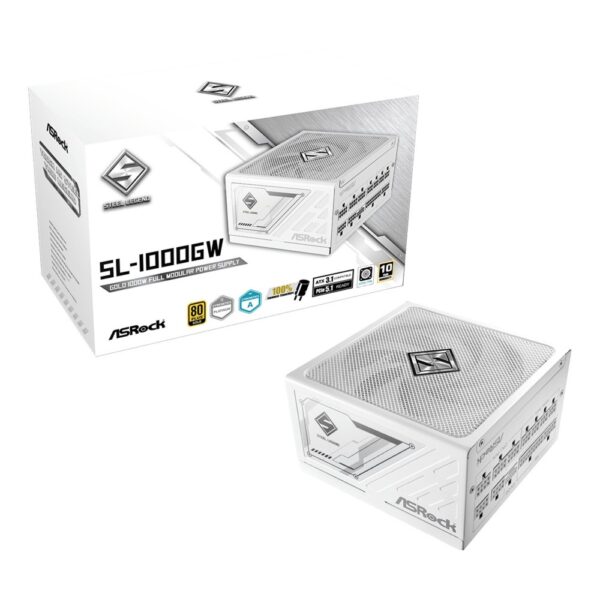
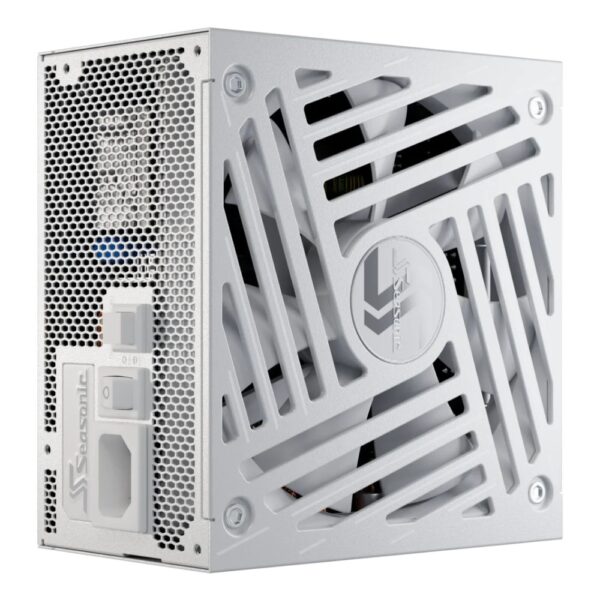
Power supply: too weak, cheap or failing

This is the cause people overlook most, and often the real one when the PC reboots instantly with no blue screen, usually right as a game loads or the action picks up. Modern graphics cards, especially the RTX 40 and 50 series, draw huge transient spikes, brief jumps of up to roughly double their rated power for a few milliseconds. A power supply that is underpowered, low quality, or simply old and tired cannot ride out those spikes, so its protection trips and the system reboots or shuts off.

How to confirm it: first check your wattage against the table below, and make sure the unit is 80 Plus Gold or better. Use separate PCIe or 12V-2×6 cables for the graphics card rather than one daisy-chained cable. Then stress the supply: run a combined CPU and GPU load at the same time. OCCT has a dedicated Power test that does exactly this, or you can run FurMark or MSI Kombustor on the GPU together with Prime95 or OCCT on the CPU. If the PC is stable at idle and light use but reboots the instant both are loaded, the power supply is the prime suspect. Use FurMark in short bursts to test stability rather than leaving it running for hours, as it pushes the card far harder than any game.

Graphics card (with a typical CPU)Recommended PSU
RTX 5060 / 5060 Ti, RX 9060 XT650W
RTX 5070, RX 9070750W
RTX 5070 Ti / 5080, RX 9070 XT850W
RTX 50901000–1200W

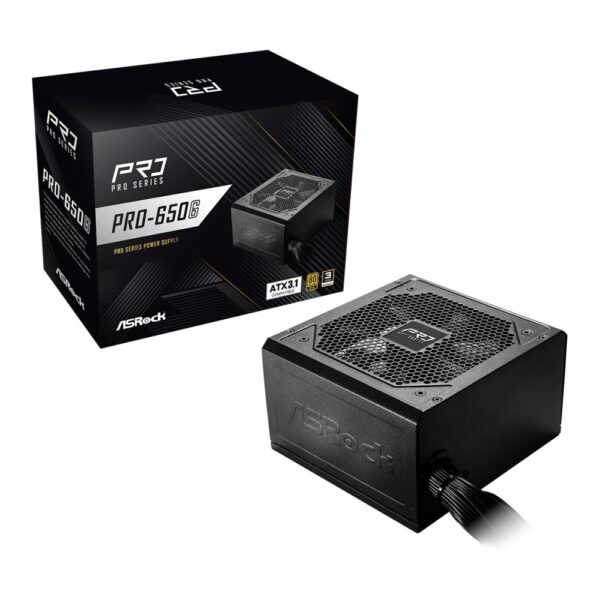
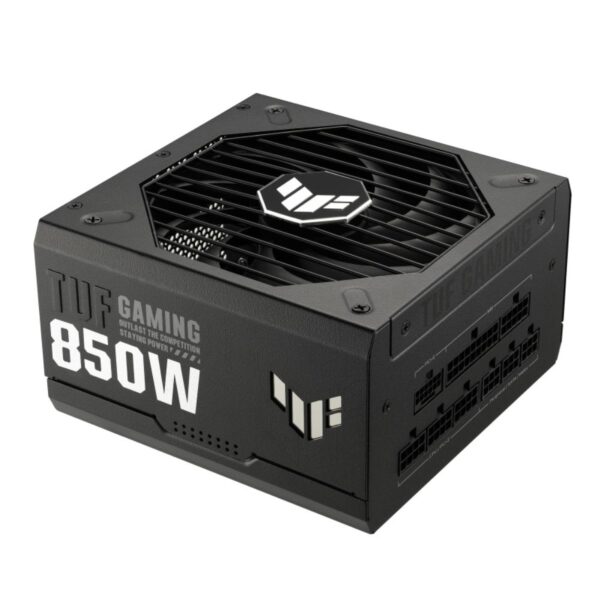
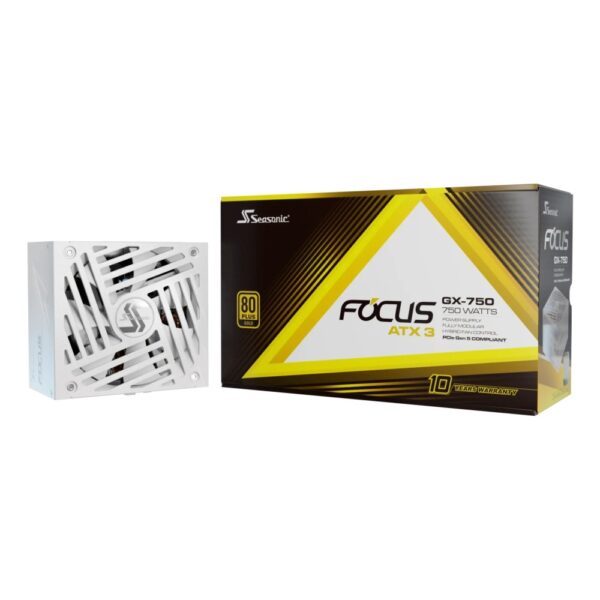
Choose 80 Plus Gold or better and, ideally, an ATX 3.1 unit, which is built specifically to ride out those millisecond spikes. A quality supply with some headroom also runs quieter and lasts longer. Capacitors age, so a cheap or 6-to-8-year-old PSU that used to be fine can start causing crashes as it weakens. Our power supply guide covers what to buy.

Overheating (CPU or GPU)

If the PC runs fine for a few minutes and then shuts down or freezes once things heat up, with the fans roaring, suspect temperatures. Monitor them with HWiNFO64 while you play, in a second screen or via the MSI Afterburner overlay, and watch four numbers: CPU package temperature, GPU core, GPU hotspot, and GPU memory junction (the VRAM).

A modern Ryzen sitting at 95°C is normal and not a crash cause on its own, but an Intel chip pinned at 100°C will throttle and can become unstable. On the graphics card, a core in the high 80s is fine, but a hotspot above 100–110°C or a memory junction above about 105–110°C will throttle hard and can crash the game.

The fixes: clear out dust, improve case airflow with proper intake and exhaust, and reseat the CPU cooler with fresh paste, since old paste can dry out or pump out and let temperatures climb over time. A better cooler or a more aggressive GPU fan curve helps, and undervolting the CPU or GPU lowers heat with little or no performance loss. Our CPU cooling guide and PC case guide go deeper.

RAM, XMP/EXPO and AM5 DDR5 issues

Unstable memory is a top cause of random freezes, crashes to desktop and blue screens such as WHEA_UNCORRECTABLE_ERROR, MEMORY_MANAGEMENT and IRQL_NOT_LESS_OR_EQUAL. The trap is that the memory profile you switched on, XMP on Intel or EXPO on AMD, is technically a factory overclock. It is not guaranteed to be perfectly stable on every CPU and board, even though the kit is rated for it.

On AMD AM5 with DDR5 there are a few specific gotchas worth knowing:

  • DDR5-6000 with CL30 is the obvious pick for most people. At 6000 the memory controller runs 1:1 with the Infinity Fabric, which is where Ryzen is most stable. Pushing 6400 or higher often breaks that 1:1 link and causes instability for little real gain.
  • Four sticks are hard on AM5. Two sticks per channel rarely run the rated 6000 cleanly. If you have four DIMMs, you may need to drop the speed or run two sticks instead.
  • The first boot after enabling EXPO is slow. The board trains the memory, which can mean a black screen for up to a minute or two. That is normal, not a crash.
  • BIOS maturity matters. Memory stability on AM5 has improved a lot through BIOS and AGESA updates, so update your BIOS.
  • Do not mix kits. Two separate kits, even identical models, are not guaranteed to play together. Buy one matched kit.

How to confirm it: turn XMP/EXPO off so the RAM runs at its safe default (JEDEC) speed. If the crashes stop, the memory overclock was the problem. To test thoroughly, run MemTest86 from a USB stick for several passes, or TestMem5 or Karhu inside Windows. The fix: update the BIOS, re-enable the correct profile, and if it is still unstable drop to 5600, loosen the timings a little, or use two sticks in the A2 and B2 slots. Our RAM guide explains the value choice in detail.

Graphics drivers

A bad, corrupted or simply buggy graphics driver is the single most common reason a game crashes to the desktop, shows a “display driver stopped responding” message, or drops to a black screen with the audio still looping (a stop code of VIDEO_TDR_FAILURE or nvlddmkm).

The fix: do a clean reinstall. Download DDU (Display Driver Uninstaller), boot into Safe Mode, remove the existing driver completely, then install the latest stable driver from Nvidia or AMD. Avoid beta drivers. If the crashes started right after a driver update, roll back to the previous version instead, as a new driver occasionally breaks a specific game. Keep Windows updated too, and if you have a GPU overclock, turn it off while you test.

Unstable overclock or undervolt

If the PC only crashes under load but is rock solid at stock, an overclock or undervolt is the likely cause. A GPU undervolt curve in MSI Afterburner that looks stable in a benchmark can still crash in a particular game, and an over-aggressive CPU undervolt, such as a Curve Optimizer offset that is too negative on Ryzen, throws WHEA errors and random crashes. Even a factory-overclocked card can be unstable on some samples.

The fix: reset everything to default and confirm the crashes stop. Then re-tune more conservatively, giving a GPU undervolt slightly more voltage or using a less aggressive PBO offset.

Intel 13th and 14th-gen instability

This one is specific and well documented. Many Intel Core i9 and i7 13th and 14th-gen processors (Raptor Lake) suffered genuine instability in games, including crashes to desktop, “out of video memory” errors and Unreal Engine shader-compilation crashes, that could get worse over time. Intel traced the root cause to microcode requesting elevated voltages that degraded the chip, and released a final microcode fix, 0x12B (which includes the earlier 0x125 and 0x129 updates).

The fix: update your motherboard BIOS to the version that includes the 0x12B microcode, and apply the Intel Default Settings power profile in the BIOS rather than the board maker’s unlimited profile. Intel also extended the warranty on affected 13th and 14th-gen chips by two years, so if a processor is already degraded and keeps crashing even after the BIOS fix, it qualifies for a replacement. This does not affect Intel Core Ultra or AMD chips.

Storage and SSD problems

A failing or full drive causes long freezes, stutter and games that refuse to load. Check your boot and game drive with CrystalDiskInfo, which reads the drive’s SMART health, and make sure the drive is not nearly full, since an SSD with less than about 10 percent free space slows down. A loose M.2 NVMe drive can also drop out under load, so reseat it. Replace any drive whose health is flagged as caution or bad. Our SSD guide covers good replacements.

Windows, game files and background software

Software is an easy thing to rule out. Update Windows and your motherboard chipset drivers (the AMD chipset driver or Intel equivalent), then verify the game’s files through Steam or the Epic launcher to repair any corruption. Running sfc /scannow and a DISM repair fixes a damaged Windows install.

Overlays and background apps are a surprisingly common trigger. Discord, GeForce and Steam overlays, monitoring tools like MSI Afterburner and RTSS, two different RGB control apps fighting each other, and overly aggressive antivirus can all crash a game. Disable overlays and close monitoring and RGB software to test whether the crashes stop.

Motherboard power and BIOS

Loose or missing power connectors cause crashes under load. Make sure the CPU EPS 8-pin at the top of the board and the 24-pin are firmly seated, and on a high-end graphics card check the 12VHPWR / 12V-2×6 connector is pushed fully home, as a partially seated one overheats and triggers shutdowns. In the BIOS, enable XMP/EXPO correctly, make sure you are on the latest BIOS, and if things are still odd, clear the CMOS to reset to defaults and test from there.

Running out of VRAM

On 8GB graphics cards, modern games at high texture settings or 1440p and 4K can exhaust the video memory, which shows up as heavy stutter that builds into a crash. Lowering texture quality usually cures it. If it keeps happening, it is a sign the card is short on VRAM for how you play, which our graphics card guide covers (the short version: 12GB or more is the comfortable amount in 2026).

The diagnostic toolkit

These are the free tools to keep on hand. None of them cost anything.

ToolWhat it is for
HWiNFO64 / HWMonitorWatch temperatures, voltages and clocks live while gaming
MSI Afterburner + RTSSOn-screen overlay for temps, usage and FPS in-game
FurMark / MSI KombustorGPU stress test (use in short bursts)
OCCTCPU, GPU, memory and a combined Power test, with error detection
Prime95CPU stress test
3DMark / Unigine SuperpositionReal-world GPU stability runs
MemTest86 / TestMem5 / KarhuRAM stability testing
CrystalDiskInfoSSD and hard-drive health (SMART)
Event Viewer / Reliability Monitor / BlueScreenViewCrash logs and blue-screen codes
DDU (Display Driver Uninstaller)Clean removal of graphics drivers

Blue-screen code cheat sheet

If you get a blue screen, the stop code is a strong hint. Find it on the blue screen itself or in BlueScreenView.

Stop codeUsual cause
WHEA_UNCORRECTABLE_ERRORCPU or RAM instability, overclock or voltage
VIDEO_TDR_FAILURE (nvlddmkm / amdkmdag)Graphics driver or GPU overclock
MEMORY_MANAGEMENTRAM, or a driver
IRQL_NOT_LESS_OR_EQUALA driver, or RAM
PAGE_FAULT_IN_NONPAGED_AREARAM, storage or a driver
CLOCK_WATCHDOG_TIMEOUTCPU
KERNEL_SECURITY_CHECK_FAILUREA driver, or RAM
Kernel-Power 41 (not a blue screen)Lost power: PSU or a thermal shutdown

Step-by-step diagnosis

If you want a clear order to work in, follow this.

  1. Record the exact symptom and any blue-screen code from Event Viewer.
  2. Monitor temperatures while gaming with HWiNFO64.
  3. Reset to stock: disable XMP/EXPO and every overclock and undervolt.
  4. Clean-install the graphics driver with DDU, then update the BIOS and chipset drivers.
  5. Stress each part on its own: the GPU with FurMark or Kombustor in short bursts, the CPU with OCCT or Prime95, the RAM with MemTest86, and the whole system with OCCT’s Power test.
  6. Reseat the power cables, the RAM and the graphics card.
  7. If you can, swap in a known-good power supply, since it is both a common cause and the hardest to test any other way.

Frequently asked questions

Why does my PC restart while gaming with no blue screen?

An instant reboot with no blue screen is most often the power supply, especially with a high-end graphics card whose power spikes trip a weak or ageing unit. Overheating is the other main cause. Check temperatures and, if you can, test with a stronger power supply.

How do I know if my power supply is too weak?

Check its wattage and 80 Plus rating against your graphics card, then stress the whole system with OCCT's Power test, or FurMark and Prime95 together. If it is stable at idle but reboots the moment both the CPU and GPU are loaded, the PSU is the likely cause.

Does enabling XMP or EXPO cause crashes?

It can. XMP/EXPO is a factory memory overclock and is not guaranteed stable on every system. Test with it switched off; if the crashes stop, update your BIOS and re-enable it, and on AMD AM5 stick to DDR5-6000 and two sticks for the best stability.

What temperature is too hot while gaming?

A Ryzen CPU at 95°C is normal, but an Intel chip pinned at 100°C will throttle. On the graphics card, watch the hotspot and memory-junction temperatures rather than just the core; above roughly 105–110°C they throttle and can crash.

My game crashes to the desktop but the PC stays on. Why?

That points at the graphics driver, an unstable overclock or undervolt, running out of VRAM, or corrupted game files. Clean-install the driver with DDU, test at stock clocks, lower texture settings, and verify the game files.

My Intel 13th or 14th-gen CPU keeps crashing in games.

Update your motherboard BIOS to one with Intel's 0x12B microcode and apply the Intel Default Settings power profile. If it still crashes, the chip may be degraded and is covered by Intel's extended two-year warranty.

Sources and further reading

This guide is built on documented manufacturer information, independent testing and our own experience supporting customers, cross-checked in June 2026:

  • Intel and Tom’s Hardware on the 13th/14th-gen microcode fix
  • AMD AM5 memory guidance and motherboard maker QVL/BIOS notes
  • Independent testing from outlets such as GamersNexus, plus the r/buildapc and r/techsupport communities
  • Tool documentation: OCCT, FurMark/MSI Kombustor, MemTest86, HWiNFO

Leave a Reply

Your email address will not be published. Required fields are marked *