What Is a Motherboard? The Whole PC Plugs Into It, and Here Is the Map

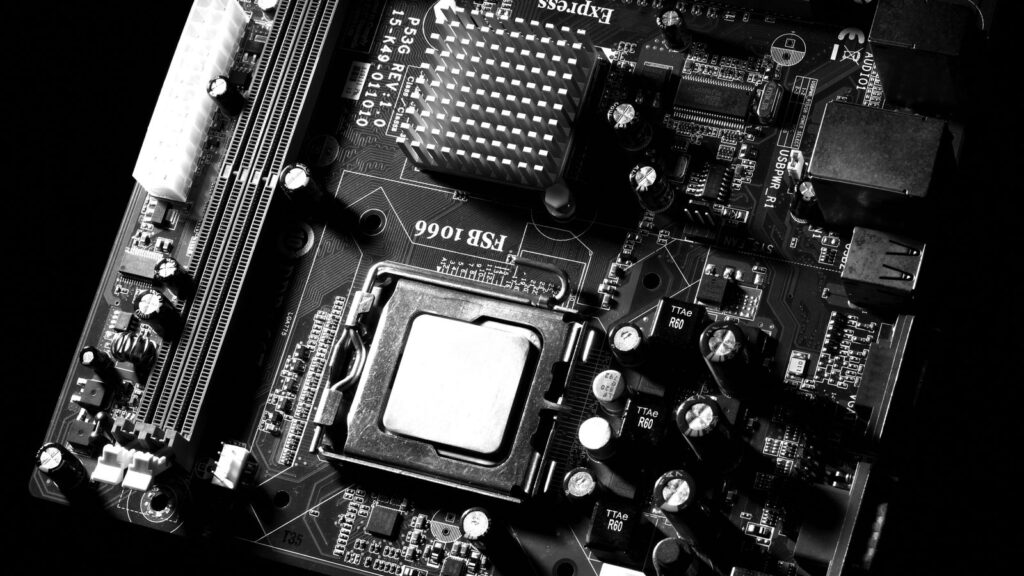
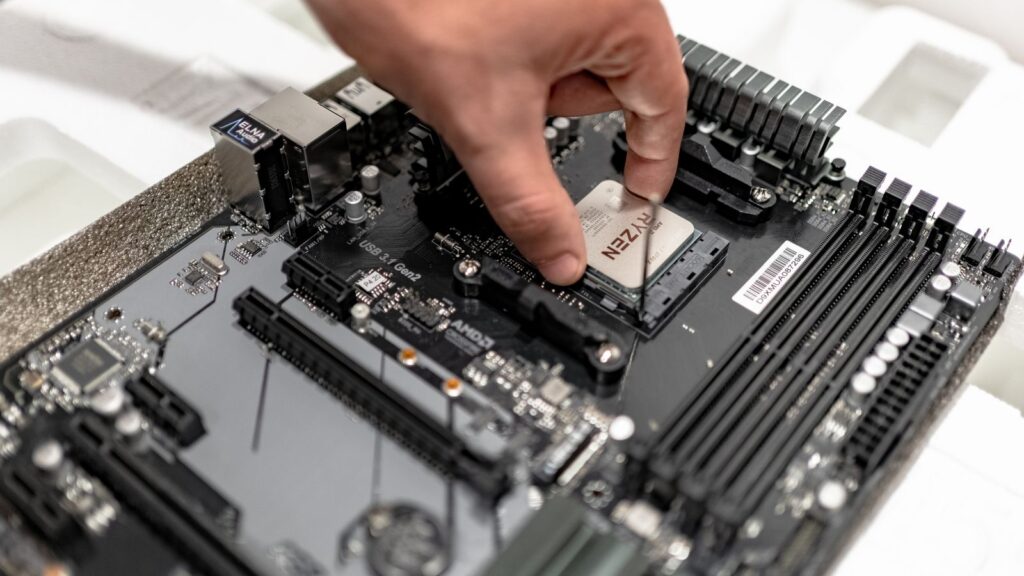
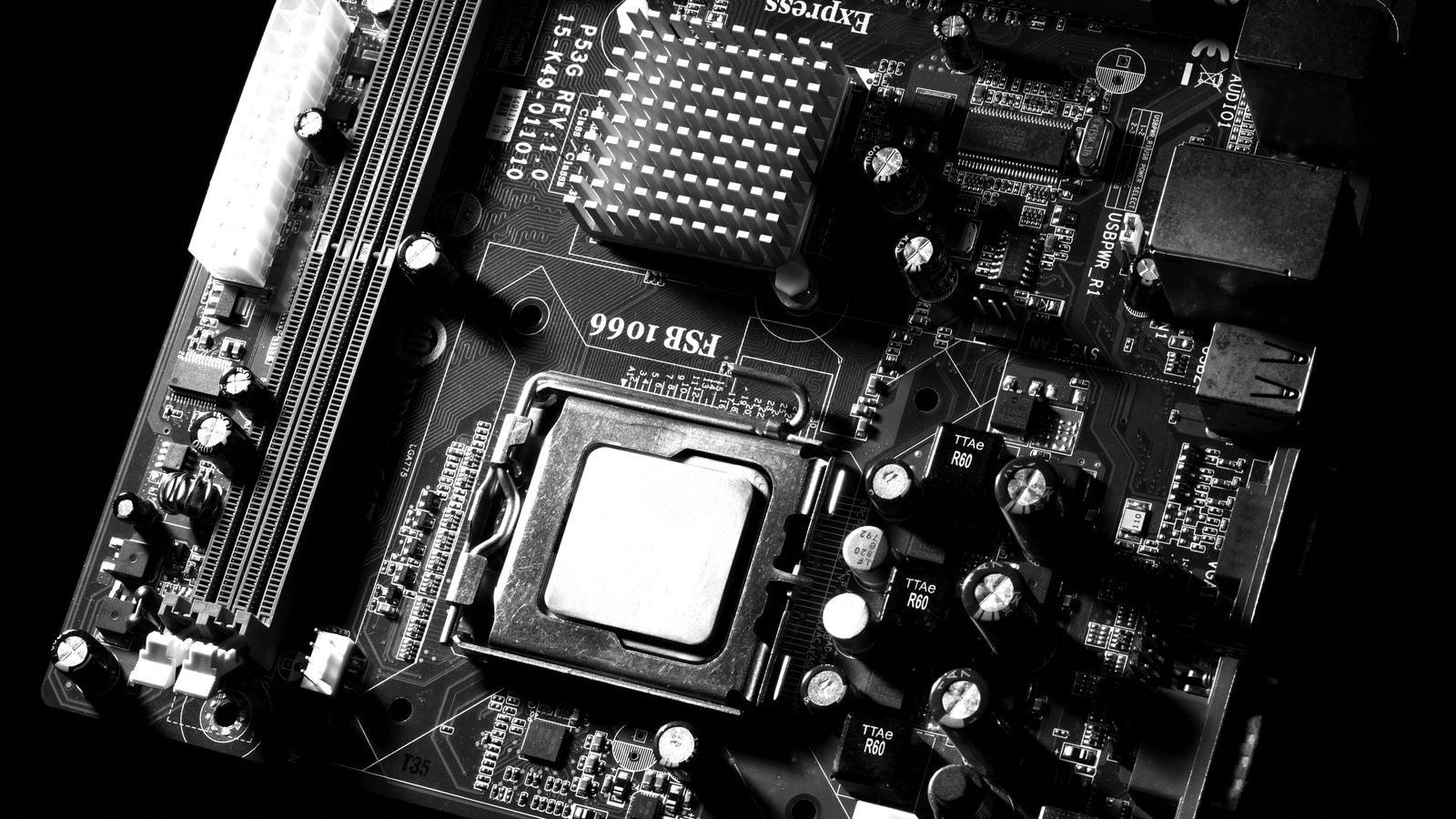
Full computer motherboard from above showing CPU socket, RAM slots and power connectors

A motherboard is the large circuit board that every other part of your computer plugs into. The processor, the memory, the storage, the graphics card and every USB device all meet here, and the board’s job is to move data and power between them. No motherboard, no computer.

Most people who search this want one of these:

The map, the myths, and the answer to how many USB ports you really get: all below.

The definition, and why it is called a motherboard

The definition: a motherboard is the main printed circuit board of a computer, the one everything else connects to. Flip open any PC case and it is the big board covering the back wall, usually about the size of a magazine.

The name is older than most of the people using it. Early computers had one main board and a family of smaller cards that plugged into it, which engineers called daughterboards. The board that carried them all became the motherboard, and the name stuck. It does not stand for anything; there is no acronym hiding in it.

You will meet the same part under several names, and they all mean the same thing: mainboard and system board in corporate and manual language, logic board if you live in Apple’s world, and mobo anywhere PC builders talk to each other. If a spec sheet says any of these, it is talking about this board.

What does a motherboard actually do?

Three jobs: it connects everything, it distributes power, and it wakes the computer up.

Connecting is the main one. When you press a key, the signal travels along copper tracks in the board to the processor. When a game loads, the data flows from your SSD, across the board, into memory, and on to the graphics card. Those copper highways have a name, buses, and their speed and width are decided by the board’s design. The motherboard is effectively the road network of the computer, and every single thing your PC does crosses it.

Power is the quiet second job. The power supply delivers electricity in big, crude portions. A section of the motherboard called the VRM (voltage regulator module, the rows of little cubes near the CPU socket) refines that power into the precise, stable voltage the processor demands thousands of times a second. Cheap boards skimp exactly here, which is why two boards with the same slots can behave very differently under load.

Waking up is the third. A small chip on the board holds the BIOS (also called UEFI), the tiny built-in program that runs the moment you press the power button, checks what is connected, and hands control to Windows. That is also why the little coin battery exists: it keeps the board’s clock and settings alive while the PC is unplugged.

The map: what is on a motherboard

Boards differ in detail, but almost every modern one carries the same parts in roughly the same places. Here is the layout, simplified and labelled.

REAR I/O PORTSCPU POWERVRMCPUSOCKETRAM SLOTS24-PIN POWERM.2 SSD SLOTCHIPSETTRAFFIC CONTROLPCIE X16 SLOT (GRAPHICS CARD)PCIE SLOT (EXPANSION)M.2 SSD SLOT 2SATAPORTSCMOSBATTERYFRONT-PANEL AND USB HEADERSFAN HEADERS
A modern ATX motherboard, simplified. Positions vary slightly between boards, the parts do not.

What each part does, in one line each:

  • CPU socket: home of the processor. The socket type (AM5 for current AMD, LGA1851 for current Intel) decides which CPUs fit, full stop.
  • VRM: the power-refinery rows beside the socket. Better VRMs mean steadier power for fast chips.
  • RAM slots: two or four long slots for memory sticks. Matched pairs go in the slots your manual marks, usually 2 and 4.
  • PCIe x16 slot: the long slot for the graphics card. The reinforced top one is the one to use.
  • M.2 slots: flat sockets where modern NVMe SSDs screw in directly, no cables.
  • Chipset: the board’s traffic controller, usually hiding under a flat metal heatsink. Full section on it next.
  • 24-pin and CPU power: where the power supply cables land. The 8-pin near the top corner feeds the CPU.
  • SATA ports: for older-style drives and big storage HDDs.
  • Front-panel and USB headers: the fiddly pins your case’s power button and front USB ports plug into.
  • Fan headers: small 4-pin plugs scattered around the board that power and control your fans.
  • CMOS battery: the coin cell that remembers time and settings. When a ten-year-old PC forgets the date, this £1 part is why.
  • Rear I/O: the block of ports you see from the back of the PC: USB, network, audio and video outputs.

What is a motherboard chipset?

The chipset is a chip on the motherboard that manages all the connections the processor does not handle itself. Think of the CPU as a city centre with a few direct motorways: modern processors talk straight to the graphics card, the main M.2 SSD and the memory. Everything else, extra USB ports, extra drives, networking, sound, goes through the chipset, which collects all that traffic and feeds it to the CPU over one shared link.

That is why the chipset name is the first thing on a motherboard’s box: it defines what the board can do. AMD’s current names look like B650, B850 and X870; Intel’s look like B860 and Z890. The letter is the tier. B-class boards carry everything a normal build needs. X-class (AMD) and Z-class (Intel) add more connectivity lanes and overclocking, and cost more. Our honest take, spelled out in the motherboard buying guide: most people pay for a tier they never use, and a B-series board is the right answer for almost every build.

One practical detail worth knowing: because the chipset handles the extra M.2 slots, filling every slot on a cheap board can quietly share bandwidth, and sometimes an M.2 drive will disable a pair of SATA ports. It is in the manual, nobody reads it, and it is one of the most common reasons a drive seems to go missing.

How many USB ports does a motherboard have?

On the back: typically 4 to 8 on a budget board, 8 to 12 on a mid-range one, and up to 12 or more on premium boards. That is the honest range across what we sell today.

But the rear ports are only half the answer. Boards also carry internal USB headers, pin connectors that feed your case’s front ports. A typical mid-range board has a USB 2.0 header (two ports), a 19-pin USB 3 header (two faster ports) and increasingly a USB-C front header. So a normal PC ends up with 10 to 16 usable USB connections once the case fronts are counted.

Two buying notes from the returns desk. First, count the ports you actually need at full speed; the blue (or red) high-speed ports are the ones that matter for external drives, and boards always include fewer of those than the total suggests. Second, if your case has a front USB-C port, check the board has the matching header, because without it that front port is decoration.

The front-panel pins: the part that confuses every first build

The secret: it is only four tiny plugs, they go on a labelled block of pins in the bottom corner of the board, and only the two LED plugs care which way round they sit. Everyone who has built a PC remembers fighting this bit. Here is the whole thing, solved.

Your case hands you a small bundle of wires with printed plugs: POWER SW (the power button), RESET SW (the reset button, if your case has one), POWER LED (usually split into separate + and − plugs) and HDD LED (the little light that flickers with drive activity). They all land on one pin block, usually printed F_PANEL, in the bottom-right corner of the board.

TYPICAL FRONT-PANEL (F_PANEL) HEADERPOWER LED + −POWER SWITCHMISSING PIN= YOUR GUIDEDRIVE LED + −RESET SWITCHSwitches work either way round. LEDs light only when + and − are right, and backwards does no harm.Layouts vary slightly by brand. The printed labels beside the pins and your manual page always win.
The standard front-panel block. Four plugs, one missing pin to orient you, no drama.

Three rules take all the stress out of it:

  • Switches have no wrong way round. POWER SW and RESET SW are simple contacts; either orientation works. These two are the only plugs the PC actually needs to start.
  • LEDs have a right way round, and a harmless wrong way. If a + plug sits on a − pin the light simply stays dark. Nothing breaks. Flip it and it works. The small triangle or arrow moulded on a plug marks its + side.
  • The board tells you the layout. Tiny labels are printed beside the pins, the manual has a full-page diagram, and the missing pin in the block is your alignment guide.

Bench habits that help: connect these plugs before the graphics card goes in, while your fingers still have room. Read the tiny board print with your phone camera zoomed in. And if the finished PC refuses to power on at all, this block is the first suspect: check the POWER SW plug found the right two pins. On our bench we prove it in seconds by briefly touching the two PWR pins with a screwdriver tip, which does exactly what the button does.

One reassurance about the other front-panel cables: the front USB plugs (a chunky 19-pin block, a small USB 2.0 block, and the USB-C connector) and the HD AUDIO plug are all keyed, meaning they physically fit only the right header the right way. The four little pins above are the only genuinely fiddly part, and some boards even ship a small adapter block (ASUS calls it a Q-Connector) that lets you build the puzzle in your hand and push it on in one piece.

Does the motherboard affect performance?

Not the way people expect. A £400 board does not give you more frames per second than a £150 one. With the same CPU and graphics card, games run essentially identically on both. If you were hoping a motherboard upgrade would speed up your PC, it will not, and we would rather tell you that than sell you one.

What the board actually decides is everything around performance: which processors you can fit now and upgrade to later, how many fast drives you can add, whether your fast memory can run at its rated speed, how stable the machine stays under sustained load (that VRM again), and which generation of USB and networking you get. A weak board does not make a fast PC slow; it makes a fast PC limited.

The motherboard does not set your speed. It sets your ceiling: what fits, what upgrades, and what stays stable.

Laptop motherboards: same job, different rules

A laptop motherboard does exactly the same three jobs, squeezed onto a board a fraction of the size, and that compression changes the economics. To save space, the processor and increasingly the memory are soldered straight to the board rather than socketed. Nothing unplugs, so nothing upgrades.

It also explains the repair quote that shocks people. In a desktop, a dead board is a £100-something part you swap. In a laptop, the board carries the soldered CPU, often the RAM and the graphics chip too, so replacing it means replacing most of the computer’s value, which is why a motherboard fault on an ageing laptop is usually the moment to spend on a new machine instead. Apple calls its version a logic board, and the same rule applies with even bigger numbers.

How to tell which motherboard you have

No screwdriver needed. On Windows, press Start, type msinfo32 and open System Information: the fields BaseBoard Manufacturer and BaseBoard Product name your exact board.

Two more routes if you prefer. The free tool CPU-Z shows the same on its Mainboard tab, along with the BIOS version, which is handy before an update. And the physical answer: the model name is printed on the board itself, usually in large letters between the PCIe slots, visible through a case window with a torch.

You will need this the day you update the BIOS, buy compatible RAM, or check whether a new CPU fits, so it is worth the thirty seconds now.

Buying one? The short version

Match the socket to your CPU before you look at anything else: AM5 for current AMD Ryzen, LGA1851 for current Intel Core Ultra. Then pick a B-series chipset unless you know exactly why you need more, make sure the board size fits your case, and spend what is left of your attention on the VRM and the M.2 count rather than the RGB.

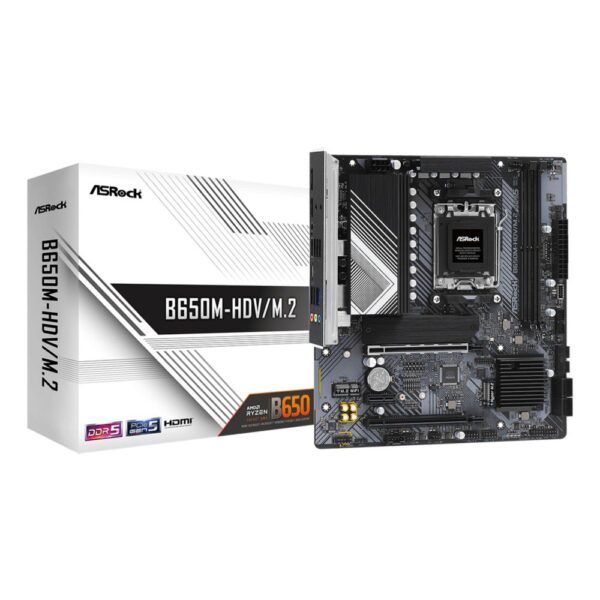
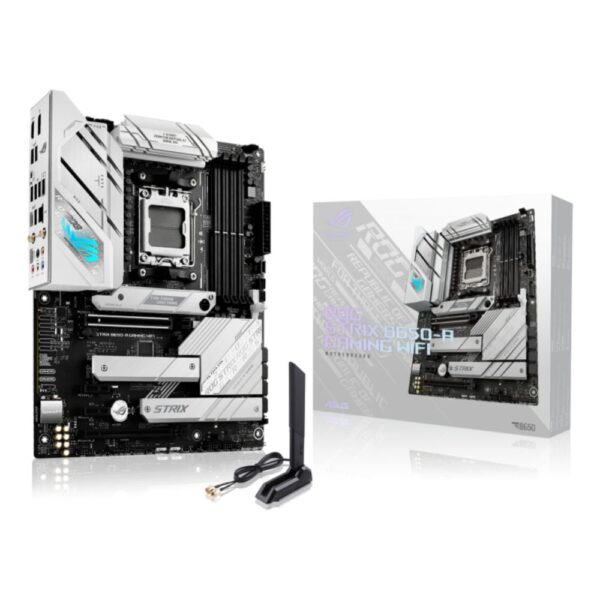
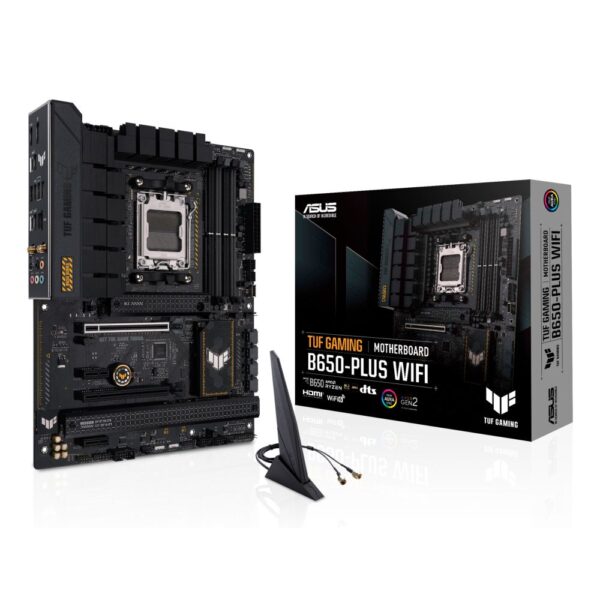
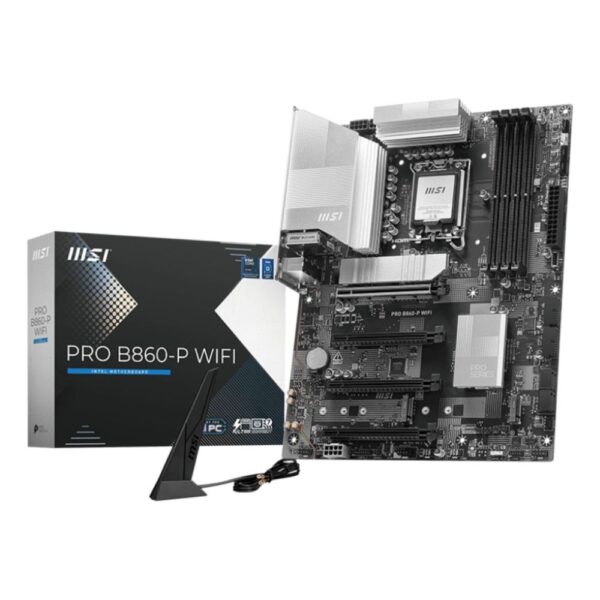
The full reasoning, chipset tables and our current picks live in the motherboard buying guide. The board we point most people at is the ASUS TUF Gaming B650-Plus WiFi, and the boards below are live from our motherboard shelves.

Quick answers

What is a motherboard in simple terms?

It is the large circuit board inside a computer that everything else plugs into: the processor, memory, storage, graphics card and all your USB devices. Its job is to let those parts talk to each other and to feed them clean power.

What does a motherboard do?

Three things. It connects every component through copper data highways called buses, it refines and distributes power through its VRM, and its built-in BIOS chip starts the computer when you press the power button. Every action your PC performs crosses the motherboard on the way.

What is a motherboard chipset?

A chip on the board that manages all the connections the processor does not handle directly: most USB ports, extra drives, networking and sound. Its name (B650, X870, B860, Z890) tells you the board’s feature tier, and B-series covers almost every normal build.

What does motherboard stand for?

Nothing, it is not an acronym. Early computers had small plug-in cards called daughterboards, and the main board that carried them all became the mother board. Mainboard, system board, logic board and mobo are just other names for the same part.

Is a system board the same as a motherboard?

Yes. System board, mainboard, baseboard, logic board (Apple) and mobo all describe the same main circuit board. Manufacturers and manuals simply pick different words.

How many USB ports does a motherboard have?

Usually 4 to 8 rear ports on budget boards and 8 to 12 on mid-range and premium ones, plus internal headers that power your case’s front ports. A typical finished PC offers 10 to 16 usable USB connections in total.

Does a better motherboard make your PC faster?

Not directly, and this surprises people. With the same CPU and graphics card, games perform the same on a £150 board and a £400 one. What a better board buys is upgrade room, more fast storage, stabler power under load and newer connectivity.

How do I know what motherboard I have?

On Windows, type msinfo32 into the Start menu and check the BaseBoard entries in System Information. The free tool CPU-Z shows the same, and the model name is also printed on the board itself between the PCIe slots.

How we know

Hardvance is a UK hardware retailer. We fit, test and support motherboards every week, and we handle the compatibility questions and returns when a board and a build disagree, which teaches you where the real-world traps are. The diagram above is our own, drawn from the boards on our bench.

Leave a Reply

Your email address will not be published. Required fields are marked *