
Quick answer: press Ctrl + Show windows to capture the whole screen, or Ctrl + Shift + Show windows to select an area or a single window. The Show windows key is the one with several rectangles, on the top row where F5 sits on other laptops. Screenshots save to your Downloads folder.
Taking a screenshot on a Chromebook is quick once you know the keys, but ChromeOS hides them behind a button most people do not recognise. Here is every way to do it in 2026, from a full screen to a single window, plus where the files end up.
Full-screen screenshot
To capture everything on screen, press Ctrl + Show windows at the same time. The Show windows key shows several stacked rectangles and sits on the top row, roughly where F5 would be. The screen flashes and a thumbnail appears in the bottom corner.
Capture part of the screen or one window
Press Ctrl + Shift + Show windows. A small toolbar appears with three choices:
- Full screen: captures everything, like the shortcut above.
- Partial: drag a box around the exact area you want, then release.
- Window: click any open window to capture just that one, cleanly.
This is the method to remember, because it does everything from one place.
The Screen capture tool and screen recording
That same toolbar is the Screen capture tool, and it also records video. Open it any time from the Quick Settings panel (click the clock in the bottom-right) and choose Screen capture. Switch the toolbar from the camera icon to the video icon to record your screen instead, with optional microphone audio. Recordings also land in Downloads.
On a tablet or 2-in-1
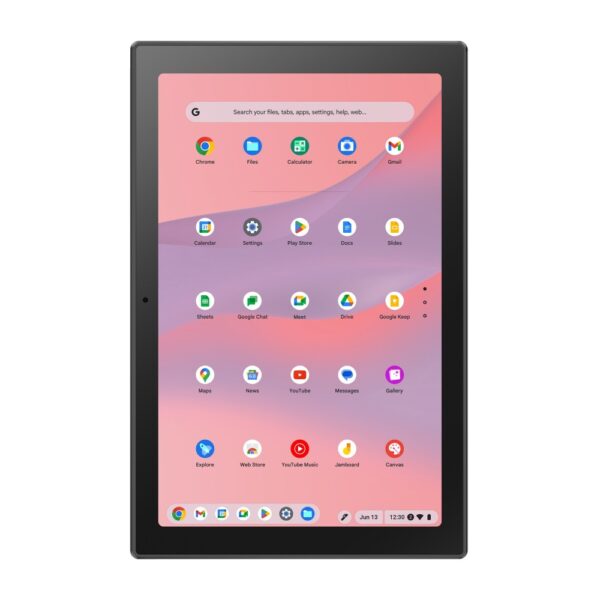
If your Chromebook is a tablet, or a 2-in-1 folded into tablet mode with no keyboard handy, press Power + Volume Down together for about a second, exactly like taking a screenshot on a phone.
⌨ Using an external keyboard
Plugged into a normal USB or Bluetooth keyboard that has no Show windows key? Use Ctrl + F5 for a full screenshot, and Ctrl + Shift + F5 for the partial and window tool. F5 stands in for the Show windows key. This is also the fix if people say their screenshot shortcut is not working: they are usually on an external keyboard.
Where Chromebook screenshots are saved
Every screenshot goes to the Downloads folder. Open the Files app and look under Downloads to find them. You will also see each new capture in the Tote (the holding space on the shelf) for a short while, where you can drag it straight into an email or a document. Want to paste it instead of saving? After capturing, press Ctrl + V to paste the screenshot directly into a message or document.
New to ChromeOS, or deciding whether a Chromebook is right for you? Read our full guide, What Is a Chromebook, and Is It Worth It in 2026?, or browse our current range below.
Samsung Galaxy Chromebook Go Laptop 14″ HD Touchscreen Intel Celeron N4500 4GB RAM 64GB eMMC Chrome OS Silver
In stock
HP Fortis G1m 11.6″ HD Chromebook MediaTek 520 4GB RAM 32GB eMMC ChromeOS Black
In stock
Acer Chromebook 314 14″ Full HD Intel Celeron 4GB RAM 64GB eMMC Black Chrome OS
In stock
Acer Chromebook 314 14″ WUXGA IPS Laptop, MediaTek Kompanio 540, 4GB RAM, 64GB eMMC, ChromeOS, Blue
In stock
HP Fortis G1m Chromebook 11.6″ HD Touchscreen MediaTek 520 4GB RAM 32GB eMMC ChromeOS Black
In stock
ASUS Chromebook CL3001DM2A-R70337 10.5″ WUXGA Touchscreen MediaTek Kompanio 520 4GB RAM 64GB eMMC ChromeOS Silver
In stock
Acer Chromebook 315 15.6″ Full HD TN Laptop MediaTek Kompanio 4 GB RAM 64 GB eMMC ChromeOS
In stock
HP Chromebook 14″ HD Laptop MediaTek 540 4GB RAM 64GB eMMC ChromeOS Meteor Silver
In stock
Pro tip: after any capture, click the thumbnail that pops up in the corner to crop, annotate or copy it straight away, before it disappears into Downloads. It saves a trip to the Files app.
Press Ctrl and the Show windows key together for a full-screen shot, or Ctrl + Shift + Show windows to select an area or a single window.
In the Downloads folder. Open the Files app and look under Downloads. Each new screenshot also appears briefly in the Tote on the shelf.
Press Ctrl + Shift + Show windows, choose Window from the toolbar, then click the window you want to capture.
Press the Power button and Volume Down together for about a second, the same as on a phone.
You are probably using an external keyboard with no Show windows key. Use Ctrl + F5 for a full screenshot and Ctrl + Shift + F5 for the selection tool.
Yes. Open the Screen capture tool with Ctrl + Shift + Show windows or from Quick Settings, switch to the video icon, and record with optional microphone audio.
About Hardvance Team
The Hardvance Team is the editorial team at Hardvance, a UK computer and electronics retailer based in Mildenhall, Suffolk. We build and upgrade PCs and sell laptops, phones, networking gear, monitors and printers, and our guides cover the same ground. Every guide names its sources and explains how we checked the figures, and we say plainly when something is our opinion rather than a tested result.
View all posts by Hardvance Team