

Unplug everything, hold the power button down, plug the charger back in and try again. That is the fix for most dead laptops, and the reason it often fails is that people do not hold the button long enough. The correct time is different on every brand: Lenovo says 10 seconds, HP says 15, Microsoft says 30, and Asus says 20 or 40 depending on the model. On many Acer and Lenovo machines the button you need is not the power button at all. It is a pinhole underneath.
What is your laptop doing?
We are a UK technology retailer. There is nothing for sale on this page and no prices from our shop on it. Every button combination and hold time below was read on that manufacturer's own support pages on 17 August 2026, and all of them are linked at the bottom.
A laptop that will not turn on is not usually broken. Most of the time it is stuck, and it is stuck because a small amount of electricity is still sitting in the machine and confusing the power circuit. Clearing that costs nothing and takes a minute.
The advice everywhere is “hold the power button”. What almost nobody tells you is how long, and that the answer is different depending on who made your laptop. We read the support pages of HP, Dell, Lenovo, Acer, Asus and Apple to get the real numbers, and they range from 10 seconds to 40.
Do this before anything else. It fixes a large share of dead laptops and it cannot damage anything. Dell calls it a hard reset and recommends it as the first step when a machine will not boot, and it does not touch your files.
Why it works: the capacitors on the motherboard hold a residual charge. Dell calls it flea power, and its own documentation notes the board can keep it “even if the computer is turned off, disconnected from the AC adapter and without a battery”. Holding the power button with no power connected is what bleeds it away.
If the machine starts, you are done. If it does not, the time you held the button may have been wrong for your brand, which is the next section.
If you searched because your HP laptop won’t turn on, or your Lenovo, Acer, Dell or Asus laptop won’t turn on, this table is the part you came for. These are the manufacturers’ own numbers, not a rule of thumb. They genuinely differ, and holding for 10 seconds on a machine that wants 40 looks exactly like a laptop that is dead.
| Brand | What to hold, and for how long | The bit that is easy to miss |
|---|---|---|
| HP | Power button for about 15 seconds | On business laptops, hold Windows + V and press power at the same time. On an HP Chromebook the procedure is different again: hold Reset, then press Power while still holding Reset |
| Dell | Power button with everything disconnected, to drain flea power | Dell is explicit that residual charge survives with both the adapter and the battery removed, which is why simply unplugging and trying again does nothing |
| Lenovo | At least 10 seconds on machines with no reset hole | Many Lenovos have a pin hole reset, and some IdeaPads have a Novo button that opens recovery. Lenovo also notes that if the reset works, your power button may be the faulty part |
| Acer | Power button, or the Battery Reset pinhole underneath for 10 to 15 seconds | The hole is labelled and needs a paperclip. Acer says to insert it “until you feel the button inside the hole press down”. It temporarily disconnects the internal battery |
| Asus | 20 or 40 seconds, depending on the model | For a full EC and RTC reset Asus wants 40 seconds with the charger connected and everything else unplugged. On 20 second models the power light flashes rapidly for 3 to 5 seconds after about 15 seconds; wait for the flashing to stop, then let go |
| Apple | Power button for about 10 seconds | On MacBooks with Touch ID, the Touch ID sensor is the power button. Hold that |
If you do not know which camp your laptop is in, hold for 40 seconds. That covers every machine in the table and no manufacturer warns against holding too long.
This is the step that rescues laptops people have already written off, and it is missing from most guides because it is not on the keyboard. If an Acer or Lenovo laptop won’t turn on after a normal reset, this is the next thing to try.
Turn the laptop over. On many Acer and Lenovo machines there is a tiny hole in the base, roughly the diameter of a paperclip. On Acer it is labelled Battery Reset. It is not a drainage hole and it is not a screw.
What it does, in Acer’s words, is “disconnect the internal battery temporarily and reset the power circuit”. On a sealed laptop it is the equivalent of pulling the battery out, which is the one thing you cannot otherwise do.
Five causes cover almost everything, roughly in the order you should suspect them.
One that is easy to overlook: if the reset works but the machine will not start with a normal press, Lenovo’s own guidance is that the power button itself may be at fault. A button that has stopped making contact behaves exactly like a dead laptop.
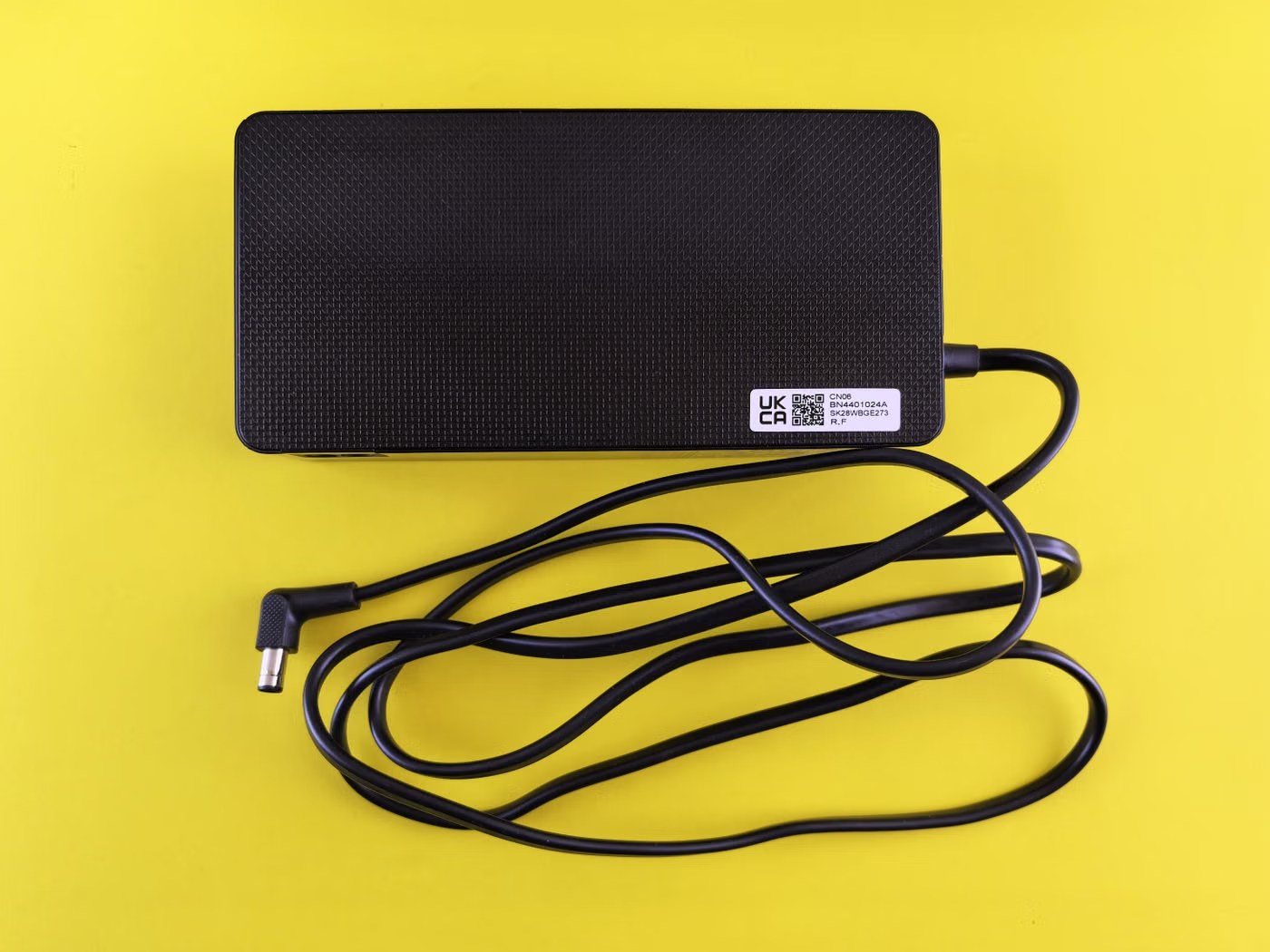
Test the power supply before you conclude anything about the laptop. It is the cheapest part of the chain and the one that fails most.
Be careful with bodged replacements. On the Reddit thread that ranks for this problem, one owner’s charger was assembled from several other chargers after a cat chewed the original. A charger that delivers the wrong voltage can leave a laptop that appears to charge but never gathers enough power to start.
If your laptop charges but will not run, or runs but will not charge, that is a different fault to a dead machine, and our guide to charging problems covers the same cable and port checks that apply here.
If you can hear fans, see a keyboard backlight or catch a power light, the laptop is running. What has failed is the display, or the machine’s ability to talk to it. That is a much better position to be in.
If the panel shows marks, lines or patches rather than nothing at all, that is a different problem again, and we go through which of those marks are faults in our guide to screen marks and dead pixels.
Before you decide the laptop won’t turn on at all, look and listen carefully for ten seconds with the room quiet. A machine that is doing something, however faint, is a different and more hopeful problem.
| What you get | What it usually means |
|---|---|
| Nothing. No light, no fan, no sound | No power reaching the board. Charger, battery or the reset in this guide |
| Charge light on, nothing else | Power is arriving. The board is not starting. Try the reset, then the pinhole |
| Fans spin, screen black, no logo | It is running but not posting. Suspect RAM, or the display path |
| A pattern of beeps or a flashing light code | A diagnostic code. Count the pattern and look it up for your model, it names the failed part |
| Starts, then dies after a few seconds | Usually power delivery or overheating protection |
Those beep and blink patterns are worth the two minutes it takes to count them. Every manufacturer publishes what they mean, and it turns guesswork into a named component.
Apple’s version of the same fix is shorter. Hold the power button for about 10 seconds, then let go and press it normally. On any MacBook with Touch ID, the Touch ID sensor is the power button, so that is the one to hold.
Two things specific to Macs:
If the Mac chimes or shows an Apple logo and then stops, that is a software or drive problem rather than a power one, and it needs recovery mode rather than the button.
Stop and get a quote when any of these is true:
Before you pay for anything, get your files. A repair shop can usually pull the drive and copy your data even when the laptop will not start, and that is a much cheaper job than a board repair. Ask for it as a separate quote.
Our advice on whether to repair or replace: if the machine is more than about five years old and the quote is more than a third of what a comparable new one costs, replacing is usually the better deal, and if you are at that point our guide to choosing a laptop covers what actually matters.
Unplug the charger and every accessory, hold the power button down for the time your brand needs, then reconnect the charger and try again. Lenovo says at least 10 seconds, HP about 15, Asus 20 or 40 depending on model, and Microsoft's generic advice is 30 with the battery out. If you do not know, hold for 40.
Hold the power button with no power connected, which drains the residual charge Dell calls flea power. If that does nothing, look for a pinhole reset on the underside. Acer labels it Battery Reset and many Lenovo machines have one too. Push a paperclip in for 10 to 15 seconds.
Power reaching the machine and the machine starting are two different things. A charge light with no other response usually means the board is stuck rather than unpowered, which is exactly what a hard reset clears. If the reset works but a normal press does not, Lenovo notes the power button itself may have failed.
First check it is actually off. Listen for fans and look for a keyboard backlight. If it is running, shine a torch at the screen: a faint image means the backlight failed. Plug in an external monitor to confirm, and try Windows + P for display modes and Windows + Ctrl + Shift + B to restart the graphics driver.
If it has no reset hole, hold the power button for at least 10 seconds with the charger unplugged. Many Lenovo laptops do have a pin hole reset, and some IdeaPads have a Novo button that opens recovery. Lenovo documents all three routes.
Hold the power button for about 15 seconds with everything unplugged. On an HP business laptop, hold Windows + V and press the power button at the same time. HP Chromebooks are different again: hold Reset, then press Power while still holding Reset.
Most often a stuck power state after a crash or a bad shutdown, and the reset in this guide clears it. Next most likely is the charger, which fails at the cable ends. A laptop left unused for months can also be flat enough to need half an hour on charge before it shows any sign of life.
No. None of the manufacturers here warn against holding it too long, and several ask for 30 or 40 seconds. Holding the button with the power disconnected does not erase anything either. Dell states plainly that a hard reset does not affect your personal files.
We are a UK technology retailer. There is nothing for sale on this page. Every hold time, key combination and reset procedure above was read on the manufacturer's own support pages on 17 August 2026, not gathered from other guides, and each one is linked below.
That mattered on one detail. A commenter on the Reddit thread that ranks for this problem suggested pressing Windows + B for HP's recovery and said themselves they were not sure of the letter. HP's own documentation says Windows + V, for business laptops. We have used HP's.
The Hardvance Team is the editorial team at Hardvance, a UK computer and electronics retailer based in Mildenhall, Suffolk. We build and upgrade PCs and sell laptops, phones, networking gear, monitors and printers, and our guides cover the same ground. Every guide names its sources and explains how we checked the figures, and we say plainly when something is our opinion rather than a tested result.
View all posts by Hardvance Team


No account yet?
Create an Account