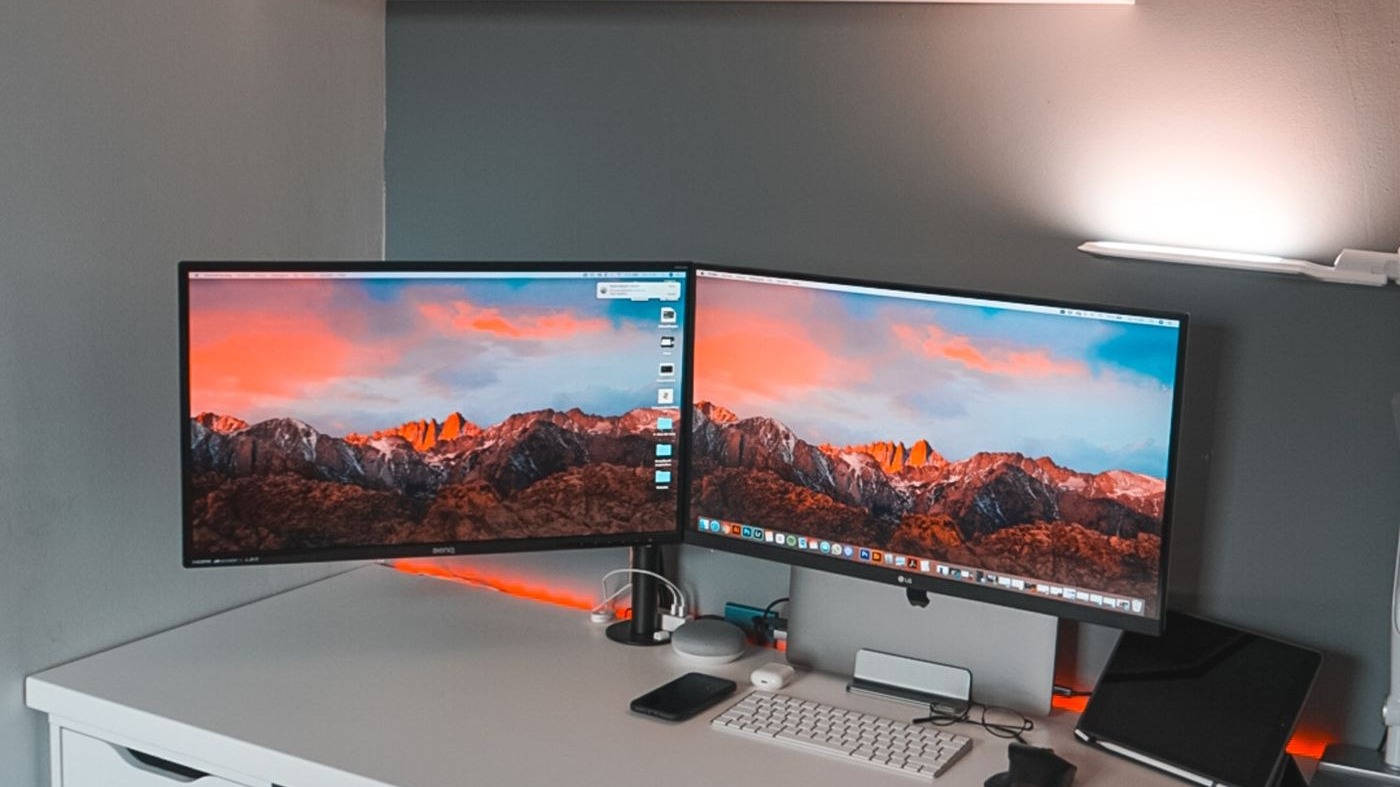
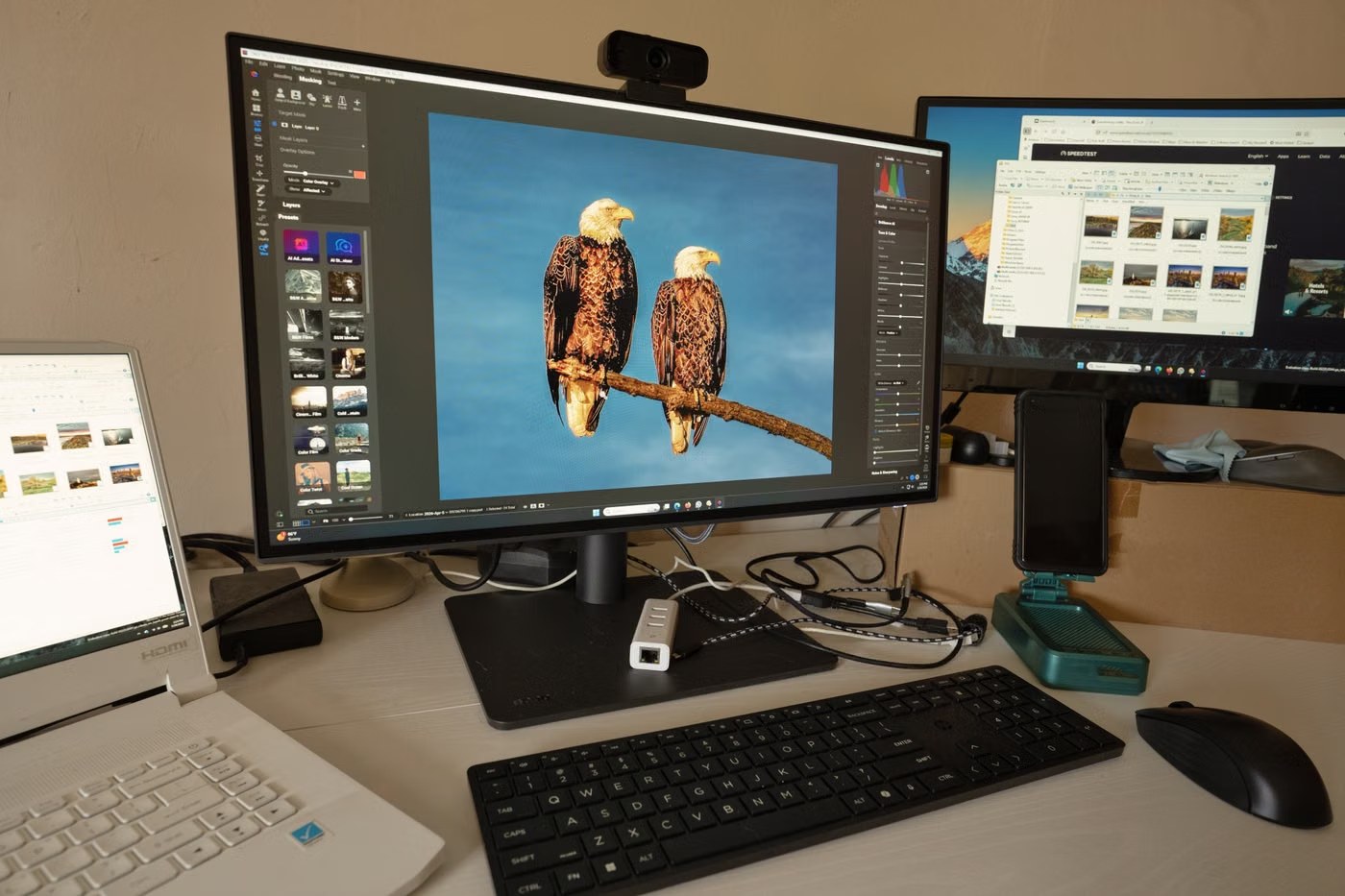
Plug the second monitor into a spare video output, press Windows + P and choose Extend. That is the whole job on most PCs. The two things that go wrong are having only one output to plug into, which no splitter will fix, and buying a second screen of a different size so the two sit at different heights and your neck pays for it every day.
Where are you stuck?
We are a UK technology retailer. There is nothing for sale on this page and no prices from our shop on it. The Windows steps come from Microsoft's own documentation and the bandwidth figures from the people who make the hubs, all linked at the bottom.
Adding a second screen is the cheapest useful upgrade most desks can have, and the actual setup takes about a minute. Almost every guide covers that minute in detail.
What they skip is everything either side of it: whether the back of your machine can drive two screens at all, and whether the second monitor you are about to buy will sit at the same height as the one you already own. Those are the two decisions you cannot undo with a settings menu.
Go and look at the back of your PC now, before you order anything. Count the video outputs, not the USB ports. You are looking for:
One trap worth knowing on desktops with a separate graphics card. The motherboard has its own video outputs, usually stacked with the USB ports, and the graphics card has its own lower down. Use the graphics card outputs for both screens. On most desktop builds the motherboard outputs are switched off the moment a graphics card is fitted, and plugging one monitor into each is a common reason the second screen never appears.
Two outputs of any kind is all you need for a dual monitor setup. They do not have to match: HDMI for one screen and DisplayPort for the other works perfectly well.
This is the most asked question on the subject and the most often answered badly, so here is the plain version.
An HDMI splitter will not give you two separate desktops. Splitting is exactly what the name says: it takes one signal and sends the same picture to several screens. You get the same thing twice, which is useful for a shop window or a presentation and useless for working across two screens.
To get two independent screens from one port you need one of these instead:
| Route | What it needs | Worth knowing |
|---|---|---|
| A second output | Any spare HDMI, DisplayPort, USB-C or DVI | Free, and always the first thing to check |
| DisplayPort MST hub | A graphics card with DisplayPort 1.2 or better and MST support | One hub can drive up to four displays |
| Daisy chaining | Monitors that are MST-capable, with MST mode switched on in their menu | Screen one feeds screen two, so you run one cable to the PC |
| USB-C dock | A USB-C port that carries video | Usually the neatest answer on a laptop |
There is a limit on the MST routes that catches people out. The bandwidth of that one port is shared between the screens hanging off it. The manufacturers put numbers on it: a 1080p monitor uses roughly 22% of the available bandwidth and a 4K monitor 40% or more. That is the arithmetic behind why four 1080p screens are fine on one hub and four 4K screens are not.
With both screens plugged in and switched on:
That third step is the one people skip, and it is why the mouse sometimes has to travel off the wrong edge. Windows does not know which screen is physically on the left. If the boxes are the wrong way round, the pointer leaves the right edge of one screen and appears on the left of the other.
If you cannot tell which box is which, click Identify. Windows throws a large number onto each physical screen so you can match them up.
The four modes behind Windows + P do genuinely different jobs:
| Mode | What it does | When you want it |
|---|---|---|
| Extend | Both screens become one large desktop | Working. This is the one you want |
| Duplicate | The same picture on both | Presenting. Dell says outright it is not recommended for productivity |
| PC screen only | Second screen off | Ignoring the other screen for a while |
| Second screen only | First screen off | A laptop feeding a big monitor with the lid shut |
Choosing your main screen matters more than it sounds. The main display is where the taskbar, the Start menu and most new windows appear. In Display settings, click the box for the screen you want, then tick Make this my main display. Pick the one directly in front of you, not the one that happens to be plugged into the first port.
A laptop counts its own screen as one of the displays, so “two monitors on a laptop” usually means three screens in total, and that is where laptops run out of road.
Be careful with cheap USB-C hubs that promise dual HDMI. Many of them mirror rather than extend, because they are splitters wearing a dock’s clothes. If the listing does not say MST or extended displays, assume it duplicates.
If your laptop will not power on at all rather than refusing the second screen, that is a different problem and we cover it in our guide to a laptop that will not turn on.
Work through these in order. It is nearly always one of the first three.
If the screen is detected but shows nothing, or shows marks rather than a picture, the fault is in the panel rather than the connection, and our guide to screen marks and dead pixels covers which of those are faults.
Here is the part almost nobody writes about, and it is the one that decides whether you enjoy the setup or quietly stop using the second screen.
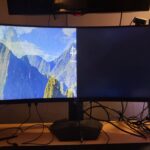
People choose a second monitor on resolution, panel type and price, and forget the only measurement that affects them every hour: how high the picture sits. Put a 27 inch screen next to a 24 inch one and the tops do not line up, the centres do not line up, and every glance across means your eyes refocus and your neck moves. It is a small annoyance the first day and a real one by the second week.
Our recommendation, in order of how much it helps:
If the two screens are also different resolutions, Windows scaling makes windows change size as you drag them across. That is not a fault, it is the scale setting on each display, and it is worth setting both to the same scaling percentage even if it means one looks slightly small.
You can absolutely run two different monitors together. Dell’s own guidance is that similar resolutions, sizes and refresh rates give the smoothest result, but that mixing types still works with some adjustment in the display settings.
What actually happens when they differ:
| The mismatch | What you will notice | What to do |
|---|---|---|
| Different resolutions | Windows change size when dragged across | Set the same scaling percentage on both |
| Different refresh rates | One screen looks smoother than the other | Normal. Set each to its own maximum in Advanced display |
| Different panel types | Colours and contrast do not match | Put the better panel in front of you and use the other for reference windows |
| Different physical sizes | The heights do not line up | The section above. This is the one that actually matters |
The practical rule: an old monitor you already own is nearly always worth adding, whatever it is. Buying a deliberately mismatched second screen to save a little money is the version you regret.
Plug the second screen into a spare video output, press Windows + P and choose Extend. Then open Settings, System, Display, Rearrange your displays, and drag the numbered boxes so they match how the monitors actually sit on your desk.
Not as two separate desktops. An HDMI splitter sends the same picture to both screens. To extend across two screens from one port you need a DisplayPort MST hub, a USB-C dock, or monitors that support daisy chaining.
You can, but you will get the same image twice. Splitting duplicates a signal by definition. It is right for a presentation or a display wall and wrong for working across two screens.
Settings, System, Display, Multiple displays, then Detect. If that fails, check the monitor is set to the right input with its own buttons, swap the cable, and on a desktop make sure both cables go to the graphics card rather than the motherboard.
You are in Duplicate mode. Press Windows + P and choose Extend instead, which turns the two screens into one continuous desktop.
Open Settings, System, Display and click Identify. Windows puts a number on each physical screen. Then drag the boxes under Rearrange your displays until their positions match the real ones, so the mouse crosses at the right edge.
No. Dell's guidance is that similar resolutions, sizes and refresh rates give the smoothest result, but mixed monitors work fine with a little adjustment. The mismatch worth avoiding is physical size, because two different sizes sit at different heights.
Check for two video outputs first. If there is only one, a USB-C dock or a DisplayPort MST hub is the usual answer. Avoid cheap dual HDMI adapters that do not mention MST or extended displays, because most of those mirror rather than extend.
We are a UK technology retailer. There is nothing for sale on this page. The Windows steps are from Microsoft's own documentation, the extend and duplicate definitions and the advice on matching monitors are from Dell's setup guide, and the MST bandwidth figures come from a manufacturer of the hubs themselves. All are linked below and were read on 17 August 2026.
The section on heights and sizes is our own recommendation rather than a sourced standard. We have flagged it that way deliberately: it is the part of a two screen desk that no manufacturer guide covers, and we would rather say plainly that it is our advice than dress it up as somebody else's research.
The Hardvance Team is the editorial team at Hardvance, a UK computer and electronics retailer based in Mildenhall, Suffolk. We build and upgrade PCs and sell laptops, phones, networking gear, monitors and printers, and our guides cover the same ground. Every guide names its sources and explains how we checked the figures, and we say plainly when something is our opinion rather than a tested result.
View all posts by Hardvance Team


No account yet?
Create an Account