body.postid-310868 .hv-ed-standfirst::before{content:’We opened the complaint threads, then Microsoft’s own list’;}
body.postid-310868 .hv-tbl{width:100%;border-collapse:collapse;margin:1.4em 0;font-size:.95em;}
body.postid-310868 .hv-tbl th{background:#114e9d;color:#fff;text-align:left;padding:.6em .7em;font-weight:600;}
body.postid-310868 .hv-tbl td{padding:.55em .7em;border-bottom:1px solid #e3e7ee;vertical-align:top;}
body.postid-310868 .hv-tbl tr:nth-child(even) td{background:#f6f8fb;}
body.postid-310868 .hv-tbl-wrap{overflow-x:auto;}
body.postid-310868 .hv-ed-note h2{margin-top:0;}
body.postid-310868 code{background:#f2f4f8;padding:.1em .35em;border-radius:3px;font-size:.92em;}
The one to remember is Windows key + Shift + S. It dims the screen, you drag a box round the bit you want, and the picture lands on your clipboard ready to paste. If you want a file saved automatically instead, press Windows key + Print Screen and look in Pictures, then Screenshots. Everything else on this page is a variation on those two.
Which one are you here for?
- Just give me the shortcutsAll of them in one table. The table
- I pressed Print Screen and nothing happenedNothing is broken. What changed
- What is the Snipping Tool shortcutWindows key + Shift + S. And what else it does
- Where did my screenshot goThree different places, depending on the key. The folders
- My keyboard has no Print Screen keyCommon on compact boards. Three ways round it
- I want to capture a gameWhy Print Screen fails there
- I need a video, not a pictureWindows key + Shift + R. How it works
- Windows 10 or Windows 11The differences that matter
We sell keyboards, so we will be upfront: nothing on this page needs you to buy anything, and there is not a single product for sale on it. Every shortcut below is checked against Microsoft’s own documentation, and the awkward bits come from people who posted about them.
Jump to what you need
- How to screenshot on Windows: every shortcut in one table
- How to print screen on Windows
- Print Screen not working on Windows?
- Snipping Tool shortcut, and what it does that Print Screen cannot
- Where Windows saves a screenshot
- No Print Screen key? How to screenshot on Windows without one
- How to screenshot on Windows while gaming
- How to take a video screenshot on Windows
- How to take a screenshot on Windows 11
- How to take a screenshot on Windows 10
- What we would actually do
- Quick answers
How to screenshot on Windows: every shortcut in one table
There are five shortcuts worth knowing, and they differ in two ways only: how much of the screen they grab, and whether the result goes to your clipboard or straight into a file. Pick by that, not by memorising all five.
If you take one thing from this page, take the first row.
| Press | What it grabs | Where it ends up |
|---|---|---|
| Windows key + Shift + S | A box you drag, a window, or the lot | Your clipboard, ready to paste. Also saved by Snipping Tool |
| Windows key + Print Screen | The whole screen | A PNG file in Pictures, then Screenshots |
| Print Screen on its own | Opens the snip overlay on Windows 11 | Clipboard. This one changed |
| Alt + Print Screen | Only the window you are using | Your clipboard |
| Windows key + Shift + R | A region, as video | An MP4 in Videos, then Screen Recordings |
A screenshot on the clipboard is invisible until you paste it. Open the message, the document or the email and press Ctrl + V. If nothing appears, the capture did not happen, and the section on Print Screen not working covers why. Our guide to clipboard history is worth a look too, because Windows can hold your last few clips rather than just one.
Two habits are worth building. Use Windows key + Shift + S for anything you are about to paste somewhere, because it saves you cropping afterwards. Use Windows key + Print Screen when you want proof kept on disk, like an order confirmation or an error message you might need next week.
How to print screen on Windows
Print screen and screenshot are the same thing. The name is a leftover from the 1980s, when the key really did send the screen to a printer. Today it copies the screen instead.
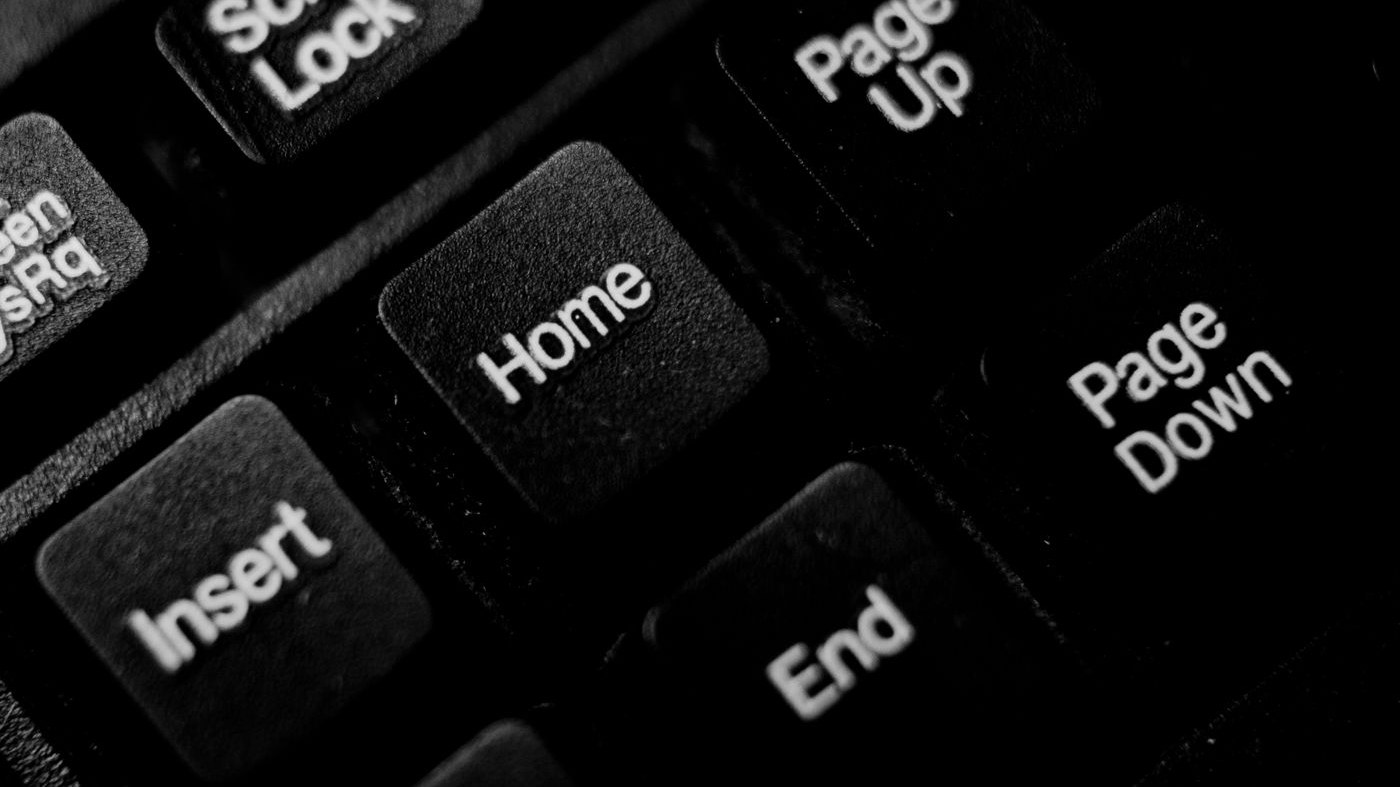
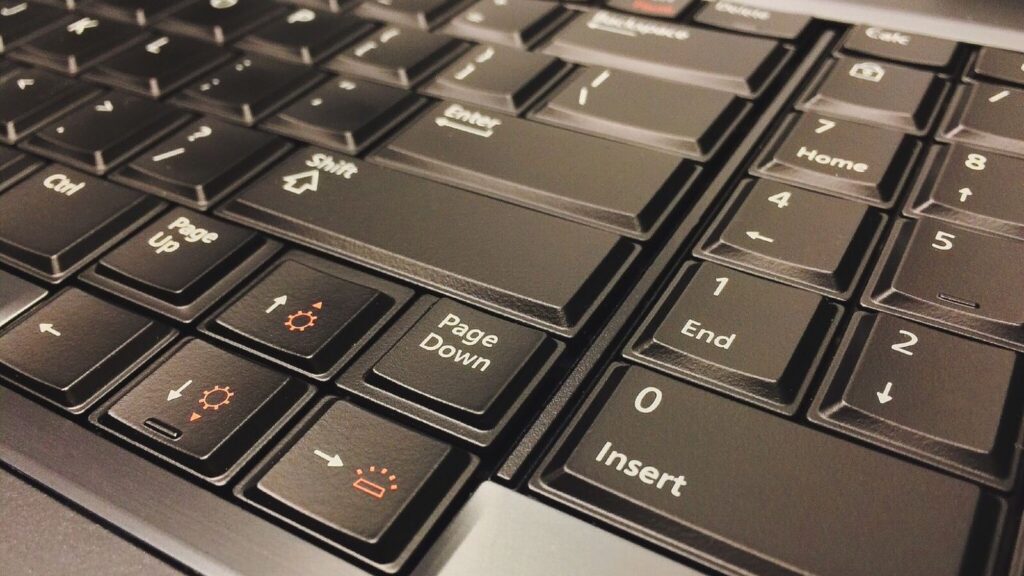
The key is usually labelled PrtScn, Prt Sc or Print Screen, and it sits above the arrow keys on a full-size keyboard, in the block with Scroll Lock and Pause. On many laptops it has moved into the function row or shares a key with something else.
What it does depends on what you hold with it. Microsoft’s own shortcut list is the reference here:
- Print Screen alone. On Windows 11 this now opens the snip overlay so you can select a region, and the result goes to the clipboard. On older setups it silently copied the entire screen instead.
- Alt + Print Screen. Captures only the window you are currently using and copies it to the clipboard. This is the one people underuse. It saves you cropping the taskbar and your desktop wallpaper out of every screenshot.
- Windows key + Print Screen. Captures the full screen and saves it to a file, in the Screenshots subfolder of your Pictures folder. The screen dims for a moment to tell you it worked.
That last one is the shortcut most people never learn. As recently as May 2026, a post on the Windows 11 forum titled “Tip of the Week: you can press Win + PrintScreen to quickly save a full screen screenshot” drew dozens of replies from people who had not known. If you have been pasting screenshots into Paint to save them, you can stop.
Print Screen not working on Windows?
In nearly every case it is working and you are looking in the wrong place, or Windows 11 changed what the key does and nobody told you. Work through these four in order.
1. The key opens the Snipping Tool now, and you were expecting silence
This is the big one. On Windows 11 the Print Screen key opens the screen-snipping overlay by default rather than quietly copying the screen. If you were used to pressing it and pasting straight into something, that behaviour changed under you.
To turn it off, Microsoft’s instruction is: Start, Settings, Accessibility, Keyboard, and set Use the Print Screen button to open screen snipping to Off.
Now the honest part, because we read the complaints rather than only the documentation. That toggle does not always hold. One user on the Windows help forum, on Windows 11 version 24H2, reported the setting switched off and the overlay still appearing, and that uninstalling the Snipping Tool did not stop it either. If that is you, the underlying value another user pointed to is PrintScreenKeyForSnippingEnabled under HKCUControl PanelKeyboard in the registry. We are pointing at it rather than walking you through editing the registry, because that is not a step to take on a hunch.
2. You are pasting into something that will not accept an image
A screenshot on the clipboard needs a destination that handles pictures. Paste into Paint, Word, an email or a chat window. A plain text box will take nothing and give you no error.
3. Your keyboard needs Fn
On a lot of laptops and compact keyboards, Print Screen is a secondary function printed in a different colour. Hold Fn and press it. If your machine has an Fn Lock, the whole row may be inverted, so the key you want is available only while Fn is held, or only while it is not.
4. The app is blocking it
Some streaming apps and banking apps deliberately return a black rectangle instead of their content, and many games ignore Print Screen entirely. That is not a fault on your PC. The gaming section covers what to do instead.
Snipping Tool shortcut, and what it does that Print Screen cannot
The Snipping Tool shortcut is Windows key + Shift + S. That is the whole answer, and it is the most useful three keys in Windows.
Press it and the screen dims. A small toolbar appears at the top with four capture modes: drag a rectangle, draw a freehand shape, click a single window, or take the whole screen. Let go and the picture is on your clipboard, and Snipping Tool saves a copy to your Screenshots folder as well.
There are three ways to open it, per Microsoft: that shortcut, the Print Screen key, or searching for it in the Start menu.
Where it goes beyond Print Screen is what happens after the capture:
- Annotate before you send. Pen, highlighter, shapes and a crop tool, so you can circle the thing you are actually asking about.
- Text actions. This is optical character recognition. It pulls the text out of the picture so you can copy it, which turns a screenshot of an error message into something you can paste into a search box. It can also redact text, which is the safe way to hide an account number before you send a screenshot to support.
- Record video. Covered in the video section below.
- Delay. Useful for capturing a menu that vanishes the moment you click elsewhere.
If you only ever learn one screenshot method on Windows, make it this one. It is faster than Print Screen, it does not need a Print Screen key at all, and it works the same on Windows 10 and Windows 11.
Where Windows saves a screenshot
Three different places, and which one depends on the key you pressed. This is the single most common reason people think a screenshot failed.
| How you captured it | Where to look |
|---|---|
| Windows key + Print Screen | Pictures, then Screenshots |
| Windows key + Shift + S, or Snipping Tool | Clipboard, and a copy in your Screenshots folder |
| Print Screen or Alt + Print Screen | Clipboard only. Nothing is saved until you paste it somewhere and save that |
| Windows key + Shift + R | Videos, then Screen Recordings, as an MP4 |
| Xbox Game Bar | Videos, then Captures |
Two traps worth knowing, both from people who thought their screenshots had vanished.
The first is that a phone or a photo app can quietly take over. One person on the Windows help forum spent a day convinced Windows key + Print Screen had stopped working, then found the files were landing in Gallery instead of the Pictures folder they had always used.
The second is sorting. Windows numbers screenshots as it makes them, so if you have hundreds, a new one does not necessarily appear at the bottom of the folder. The same person found their new files sitting in the middle of the list. Sort the folder by date modified rather than by name and they reappear.
You can change the destination. In File Explorer, right-click the Screenshots folder, choose Properties, then Location, and move it wherever you want.
No Print Screen key? How to screenshot on Windows without one
Use Windows key + Shift + S and stop worrying about it. That shortcut needs no Print Screen key at all, and it is better than the key anyway.
This comes up constantly, and it is a hardware question rather than a Windows one, so it is the part of this page we are best placed to answer.
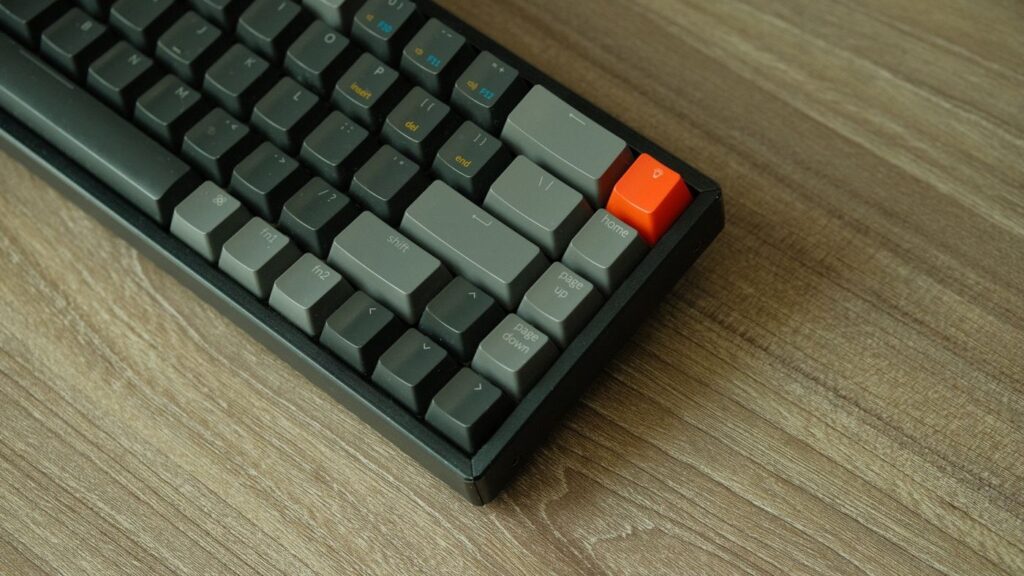
Compact keyboards drop keys to save desk space. A tenkeyless board loses the number pad. A 65% board loses the function row as well, and a 60% board loses the arrow keys too. Print Screen is one of the first casualties, because it is one of the least used keys on a full-size layout. The same applies to plenty of laptops, where Print Screen has been folded into the function layer or dropped to make room for a bigger trackpad. If you are choosing a board and you care about this, our guide to mechanical and membrane keyboards covers what the layout names actually mean.
Three ways round it, in the order we would try them:
- Use the shortcut instead. Windows key + Shift + S. Nothing else needed. For a full-screen file, most compact keyboards still reach Print Screen through the function layer, so try Fn plus whichever key has PrtSc printed on its side or its front.
- Open Snipping Tool from the Start menu and pin it to your taskbar. One click, no keyboard involved.
- Remap a key you never use. Microsoft’s own PowerToys Keyboard Manager will map any single key to Print Screen. When someone asked about this on the Windows 11 forum, PowerToys was what the thread settled on, and a commenter made a point worth repeating: scripting tools such as AutoHotkey can be flagged by game anti-cheat systems, while PowerToys remaps at a lower level and generally is not. If you game on the same machine, that difference matters.
How to screenshot on Windows while gaming
Print Screen often returns a black image in a full-screen game. Use the Xbox Game Bar instead: press Windows key + G, then use the capture controls.
The reason is how the game draws to your screen. A game running in exclusive full screen bypasses the normal desktop compositor, and the ordinary screenshot path has nothing to copy. The same thing happens with some video streaming apps, which block capture deliberately for copyright reasons rather than by accident.
What to do:
- Windows key + G opens the Game Bar over the top of the game. Its capture widget takes a screenshot or records the last stretch of play, and the files land in Videos, then Captures.
- Switch the game to borderless window. In the game’s own display settings, borderless or windowed fullscreen usually restores normal screenshot behaviour, and it also makes alt-tabbing faster. Most people cannot tell the difference in performance on a modern PC.
- Use the launcher’s own key. Steam takes a screenshot with F12 by default and keeps them in its own library, which is often easier than digging through folders.
If your game stutters when the Game Bar records, that is a performance question rather than a screenshot one, and our guide to gaming performance problems is the better place to start.
How to take a video screenshot on Windows
Press Windows key + Shift + R. It works exactly like the snip overlay, except you drag a box and then record what happens inside it.
People search for a video screenshot on Windows when a picture will not do the job: showing someone the exact sequence of clicks, capturing an error that only appears for a second, or recording a bug for a support ticket.
The steps:
- Press Windows key + Shift + R, or open Snipping Tool and choose the Record button.
- Drag a box round the area you want.
- Press Start. Do the thing. Press Stop.
- The clip is saved automatically as an MP4, in the Screen Recordings subfolder of your Videos folder.
You can save the recording as it is, or open it in Clipchamp to trim it first. Snipping Tool can also add narration or captions to the clip. For long recordings of a game, the Game Bar is the better tool, because it is built to record continuously without pulling frames away from what you are playing.
How to take a screenshot on Windows 11
Every shortcut on this page works on Windows 11. The two things that are different from Windows 10 are what the Print Screen key does on its own, and how much the Snipping Tool can now do after the capture.
- Print Screen opens the snip overlay by default. Windows 10 copied the whole screen silently. If you want the old behaviour, turn it off in Settings, Accessibility, Keyboard.
- Snipping Tool absorbed the old Snip and Sketch. On Windows 10 those were two separate apps and it was never clear which one you were meant to use. That is settled now.
- Text extraction and video recording are built in. Neither existed in the Windows 10 version.
Everything else, Windows key + Shift + S, Windows key + Print Screen, Alt + Print Screen, behaves the same on both.
How to take a screenshot on Windows 10
Windows key + Shift + S and Windows key + Print Screen both work on Windows 10, and so does Alt + Print Screen. The difference is that Print Screen on its own copies the whole screen straight to your clipboard, with no overlay.
Windows 10 has two snipping apps rather than one, which is the main source of confusion. Snip and Sketch is the one behind Windows key + Shift + S and is the one to use. The older Snipping Tool app still exists and carries a notice saying it is moving. Ignore the old one.
Video capture through Windows key + Shift + R is a Windows 11 addition and is not available on Windows 10. On Windows 10 the Game Bar, at Windows key + G, is the built-in way to record the screen, and it will record ordinary apps as well as games.
What we would actually do
This section sells you nothing, so here is the short version of everything above.
- Learn Windows key + Shift + S and ignore the rest until you need them. It works on both versions of Windows, on any keyboard, with or without a Print Screen key.
- Learn Windows key + Print Screen second, for the times you want a file rather than a paste.
- If Print Screen behaves oddly, check Settings before you assume the key is broken. The behaviour changed, the key did not.
- If a screenshot has gone missing, sort the folder by date, not by name. That solves it more often than anything else.
- Do not buy a keyboard for a Print Screen key. A shortcut you already have does the job better.
Quick answers
How do I capture a screenshot on my PC?Press Windows key + Shift + S, drag a box round the part of the screen you want, then press Ctrl + V to paste it wherever you need it. If you would rather have a saved file, press Windows key + Print Screen instead and look in Pictures, then Screenshots.
How do you take a screenshot on a PC keyboard?
The Print Screen key, usually labelled PrtScn or Prt Sc, sits above the arrow keys on a full-size keyboard, in the block with Scroll Lock and Pause. On laptops and compact keyboards it is often on the function layer, so you hold Fn as well. If your keyboard has no Print Screen key at all, Windows key + Shift + S does the same job without it.
What is the Snipping Tool shortcut?
Windows key + Shift + S opens the Snipping Tool overlay for a picture, and Windows key + Shift + R opens it for a video recording. You can also press the Print Screen key or search for Snipping Tool in the Start menu.
Why is nothing happening when I press Print Screen?
Three usual causes. On Windows 11 the key opens the snip overlay instead of copying silently, so it looks like nothing happened until you drag a box. Your keyboard may need Fn held down. Or the capture worked and you are pasting into something that will not accept an image, in which case try Paint.
Where do my screenshots go on Windows?
Windows key + Print Screen saves to Pictures, then Screenshots. Snipping Tool captures go to your clipboard and also save a copy in that same folder. Print Screen and Alt + Print Screen go to the clipboard only, so nothing is saved until you paste and save it yourself. Screen recordings go to Videos, then Screen Recordings.
How do I take a screenshot in Windows 11?
Exactly as on Windows 10 for the main shortcuts: Windows key + Shift + S for a region, Windows key + Print Screen for a saved file, Alt + Print Screen for the active window. The difference is that pressing Print Screen on its own opens the snip overlay by default.
How do I screenshot just one window?
Click the window so it is the active one, then press Alt + Print Screen. It copies that window and nothing else to your clipboard, so you do not have to crop the taskbar and your wallpaper out afterwards. Windows key + Shift + S has a window mode on its toolbar that does the same thing.
Why is my screenshot black?
Usually because the app is drawing outside the normal desktop path or is blocking capture on purpose. Full-screen games and some streaming and banking apps both do this. For games, press Windows key + G and use the Game Bar, or switch the game to borderless window mode.
Related reading
- How to take a screenshot on a Mac
- How to take a screenshot on a Chromebook
- Where is my clipboard? Clipboard history on Windows, Android, iPhone and Mac
- Mechanical vs membrane keyboards
- How to fix a slow computer
How we know
We are a UK technology retailer. We sell keyboards, and we have deliberately not put a single product, price or buy link on this page, because none of the answers here need you to buy anything. The one piece of buying advice we give is not to buy a keyboard for a Print Screen key.
Every shortcut, folder path and setting name comes from Microsoft’s own documentation: the Windows keyboard shortcut list for Print Screen, Alt + Print Screen, Windows key + Print Screen, Windows key + Shift + R and the Accessibility toggle, and the Snipping Tool support page for the capture modes, text extraction and video recording. We have quoted the folder names as Microsoft writes them rather than from memory.
The awkward parts are not from documentation, because documentation does not admit them. We opened and read three discussions rather than characterising them from their titles: a Windows help thread from a user on version 24H2 whose Print Screen key kept opening the snip overlay with the setting switched off, a thread from someone whose saved screenshots had gone to Gallery and were sorting into the middle of the folder, and a Windows 11 thread about a new keyboard with no Print Screen key, which is where the PowerToys and anti-cheat point comes from. We read the threads themselves, not every one of their comments.
One limit we will state. We have pointed at the registry value another user identified for the Print Screen behaviour rather than writing a step-by-step registry edit, because we have not been able to reproduce that specific fault ourselves and a registry walkthrough for a fault we cannot test is not something we are willing to publish.
Sources
- Microsoft, “Keyboard shortcuts in Windows”: Print Screen, Alt + PrtScn, Windows key + PrtScn saving to the Screenshots subfolder of Pictures, Windows key + Shift + R saving to the Screen Recordings subfolder of Videos, Windows key + G for the Game Bar, and the Settings, Accessibility, Keyboard toggle.
- Microsoft, “Use Snipping Tool to capture screenshots”: the three ways to open it, Windows key + Shift + S and Windows key + Shift + R, automatic saving to the Screenshots folder, the Text actions OCR feature, and video capture with editing in Clipchamp.
- Microsoft, “Where are my game clips and screenshots saved in Windows?”: Xbox Game Bar captures going to the Captures folder inside Videos.
- Microsoft Learn, “PowerToys Keyboard Manager”: remapping a single key, for keyboards with no Print Screen key.
- r/WindowsHelp, “How do I get the PrtSC button to stop opening up the Snipping tool?”: the Windows 11 24H2 report that the Accessibility toggle did not hold, and the registry value named in the replies.
- r/WindowsHelp, “screenshots not saving to pictures folder on windows 11”: the files that turned out to be in Gallery, and the numbering that sorted new captures into the middle of the folder.
- r/Windows11, “My new keyboard does not have a Print Screen key”: the PowerToys answer and the point about AutoHotkey and game anti-cheat.
- r/Windows11, “Tip of the Week: you can press WIN + PrintScreen to quickly save a full screen screenshot”, May 2026: evidence that the save shortcut is still news to a lot of Windows users.
Photographs are from Pexels, used under the Pexels License.