Don’t Bin It Yet: Monitor Flickering Has 3 Causes, and Two Free Tests Find Yours
“Monitor flickering” covers three different faults. If the whole picture blinks, goes black for a moment or shows flashing lines, it is usually the signal: the driver, the cable, the port or the refresh rate. If the brightness pulses in dark scenes and loading screens while you game, it is probably VRR flicker, which the reviewers at RTINGS found on all six OLED gaming monitors they tested. If you see nothing but get tired eyes at low brightness, it may be PWM flicker from the backlight. Two quick tests tell you which one you have: whether Task Manager flickers too, and whether the monitor’s own menu flickers.
Find your symptom:
- Everything flickers in WindowsPress Windows + Ctrl + Shift + B, then check the driver. Windows fixes
- Bottom of the screen onlyUsually the taskbar, sometimes the panel. Tell them apart
- Goes black for a secondCable, port or refresh rate. Check the signal
- Only when gamingVRR flicker. Cap your frame rate. Fix it
- Tired eyes, no visible flickerPWM. Test it with your phone. PWM test
- The monitor’s menu flickers tooThe monitor itself is failing. Repair or replace
Hardvance sells monitors, but nothing on this page is for sale and none of the fixes needs a part from us. The fixes come from Microsoft, Dell and Intel, the VRR findings from RTINGS and TFTCentral, the cable figures from HDMI Licensing and TFTCentral, and the spec-sheet figures from our own listings. We read all of them on 12 October 2026.
- Monitor flickering and screen flickering: three faults share one name
- Why is my monitor flickering? Two tests, including the self-test on Dell monitors
- How to stop monitor flickering in Windows 10 and 11: driver and app fixes
- Bottom of the screen or monitor flickering: the taskbar, or a band of the panel
- Monitor flickering on and off or going black: cable, port and refresh rate
- Monitor flickering when gaming: VRR flicker on OLED and VA screens
- PWM flicker you cannot see, and what a flicker-free monitor means
- Flickering lines, pixels and dots on a monitor
- Laptop screen flickering
- How to tell if your monitor is dying, and when to replace it
- What we would actually do
- Quick answers
Monitor flickering and screen flickering: three faults share one name
Most guides to screen flickering give one list of fixes for all of these, so you can try ten fixes and still have a flickering screen because you were fixing the wrong kind. Work out which one you have first.
| What you see | Kind | Usual cause |
|---|---|---|
| Picture blinks or cuts to black | Signal flicker | Driver, app, cable, port or refresh rate. Can also show as flashing lines |
| Pulses in dark game scenes | VRR flicker | G-Sync or FreeSync with an unsteady frame rate, worst on loading screens |
| Tired eyes, nothing visible | PWM flicker | A backlight dimmed by switching on and off, at low brightness |
| Monitor’s menu flickers too | Hardware fault | Backlight, power board or panel |
Signal flicker can usually be fixed for free. VRR flicker is a known weakness of OLED and VA screens, and you can reduce it but not always remove it. PWM flicker is built into some monitors, and the only full fix is a different monitor. A monitor whose own menu flickers is failing.
Why is my monitor flickering? Two tests, including the self-test on Dell monitors
Test 1: does Task Manager flicker? Microsoft’s own test. Press Ctrl + Shift + Esc to open Task Manager while the screen is flickering. If Task Manager flickers along with everything else, Microsoft says a display driver is probably the cause. If Task Manager stays steady while the rest of the screen flickers, an app is probably the cause. Go to the Windows fixes with that answer.
Test 2: does the monitor’s own menu flicker? Press the button on the monitor that opens its settings menu. The monitor draws that menu itself, so it does not depend on your PC, the cable or Windows.
- The menu flickers too: the monitor itself has a fault. Go to repair or replace.
- The menu is rock steady while the picture behind it flickers: the fault is on the PC side or in the cable.
Some monitors have a proper version of this test built in. Dell calls it the built-in self-test, and says to run it when you see flickering, lines, distortion or faded colour. If the problem shows during the self-test, Dell says to contact it for a repair. If it does not, the monitor is working and the problem is elsewhere. Your monitor’s manual will say whether it has one, usually in the troubleshooting section.
A third, rougher test comes from a Tom’s Hardware forum thread about flickering lines: take a screenshot the moment it happens. A screenshot records what the PC is drawing, not what reaches the screen. If the flicker or lines show in the screenshot, look at the PC side. If the screenshot is clean, look at the cable and the monitor.
How to stop monitor flickering in Windows 10 and 11: driver and app fixes
If Test 1 pointed at Windows, work through these in order. The first three are Microsoft’s steps, and they are the same for Windows 10 and Windows 11.
- Reset the graphics driver. Press Windows + Ctrl + Shift + B. Microsoft says this may fix it on its own. If not, restart the PC.
- If Task Manager flickered, fix the display driver. If Windows Update installed something just before the flicker started, roll back: open Device Manager, expand Display adapters, right-click your graphics card, choose Properties, then Driver, then Roll Back Driver. If there is nothing to roll back to, choose Update driver instead, or Uninstall Device with “Attempt to remove the driver for this device” ticked, then restart so Windows reinstalls it.
- If Task Manager stayed steady, find the app. Microsoft says an incompatible app is the likely cause. Think about what you installed or updated recently, update it, and uninstall it if the flicker continues.
- Check the refresh rate. In Windows 11, open Settings, System, Display, Advanced display. Make sure the refresh rate is one your monitor actually supports, and try one step lower to see if the flicker stops.
If the screen flickers so much you cannot read it, Microsoft suggests starting the PC in Safe Mode to follow these steps. Safe Mode uses a basic display driver, so if the flicker stops there, that points to the driver.
Bottom of the screen or monitor flickering: the taskbar, or a band of the panel
“Bottom of screen flickering” is one of the most searched flicker problems in the UK. It usually means one of two things, and the monitor menu test splits them.
Only the taskbar flickers. That is Windows, not your monitor. Suggestions on Microsoft’s own Q&A forum for taskbar flicker include turning off transparency effects (Settings, Personalization, Colors), switching off overlays from apps such as Discord or GeForce Experience, and turning off hardware-accelerated GPU scheduling (Settings, System, Display, Graphics). Restarting Windows Explorer from Task Manager is a quick check too. Try one at a time so you know which one worked.
A strip or band across the bottom flickers, whatever is on screen. Open the monitor’s menu and move it down over that area if the monitor lets you, or run its self-test. If the band flickers there too, part of the panel or its driving circuit is failing. That is a repair, not a setting. Our guide to a half black screen explains how a panel fault can affect only part of the screen.
Monitor flickering on and off or going black: cable, port and refresh rate
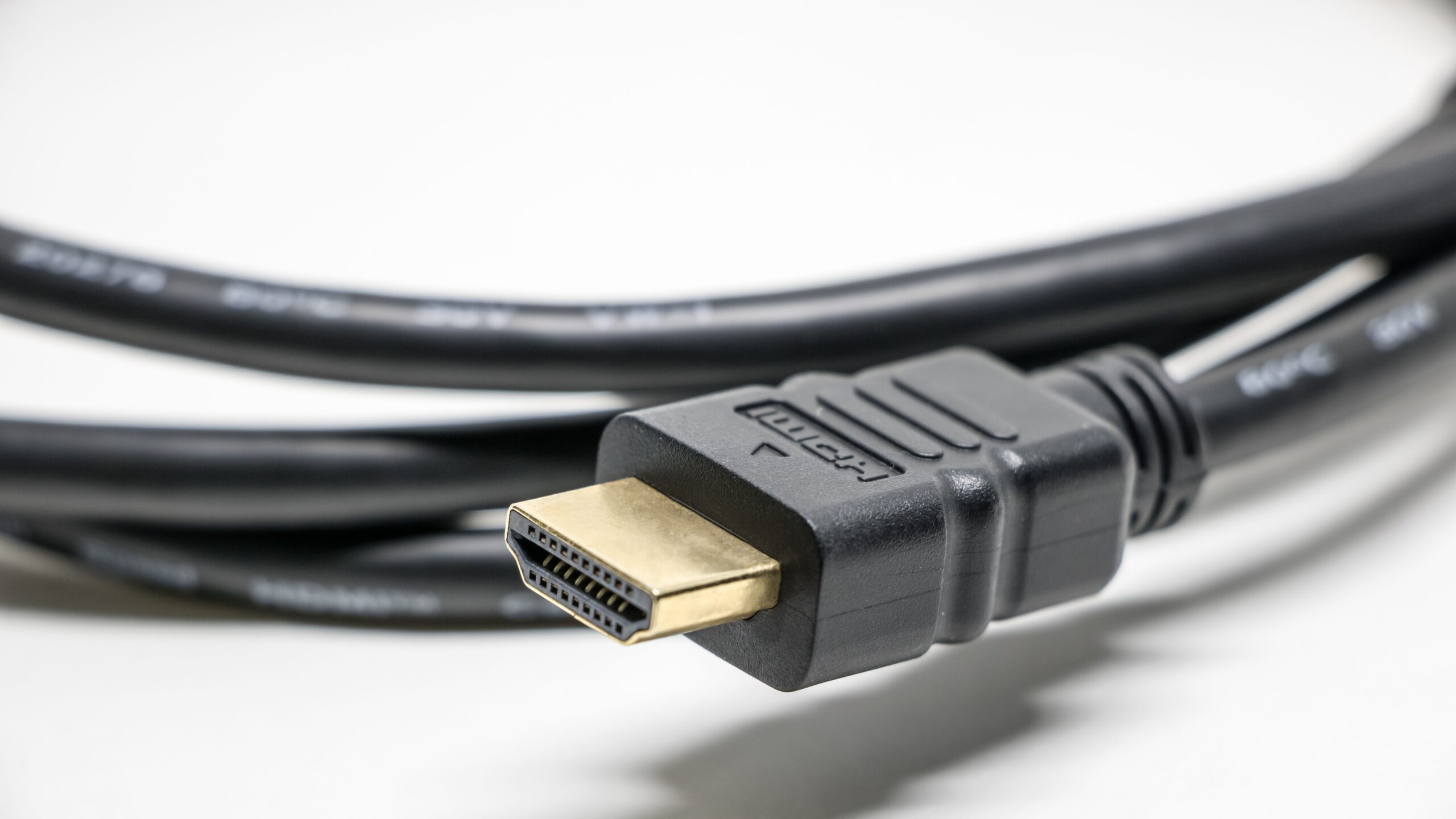
If the screen goes black for a second and comes back, often with the monitor briefly showing “No signal”, the connection between the PC and the monitor is dropping out. Can an HDMI cable cause screen flickering? Yes, and so can a DisplayPort cable, especially at high resolutions and refresh rates.
- Reseat both ends of the cable, then try a different port on the graphics card and on the monitor.
- Plug into the graphics card, not the motherboard, if your PC has a separate graphics card. The ports on the motherboard are for the processor’s own graphics.
- Check the cable can carry the signal. HDMI Licensing certifies Premium High Speed HDMI cables for 4K at 60Hz and up to 18Gbps, and Ultra High Speed HDMI cables for 4K at 120Hz and up to 48Gbps. An older cable that worked at 60Hz can drop out when you move to 120Hz or 144Hz. For DisplayPort 2.1 monitors running at the fastest speeds, VESA certifies DP40 and DP80 cables.
- Drop the refresh rate one step. If the dropouts stop at a lower refresh rate, the cable or port is at its limit. Try a shorter, certified cable before you blame the monitor.
- Docks and adapters add another link that can drop out. Test with the monitor plugged straight into the PC.
If you have two monitors and only one flickers, swap their cables. If the flicker moves with the cable, you have found it.
Monitor flickering when gaming: VRR flicker on OLED and VA screens
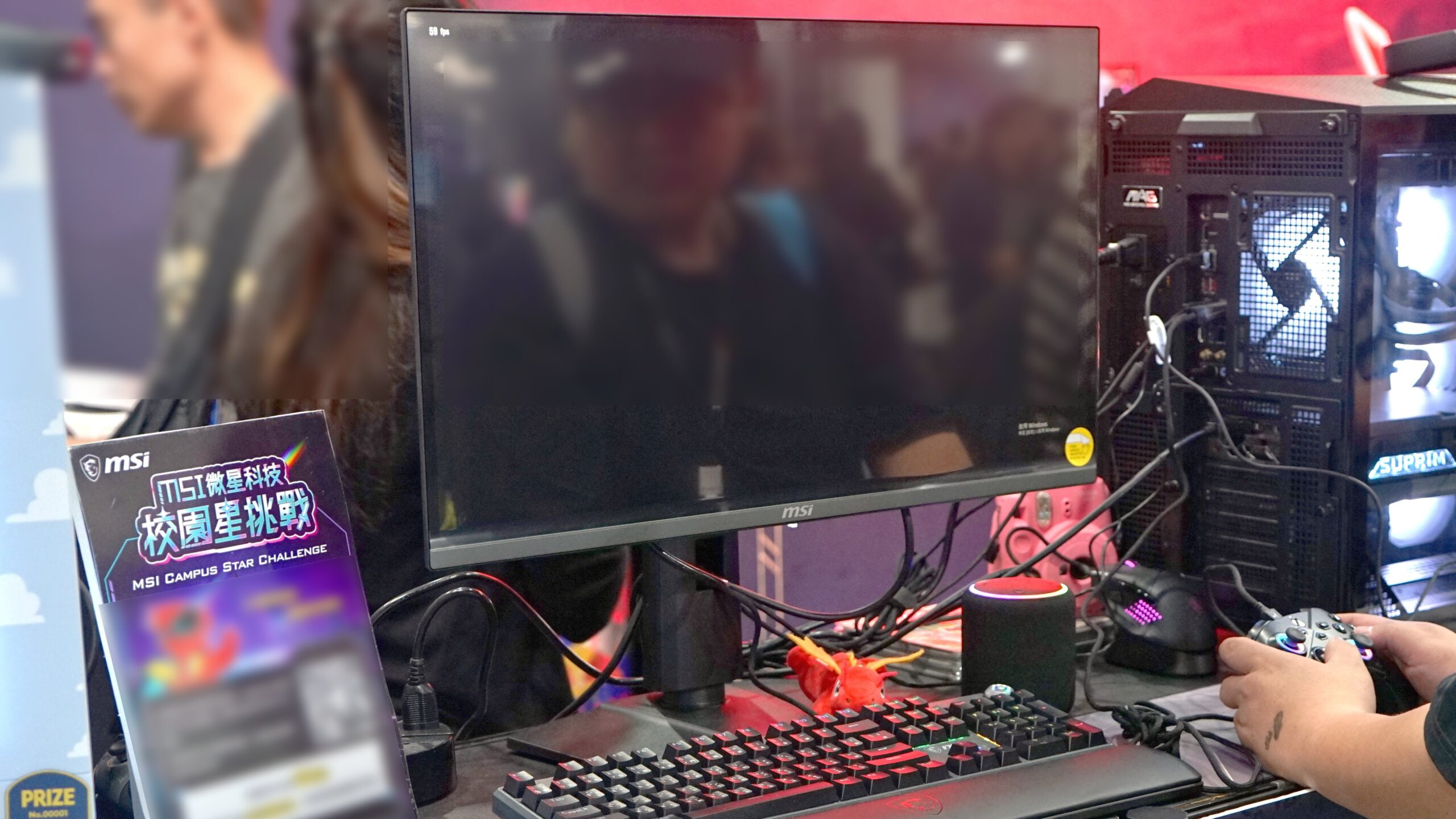
If your screen is flickering when playing games but perfect on the desktop, with the brightness pulsing or flashing, especially on dark scenes, menus and loading screens, you are probably seeing VRR flicker. VRR, sold as G-Sync or FreeSync, lets the monitor change its refresh rate to match your frame rate. TFTCentral explains that an OLED’s gamma, the way it turns each shade into brightness, is tuned for one fixed refresh rate. When VRR moves away from that rate, shades shift, most visibly in dark areas, and you see flicker. Large or sudden swings in frame rate set it off, and loading screens are a common trigger.
RTINGS built a test to cause it on purpose and found that all six popular OLED gaming monitors it tested flickered with dark content at unsteady frame rates. VA panels flickered too. The three IPS monitors showed only a small amount, which some of RTINGS’ testers could see and others could not.
The spec sheet will not warn you. We counted the monitors we list: almost all OLED models support VRR, and about half also describe themselves as flicker-free.
How to reduce VRR flicker:
- Cap your frame rate a little below the monitor’s maximum, with the limiter in your graphics driver or in the game. TFTCentral and RTINGS both say steadier frame times mean less flicker.
- Lower the game’s settings so the frame rate swings less.
- Ignore loading screens. TFTCentral suggests waiting until you are past them before deciding whether flicker is a problem.
- Turn VRR off in the game, the driver or the monitor’s menu. TFTCentral says this removes VRR flicker completely. You may then see tearing, which V-Sync fixes.
If you are still choosing a monitor and flicker bothers you, our guide to choosing a gaming monitor and our look at OLED monitors cover the trade-offs. If you play on a PS5, our PS5 monitor guide names the OLEDs testers rate for it and treats VRR flicker as one of their catches.
PWM flicker you cannot see, and what a flicker-free monitor means
Some monitors dim the backlight by switching it on and off very fast. This is called pulse width modulation, or PWM. TFTCentral explains that at lower brightness the backlight spends longer switching off, and that low-frequency PWM has been linked to eye strain and headaches in some people, even when they cannot consciously see any flicker.
“Flicker-free” on a spec sheet means the backlight does not use PWM to dim, or uses it at a very high frequency. It is about the backlight, not about VRR flicker in games.
A rough check with your phone, often suggested on forums: turn the monitor’s brightness down, point your phone camera at the screen and look at the camera view. Dark bands rolling across the image suggest PWM. This rough version of the camera test is not conclusive, because phone cameras vary. TFTCentral describes a more reliable version with a camera set to a slow shutter speed, moved across a thin line on the screen, which turns the flicker into a countable pattern.
If PWM bothers you: TFTCentral suggests setting the monitor’s own brightness to maximum, where PWM is often absent, and lowering brightness with your graphics card’s colour settings instead. The real fix is a monitor reviewed as flicker-free. TFTCentral keeps a database of tested flicker-free models, and RTINGS measures flicker in every monitor review.
Flickering lines, pixels and dots on a monitor
Flickering lines, sparkling pixels or dots that come and go follow the same two tests.
- They show in the monitor’s menu or self-test: a panel fault. No setting will fix it.
- They are missing from the self-test but appear with the PC connected: try another cable and port first. In the Tom’s Hardware thread, the owner suspected the lines only appeared over HDMI.
- They show in a screenshot: the graphics card or its driver is drawing them. Update or roll back the driver, then test the graphics card in another PC if you can.
Lines that stay put, rather than flicker, need a different test. Our guide to black lines on a monitor or laptop screen covers it, and our guide to white spots and dead pixels covers single dots.
Laptop screen flickering
On a laptop, the screen’s cable runs through the hinge, and many laptops use power-saving features that desktop monitors do not. Three checks cover most cases:
- Panel Self Refresh. Intel’s fix for a flickering laptop screen is to turn off Panel Self Refresh in Intel Graphics Command Center, then lower the resolution or refresh rate if that is not enough.
- The lid test. Move the lid slowly. If the flicker changes with the angle, the hinge cable is the likely fault.
- The startup test. If the flicker shows on the maker’s startup or BIOS screens, before Windows loads, it is hardware.
We have brand guides that go through each maker’s own tools: HP laptop screen problems, Lenovo laptop screen problems and the Surface Pro screen guide.
How to tell if your monitor is dying, and when to replace it
Signs that the monitor itself is failing, rather than the PC or the cable:
- The flicker shows in the monitor’s own menu or self-test.
- It flickers or goes dark with a different PC and a different cable.
- It happens whatever you set the refresh rate, resolution or brightness to.
Dell’s rule is the clearest: if the fault shows in the self-test, the monitor needs a repair. The usual suspects inside are the backlight, the power board and the panel. Repair guides such as iFixit’s show that failed capacitors on a monitor’s power board can be replaced, but the board carries mains voltage, so it is not a job for a beginner.
Check your rights before you pay. Most monitors come with a manufacturer warranty, and in the UK the Consumer Rights Act 2015 gives you the right to reject a faulty item within 30 days. For the first six months, a fault is presumed to have been there when it was delivered unless the retailer can show otherwise.
Outside warranty, get a repair quote and compare it with the price of a new monitor before you decide. If you replace it, our QHD vs 4K guide helps with the size and resolution question, and you can browse our monitors.
What we would actually do
- Run both tests first. Task Manager tells you driver or app. The monitor’s menu tells you PC or monitor. Two minutes, and you skip most of the wrong fixes.
- Signal dropouts: swap the cable for a certified one before anything else. It is the cheapest part in the chain.
- Flicker only in games on an OLED or VA monitor: cap the frame rate a few frames below the maximum and see if you can live with what is left. If not, turn VRR off.
- Tired eyes and no visible flicker: try the phone test at low brightness. If it shows bands, raise the monitor’s brightness and dim through the graphics settings instead.
- The menu flickers too: stop troubleshooting the PC. Check the warranty and your UK rights.
Quick answers
Usually a display driver, an incompatible app, a loose or under-rated cable, or a refresh rate the monitor does not handle well. In games on OLED and VA monitors, VRR is a common cause. Open Task Manager: if it flickers too, the driver is the likely cause; if it does not, an app is. If the monitor’s own menu flickers, the monitor is faulty.
Press Windows + Ctrl + Shift + B to reset the graphics driver, then update or roll back the driver in Device Manager. Reseat or replace the cable and try another port. Try a lower refresh rate. In games, cap the frame rate or turn off G-Sync or FreeSync. If the monitor’s own menu flickers, it needs a repair.
The flicker shows in the monitor’s own settings menu or self-test, it happens with a different PC and cable, and it does not change with the refresh rate, resolution or brightness. Any of these points to the monitor itself, usually the backlight, power board or panel.
Yes. A loose, damaged or under-rated HDMI cable can make the screen flicker or drop to black. For 4K at 120Hz, use a certified Ultra High Speed HDMI cable, which is tested for up to 48Gbps. If the flicker stops at a lower refresh rate, the cable is a likely suspect.
It is not where to start. If the flicker started right after you added or changed RAM, reseat the sticks and test with the memory’s XMP or EXPO profile turned off. Otherwise, check the driver, the cable and the refresh rate first, because they are far more likely.
On OLED and VA monitors it is usually VRR flicker: G-Sync or FreeSync reacting to an unsteady frame rate, most visible on dark scenes and loading screens. Cap your frame rate a little below the monitor’s maximum, or turn VRR off. If the taskbar flickers over the game, try turning off transparency effects and overlays.
Often not. A lot of flicker comes from a driver, a cable or a setting and costs nothing to fix. It is serious when the monitor’s own menu or self-test flickers too, because that means the monitor is failing. Check your warranty before paying for a repair.
A monitor whose backlight does not use PWM to dim, or uses it at a very high frequency, so the light does not switch on and off at a rate that can cause eye strain. The label covers the backlight only. It says nothing about VRR flicker in games.
How we know
We have not bench-tested monitors for flicker. The Task Manager test and the Windows fixes come from Microsoft’s support pages, the self-test from Dell, and the laptop fix from Intel. The VRR findings come from RTINGS’ research article of April 2024 and TFTCentral’s OLED VRR testing of June 2025, and the PWM explanation and camera test from TFTCentral. The cable figures come from HDMI Licensing and TFTCentral’s DisplayPort guide, and the taskbar suggestions and the screenshot test from user threads on Microsoft’s Q&A forum and Tom’s Hardware. The chart is our own count of the spec text on every published monitor listing on hardvance.co.uk. That text is our own listing copy, generated from supplier and manufacturer data, so the chart records what the listings claim rather than what each monitor does. Search figures come from DataForSEO. All were read on 12 October 2026.
Sources
- Troubleshoot screen flickering in Windows, Microsoft Support. The Task Manager test, Windows + Ctrl + Shift + B and the driver steps.
- How to Run a Diagnostic Test on a Dell Monitor, Dell. The built-in self-test and what its result means.
- VRR Flicker Problem In Monitors: Six Popular Gaming OLEDs All Have This Issue, RTINGS, April 2024. OLED, VA and IPS results and the frame rate cap.
- Exploring and Testing OLED VRR Flicker, TFTCentral, 5 June 2025. Why VRR flicker happens, loading screens, and how to reduce it.
- Pulse Width Modulation (PWM), TFTCentral. How PWM dims a backlight, the eye strain link and the camera test.
- Flicker Free Monitor Database, TFTCentral.
- HDMI Cables: Different Cable Types, HDMI Licensing Administrator. Premium High Speed (18Gbps, 4K60) and Ultra High Speed (48Gbps, 4K120) certification.
- A Guide to DisplayPort 2.1, TFTCentral. UHBR speeds and DP40 and DP80 cables.
- How to Fix a Flickering Screen with Intel Graphics, Intel Support. Panel Self Refresh on laptops.
- Taskbar flickering after Windows 11 upgrade, Microsoft Q&A. Transparency, overlays and GPU scheduling suggestions.
- Thin black horizontal lines flickering on monitor, Tom’s Hardware forum. The screenshot test and the HDMI case.
- Repairing an LCD Display with failed capacitors, iFixit.
- Consumer Rights Act 2015, section 19 and section 22, legislation.gov.uk.
- Spec-sheet counts: every published monitor listing on hardvance.co.uk, 12 October 2026. Search figures: DataForSEO, UK, August 2026.
- Lead photograph: Computer on the table by Ron Lach, Pexels, cropped to 16:9 by us. Dark room: Man sits by computer in dark room by Phil Desforges, Pexels. HDMI cable: Close-up shot of an HDMI cable by Srattha Nualsate, Pexels, cropped by us. OLED monitor: MSI MAG 272UP QD-OLED X24 at MSI’s booth by Solomon203, Wikimedia Commons, CC BY-SA 4.0, cropped by us.
About Hardvance Team
The Hardvance Team is the editorial team at Hardvance, a UK computer and electronics retailer based in Mildenhall, Suffolk. We build and upgrade PCs and sell laptops, phones, networking gear, monitors and printers, and our guides cover the same ground. Every guide names its sources and explains how we checked the figures, and we say plainly when something is our opinion rather than a tested result.
View all posts by Hardvance Team